key HONDA CIVIC 2022 Owner's Guide
[x] Cancel search | Manufacturer: HONDA, Model Year: 2022, Model line: CIVIC, Model: HONDA CIVIC 2022Pages: 700, PDF Size: 13.98 MB
Page 327 of 700
326
uuAudio System Basic Operation uAndroid Auto
Features
Android Auto
When you connect an Android phone to the audio system via the USB port or
wirelessly, Android Auto is automatically initiated. When connected via Android
Auto, you can use the audio/information screen to access the Phone, Google Maps
(Navigation), and Google Now functions. When you first use Android Auto, a
tutorial will appe ar on the screen.
We recommend that you complete this tuto rial while safely parked before using
Android Auto.
2 USB Port(s) P. 231
2 Auto Pairing Connection P. 327
•Maps
Display Google Maps and use the navigation function just as you would with your
Android phone. When the vehicle is in motion, it is not possible to make keyboard
entries. Stop the vehicle in a safe location to undertake a search or provide other
inputs.
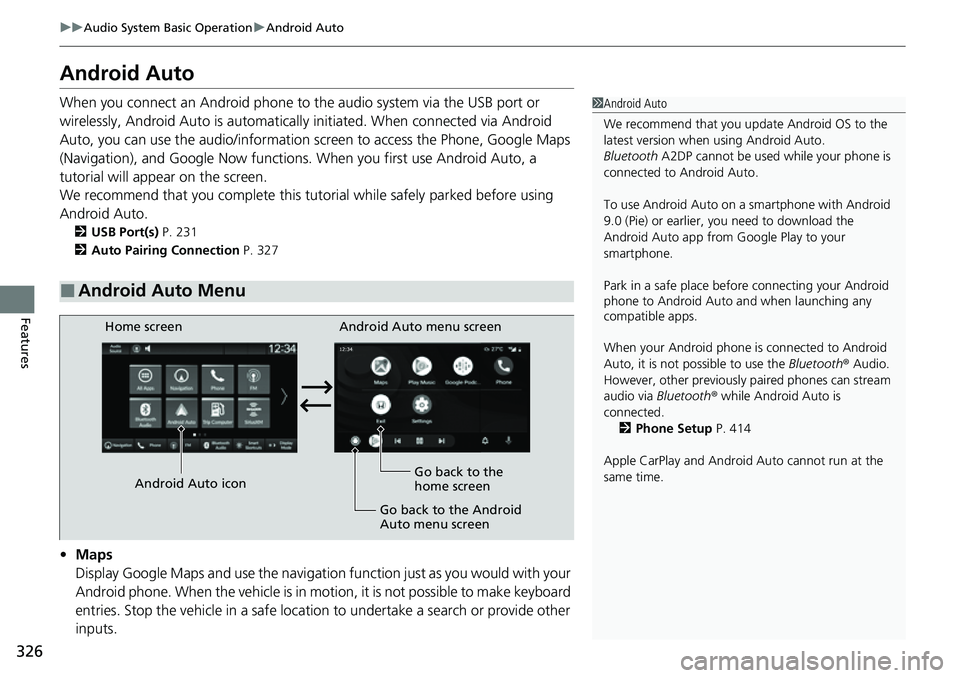
■Android Auto Menu
1 Android Auto
We recommend that you upda te Android OS to the
latest version when using Android Auto.
Bluetooth A2DP cannot be used while your phone is
connected to Android Auto.
To use Android Auto on a smartphone with Android
9.0 (Pie) or earl ier, you need to download the
Android Auto app from Google Play to your
smartphone.
Park in a safe place befo re connecting your Android
phone to Android Auto and when launching any
compatible apps.
When your Android phone is connected to Android
Auto, it is not possible to use the Bluetooth® Audio.
However, other previously paired phones can stream
audio via Bluetooth ® while Android Auto is
connected. 2 Phone Setup P. 414
Apple CarPlay and Android Auto cannot run at the
same time.
Android Auto menu screen
Home screen
Android Auto icon Go back to the
home screen
Go back to the Android
Auto menu screen
Page 378 of 700
377
uuCustomized Features u
Continued
Features
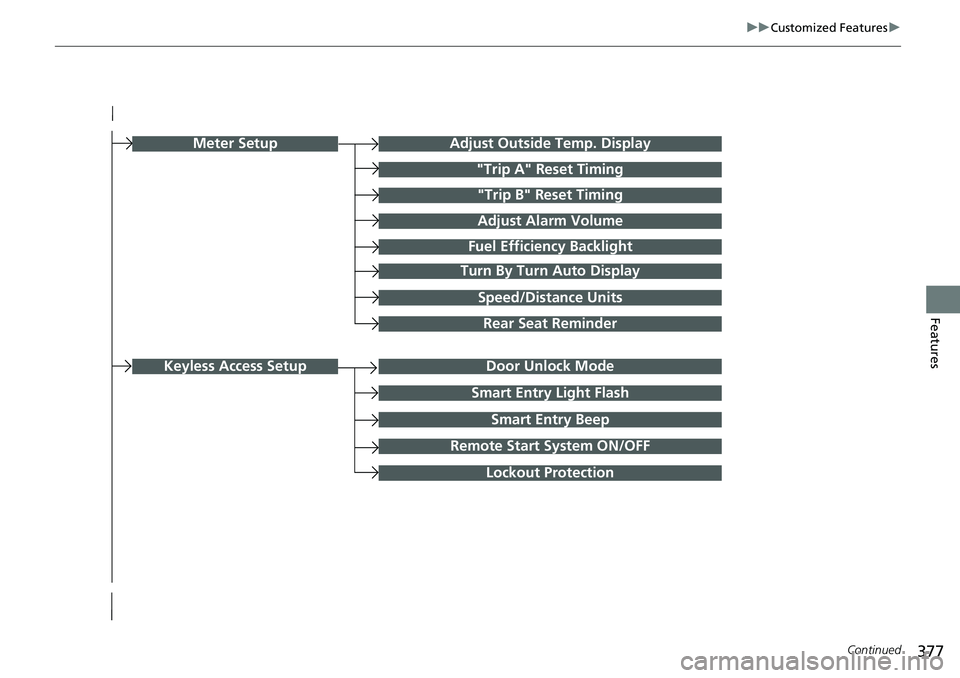
Turn By Turn Auto Display
Speed/Distance Units
Smart Entry Light Flash
Rear Seat Reminder
Door Unlock Mode
Smart Entry Beep
Remote Start System ON/OFF
Lockout Protection
Keyless Access Setup
Meter SetupAdjust Outside Temp. Display
"Trip A" Reset Timing
"Trip B" Reset Timing
Adjust Alarm Volume
Fuel Efficiency Backlight
Page 379 of 700
378
uuCustomized Features u
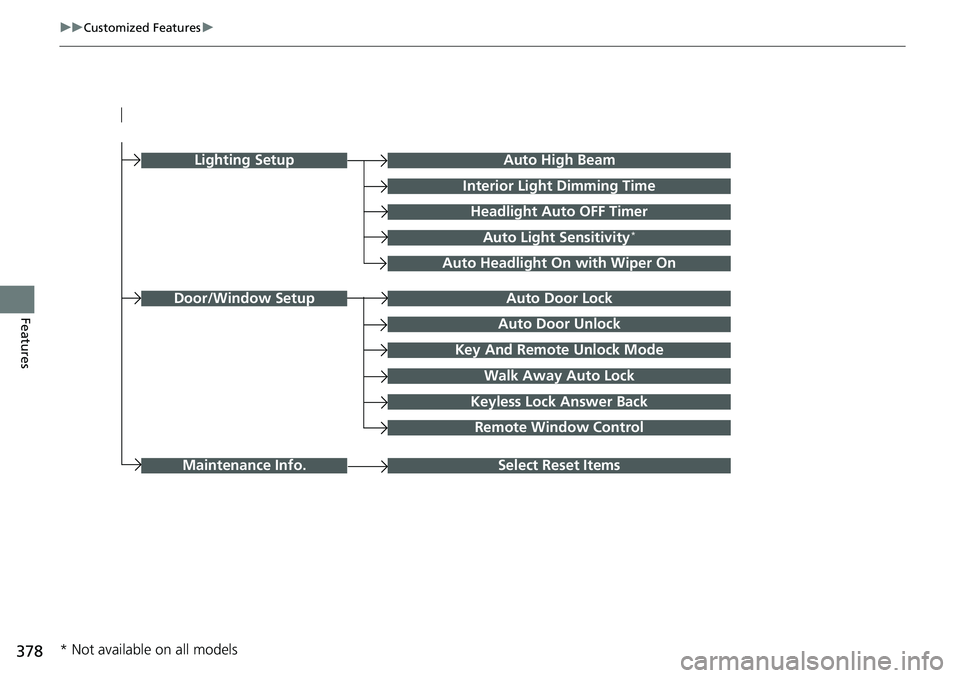
FeaturesAuto Door Unlock
Auto Door Lock
Key And Remote Unlock Mode
Walk Away Auto Lock
Keyless Lock Answer Back
Door/Window Setup
Lighting SetupAuto High Beam
Interior Light Dimming Time
Headlight Auto OFF Timer
Auto Light Sensitivity*
Auto Headlight On with Wiper On
Select Reset ItemsMaintenance Info.
Remote Window Control
* Not available on all models
Page 383 of 700
382
uuCustomized Features u
Features
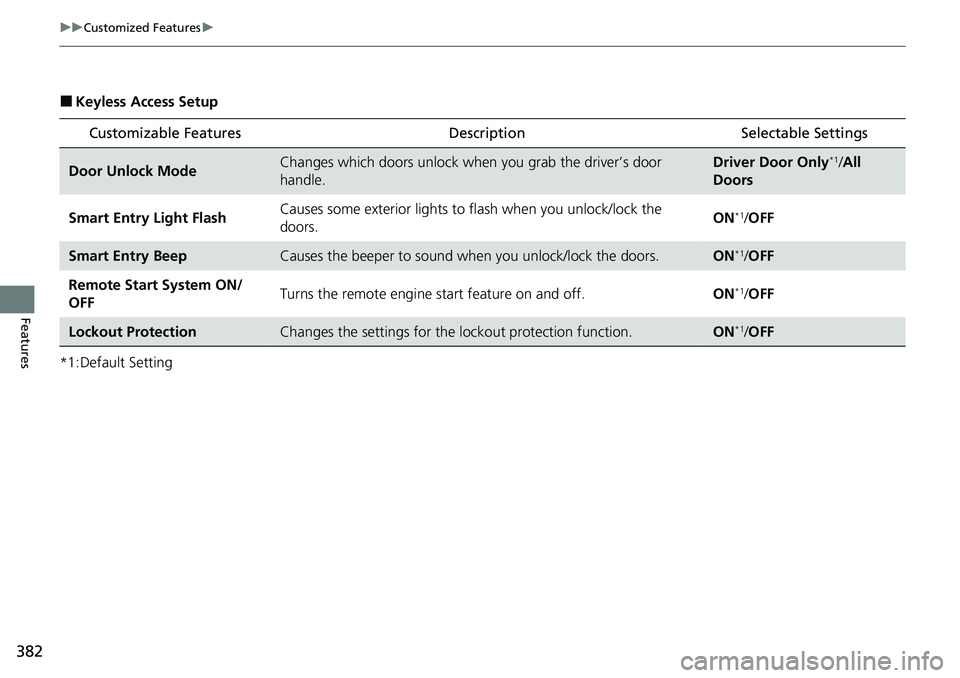
■Keyless Access Setup
*1:Default Setting
Customizable Features DescriptionSelectable Settings
Door Unlock ModeChanges which doors unlock when you grab the driver’s door
handle.Driver Door Only*1/All
Doors
Smart Entry Light Flash Causes some exterior lights to flash when you unlock/lock the
doors. ON
*1/
OFF
Smart Entry BeepCauses the beeper to sound wh en you unlock/lock the doors.ON*1/OFF
Remote Start System ON/
OFF Turns the remote engine start feature on and off.
ON
*1/OFF
Lockout ProtectionChanges the settings for the lockout protection function.ON*1/OFF
Page 385 of 700
384
uuCustomized Features u
Features
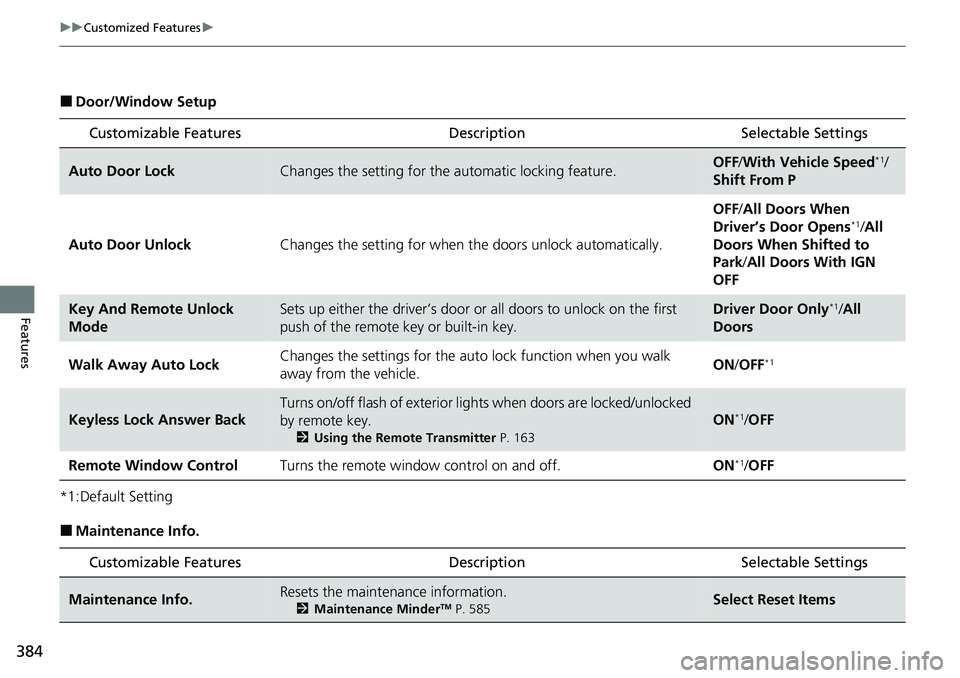
■Door/Window Setup
*1:Default Setting
■Maintenance Info.
Customizable Features DescriptionSelectable Settings
Auto Door LockChanges the setting for the automatic locking feature.OFF/With Vehicle Speed*1/
Shift From P
Auto Door Unlock Changes the setting for when the doors unlock automatically. OFF
/All Doors When
Driver’s Door Opens
*1/ All
Doors When Shifted to
Park /All Doors With IGN
OFF
Key And Remote Unlock
ModeSets up either the driver’s door or all doors to unlock on the first
push of the remote key or built-in key.Driver Door Only*1/ All
Doors
Walk Away Auto Lock Changes the settings for the auto
lock function when you walk
away from the vehicle. ON
/OFF
*1
Keyless Lock Answer Back
Turns on/off flash of exterior lights when doors are locked/unlocked
by remote key.
2 Using the Remote Transmitter P. 163
ON*1/OFF
Remote Window Control Turns the remote window control on and off. ON
*1/OFF
Customizable Features Description Selectable Settings
Maintenance Info.Resets the maintenance information.
2 Maintenance MinderTM P. 585Select Reset Items
Page 393 of 700
392
uuBluetooth ® HandsFreeLink ®u HFL Menus
Features
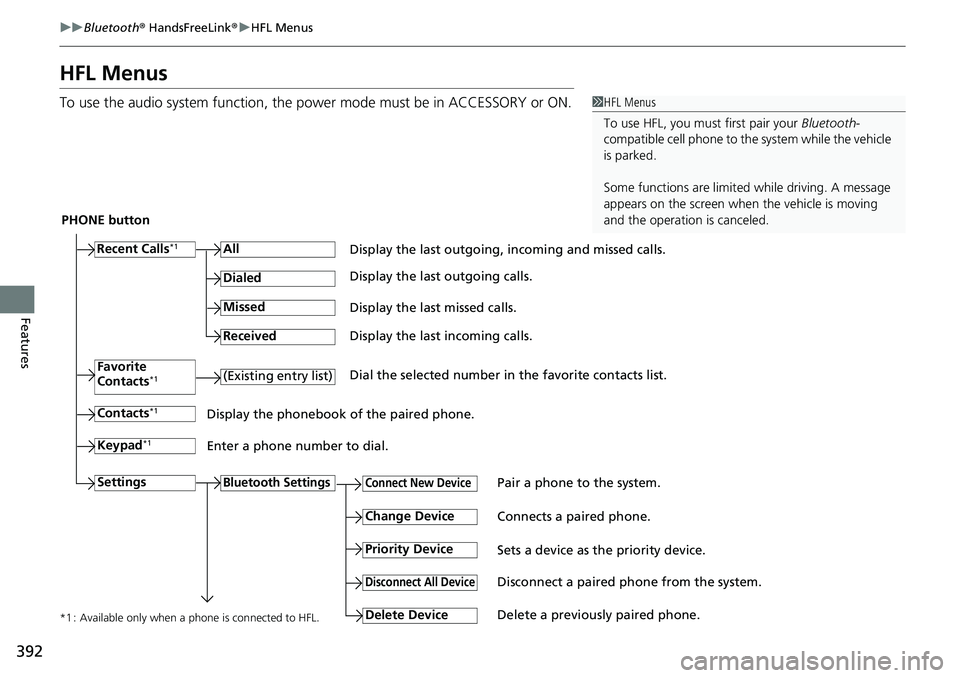
HFL Menus
To use the audio system function, the po wer mode must be in ACCESSORY or ON.1HFL Menus
To use HFL, you must first pair your Bluetooth-
compatible cell phone to th e system while the vehicle
is parked.
Some functions are limited while driving. A message
appears on the screen when the vehicle is moving
and the operation is canceled.
PHONE button
Recent Calls
*1All
Pair a phone to the system.Connect New Device
Change DeviceConnects a paired phone.
Priority Device
Sets a device as the priority device.
Bluetooth Settings
Keypad*1
Settings
Favorite
Contacts*1(Existing entry list)
Contacts*1
Dialed
Missed
Received
Display the last outgoing, incoming and missed calls.
Display the last outgoing calls.
Display the last missed calls.
Display the last incoming calls.
Dial the selected number in the favorite contacts list.
Display the phonebook of the paired phone.
Enter a phone number to dial.
Disconnect All DeviceDisconnect a paired phone from the system.
Delete Device
Delete a previously paired phone.*1 : Available only when a phone is connected to HFL.
Page 403 of 700
402
uuBluetooth ® HandsFreeLink ®u HFL Menus
Features
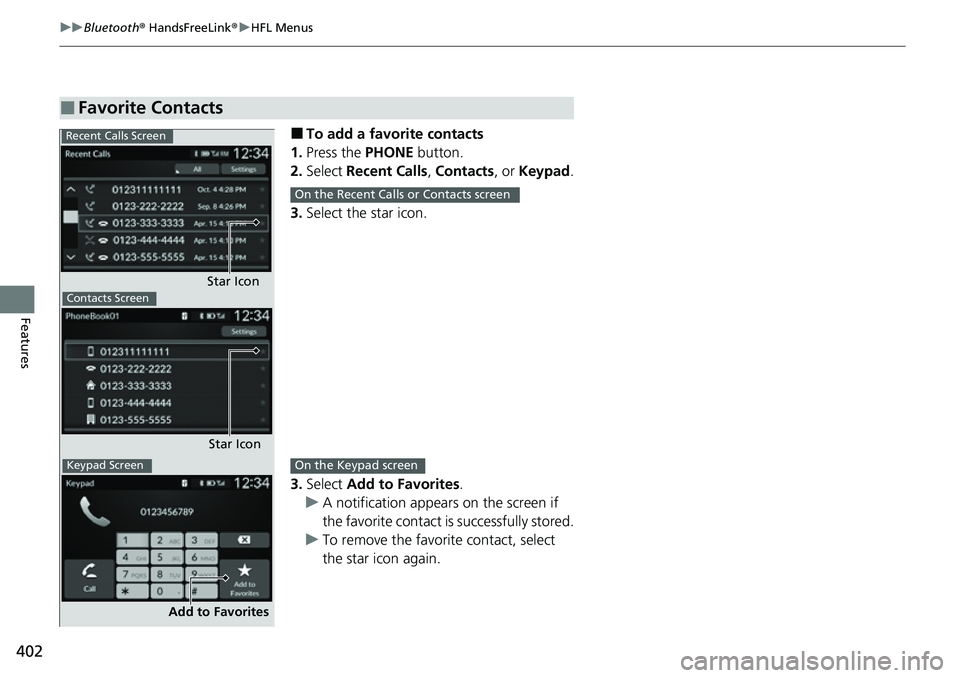
■To add a favorite contacts
1. Press the PHONE button.
2. Select Recent Calls , Contacts , or Keypad .
3. Select the star icon.
3. Select Add to Favorites .
u A notification appears on the screen if
the favorite contact is successfully stored.
u To remove the favorite contact, select
the star icon again.
■Favorite Contacts
Recent Calls Screen
Star IconContacts Screen
Star Icon
Keypad Screen
Add to Favorites
On the Recent Calls or Contacts screen
On the Keypad screen
Page 406 of 700
Continued405
uuBluetooth ® HandsFreeLink ®u HFL Menus
Features
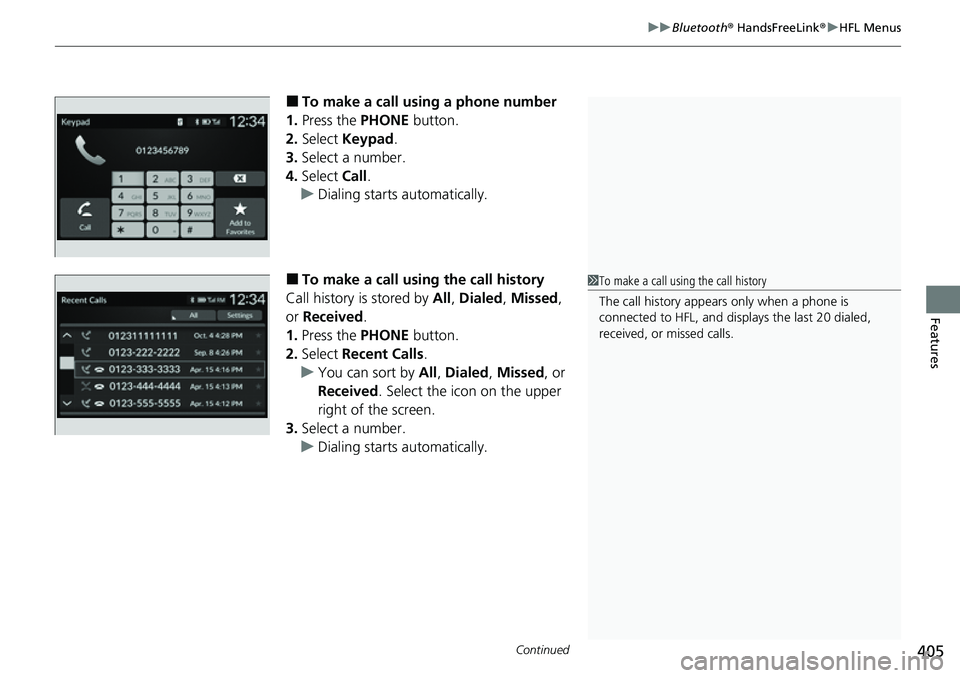
■To make a call using a phone number
1. Press the PHONE button.
2. Select Keypad .
3. Select a number.
4. Select Call.
u Dialing starts automatically.
■To make a call using the call history
Call history is stored by All, Dialed , Missed ,
or Received .
1. Press the PHONE button.
2. Select Recent Calls .
u You can sort by All, Dialed , Missed , or
Received . Select the icon on the upper
right of the screen.
3. Select a number.
u Dialing starts automatically.1To make a call using the call history
The call history appears only when a phone is
connected to HFL, and disp lays the last 20 dialed,
received, or missed calls.
Page 409 of 700
uuBluetooth ® HandsFreeLink ®u HFL Menus
408
Features
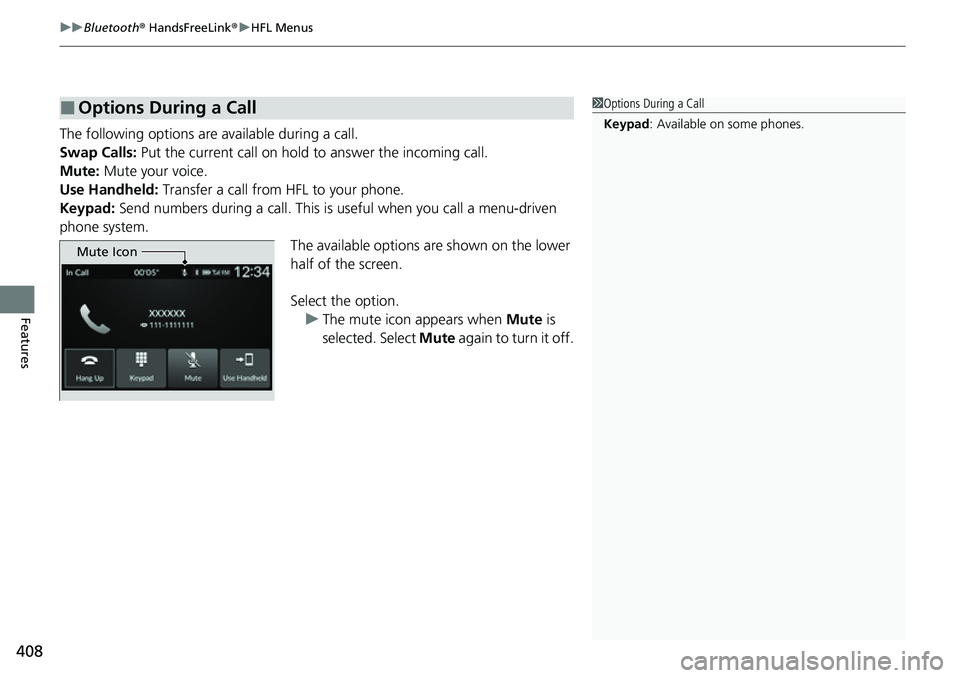
The following options are available during a call.
Swap Calls: Put the current call on hold to answer the incoming call.
Mute: Mute your voice.
Use Handheld: Transfer a call from HFL to your phone.
Keypad: Send numbers during a call. This is useful when you call a menu-driven
phone system. The available options are shown on the lower
half of the screen.
Select the option. u The mute icon appears when Mute is
selected. Select Mute again to turn it off.
■Options During a Call1Options During a Call
Keypad : Available on some phones.
Mute Icon
Page 414 of 700
413
uuBluetooth ® HandsFreeLink ®u HFL Menus
Continued
Features
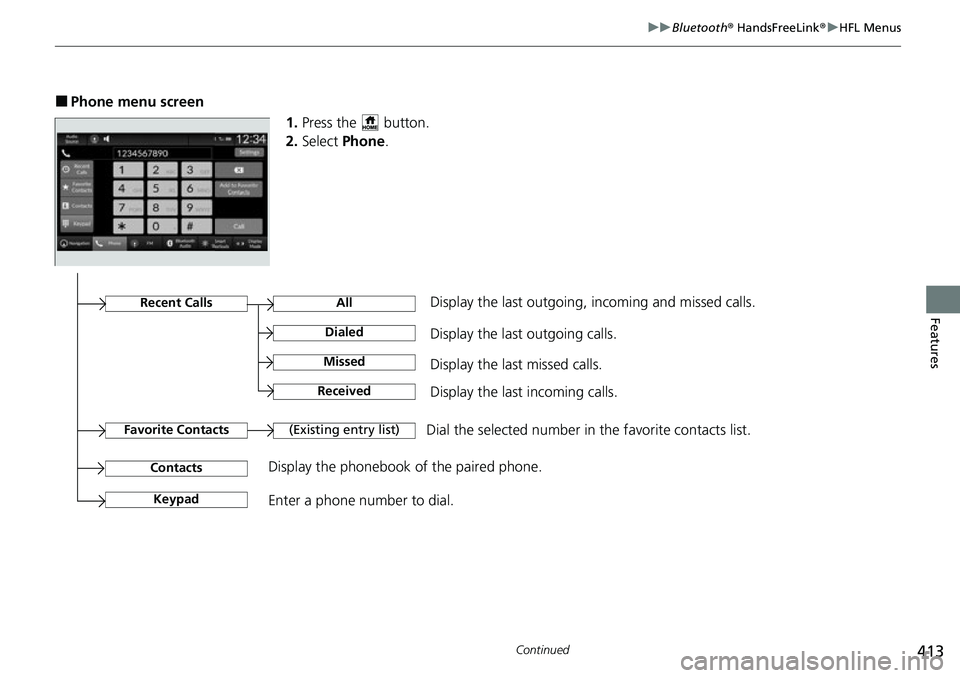
■Phone menu screen
1.Press the button.
2. Select Phone .
Dial the selected number in the favorite contacts list.
All
(Existing entry list)
Display the last outgoing calls.
Recent CallsDisplay the last outgoing, incoming and missed calls.
Favorite Contacts
Contacts
Keypad
Display the phonebook of the paired phone.
Enter a phone number to dial.
Dialed
Display the last missed calls.Missed
Display the last incoming calls.Received