remote control HONDA CIVIC 2022 Owner's Manual
[x] Cancel search | Manufacturer: HONDA, Model Year: 2022, Model line: CIVIC, Model: HONDA CIVIC 2022Pages: 700, PDF Size: 13.98 MB
Page 178 of 700
Continued177
uuWindows uOpening/Closing the Power Windows
Controls
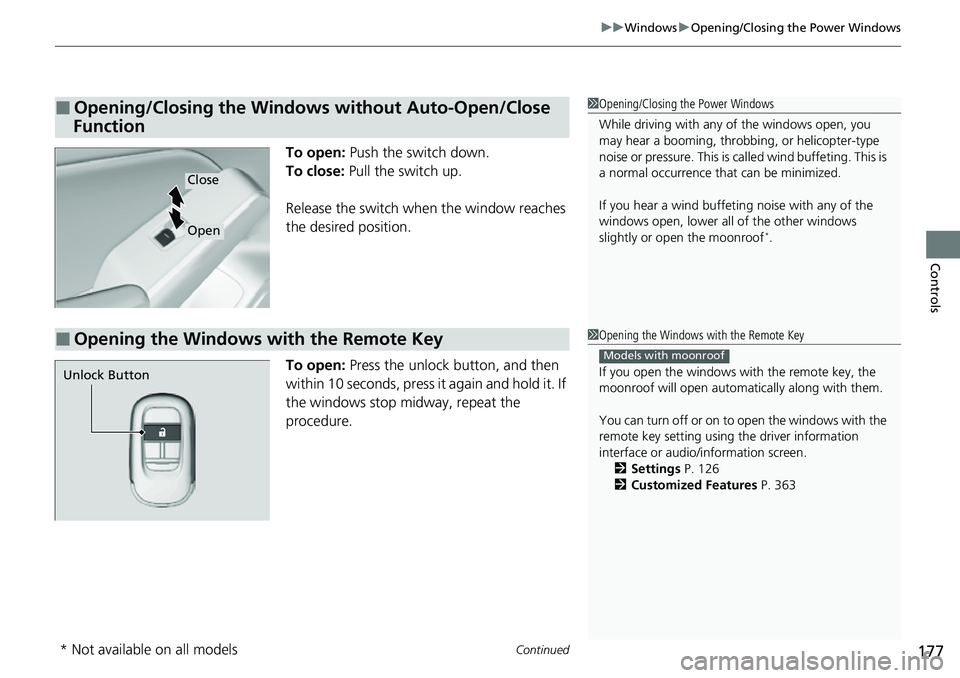
To open: Push the switch down.
To close: Pull the switch up.
Release the switch when the window reaches
the desired position.
To open: Press the unlock button, and then
within 10 seconds, press it again and hold it. If
the windows stop midway, repeat the
procedure.
■Opening/Closing the Windows without Auto-Open/Close
Function1 Opening/Closing the Power Windows
While driving with any of the windows open, you
may hear a booming, throbbi ng, or helicopter-type
noise or pressure. This is ca lled wind buffeting. This is
a normal occurrence th at can be minimized.
If you hear a wind buffeti ng noise with any of the
windows open, lower all of the other windows
slightly or open the moonroof
*.
Close
Open
■Opening the Windows with the Remote Key1 Opening the Windows with the Remote Key
If you open the windows with the remote key, the
moonroof will open automati cally along with them.
You can turn off or on to open the windows with the
remote key setting using the driver information
interface or audio/ information screen.
2 Settings P. 126
2 Customized Features P. 363
Models with moonroof
Unlock Button
* Not available on all models
Page 180 of 700
179
Controls
Moonroof*
Opening/Closing the Moonroof
You can only operate the moonroof when the power mode is in ON. Use the switch
in the front of the ceiling to open and close the moonroof.
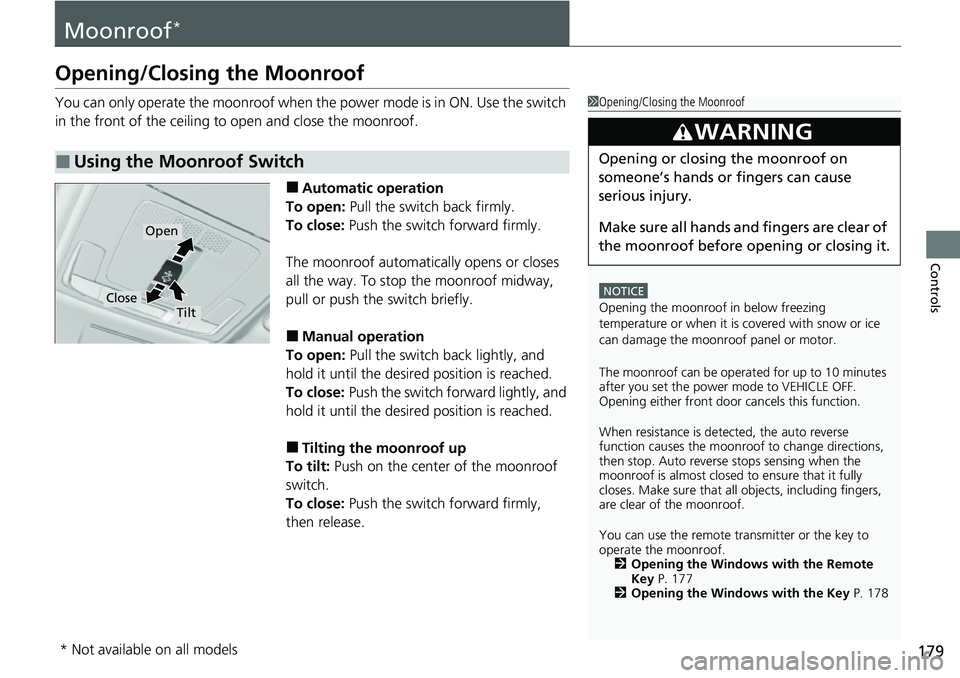
■Automatic operation
To open: Pull the switch back firmly.
To close: Push the switch forward firmly.
The moonroof automatically opens or closes
all the way. To stop the moonroof midway,
pull or push the switch briefly.
■Manual operation
To open: Pull the switch back lightly, and
hold it until the desired position is reached.
To close: Push the switch forward lightly, and
hold it until the desired position is reached.
■Tilting the moonroof up
To tilt: Push on the center of the moonroof
switch.
To close: Push the switch forward firmly,
then release.
■Using the Moonroof Switch
1 Opening/Closing the Moonroof
NOTICE
Opening the moonroof in below freezing
temperature or when it is covered with snow or ice
can damage the moonr oof panel or motor.
The moonroof can be opera ted for up to 10 minutes
after you set the power mode to VEHICLE OFF.
Opening either front door cancels this function.
When resistance is detected, the auto reverse
function causes the moonroof to change directions,
then stop. Auto reverse stops sensing when the
moonroof is almost closed to ensure that it fully
closes. Make sure that al l objects, including fingers,
are clear of the moonroof.
You can use the remote transmitter or the key to
operate the moonroof. 2 Opening the Windows with the Remote
Key P. 177
2 Opening the Windows with the Key P. 178
3WARNING
Opening or closing the moonroof on
someone’s hands or fingers can cause
serious injury.
Make sure all hands and fingers are clear of
the moonroof before opening or closing it.
Open
CloseTilt
* Not available on all models
Page 181 of 700
180
Controls
Operating the Switches Around the Steering Wheel
ENGINE START/STOP Button
■Changing the Power Mode1ENGINE START/STOP Button
ENGINE START/STOP Button Operating Range
You can start the engine when the remote key is
inside the vehicle.
The engine may also start if the remote key is close to
the door or window, even if it is outside the vehicle.
ON mode:
The ENGINE START/STOP button is on (in red), if the
engine is running.
If the battery of the remote key is getting low, the
engine may not start when you push the ENGINE
START/STOP button. If the engi ne does not start,
refer to the following link. 2 If the Remote Key Battery is Weak P. 649
Do not leave the power mode in ACCESSORY or ON
when you get out.
Operating Range
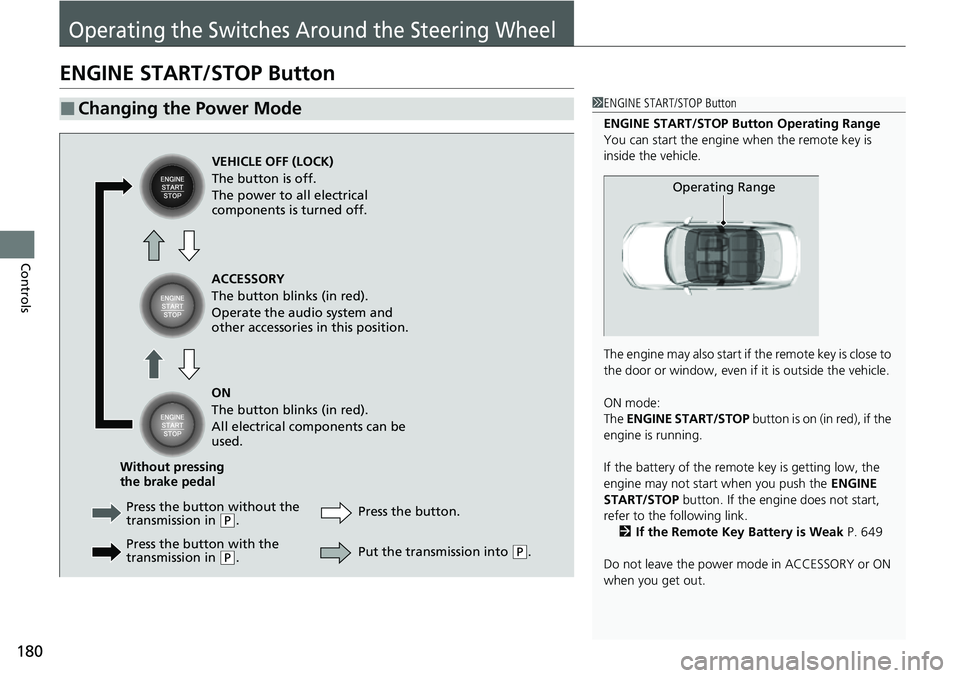
VEHICLE OFF (LOCK)
The button is off.
The power to all electrical
components is turned off.
Press the butto n without the
transmission in
( P.
Press the button with the
transmission in
( P. Press the button.
Without pressing
the brake pedal ACCESSORY
The button blinks (in red).
Operate the audio system and
other accessories in this position.
ON
The button blinks (in red).
All electrical components can be
used.
Put the transmission into (P.
Page 182 of 700
181
uuOperating the Switches Around the Steering Wheel uENGINE START/STOP Button
Controls
If you leave the vehicle for 30 to 60 minutes with the transmission in (P and the
power mode in ACCESSORY, the vehicle automa tically goes into the mode similar to
VEHICLE OFF (LOCK) to avoid draining the battery.
If you open the driver’s door when the power mode is in ACCESSORY, a warning
beep sounds.
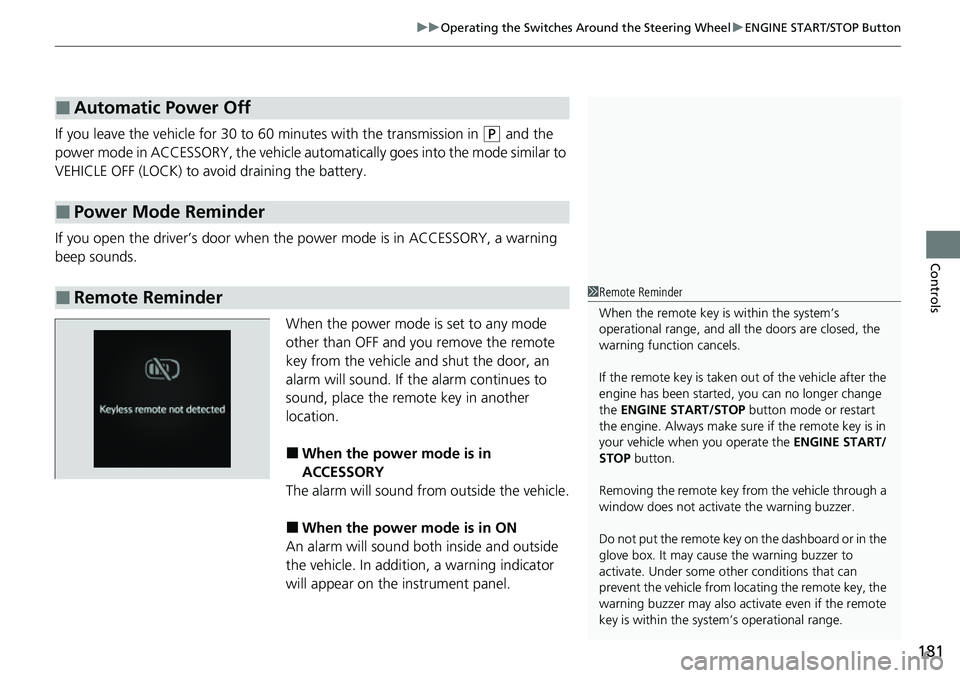
When the power mode is set to any mode
other than OFF and you remove the remote
key from the vehicle and shut the door, an
alarm will sound. If the alarm continues to
sound, place the remote key in another
location.
■When the power mode is in
ACCESSORY
The alarm will sound from outside the vehicle.
■When the power mode is in ON
An alarm will sound both inside and outside
the vehicle. In additi on, a warning indicator
will appear on the instrument panel.
■Automatic Power Off
■Power Mode Reminder
■Remote Reminder1 Remote Reminder
When the remote key is within the system’s
operational range, and all the doors are closed, the
warning function cancels.
If the remote key is taken out of the vehicle after the
engine has been started, you can no longer change
the ENGINE START/STOP button mode or restart
the engine. Always make sure if the remote key is in
your vehicle when you operate the ENGINE START/
STOP button.
Removing the remote key from the vehicle through a
window does not activate the warning buzzer.
Do not put the remote key on the dashboard or in the
glove box. It may cause the warning buzzer to
activate. Under some ot her conditions that can
prevent the vehicle from locating the remote key, the
warning buzzer may also activate even if the remote
key is within the syst em’s operational range.
Page 186 of 700
185
uuOperating the Switches Around the Steering Wheel uLight Switches
Controls
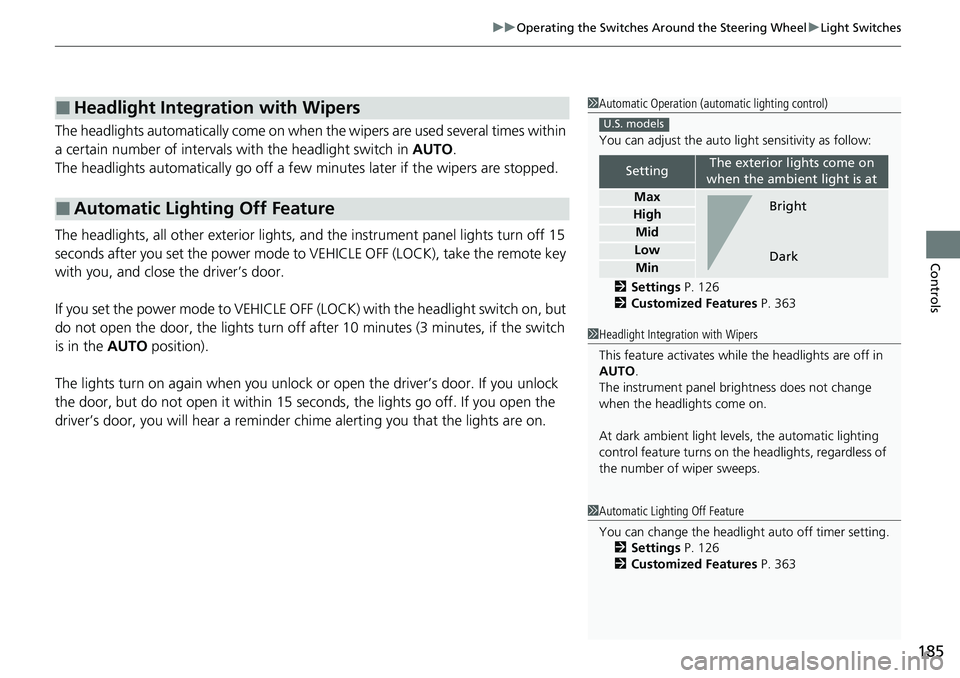
The headlights automatically come on when th e wipers are used several times within
a certain number of intervals with the headlight switch in AUTO.
The headlights automatically go off a few mi nutes later if the wipers are stopped.
The headlights, all other exterior lights, and the instrument panel lights turn off 15
seconds after you set the power mode to VEHICLE OFF (LOCK), take the remote key
with you, and close the driver’s door.
If you set the power mode to VEHICLE OFF (LOCK) with the headlight switch on, but
do not open the door, the lights turn off after 10 minutes (3 minutes, if the switch
is in the AUTO position).
The lights turn on again when you unlock or open the driver’s door. If you unlock
the door, but do not open it within 15 seconds, the lights go off. If you open the
driver’s door, you will hear a reminder chime alerting you that the lights are on.
■Headlight Integration with Wipers
■Automatic Lighting Off Feature
1 Automatic Operation (aut omatic lighting control)
You can adjust the auto li ght sensitivity as follow:
2 Settings P. 126
2 Customized Features P. 363
SettingThe exterior lights come on
when the ambient light is at
Max
High
Mid
Low
Min
U.S. models
Bright
Dark
1 Headlight Integration with Wipers
This feature activates while the headlights are off in
AUTO .
The instrument panel br ightness does not change
when the headlights come on.
At dark ambient light leve ls, the automatic lighting
control feature turns on the headlights, regardless of
the number of wiper sweeps.
1 Automatic Lighting Off Feature
You can change the headlight auto off timer setting.
2 Settings P. 126
2 Customized Features P. 363
Page 230 of 700
229
Features
This chapter describes how to operate technology features.
Audio SystemAbout Your Audio System ................ 230
USB Port(s) ....................................... 231
Audio System Theft Protection ......... 233
Audio Remote Controls .................... 234
Audio System Basic Operation ........ 237
Adjusting the Sound ........................ 238
Display Setup ................................... 239
Playing AM/FM Radio ....................... 240
Playing an iPod ................................ 242
Playing a USB Flash Drive ................. 245
Playing Bluetooth ® Audio ................. 248
Siri Eyes Free .................................... 252
Models with color audio system
Smartphone Voice Recognition ........ 253
Apple CarPlay .................................. 254
Android Auto................................... 258
Audio System Basic Operation ........ 262
Start Up ........................................... 263
Audio/Information Screen ................ 264
System Updates ............................... 275
Adjusting the Sound ........................ 280
Display Setup ................................... 281
Voice Control Operation .................. 283
Playing AM/FM Radio ....................... 286
Playing SiriusXM ® Radio ................... 290
Playing an iPod ................................ 301
Models with Display Audio
Playing a USB Flash Drive ................. 304
Playing Bluetooth ® Audio ................ 307
HondaLink ®..................................... 310
Smart Shortcuts ............................... 314
Wi-Fi Connection ............................. 317
Apple CarPlay .................................. 319
Android Auto .................................. 326
Audio Error Messages ...................... 332
General Information on the Audio System ............................................. 334
Customized Features ................ 355, 363
HomeLink ® Universal Transceiver
*... 386
Bluetooth® HandsFreeLink® ..... 389, 409
Refuel Recommend .......................... 428
* Not available on all models
Page 231 of 700
230
Features
Audio System
About Your Audio System
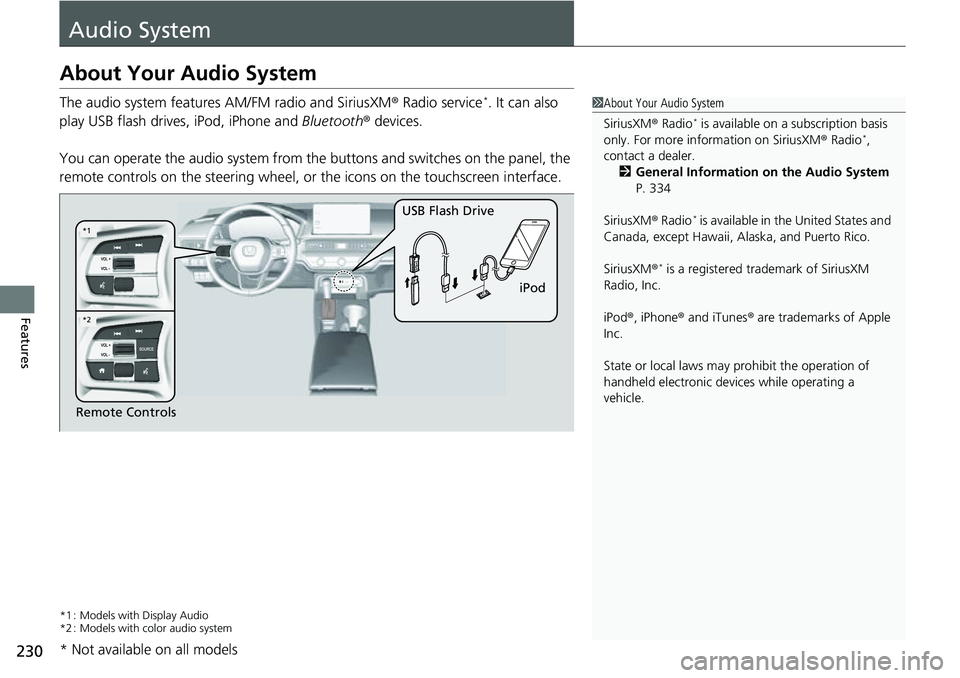
The audio system features AM/FM radio and SiriusXM® Radio service*. It can also
play USB flash drives, iPod, iPhone and Bluetooth® devices.
You can operate the audio system from the buttons and switches on the panel, the
remote controls on the steering wheel, or the icons on the touchscreen interface.
*1 : Models with Display Audio
*2 : Models with color audio system
1 About Your Audio System
SiriusXM ® Radio
* is available on a subscription basis
only. For more information on SiriusXM ® Radio*,
contact a dealer.
2 General Information on the Audio System
P. 334
SiriusXM ® Radio
* is available in the United States and
Canada, except Ha waii, Alaska, and Puerto Rico.
SiriusXM ®
* is a registered tra demark of SiriusXM
Radio, Inc.
iPod ®, iPhone ® and iTunes ® are trademarks of Apple
Inc.
State or local laws may pr ohibit the operation of
handheld electronic devices while operating a
vehicle.
Remote Controls iPod
USB Flash Drive
*2
*1
* Not available on all models
Page 235 of 700
234
uuAudio System uAudio Remote Controls
Features
Audio Remote Controls
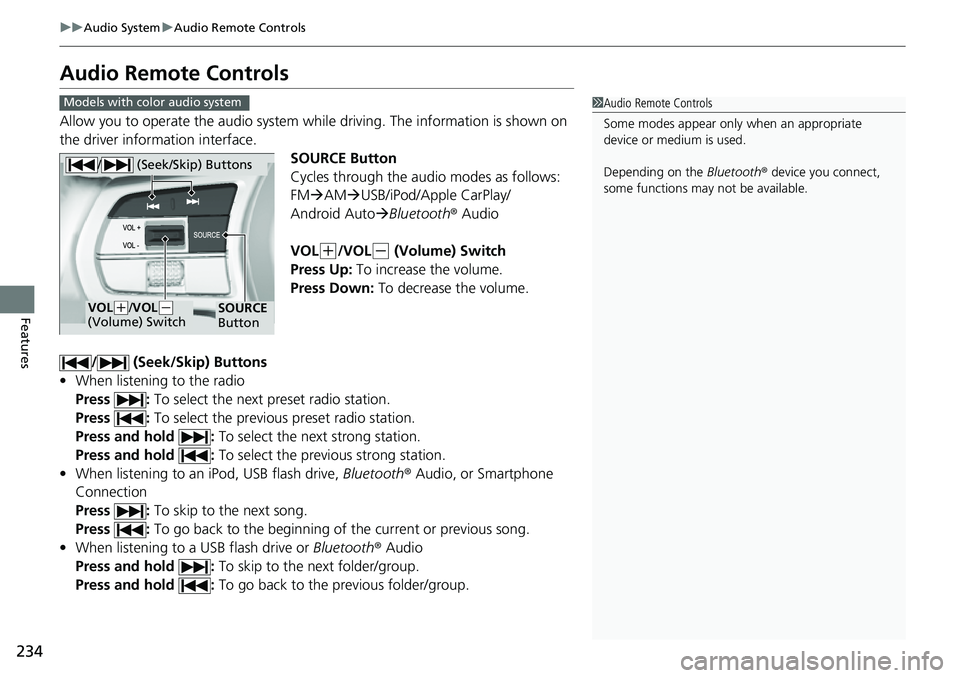
Allow you to operate the audio system wh ile driving. The information is shown on
the driver information interface.
SOURCE Button
Cycles through the audio modes as follows:
FMAM USB/iPod/Apple CarPlay/
Android Auto Bluetooth ® Audio
VOL
(+/VOL(- (Volume) Switch
Press Up: To increase the volume.
Press Down: To decrease the volume.
/ (Seek/Skip) Buttons
• When listening to the radio
Press : To select the next preset radio station.
Press : To select the previous preset radio station.
Press and hold : To select the next strong station.
Press and hold : To select the previous strong station.
• When listening to an iPod, USB flash drive, Bluetooth® Audio, or Smartphone
Connection
Press : To skip to the next song.
Press : To go back to the beginning of the current or previous song.
• When listening to a USB flash drive or Bluetooth® Audio
Press and hold : To skip to the next folder/group.
Press and hold : To go back to the previous folder/group.
1Audio Remote Controls
Some modes appear only when an appropriate
device or medium is used.
Depending on the Bluetooth® device you connect,
some functions may not be available.Models with color audio system
/ (Seek/Skip) Buttons
SOURCE
ButtonVOL( +/VOL(-
(Volume) Switch
Page 236 of 700
235
uuAudio System uAudio Remote Controls
Continued
Features
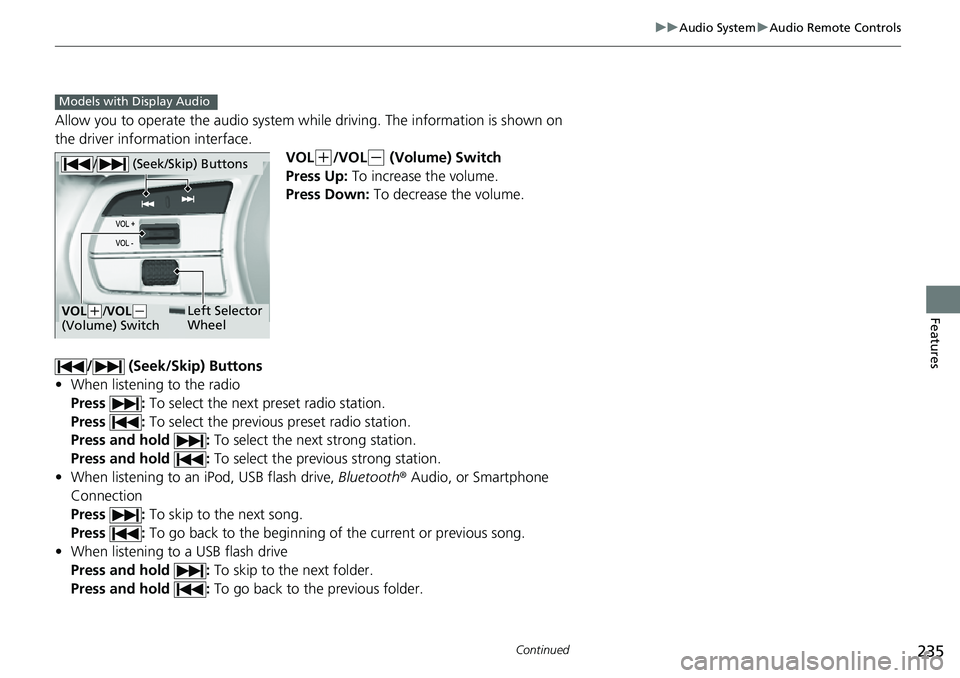
Allow you to operate the audio system whil e driving. The information is shown on
the driver information interface.
VOL
(+/VOL(- (Volume) Switch
Press Up: To increase the volume.
Press Down: To decrease the volume.
/ (Seek/Skip) Buttons
• When listening to the radio
Press : To select the next preset radio station.
Press : To select the previous preset radio station.
Press and hold : To select the next strong station.
Press and hold : To select the previous strong station.
• When listening to an iPod, USB flash drive, Bluetooth® Audio, or Smartphone
Connection
Press : To skip to the next song.
Press : To go back to the beginning of the current or previous song.
• When listening to a USB flash drive
Press and hold : To skip to the next folder.
Press and hold : To go back to the previous folder.
Models with Display Audio
/ (Seek/Skip) Buttons
Left Selector
WheelVOL(+/VOL(-
(Volume) Switch
Page 237 of 700
236
uuAudio System uAudio Remote Controls
Features
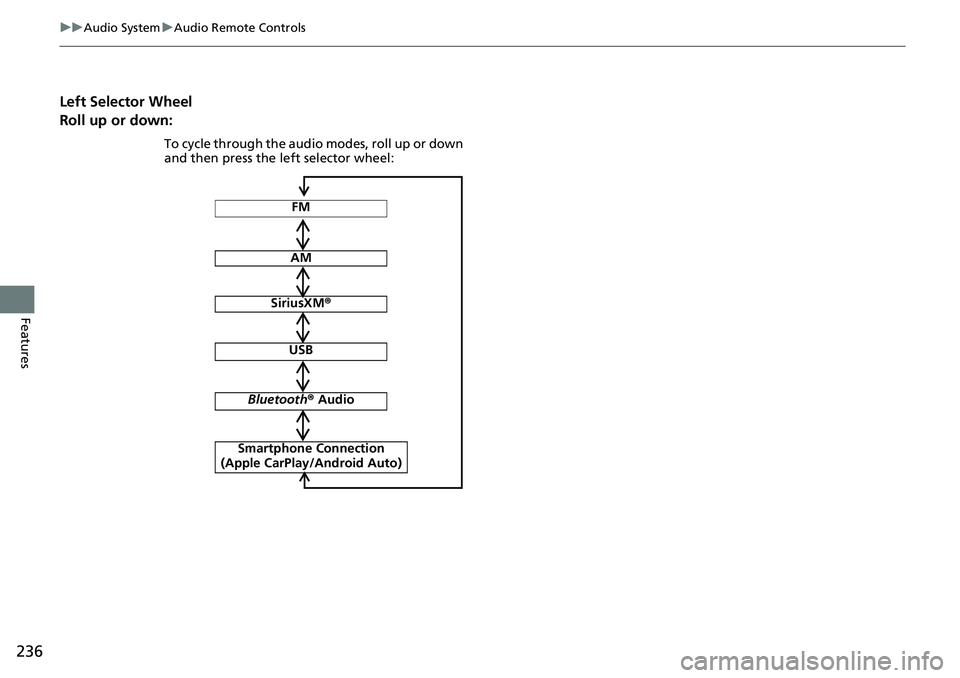
Left Selector Wheel
Roll up or down:
FM
AM
SiriusXM ®
USB
Bluetooth ® Audio
Smartphone Connection
(Apple CarPlay/Android Auto)
To cycle through the audio modes, roll up or down
and then press the left selector wheel: