wheel HONDA CIVIC 2022 Manual PDF
[x] Cancel search | Manufacturer: HONDA, Model Year: 2022, Model line: CIVIC, Model: HONDA CIVIC 2022Pages: 700, PDF Size: 13.98 MB
Page 335 of 700
334
Features
General Information on the Audio System
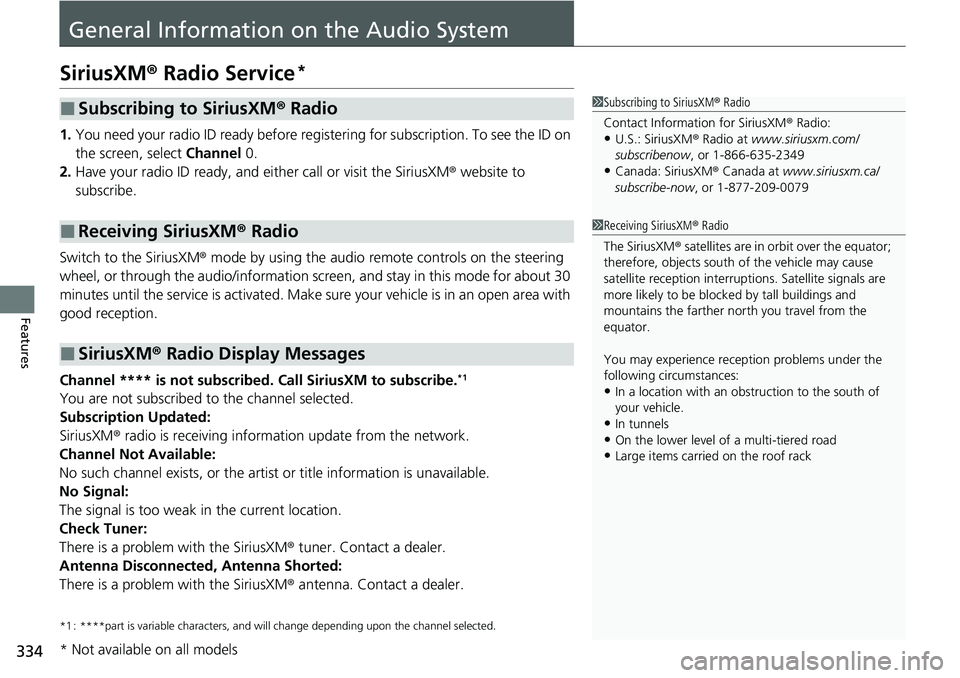
SiriusXM® Radio Service*
1. You need your radio ID ready before regist ering for subscription. To see the ID on
the screen, select Channel 0.
2. Have your radio ID ready, and either call or visit the SiriusXM ® website to
subscribe.
Switch to the SiriusXM ® mode by using the audio remote controls on the steering
wheel, or through the audio/information screen, and stay in this mode for about 30
minutes until the service is activated. Make sure your vehicle is in an open area with
good reception.
Channel **** is not subscribed. Call SiriusXM to subscribe.
*1
You are not subscribed to the channel selected.
Subscription Updated:
SiriusXM ® radio is receiving informat ion update from the network.
Channel Not Available:
No such channel exists, or the artist or title information is unavailable.
No Signal:
The signal is too weak in the current location.
Check Tuner:
There is a problem with the SiriusXM ® tuner. Contact a dealer.
Antenna Disconnected, Antenna Shorted:
There is a problem with the SiriusXM ® antenna. Contact a dealer.
*1 : ****part is variable characters, and w ill change depending upon the channel selected.
■Subscribing to SiriusXM® Radio
■Receiving SiriusXM ® Radio
■SiriusXM ® Radio Display Messages
1 Subscribing to SiriusXM ® Radio
Contact Information for SiriusXM ® Radio:
•U.S.: SiriusXM ® Radio at www.siriusxm.com/
subscribenow , or 1-866-635-2349
•Canada: SiriusXM ® Canada at www.siriusxm.ca/
subscribe-now , or 1-877-209-0079
1Receiving SiriusXM ® Radio
The SiriusXM ® satellites are in orbit over the equator;
therefore, objects south of the vehicle may cause
satellite reception interruptions. Sa tellite signals are
more likely to be blocked by tall buildings and
mountains the farther north you travel from the
equator.
You may experience rece ption problems under the
following circumstances:
•In a location with an obstruction to the south of
your vehicle.
•In tunnels•On the lower level of a multi-tiered road
•Large items carried on the roof rack
* Not available on all models
Page 361 of 700
360
uuCustomized Features u
Features
*1:Default Setting
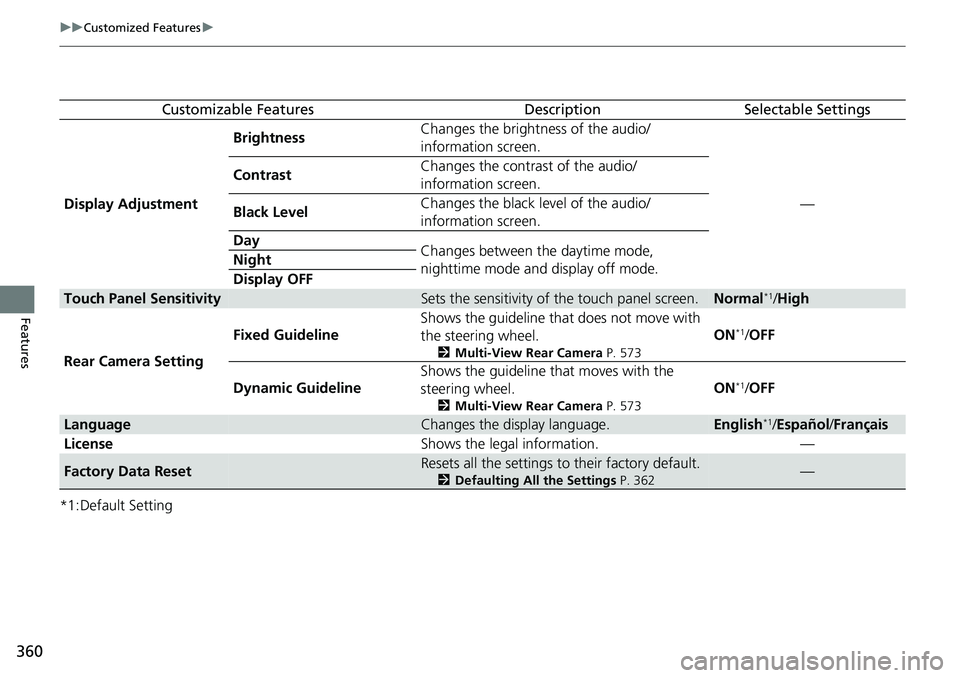
Customizable FeaturesDescriptionSelectable Settings
Display Adjustment Brightness
Changes the brightness of the audio/
information screen.
—
Contrast
Changes the contrast of the audio/
information screen.
Black Level Changes the black level of the audio/
information screen.
Day Changes between the daytime mode,
nighttime mode and display off mode.
Night
Display OFF
Touch Panel SensitivitySets the sensitivity of the touch panel screen.Normal*1/
High
Rear Camera Setting Fixed Guideline
Shows the guideline that does not move with
the steering wheel.
2
Multi-View Rear Camera P. 573
ON*1/OFF
Dynamic Guideline Shows the guideline that moves with the
steering wheel.
2
Multi-View Rear Camera P. 573
ON*1/OFF
LanguageChanges the display language.English*1/Español /Français
License Shows the legal information. —
Factory Data ResetResets all the settings to their factory default.
2Defaulting All the Settings P. 362—
Page 375 of 700
374
uuCustomized Features u
Features
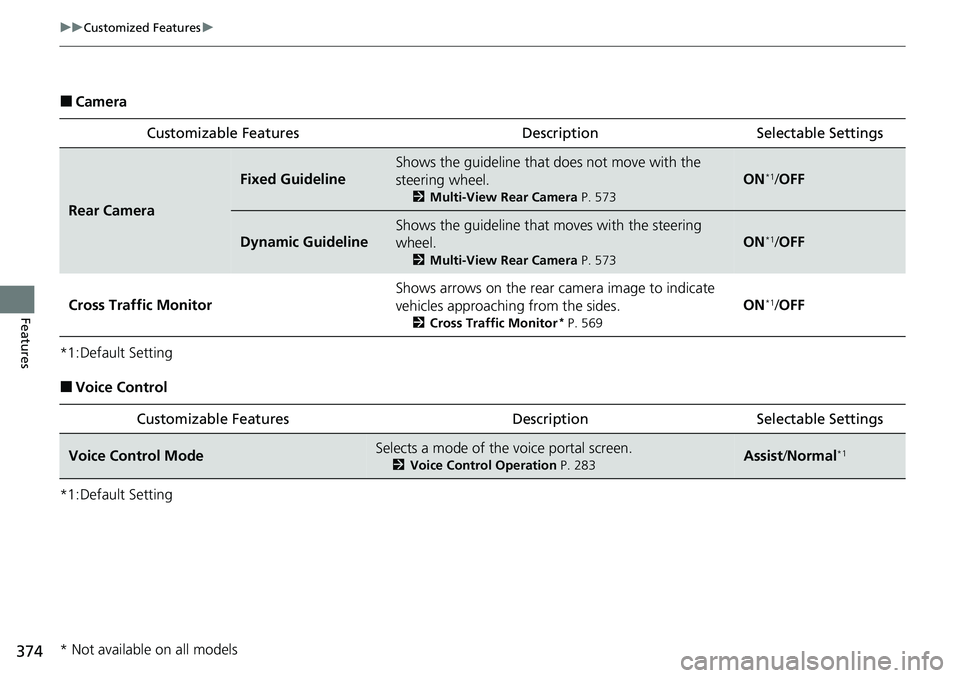
■Camera
*1:Default Setting
■Voice Control
*1:Default Setting Customizable Features Description Selectable Settings
Rear Camera
Fixed Guideline
Shows the guideline that
does not move with the
steering wheel.
2 Multi-View Rear Camera P. 573
ON*1/OFF
Dynamic Guideline
Shows the guideline that moves with the steering
wheel.
2 Multi-View Rear Camera P. 573
ON*1/OFF
Cross Traffic Monitor
Shows arrows on the rear camera image to indicate
vehicles approaching from the sides.
2 Cross Traffic Monitor* P. 569
ON*1/OFF
Customizable Features Description Selectable Settings
Voice Control ModeSelects a mode of the voice portal screen.
2 Voice Control Operation P. 283Assist /Normal*1
* Not available on all models
Page 390 of 700
389Continued
Features
Bluetooth® HandsFreeLink ®
Bluetooth® HandsFreeLink ® (HFL) allows you to place and receive phone calls using
your vehicle’s audio system, without handling your cell phone.
Using HFL
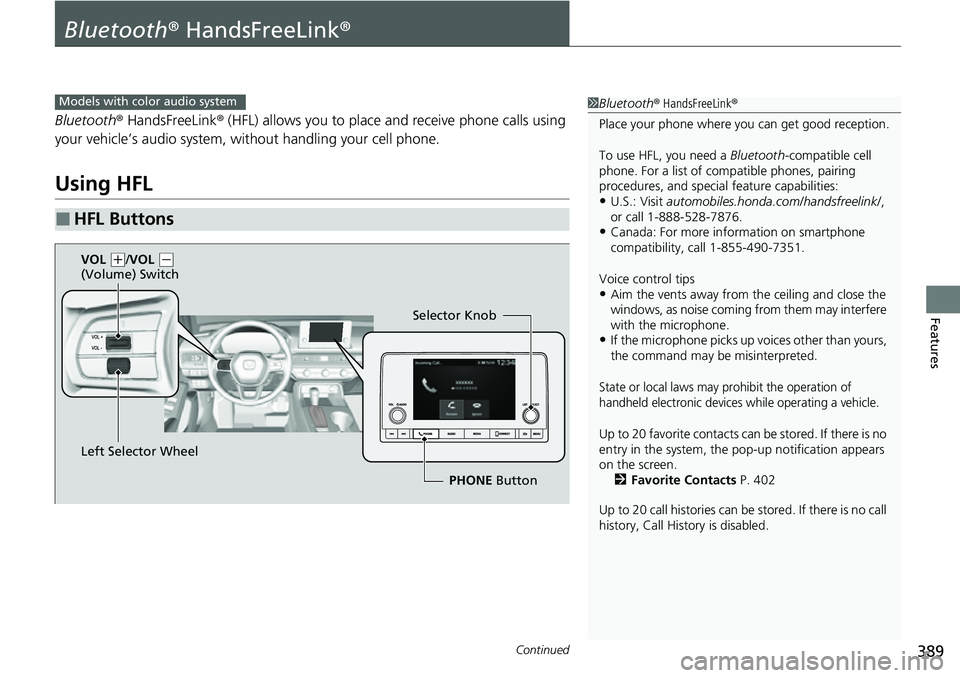
■HFL Buttons
1 Bluetooth ® HandsFreeLink ®
Place your phone where y ou can get good reception.
To use HFL, you need a Bluetooth-compatible cell
phone. For a list of compatible phones, pairing
procedures, and special feature capabilities:
•U.S.: Visit automobiles.honda.com/handsfreelink/ ,
or call 1-888-528-7876.
•Canada: For more info rmation on smartphone
compatibility, call 1-855-490-7351.
Voice control tips
•Aim the vents away from the ceiling and close the
windows, as noise coming from them may interfere
with the microphone.
•If the microphone picks up vo ices other than yours,
the command may be misinterpreted.
State or local laws may prohibit the operation of
handheld electronic devices while operating a vehicle.
Up to 20 favorite contacts ca n be stored. If there is no
entry in the system, the pop-up notification appears
on the screen. 2 Favorite Contacts P. 402
Up to 20 call histories can be stored. If there is no call
history, Call History is disabled.
Models with color audio system
Selector Knob
Left Selector Wheel PHONE Button
VOL
(
+/VOL (-
(Volume) Switch
Page 391 of 700
uuBluetooth ® HandsFreeLink ®u Using HFL
390
Features
Left Selector Wheel: While receiving a call, the incoming call screen is displayed on
the driver information interface. You can pi ck up the call using the left selector
wheel.
2 Receiving a Call P. 407
PHONE button: Press to go directly to the Phone screen.
Selector knob: Rotate to select an item on the screen, then press .
1 Bluetooth ® HandsFreeLink ®
Bluetooth ® Wireless Technology
The Bluetooth ® word mark and logos are registered
trademarks owned by Bluetooth SIG, Inc., and any
use of such marks by Honda Motor Co., Ltd., is under
license. Other trademarks and trade names are those
of their respective owners.
HFL Limitations
An incoming call on HFL will interrupt the audio
system when it is playing. It will resume when the call
is ended.
Page 408 of 700
Continued407
uuBluetooth ® HandsFreeLink ®u HFL Menus
Features
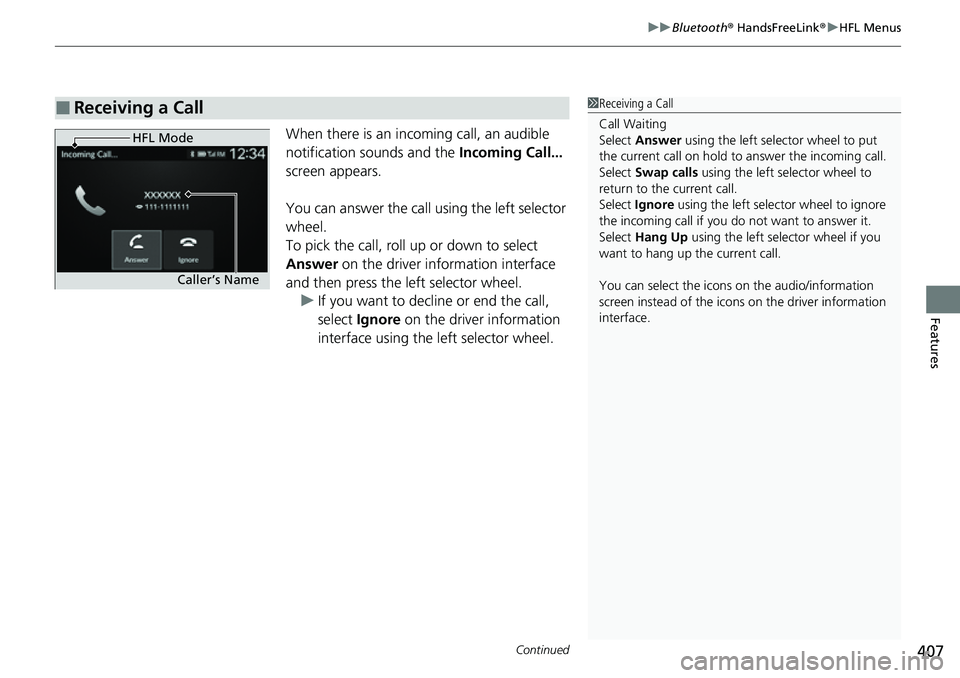
When there is an inco ming call, an audible
notification sounds and the Incoming Call...
screen appears.
You can answer the call using the left selector
wheel.
To pick the call, roll up or down to select
Answer on the driver information interface
and then press the left selector wheel. u If you want to decline or end the call,
select Ignore on the driver information
interface using the left selector wheel.
■Receiving a Call1 Receiving a Call
Call Waiting
Select Answer using the left selector wheel to put
the current call on hold to answer the incoming call.
Select Swap calls using the left selector wheel to
return to the current call.
Select Ignore using the left selector wheel to ignore
the incoming call if you do not want to answer it.
Select Hang Up using the left selector wheel if you
want to hang up the current call.
You can select the icons on the audio/information
screen instead of the icons on the driver information
interface.
HFL Mode
Caller’s Name
Page 410 of 700
409Continued
Features
Bluetooth® HandsFreeLink ®
Bluetooth® HandsFreeLink ® (HFL) allows you to place and receive phone calls using
your vehicle’s audio system, without handling your cell phone.
Using HFL
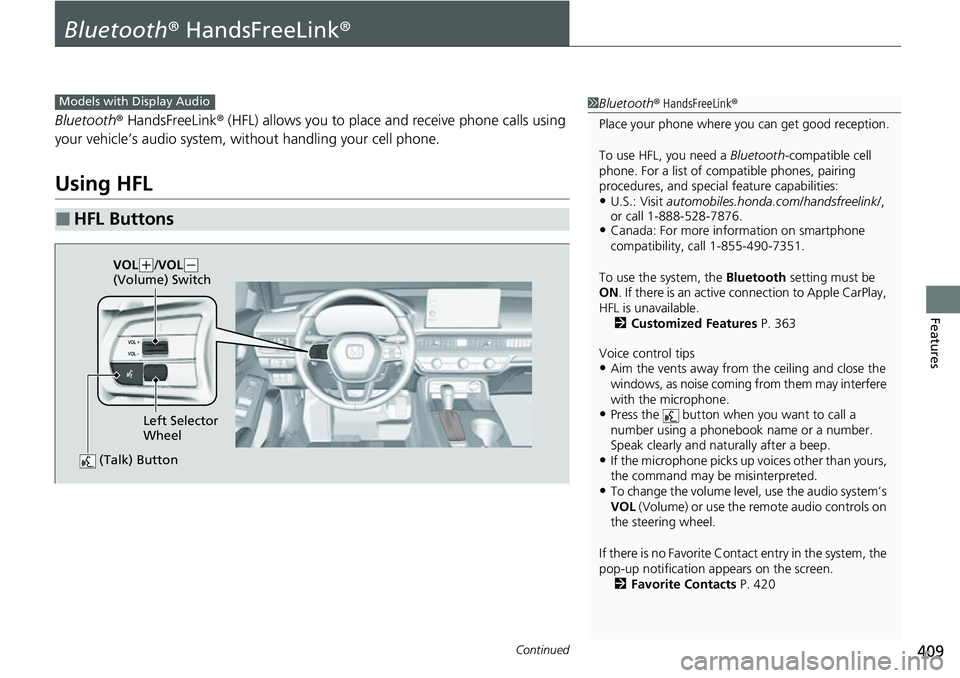
■HFL Buttons
1 Bluetooth ® HandsFreeLink ®
Place your phone where y ou can get good reception.
To use HFL, you need a Bluetooth-compatible cell
phone. For a list of compatible phones, pairing
procedures, and special feature capabilities:
•U.S.: Visit automobiles.honda.com/handsfreelink/ ,
or call 1-888-528-7876.
•Canada: For more info rmation on smartphone
compatibility, call 1-855-490-7351.
To use the system, the Bluetooth setting must be
ON . If there is an active c onnection to Apple CarPlay,
HFL is unavailable. 2 Customized Features P. 363
Voice control tips
•Aim the vents away from the ceiling and close the
windows, as noise coming from them may interfere
with the microphone.
•Press the button when you want to call a
number using a phonebook name or a number.
Speak clearly and naturally after a beep.
•If the microphone picks up vo ices other than yours,
the command may be misinterpreted.
•To change the volume level, use the audio system’s
VOL (Volume) or use the remote audio controls on
the steering wheel.
If there is no Favorite Contact entry in the system, the
pop-up notification appears on the screen. 2 Favorite Contacts P. 420
Models with Display Audio
(Talk) Button
Left Selector
Wheel
VOL
(
+/VOL( -
(Volume) Switch
Page 411 of 700
uuBluetooth ® HandsFreeLink ®u Using HFL
410
Features
(Talk) button: Press to access Voice Portal.
Left Selector Wheel: Roll up or down to select Phone on the driver information
interface, and then press the left selector wheel.
While receiving a call, the incoming call scr een is displayed on the driver information
interface. You can pick up the call using the left selector wheel.
2 Receiving a Call P. 424
To go to the phone screen:
1.Press the button.
2. Select Phone to switch the display to the phone screen.
1Bluetooth ® HandsFreeLink ®
Bluetooth ® Wireless Technology
The Bluetooth ® word mark and logos are registered
trademarks owned by Bluetooth SIG, Inc., and any
use of such marks by Honda Motor Co., Ltd., is under
license. Other trademarks and trade names are those
of their respective owners.
HFL Limitations
An incoming call on HFL will interrupt the audio
system when it is playing. It will resume when the call
is ended.
Page 425 of 700
uuBluetooth ® HandsFreeLink ®u HFL Menus
424
Features
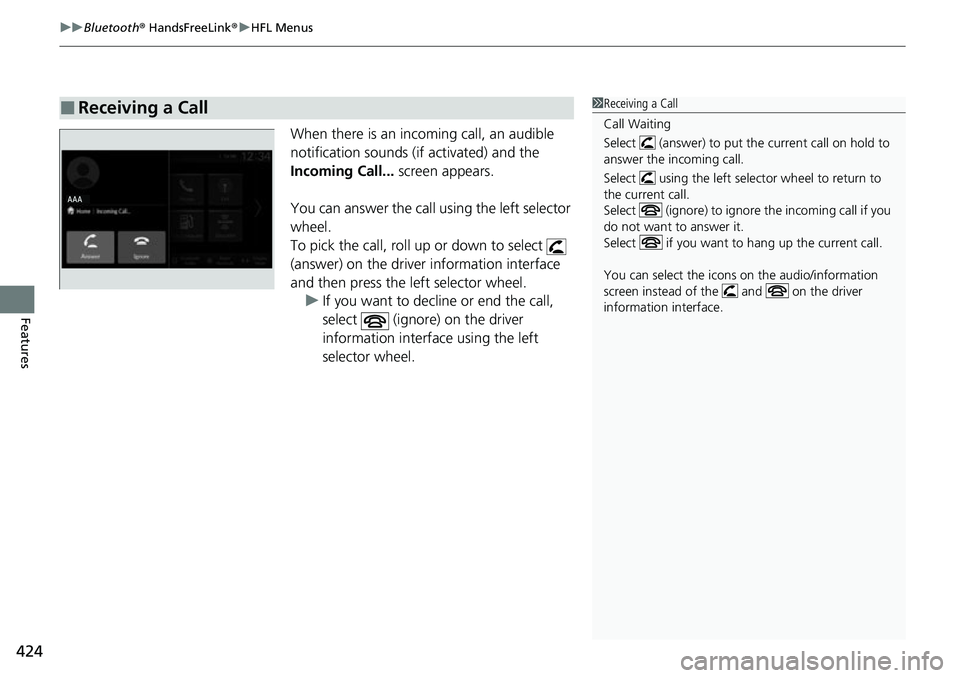
When there is an incoming call, an audible
notification sounds (if activated) and the
Incoming Call... screen appears.
You can answer the call using the left selector
wheel.
To pick the call, roll up or down to select
(answer) on the driver information interface
and then press the left selector wheel. u If you want to decline or end the call,
select (ignore) on the driver
information interface using the left
selector wheel.
■Receiving a Call1Receiving a Call
Call Waiting
Select (answer) to put the current call on hold to
answer the incoming call.
Select using the left selector wheel to return to
the current call.
Select (ignore) to ignor e the incoming call if you
do not want to answer it.
Select if you want to hang up the current call.
You can select the icons on the audio/information
screen instead of the and on the driver
information interface.
Page 431 of 700
430
Driving
Before Driving
Driving Preparation
Check the following items before you start driving.
• Make sure there are no obstructions on the windows, door mirrors, exterior
lights, or other parts of the vehicle.
u Remove any frost, snow, or ice.
u Remove any snow on the roof, as this can slip down and obstruct your field of
vision while driving. If frozen solid , remove ice once it has softened.
u When removing ice from around the wheels, be sure not to damage the wheel
or wheel components.
• Make sure the hood is securely closed.
u If the hood opens while driving, your front view will be blocked.
• Make sure the tires are in good condition.
u Check air pressures, and check for damage and excessive wear.
2Checking and Maintaining Tires P. 617
•Make sure there are no people or ob jects behind or around the vehicle.
u There are blind spots from the inside.
■Exterior Checks1Exterior Checks
NOTICE
When doors are frozen s hut, use warm water around
the door edges to melt any ice. Do not try to force
them open, as this can damage the rubber trim
around the doors. When done, wipe dry to avoid
further freezing.
Do not pour warm water into the key cylinder.
You will be unable to insert the key if the water
freezes in the hole.
Heat from the engine and exhaust can ignite
flammable material s left under the hood, causing a
fire. If you've parked y our vehicle for an extended
period, inspect and remove any debris that may have
collected, such as dried grass and leaves that have
fallen or have been carried in for use as a nest by a
small animal. Also, check under the hood for leftover
flammable materials after you or someone else has
performed maintenance on your vehicle.