lock HONDA CIVIC COUPE 2014 9.G Navigation Manual
[x] Cancel search | Manufacturer: HONDA, Model Year: 2014, Model line: CIVIC COUPE, Model: HONDA CIVIC COUPE 2014 9.GPages: 441
Page 132 of 441
131
uuOperating the Switches Around the Steering Wheel uWipers and Washers
Controls
Wipers and Washers
The windshield wipers and washers can be
used when the ignition switch is in ON
(w*1.
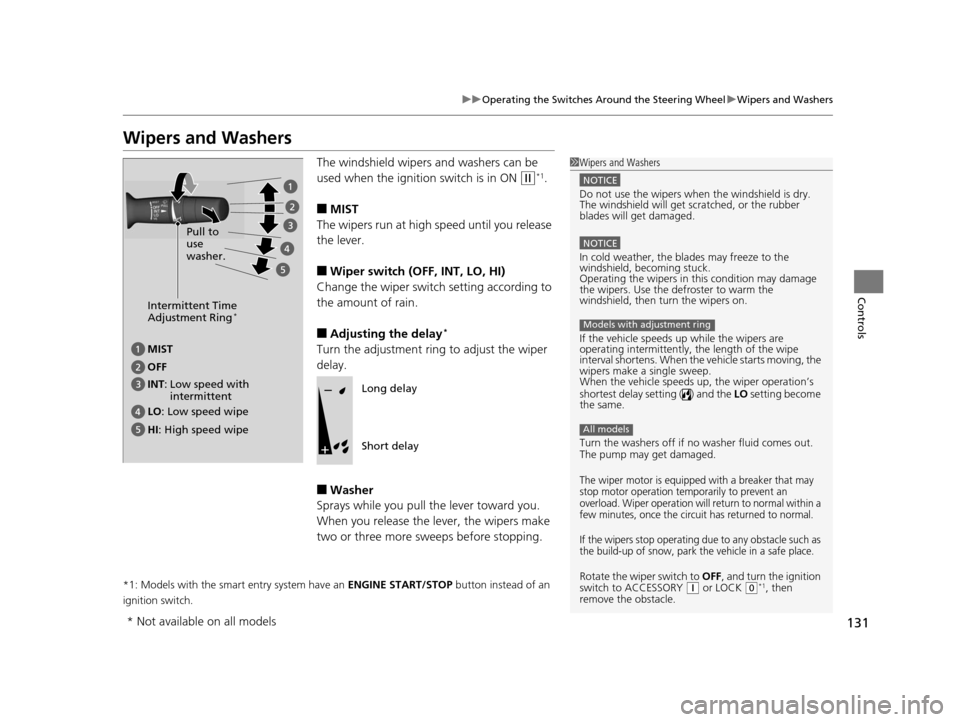
■MIST
The wipers run at high speed until you release
the lever.
■Wiper switch (OFF, INT, LO, HI)
Change the wiper switch setting according to
the amount of rain.
■Adjusting the delay*
Turn the adjustment ring to adjust the wiper
delay.
■Washer
Sprays while you pull the lever toward you.
When you release the lever, the wipers make
two or three more sweeps before stopping.
*1: Models with the smart entry system have an ENGINE START/STOP button instead of an
ignition switch.
1 Wipers and Washers
NOTICE
Do not use the wipers when the windshield is dry.
The windshield will get sc ratched, or the rubber
blades will get damaged.
NOTICE
In cold weather, the blades may freeze to the
windshield, becoming stuck.
Operating the wipers in th is condition may damage
the wipers. Use the defroster to warm the
windshield, then turn the wipers on.
If the vehicle speeds up while the wipers are
operating intermittently, the length of the wipe
interval shortens. When the vehicle starts moving, the
wipers make a single sweep.
When the vehicle speeds up, the wiper operation’s
shortest delay setting ( ) and the LO setting become
the same.
Turn the washers off if no washer fluid comes out.
The pump may get damaged.
The wiper motor is equipped with a breaker that may
stop motor operation temporarily to prevent an
overload. Wiper operation will return to normal within a
few minutes, once the circ uit has returned to normal.
If the wipers stop operating due to any obstacle such as
the build-up of snow, park the vehicle in a safe place.
Rotate the wiper switch to OFF, and turn the ignition
switch to ACCESSORY ( q or LOCK (0*1, then
remove the obstacle.
Models with adjustment ring
All models
Intermittent Time
Adjustment Ring*
MIST
INT: OFF
LO : Low speed wipe
HI: High speed wipe Pull to
use
washer.
Low speed with
intermittentLong delay
Short delay
* Not available on all models
14 CIVIC 2D_SI-31TS86210.book 131 ページ 2014年1月29日 水曜日 午後8時9分
Page 135 of 441
134
uuOperating the Switches Around the Steering Wheel uAdjusting the Steering Wheel
Controls
Adjusting the Steering Wheel
The steering wheel height and distance from your body can be adjusted so that you
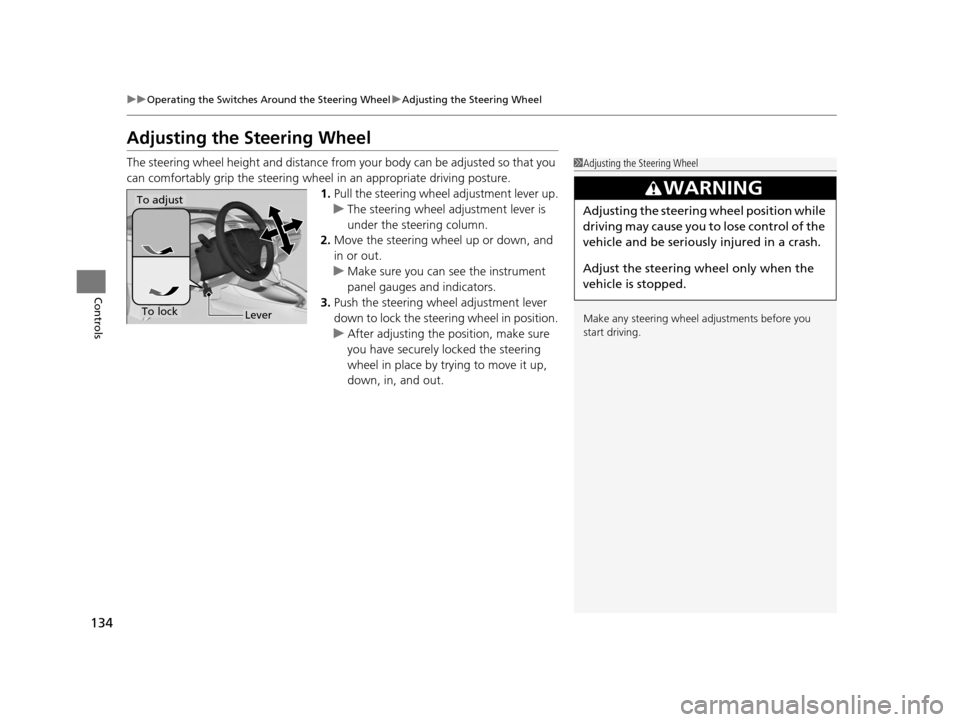
can comfortably grip the steering wheel in an appropriate driving posture.
1.Pull the steering wheel adjustment lever up.
u The steering wheel adjustment lever is
under the steering column.
2. Move the steering wheel up or down, and
in or out.
u Make sure you can see the instrument
panel gauges and indicators.
3. Push the steering wheel adjustment lever
down to lock the steering wheel in position.
u After adjusting the position, make sure
you have securely locked the steering
wheel in place by trying to move it up,
down, in, and out.1Adjusting the Steering Wheel
Make any steering wheel adjustments before you
start driving.
3WARNING
Adjusting the steering wheel position while
driving may cause you to lose control of the
vehicle and be seriously injured in a crash.
Adjust the steering wheel only when the
vehicle is stopped.
LeverTo lock
To adjust
14 CIVIC 2D_SI-31TS86210.book 134 ページ 2014年1月29日 水曜日 午後8時9分
Page 138 of 441
137Continued
Controls
Adjusting the Seats
Adjusting the Seat Positions
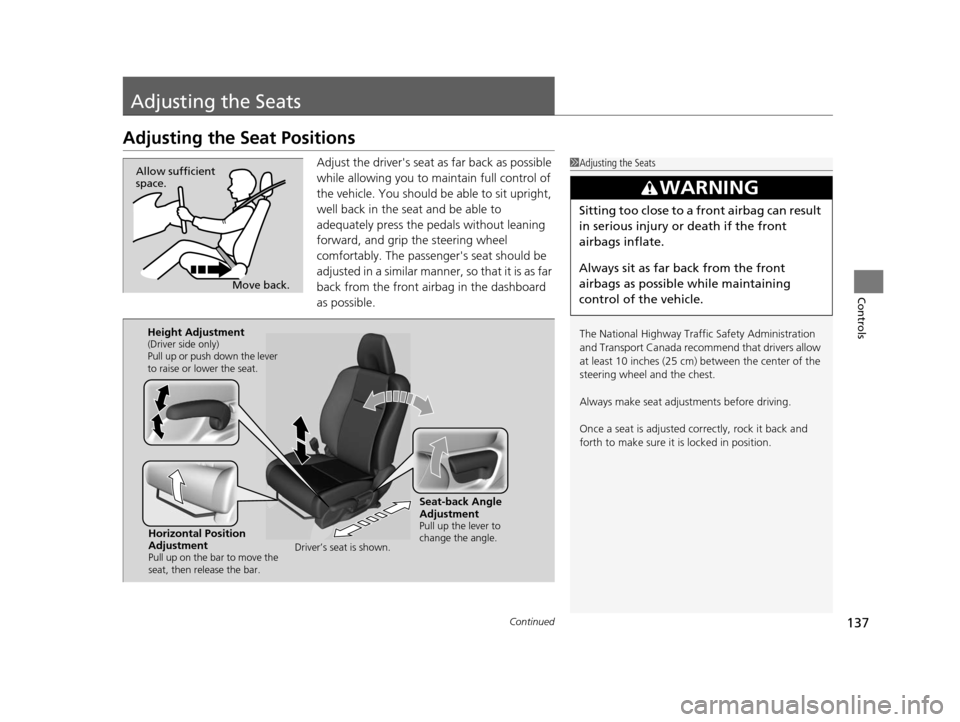
Adjust the driver's seat as far back as possible
while allowing you to ma intain full control of
the vehicle. You should be able to sit upright,
well back in the seat and be able to
adequately press the pedals without leaning
forward, and grip the steering wheel
comfortably. The passenger's seat should be
adjusted in a similar manner, so that it is as far
back from the front airbag in the dashboard
as possible.1 Adjusting the Seats
The National Highway Traffic Safety Administration
and Transport Cana da recommend that drivers allow
at least 10 inches (25 cm) between the center of the
steering wheel and the chest.
Always make seat adjustments before driving.
Once a seat is adjusted co rrectly, rock it back and
forth to make sure it is locked in position.
3WARNING
Sitting too close to a front airbag can result
in serious injury or death if the front
airbags inflate.
Always sit as far back from the front
airbags as possible while maintaining
control of the vehicle.
Move back.
Allow sufficient
space.
Horizontal Position
Adjustment
Pull up on the bar to move the
seat, then release the bar.
Height Adjustment(Driver side only)
Pull up or push down the lever
to raise or lower the seat.
Seat-back Angle
Adjustment
Pull up the lever to
change the angle.
Driver’s seat is shown.
14 CIVIC 2D_SI-31TS86210.book 137 ページ 2014年1月29日 水曜日 午後8時9分
Page 141 of 441
uuAdjusting the Seats uAdjusting the Seat Positions
140
Controls
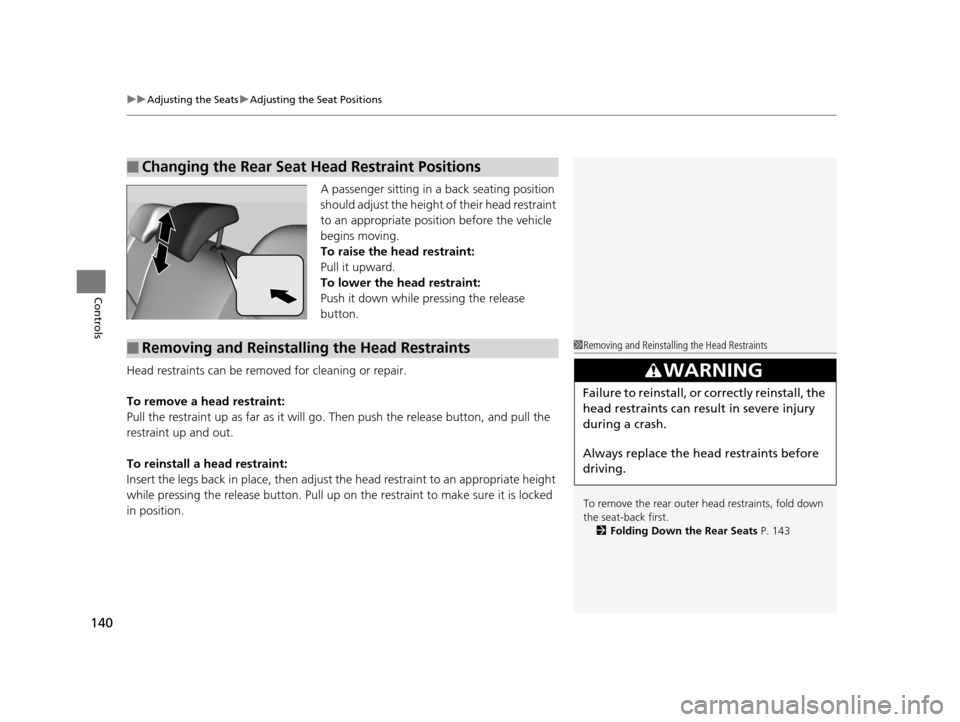
A passenger sitting in a back seating position
should adjust the height of their head restraint
to an appropriate position before the vehicle
begins moving.
To raise the head restraint:
Pull it upward.
To lower the head restraint:
Push it down while pressing the release
button.
Head restraints can be removed for cleaning or repair.
To remove a head restraint:
Pull the restraint up as far as it will go. Then push the release button, and pull the
restraint up and out.
To reinstall a head restraint:
Insert the legs back in place, then adjust the head restraint to an appropriate height
while pressing the release button. Pull up on the restraint to make sure it is locked
in position.
■Changing the Rear Seat Head Restraint Positions
■Removing and Reinstalling the Head Restraints1 Removing and Reinstalling the Head Restraints
To remove the rear outer head restraints, fold down
the seat-back first.
2 Folding Down the Rear Seats P. 143
3WARNING
Failure to reinstall, or correctly reinstall, the
head restraints can result in severe injury
during a crash.
Always replace the he ad restraints before
driving.
14 CIVIC 2D_SI-31TS86210.book 140 ページ 2014年1月29日 水曜日 午後8時9分
Page 144 of 441
143
uuAdjusting the Seats uRear Seats
Controls
Rear Seats
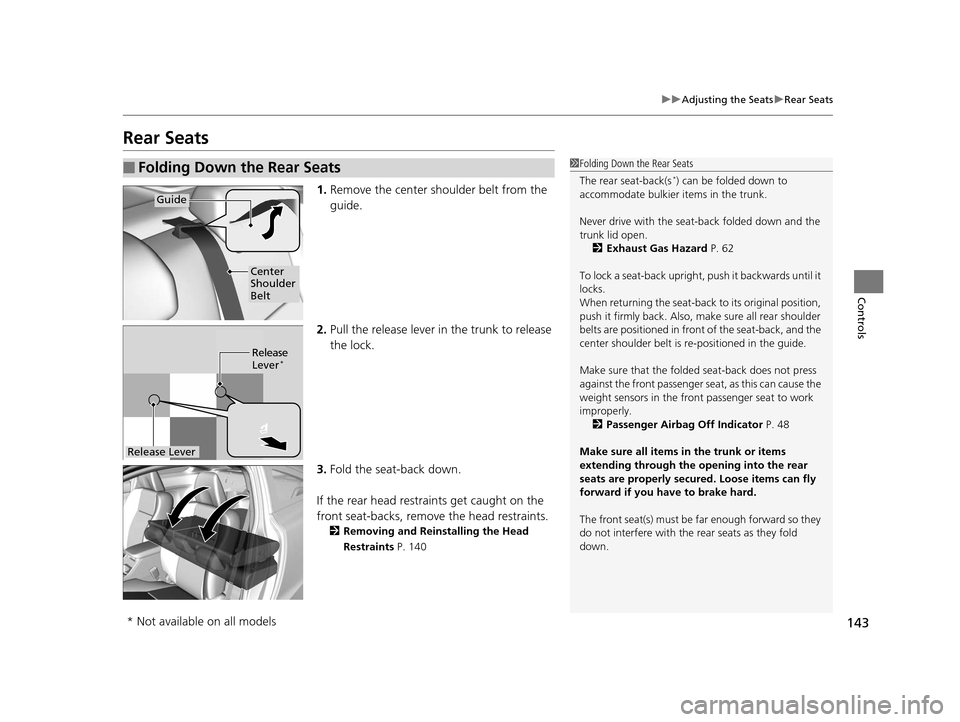
1. Remove the center shoulder belt from the
guide.
2. Pull the release lever in the trunk to release
the lock.
3. Fold the seat-back down.
If the rear head restraints get caught on the
front seat-backs, remove the head restraints.
2Removing and Reinstalling the Head
Restraints P. 140
■Folding Down the Rear Seats1Folding Down the Rear Seats
The rear seat-back(s
*) can be folded down to
accommodate bulkier items in the trunk.
Never drive with the seat-back folded down and the
trunk lid open. 2 Exhaust Gas Hazard P. 62
To lock a seat-back upright, push it backwards until it
locks.
When returning the seat-back to its original position,
push it firmly back. Also, m ake sure all rear shoulder
belts are positioned in front of the seat-back, and the
center shoulder belt is re -positioned in the guide.
Make sure that the folded seat-back does not press
against the front passenger se at, as this can cause the
weight sensors in the front passenger seat to work
improperly.
2 Passenger Airbag Off Indicator P. 48
Make sure all items in the trunk or items
extending through the opening into the rear
seats are properly secured. Loose items can fly
forward if you have to brake hard.
The front seat(s) must be far enough forward so they
do not interfere with the rear seats as they fold
down.
Guide
Center
Shoulder
Belt
Release
Lever*
Release Lever
* Not available on all models
14 CIVIC 2D_SI-31TS86210.book 143 ページ 2014年1月29日 水曜日 午後8時9分
Page 146 of 441
145Continued
Controls
Interior Lights/Interior Convenience Items
Interior Lights
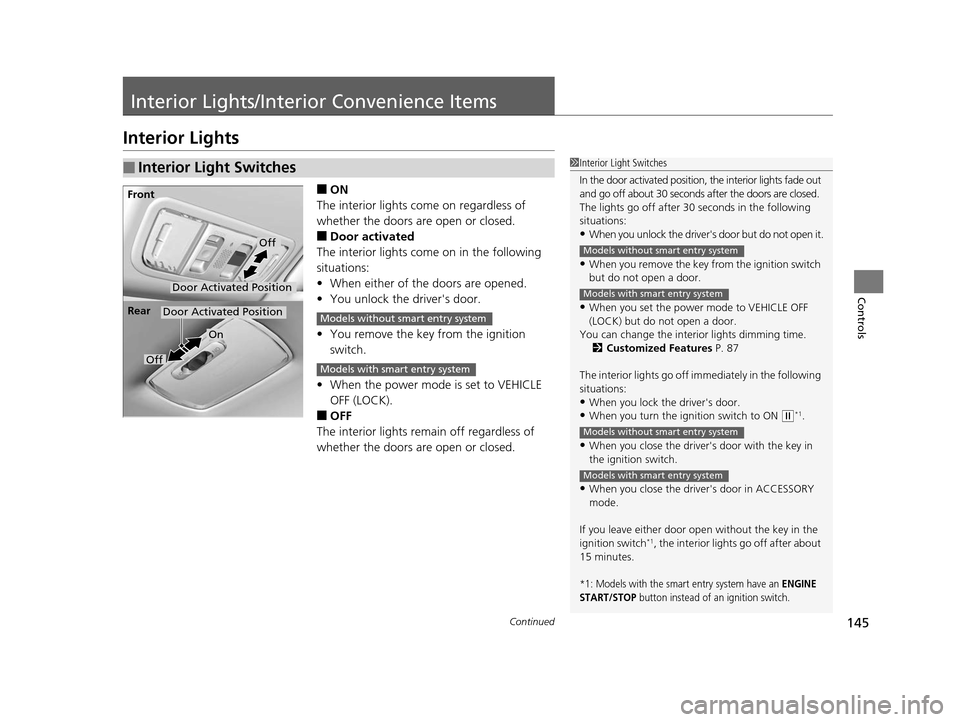
■ON
The interior lights come on regardless of
whether the doors are open or closed.
■Door activated
The interior lights come on in the following
situations:
• When either of the doors are opened.
• You unlock the driver's door.
• You remove the key from the ignition
switch.
• When the power mode is set to VEHICLE
OFF (LOCK).
■OFF
The interior lights remain off regardless of
whether the doors are open or closed.
■Interior Light Switches1 Interior Light Switches
In the door activated position, the interior lights fade out
and go off about 30 seconds after the doors are closed.
The lights go off after 30 seconds in the following
situations:
•When you unlock the driver's door but do not open it.
•When you remove the key from the ignition switch
but do not open a door.
•When you set the power mode to VEHICLE OFF
(LOCK) but do not open a door.
You can change the interi or lights dimming time.
2 Customized Features P. 87
The interior lights go off i mmediately in the following
situations:
•When you lock the driver's door.•When you turn the ignition switch to ON ( w*1.
•When you close the driver's door with the key in
the ignition switch.
•When you close the driver's door in ACCESSORY
mode.
If you leave either door open without the key in the
ignition switch
*1, the interior light s go off after about
15 minutes.
*1: Models with the smart entry system have an ENGINE
START/STOP
button instead of an ignition switch.
Models without smart entry system
Models with smart entry system
Models without smart entry system
Models with smart entry system
Door Activated Position
Off
Front
Door Activated Position
On
Off
Rear
Models without smart entry system
Models with smart entry system
14 CIVIC 2D_SI-31TS86210.book 145 ページ 2014年1月29日 水曜日 午後8時9分
Page 187 of 441
186
uuAudio System Basic Operation uAudio/Information Screen
Features
■Phone
Shows the HFL information.
2 Bluetooth ® HandsFreeLink ® P. 264
■Info
Shows the Trip Computer , Clock/Wallpaper , Voice Info, or System/Device
Information information.
■Audio
Shows the current audio information.
■Settings
Enters the customiz ing menu screen.
2Customized Features* P. 220
■HondaLink Apps
Connects with your smartphone*1 to play personalized musi c information, and social
media streams.
2 Smartphone Apps P. 209
*1: Available on specif ic phones only. Check handsfreelink.honda.com for compatible phones
and hondalink.com for feature details.
* Not available on all models
14 CIVIC 2D_SI-31TS86210.book 186 ページ 2014年1月29日 水曜日 午後8時9分
Page 188 of 441
Continued187
uuAudio System Basic Operation uAudio/Information Screen
Features
You can change, store, and delete the wallpaper on the audio/ information screen.
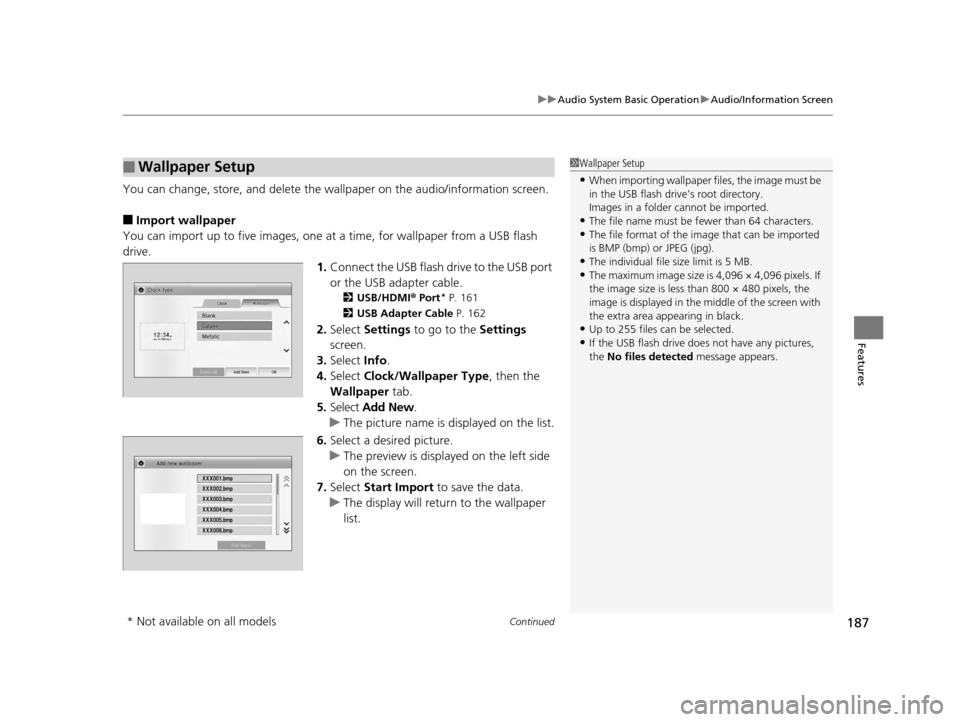
■Import wallpaper
You can import up to five images, one at a time, for wallpaper from a USB flash
drive. 1.Connect the USB flash drive to the USB port
or the USB adapter cable.
2 USB/HDMI ® Port* P. 161
2 USB Adapter Cable P. 162
2.Select Settings to go to the Settings
screen.
3. Select Info.
4. Select Clock/Wallpaper Type , then the
Wallpaper tab.
5. Select Add New .
u The picture name is displayed on the list.
6. Select a desired picture.
u The preview is displayed on the left side
on the screen.
7. Select Start Import to save the data.
u The display will return to the wallpaper
list.
■Wallpaper Setup1Wallpaper Setup
•When importing wallpaper files, the image must be
in the USB flash driv e’s root directory.
Images in a folder cannot be imported.
•The file name must be fewer than 64 characters.•The file format of the im age that can be imported
is BMP (bmp) or JPEG (jpg).
•The individual file size limit is 5 MB.•The maximum image size is 4,096 × 4,096 pixels. If
the image size is less than 800 × 480 pixels, the
image is displayed in the middle of the screen with
the extra area appearing in black.
•Up to 255 files can be selected.
•If the USB flash drive doe s not have any pictures,
the No files detected message appears.
* Not available on all models
14 CIVIC 2D_SI-31TS86210.book 187 ページ 2014年1月29日 水曜日 午後8時9分
Page 189 of 441
uuAudio System Basic Operation uAudio/Information Screen
188
Features
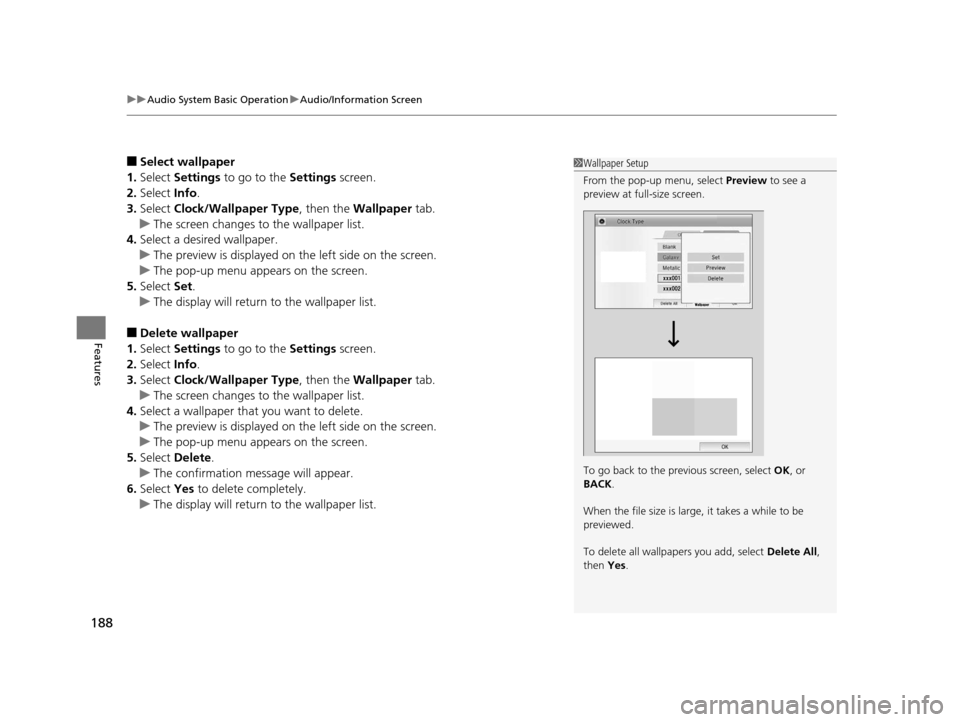
■Select wallpaper
1. Select Settings to go to the Settings screen.
2. Select Info.
3. Select Clock/Wallpaper Type , then the Wallpaper tab.
u The screen changes to the wallpaper list.
4. Select a desired wallpaper.
u The preview is displayed on the left side on the screen.
u The pop-up menu appears on the screen.
5. Select Set.
u The display will return to the wallpaper list.
■Delete wallpaper
1. Select Settings to go to the Settings screen.
2. Select Info.
3. Select Clock/Wallpaper Type , then the Wallpaper tab.
u The screen changes to the wallpaper list.
4. Select a wallpaper that you want to delete.
u The preview is displayed on the left side on the screen.
u The pop-up menu appears on the screen.
5. Select Delete.
u The confirmation message will appear.
6. Select Yes to delete completely.
u The display will return to the wallpaper list.
1Wallpaper Setup
From the pop-up menu, select Preview to see a
preview at full-size screen.
To go back to the previous screen, select OK, or
BACK .
When the file size is large, it takes a while to be
previewed.
To delete all wallpapers you add, select Delete All,
then Yes.
14 CIVIC 2D_SI-31TS86210.book 188 ページ 2014年1月29日 水曜日 午後8時9分
Page 220 of 441
219
uuGeneral Information on the Audio System uCompatible iPod and USB Flash Drives
Features
Compatible iPod and USB Flash Drives
*1:Models with display audio system
• Use a recommended USB flash drive of 256 MB or higher.
• Some digital audio players may not be compatible.
• Some USB flash drives (e.g., a device with security lockout) may not work.
• Some software files may not allow for audio play or text data display.
• Some versions of MP3, WMA, or AAC formats may be unsupported.
■iPod and iPhone Model Compatibility
Model
iPod (5th generation)
iPod classic 80GB/160GB (launch in 2007)
iPod classic 120GB (launch in 2008)
iPod classic 160GB (launch in 2009)
iPod nano
iPod touch
iPhone 3G/iPhone 3GS/iPhone 4/iPhone 4S/iPhone 5*1
■USB Flash Drives
1iPod and iPhone Model Compatibility
This system may not work with all software versions
of these devices.
1USB Flash Drives
Files on the USB flash drive are played in their stored
order. This order may be different from the order
displayed on your PC or device.
14 CIVIC 2D_SI-31TS86210.book 219 ページ 2014年1月29日 水曜日 午後8時9分