audio HONDA CIVIC COUPE 2015 9.G Navigation Manual
[x] Cancel search | Manufacturer: HONDA, Model Year: 2015, Model line: CIVIC COUPE, Model: HONDA CIVIC COUPE 2015 9.GPages: 253, PDF Size: 8.81 MB
Page 126 of 253
125
Audio
This section describes how to operate the audio system. You can play music from a widearray of media sources, and control the audio system using the touchscreen, remote
control, or voice control.
Audio System ........................................ 126
About Your Audio System .................... 126
Audio System Theft Protection ............. 127
Audio Remote Control s........................ 128
Steering Wheel Controls ...................... 128
Audio Setting s...................................... 131
Adjusting the Sound ............................ 132
Playing FM/AM Radio ........................... 133
Selecting FM/AM Mode........................ 133
Audio Screen Control ........................... 134
Audio Menu ........................................ 135
Playing Siriu sXM® Radio ...................... 137
Selecting SiriusXM ® Mode .................... 137
Audio Screen Control ........................... 138
Audio Menu ........................................ 139 SiriusXM
® Radio Service ........................140
Playing a Disc .........................................141
Selecting Disc Mode ..............................141
Audio Screen Control............................142
Playing MP3/WMA/AAC Discs ...............143
Audio Menu .........................................144
Recommended Discs .............................145
Playing an iPod ......................................146
Selecting iPod Mode .............................147
Audio Screen Control............................148
Audio Menu .........................................149
Searching for Music ..............................150
Song By Voice
TM (SBV) ...........................151
Playing Pandora®*.................................154
Selecting Pandora ® Mode......................154 Audio Screen Control ........................... 155
Audio Menu......................................... 156
Playing a USB Fla sh Drive..................... 157
Selecting USB Mode ............................. 158
Audio Screen Control ........................... 159
Audio Menu......................................... 160
Playing Bluetooth ® Audio .................... 161
Selecting Bluetooth ® Audio Mode ........ 161
Switching to HFL Mode ........................ 162
Audio Screen Control ........................... 163
Audio Menu......................................... 164
Playing a Video Using the HDMI ®........ 165
Selecting HDMI Mode .......................... 166
* Not available on all models
15 CIVIC NAVI-31TR38300.book 125 ページ 2014年8月7日 木曜日 午前11時49分
Page 127 of 253
126
Audio
Audio System
About Your Audio System
The audio system features FM/AM radio and SiriusXM ® Radio. It can also play audio
discs, WMA/MP3/AAC tracks, iP ods, USB flash drives, and Bluetooth® devices.
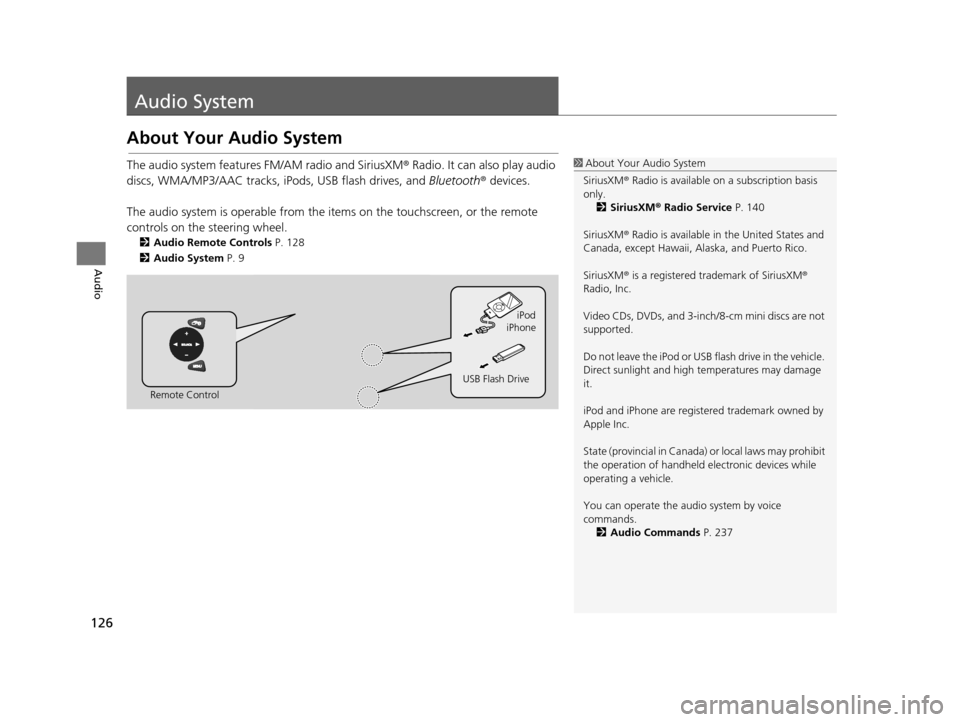
The audio system is operable from the it ems on the touchscreen, or the remote
controls on the steering wheel.
2 Audio Remote Control s P. 128
2 Audio Sy stem P. 9
1About Your Audio System
SiriusXM ® Radio is available on a subscription basis
only. 2 Siriu sXM® Radio Service P. 140
SiriusXM ® Radio is available in the United States and
Canada, except Ha waii, Alaska, and Puerto Rico.
SiriusXM ® is a registered trademark of SiriusXM ®
Radio, Inc.
Video CDs, DVDs, and 3-inch /8-cm mini discs are not
supported.
Do not leave the iPod or USB flash drive in the vehicle.
Direct sunlight and high temperatures may damage
it.
iPod and iPhone are regist ered trademark owned by
Apple Inc.
State (provincial in Canada) or local laws may prohibit
the operation of handheld electronic devices while
operating a vehicle.
You can operate the audio system by voice
commands. 2 Audio Commands P. 237
Remote Control iPod
USB Flash Drive iPhone
15 CIVIC NAVI-31TR38300.book 126 ページ 2014年8月7日 木曜日 午前11時49分
Page 128 of 253
127
uuAudio System uAudio System Theft Protection
Audio
Audio Sy stem Theft Protection
The audio system is disabled when it is disconnected from the power source, such as
when the battery is disconnected or goes dead. In certain conditions, the system
may display Enter Code. If this occurs, reactivate the audio system.
■ Reactivating th e audio system
1. Set the power mode to ON.
2. Turn on the audio system.
3. Press and hold the audio system powe r button for more than two seconds.
u The audio system is reac tivated when the audio c ontrol unit establishes a
connection with the vehicle control unit. If the control unit fails to recognize
the audio unit, you must go to a deal er and have the audio unit checked.
15 CIVIC NAVI-31TR38300.book 127 ページ 2014年8月7日 木曜日 午前11時49分
Page 129 of 253
128
Audio
Audio Remote Controls
Steering Wheel Controls
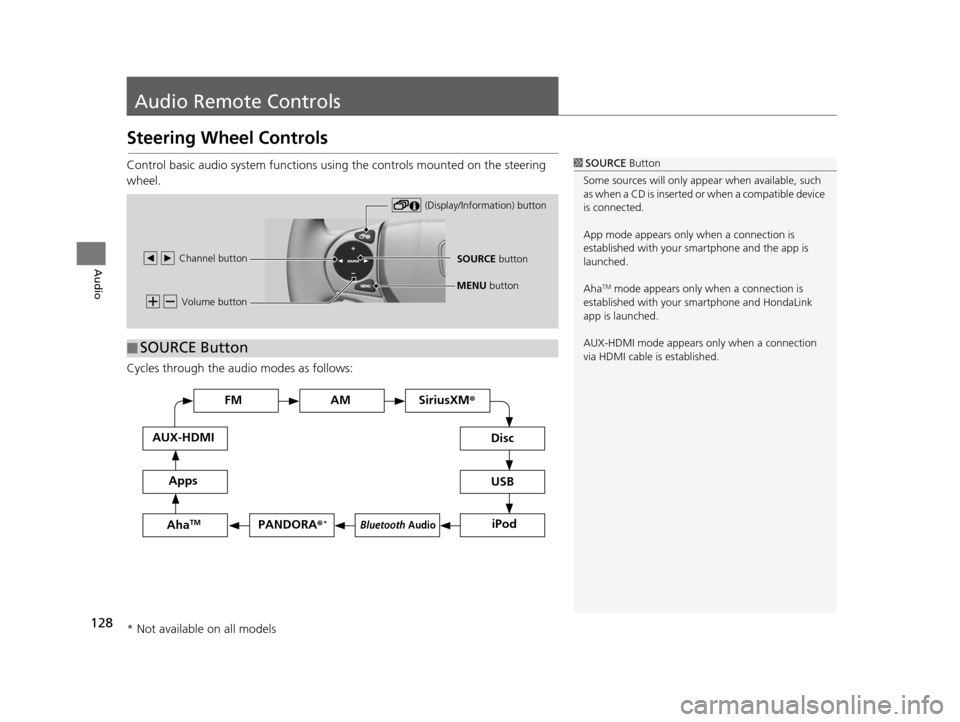
Control basic audio system functions using the controls mounted on the steering
wheel.
Cycles through the audio modes as follows:1SOURCE Button
Some sources will only appe ar when available, such
as when a CD is inserted or when a compatible device
is connected.
App mode appears only when a connection is
established with your smartphone and the app is
launched.
Aha
TM mode appears only when a connection is
established with your smartphone and HondaLink
app is launched.
AUX-HDMI mode appears only when a connection
via HDMI cable is established. Volume button
SOURCE button
Channel button
(Display/Information) button
MENU
button
■SOURCE Button
FM
PANDORA
®*
AM SiriusXM®
iPod
Di
sc
USBBluetooth Audio
App s
AUX-HDMI
Aha
TM
* Not available on all models
15 CIVIC NAVI-31TR38300.book 128 ページ 2014年8月7日 木曜日 午前11時49分
Page 130 of 253
129
uuAudio Remote Controls uSteering Wheel Controls
Continued
Audio
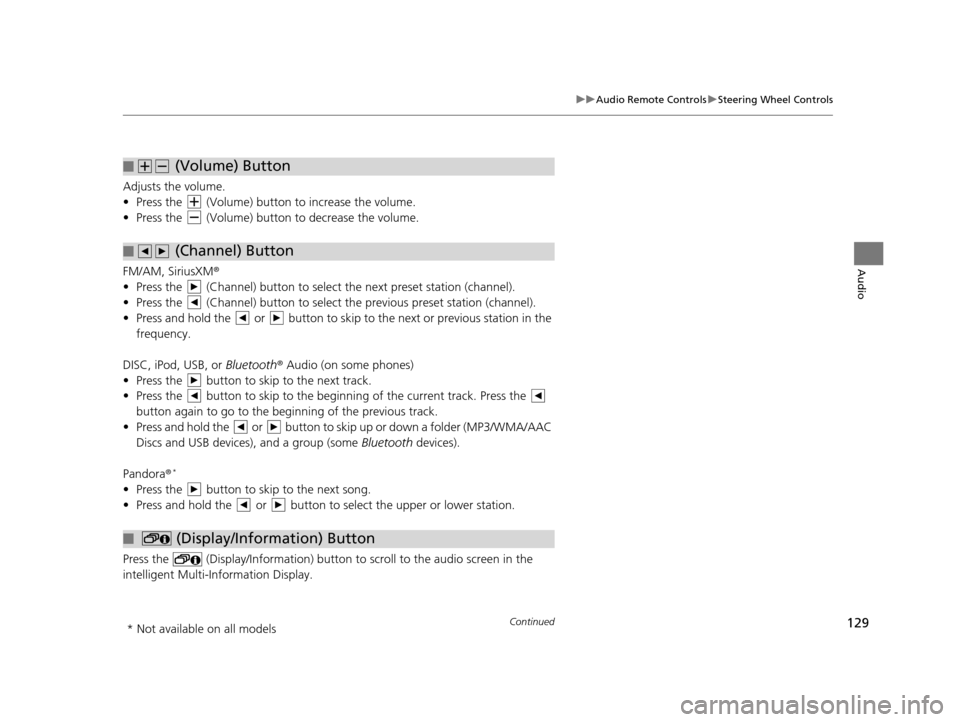
Adjusts the volume.
• Press the (Volume) butto n to increase the volume.
• Press the (Volume) butto n to decrease the volume.
FM/AM, SiriusXM ®
• Press the (Channel) button to select the next preset station (channel).
• Press the (Channel) button to select the previous preset station (channel).
• Press and hold the or button to skip to the next or previous station in the frequency.
DISC, iPod, USB, or Bluetooth® Audio (on some phones)
• Press the button to skip to the next track.
• Press the button to skip to the beginn ing of the current track. Press the
button again to go to the be ginning of the previous track.
• Press and hold the or button to skip up or down a folder (MP3/WMA/AAC Discs and USB devices), and a group (some Bluetooth devices).
Pandora ®
*
• Press the button to skip to the next song.
• Press and hold the or button to select the upper or lower station.
Press the (Display/Information) button to scroll to the audio screen in the
intelligent Multi-Information Display.
■ (Volume) Button
■ (Channel) Button
■ (Display/Information) Button
* Not available on all models
15 CIVIC NAVI-31TR38300.book 129 ページ 2014年8月7日 木曜日 午前11時49分
Page 131 of 253
130
uuAudio Remote Controls uSteering Wheel Controls
Audio
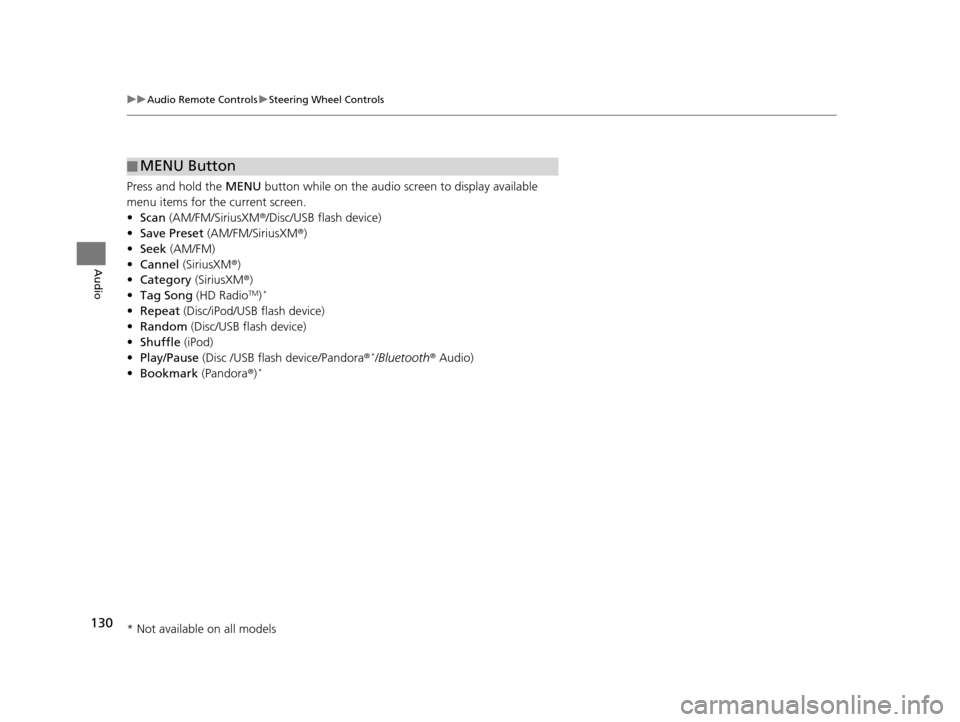
Press and hold the MENU button while on the audio screen to display available
menu items for the current screen.
• Scan (AM/FM/SiriusXM®/Disc/USB flash device)
• Save Preset (AM/FM/SiriusXM ®)
• Seek (AM/FM)
• Cannel (SiriusXM ®)
• Category (SiriusXM ®)
• Tag Song (HD Radio
TM)*
•Repeat (Disc/iPod/USB flash device)
• Random (Disc/USB flash device)
• Shuffle (iPod)
• Play/Pause (Disc /USB flas h device/Pandora®
*/Bluetooth ® Audio)
• Bookmark (Pandora ®)*
■MENU Button
* Not available on all models
15 CIVIC NAVI-31TR38300.book 130 ページ 2014年8月7日 木曜日 午前11時49分
Page 132 of 253
131Continued
Audio
Audio Settings
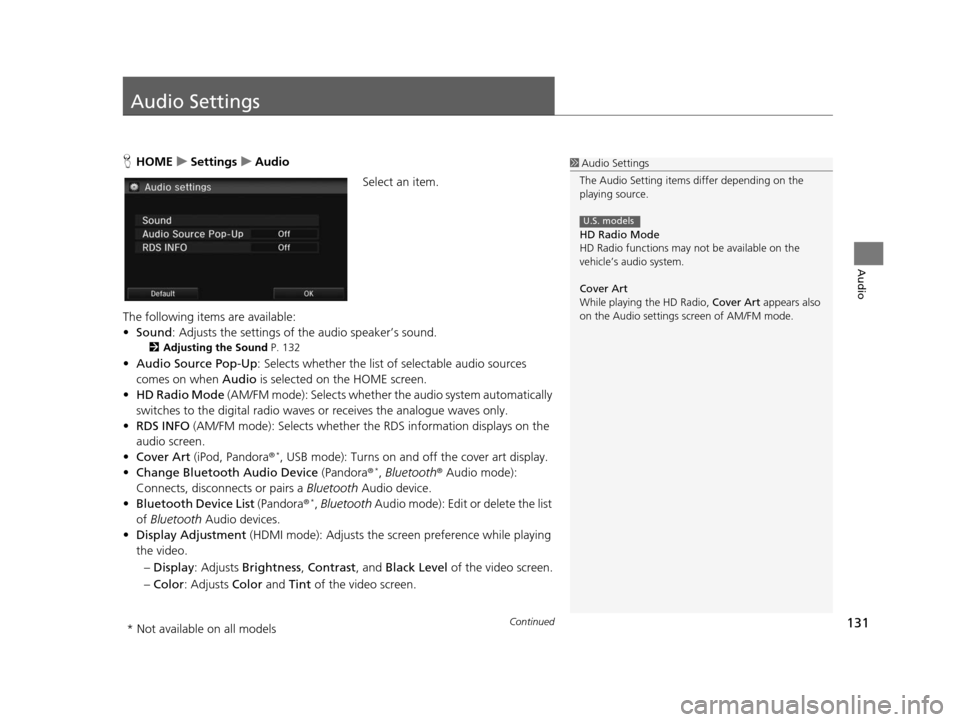
HHOME uSetting su Audio
Select an item.
The following items are available:
• Sound : Adjusts the settings of the audio speaker’s sound.
2Adju sting the Sound P. 132
•Audio Source Pop-Up : Selects whether the list of selectable audio sources
comes on when Audio is selected on the HOME screen.
• HD Radio Mode (AM/FM mode): Selects whether the audio system automatically
switches to the digital radio waves or receives the analogue waves only.
• RDS INFO (AM/FM mode): Selects whether th e RDS information displays on the
audio screen.
• Cover Art (iPod, Pandora ®
*, USB mode): Turns on and off the cover art display.
• Change Bluetooth Audio Device (Pandora®*, Bluetooth ® Audio mode):
Connects, disconnects or pairs a Bluetooth Audio device.
• Bluetooth Device List (Pandora®
*, Bluetooth Audio mode): Edit or delete the list
of Bluetooth Audio devices.
• Display Adjustment (HDMI mode): Adjusts the screen preference while playing
the video.
– Display : Adjusts Brightness , Contrast, and Black Level of the video screen.
– Color : Adjusts Color and Tint of the video screen.
1Audio Settings
The Audio Setting items di ffer depending on the
playing source.
HD Radio Mode
HD Radio functions may not be available on the
vehicle’s audio system.
Cover Art
While playing the HD Radio, Cover Art appears also
on the Audio settings screen of AM/FM mode.
U.S. models
* Not available on all models
15 CIVIC NAVI-31TR38300.book 131 ページ 2014年8月7日 木曜日 午前11時49分
Page 133 of 253
uuAudio Settings uAdjusting the Sound
132
Audio
• Aspect Ratio Adjustment (HDMI mode): Sets the aspect ratio of the image.
– Normal : Displays the image with the ratio of 4 to 3.
– Full: Displays the image in full-screen.
– Zoom : Displays the enlarged image.
Adjusting the Sound
HHOME uSetting su Audio uSound
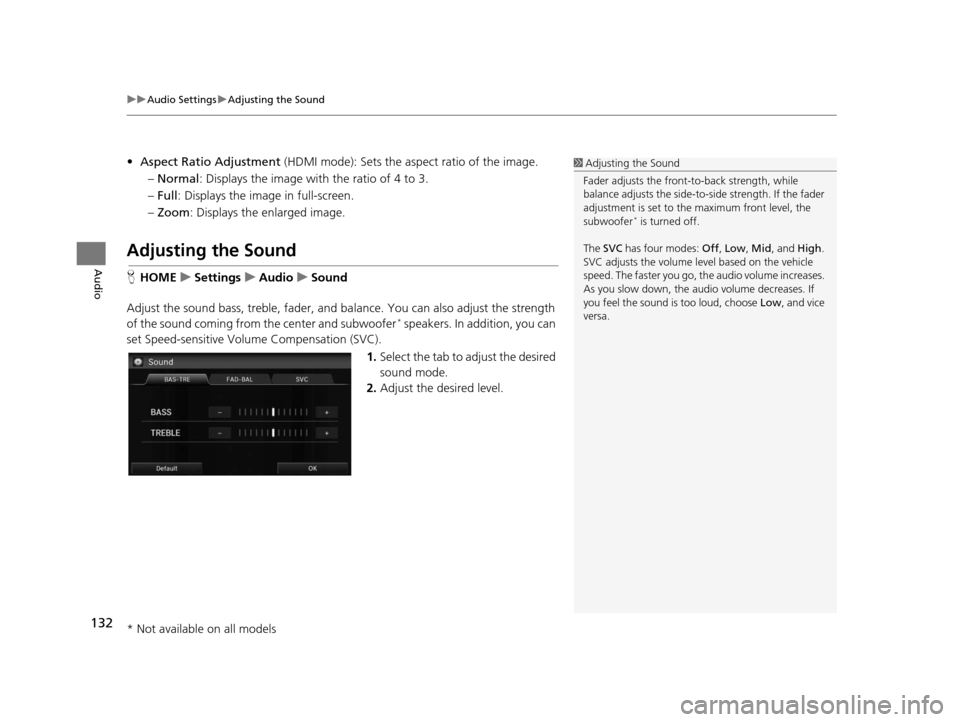
Adjust the sound bass, treble, fader, and ba lance. You can also adjust the strength
of the sound coming from the center and subwoofer
* speakers. In addition, you can
set Speed-sensitive Volu me Compensation (SVC).
1.Select the tab to adjust the desired
sound mode.
2. Adjust the desired level.
1Adjusting the Sound
Fader adjusts the front-t o-back strength, while
balance adjusts the side-to-si de strength. If the fader
adjustment is set to the maximum front level, the
subwoofer
* is turned off.
The SVC has four modes: Off, Low , Mid , and High.
SVC adjusts the volume level based on the vehicle
speed. The faster you go, th e audio volume increases.
As you slow down, the audio volume decreases. If
you feel the sound is too loud, choose Low, and vice
versa.
* Not available on all models
15 CIVIC NAVI-31TR38300.book 132 ページ 2014年8月7日 木曜日 午前11時49分
Page 134 of 253
133
Audio
Playing FM/AM Radio
Selecting FM/AM Mode
1.Select Audio on the HOME screen.
2. Select SOURCE .
3. Select the FM or AM icon.
4. Select the radio frequency with Tune, Seek , SCAN or open the
tab and select from stored presets.
u The band, frequency, and available subchannel number are displayed.1Playing FM/AM Radio
“Radio Select FM/AM ”
You can control the radio using voice control
commands. 2 Radio Command s P. 237
A visual guide helps you operate the audio system.
2 System Control s P. 4
2 Basic Operation P. 9
The radio can receive the complete AM and FM
bands:
AM band: 530 to 1710 kHz
FM band: 87.7 to 107.9 MHz
You can store six AM stations and 12 FM stations in
the presets.
15 CIVIC NAVI-31TR38300.book 133 ページ 2014年8月7日 木曜日 午前11時49分
Page 135 of 253
134
uuPlaying FM/AM Radio uAudio Screen Control
Audio
Audio Screen Control
H HOME uAudio uSOURCE uFM or AM icon
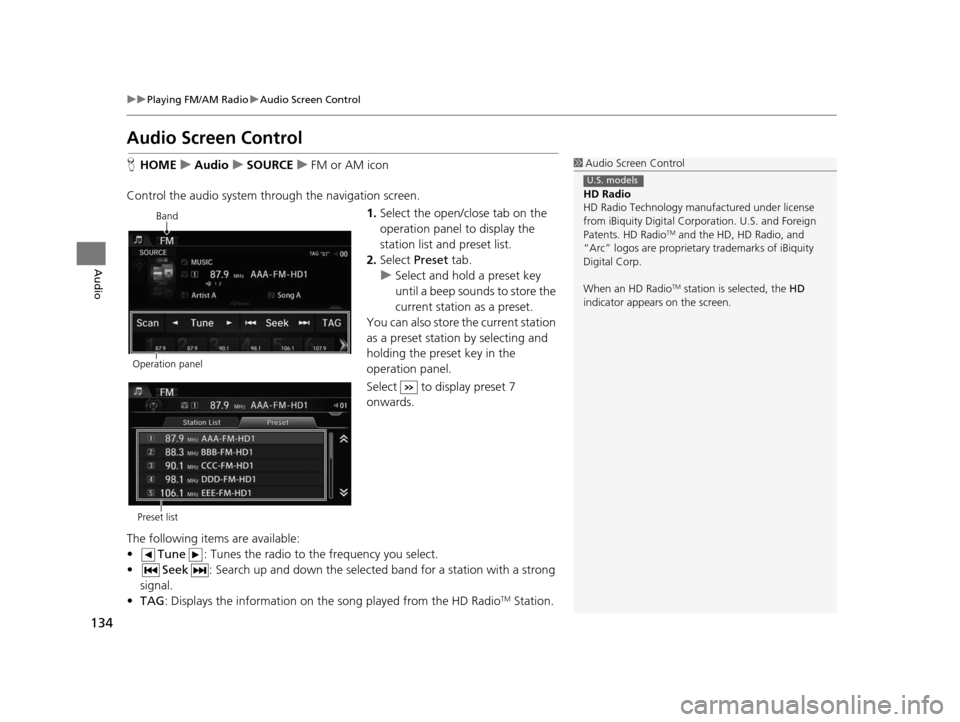
Control the audio system th rough the navigation screen.
1.Select the open/close tab on the
operation panel to display the
station list and preset list.
2. Select Preset tab.
u Select and hold a preset key
until a beep sounds to store the
current station as a preset.
You can also store the current station
as a preset station by selecting and
holding the preset key in the
operation panel.
Select to display preset 7
onwards.
The following items are available:
• Tune : Tunes the radio to the frequency you select.
• Seek : Search up and down the selected band for a station with a strong
signal.
• TAG : Displays the information on th e song played from the HD Radio
TM Station.
1Audio Screen Control
HD Radio
HD Radio Technology manufactured under license
from iBiquity Digital Cor poration. U.S. and Foreign
Patents. HD Radio
TM and the HD, HD Radio, and
“Arc” logos are proprietary trademarks of iBiquity
Digital Corp.
When an HD Radio
TM station is selected, the HD
indicator appears on the screen.
U.S. models
Band
Operation panel
Preset list
15 CIVIC NAVI-31TR38300.book 134 ページ 2014年8月7日 木曜日 午前11時49分