radio HONDA CIVIC COUPE 2015 9.G Navigation Manual
[x] Cancel search | Manufacturer: HONDA, Model Year: 2015, Model line: CIVIC COUPE, Model: HONDA CIVIC COUPE 2015 9.GPages: 253, PDF Size: 8.81 MB
Page 137 of 253
uuPlaying FM/AM Radio uAudio Menu
136
Audio
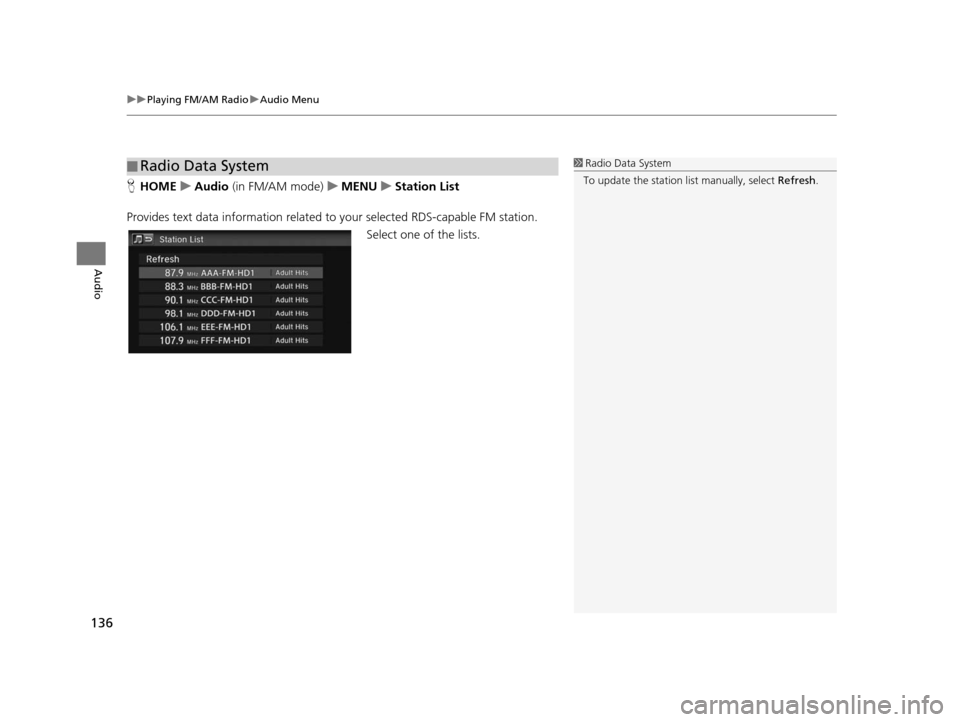
H HOME uAudio (in FM/AM mode) uMENU uStation Li st
Provides text data information related to your selected RDS-capable FM station.
Select one of the lists.
■Radio Data System1
Radio Data System
To update the station li st manually, select Refresh.
15 CIVIC NAVI-31TR38300.book 136 ページ 2014年8月7日 木曜日 午前11時49分
Page 138 of 253
137
Audio
Playing SiriusXM® Radio
Selecting SiriusXM ® Mode
1. Select Audio on the HOME screen.
2. Select SOURCE .
3. Select the XM icon.
4. Select the channel with Category, Channel , SCAN or open the
tab and select from stored presets.
u The channel is displayed.1Playing SiriusXM ® Radio
“ Radio select XM ”, “Radio XM ”
You can control the radio using voice control
commands. 2 Radio Command s P. 237
A visual guide helps you operate the audio system.
2 System Control s P. 4
2 Basic Operation P. 9
In the channel mode, all available channels are
selectable. In the categor y mode, you can select a
channel within a ca tegory (Jazz, Rock, Classical, etc.).
There may be instances when SiriusXM ® Radio does
not broadcast all the data fi elds (artist name, title).
This does not indicate a problem with your audio
system.
You can store 12 SiriusXM ® stations in the presets.
SiriusXM ® Radio display message s will be displayed
on the audio screen.
2 Siriu sXM® Radio Di splay Messages P. 140
15 CIVIC NAVI-31TR38300.book 137 ページ 2014年8月7日 木曜日 午前11時49分
Page 139 of 253
138
uuPlaying SiriusXM ® Radio uAudio Screen Control
Audio
Audio Screen Control
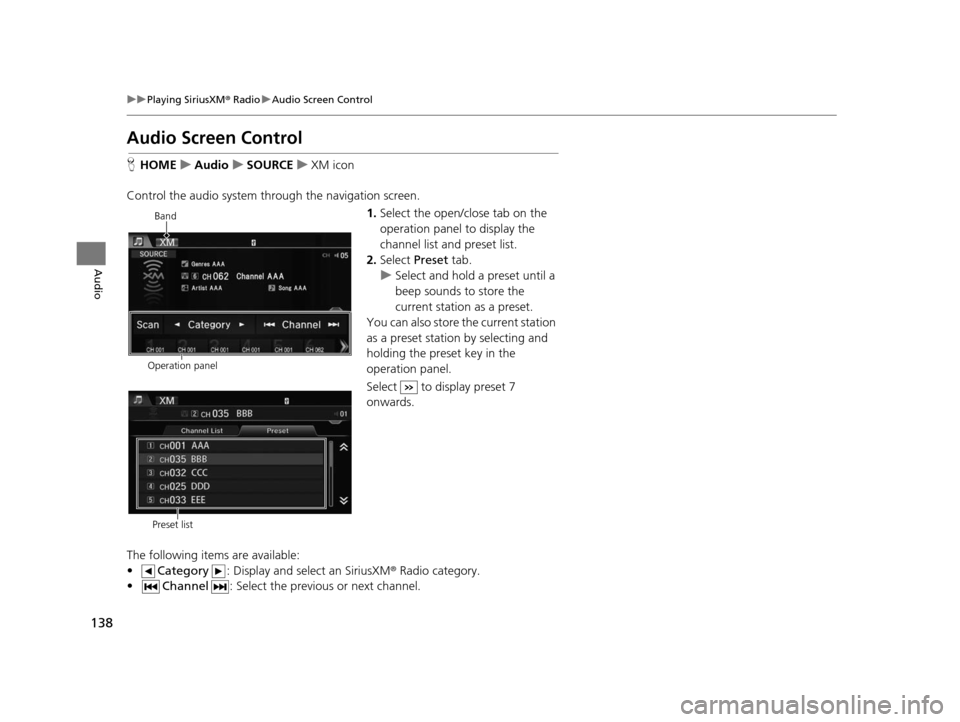
H HOME uAudio uSOURCE uXM icon
Control the audio system th rough the navigation screen.
1.Select the open/close tab on the
operation panel to display the
channel list and preset list.
2. Select Preset tab.
u Select and hold a preset until a
beep sounds to store the
current station as a preset.
You can also store the current station
as a preset station by selecting and
holding the preset key in the
operation panel.
Select to display preset 7
onwards.
The following items are available:
• Category : Display and select an SiriusXM® Radio category.
• Channel : Select the previous or next channel.
Operation panelBand
Preset list
15 CIVIC NAVI-31TR38300.book 138 ページ 2014年8月7日 木曜日 午前11時49分
Page 140 of 253
139
uuPlaying SiriusXM ® Radio uAudio Menu
Audio
• Scan : Scans for channels in the selected mode and plays a 10-second sample.
Select Cancel to stop scanning and pl ay the current selection.
Audio Menu
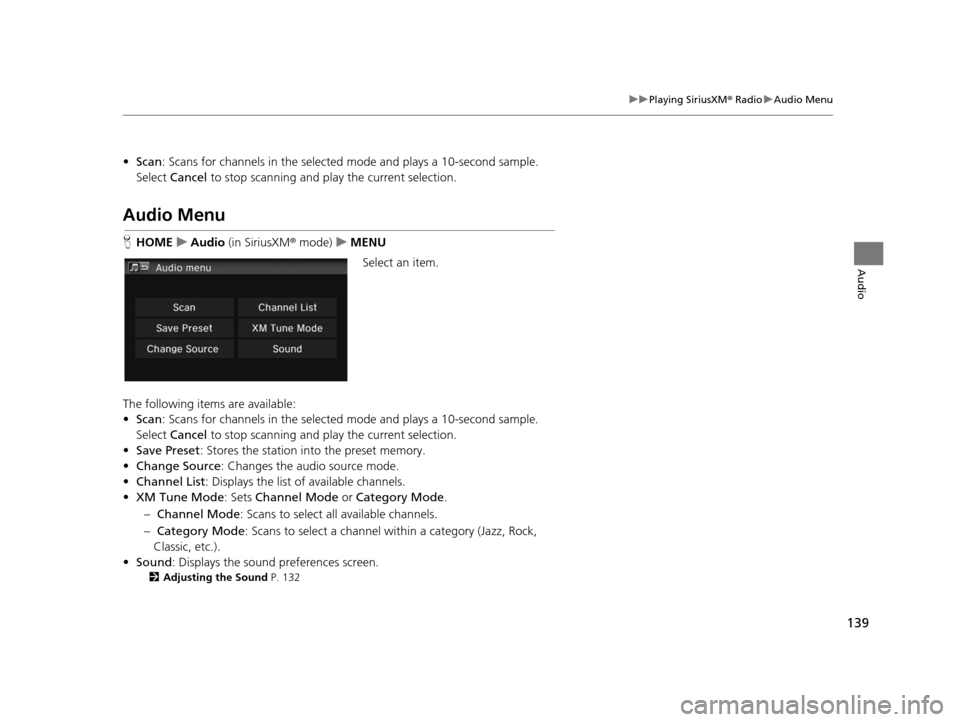
HHOME uAudio (in SiriusXM ® mode) uMENU
Select an item.
The following items are available:
• Scan : Scans for channels in the selected mode and plays a 10-second sample.
Select Cancel to stop scanning and pl ay the current selection.
• Save Preset : Stores the station into the preset memory.
• Change Source : Changes the audio source mode.
• Channel List : Displays the list of available channels.
• XM Tune Mode : Sets Channel Mode or Category Mode .
– Channel Mode : Scans to select a ll available channels.
– Category Mode : Scans to select a channel within a category (Jazz, Rock,
Classic, etc.).
• Sound : Displays the sound preferences screen.
2Adju sting the Sound P. 132
15 CIVIC NAVI-31TR38300.book 139 ページ 2014年8月7日 木曜日 午前11時49分
Page 141 of 253
140
uuPlaying SiriusXM ® Radio uSiriusXM ® Radio Service
Audio
Siriu sXM® Radio Service
1. Retrieve your radio ID before registering for subscription.
u To see the radio ID, select (channel) to select “000” channel. You can also
select “000” channel from Channel List.
2. Have your radio ID and credit card number ready, and either call SiriusXM ® or visit
the SiriusXM® website to subscribe.
Select the SiriusXM ® icon and stay in this mode for about 30 minutes until the
service is activated. Make sure your vehicl e is in an open area with good reception.
Loading : SiriusXM ® is loading the audio or program information.
Channel Off Air : The channel is not currently broadcasting.
Channel Not Authorized: The encryption code is being updated. Channels 0 and
1 still work normally.
No Signal : The signal is too weak in the current location.
Channel Not Available : No such channel exists, the channel is not part of your
subscription, or the artist or ti tle information is not available.
Check Antenna : There is a problem with the SiriusXM ® antenna. Contact a dealer.
■Subscribing to SiriusXM
® Radio
■ Receiving SiriusXM
® Radio
■ SiriusXM
® Radio Display Messages
1 Subscribing to SiriusXM ® Radio
Contact Information for SiriusXM ® Radio:
U.S.: SiriusXM ® Radio at www.siriusxm.com , or
(800) 852-9696
Canada: SiriusXM ® Canada at www.xmradio.ca , or
(877) 209-0079
1 Receiving SiriusXM ® Radio
The SiriusXM ® satellites are in orbit over the equator;
therefore, objects south of the vehicle may cause
satellite reception interruptions. Sa tellite signals are
more likely to be blocked by tall buildings and
mountains the farther north you travel from the
equator.
You may experience rece ption problems under the
following circumstances:
•In a location with an obstruction to the south of
your vehicle
•In tunnels•On the lower level of a multi-tiered road
•Large items are carried on the roof rack
15 CIVIC NAVI-31TR38300.book 140 ページ 2014年8月7日 木曜日 午前11時49分
Page 155 of 253
154
Audio
Playing Pandora®*
Pandora is a personalized Internet radio serv ice that selects music based on an artist,
song, or genre a user enters, and stream s what is likely to be of interest.
Selecting Pandora® Mode
1.Connect a compatible phone through Bluetooth®.
u You can also connect the phone using your dock connector to the USB port if
you use the iPhone.
2. Select Audio on the HOME screen.
3. Select SOURCE .
4. Select the PANDORA icon.
u A pop-up message may appear on your phone requesting you to allow access
for the app to launch.
u The current station name, artist name, rating, and track name are displayed.
1Playing Pandora ®*
“Pandora play”
Pandora is available on U.S. models only.
You can control Pandora using voice commands. 2 Pandora ®
* Command s P. 239
A visual guide helps you operate the audio system.
2 System Control s P. 4
2 Basic Operation P. 9
Pandora, the Pandora logo, and the Pandora trade
dress are trademarks or registered trademarks of
Pandora Media, Inc., used with permission. Pandora
is currently available exclusively in the United States.
To use this service in your vehicle, the Pandora app
must first be installed on your smartphone. Visit
www.pandora.com for more information.
If there is a problem, you may see an error message
on the display. 2 Error Me ssages P. 214
* Not available on all models
15 CIVIC NAVI-31TR38300.book 154 ページ 2014年8月7日 木曜日 午前11時49分
Page 223 of 253
222
Reference Information
System Initialization
The navigation system must be initialized if
power to the navigation system is
interrupted for any reason (e.g., the battery
was disconnected).
Entering the Security Code
Find the navigation system’s security code
and serial number label in your Owner’s
Manual kit. Do not store the label in your
vehicle. If you lose the label, you must first
retrieve the serial number, and then obtain
the code. You can find out about your serial
number and security code from a dealer.
1.Set the power mode to ON, and turn on
the audio system.
2. Press and hold the audio system power
button for more than two seconds.
u The system is reac tivated when the
system’s control unit recognizes that
the system is in your vehicle. If the
control unit fails to recognize, Enter
Code appears on the navigation
screen.
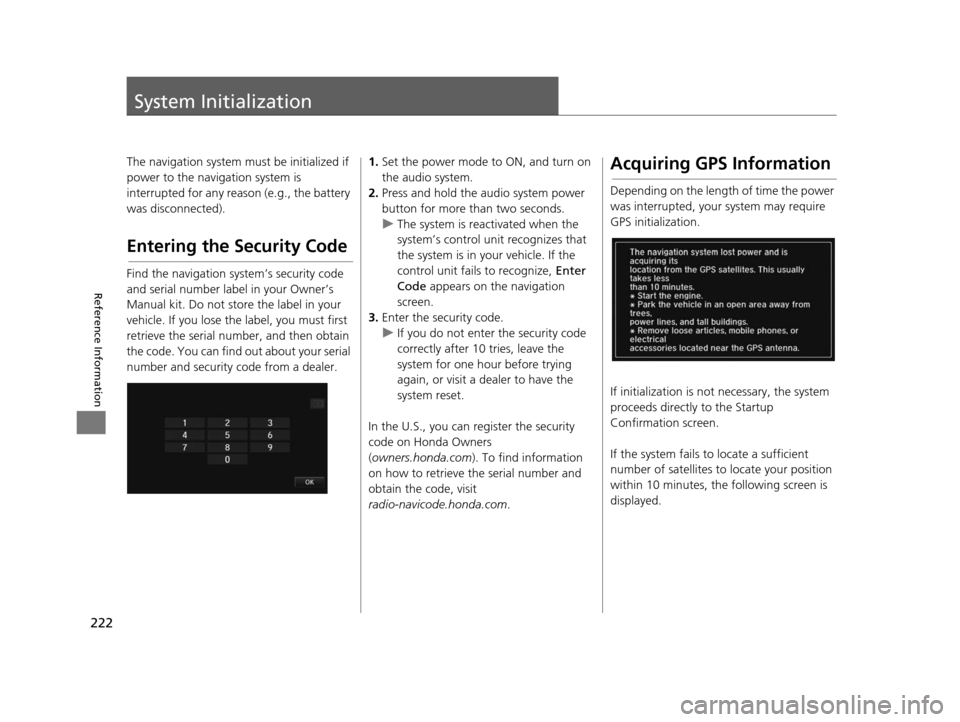
3. Enter the security code.
u If you do not enter the security code
correctly after 10 tries, leave the
system for one hour before trying
again, or visit a dealer to have the
system reset.
In the U.S., you can register the security
code on Honda Owners
( owners.honda.com ). To find information
on how to retrieve the serial number and
obtain the code, visit
radio-navicode.honda.com .Acquiring GPS Information
Depending on the length of time the power
was interrupted, your system may require
GPS initialization.
If initialization is not necessary, the system
proceeds directly to the Startup
Confirmation screen.
If the system fails to locate a sufficient
number of satellites to locate your position
within 10 minutes, th e following screen is
displayed.
15 CIVIC NAVI-31TR38300.book 222 ページ 2014年8月7日 木曜日 午前11時49分
Page 229 of 253
228
uuCustomer Assistance uObtaining a Navigation Update
Reference Information
Obtaining a Navigation
Update
Honda is continually expanding the scope of
the navigation system. Navigation system
software upgrades may be made available
periodically, usually in the fall of each year.
To purchase an updated data file:
1. Obtain your vehicle’s VIN number and the
System/Device Information.
2 System/Device Information P. 200
2.Call the Honda Naviga tion Disc Fulfilment
Center at (888) 291-4675, or order
online at:
•U.S.: www.hondanavi.com
• Canada: www.honda.ca
Updated data is not available from your
dealer. However, the dealer may assist you
in obtaining one out of courtesy. There is no
program for free updates.
Traffic Information
• Continuously updated traffic information is available in major metropolitan areas
across the 48 contiguous states and
Hawaii.
•Visit automobiles.honda.com/traffic for a
complete listing of coverage areas and
other information.
• Traffic information is available on U.S. models only.
Operation in Ala ska,
Hawaii, Canada, and
Puerto Rico
Navigation-equipped vehicles delivered to
Alaska, Hawaii, and Puerto Rico are
equipped with SiriusXM ® hardware, but
SiriusXM ® broadcasting is not available.
There are certain functions that rely on
SiriusXM ® satellite signal coverage which
are not available. Unavailable menu options
will appear gray on the LCD display.
All roads displayed on the map screens are
verified roads. Inform ation in this manual
relating to “unverified” roads or areas is not
applicable.
■ SiriusXM
® Radio
■ Map Coverage
15 CIVIC NAVI-31TR38300.book 228 ページ 2014年8月7日 木曜日 午前11時49分
Page 233 of 253
232
uuLegal Information uAs required by the FCC
Reference Information
Contractor (Manufacturer/ Supplier) Name:
NAVTEQ
CONTRACTOR (MANUFACTURER/
SUPPLIER) ADDRESS: 425 West Randolph
St., Chicago, Illinois 60606
This Data is a commercial item as defined in
FAR 2.101 and is subject to the End User
License Agreement under which this Data
was provided.
© 2012 NAVTEQ – All rights reserved.
If the Contracting Officer, federal
government agency, or any federal official
refuses to use the legend provided herein,
the Contracting Officer, federal
government agency, or any federal official
must notify NAVTEQ prior to seeking
additional or alternative rights in the Data.
■NOTICE OF USEA
s required by the FCC
1. This device complies with Part 15 of the
FCC Rules and Canadian RSS-210/
RSSGen. Operation is subject to the
following two conditions: (1) this device
may not cause harmful interference, and
(2) this device must accept any
interference received, including
interference that may cause undesired
operation.
2. The FCC requires the user to be notified
that any changes or modifications made
to this device that are not expressly
approved by the party responsible for
compliance may void the user’s authority
to operate the equipment.
3. This product emits radio frequency
energy, but the radiated output power of
this device is far below the FCC and IC
radio frequency exposure limits. This
equipment complies with FCC and IC RF
radiation exposure limi ts set forth for an
uncontrolled environment. Nevertheless,
the device should be used in such a
manner that the potential for human
contact with the antenna during normal
operation is minimized.
15 CIVIC NAVI-31TR38300.book 232 ページ 2014年8月7日 木曜日 午前11時49分
Page 238 of 253
237
uuVoice Commands uClimate Control Commands
Continued
Voice Commands
Climate Control Command s
The system accepts these commands on
most screens.
Climate control automatic (maintains
selected temperature)
Climate control full off
Climate control on
*1
Climate control off*1
Air conditioner on*1
Air conditioner off*1
Climate control defrost on*1
Climate control defrost off*1
Rear defrost on*1
Rear defrost off*1
Climate control fresh air
Climate control recirculate
Climate control vent
Climate control bi-level (vent and floor)
Climate control floor
Climate control floor and defrost
Fan speed up
Fan speed down
Fan speed # (#: 1 to 7)
Temperature # degrees (#: 57 to 87 °F/15
to 29 °C)
Temperature up
Temperature down Driver Temperature up
Driver Temperature down
Temperature max hot
Temperature max cold
*1: These commands toggle the function on and off, so the command may not
match your intended action.
Climate control commands are not available
on all models.
Audio Command s
The system accepts these commands on
most screens.
Audio on
*1
Audio off*1
Radio on*1
Radio off*1
Radio select FM
Radio select AM
Radio tune to # FM (#: frequency, e.g.,
95.5)
Radio tune to # AM (#: frequency, e.g.,
1020)
Radio seek up
Radio seek down
Radio next station
Radio preset # (#: 1 to 12)
Radio FM preset # (#: 1 to 12)
Radio AM preset # (#: 1 to 6)
Radio scan
*1
Turn on XM radio
Radio select XM
XM channel (channel name)
XM channel # (#: 0 to 255)
XM channel up
■ Radio Commands
15 CIVIC NAVI-31TR38300.book 237 ページ 2014年8月7日 木曜日 午前11時49分