reset HONDA CIVIC COUPE 2015 9.G Owner's Manual
[x] Cancel search | Manufacturer: HONDA, Model Year: 2015, Model line: CIVIC COUPE, Model: HONDA CIVIC COUPE 2015 9.GPages: 441, PDF Size: 18.4 MB
Page 227 of 441
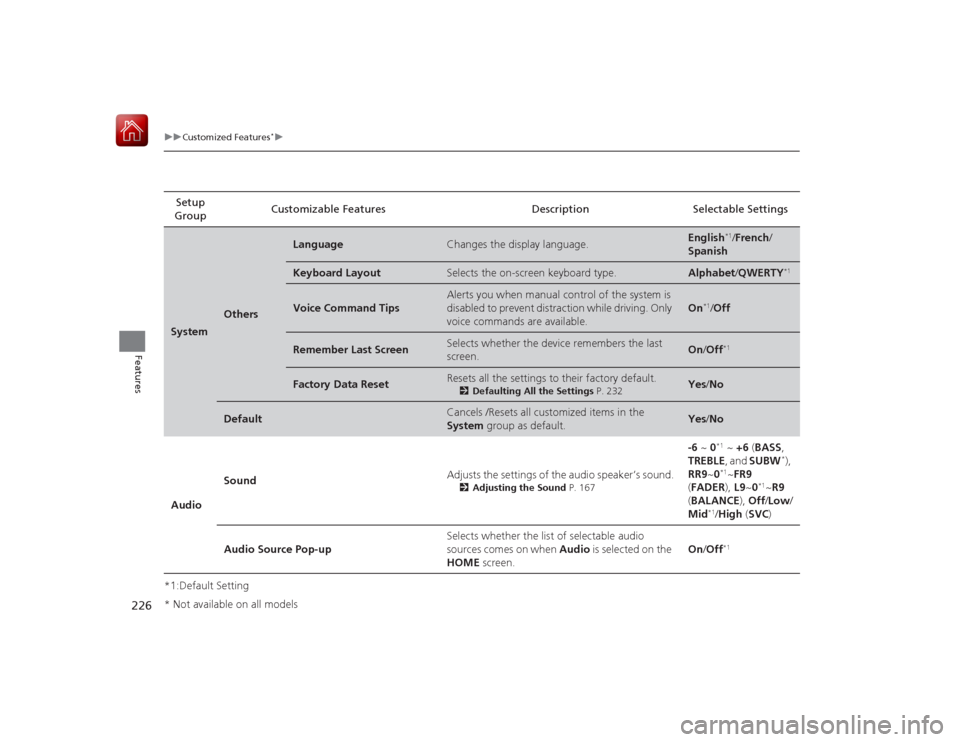
226
uuCustomized Features
*u
Features
*1:Default SettingSetup
Group Customizable Features Description Selectable SettingsSystem
Others
Language
Changes the display language.
English
*1/
French /
Spanish
Keyboard Layout
Selects the on-screen keyboard type.
Alphabet /QWERTY
*1
Voice Command Tips
Alerts you when manual control of the system is
disabled to prevent distraction while driving. Only
voice commands are available.
On
*1/ Off
Remember Last Screen
Selects whether the device remembers the last
screen.
On /Off
*1
Factory Data Reset
Resets all the settings to their factory default.
2 Defaulting All the Settings P. 232
Yes/No
Default
Cancels /Resets all customized items in the
System group as default.
Yes/No
Audio Sound
Adjusts the settings of the audio speaker’s sound.
2
Adjusting the Sound P. 167
-6 ~ 0
*1 ~ +6 (BASS ,
TREBLE , and SUBW
*),
RR9 ~0
*1~FR9
( FADER ), L9~0
*1~R9
( BALANCE ), Off /Low /
Mid
*1/ High (SVC )
Audio Source Pop-up Selects whether the list of selectable audio
sources comes on when
Audio is selected on the
HOME screen. On
/Off*1
* Not available on all models
Page 228 of 441
![HONDA CIVIC COUPE 2015 9.G Owners Manual 227
uuCustomized Features
*u
Continued
Features
*1:Default SettingSetup
Group Customizable Features Description Selectable Settings
Audio [Your selected media]
Cover Art Turns on and off the cover a](/img/13/5862/w960_5862-227.png "HONDA CIVIC COUPE 2015 9.G Owners Manual 227
uuCustomized Features
*u
Continued
Features
*1:Default SettingSetup
Group Customizable Features Description Selectable Settings
Audio [Your selected media]
Cover Art Turns on and off the cover a")
227
uuCustomized Features
*u
Continued
Features
*1:Default SettingSetup
Group Customizable Features Description Selectable Settings
Audio [Your selected media]
Cover Art Turns on and off the cover art display.
On
*1/Off
Display
Adjustment Display
Brightness
See System on P. 226
Contrast
Black Level
Color Color
Changes the color of the audio/information
screen. —
Tint Changes the tint of the audio/information screen. —
Aspect Ratio Adjustment Changes the aspect ratio and zoom settings of
the audio/information screen.
Normal
/Full
*1/Zoom
Change Bluetooth Audio Device Connects, disconnects or pairs a
Bluetooth®
Audio device to HFL. —
Bluetooth Device List Pairs a new phone to HFL, edits or deletes a
paired phone.
2
Phone Setup P. 240
—
Default Cancels/Resets all customized items in the
Audio
group as default. Yes
/No
iPod or USB modeHDMI ® modeHDMI ® modeBluetooth ® Audio modeBluetooth ® Audio mode
Page 229 of 441
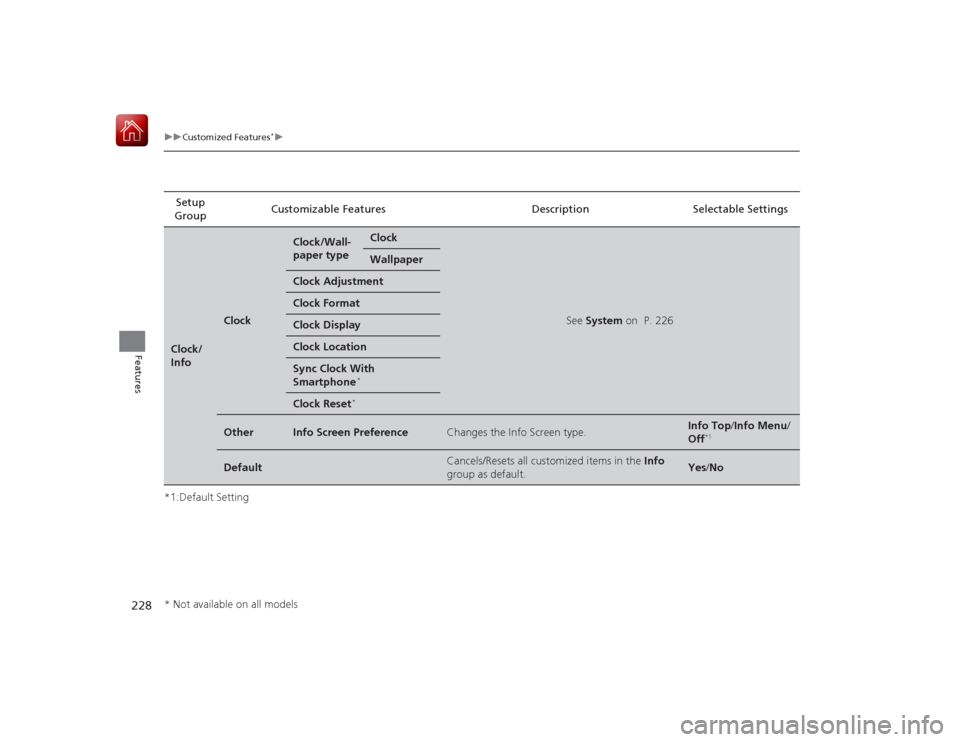
228
uuCustomized Features
*u
Features
*1:Default SettingSetup
Group Customizable Features Description Selectable SettingsClock/
Info
Clock
Clock/Wall-
paper type
Clock
See
System on P. 226
Wallpaper
Clock AdjustmentClock FormatClock DisplayClock LocationSync Clock With
Smartphone
*
Clock Reset
*
Other
Info Screen Preference
Changes the Info Screen type.
Info Top /Info Menu /
Off
*1
Default
Cancels/Resets all customized items in the Info
group as default.
Yes /No
* Not available on all models
Page 230 of 441
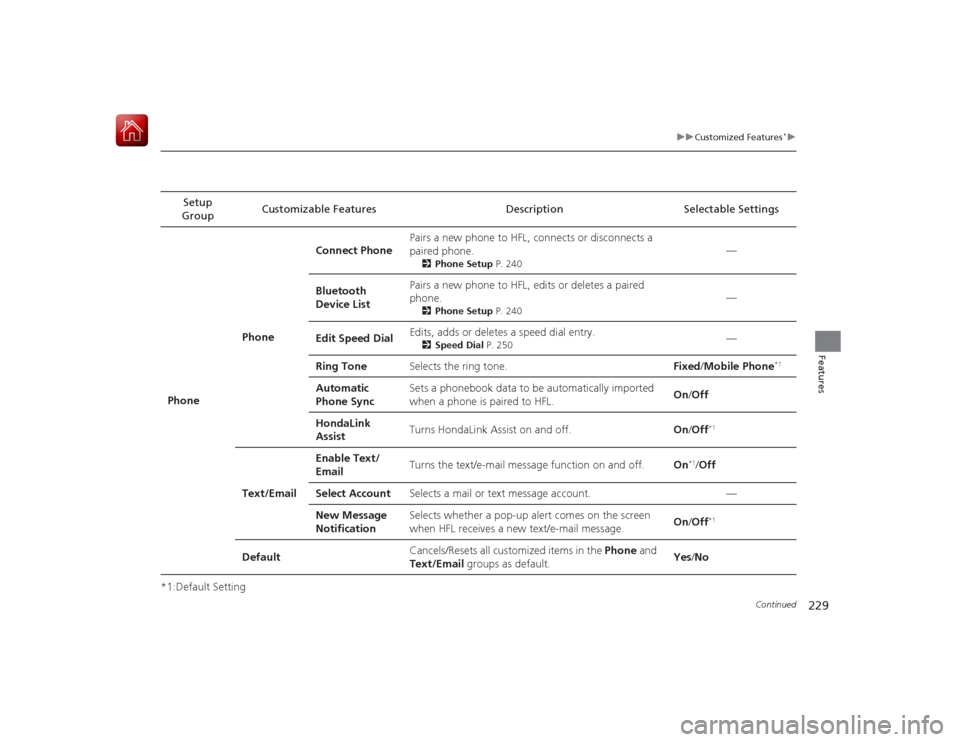
229
uuCustomized Features
*u
Continued
Features
*1:Default Setting Setup
Group Customizable Features Description Selectable Settings
Phone PhoneConnect Phone
Pairs a new phone to HFL,
connects or disconnects a
paired phone.
2 Phone Setup P. 240
—
Bluetooth
Device List Pairs a new phone to HFL, edits or deletes a paired
phone.
2
Phone Setup P. 240
—
Edit Speed Dial Edits, adds or deletes a speed dial entry.
2
Speed Dial P. 250
—
Ring Tone Selects the ring tone. Fixed/Mobile Phone
*1
Automatic
Phone Sync Sets a phonebook data to be automatically imported
when a phone is paired to HFL.
On
/Off
HondaLink
Assist Turns HondaLink Assist on and off.
On/Off
*1
Text/Email Enable Text/
Email
Turns the text/e-mail message function on and off.
On
*1/Off
Select Account Selects a mail or text message account. —
New Message
Notification Selects whether a pop-up alert comes on the screen
when HFL receives a new text/e-mail message.
On
/Off
*1
Default Cancels/Resets all customized items in the
Phone and
Text/Email groups as default. Yes
/No
Page 231 of 441
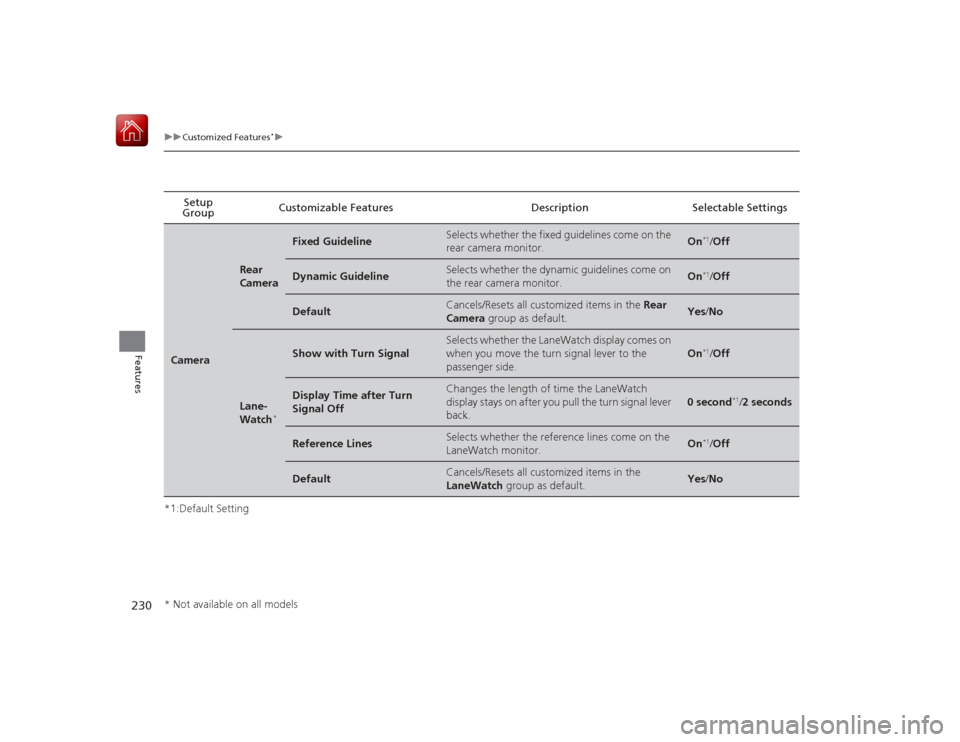
230
uuCustomized Features
*u
Features
*1:Default SettingSetup
Group Customizable Features Description Selectable SettingsCamera
Rear
Camera
Fixed Guideline
Selects whether the fixed guidelines come on the
rear camera monitor.
On
*1/
Off
Dynamic Guideline
Selects whether the dynamic guidelines come on
the rear camera monitor.
On
*1/Off
Default
Cancels/Resets all customized items in the Rear
Camera group as default.
Yes/No
Lane-
Watch
*
Show with Turn Signal
Selects whether the LaneWatch display comes on
when you move the turn signal lever to the
passenger side.
On
*1/Off
Display Time after Turn
Signal Off
Changes the length of time the LaneWatch
display stays on after you pull the turn signal lever
back.
0 second
*1/2 seconds
Reference Lines
Selects whether the reference lines come on the
LaneWatch monitor.
On
*1/ Off
Default
Cancels/Resets all customized items in the
LaneWatch group as default.
Yes/No
* Not available on all models
Page 232 of 441
231
uuCustomized Features
*u
Features
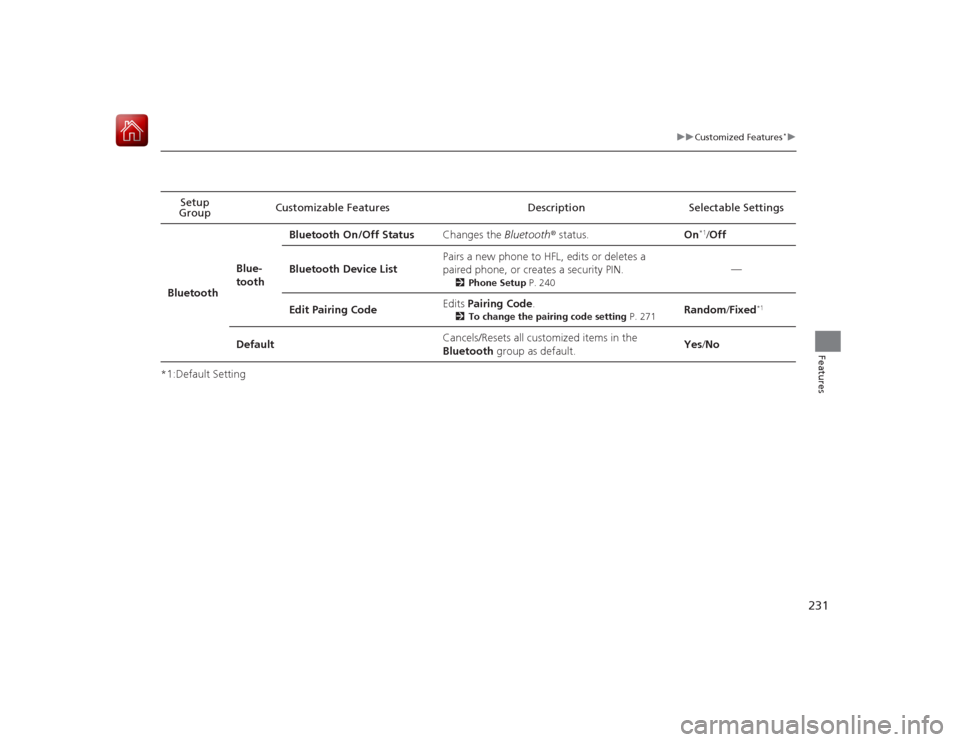
*1:Default SettingSetup
Group Customizable Features Description Selectable Settings
Bluetooth Blue-
toothBluetooth On/Off Status
Changes the Bluetooth® status. On
*1/Off
Bluetooth Device List Pairs a new phone to HFL, edits or deletes a
paired phone, or creates a security PIN.
2
Phone Setup P. 240
—
Edit Pairing Code Edits
Pairing Code .
2To change the pairing code setting P. 271
Random/Fixed
*1
Default Cancels/Resets all customized items in the
Bluetooth
group as default. Yes
/No
Page 233 of 441
232
uuCustomized Features
*uDefaulting All the Settings
Features
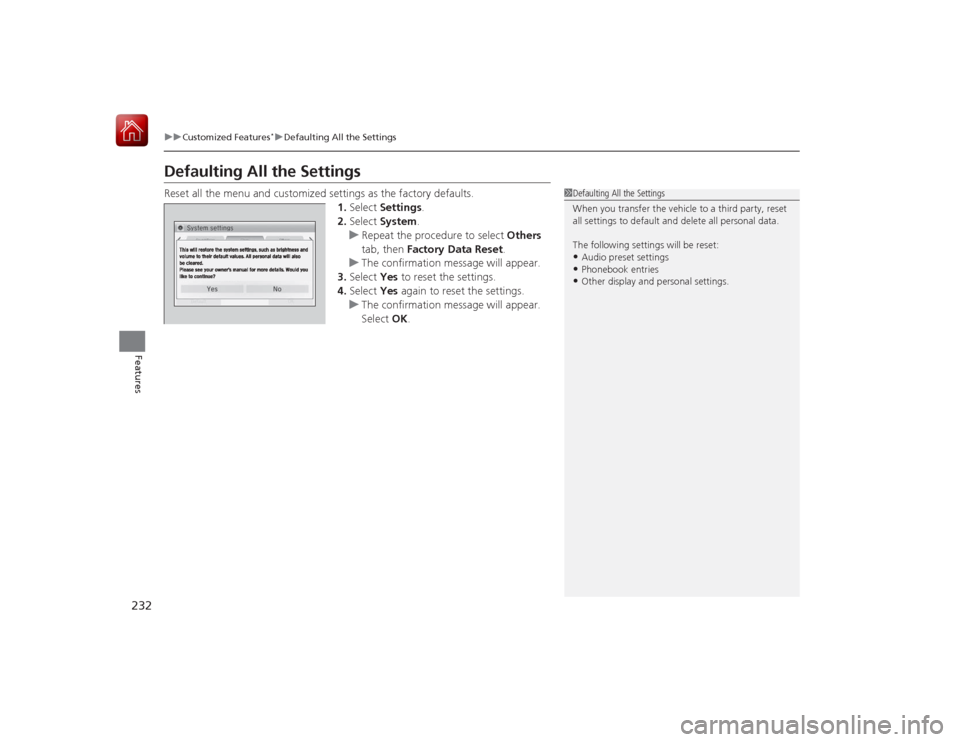
Defaulting All the SettingsReset all the menu and customized settings as the factory defaults.
1.Select Settings .
2. Select System .
u Repeat the procedure to select Others
tab, then Factory Data Reset .
u The confirmation message will appear.
3. Select Yes to reset the settings.
4. Select Yes again to reset the settings.
u The confirmation message will appear.
Select OK.
1Defaulting All the Settings
When you transfer the vehicle to a third party, reset
all settings to default and delete all personal data.
The following settings will be reset:•Audio preset settings•Phonebook entries•Other display and personal settings.
Page 251 of 441
uuBluetooth ® HandsFreeLink ®u HFL Menus
250Features
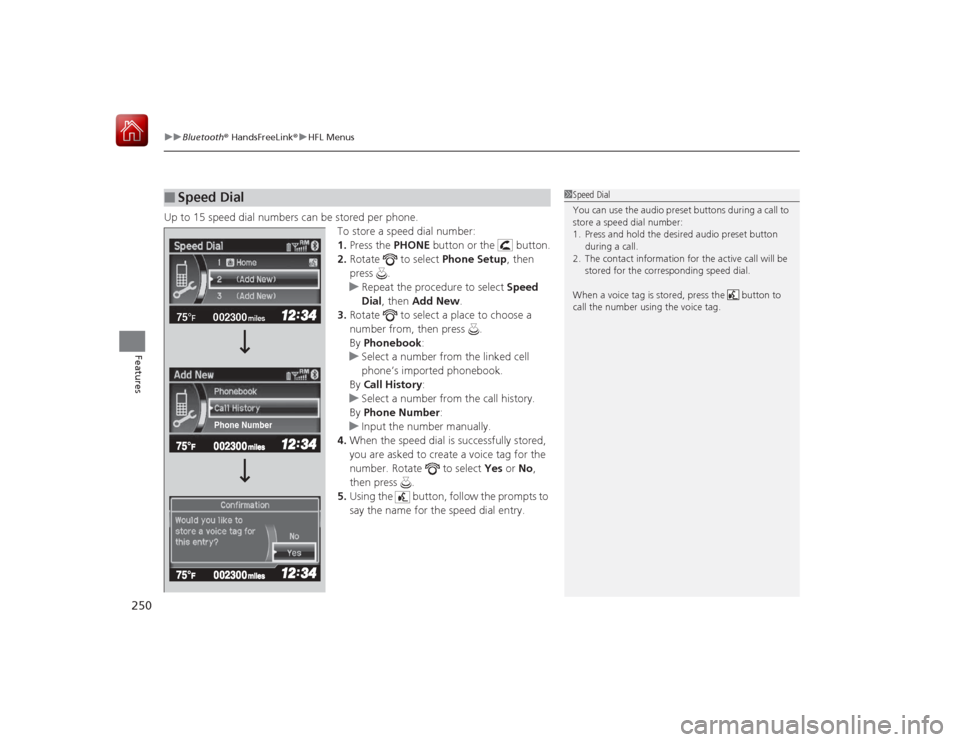
Up to 15 speed dial numbers can be stored per phone.
To store a speed dial number:
1.Press the PHONE button or the button.
2. Rotate to select Phone Setup, then
press .
u Repeat the procedure to select Speed
Dial, then Add New.
3. Rotate to select a place to choose a
number from, then press .
By Phonebook :
u Select a number from the linked cell
phone’s imported phonebook.
By Call History :
u Select a number from the call history.
By Phone Number :
u Input the number manually.
4. When the speed dial is successfully stored,
you are asked to create a voice tag for the
number. Rotate to select Yes or No,
then press .
5. Using the button, follow the prompts to
say the name for the speed dial entry.■
Speed Dial
1Speed Dial
You can use the audio preset buttons during a call to
store a speed dial number:
1. Press and hold the desired audio preset button
during a call.
2. The contact information for the active call will be stored for the corresponding speed dial.
When a voice tag is stored, press the button to
call the number using the voice tag.
002300
75°
F miles
Phone Number
Page 257 of 441
uuBluetooth ® HandsFreeLink ®u HFL Menus
256Features
■To make a call using the call history
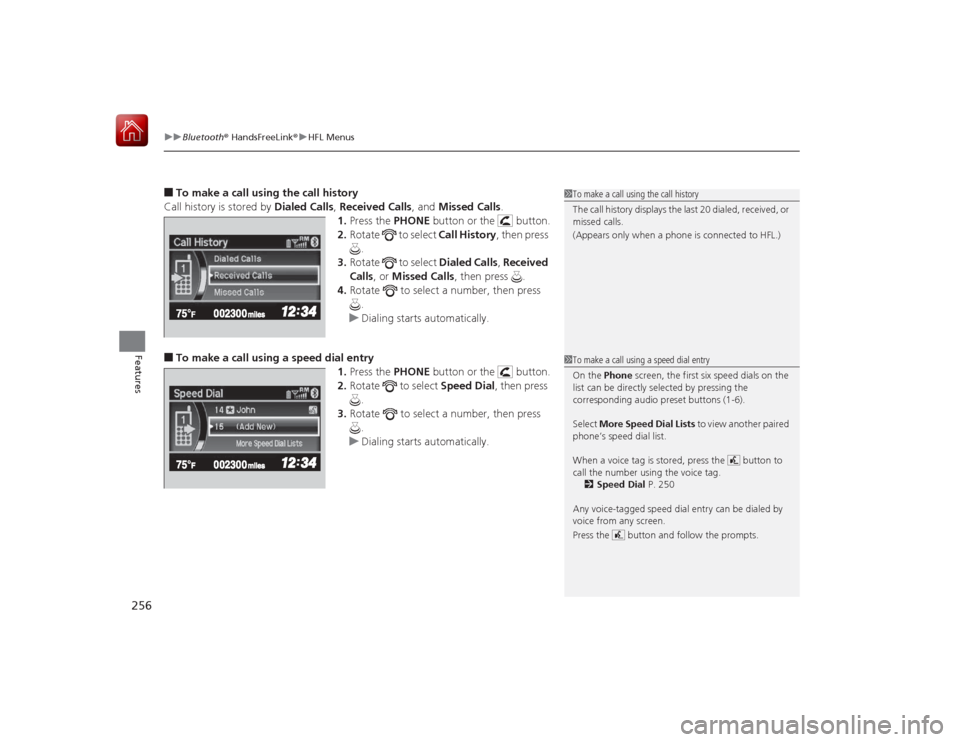
Call history is stored by Dialed Calls, Received Calls, and Missed Calls .
1. Press the PHONE button or the button.
2. Rotate to select Call History, then press
.
3. Rotate to select Dialed Calls, Received
Calls , or Missed Calls, then press .
4. Rotate to select a number, then press
.
u Dialing starts automatically.■To make a call using a speed dial entry
1.Press the PHONE button or the button.
2. Rotate to select Speed Dial, then press
.
3. Rotate to select a number, then press
.
u Dialing starts automatically.
1To make a call using the call history
The call history displays the last 20 dialed, received, or
missed calls.
(Appears only when a phone is connected to HFL.)1To make a call using a speed dial entry
On the Phone screen, the first six speed dials on the
list can be directly selected by pressing the
corresponding audio preset buttons (1-6).
Select More Speed Dial Lists to view another paired
phone’s speed dial list.
When a voice tag is stored, press the button to
call the number using the voice tag. 2 Speed Dial P. 250
Any voice-tagged speed dial entry can be dialed by
voice from any screen.
Press the button and follow the prompts.
Page 268 of 441
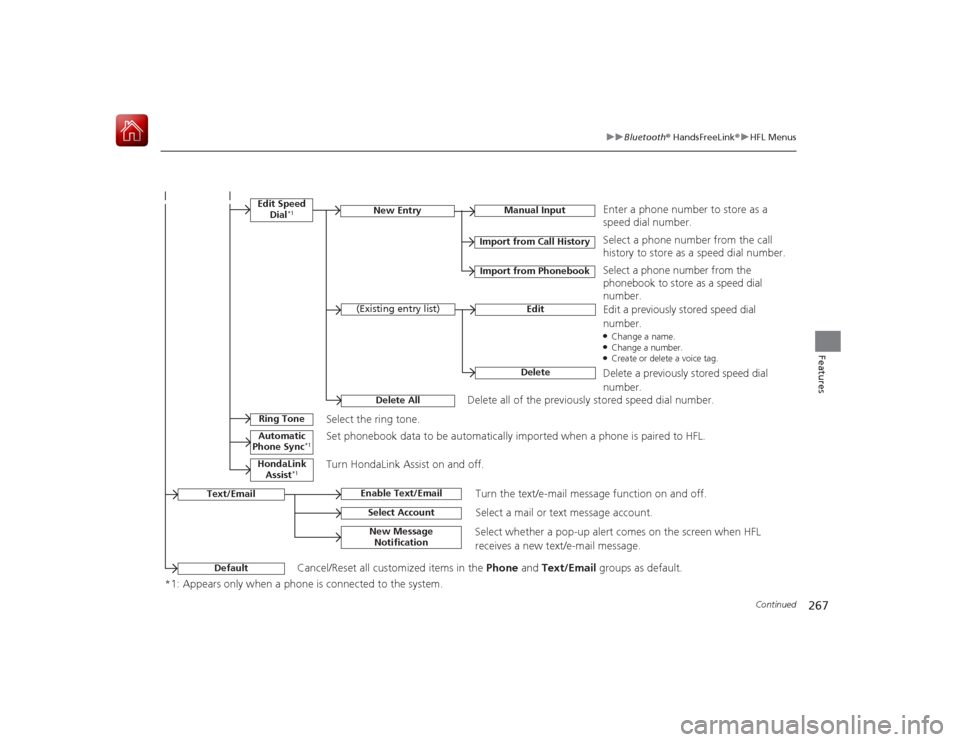
267
uuBluetooth ® HandsFreeLink ®u HFL Menus
Continued
Features
*1: Appears only when a phone is connected to the system.
Manual Input
New Entry
Import from Call HistoryImport from Phonebook
EditDelete
(Existing entry list)
Edit Speed
Dial
*1
Delete All
Enter a phone number to store as a
speed dial number.Select a phone number from the call
history to store as a speed dial number.
Delete all of the previously stored speed dial number. Select a phone number from the
phonebook to store as a speed dial
number.
Edit a previously stored speed dial
number.●Change a name.●Change a number.●Create or delete a voice tag.Delete a previously stored speed dial
number.
Ring Tone
Select the ring tone.
Automatic
Phone Sync
*1
Set phonebook data to be automatical ly imported when a phone is paired to HFL.
HondaLink
Assist
*1
Turn HondaLink Assist on and off.
Text/Email
Enable Text/Email
Turn the text/e-mail message function on and off.
Select Account
Select a mail or text message account.
New Message Notification
Select whether a pop-up alert comes on the screen when HFL
receives a new text/e-mail message.
Default
Cancel/Reset all customized items in the Phone and Text/Email groups as default.