audio HONDA CIVIC COUPE 2017 10.G Repair Manual
[x] Cancel search | Manufacturer: HONDA, Model Year: 2017, Model line: CIVIC COUPE, Model: HONDA CIVIC COUPE 2017 10.GPages: 595
Page 220 of 595
219
Features
Audio System Basic Operation
To use the audio system function, the ignition swit ch must be in ACCESSORY (q or
ON
(w*1.
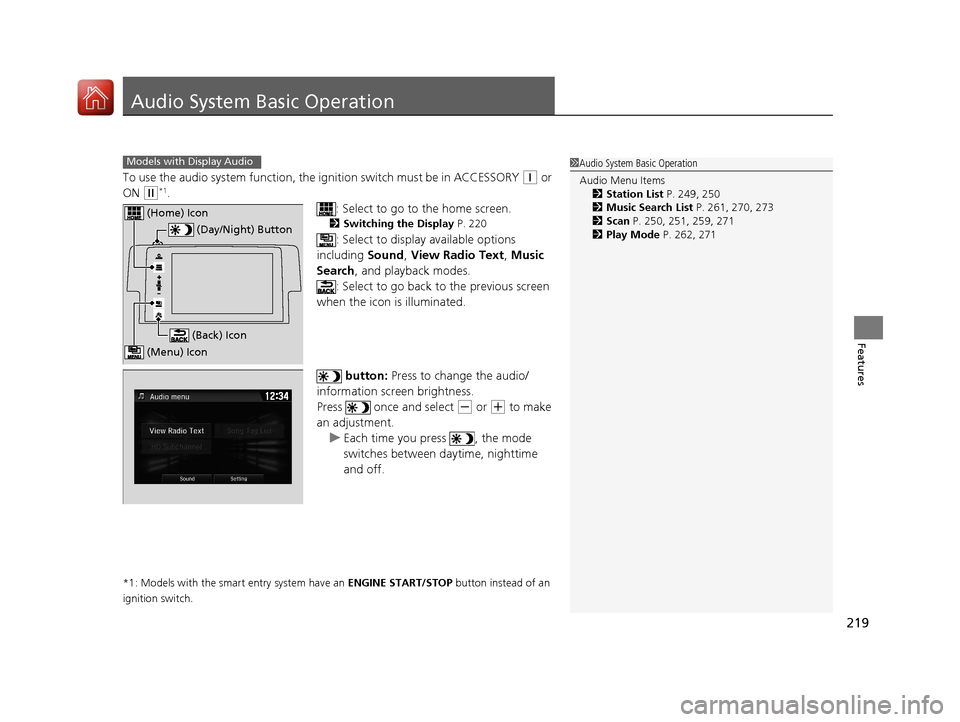
: Select to go to the home screen.
2Switching the Display P. 220
: Select to display available options
including Sound, View Radio Text , Music
Search , and playback modes.
: Select to go back to the previous screen
when the icon is illuminated.
button: Press to change the audio/
information screen brightness.
Press once and select
(- or (+ to make
an adjustment. u Each time you press , the mode
switches between da ytime, nighttime
and off.
*1: Models with the smart entry system have an ENGINE START/STOP button instead of an
ignition switch.
1 Audio System Basic Operation
Audio Menu Items
2 Station List P. 249, 250
2 Music Search List P. 261, 270, 273
2 Scan P. 250, 251, 259, 271
2 Play Mode P. 262, 271Models with Display Audio
(Day/Night) Button
(Home) Icon
(Back) Icon
(Menu) Icon
17 CIVIC 2D HCM (KA KC KL)-31TBG6100.book 219 ページ 2016年8月31日 水曜日 午後5時43分
Page 221 of 595
220
uuAudio System Basic Operation uAudio/Information Screen
Features
Audio/Information Screen
Displays the audio status and wallpaper. From this display, you can go to various
setup options.
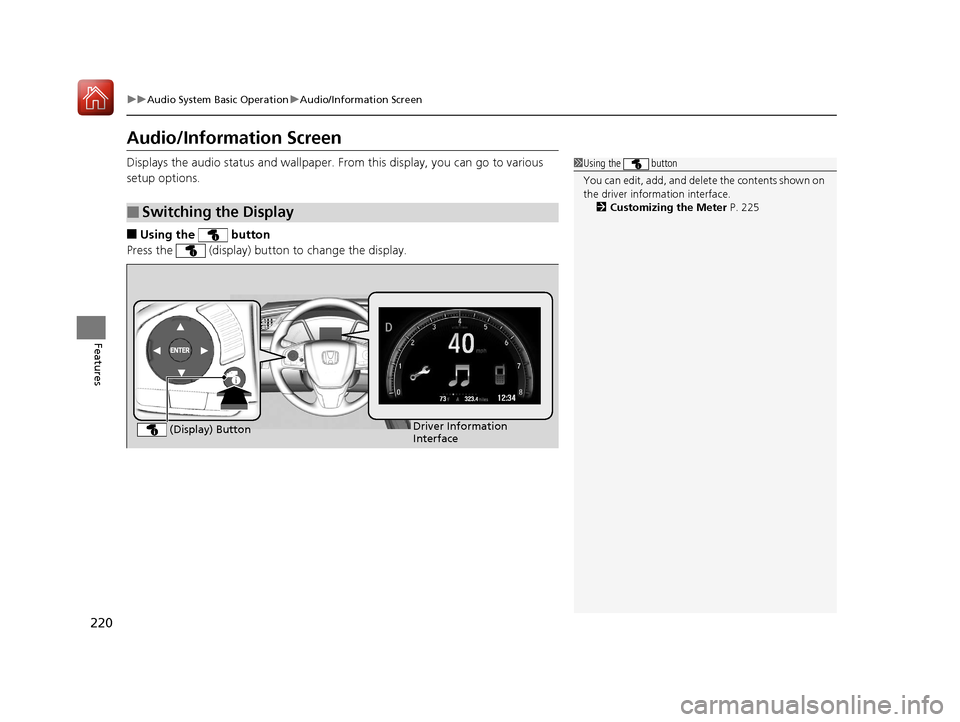
■Using the button
Press the (display) butto n to change the display.
■Switching the Display
1Using the button
You can edit, add, and dele te the contents shown on
the driver information interface. 2 Customizing the Meter P. 225
Driver Information
Interface
(Display) Button
17 CIVIC 2D HCM (KA KC KL)-31TBG6100.book 220 ページ 2016年8月31日 水曜日 午後5時43分
Page 222 of 595
Continued221
uuAudio System Basic Operation uAudio/Information Screen
Features
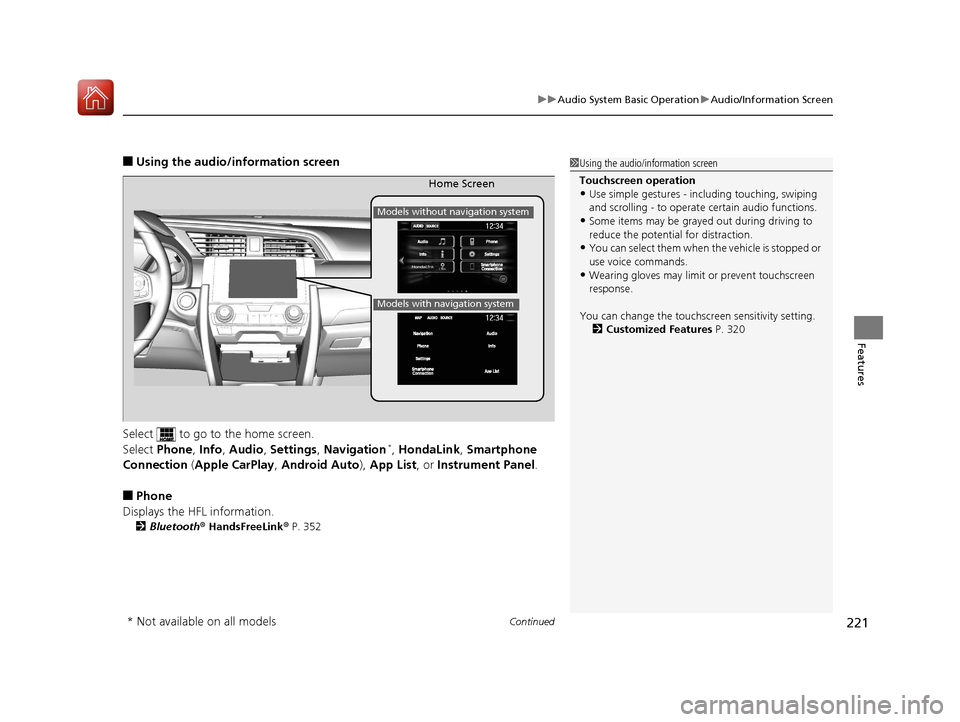
■Using the audio/in formation screen
Select to go to the home screen.
Select Phone , Info , Audio , Settings , Navigation
*, HondaLink , Smartphone
Connection (Apple CarPlay, Android Auto), App List , or Instrument Panel .
■Phone
Displays the HFL information.
2 Bluetooth ® HandsFreeLink ® P. 352
1 Using the audio/in formation screen
Touchscreen operation
•Use simple gestures - in cluding touching, swiping
and scrolling - to operate certain audio functions.
•Some items may be grayed out during driving to
reduce the potential for distraction.
•You can select them when the vehicle is stopped or
use voice commands.
•Wearing gloves may limit or prevent touchscreen
response.
You can change the touchs creen sensitivity setting.
2 Customized Features P. 320
Home Screen
Models without navigation system
Models with navigation system
* Not available on all models
17 CIVIC 2D HCM (KA KC KL)-31TBG6100.book 221 ページ 2016年8月31日 水曜日 午後5時43分
Page 223 of 595
222
uuAudio System Basic Operation uAudio/Information Screen
Features
■Info
Displays Trip Computer or Clock/Wallpaper . Select on the Info Menu screen
to see all available options: Trip Computer, Voice Info , Clock/Wallpaper and
System/Device Information .
Trip Computer :
• Current Drive tab: Displays the current trip information.
• History of Trip A tab: Displays information for the three previous drives. The
information is stored every time you reset Trip A.
To delete the history manually, select Delete History on the History of Trip A
tab. The confirmation message ap pears on the screen, then select Yes.
Voice Info : Displays the all commands list.
Clock/Wallpaper : Displays the clock and wallpaper.
System/Device Information :
• System Info: Displays the software version of the audio system.
• USB Info : Displays the memory usage of the USB device.
■Audio
Displays the current audio information.
■Settings
Enters the customiz ing menu screen.
2Customized Features P. 298
■Navigation*
Displays the navigation screen.
2Refer to the Navigation System Manual
* Not available on all models
17 CIVIC 2D HCM (KA KC KL)-31TBG6100.book 222 ページ 2016年8月31日 水曜日 午後5時43分
Page 224 of 595
223
uuAudio System Basic Operation uAudio/Information Screen
Continued
Features
■HondaLink
Connects with your smartphone*1 to play personalized music, information, and
social media streams.
2 HondaLink ® P. 274
■Smartphone Connection
Connects with your smartphone*1 and allows some apps on your smartphone to be
used on the audio system.
2 Apple CarPlay P. 282
2 Android Auto P. 285
■App List
Adds or removes apps or widgets on the home screen.
2 Home Screen P. 231
■Instrument Panel
Selects from three customizable settings for the driver information interface.
*1: Available on specific phones only. Check handsfreelink.honda.com for U.S. and
www.handsfreelink.ca for Canada for compatible phones and hondalink.com for U.S. and
honda.ca/hondalink for Canada for feature details.
17 CIVIC 2D HCM (KA KC KL)-31TBG6100.book 223 ページ 2016年8月31日 水曜日 午後5時43分
Page 225 of 595
224
uuAudio System Basic Operation uAudio/Information Screen
Features
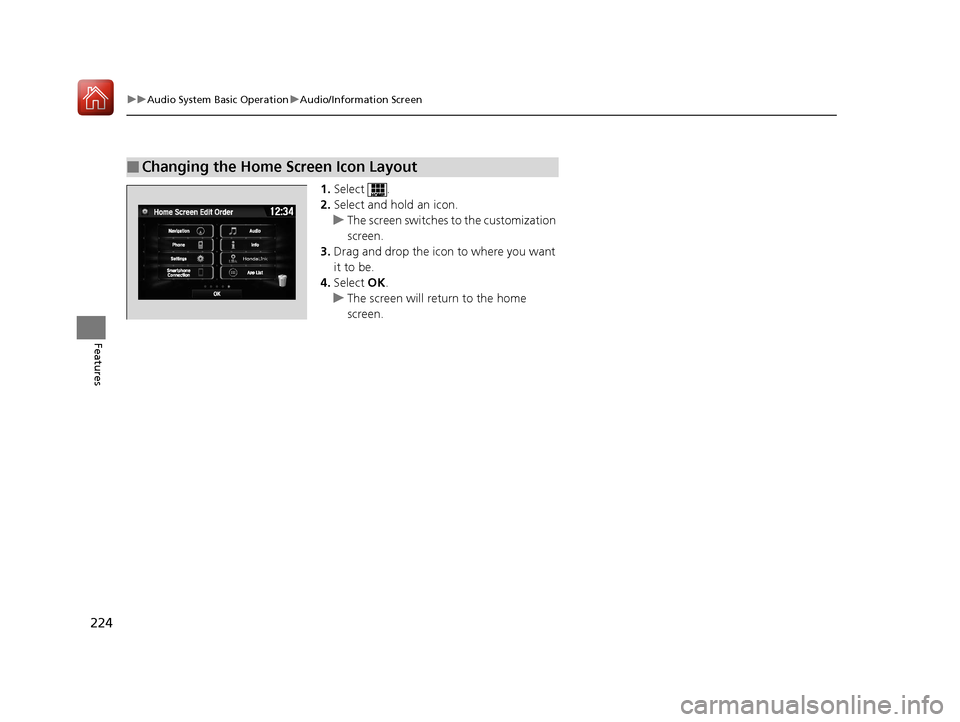
1. Select .
2. Select and hold an icon.
u The screen switches to the customization
screen.
3. Drag and drop the icon to where you want
it to be.
4. Select OK.
u The screen will return to the home
screen.
■Changing the Home Screen Icon Layout
17 CIVIC 2D HCM (KA KC KL)-31TBG6100.book 224 ページ 2016年8月31日 水曜日 午後5時43分
Page 226 of 595
Continued225
uuAudio System Basic Operation uAudio/Information Screen
Features
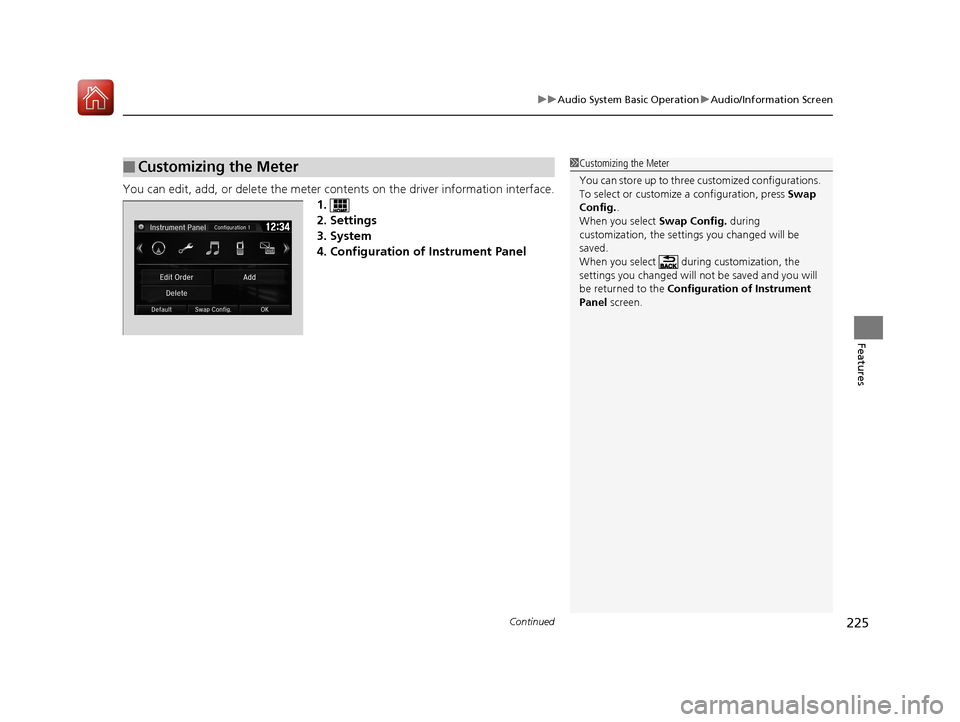
You can edit, add, or delete the meter cont ents on the driver information interface.
1.
2. Settings
3. System
4. Configuration of Instrument Panel
■Customizing the Meter1 Customizing the Meter
You can store up to three cu stomized configurations.
To select or customize a configuration, press Swap
Config. .
When you select Swap Config. during
customization, the settings you changed will be
saved.
When you select during customization, the
settings you changed will not be saved and you will
be returned to the Configuration of Instrument
Panel screen.
17 CIVIC 2D HCM (KA KC KL)-31TBG6100.book 225 ページ 2016年8月31日 水曜日 午後5時43分
Page 227 of 595
uuAudio System Basic Operation uAudio/Information Screen
226
Features
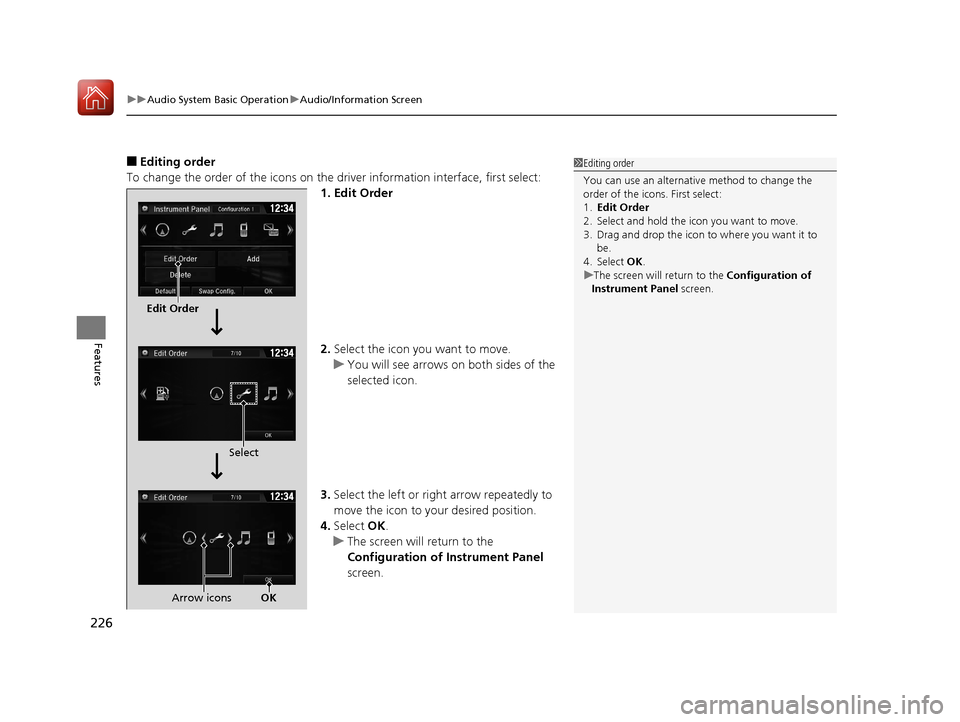
■Editing order
To change the order of the icons on the driver information interface, first select:
1. Edit Order
2. Select the icon you want to move.
u You will see arrows on both sides of the
selected icon.
3. Select the left or right arrow repeatedly to
move the icon to your desired position.
4. Select OK.
u The screen will return to the
Configuration of Instrument Panel
screen.1 Editing order
You can use an alternative method to change the
order of the icons. First select:
1. Edit Order
2. Select and hold the icon you want to move.
3. Drag and drop the icon to where you want it to be.
4. Select OK .
u The screen will return to the Configuration of
Instrument Panel screen.
Edit Order
Select
Arrow icons OK
17 CIVIC 2D HCM (KA KC KL)-31TBG6100.book 226 ページ 2016年8月31日 水曜日 午後5時43分
Page 228 of 595
Continued227
uuAudio System Basic Operation uAudio/Information Screen
Features
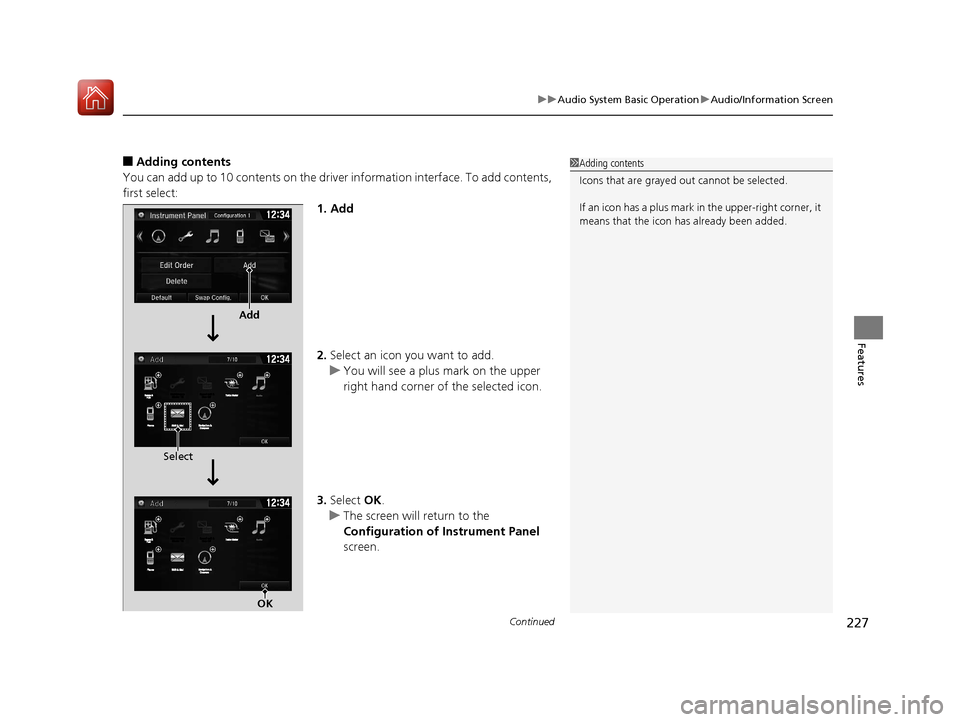
■Adding contents
You can add up to 10 contents on the driver information interface. To add contents,
first select: 1. Add
2.Select an icon you want to add.
u You will see a plus mark on the upper
right hand corner of the selected icon.
3. Select OK.
u The screen will return to the
Configuration of Instrument Panel
screen.1 Adding contents
Icons that are grayed out cannot be selected.
If an icon has a plus mark in the upper-right corner, it
means that the icon ha s already been added.
Add
Select
OK
17 CIVIC 2D HCM (KA KC KL)-31TBG6100.book 227 ページ 2016年8月31日 水曜日 午後5時43分
Page 229 of 595
uuAudio System Basic Operation uAudio/Information Screen
228
Features
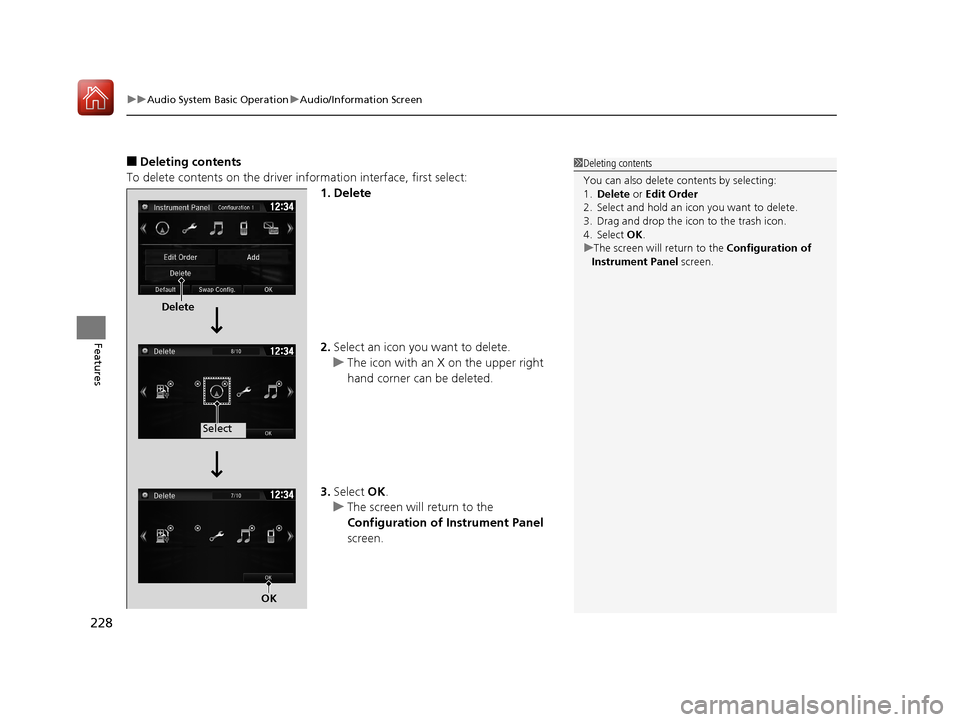
■Deleting contents
To delete contents on the driver information interface, first select:
1. Delete
2.Select an icon you want to delete.
u The icon with an X on the upper right
hand corner can be deleted.
3. Select OK.
u The screen will return to the
Configuration of Instrument Panel
screen.1 Deleting contents
You can also delete c ontents by selecting:
1. Delete or Edit Order
2. Select and hold an icon you want to delete.
3. Drag and drop the icon to the trash icon.
4. Select OK .
u The screen will return to the Configuration of
Instrument Panel screen.
Delete
Select
OK
17 CIVIC 2D HCM (KA KC KL)-31TBG6100.book 228 ページ 2016年8月31日 水曜日 午後5時43分