change time HONDA CIVIC HATCHBACK 2021 (in English) Owner's Guide
[x] Cancel search | Manufacturer: HONDA, Model Year: 2021, Model line: CIVIC HATCHBACK, Model: HONDA CIVIC HATCHBACK 2021Pages: 711, PDF Size: 37.1 MB
Page 250 of 711
248
uuAudio System Basic Operation uPlaying Bluetooth ® Audio
Features
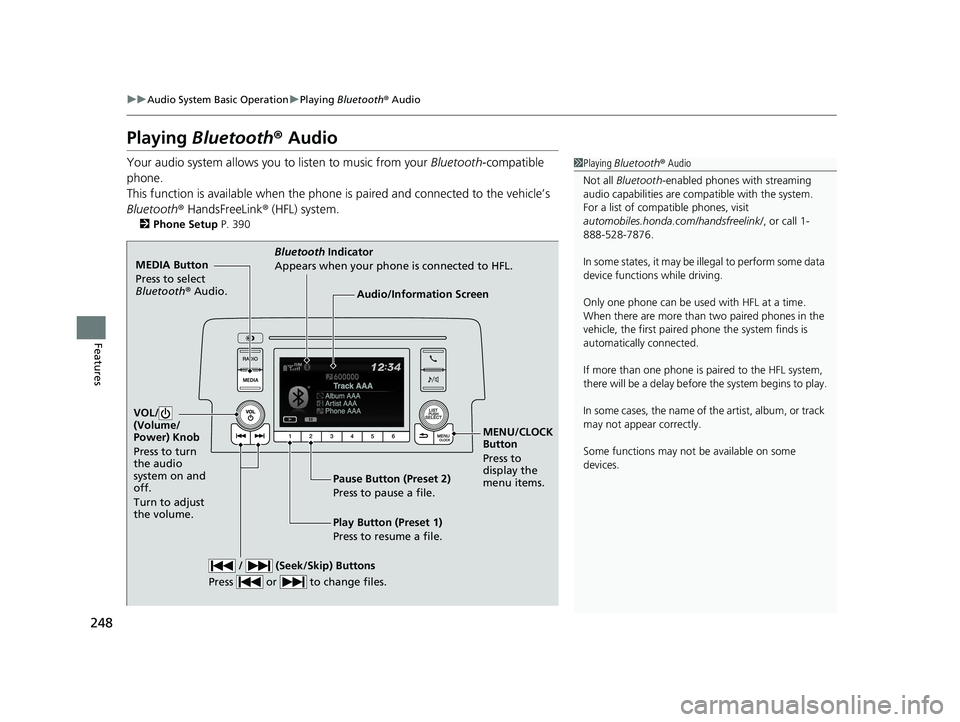
Playing Bluetooth ® Audio
Your audio system allows you to listen to music from your Bluetooth-compatible
phone.
This function is available when the phone is paired and connected to the vehicle’s
Bluetooth ® HandsFreeLink ® (HFL) system.
2 Phone Setup P. 390
1Playing Bluetooth ® Audio
Not all Bluetooth -enabled phones with streaming
audio capabilities are compatible with the system.
For a list of compatible phones, visit
automobiles.honda.com /handsfreelink/, or call 1-
888-528-7876.
In some states, it may be il legal to perform some data
device functions while driving.
Only one phone can be used with HFL at a time.
When there are more than two paired phones in the
vehicle, the first paired phone the system finds is
automatically connected.
If more than one phone is paired to the HFL system,
there will be a delay before the system begins to play.
In some cases, the name of the artist, album, or track
may not appear correctly.
Some functions may not be available on some
devices.
MEDIA Button
Press to select
Bluetooth ® Audio.
VOL/
(Volume/
Power) Knob
Press to turn
the audio
system on and
off.
Turn to adjust
the volume.
MENU/CLOCK
Button
Press to
display the
menu items.
Audio/Information Screen
Bluetooth Ind
icator
Appears when your phone is connected to HFL.
/ (Seek/Skip) Buttons
Press or to change files.
Play Button (Preset 1)
Press to resume a file. Pause Button (Preset 2)
Press to pause a file.
21 CIVIC 5D HUM-31TGG6400_01.book 248 ページ 2020年8月28日 金曜日 午後1時 48分
Page 253 of 711
251
Features
Audio System Basic Operation
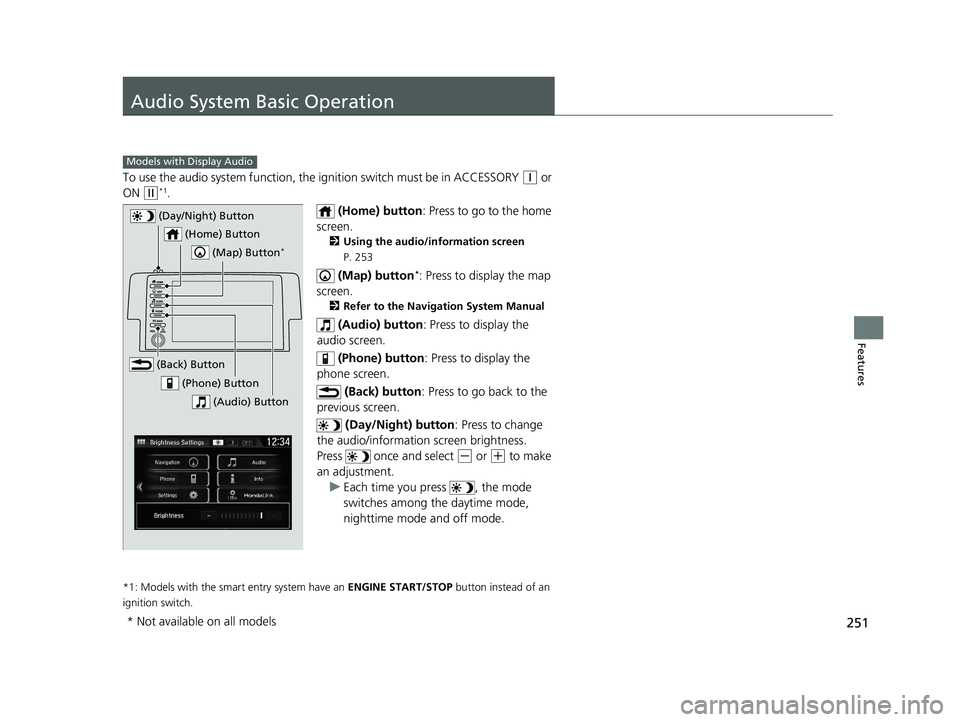
To use the audio system function, the ignition swit ch must be in ACCESSORY (q or
ON
(w*1.
(Home) button: Press to go to the home
screen.
2 Using the audio/information screen
P. 253
(Map) button*: Press to display the map
screen.
2 Refer to the Navigation System Manual
(Audio) button : Press to display the
audio screen.
(Phone) button : Press to display the
phone screen.
(Back) button : Press to go back to the
previous screen.
(Day/Night) button : Press to change
the audio/information screen brightness.
Press once and select
(- or (+ to make
an adjustment.
u Each time you press , the mode
switches among the daytime mode,
nighttime mode and off mode.
*1: Models with the smart entry system have an ENGINE START/STOP button instead of an
ignition switch.
Models with Display Audio
(Day/Night) Button
(Home) Button
(Map) Button*
(Back) Button
(Phone) Button
(Audio) Button
* Not available on all models
21 CIVIC 5D HUM-31TGG6400_01.book 251 ページ 2020年8月28日 金曜日 午後1時 48分
Page 262 of 711
uuAudio System Basic Operation uAudio/Information Screen
260
Features
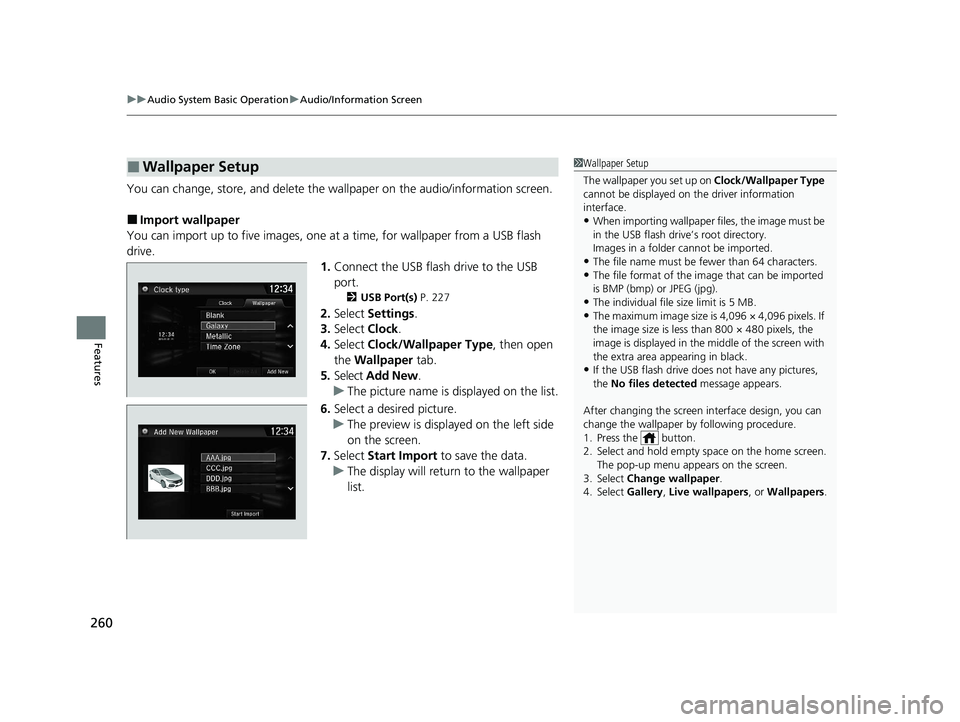
You can change, store, and delete the wa llpaper on the audio/information screen.
■Import wallpaper
You can import up to five images, one at a time, for wallpaper from a USB flash
drive. 1.Connect the USB flash drive to the USB
port.
2 USB Port(s) P. 227
2.Select Settings .
3. Select Clock.
4. Select Clock/Wallpaper Type , then open
the Wallpaper tab.
5. Select Add New .
u The picture name is displayed on the list.
6. Select a desired picture.
u The preview is displayed on the left side
on the screen.
7. Select Start Import to save the data.
u The display will return to the wallpaper
list.
■Wallpaper Setup1Wallpaper Setup
The wallpaper you set up on Clock/Wallpaper Type
cannot be displayed on th e driver information
interface.
•When importing wallpaper files, the image must be
in the USB flash drive’s root directory.
Images in a folder cannot be imported.
•The file name must be fewer than 64 characters.•The file format of the im age that can be imported
is BMP (bmp) or JPEG (jpg).
•The individual file size limit is 5 MB.•The maximum image size is 4,096 × 4,096 pixels. If
the image size is less than 800 × 480 pixels, the
image is displayed in the middle of the screen with
the extra area appearing in black.
•If the USB flash drive doe s not have any pictures,
the No files detected message appears.
After changing the screen interface design, you can
change the wallpaper by following procedure.
1. Press the button.
2. Select and hold empty space on the home screen. The pop-up menu appears on the screen.
3. Select Change wallpaper .
4. Select Gallery, Live wallpapers , or Wallpapers.
21 CIVIC 5D HUM-31TGG6400_01.book 260 ページ 2020年8月28日 金曜日 午後1時 48分
Page 280 of 711
278
uuAudio System Basic Operation uVoice Control Operation
Features
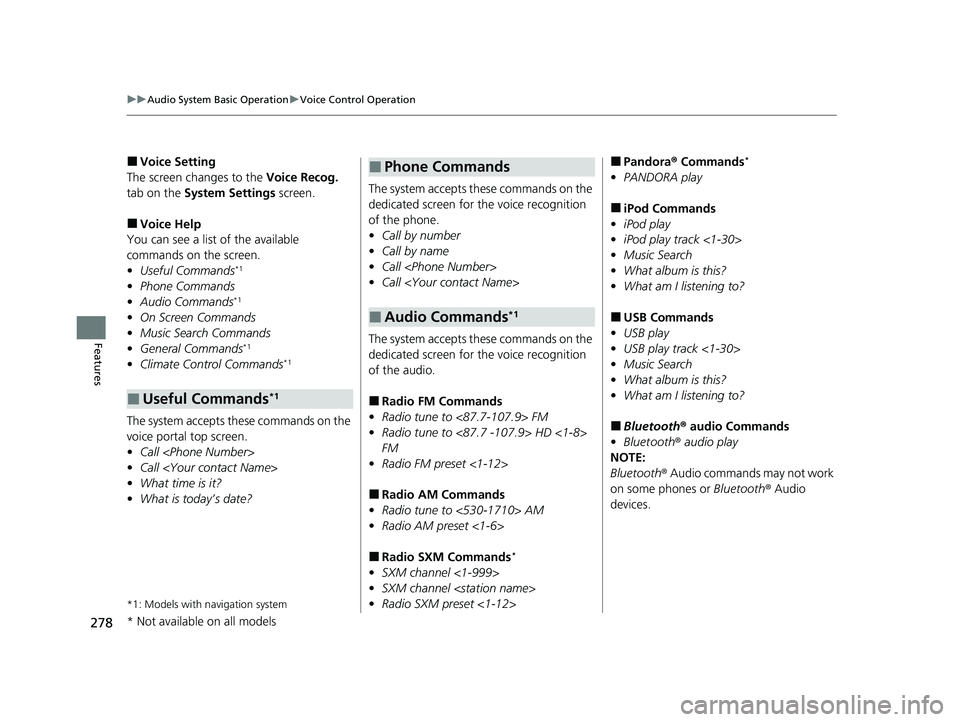
■Voice Setting
The screen changes to the Voice Recog.
tab on the System Settings screen.
■Voice Help
You can see a list of the available
commands on the screen.
• Useful Commands
*1
•Phone Commands
• Audio Commands*1
•On Screen Commands
• Music Search Commands
• General Commands
*1
•Climate Control Commands*1
The system accepts th ese commands on the
voice portal top screen.
• Call
• Call
• What time is it?
• What is today’s date?
*1: Models with navigation system
■Useful Commands*1
The system accepts these commands on the
dedicated screen for the voice recognition
of the phone.
• Call by number
• Call by name
• Call
• Call
The system accepts these commands on the
dedicated screen for the voice recognition
of the audio.
■Radio FM Commands
• Radio tune to <87.7-107.9> FM
• Radio tune to <87.7 -107.9> HD <1-8>
FM
• Radio FM preset <1-12>
■Radio AM Commands
• Radio tune to <530-1710> AM
• Radio AM preset <1-6>
■Radio SXM Commands*
•SXM channel <1-999>
• SXM channel
• Radio SXM preset <1-12>
■Phone Commands
■Audio Commands*1
■Pandora ® Commands*
• PANDORA play
■iPod Commands
• iPod play
• iPod play track <1-30>
• Music Search
• What album is this?
• What am I listening to?
■USB Commands
• USB play
• USB play track <1-30>
• Music Search
• What album is this?
• What am I listening to?
■Bluetooth ® audio Commands
• Bluetooth ® audio play
NOTE:
Bluetooth® Audio commands may not work
on some phones or Bluetooth ® Audio
devices.
* Not available on all models
21 CIVIC 5D HUM-31TGG6400_01.book 278 ページ 2020年8月28日 金曜日 午後1時 48分
Page 284 of 711
uuAudio System Basic Operation uPlaying AM/FM Radio
282
Features
Displays the subchannel list when an HD RadioTM station is selected while listening to
an FM station.
1. Select MENU .
2. Select HD Radio Subchannel .
3. Select the channel number.
Provides text data information related to your selected RDS-capable FM station.
■To find an RDS station from Station List
1. Select the open/close icon to display a list while listening to an FM station.
2. Select the Station List tab.
3. Select the station.
■Manual update
Updates your available station list at any time.
1. Select the open/close icon to display a list while listening to an FM station.
2. Select the Station List tab.
3. Select Refresh .
■Radio text
Displays the radio text informat ion of the selected RDS station.
1. Select MENU .
2. Select View Radio Text .
■HD Subchannel
■Radio Data System (RDS)
Models with HD RadioTM feature
1Radio Data System (RDS)
When you select an RDS-capable FM station, the RDS
automatically turns on, and the frequency display
changes to the station name. However, when the
signals of that station become weak, the display
changes from the statio n name to the frequency.
21 CIVIC 5D HUM-31TGG6400_01.book 282 ページ 2020年8月28日 金曜日 午後1時 48分
Page 285 of 711
283
uuAudio System Basic Operation uPlaying SiriusXM ® Radio*
Continued
Features
Playing SiriusXM® Radio*
*1:Some or all of the lists may not be displayed.
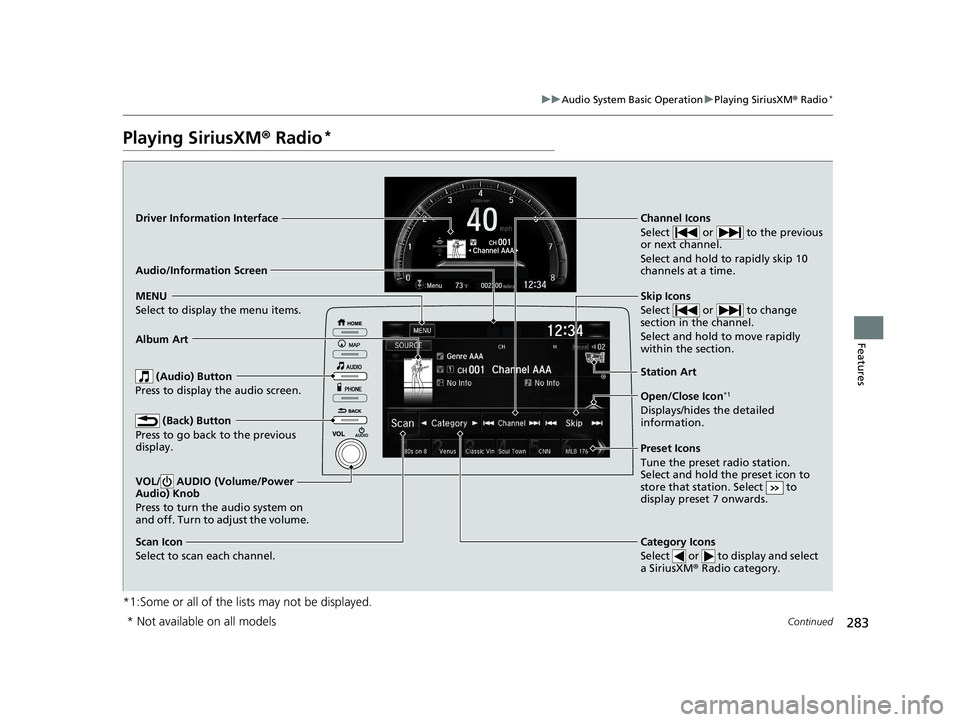
VOL/ AUDIO (Volume/Power
Audio) Knob
Press to turn the audio system on
and off. Turn to adjust the volume.
(Back) Button
Press to go back to the previous
display.
Channel Icons
Select or to the previous
or next channel.
Select and hold to rapidly skip 10
channels at a time.
(Audio) Button
Press to display the audio screen.
Open/Close Icon*1
Displays/hides the detailed
information.
MENU
Select to display the menu items.
Category Icons
Select or to display and select
a SiriusXM® Radio category.
Scan Icon
Select to scan each channel. Preset Icons
Tune the preset radio station.
Select and hold the preset icon to
store that station. Select to
display preset 7 onwards.
Skip Icons
Select or to change
section in the channel.
Select and hold to move rapidly
within the section.
Driver Information Interface
Album Art
Station
Art
Audio/Information Screen
* Not available on all models
21 CIVIC 5D HUM-31TGG6400_01.book 283 ページ 2020年8月28日 金曜日 午後1時48分
Page 305 of 711
303
uuAudio System Basic Operation uPlaying Bluetooth ® Audio
Continued
Features
Playing Bluetooth ® Audio
Your audio system allows you to listen to music from your Bluetooth-compatible
phone.
This function is available when the phone is paired an d connected to the vehicle’s
Bluetooth ® HandsFreeLink ® (HFL) system.
2Phone Setup P. 418
*1:Depending on the Bluetooth® device you connect, some or all of the lists may not
be displayed.
1 Playing Bluetooth ® Audio
Not all Bluetooth -enabled phones with streaming
audio capabilities are compatible.
For a list of compatible phones:
•U.S.: Visit automobiles.honda.com /handsfreelink/,
or call 1-888-528-7876.
•Canada: For more info rmation on smartphone
compatibility, call 1-855-490-7351.
It may be illegal to pe rform some data device
functions while driving.
Only one phone can be used with HFL at a time.
When there are more than two paired phones in the
vehicle, the system automatically connects to the
prioritized phone. You can a ssign priority to a phone
in the Priority Device Settings .
2 Customized Features P. 350
The connected phone for Bluetooth® Audio can be
different.
If more than one phone is paired to the HFL system,
there may be a delay before the system begins to
play.
In some cases, the name of the artist, album, or track
may not appear correctly.
Some functions may not be available on some
devices.
If a phone is currently conne cted via Apple CarPlay or
Android Auto, Bluetooth® Audio from that phone is
unavailable. However, a se cond previously paired
phone can stream Bluetooth® Audio by selecting
Connect from the Bluetooth Device List .
2 Phone Setup P. 418
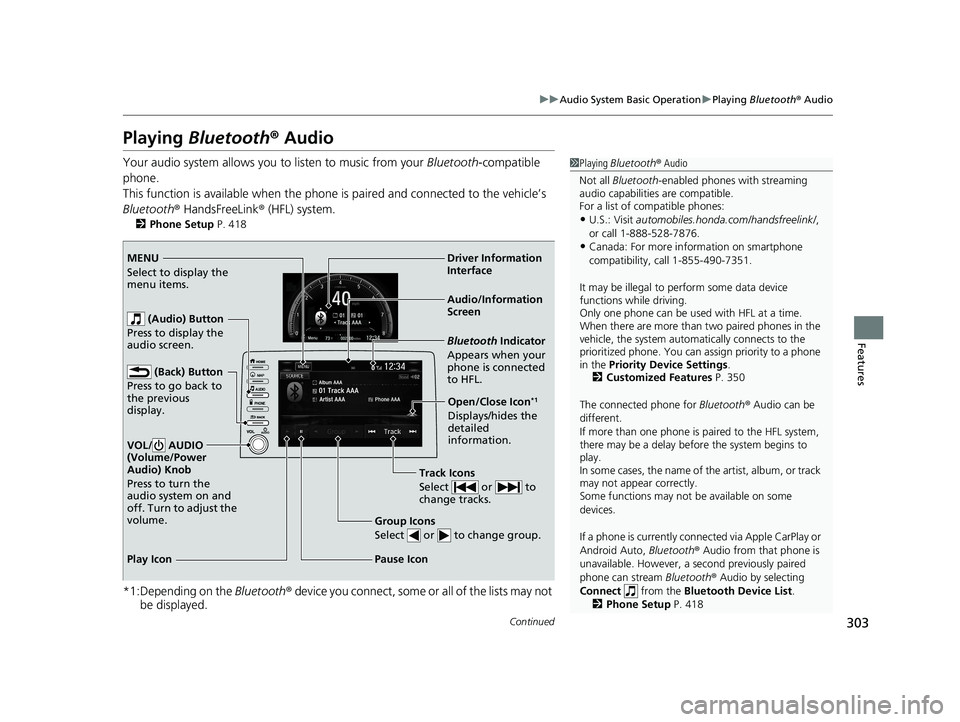
Audio/Information
Screen
(Back) Button
Pres
s to go back to
the previous
display.
VOL/ AUDIO
(Volume/Power
Audio) Knob
Press to turn the
audio system on and
off. Turn to adjust the
volume.
Group Icons
Select or to change group.
Pause Icon
Bluetooth Indicator
Appears when your
phone is connected
to HFL.
Track Icons
Select or to
change tracks.
Open/Close Icon*1
Displays/hides the
detailed
information.
Driver Information
Interf
ace
(Audio) Button
Pres
s to display the
audio screen.
Play Icon MENU
Select to display the
menu items.
21 CIVIC 5D HUM-31TGG6400_01.book 303 ページ 2020年8月28日 金曜日 午後1時 48分
Page 308 of 711
306
uuAudio System Basic Operation uHondaLink ®
Features
■Messages from Honda
Displays helpful and importa nt information from Honda.
■Weather*
Displays a weekly five-day weather foreca st for any location you want. You can
change the ZIP Code at any time.
Use the following procedure to connect to HondaLink ® service.
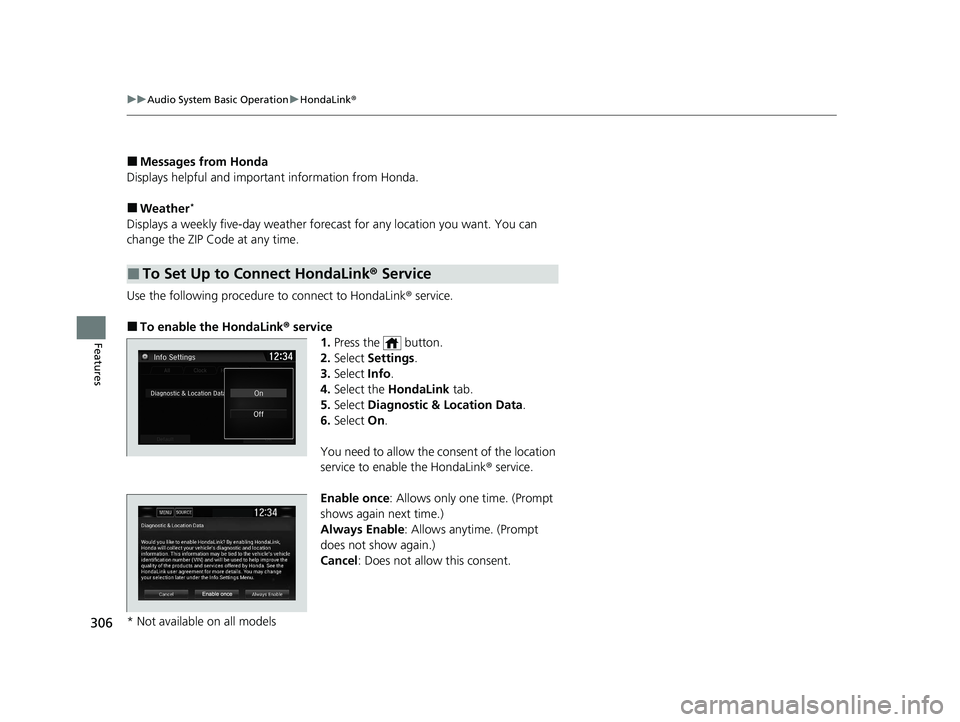
■To enable the HondaLink® service
1.Press the button.
2. Select Settings .
3. Select Info.
4. Select the HondaLink tab.
5. Select Diagnostic & Location Data .
6. Select On.
You need to allow the consent of the location
service to enable the HondaLink ® service.
Enable once : Allows only one time. (Prompt
shows again next time.)
Always Enable : Allows anytime. (Prompt
does not show again.)
Cancel : Does not allow this consent.
■To Set Up to Connect HondaLink ® Service
* Not available on all models
21 CIVIC 5D HUM-31TGG6400_01.book 306 ページ 2020年8月28日 金曜日 午後1時 48分
Page 316 of 711
uuAudio System Basic Operation uApple CarPlay
314
Features
■Maps
Display Apple Maps and use the navigation function just as you would on your
iPhone.
Only one navigation system (pre-installed navigation or Apple CarPlay) can give
directions at a time. When you are using one system, directions to any prior
destination set on the other system wi ll be canceled, and the system you are
currently using will direct you to your destination.
After you have connected your iPhone to the system via the 1.5A USB port, use the
following procedure to set up Apple CarPlay. Use of Apple CarPlay will result in the
transmission of certain user and vehicle information (such as vehicle location, speed,
and status) to your iPhone to enhance th e Apple CarPlay experience. You will need
to consent to the sharing of this information on the Display Audio Screen.
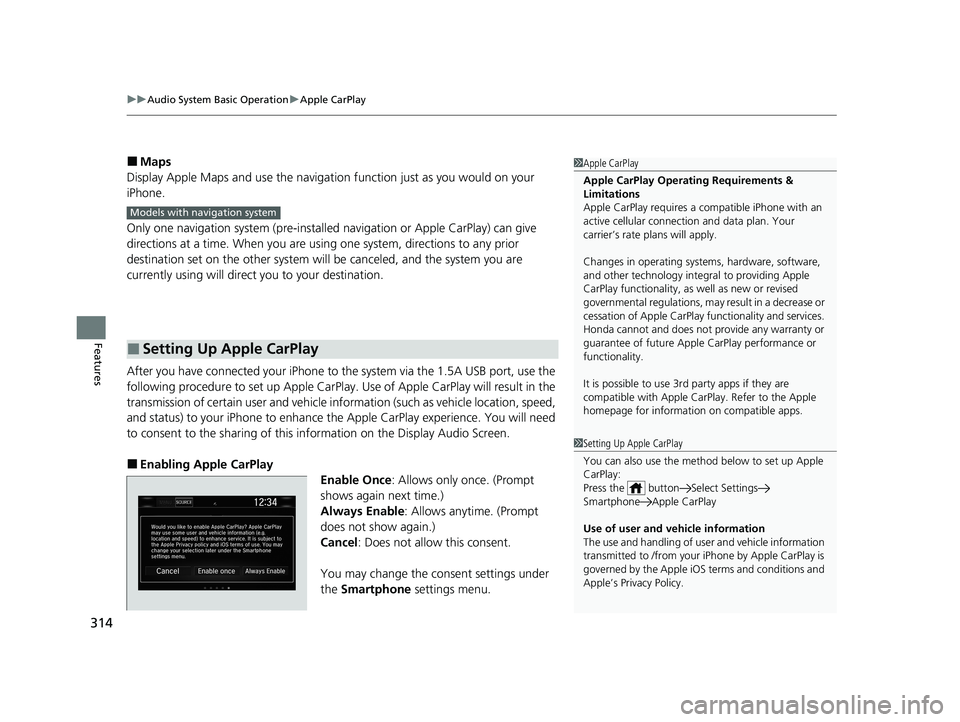
■Enabling Apple CarPlay
Enable Once: Allows only once. (Prompt
shows again next time.)
Always Enable : Allows anytime. (Prompt
does not show again.)
Cancel : Does not allow this consent.
You may change the consent settings under
the Smartphone settings menu.
■Setting Up Apple CarPlay
1Apple CarPlay
Apple CarPlay Operating Requirements &
Limitations
Apple CarPlay requi res a compatible iPhone with an
active cellular connecti on and data plan. Your
carrier’s rate plans will apply.
Changes in operating system s, hardware, software,
and other technology integral to providing Apple
CarPlay functionality, as well as new or revised
governmental regulations, may result in a decrease or
cessation of Apple CarPlay functionality and services.
Honda cannot and does not pr ovide any warranty or
guarantee of future Appl e CarPlay performance or
functionality.
It is possible to use 3r d party apps if they are
compatible with Apple CarPlay. Refer to the Apple
homepage for information on compatible apps.
Models with navigation system
1 Setting Up Apple CarPlay
You can also use the method below to set up Apple
CarPlay:
Press the button Select Settings
Smartphone Apple CarPlay
Use of user and vehicle information
The use and handling of user and vehicle information
transmitted to /from your iPhone by Apple CarPlay is
governed by the Apple iOS terms and conditions and
Apple’s Privacy Policy.
21 CIVIC 5D HUM-31TGG6400_01.book 314 ページ 2020年8月28日 金曜日 午後1時 48分
Page 319 of 711
Continued317
uuAudio System Basic Operation uAndroid Auto
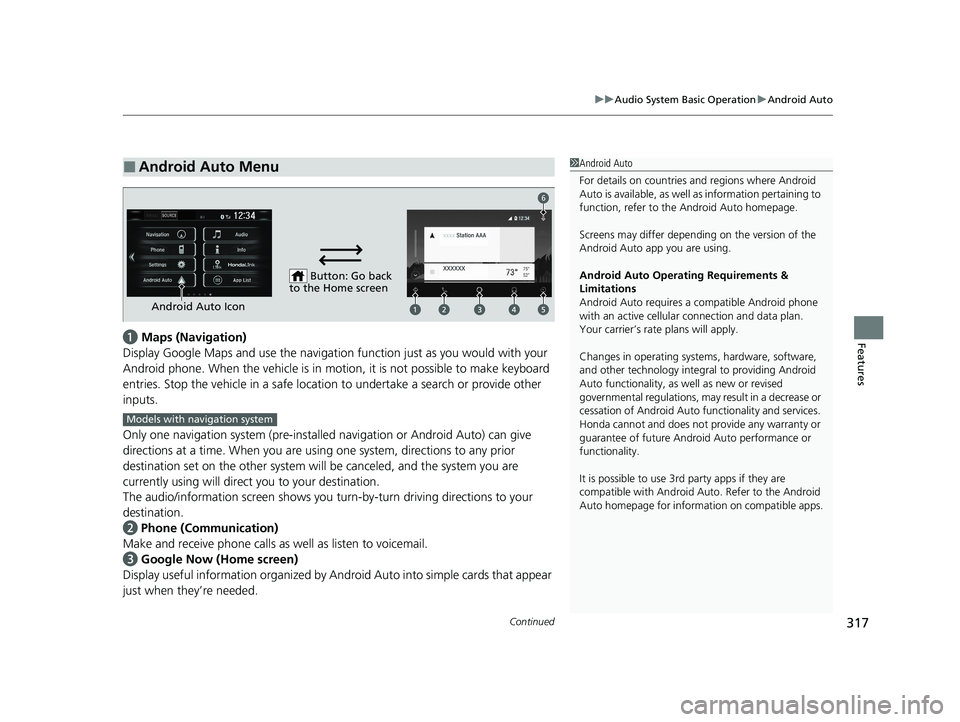
Featuresa Maps (Navigation)
Display Google Maps and use the navigation function just as you would with your
Android phone. When the vehicle is in motion, it is not possible to make keyboard
entries. Stop the vehicle in a safe locati on to undertake a search or provide other
inputs.
Only one navigation system (pre-installed navigation or Android Auto) can give
directions at a time. When you are using one system, directions to any prior
destination set on the other system will be canceled, and the system you are
currently using will direct you to your destination.
The audio/information screen shows you turn-by-turn dr iving directions to your
destination.
b Phone (Communication)
Make and receive phone calls as well as listen to voicemail.
c Google Now (Home screen)
Display useful information organized by Android Auto into simple cards that appear
just when they’re needed.
■Android Auto Menu1 Android Auto
For details on c ountries and regions where Android
Auto is available, as well as information pertaining to
function, refer to the Android Auto homepage.
Screens may differ depending on the version of the
Android Auto app you are using.
Android Auto Operating Requirements &
Limitations
Android Auto requires a compatible Android phone
with an active cellular connection and data plan.
Your carrier’s rate plans will apply.
Changes in operating system s, hardware, software,
and other technology integral to providing Android
Auto functionality, as well as new or revised
governmental regulations, may result in a decrease or
cessation of Android Auto functionality and services.
Honda cannot and does not pr ovide any warranty or
guarantee of future Android Auto performance or
functionality.
It is possible to use 3r d party apps if they are
compatible with Android Auto. Refer to the Android
Auto homepage for informat ion on compatible apps.
Button: Go back
to the Home screen
Android Auto Icon
6
Models with navigation system
21 CIVIC 5D HUM-31TGG6400_01.book 317 ページ 2020年8月28日 金曜日 午後1時 48分