phone HONDA CIVIC SEDAN 2011 Navigation Manual (in English)
[x] Cancel search | Manufacturer: HONDA, Model Year: 2011, Model line: CIVIC SEDAN, Model: HONDA CIVIC SEDAN 2011Pages: 154, PDF Size: 6.2 MB
Page 33 of 154
32Navigation System
By Places
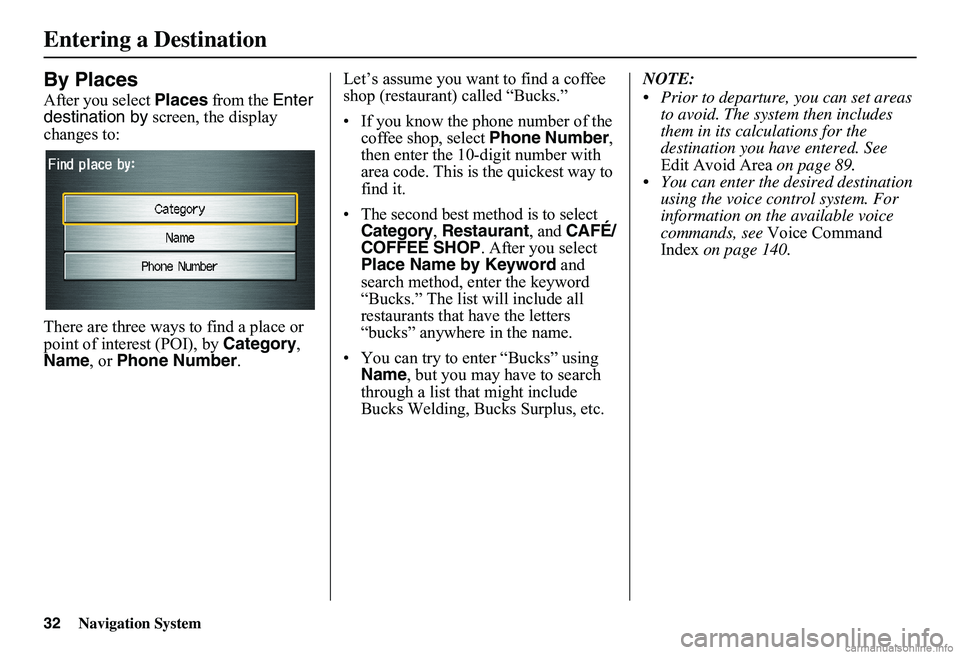
After you select Places from the Enter destination by screen, the display changes to:
There are three ways to find a place or point of interest (POI), by Category, Name , or Phone Number.
Let’s assume you want to find a coffee shop (restaurant) called “Bucks.”
• If you know the phone number of the coffee shop, select Phone Number, then enter the 10-digit number with area code. This is the quickest way to find it.
•The second best method is to select Category, Restaurant, and CAFÉ/ COFFEE SHOP. After you select Place Name by Keyword and search method, enter the keyword “Bucks.” The list will include all restaurants that have the letters “bucks” anywhere in the name.
• You can try to enter “Bucks” using Name , but you may have to search through a list that might include Bucks Welding, Bucks Surplus, etc.
NOTE:
Prior to departure, you can set areas to avoid. The system then includes them in its calculations for the destination you have entered. See Edit Avoid Area on page 89. You can enter the desired destination using the voice control system. For information on the available voice commands, see Voice Command Index on page 140.
Entering a Destination
Page 38 of 154
Navigation System37
Finding the Place by Phone
Number
The Phone Number option allows you to select a destination by its telephone number. Only telephone numbers stored in the system under the Places (of business) option are recognized. The system does not contain residential telephone numbers, or numbers you may have entered in your personal Address Book.
Tip:
If you know the phone number of a point of interest (POI), its uniqueness makes it the fastest entry meth od. When using the voice control system, the entry should be spoken as a continuous string of numbers. For example, the telephone number (310) 555-4000 should be spoken as “Three, one, zero, five, five, five, four, zero, zero, zero.”
By Map Input
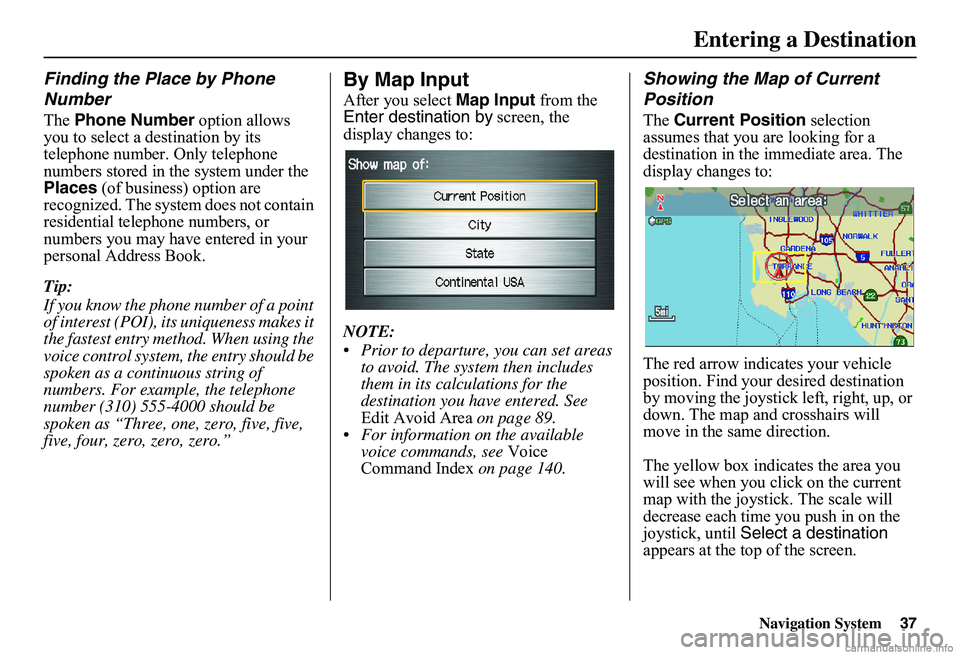
After you select Map Input from the Enter destination by screen, the display changes to:
NOTE:
Prior to departure, you can set areas to avoid. The system then includes them in its calculations for the destination you have entered. See Edit Avoid Area on page 89. For information on the available voice commands, see Voice Command Index on page 140.
Showing the Map of Current
Position
The Current Position selection assumes that you are looking for a destination in the immediate area. The display changes to:
The red arrow indicates your vehicle position. Find your desired destination by moving the joystick left, right, up, or down. The map and crosshairs will move in the same direction.
The yellow box indicates the area you will see when you click on the current map with the joystick. The scale will decrease each time you push in on the joystick, until Select a destination appears at the top of the screen.
Entering a Destination
Page 63 of 154
62Navigation System
Viewing/Saving the Current
Location
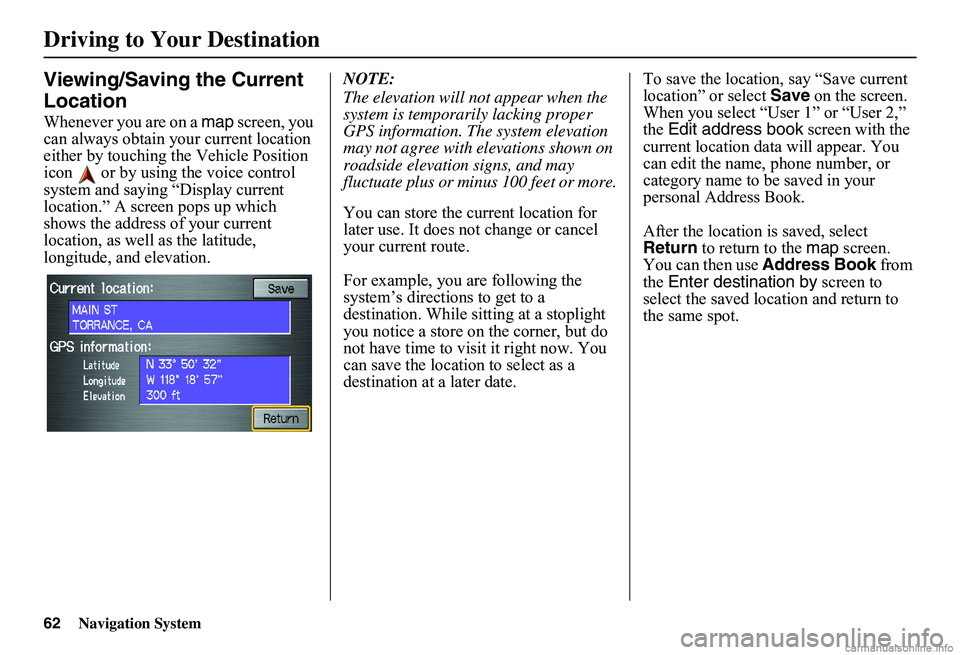
Whenever you are on a map screen, you can always obtain your current location either by touching the Vehicle Position icon or by using the voice control system and saying “Display current location.” A screen pops up which shows the address of your current location, as well as the latitude, longitude, and elevation.
NOTE:
The elevation will not appear when the system is temporarily lacking proper GPS information. The system elevation may not agree with elevations shown on roadside elevation signs, and may fluctuate plus or minus 100 feet or more.
You can store the current location for later use. It does not change or cancel your current route.
For example, you are following the system’s directions to get to a destination. While sitting at a stoplight you notice a store on the corner, but do not have time to visit it right now. You can save the location to select as a destination at a later date.
To save the location, say “Save current location” or select Save on the screen. When you select “User 1” or “User 2,” the Edit address book screen with the current location data will appear. You can edit the name, phone number, or category name to be saved in your personal Address Book.
After the location is saved, select Return to return to the map screen. You can then use Address Book from the Enter destination by screen to select the saved location and return to the same spot.
Driving to Your Destination
Page 71 of 154
70Navigation System
Information Features
Information Screen
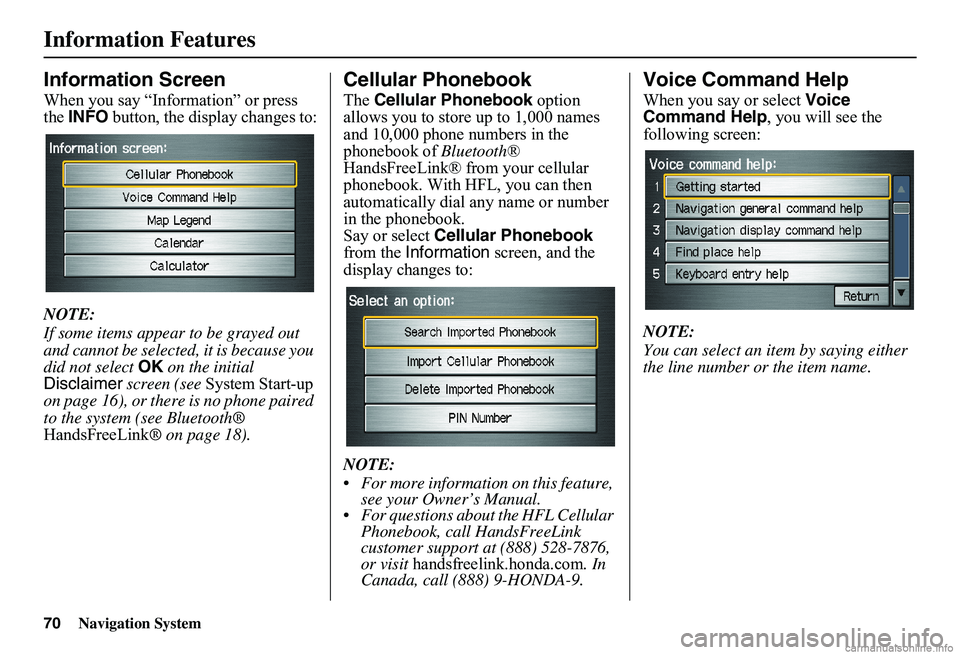
When you say “Information” or press the INFO button, the display changes to:
NOTE:
If some items appear to be grayed out and cannot be selected, it is because you did not select OK on the initial Disclaimer screen (see System Start-up on page 16), or there is no phone paired to the system (see Bluetooth® HandsFreeLink ® on page 18).
Cellular Phonebook
The Cellular Phonebook option allows you to store up to 1,000 names and 10,000 phone numbers in the phonebook of Bluetooth® HandsFreeLink® from your cellular phonebook. With HFL, you can then automatically dial any name or number in the phonebook.Say or select Cellular Phonebook from the Information screen, and the display changes to:
NOTE:
For more information on this feature, see your Owner’s Manual. For questions about the HFL Cellular Phonebook, call HandsFreeLink customer support at (888) 528-7876, or visit handsfreelink.honda.com. In Canada, call (888) 9-HONDA-9.
Voice Command Help
When you say or select Voice Command Help , you will see the following screen:
NOTE:
You can select an item by saying either the line number or the item name.
Page 81 of 154
80Navigation System
System Setup
Edit Address
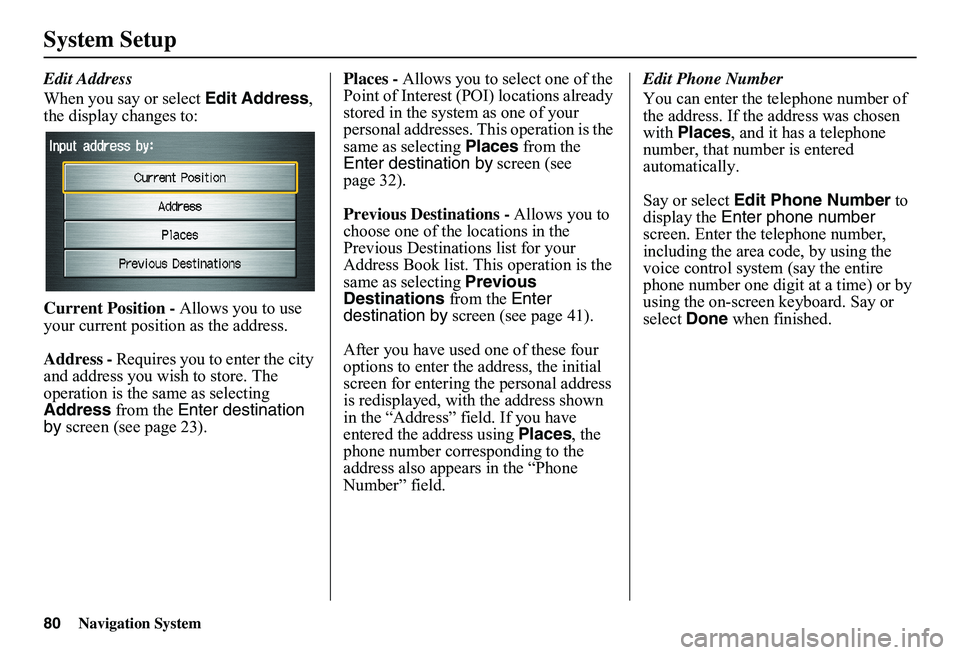
When you say or select Edit Address, the display changes to:
Current Position - Allows you to use your current position as the address.
Address - Requires you to enter the city and address you wish to store. The operation is the same as selecting Address from the Enter destination by screen (see page 23).
Places - Allows you to select one of the Point of Interest (POI) locations already stored in the system as one of your personal addresses. This operation is the same as selecting Places from the Enter destination by screen (see page 32).
Previous Destinations - Allows you to choose one of the locations in the Previous Destinations list for your Address Book list. Th is operation is the same as selecting Previous Destinations from the Enter destination by screen (see page 41).
After you have used one of these four options to enter the address, the initial screen for entering the personal address is redisplayed, with the address shown in the “Address” field. If you have entered the address using Places, the phone number corresponding to the address also appears in the “Phone Number” field.
Edit Phone Number
You can enter the telephone number of the address. If the address was chosen with Places, and it has a telephone number, that number is entered automatically.
Say or select Edit Phone Number to display the Enter phone number screen. Enter the telephone number, including the area code, by using the voice control system (say the entire phone number one digit at a time) or by using the on-screen keyboard. Say or select Done when finished.
Page 83 of 154
82Navigation System
System Setup
Home Address
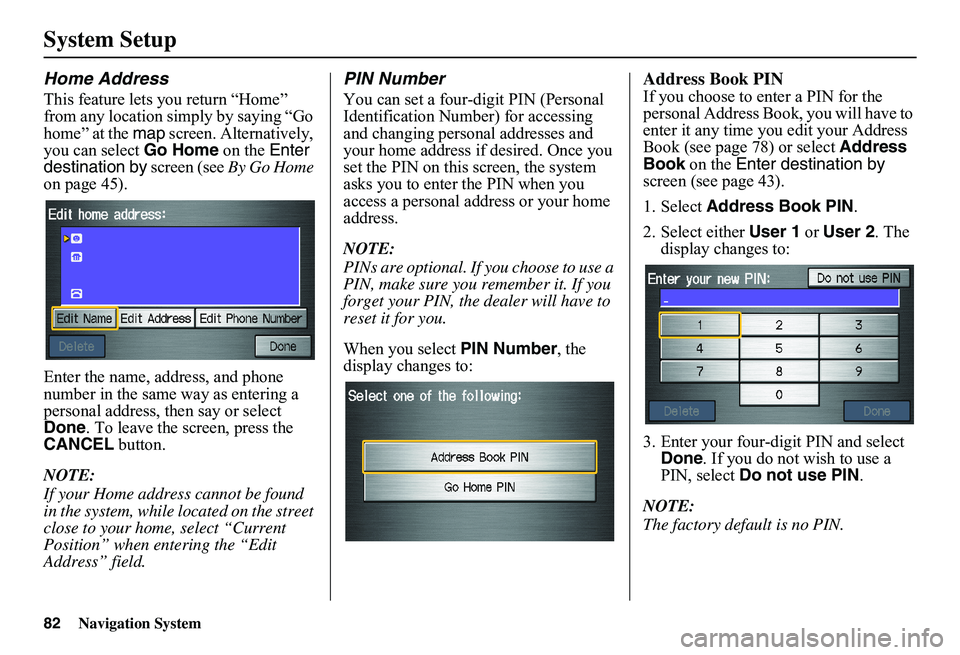
This feature lets you return “Home” from any location simply by saying “Go home” at the map screen. Alternatively, you can select Go Home on the Enter destination by screen (see By Go Home on page 45).
Enter the name, address, and phone number in the same way as entering a personal address, then say or select Done . To leave the screen, press the CANCEL button.
NOTE:
If your Home address cannot be found in the system, while lo cated on the street close to your home, select “Current Position” when entering the “Edit Address” field.
PIN Number
You can set a four-digit PIN (Personal Identification Number) for accessing and changing personal addresses and your home address if desired. Once you set the PIN on this screen, the system asks you to enter the PIN when you access a personal address or your home address.
NOTE:
PINs are optional. If you choose to use a PIN, make sure you remember it. If you forget your PIN, the dealer will have to reset it for you.
When you select PIN Number, the display changes to:
Address Book PIN
If you choose to enter a PIN for the personal Address Book, you will have to enter it any time you edit your Address Book (see page 78) or select Address Book on the Enter destination by screen (see page 43).
1. Select Address Book PIN.
2. Select either User 1 or User 2. The display changes to:
3. Enter your four-digit PIN and select Done . If you do not wish to use a PIN, select Do not use PIN.
NOTE:
The factory default is no PIN.
Page 100 of 154
Navigation System99
System Initialization
GPS Initialization
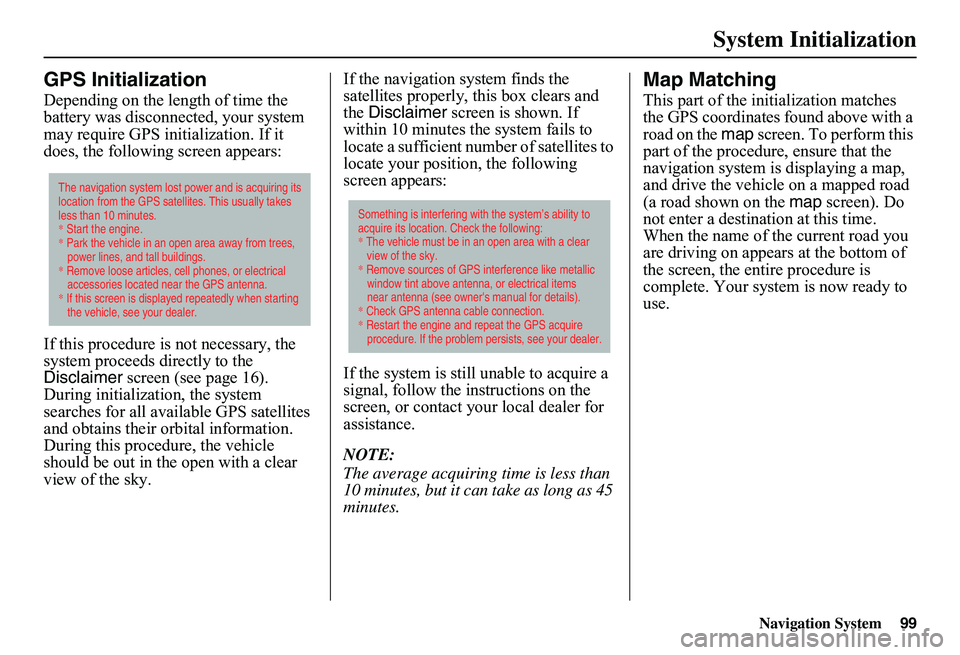
Depending on the length of time the battery was disconnected, your system may require GPS initialization. If it does, the following screen appears:
If this procedure is not necessary, the system proceeds directly to the Disclaimer screen (see page 16). During initialization, the system searches for all available GPS satellites and obtains their orbital information. During this procedure, the vehicle should be out in th e open with a clear view of the sky.
If the navigation system finds the satellites properly, this box clears and the Disclaimer screen is shown. If within 10 minutes the system fails to locate a sufficient number of satellites to locate your position, the following screen appears:
If the system is still unable to acquire a signal, follow the in structions on the screen, or contact you r local dealer for assistance.
NOTE:
The average acquiring time is less than 10 minutes, but it can take as long as 45 minutes.
Map Matching
This part of the initialization matches the GPS coordinates found above with a road on the map screen. To perform this part of the procedure, ensure that the navigation system is displaying a map, and drive the vehicle on a mapped road (a road shown on the map screen). Do not enter a destina tion at this time. When the name of the current road you are driving on appears at the bottom of the screen, the entire procedure is complete. Your system is now ready to use.
The navigation system lost power and is acquiring its location from the GPS satellites. This usually takes less than 10 minutes.* Start the engine. * Park the vehicle in an open area away from trees, power lines, and tall buildings.* Remove loose articles, cell phones, or electrical accessories located near the GPS antenna.* If this screen is displayed repeatedly when starting the vehicle, see your dealer.
Something is interfering with the system’s ability to acquire its location. Check the following:* The vehicle must be in an open area with a clear view of the sky.* Remove sources of GPS interference like metallic window tint above antenna, or electrical items near antenna (see owner's manual for details).* Check GPS antenna cable connection. * Restart the engine and repeat the GPS acquire procedure. If the problem persists, see your dealer.
Page 101 of 154
100Navigation System
System Limitations
Although your navigation system is one of the most highly sophisticated pieces of equipment you will find in a modern automobile, you may find during its use that it has certain limitations.
The system uses GPS signals to aid in determining its current location. The GPS is operated by the U.S.Department of Defense. For security reasons, there are certain inaccuracies built into the GPS that the navigation system must constantly compensate for. This can cause occasional positioning errors of up to se veral hundred feet.
For example, in urban areas where streets are close together, this could cause the system to show that you are traveling on a street that parallels the street you are actually on. The system will, under most circumstances, correct itself while you drive.
Depending on your current view of the sky and the position of the satellites, the elevation may be shown incorrectly. You may also notice some delay of the vehicle position icon at intersections; this is normal.
GPS Reception Issues
The signals received from the GPS satellites are extremely weak (less than a millionth of the strength of a local FM station) and requir e an unobstructed view of the sky. The signal can easily be interrupted or interfered with by the following:
• Aftermarket metallic window tint above or to the sides of the GPS antenna (located under the dashboard)
• Cell phones, PDAs, or other electronic devices docked in a cradle or lying loose on the dashboard
• Radar detectors mounted on the dashboard
• Remote starters, or “hidden” vehicle tracking systems mounted near the navigation unit
• Other aftermarket audio electronic devices mounted near the navigation unit
• Trees, tall buildings, freeway overpasses, tunnels, or overhead electrical power wires
Although the system will direct you to your desired destination, it may not always generate what you consider to be the most direct rout e. Try changing the method of routing. See Changing the Routing Method on page 47. You may also have Unverified Area Routing set to OFF. See Unverified Area Routing on page 85.
Additionally, the mapping database contains verified and unverified maps. See Map Overview on page 6. A Disclaimer screen will warn you if your route includes unverified streets.Unverified streets may be missing from the map, in the wrong location, or have an incorrect name or address range.Exercise addition al caution when driving in these unverified areas.
Page 105 of 154
104Navigation System
Customer Assistance
Reporting Errors
Occasionally, you may encounter database errors.
• If the error pertains to freeways and main “verified” roads shown in black on the map, then report it either online athttp://update.navteq.com/ , or to Honda Customer Service.
• If the error involves a light brown “unverified” road, then do not report it. These areas have not been verified, and are provided for reference only (see Map Overview on page 6).
• For errors in points of interest (POI), like a business that has changed its name, do not report them. Keep in mind that depending on when the data was collected and when your DVD was purchased, the database can be out of date. The business may have not reported the change(s), or not be in the database at all. Update Navigation DVDs are available for purchase, usually in the fall of each year.
• If the error does not involve the database, such as vehicle position icon errors, screen error messages, or other GPS-related errors, see Frequently Asked Questions on page 125, System Limitations on page 100, or Troubleshooting on page 135.
Honda Automobile
Customer Service
Telephone: (800) 999-1009 Fax: (310) 783-3273
Mail: Honda NaviAmerica Honda Motor Co., Inc.Honda Customer ServiceMS 500-2N-7A1919 Torrance Blvd.Torrance, CA 90501-2746
Page 125 of 154
124Navigation System
Address and POI Entry Screens
When in Hawaii, the following differences occur for map, address, and POI selection:
• It is not possible to enter U.S. mainland addresses or scroll the map east to the U.S. mainland.
• Selection of the “State” is confined to the state of Hawaii only.
• Entry of a destination address or POI on an island other than your current island may result in a screen caution message. This is normal because there are no “ferry” routes between islands available in the database.
• If the “Guidance Prompts” setting on the Setup screen is set to normal or maximum, street names will not be spoken in voice guidance commands.
Setup Screen Differences
The Setup screen differences are minor and are listed below. See the Setup section (page 75) for additional information.
Routing and Guidance (Unverified
Area Routing On/Off)
This feature is unavailable. All roads displayed on the map are verified.
Clock Adjust Screen
There is no daylight saving time for Hawaii. Auto Daylight Saving Time , Auto Time Zone by GPS, and DST Selection will not be shown on the Clock adjustment screen. To test your adjustment, use the voice control system, and say “What time is it?” (see page 95).
Bluetooth ® HandsFreeLink®
Operation
When pairing a cell phone to use the Bluetooth ® HandsFreeLink® feature, you may see a “Phone-Data Connection” screen. If so, do not complete this portion of the process.
Shipping a Vehicle To or From
Hawaii
Although the DVD in the vehicle contains maps for both U.S. mainland and Hawaii, the dealer must perform the selection of “U.S. mainland” or “Hawaii” for you. When the dealer makes the switch from U.S. mainland to Hawaii or vice versa, the system clears all user data. Make sure to record any personal information that you do not want to lose.
NOTE:
Shipping a vehicle from Hawaii to the U.S. mainland If you wish to receive XM audio, you must call XM and set up an account at (800) 852-9696.
Shipping a vehicle from the U.S. mainland to Hawaii If a U.S. mainland -delivered vehicle is shipped to Hawaii, there is no XM reception. See your Hawaii dealer to allow viewing of local Hawaii maps. The issues under “Operation in Hawaii” above apply.
Coverage Areas