phone HONDA CIVIC SEDAN 2011 Navigation Manual (in English)
[x] Cancel search | Manufacturer: HONDA, Model Year: 2011, Model line: CIVIC SEDAN, Model: HONDA CIVIC SEDAN 2011Pages: 154, PDF Size: 6.2 MB
Page 126 of 154
Navigation System125
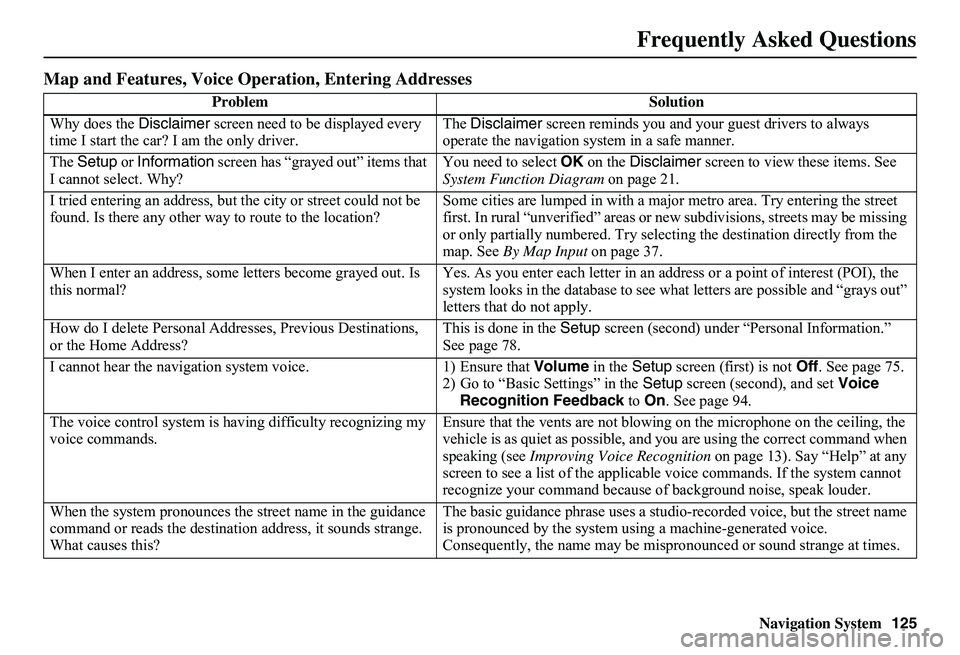
Frequently Asked Questions
Map and Features, Voice Operation, Entering Addresses
Problem Solution
Why does the Disclaimer screen need to be displayed every time I start the car? I am the only driver. The Disclaimer screen reminds you and your guest drivers to always operate the navigation sy stem in a safe manner.
The Setup or Information screen has “grayed out” items that I cannot select. Why? You need to select OK on the Disclaimer screen to view these items. See System Function Diagram on page 21.
I tried entering an address, but th e city or street could not be found. Is there any other way to route to the location? Some cities are lumped in with a major metro area. Try entering the street first. In rural “unverified” areas or ne w subdivisions, streets may be missing or only partially numbered. Try selecting the destination directly from the map. See By Map Input on page 37.
When I enter an address, some letters become grayed out. Is this normal? Yes. As you enter each letter in an addr ess or a point of interest (POI), the system looks in the databa se to see what letters are possible and “grays out” letters that do not apply.
How do I delete Personal Addre sses, Previous Destinations, or the Home Address? This is done in the Setup screen (second) under “Personal Information.” See page 78.
I cannot hear the navigation system voice. 1) Ensure that Volume in the Setup screen (first) is not Off. See page 75. 2) Go to “Basic Settings” in the Setup screen (second), and set Voice Recognition Feedback to On. See page 94.
The voice control system is ha ving difficulty recognizing my voice commands. Ensure that the vents are not blowi ng on the microphone on the ceiling, the vehicle is as quiet as possible, and you are using the correct command when speaking (see Improving Voice Recognition on page 13). Say “Help” at any screen to see a list of the applicable voice commands. If the system cannot recognize your command because of background noise, speak louder.
When the system pronounces the street name in the guidance command or reads the destinati on address, it sounds strange. What causes this?
The basic guidance phrase uses a studio -recorded voice, but the street name is pronounced by the system us ing a machine-generated voice. Consequently, the name may be misp ronounced or sound strange at times.
Page 128 of 154
Navigation System127
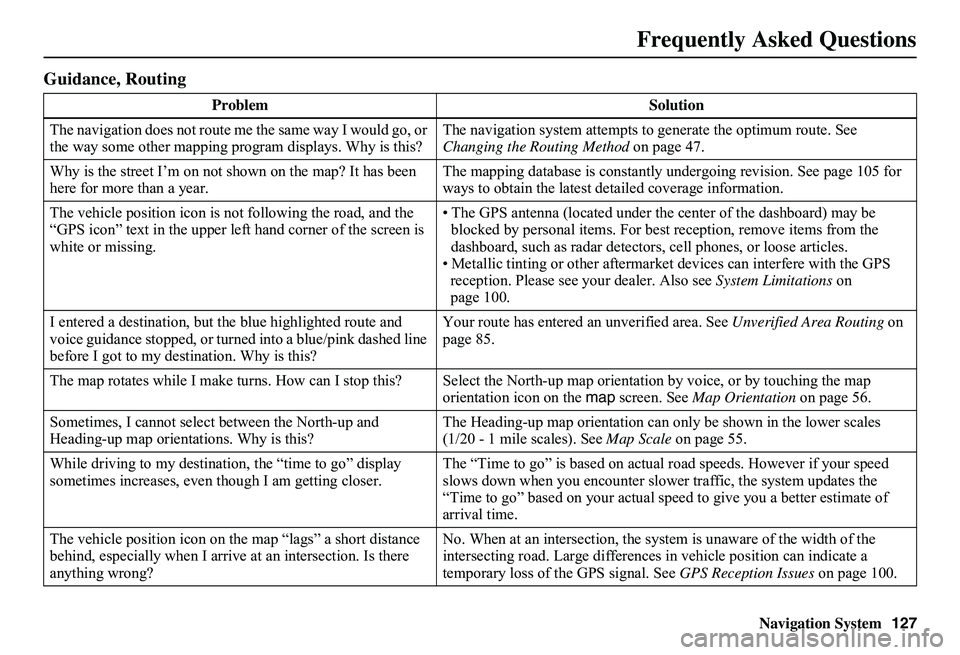
Frequently Asked Questions
Guidance, Routing
Problem Solution
The navigation does not route me the same way I would go, or the way some other mapping progr am displays. Why is this? The navigation system attempts to generate the optimum route. See Changing the Routing Method on page 47.
Why is the street I’m on not s hown on the map? It has been here for more than a year. The mapping database is constantly undergoing revision. See page 105 for ways to obtain the latest de tailed coverage information.
The vehicle position icon is not following the road, and the “GPS icon” text in the upper left hand corner of the screen is white or missing.
• The GPS antenna (located under th e center of the dashboard) may be blocked by personal items. For best reception, remove items from the dashboard, such as radar detector s, cell phones, or loose articles. • Metallic tinting or other aftermarke t devices can interfere with the GPS reception. Please see your dealer. Also see System Limitations on page 100.
I entered a destination, but th e blue highlighted route and voice guidance stopped, or turned into a blue/pink dashed line before I got to my dest ination. Why is this?
Your route has entered an unverified area. See Unverified Area Routing on page 85.
The map rotates while I make turns. How can I stop this? Select the North-up map orientation by voice, or by touching the map orientation icon on the map screen. See Map Orientation on page 56.
Sometimes, I cannot select between the North-up and Heading-up map orienta tions. Why is this? The Heading-up map orient ation can only be shown in the lower scales (1/20 - 1 mile scales). See Map Scale on page 55.
While driving to my destinati on, the “time to go” display sometimes increases, even though I am getting closer. The “Time to go” is based on actual road speeds. However if your speed slows down when you encounter slower traffic, the system updates the “Time to go” based on your actual spee d to give you a better estimate of arrival time.
The vehicle position icon on the map “lags” a short distance behind, especially when I arrive at an intersection. Is there anything wrong?
No. When at an intersection, the syst em is unaware of the width of the intersecting road. Large differences in vehicle position can indicate a temporary loss of the GPS signal. See GPS Reception Issues on page 100.
Page 136 of 154
Navigation System135
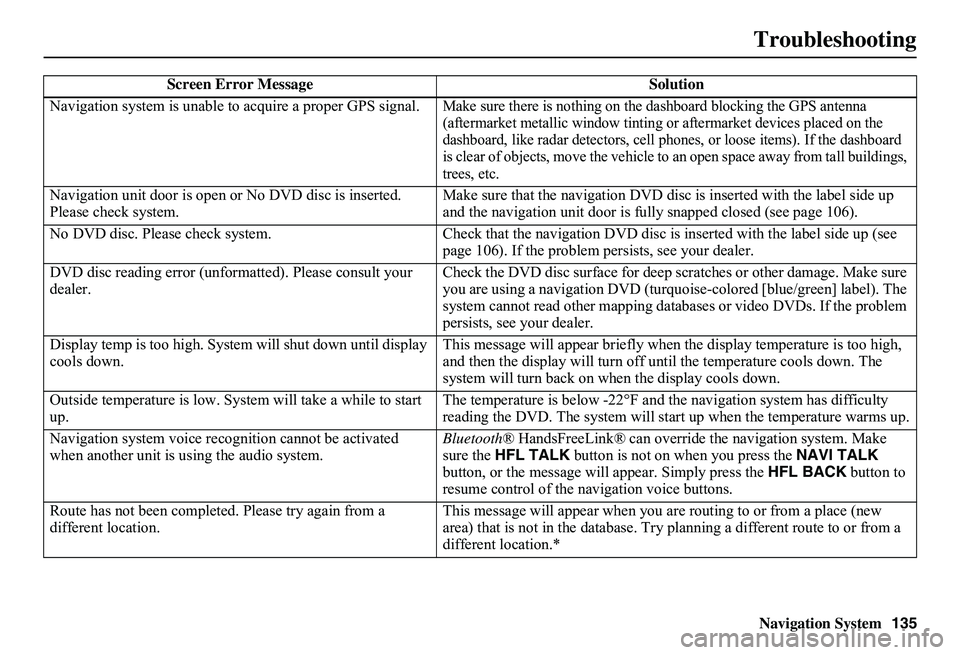
Troubleshooting
Screen Error Message Solution
Navigation system is unable to acquire a proper GPS signal.Make sure there is nothing on the dashboard blocking the GPS antenna (aftermarket metallic wi ndow tinting or aftermarket devices placed on the dashboard, like radar detectors, cell phones, or loose items). If the dashboard is clear of objects, move the vehicle to an open space away from tall buildings, trees, etc.
Navigation unit door is open or No DVD disc is inserted. Please check system. Make sure that the navigation DVD disc is inserted with the label side up and the navigation unit door is fully snapped closed (see page 106).
No DVD disc. Please check system. Check that the navigation DVD disc is inserted with the label side up (see page 106). If the problem persists, see your dealer.
DVD disc reading error (unfor matted). Please consult your dealer. Check the DVD disc surface for deep scratches or other damage. Make sure you are using a navigation DVD (turquoise -colored [blue/green] label). The system cannot read other mapping data bases or video DVDs. If the problem persists, see your dealer.
Display temp is too high. Syst em will shut down until display cools down. This message will appear briefly when the display temperature is too high, and then the display will turn off until the temperature cools down. The system will turn back on when the display cools down.
Outside temperature is low. System will take a while to start up. The temperature is below -22°F and the navigation system has difficulty reading the DVD. The system will st art up when the temperature warms up.
Navigation system voice recognition cannot be activated when another unit is us ing the audio system. Bluetooth ® HandsFreeLink® can override the navigation system. Make sure the HFL TALK button is not on when you press the NAVI TALK button, or the message will appear. Simply press the HFL BACK button to resume control of the navigation voice buttons.
Route has not been complete d. Please try again from a different location. This message will appear when you are routing to or from a place (new area) that is not in the database. Try planning a different route to or from a different location.*
Page 138 of 154
Navigation System137
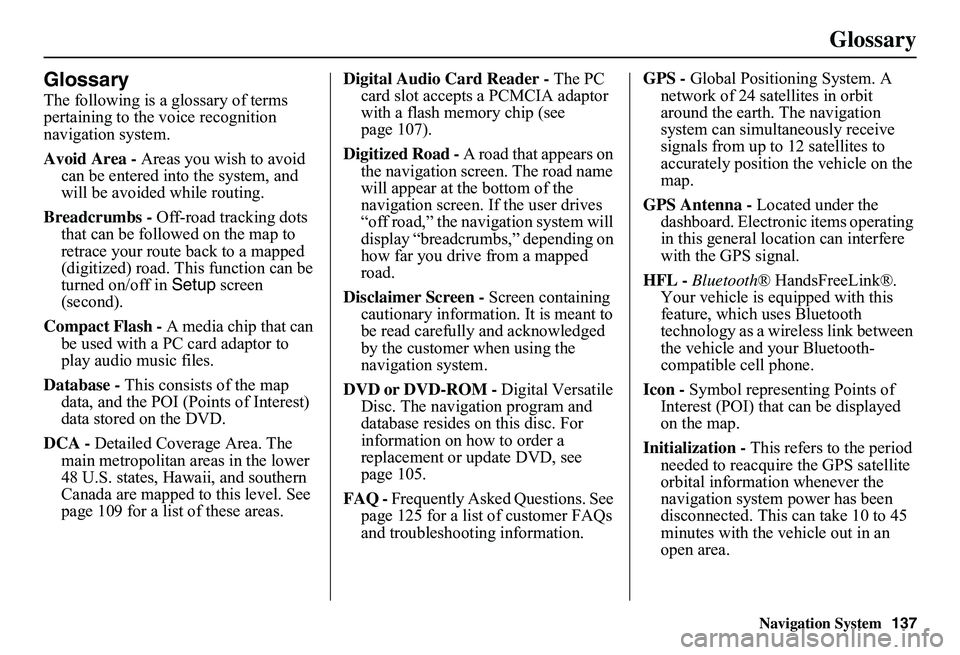
Glossary
Glossary
The following is a glossary of terms pertaining to the voice recognition navigation system.
Avoid Area - Areas you wish to avoid can be entered into the system, and will be avoided while routing.
Breadcrumbs - Off-road tracking dots that can be followe d on the map to retrace your route back to a mapped (digitized) road. This function can be turned on/off in Setup screen (second).
Compact Flash - A media chip that can be used with a PC card adaptor to play audio music files.
Database - This consists of the map data, and the POI (Points of Interest) data stored on the DVD.
DCA - Detailed Coverage Area. The main metropolitan areas in the lower 48 U.S. states, Hawaii, and southern Canada are mapped to this level. See page 109 for a list of these areas.
Digital Audio Card Reader - The PC card slot accepts a PCMCIA adaptor with a flash memory chip (see page 107).
Digitized Road - A road that appears on the navigation screen. The road name will appear at the bottom of the navigation screen. If the user drives “off road,” the navigation system will display “breadcrumbs,” depending on how far you drive from a mapped road.
Disclaimer Screen - Screen containing cautionary information. It is meant to be read carefully and acknowledged by the customer when using the navigation system.
DVD or DVD-ROM - Digital Versatile Disc. The navigation program and database resides on this disc. For information on how to order a replacement or update DVD, see page 105.
FAQ - Frequently Asked Questions. See page 125 for a list of customer FAQs and troubleshootin g information.
GPS - Global Positioning System. A network of 24 satellites in orbit around the earth. The navigation system can simultaneously receive signals from up to 12 satellites to accurately position the vehicle on the map.
GPS Antenna - Located under the dashboard. Electronic items operating in this general location can interfere with the GPS signal.
HFL - Bluetooth® HandsFreeLink®. Your vehicle is equipped with this feature, which uses Bluetooth technology as a wireless link between the vehicle and your Bluetooth-compatible cell phone.
Icon - Symbol representing Points of Interest (POI) that can be displayed on the map.
Initialization - This refers to the period needed to reacquire the GPS satellite orbital information whenever the navigation system power has been disconnected. This can take 10 to 45 minutes with the vehicle out in an open area.
Page 139 of 154
138Navigation System
Glossary
LCD - Liquid Crystal Display. The navigation screen.
Map Matching - The received GPS information allows the navigation system to position the vehicle on the map. Map matching has occurred if the map screen is displaying the current street name in the bottom-shaded area.
Mic - Abbreviation for the microphone used for receiving voice commands. It is located near the map light in the ceiling.
MP3 - A music file format that can be played from a CD-R, USB thumb drive, or PC card.
MW - Maneuver Window. While en route to a destination, this window displays informatio n about the next maneuver.
Navi - Abbreviation for the navigation system.
North Pointer - The map symbol showing the map orientation. See page 56.
Off Route - This occurs when the user leaves mapped roads. Off-road tracking dots (“breadcrumbs”) are displayed if the option is enabled in the Setup screen. The user can use them to return to a mapped road. The bottom of the navigation screen will say, “Not on a digitized road.”
Outlying Areas - These are rural areas that typically have only their main roads mapped. All other roads are shown in light brown for reference only, since they have not been verified.
PC Card - An adaptor card (sometimes called a PCMCIA card) that can contain a compact flash, or SD media clip with MP3 or WMA music files.
PIN - Personal Identification Number. A 4-digit number created by the customer to protect personal information.
POI - Point of Interest. These are the businesses, schools, etc. found under the Places option on the Enter destination by screen. See page 32.
Polygon - Colored areas on the map screen denoting parks, schools, etc. See Map Screen Legend “Map Features” for a list of the assigned colors. See page 51.
QWERTY - Keyboard layout resembling the typewriter keys. The keyboard layout can be changed to an alphabetical layout in the Setup, Basic Settings screen.
Reminder - Automatic “pop-up” Calendar message. See Calendar on page 72.
Secure Digital (SD) Media - These can be installed into a PCMCIA adaptor to play MP3 or WMA music files.
Security Code - Code needed to activate the navigation system or audio unit. See Entering the Security Code on page 98.
Touch Sensor - The touch sensor on the front of the LCD consists of a touch sensitive resistive membrane with an infinite number of possible touch locations. The sensing locations are confined to a grid of 20 vertical and 10 horizontal touch locations.
Page 140 of 154
Navigation System139
Glossary
Unverified Streets - These streets have not been verified for turn restrictions, one-way, etc. They are shown in light brown on the map. Unverified streets may be missing from the map, shown in the wrong location, or have an incorrect name or address range.
USB - Universal Serial Bus. A computer hardware interface used to store and play audio files (MP3, WMA, AAC) from USB devices, such as thumb drives or iPods. See the Audio section in your Owner’s Manual for more information.
Vehicle Speed Sensor - Provides speed signal to the navigation system for moving the VP icon on the map.
Verified Streets - These streets consist of the detailed metropolitan coverage areas and all other inter-town connection roads. These roads are shown in black on the map.
Voice Control - See VR.
VP - Vehicle Position. When in map mode, this circular icon shows the vehicle position on the map. Touch this icon to show the latitude, longitude, and elevation of your current position.
VR - Voice Recognition. This allows voice control of many of the navigation functions. The hardware consists of the microphone, voice control switch ( NAVI TALK/NAVI BACK buttons), and the front speakers.
Waypoint - A temporary destination you may enter while en route (e.g., a gas station, ATM, etc.). See page 64.
WMA - A Windows media audio file that can be played from a CD-R, USB thumb drive, or PC card.
Yaw Rate Sensor - Senses when the vehicle makes a turn, which makes the VP change direction on the map as you turn.
Page 146 of 154
Navigation System145
Voice Command Index
Information Screen Voice
Commands
These are additional commands not found on the Voice Command Help screen available when viewing the Information screen. Follow the voice prompts.
Cellular phonebook
Voice command help (the system reads and lists all of the commands, starting with Navigation General Commands)
Map legend
Calendar
Calculator
Setup Screen (first)
Commands
The system accepts these commands on the Setup screen (first). (For the Setup screen (second), simply say what is written on the screen, and follow the voice prompts.)
Brightness up
Brightness down
Brightness minimum/min.
Brightness maximum/max.
Volume up (tone indicates volume)
Volume down (tone indicates volume)
Volume minimum/min. (tone indicates volume)
Volume maximum/max. (tone indicates volume)
Volume Off
Display off (screen goes dark, route guidance stops)
Display Day
Display Night
Display Auto
Contrast adjust
Guidance Prompts normal
Guidance Prompts maximum/max.
Guidance Prompts minimum/min.
Page 149 of 154
148Navigation System
Index
A
Accessing the Address Book List.....79
ADD TO Today’s
Destinations...........................42, 46
Adding Destinations to the List........42
Address..............................22, 23, 80
Address Book.....................22, 43, 78
Address Book PIN..........................82
Advanced.......................................34
Alaska (Operation)........................123
Auto Daylight Saving Time.............95
Auto Service.............................34, 35
Auto Time Zone by GPS.................96
AUX Voice Commands.................144
Avoid Streets..................................66
B
Back to Current Route.....................67
Banking..........................................34
Basic Settings.................................94
Bluetooth ® HandsFreeLink®...........18
Breadcrumbs.......................19, 61, 92
Brightness......................................75
By Address.....................................23
By Address Book............................43
By Go Home...................................45
By Intersection................................27
By Map Input................................. 37
By Places....................................... 32
By Previous Destinations................ 41
By Today’s Destinations................. 42
C
Calculator...................................... 73
Calendar.................................. 17, 72
CALL............................................ 18
CANCEL button............................ 11
Cancel Current Route..................... 67
Category...................... 32, 33, 44, 81
CD Voice Commands................... 144
Cellular Phonebook........................ 70
Change Method.............................. 47
Change State............................ 23, 28
Changing the DVD....................... 106
Changing the Route........................ 64
Changing the Routing Method........ 47
Changing Your Destination............. 67
City................................... 23, 28, 39
City Vicinity............................ 33, 36
Clock Adjustment.......................... 95
Clock Screen........................... 17, 77
Clock Settings.......................... 17, 77
Clock Type.............................. 17, 77
CLOSE button....................... 10, 106
Color............................................. 97
Community.................................... 34
Continental USA............................ 40
Contrast......................................... 77
Convert (Unit)................................ 74
Correct Vehicle Position................. 93
Coverage Areas............................ 109
Current Location...................... 20, 62
Current Position....................... 37, 80
Current Street................................... 6
Customer Assistance.................... 104
D
Database Limitations.................... 102
Daylight Saving Time (DST)
Selection..................................... 96
Delete Previous Destination............ 83
Destination........................ 22, 46, 67
Destination Icon............................. 56
Destination Map............................. 49
Detailed Coverage Areas...... 109, 114
Detour........................................... 66
Direct Route.................................. 47
Direction List................................. 53
Display.......................................... 76
Driving to Your Destination............ 46
Page 150 of 154
Navigation System149
Index
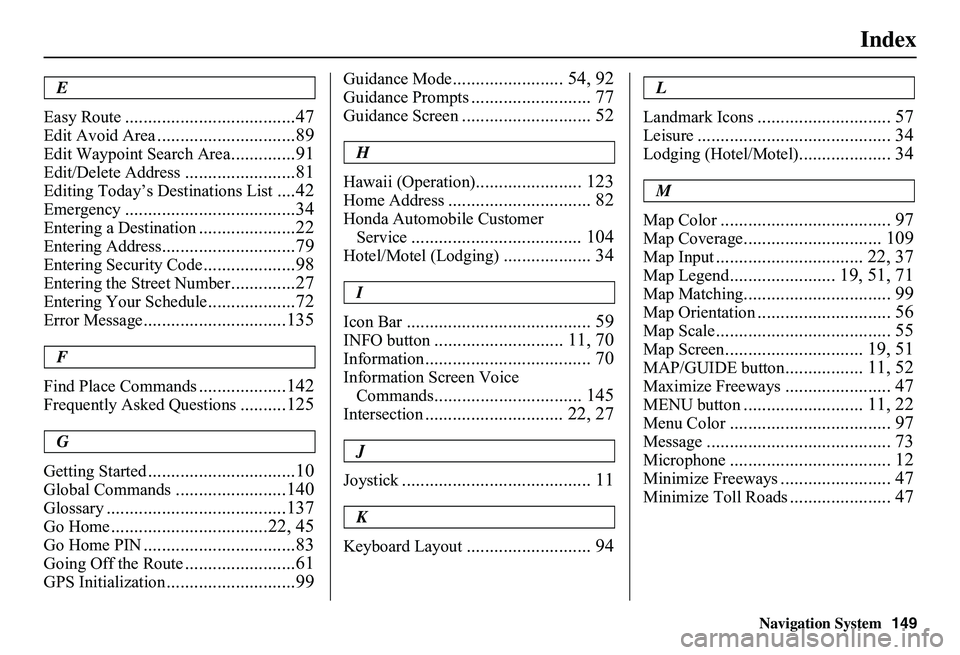
E
Easy Route.....................................47
Edit Avoid Area..............................89
Edit Waypoint Search Area..............91
Edit/Delete Address........................81
Editing Today’s De stinations List....42
Emergency.....................................34
Entering a Destination.....................22
Entering Address.............................79
Entering Security Code....................98
Entering the Street Number..............27
Entering Your Schedule...................72
Error Message...............................135
F
Find Place Commands...................142
Frequently Asked Questions..........125
G
Getting Started................................10
Global Commands........................140
Glossary.......................................137
Go Home..................................22, 45
Go Home PIN.................................83
Going Off the Route........................61
GPS Initialization............................99
Guidance Mode........................ 54, 92
Guidance Prompts.......................... 77
Guidance Screen............................ 52
H
Hawaii (Operation)....................... 123
Home Address............................... 82
Honda Automobile Customer
Service..................................... 104
Hotel/Motel (Lodging)................... 34
I
Icon Bar........................................ 59
INFO button............................ 11, 70
Information.................................... 70
Information Screen Voice
Commands................................ 145
Intersection.............................. 22, 27
J
Joystick......................................... 11
K
Keyboard Layout........................... 94
L
Landmark Icons............................. 57
Leisure.......................................... 34
Lodging (Hotel/Motel).................... 34
M
Map Color..................................... 97
Map Coverage.............................. 109
Map Input................................ 22, 37
Map Legend....................... 19, 51, 71
Map Matching................................ 99
Map Orientation............................. 56
Map Scale...................................... 55
Map Screen.............................. 19, 51
MAP/GUIDE button................. 11, 52
Maximize Freeways....................... 47
MENU button.......................... 11, 22
Menu Color................................... 97
Message........................................ 73
Microphone................................... 12
Minimize Freeways........................ 47
Minimize Toll Roads...................... 47
Page 151 of 154
150Navigation System
Index
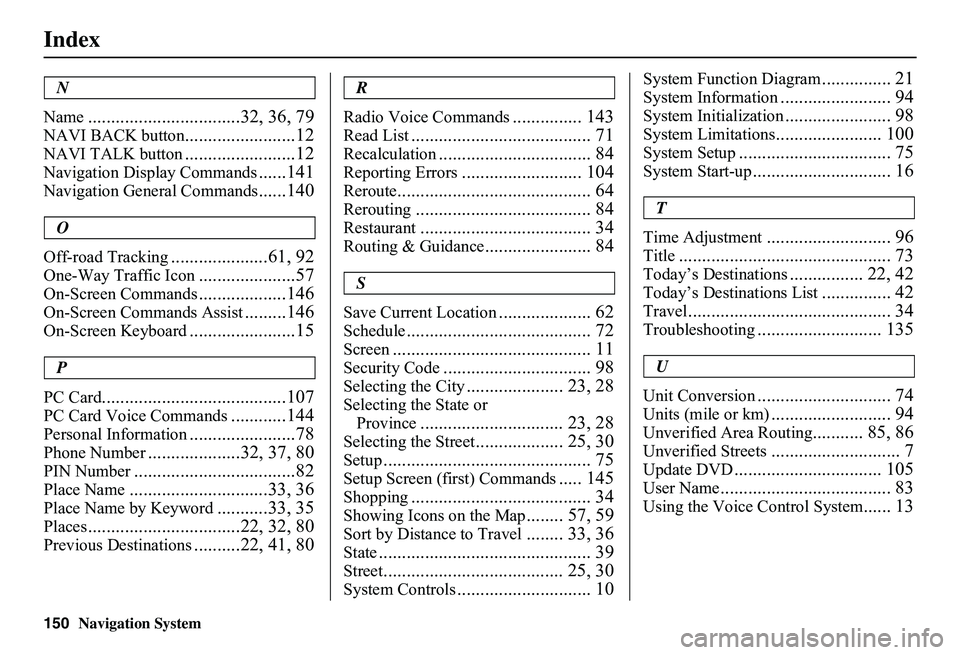
N
Name.................................32, 36, 79
NAVI BACK button........................12
NAVI TALK button........................12
Navigation Display Commands......141
Navigation General Commands......140
O
Off-road Tracking.....................61, 92
One-Way Traffic Icon.....................57
On-Screen Commands...................146
On-Screen Commands Assist.........146
On-Screen Keyboard.......................15
P
PC Card........................................107
PC Card Voice Commands............144
Personal Information.......................78
Phone Number....................32, 37, 80
PIN Number...................................82
Place Name..............................33, 36
Place Name by Keyword...........33, 35
Places.................................22, 32, 80
Previous Destinations..........22, 41, 80
R
Radio Voice Commands............... 143
Read List....................................... 71
Recalculation................................. 84
Reporting Errors.......................... 104
Reroute.......................................... 64
Rerouting...................................... 84
Restaurant..................................... 34
Routing & Guidance....................... 84
S
Save Current Location.................... 62
Schedule........................................ 72
Screen........................................... 11
Security Code................................ 98
Selecting the City..................... 23, 28
Selecting the State or
Province............................... 23, 28
Selecting the Street................... 25, 30
Setup............................................. 75
Setup Screen (first) Commands..... 145
Shopping....................................... 34
Showing Icons on the Map........ 57, 59
Sort by Distance to Travel........ 33, 36
State.............................................. 39
Street....................................... 25, 30
System Controls............................. 10
System Function Diagram............... 21
System Information........................ 94
System Initialization....................... 98
System Limitations....................... 100
System Setup................................. 75
System Start-up.............................. 16
T
Time Adjustment........................... 96
Title.............................................. 73
Today’s Destinations................ 22, 42
Today’s Destinations List............... 42
Travel............................................ 34
Troubleshooting........................... 135
U
Unit Conversion............................. 74
Units (mile or km).......................... 94
Unverified Area Routing........... 85, 86
Unverified Streets............................ 7
Update DVD................................ 105
User Name..................................... 83
Using the Voice Control System...... 13