ad blue HONDA CIVIC SEDAN 2011 Navigation Manual (in English)
[x] Cancel search | Manufacturer: HONDA, Model Year: 2011, Model line: CIVIC SEDAN, Model: HONDA CIVIC SEDAN 2011Pages: 154, PDF Size: 6.2 MB
Page 2 of 154
Navigation System1
Table of Contents
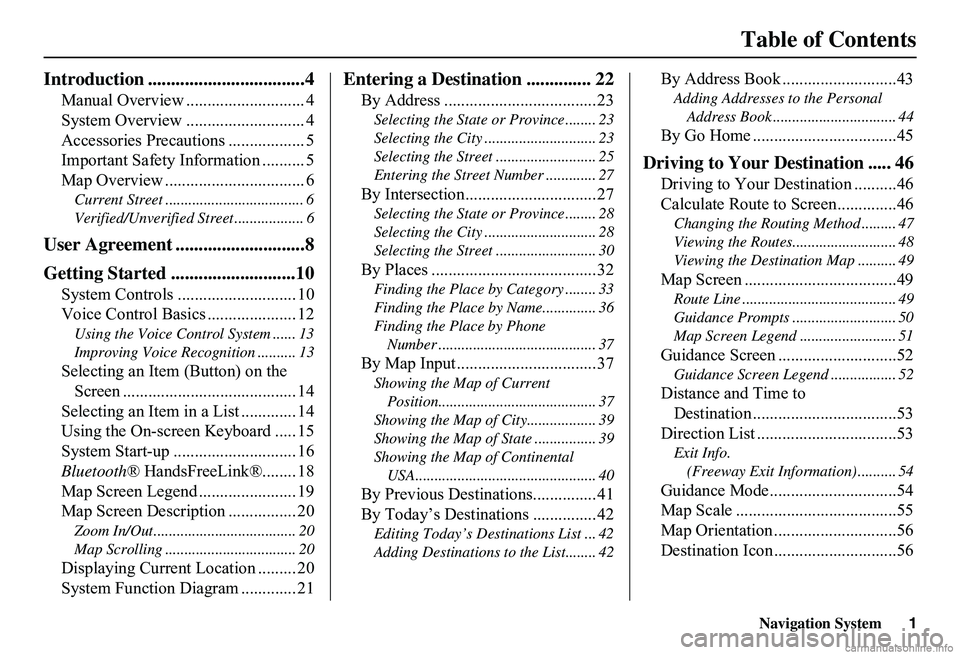
Introduction ..................................4
Manual Overview ............................ 4
System Overview ............................ 4
Accessories Precautions .................. 5
Important Safety Information .......... 5
Map Overview ................................. 6
Current Street .................................... 6
Verified/Unverified Street .................. 6
User Agreement ............................8
Getting Started ...........................10
System Controls ............................ 10
Voice Control Basics ..................... 12
Using the Voice Control System ...... 13
Improving Voice Rec ognition .......... 13
Selecting an Item (Button) on the
Screen ......................................... 14
Selecting an Item in a List ............. 14
Using the On-screen Keyboard ..... 15
System Start-up ............................. 16
Bluetooth ® HandsFreeLink®........ 18
Map Screen Legend ....................... 19
Map Screen Description ................ 20
Zoom In/Out..................................... 20
Map Scrolling .................................. 20
Displaying Current Location ......... 20
System Function Diagram ............. 21
Entering a Destination .............. 22
By Address ....................................23
Selecting the State or Province ........ 23
Selecting the City ............................. 23
Selecting the Street .......................... 25
Entering the Street Number ............. 27
By Intersection...............................27
Selecting the State or Province ........ 28
Selecting the City ............................. 28
Selecting the Street .......................... 30
By Places .......................................32
Finding the Place by Category ........ 33
Finding the Place by Name.............. 36
Finding the Place by Phone
Number ......................................... 37
By Map Input .................................37
Showing the Map of Current
Position......................................... 37
Showing the Map of City .................. 39
Showing the Map of Stat e ................ 39
Showing the Map of Continental
USA............................................... 40
By Previous Destinations...............41
By Today’s Destinations ...............42
Editing Today’s Dest inations List ... 42
Adding Destinations to the List........ 42
By Address Book ...........................43
Adding Addresses to the Personal
Address Book ................................ 44
By Go Home ..................................45
Driving to Your Destination ..... 46
Driving to Your Destination ..........46
Calculate Route to Screen..............46
Changing the Routing Method ......... 47
Viewing the Routes........................... 48
Viewing the Destination Map .......... 49
Map Screen ....................................49
Route Line ........................................ 49
Guidance Prompts ...... ..................... 50
Map Screen Legend ......................... 51
Guidance Screen ............................52
Guidance Screen Legend ................. 52
Distance and Time to
Destination ..................................53
Direction List .................................53
Exit Info.
(Freeway Exit Information) .......... 54
Guidance Mode..............................54
Map Scale ......................................55
Map Orientation .............................56
Destination Icon .............................56
Page 8 of 154
Navigation System7
Introduction
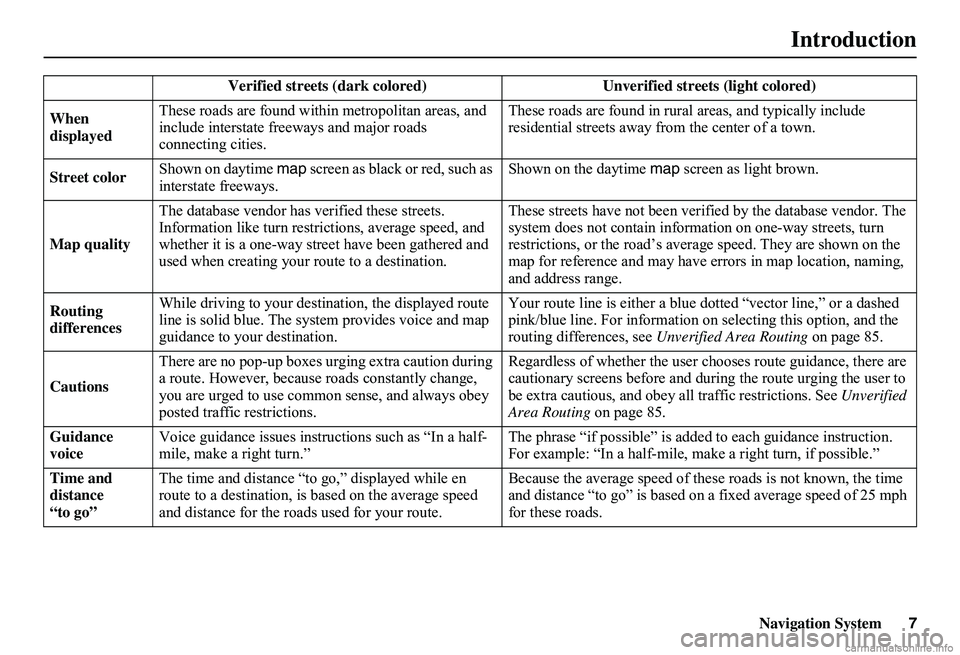
Verified streets (dark colored) Unverified streets (light colored)
When displayed
These roads are found within metropolitan areas, and include interstate freeways and major roads connecting cities.
These roads are found in rural areas, and typically include residential street s away from the center of a town.
Street color Shown on daytime map screen as black or red, such as interstate freeways. Shown on the daytime map screen as light brown.
Map quality
The database vendor has verified these streets. Information like tu rn restrictions, average speed, and whether it is a one-way street have been gathered and used when creating your route to a destination.
These streets have not been veri fied by the database vendor. The system does not contain inform ation on one-way streets, turn restrictions, or the road’s average speed. They are shown on the map for reference and may have e rrors in map location, naming, and address range.
Routing differences
While driving to your destin ation, the displayed route line is solid blue. The sy stem provides voice and map guidance to your destination.
Your route line is either a blue dotted “vector line,” or a dashed pink/blue line. For information on selecting this option, and the routing differences, see Unverified Area Routing on page 85.
Cautions
There are no pop-up boxes urging extra caution during a route. However, because roads constantly change, you are urged to use common sense, and always obey posted traffic restrictions.
Regardless of whether the user c hooses route guidance, there are cautionary screens before and dur ing the route urging the user to be extra cautious, and obey a ll traffic restrictions. See Unverified Area Routing on page 85.
Guidance voice Voice guidance issues instruct ions such as “In a half- mile, make a right turn.” The phrase “if possible” is added to each guidance instruction. For example: “In a half-mile, ma ke a right turn, if possible.”
Time and distance “to go”
The time and distance “t o go,” displayed while en route to a destination, is based on the average speed and distance for the roads used for your route.
Because the average speed of thes e roads is not known, the time and distance “to go” is based on a fixed average speed of 25 mph for these roads.
Page 13 of 154
12Navigation System
Getting Started
Voice Control Basics
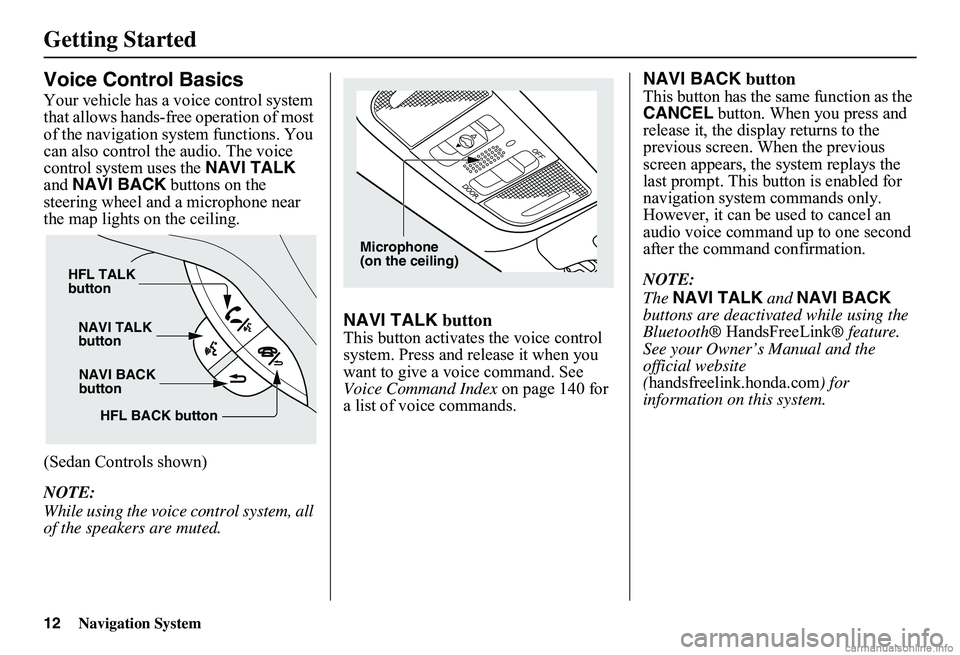
Your vehicle has a voice control system that allows hands-free operation of most of the navigation system functions. You can also control th e audio. The voice control system uses the NAVI TALK and NAVI BACK buttons on the steering wheel and a microphone near the map lights on the ceiling.
(Sedan Controls shown)
NOTE:
While using the voice control system, all of the speakers are muted.
NAVI TALK button
This button activates the voice control system. Press and release it when you want to give a voice command. See Voice Command Index on page 140 for a list of voice commands.
NAVI BACK button
This button has the same function as the CANCEL button. When you press and release it, the disp lay returns to the previous screen. When the previous screen appears, the system replays the last prompt. This button is enabled for navigation system commands only. However, it can be used to cancel an audio voice command up to one second after the command confirmation.
NOTE:
The NAVI TALK and NAVI BACK buttons are deactivated while using the Bluetooth® HandsFreeLink® feature. See your Owner’s Manual and the official website ( handsfreelink.honda.com) for information on this system.
NAVI BACK button
NAVI TALK button
HFL TALK button
HFL BACK button
Microphone (on the ceiling)
Page 14 of 154
Navigation System13
Getting Started
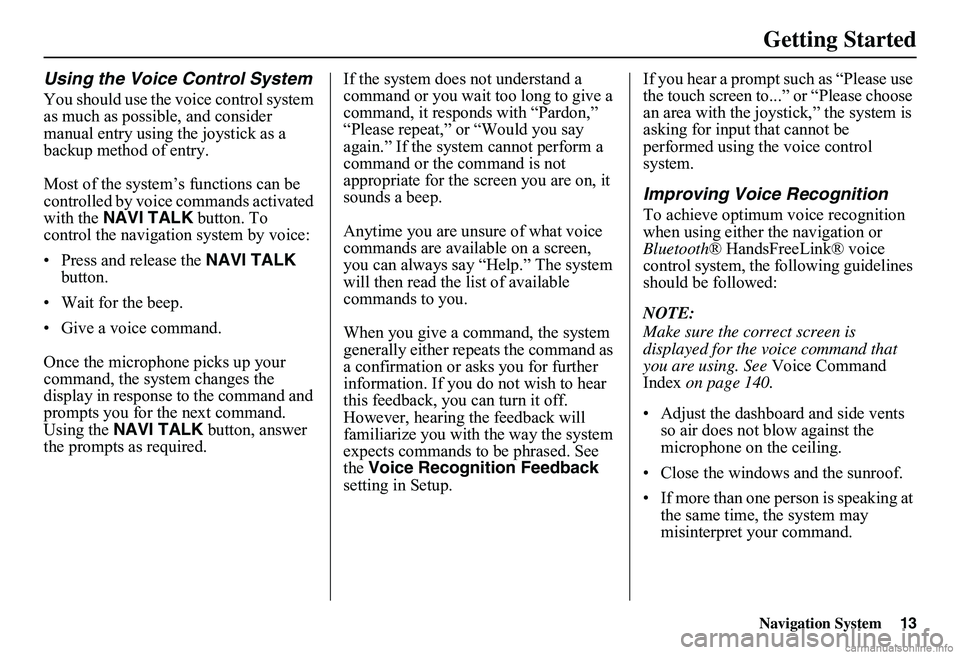
Using the Voice Control System
You should use the voice control system as much as possible, and consider manual entry using the joystick as a backup method of entry.
Most of the system’s functions can be controlled by voice commands activated with the NAVI TALK button. To control the navigation system by voice:
• Press and release the NAVI TALK button.
• Wait for the beep.
• Give a voice command.
Once the microphone picks up your command, the system changes the display in response to the command and prompts you for the next command. Using the NAVI TALK button, answer the prompts as required.
If the system does not understand a command or you wait too long to give a command, it responds with “Pardon,” “Please repeat,” or “Would you say again.” If the system cannot perform a command or the command is not appropriate for the screen you are on, it sounds a beep.
Anytime you are unsure of what voice commands are available on a screen, you can always say “Help.” The system will then read the list of available commands to you.
When you give a command, the system generally either repeats the command as a confirmation or asks you for further information. If you do not wish to hear this feedback, you can turn it off. However, hearing the feedback will familiarize you with the way the system expects commands to be phrased. See the Voice Recognition Feedback setting in Setup.
If you hear a prompt such as “Please use the touch screen to...” or “Please choose an area with the joystick,” the system is asking for input that cannot be performed using the voice control system.
Improving Voice Recognition
To achieve optimum voice recognition when using either the navigation or Bluetooth ® HandsFreeLink® voice control system, the following guidelines should be followed:
NOTE:
Make sure the correct screen is displayed for the vo ice command that you are using. See Voice Command Index on page 140.
• Adjust the dashboard and side vents so air does not blow against the microphone on the ceiling.
• Close the windows and the sunroof.
• If more than one person is speaking at the same time, the system may misinterpret your command.
Page 19 of 154
18Navigation System
Getting Started
If you select OK, the reminder will not show up again. If you wish to have the reminder show up again later in the day, touch the Remind Later button.
If you press the CANCEL button, the message will be displayed the next time you start the vehicle.
NOTE:
The system will display the current message and any older or previously unread messages, with the newest message listed first.
Bluetooth® HandsFreeLink®
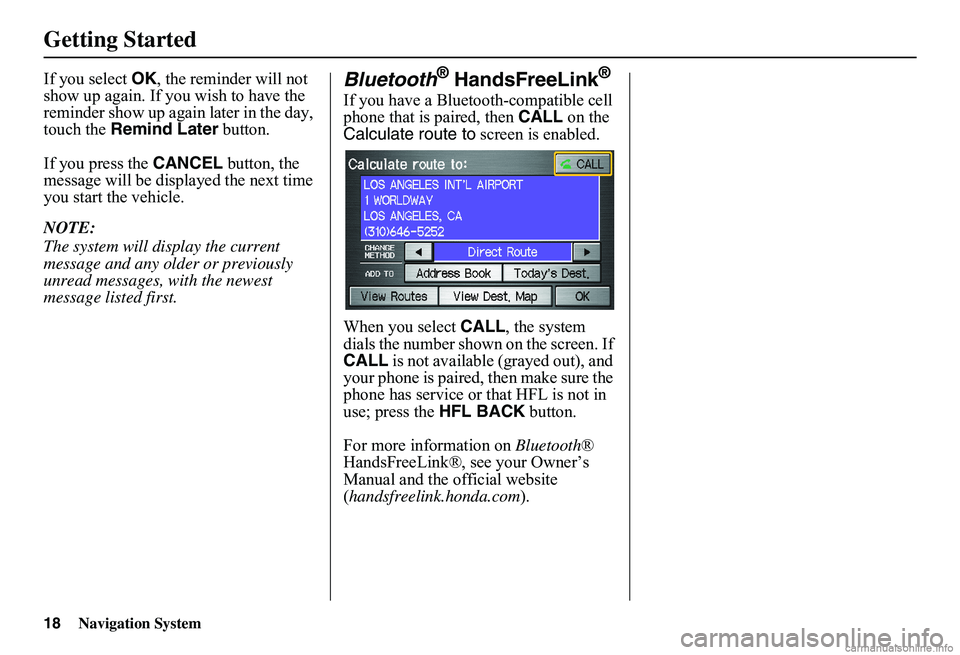
If you have a Bluetooth-compatible cell phone that is paired, then CALL on the Calculate route to screen is enabled.
When you select CALL, the system dials the number shown on the screen. If CALL is not available (grayed out), and your phone is paired, then make sure the phone has service or that HFL is not in use; press the HFL BACK button.
For more information on Bluetooth® HandsFreeLink®, see your Owner’s Manual and the official website ( handsfreelink.honda.com).
Page 22 of 154
Navigation System21
Getting Started
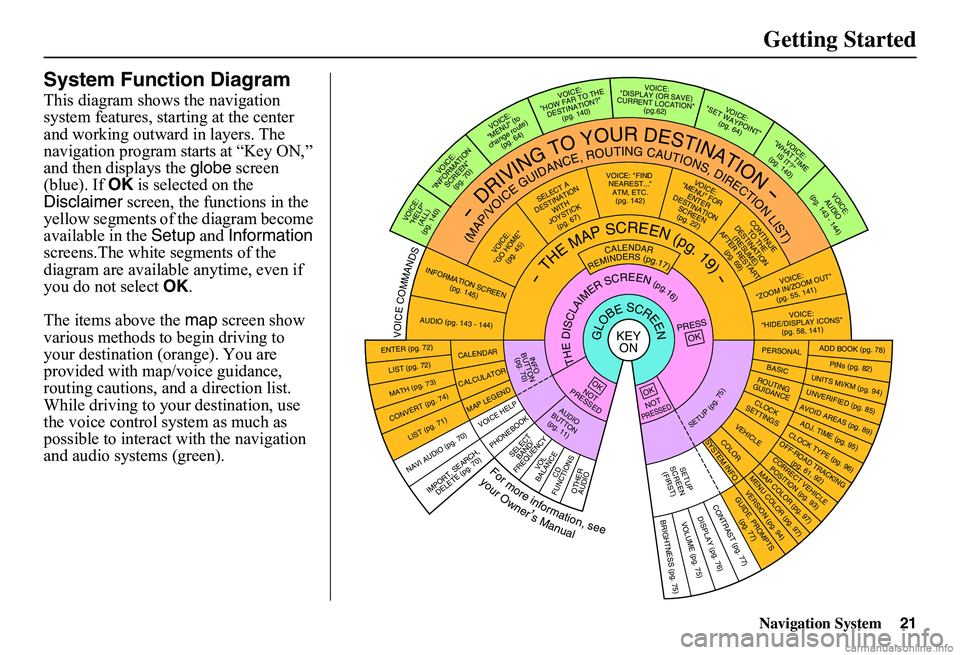
System Function Diagram
This diagram shows the navigation system features, starting at the center and working outward in layers. The navigation program starts at “Key ON,” and then displays the globe screen (blue). If OK is selected on the Disclaimer screen, the functions in the yellow segments of the diagram become available in the Setup and Information screens.The white segments of the diagram are available anytime, even if you do not select OK.
The items above the map screen show various methods to begin driving to your destination (orange). You are provided with map/voice guidance, routing cautions, and a direction list. While driving to your destination, use the voice control system as much as possible to interact with the navigation and audio syst ems (green).
KEY ONGLOBESCREENPRESS OK
OKNOT PRESSED
THEDISCLAIMERSCREEN(pg.16)
CALENDAR
REMINDERS(pg.17)-THEMAPSCREEN(pg.19)-
AUDIO BUTTO N (pg. 11)
INFO BUTTON (pg. 70)
NAVI A UDIO (pg. 70)
ENTER (pg. 72)
LIST (pg. 72)
MATH (pg. 73)
CONVERT (pg. 74)
LIST (pg. 71)
CALENDAR
CALCULATOR
M AP LEGEN D
VOICE: "FIND NEARE ST..." ATM, ETC. (pg. 142)SELECT A DESTINATION WITHJOYSTICK (pg. 67)
VOICE: "GO HOME" (pg. 45)
VOICE: "MENU" FOR ENTERDESTINATIONSCREEN(pg. 22)CONTIN
UE TO THE DESTINATION (RESUME) AFTER RESTART
(pg. 6 9 )
VOICE HE
LP
SELECT BAND/ FREQUENCYVOL BALANCECD
FUNCTIONSOTHER AUDIO
VOICE: "ZOOM IN/ZOO M OUT"
(pg. 55, 141)VOICE: "HIDE/DISP LAY ICONS" (pg. 58, 141 )
INFORMATION SCREEN (pg. 145)
AUDIO (pg. 143 - 144)
-DRIVINGTOYOURDESTINATION-
(MAP/VOICEGUIDANCE,ROUTINGCAUTIONS,DIRECTIONLIST)
VOICE: "HELP"(ALL)(pg. 140)
VOICE: "INFORMATIONSCREEN"(pg. 70)
VOICE:"MENU" (to change route) (pg. 64)
VOICE: "HOW FAR TO THEDESTINATION?"(pg. 140)
VOICE: "DISPLAY (OR SAVE)CURRENT LOCATION" (pg.62)VOICE:"SET WAYPOINT
" (pg. 64)
VOICE: "WHAT TIME IS IT?" (pg. 140)
VOICE: AUDIO (pg. 143 - 144)
ADD BOOK (pg. 78)PINs (pg. 82)UNITS MI/KM (pg. 9 4)
PERSONALBASIC
UNVERIFIED (pg. 85)AVOID AREAS (pg. 89)ADJ. TIME (pg.
9 5)CLOCK TYPE
(pg. 96)
ROUTING GUIDANCECLOC K SETT INGS
OFF-ROAD TRA
CKING (pg. 61, 9 2)
CORRECT VEHICL
E
POSITION (p
g. 93)
MAP COLOR
(pg. 97)
MENU COLOR (pg.
97)
VEHICLECOLOR
GUIDE. PRO
MPTS (pg. 77)
SETUPSCREE
N
(FIRST)
OKNOTPRESSED
VERSION (
pg. 94)
SYSTEM INF
O.
BRIGHTNESS
(pg. 75)
VOLUME (pg. 75)DISPL
AY (pg
. 76)
CONTRAST
(pg. 77)
SETUP(pg.75)
BRIGHTNESS ZOOM IN/OUT
REAR CAMERA (REVERSE)
IMPORT, SEA
RCH,
DELE TE (pg. 70)
PHONEBOOK
Formoreinformation,see
yourOwner’sManual
VOICECOMMANDS
Page 47 of 154
46Navigation System
Driving to Your Destination
Driving to Your Destination
A route typically has three phases.
• Initial route calculation ( Calculate route to screen) (see page 46).
• Change the route while en route (see page 64).
• Resume the route when restarting the engine (see Continue Trip Screen on page 69).
Calculate Route to Screen
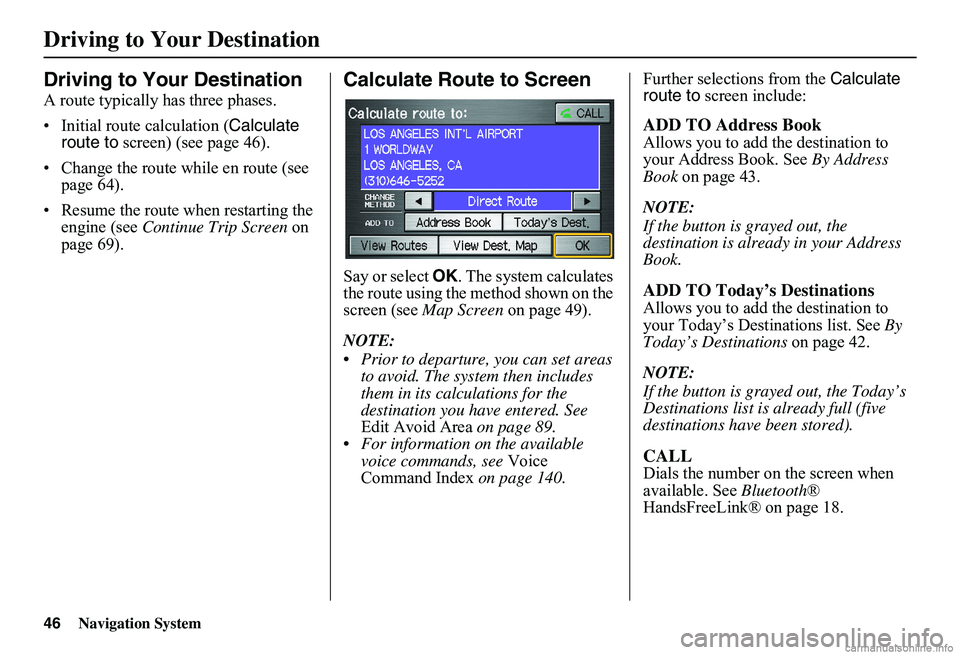
Say or select OK. The system calculates the route using the method shown on the screen (see Map Screen on page 49).
NOTE:
Prior to departure, you can set areas to avoid. The system then includes them in its calculations for the destination you have entered. See Edit Avoid Area on page 89. For information on the available voice commands, see Voice Command Index on page 140.
Further selections from the Calculate route to screen include:
ADD TO Address Book
Allows you to add the destination to your Address Book. See By Address Book on page 43.
NOTE:
If the button is grayed out, the destination is already in your Address Book.
ADD TO Today’s Destinations
Allows you to add the destination to your Today’s Destinations list. See By Today’s Destinations on page 42.
NOTE:
If the button is grayed out, the Today’s Destinations list is already full (five destinations have been stored).
CALL
Dials the number on the screen when available. See Bluetooth® HandsFreeLink® on page 18.
Page 49 of 154
48Navigation System
Viewing the Routes
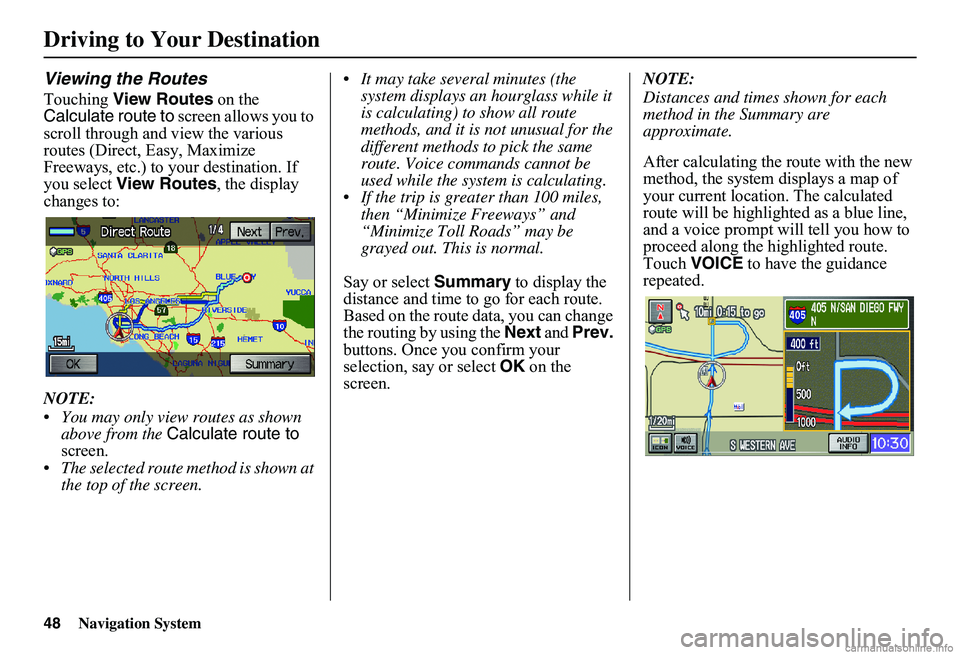
Touching View Routes on the Calculate route to screen allows you to scroll through and view the various routes (Direct, Easy, Maximize Freeways, etc.) to your destination. If you select View Routes, the display changes to:
NOTE:
You may only view routes as shown above from the Calculate route to screen. The selected route method is shown at the top of the screen.
It may take several minutes (the system displays an hourglass while it is calculating) to show all route methods, and it is not unusual for the different methods to pick the same route. Voice commands cannot be used while the system is calculating. If the trip is greater than 100 miles, then “Minimize Freeways” and “Minimize Toll Roads” may be grayed out. This is normal.
Say or select Summary to display the distance and time to go for each route. Based on the route data, you can change the routing by using the Next and Prev. buttons. Once you confirm your selection, say or select OK on the screen.
NOTE:
Distances and times shown for each method in the Summary are approximate.
After calculating the route with the new method, the system displays a map of your current locatio n. The calculated route will be highlighted as a blue line, and a voice prompt will tell you how to proceed along the highlighted route. Touch VOICE to have the guidance repeated.
Driving to Your Destination
Page 50 of 154
Navigation System49
Driving to Your Destination
Viewing the Destination Map
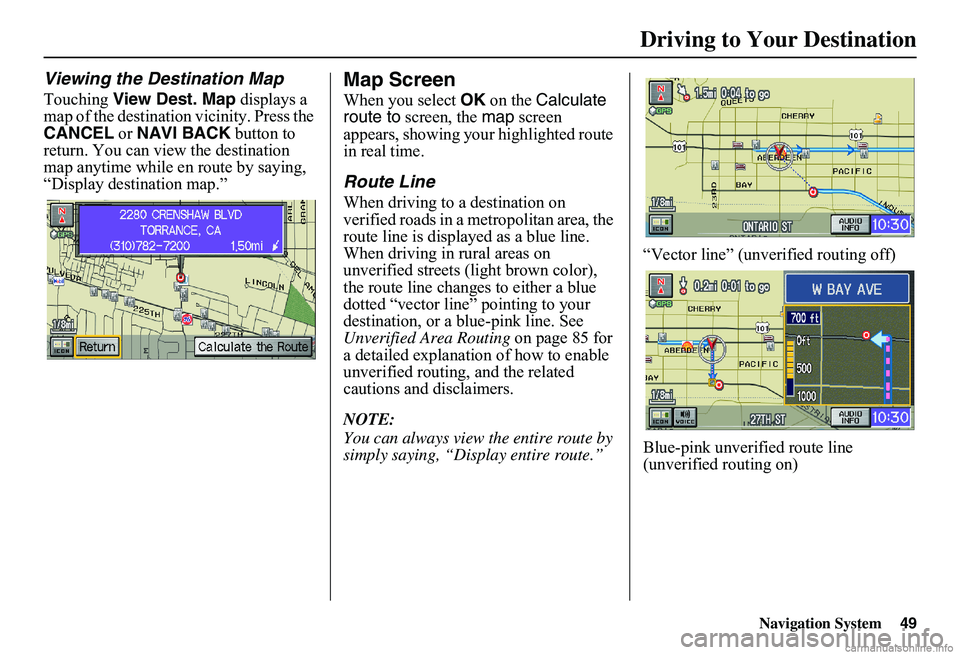
Touching View Dest. Map displays a map of the destination vicinity. Press the CANCEL or NAVI BACK button to return. You can view the destination map anytime while en route by saying, “Display destination map.”
Map Screen
When you select OK on the Calculate route to screen, the map screen appears, showing your highlighted route in real time.
Route Line
When driving to a destination on verified roads in a metropolitan area, the route line is displayed as a blue line. When driving in rural areas on unverified streets (light brown color), the route line changes to either a blue dotted “vector line” pointing to your destination, or a blue-pink line. See Unverified Area Routing on page 85 for a detailed explanatio n of how to enable unverified routing, and the related cautions and disclaimers.
NOTE:
You can always view the entire route by simply saying, “Display entire route.”
“Vector line” (unverified routing off)
Blue-pink unverified route line (unverified routing on)
Page 52 of 154
Navigation System51
Driving to Your Destination
Acura Dealer
School
Restaurant
AT M
Parking Lot
Post Office
Honda Dealer
Hospital
Grocery Store
Gas Station
Hotel/Lodging
Parking Garage
Freeway Exit Information
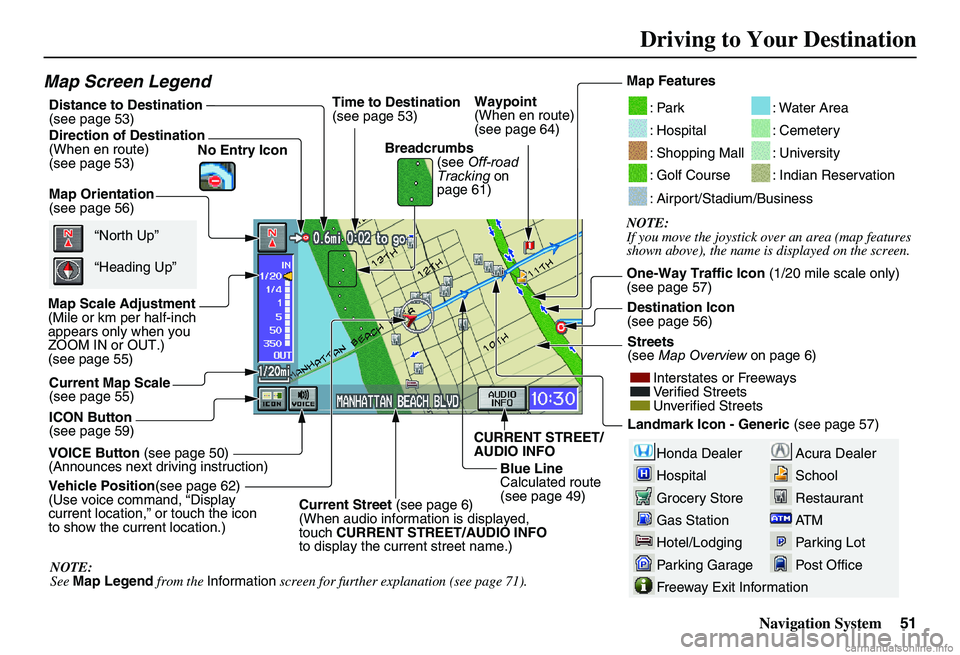
Map Screen Legend
Map Orientation (see page 56)
Map Scale Adjustment (Mile or km per half-inch appears only when you ZOOM IN or OUT.)(see page 55)
Current Map Scale (see page 55)
ICON Button (see page 59)
Breadcrumbs (see Off-road Tracking on page 61)
Direction of Destination (When en route)(see page 53)
VOICE Button (see page 50) (Announces next driving instruction)
Distance to Destination (see page 53) Time to Destination (see page 53)
Vehicle Position (see page 62) (Use voice command, “Display current location,” or touch the icon to show the current location.)
Blue Line Calculated route (see page 49)
Map Features
NOTE: If you move the joystick over an area (map features shown above), the name is displayed on the screen.
: Par k
: Hospital
: Shopping Mall
: Golf Course
: Water Area
: Cemetery
: University
: Indian Reservation
: Airport/Stadium/Business
One-Way Traffic Icon (1/20 mile scale only) (see page 57)
Streets (see Map Overview on page 6)
Interstates or Freeways Verified StreetsUnverified Streets
Landmark Icon - Generic (see page 57)
“North Up”
“Heading Up”
NOTE: See Map Legend from the Information screen for further explanation (see page 71).
Destination Icon (see page 56)
Waypoint (When en route)(see page 64)
CURRENT STREET/ AUDIO INFO
Current Street (see page 6) (When audio information is displayed, touch CURRENT STREET/AUDIO INFO to display the current street name.)
No Entry Icon