service HONDA CIVIC SEDAN 2011 Navigation Manual (in English)
[x] Cancel search | Manufacturer: HONDA, Model Year: 2011, Model line: CIVIC SEDAN, Model: HONDA CIVIC SEDAN 2011Pages: 154, PDF Size: 6.2 MB
Page 4 of 154
Navigation System3
Table of Contents
Customer Assistance ................104
Reporting Errors .......................... 104
Honda Automobile Customer
Service ...................................... 104
Visiting Your Dealer ................... 105
Obtaining a Navigation Update
DVD ......................................... 105
Changing the DVD ...................... 106
PC Card Operation ...................... 107
Inserting the PC Card.................... 107
Voice Control of PC Card
Functions .................................... 107
CD/CD-R Operation .................... 107
Voice Control of CD Functions ..... 108
Coverage Areas .........................109
Map Coverage ............................. 109
U.S. Detailed Coverage Areas....... 109
Canada Detailed Coverage
Areas .......................................... 114
Operation in Alaska and
Hawaii ...................................... 123
Alaska ............................................ 123
Hawaii ........................................... 123
Shipping a Vehicle To or From
Hawaii ........................................ 124
Frequently Asked
Questions ............................... 125
Troubleshooting ....................... 135
Glossary .................................... 137
Glossary .......................................137
Voice Command Index ............ 140
Global Commands .......................140
Navigation General
Commands ................................140
Navigation Display
Commands ................................141
Find Place Commands .................142
Radio Voice Commands ..............143
CD Voice Commands ..................144
PC Card Voice Commands ..........144
AUX Voice Commands ...............144
Information Screen Voice
Commands ................................145
Setup Screen (first)
Commands ................................145
On-Screen Commands .................146
On-Screen Commands Assist ......... 146
Index ......................................... 148
Page 19 of 154
18Navigation System
Getting Started
If you select OK, the reminder will not show up again. If you wish to have the reminder show up again later in the day, touch the Remind Later button.
If you press the CANCEL button, the message will be displayed the next time you start the vehicle.
NOTE:
The system will display the current message and any older or previously unread messages, with the newest message listed first.
Bluetooth® HandsFreeLink®
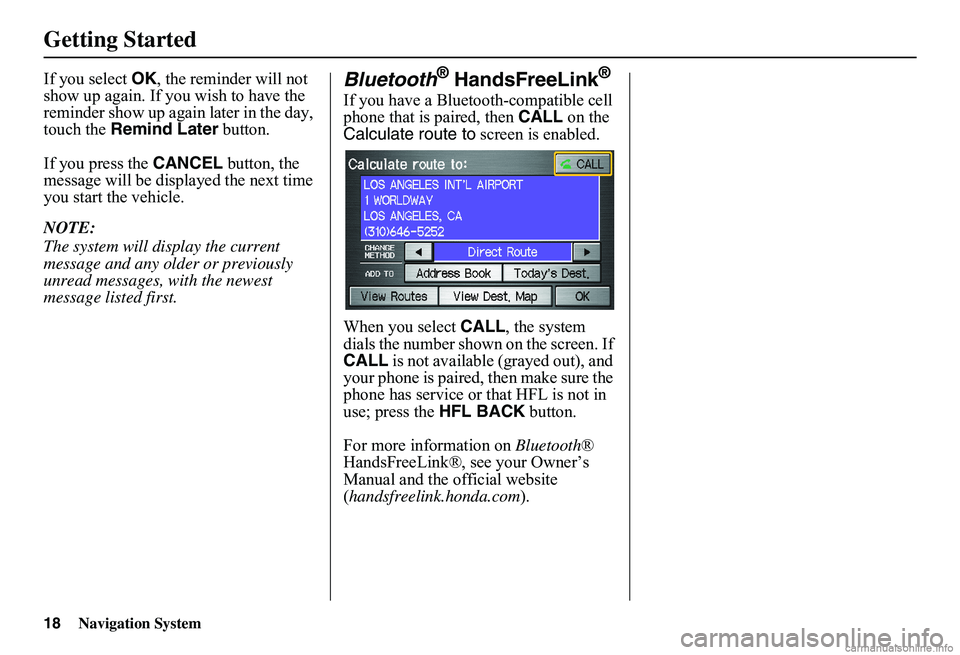
If you have a Bluetooth-compatible cell phone that is paired, then CALL on the Calculate route to screen is enabled.
When you select CALL, the system dials the number shown on the screen. If CALL is not available (grayed out), and your phone is paired, then make sure the phone has service or that HFL is not in use; press the HFL BACK button.
For more information on Bluetooth® HandsFreeLink®, see your Owner’s Manual and the official website ( handsfreelink.honda.com).
Page 35 of 154
34Navigation System
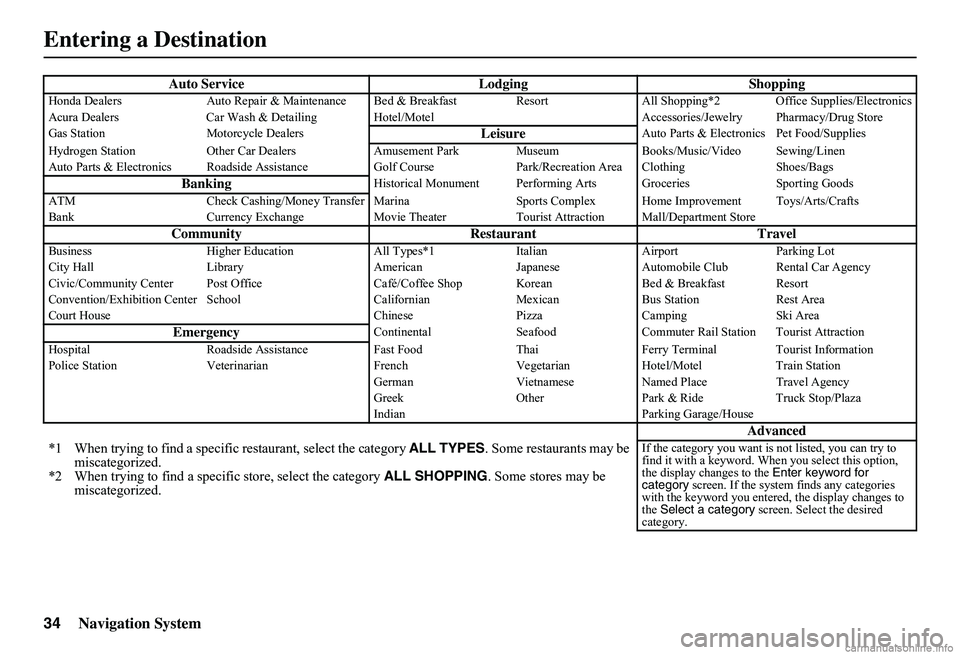
Auto Service Lodging ShoppingHonda Dealers Auto Repair & Maintenance Bed & Breakfast Resort All Shopping*2 Office Supplies/Electronics Acura Dealers Car Wash & Detailing Hotel/M otel Accessories/Jewelry Pharmacy/Drug Store Gas Station Motorcycle DealersLeisureAuto Parts & Electronics Pet Food/Supplies
Hydrogen Station Other Car Dealers Amusement Park Museum Books/Music/Video Sewing/Linen Auto Parts & Electronics Roadside Assistance Golf Course Park/Recreation Area Clothing Shoes/Bags
BankingHistorical Monument Performing Arts Groceries Sporting Goods
ATM Check Cashing/Money Transfer Marina Spor ts Complex Home Improvement Toys/Arts/Crafts Bank Currency Exchange Movie Theater Tourist Attraction Mall/Department Store
Community Restaurant TravelBusiness Higher Education All Types*1 Italian Airport Parking Lot City Hall Library American Japanese Automobile Club Rental Car Agency Civic/Community Center Post Office Café/Coffee Shop Korean Bed & Breakfast Resort Convention/Exhibition Center School Californian Mexican Bus Station Rest Area Court House Chinese Pizza Camping Ski Area
EmergencyContinental Seafood Commuter Rail Station Tourist Attraction
Hospital Roadside Assistance Fast Food Thai Ferry Terminal Tourist Information Police Station Veterinarian French Vegetarian Hotel/Motel Train Station German Vietnamese Named Place Travel Agency Greek Other Park & Ride Truck Stop/Plaza Indian Parking Garage/House
Advanced
*1 When trying to find a specific restaurant, select the category ALL TYPES. Some restaurants may be miscategorized.*2 When trying to find a speci fic store, select the category ALL SHOPPING. Some stores may be miscategorized.
If the category you want is not listed, you can try to find it with a keyword. When you select this option, the display changes to the Enter keyword for category screen. If the system finds any categories with the keyword you entered, the display changes to the Select a category screen. Select the desired category.
Entering a Destination
Page 102 of 154
Navigation System101
System Limitations
The destination icon shows the approximate location of the destination.This occurs because a city block can have as many as 100 possible addresses (for example, the 1400 block is followed by the 1500 block). Since most cities use only a portion of the 100 possible addresses (for example, in the 1400 block, the addresses may only go up to 1425 before the 1500 block starts), the address 1425 will be shown a quarter of the way down the block by the system instead of at the end of the block where the destination is actually located.
You may find that the system occasionally reboots. This is indicated by the display returning to the globe screen. A reboot can be caused by a number of things, such as extreme temperatures or shock from bumpy roads. It does not necessarily indicate a problem that requires service. If this happens frequently, please see your dealer.
Page 103 of 154
102Navigation System
Database Limitations
You will find that some points of interest (POI) may be missing when you search the database. This can be caused if at the time the database was gathered, the name was misspelled, the place was improperly categorized, or the POI change is not yet in the database. This means you may not find places listed that you know exist. This is also true for police agencies and hospitals. In outlying areas, facilities listed may not be the closest. Always check with local information sources if you need law enforcement or ho spital services.
Every effort has been made to verify that the system’s database was accurate at the time it was created. However, businesses do close or relocate, and new businesses start in th e old locations. For this reason, you may occasionally find inaccurate information when you select and drive to a point of interest (for example, a restaurant is now a jewelry store). The number of these inaccuracies increases the longer you go without an update.
The digitized map database reflects conditions as they existed at various points in time before production. Accordingly, your DVD may contain inaccurate or incomplete data or information due to the passage of time, road construction, ch anging conditions, or other causes.
Due to ongoing software and database improvements, navigation disc versions may change in the middle of a production year. The version shipped with your vehicle was the most recent available at the time of production and is considered standard equipment for that vehicle. There is no free program to retrofit early production vehicles with the latest disc. For DVD ordering information, see page 105.
In addition, this database does not include, analyze, proc ess, consider, or reflect any of the following categories of information:
• Neighborhood quality or safety
• Population density
• Availability or proximity of law enforcement
• Emergency, rescue, medical, or other assistance
• Construction work, zones, or hazards
• Road and lane closures
• Legal restrictions (such as vehicular type, weight, load, height, and speed restrictions)
• Road slope or grade
• Bridge height, width, weight, or other limits
• Road traffic, safety, or conditions
• Weather conditions
• Special events
• Pavement characteristics or conditions
Page 105 of 154
104Navigation System
Customer Assistance
Reporting Errors
Occasionally, you may encounter database errors.
• If the error pertains to freeways and main “verified” roads shown in black on the map, then report it either online athttp://update.navteq.com/ , or to Honda Customer Service.
• If the error involves a light brown “unverified” road, then do not report it. These areas have not been verified, and are provided for reference only (see Map Overview on page 6).
• For errors in points of interest (POI), like a business that has changed its name, do not report them. Keep in mind that depending on when the data was collected and when your DVD was purchased, the database can be out of date. The business may have not reported the change(s), or not be in the database at all. Update Navigation DVDs are available for purchase, usually in the fall of each year.
• If the error does not involve the database, such as vehicle position icon errors, screen error messages, or other GPS-related errors, see Frequently Asked Questions on page 125, System Limitations on page 100, or Troubleshooting on page 135.
Honda Automobile
Customer Service
Telephone: (800) 999-1009 Fax: (310) 783-3273
Mail: Honda NaviAmerica Honda Motor Co., Inc.Honda Customer ServiceMS 500-2N-7A1919 Torrance Blvd.Torrance, CA 90501-2746
Page 106 of 154
Navigation System105
Customer Assistance
Visiting Your Dealer
We strive to make this manual as complete as possible and to answer all questions regarding operation of the system. Occasionally, you may run into a specific issue that you cannot find in the book. You may save yourself a trip to the dealer by fi rst consulting the following resources:
• The Troubleshooting section (see page 135).
• The Frequently Asked Questions (FAQs) section (see page 125).
• The FAQs found on the online DVD order site (see “Obtaining a DVD”).
• For detailed questions regarding audio or other systems that interact with the navigation system, see your Owner’s Manual or the Technology Reference Guide.
• Call Honda Customer Relations (see “Honda Automobile Customer Service” on page 104).
• For database or PO I issues, follow the guidelines in the “Reporting Errors” section (see page 104).
If your question is still unanswered and you wish to visit the dealer, please be prepared to demonstrate the issue to the service advisor. This way, the service advisor can document the issue for the factory to allow more efficient troubleshooting.
Some issues may at first seem random, but you may notice a pattern. For example, they only occur when you enter a specific address, or when driving on a certain road, or just when it is cold. This information is very useful to the service advisor. Be patient, the service advisor may be unfamiliar with your specific issue.
Obtaining a Navigation
Update DVD
Honda is continually expanding the scope of the navigation system. Upgraded software may be made available to navigation system owners periodically, usually in the fall of each year.
To purchase an updated DVD or a replacement DVD, call the Honda Navigation Disc Fulfillment Center at (888) 291-4675. You can also order online by going to www.hondanavi.com.
NOTE:
DVDs are not available at your dealer. However, the dealer may order a DVD for you as a courtesy. There is no program for free DVD updates. The DVD order line staff cannot answer technical questions regarding navigation operation, coverage, or POIs. Purchasing used discs from alternate sources or online auctions may cause operational problems since they are likely to be incompatible with your current software.
Page 110 of 154
Navigation System109
Coverage Areas
Map Coverage
The system provides map coverage for the lower 48 U.S. states, Hawaii, and southern Canada. The U.S. map coverage consists of accurately mapped (verified) metropolitan areas (in the following list) and a less accurate (unverified) rural database. Canada coverage consists of major metropolitan areas and major ro ads connecting the metropolitan areas within about 100 miles north of the U.S. border. If you need additional northern Canada coverage, you may purchase the Canadian DVD (see Obtaining a Navigation Update DVD on page 105). See Map Overview on page 6 for a discussion of map coverage.
The cities and metropolitan areas in the following list are fully mapped. Only major streets, roads, and freeways have been verified outside these areas. If your route passes through these areas, routing may be limited, depending on your routing choices. See Unverified Area Routing on page 85.
If you desire additional map coverage information, contact Honda Customer Services or go to www.hondanavi.com.
U.S. Detailed Coverage Areas
Alabama
Auburn-Opelika Birmingham/TuscaloosaHuntsvilleMobileMontgomery
Arizona
Phoenix Metro PrescottSedonaTucsonYuma
Arkansas
Fayetteville Fort SmithHot SpringsLittle RockPine Bluff
California
Central Valley - including Fresno, Merced, Modesto, and StocktonHumboldtLos Angeles/San Diego Metro
Mammoth Lakes Sacramento MetroSan Francisco Bay (approximately Monterey to Sonoma) – including Monterey County and HollisterSouthern California Area - including Bakersfield and San Luis ObispoYuba
Colorado
Denver/Boulder/Colorado Springs/ Ski Resorts Metro area – including Ft. CollinsGrand Junction
Connecticut
Bridgeport DanburyHartford MetroNew Haven MetroNorwalkStamford
Delaware
Entire state – including Dover, Wilmington Metro area, New Castle County
Page 149 of 154
148Navigation System
Index
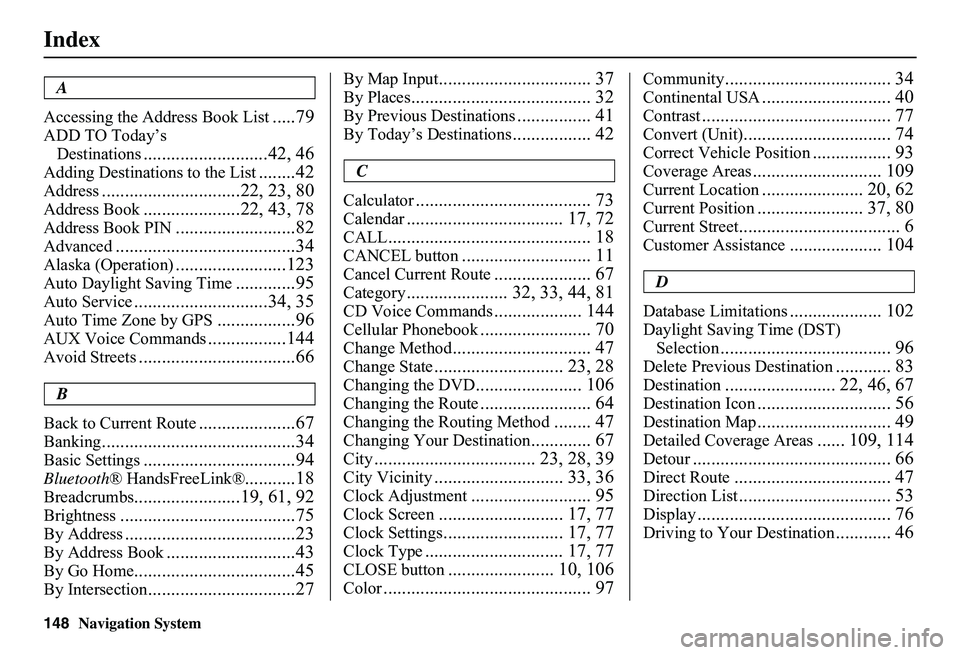
A
Accessing the Address Book List.....79
ADD TO Today’s
Destinations...........................42, 46
Adding Destinations to the List........42
Address..............................22, 23, 80
Address Book.....................22, 43, 78
Address Book PIN..........................82
Advanced.......................................34
Alaska (Operation)........................123
Auto Daylight Saving Time.............95
Auto Service.............................34, 35
Auto Time Zone by GPS.................96
AUX Voice Commands.................144
Avoid Streets..................................66
B
Back to Current Route.....................67
Banking..........................................34
Basic Settings.................................94
Bluetooth ® HandsFreeLink®...........18
Breadcrumbs.......................19, 61, 92
Brightness......................................75
By Address.....................................23
By Address Book............................43
By Go Home...................................45
By Intersection................................27
By Map Input................................. 37
By Places....................................... 32
By Previous Destinations................ 41
By Today’s Destinations................. 42
C
Calculator...................................... 73
Calendar.................................. 17, 72
CALL............................................ 18
CANCEL button............................ 11
Cancel Current Route..................... 67
Category...................... 32, 33, 44, 81
CD Voice Commands................... 144
Cellular Phonebook........................ 70
Change Method.............................. 47
Change State............................ 23, 28
Changing the DVD....................... 106
Changing the Route........................ 64
Changing the Routing Method........ 47
Changing Your Destination............. 67
City................................... 23, 28, 39
City Vicinity............................ 33, 36
Clock Adjustment.......................... 95
Clock Screen........................... 17, 77
Clock Settings.......................... 17, 77
Clock Type.............................. 17, 77
CLOSE button....................... 10, 106
Color............................................. 97
Community.................................... 34
Continental USA............................ 40
Contrast......................................... 77
Convert (Unit)................................ 74
Correct Vehicle Position................. 93
Coverage Areas............................ 109
Current Location...................... 20, 62
Current Position....................... 37, 80
Current Street................................... 6
Customer Assistance.................... 104
D
Database Limitations.................... 102
Daylight Saving Time (DST)
Selection..................................... 96
Delete Previous Destination............ 83
Destination........................ 22, 46, 67
Destination Icon............................. 56
Destination Map............................. 49
Detailed Coverage Areas...... 109, 114
Detour........................................... 66
Direct Route.................................. 47
Direction List................................. 53
Display.......................................... 76
Driving to Your Destination............ 46
Page 150 of 154
Navigation System149
Index
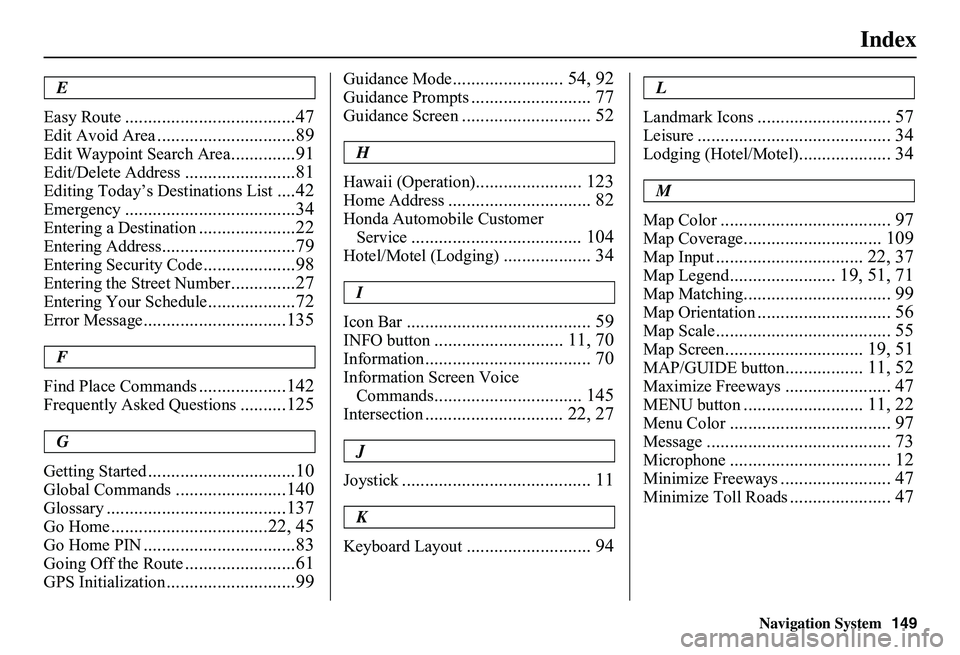
E
Easy Route.....................................47
Edit Avoid Area..............................89
Edit Waypoint Search Area..............91
Edit/Delete Address........................81
Editing Today’s De stinations List....42
Emergency.....................................34
Entering a Destination.....................22
Entering Address.............................79
Entering Security Code....................98
Entering the Street Number..............27
Entering Your Schedule...................72
Error Message...............................135
F
Find Place Commands...................142
Frequently Asked Questions..........125
G
Getting Started................................10
Global Commands........................140
Glossary.......................................137
Go Home..................................22, 45
Go Home PIN.................................83
Going Off the Route........................61
GPS Initialization............................99
Guidance Mode........................ 54, 92
Guidance Prompts.......................... 77
Guidance Screen............................ 52
H
Hawaii (Operation)....................... 123
Home Address............................... 82
Honda Automobile Customer
Service..................................... 104
Hotel/Motel (Lodging)................... 34
I
Icon Bar........................................ 59
INFO button............................ 11, 70
Information.................................... 70
Information Screen Voice
Commands................................ 145
Intersection.............................. 22, 27
J
Joystick......................................... 11
K
Keyboard Layout........................... 94
L
Landmark Icons............................. 57
Leisure.......................................... 34
Lodging (Hotel/Motel).................... 34
M
Map Color..................................... 97
Map Coverage.............................. 109
Map Input................................ 22, 37
Map Legend....................... 19, 51, 71
Map Matching................................ 99
Map Orientation............................. 56
Map Scale...................................... 55
Map Screen.............................. 19, 51
MAP/GUIDE button................. 11, 52
Maximize Freeways....................... 47
MENU button.......................... 11, 22
Menu Color................................... 97
Message........................................ 73
Microphone................................... 12
Minimize Freeways........................ 47
Minimize Toll Roads...................... 47