change time HONDA CIVIC SEDAN 2018 (in English) Owner's Guide
[x] Cancel search | Manufacturer: HONDA, Model Year: 2018, Model line: CIVIC SEDAN, Model: HONDA CIVIC SEDAN 2018Pages: 643, PDF Size: 38.26 MB
Page 224 of 643
uuAudio System Basic Operation uAudio/Information Screen
222
Features
You can change, store, and delete the wa llpaper on the audio/information screen.
■Import wallpaper
You can import up to three images, one at a time, for wallpaper from a USB flash
drive.
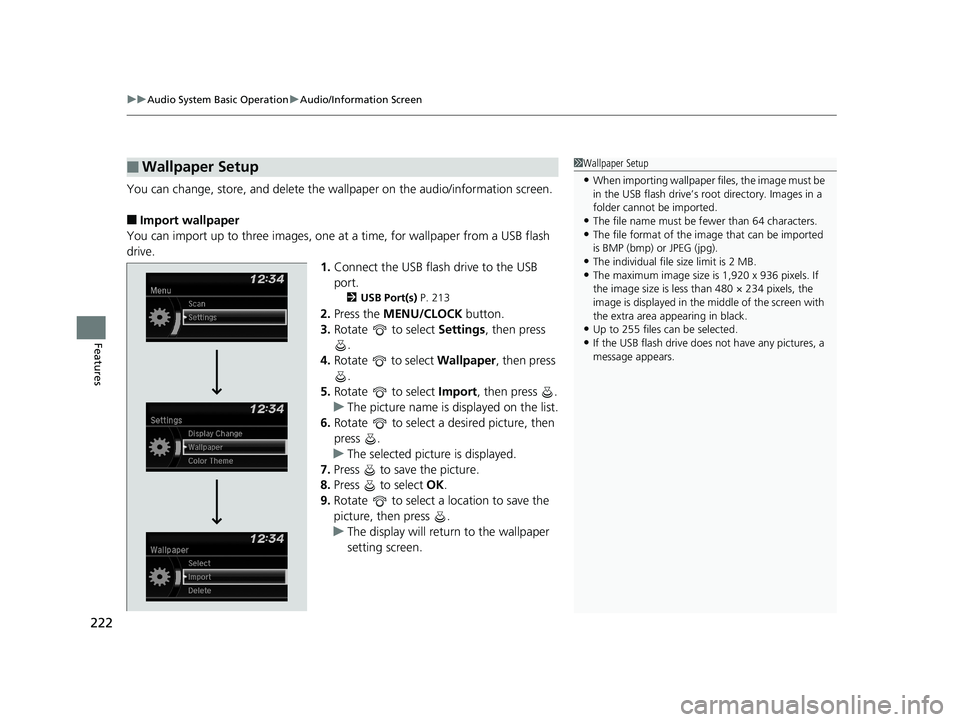
1.Connect the USB flash drive to the USB
port.
2 USB Port(s) P. 213
2.Press the MENU/CLOCK button.
3. Rotate to select Settings, then press
.
4. Rotate to select Wallpaper , then press
.
5. Rotate to select Import, then press .
u The picture name is displayed on the list.
6. Rotate to select a desired picture, then
press .
u The selected picture is displayed.
7. Press to save the picture.
8. Press to select OK.
9. Rotate to select a location to save the
picture, then press .
u The display will return to the wallpaper
setting screen.
■Wallpaper Setup1Wallpaper Setup
•When importing wallpaper files, the image must be
in the USB flash drive’s root directory. Images in a
folder cannot be imported.
•The file name must be fewer than 64 characters.•The file format of the im age that can be imported
is BMP (bmp) or JPEG (jpg).
•The individual file size limit is 2 MB.•The maximum image size is 1,920 x 936 pixels. If
the image size is less than 480 × 234 pixels, the
image is displayed in the middle of the screen with
the extra area appearing in black.
•Up to 255 files can be selected.
•If the USB flash drive does not have any pictures, a
message appears.
18 CIVIC 4D HCM (KA KC KL)-31TBA6201.book 222 ページ 2018年10月30日 火曜日 午前7時28分
Page 229 of 643
227
uuAudio System Basic Operation uPlaying the AM/FM Radio
Features
Provides text data information related to your selected RDS capable FM station.
■To find an RDS station from Station List
1. Press while listening to an FM station.
2. Rotate to select the station, then press .
■Update List
Updates your available st ation list at any time.
1. Press while listening to an FM station.
2. Rotate to select Update List, then press .
■Radio text
Displays the radio text informat ion of the selected RDS station.
1. Press the MENU/CLOCK button.
2. Rotate to select Settings, then press .
3. Rotate to select RDS Settings, then press .
4. Rotate to select Radio Text, then press .
■Scan
Samples each of the strongest stations on the selected band for 10 seconds.
1. Press the MENU/CLOCK button.
2. Rotate to select Scan, then press .
To turn off scan, press .
■Radio Data System (RDS)1 Playing the AM/FM Radio
The ST indicator appears on the display indicating
stereo FM broadcasts.
Stereo reproduction in AM is not available.
You can store 6 AM stations and 12 FM stations into
the preset memory.
Switching the Audio Mode
Press the audio source selecting button on the
steering wheel. 2 Audio Remote Controls P. 215
1Radio Data System (RDS)
When you select an RDS-ca pable FM station, the RDS
automatically turns on, and the frequency display
changes to the station name. However, when the
signals of that station become weak, the display
changes from the statio n name to the frequency.
18 CIVIC 4D HCM (KA KC KL)-31TBA6201.book 227 ページ 2018年10月30日 火曜日 午前7時28分
Page 236 of 643
234
uuAudio System Basic Operation uPlaying Bluetooth ® Audio
Features
Playing Bluetooth ® Audio
Your audio system allows you to listen to music from your Bluetooth-compatible
phone.
This function is available when the phone is paired and connected to the vehicle’s
Bluetooth ® HandsFreeLink ® (HFL) system.
2 Phone Setup P. 368
1Playing Bluetooth ® Audio
Not all Bluetooth -enabled phones with streaming
audio capabilities are comp atible with the system.
For a list of compatible phones:
•U.S.: Visit automobiles.honda.com /handsfreelink/,
or call 1-888-528-7876.
•Canada: For more information on smartphone
compatibility, call 1-888-528-7876.
In some states, it may be il legal to perform some data
device functions while driving.
Only one phone can be used with HFL at a time.
When there are more than two paired phones in the
vehicle, the first paired phone the system finds is
automatically connected.
If more than one phone is paired to the HFL system,
there will be a delay before the system begins to play.
In some cases, the name of the artist, album, or track
may not appear correctly.
Some functions may not be available on some
devices.
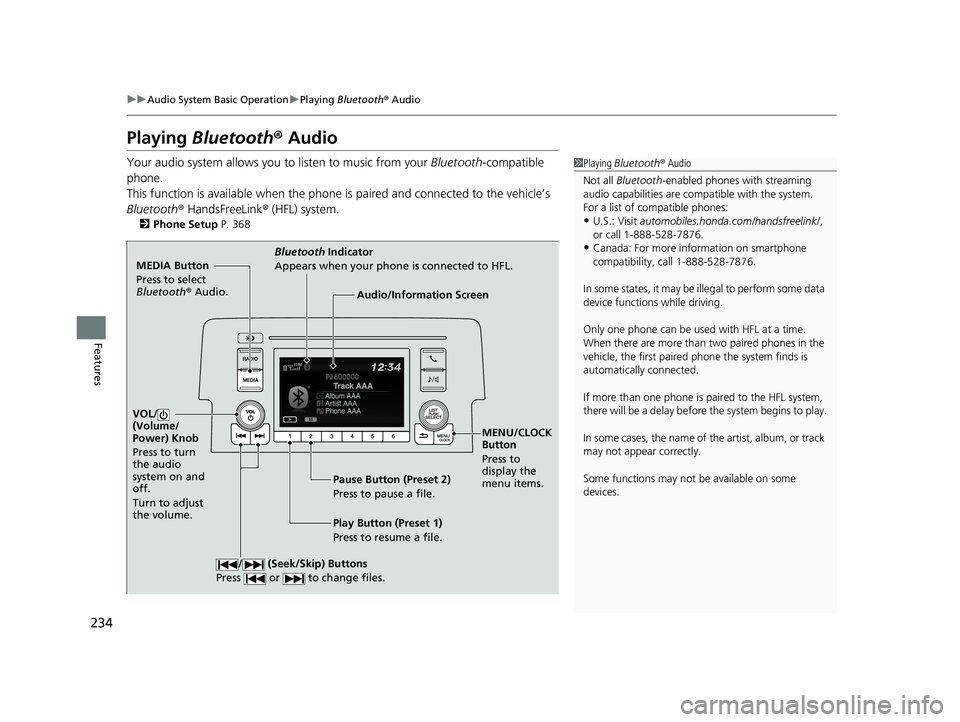
MEDIA Button
Press to select
Bluetooth ® Audio.
VOL/
(Volume/
Power) Knob
Press to turn
the audio
system on and
off.
Turn to adjust
the volume.
MENU/CLOCK
Button
Press to
display the
menu items.
Audio/Information Screen
Bluetooth Indicator
Appears when your phone is connected to HFL.
/ (Seek/Skip) Buttons
Press or to change files.
Play Button (Preset 1)
Press to resume a file. Pause Button (Preset 2)
Press to pause a file.
18 CIVIC 4D HCM (KA KC KL)-31TBA6201.book 234 ページ 2018年10月30日 火曜日 午前7時28分
Page 239 of 643
237
Features
Audio System Basic Operation
To use the audio system function, the ignition swit ch must be in ACCESSORY (q or
ON
(w*1.
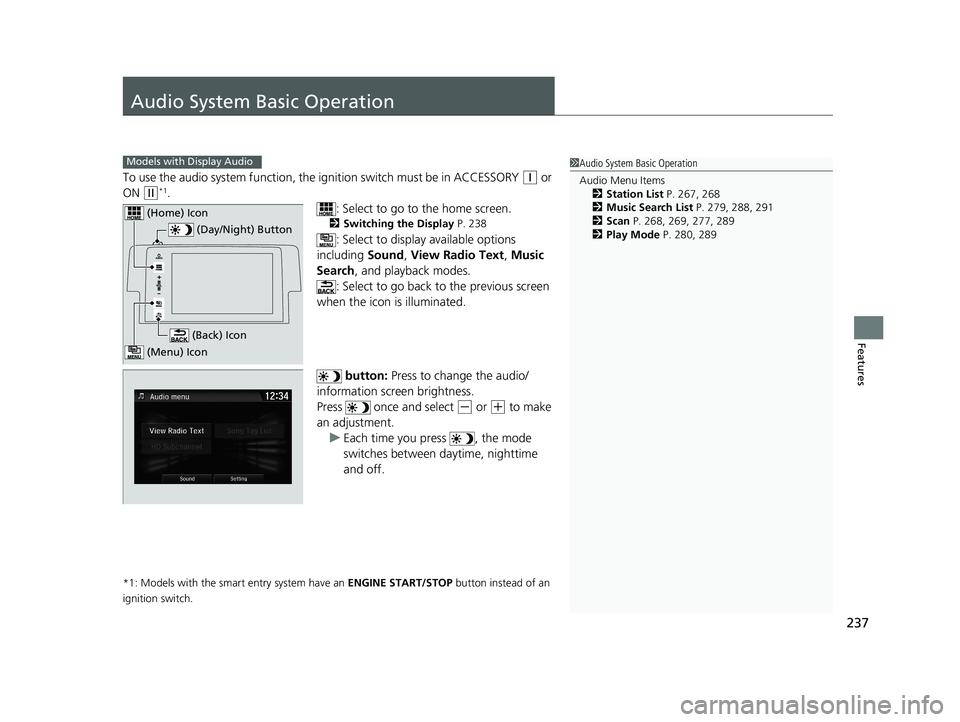
: Select to go to the home screen.
2Switching the Display P. 238
: Select to display available options
including Sound, View Radio Text , Music
Search , and playback modes.
: Select to go back to the previous screen
when the icon is illuminated.
button: Press to change the audio/
information screen brightness.
Press once and select
(- or (+ to make
an adjustment. u Each time you press , the mode
switches between da ytime, nighttime
and off.
*1: Models with the smart entry system have an ENGINE START/STOP button instead of an
ignition switch.
1 Audio System Basic Operation
Audio Menu Items
2 Station List P. 267, 268
2 Music Search List P. 279, 288, 291
2 Scan P. 268, 269, 277, 289
2 Play Mode P. 280, 289Models with Display Audio
(Day/Night) Button
(Home) Icon
(Back) Icon
(Menu) Icon
18 CIVIC 4D HCM (KA KC KL)-31TBA6201.book 237 ページ 2018年10月30日 火曜日 午前7時28分
Page 249 of 643
Continued247
uuAudio System Basic Operation uAudio/Information Screen
Features
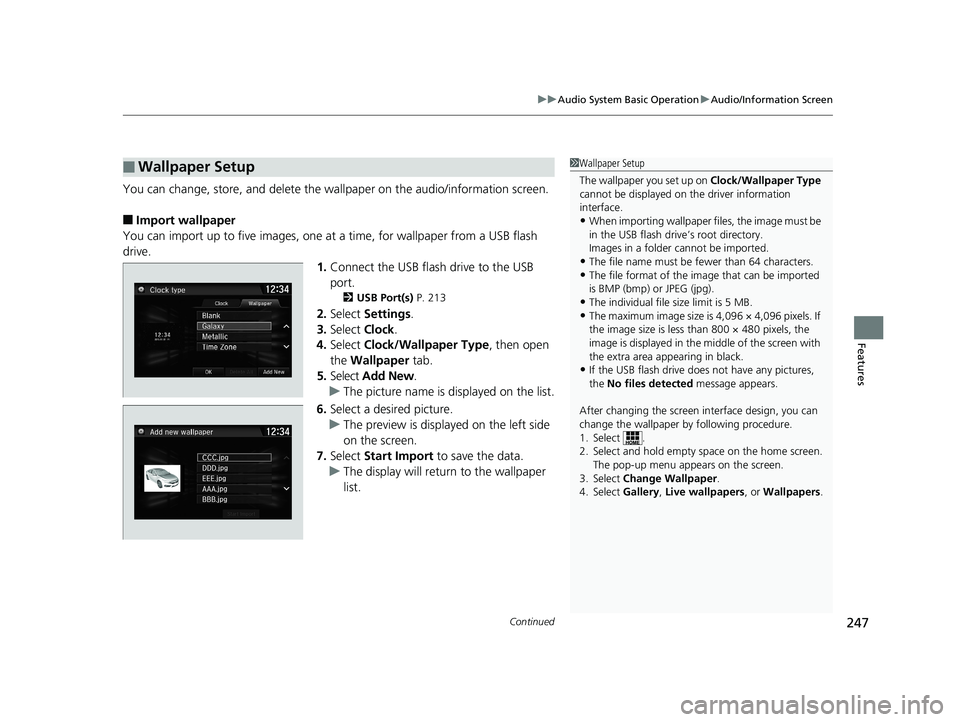
You can change, store, and delete the wa llpaper on the audio/information screen.
■Import wallpaper
You can import up to five images, one at a time, for wallpaper from a USB flash
drive.
1.Connect the USB flash drive to the USB
port.
2 USB Port(s) P. 213
2.Select Settings .
3. Select Clock.
4. Select Clock/Wallpaper Type , then open
the Wallpaper tab.
5. Select Add New .
u The picture name is displayed on the list.
6. Select a desired picture.
u The preview is displayed on the left side
on the screen.
7. Select Start Import to save the data.
u The display will return to the wallpaper
list.
■Wallpaper Setup1Wallpaper Setup
The wallpaper you set up on Clock/Wallpaper Type
cannot be displayed on th e driver information
interface.
•When importing wallpaper files, the image must be
in the USB flash drive’s root directory.
Images in a folder cannot be imported.
•The file name must be fewer than 64 characters.•The file format of the im age that can be imported
is BMP (bmp) or JPEG (jpg).
•The individual file size limit is 5 MB.•The maximum image size is 4,096 × 4,096 pixels. If
the image size is less than 800 × 480 pixels, the
image is displayed in the middle of the screen with
the extra area appearing in black.
•If the USB flash drive doe s not have any pictures,
the No files detected message appears.
After changing the screen interface design, you can
change the wallpaper by following procedure.
1. Select .
2. Select and hold empty space on the home screen. The pop-up menu appears on the screen.
3. Select Change Wallpaper .
4. Select Gallery , Live wallpapers , or Wallpapers .
18 CIVIC 4D HCM (KA KC KL)-31TBA6201.book 247 ページ 2018年10月30日 火曜日 午前7時28分
Page 270 of 643
uuAudio System Basic Operation uPlaying AM/FM Radio
268
Features
Samples each of the strongest stations on the selected band for 10 seconds. To turn
off scan, select Cancel or .
Displays the subchannel list when an HD Radio
TM station is selected while listening to
an FM station.
1. Select .
2. Select HD Subchannel .
3. Select the channel number.
Provides text data information related to your selected RDS-capable FM station.
■To find an RDS station from Station List
1. Select the open/close icon to display a list while listening to an FM station.
2. Select the Station List tab.
3. Select the station.
■Manual update
Updates your available station list at any time.
1. Select the open/close icon to display a list while listening to an FM station.
2. Select the Station List tab.
3. Select Refresh .
■Scan
■HD Subchannel
■Radio Data System (RDS)
Models with HD RadioTM feature
1Radio Data System (RDS)
When you select an RDS-capable FM station, the RDS
automatically turns on, and the frequency display
changes to the station name. However, when the
signals of that station become weak, the display
changes from the statio n name to the frequency.
18 CIVIC 4D HCM (KA KC KL)-31TBA6201.book 268 ページ 2018年10月30日 火曜日 午前7時28分
Page 272 of 643
270
uuAudio System Basic Operation uPlaying SiriusXM ® Radio*
Features
Playing SiriusXM ® Radio*
*1:Some or all of the lists may not be displayed.
VOL
HOME
MENU
BACK
AUDIO
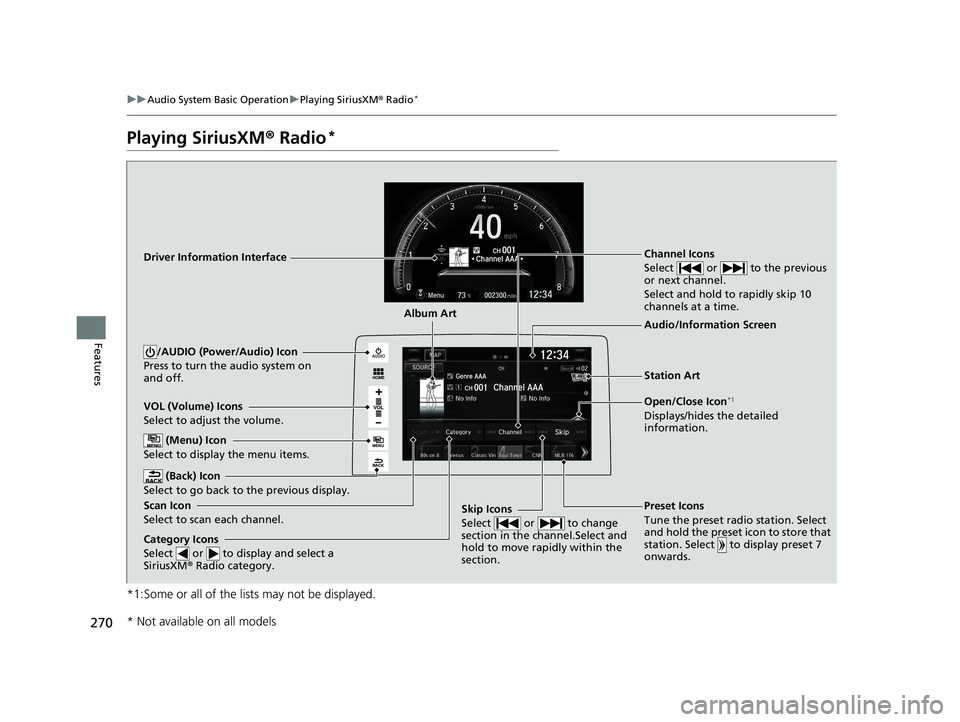
VOL (Volume) Icons
Select to adjust the volume.
(Back) Icon
Select to go back to the previous display.
Channel Icons
Select or to the previous
or next channel.
Select and hold to rapidly skip 10
channels at a time.
/AUDIO (Power/Audio) Icon
Press to turn the audio system on
and off.
Open/Close Icon*1
Displays/hides the detailed
information.
(Menu) Icon
Select to display the menu items.
Category Icons
Select or to display and select a
SiriusXM ® Radio category.
Audio/Information Screen
Scan Icon
Select to scan each channel. Preset Icons
Tune the preset radio station. Select
and hold the preset icon to store that
station. Select to display preset 7
onwards.Skip Icons
Select or to change
section in the channel.Select and
hold to move rapidly within the
section.
Driver Information Interface
Album Art
Station Art
* Not available on all models
18 CIVIC 4D HCM (KA KC KL)-31TBA6201.book 270 ページ 2018年10月30日 火曜日 午前7時28分
Page 292 of 643
290
uuAudio System Basic Operation uPlaying Bluetooth ® Audio
Features
Playing Bluetooth ® Audio
Your audio system allows you to listen to music from your Bluetooth-compatible
phone.
This function is available when the phone is paired and connected to the vehicle’s
Bluetooth ® HandsFreeLink ® (HFL) system.
2 Phone Setup P. 393
*1:Depending on the Bluetooth® device you connect, some or all of the lists may not
be displayed.
1 Playing Bluetooth ® Audio
Not all Bluetooth -enabled phones with streaming
audio capabilities are compatible.
To check if your phone is compatible, visit
automobiles.honda.com /handsfreelink/.
It may be illegal to pe rform some data device
functions while driving.
Only one phone can be used with HFL at a time.
When there are more than two paired phones in the
vehicle, the first paired phone the system finds is
automatically connected.
The connected phone for Bluetooth® Audio can be
different.
If more than one phone is paired to the HFL system,
there may be a delay before the system begins to
play.
In some cases, the name of the artist, album, or track
may not appear correctly.
Some functions may not be available on some
devices.
If a phone is currently conne cted via Apple CarPlay or
Android Auto, Bluetooth® Audio from that phone is
unavailable. However, a se cond previously paired
phone can stream Bluetooth® Audio by selecting
Connect from the Bluetooth Device List .
2 Phone Setup P. 393
VOL
HOME
MENU
BACK
AUDIO
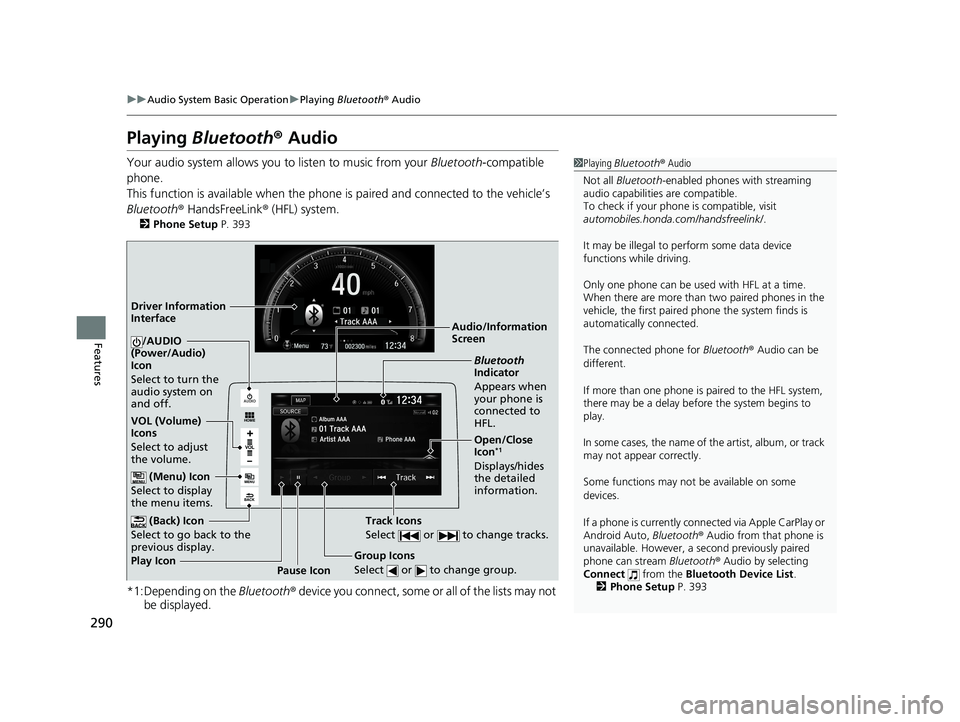
Audio/Information
Screen
VOL (Volume)
Icons
Select to adjust
the volume. (Back) Icon
Select to go back to the
previous display.
/AUDIO
(Power/Audio)
Icon
Select to turn the
audio system on
and off.
(Menu) Icon
Select to display
the menu items.
Group Icons
Select or to change group.
Pause Icon
Play Icon
Bluetooth
Indicator
Appears when
your phone is
connected to
HFL.
Track Icons
Select or to change tracks.
Open/Close
Icon*1
Displays/hides
the detailed
information.
Driver Information
Interface
18 CIVIC 4D HCM (KA KC KL)-31TBA6201.book 290 ページ 2018年10月30日 火曜日 午前7時28分
Page 295 of 643
293
uuAudio System Basic Operation uHondaLink ®
Continued
Features
■Messages from Honda
Displays helpful and important information from Honda.
■Weather*
Displays a weekly five-day weather forecast for any lo cation you want. You can
change the ZIP Code at any time.
Use the following procedure to connect to HondaLink ® service.
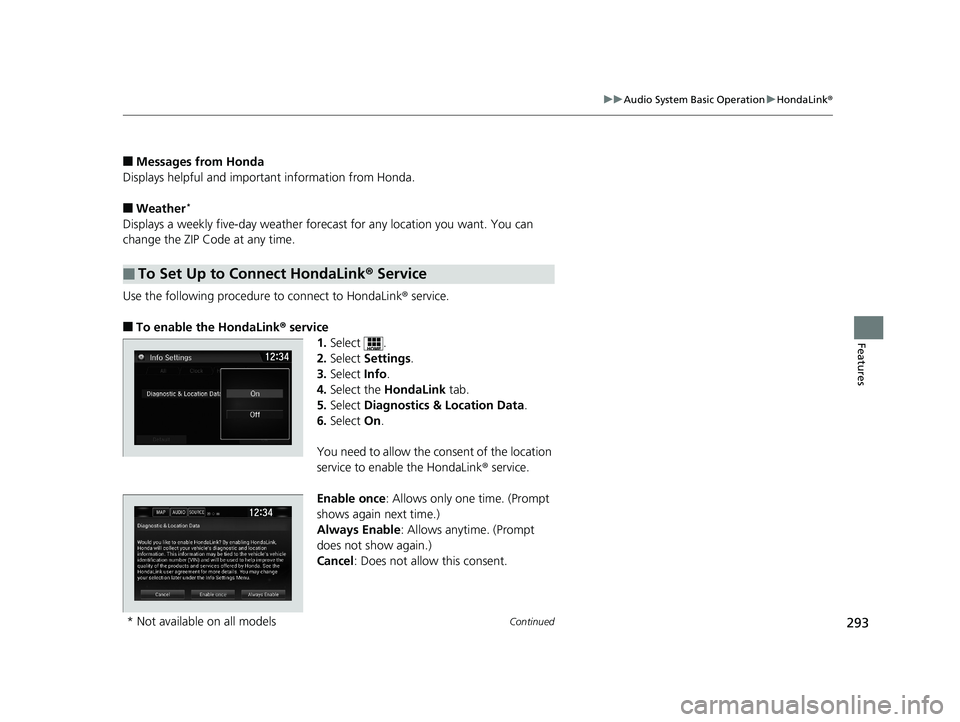
■To enable the HondaLink® service
1.Select .
2. Select Settings .
3. Select Info.
4. Select the HondaLink tab.
5. Select Diagnostics & Location Data .
6. Select On.
You need to allow the consent of the location
service to enable the HondaLink ® service.
Enable once : Allows only one time. (Prompt
shows again next time.)
Always Enable: Allows anytime. (Prompt
does not show again.)
Cancel : Does not allow this consent.
■To Set Up to Connect HondaLink ® Service
* Not available on all models
18 CIVIC 4D HCM (KA KC KL)-31TBA6201.book 293 ページ 2018年10月30日 火曜日 午前7時28分
Page 303 of 643
Continued301
uuAudio System Basic Operation uApple CarPlay
Features
■Maps
Display Apple Maps and use the navigation function just as you would on your
iPhone.
Only one navigation system (pre-installed navigation or Apple CarPlay) can give
directions at a time. When you are using one system, directions to any prior
destination set on the other system will be canceled, and the system you are
currently using will direct you to your destination.
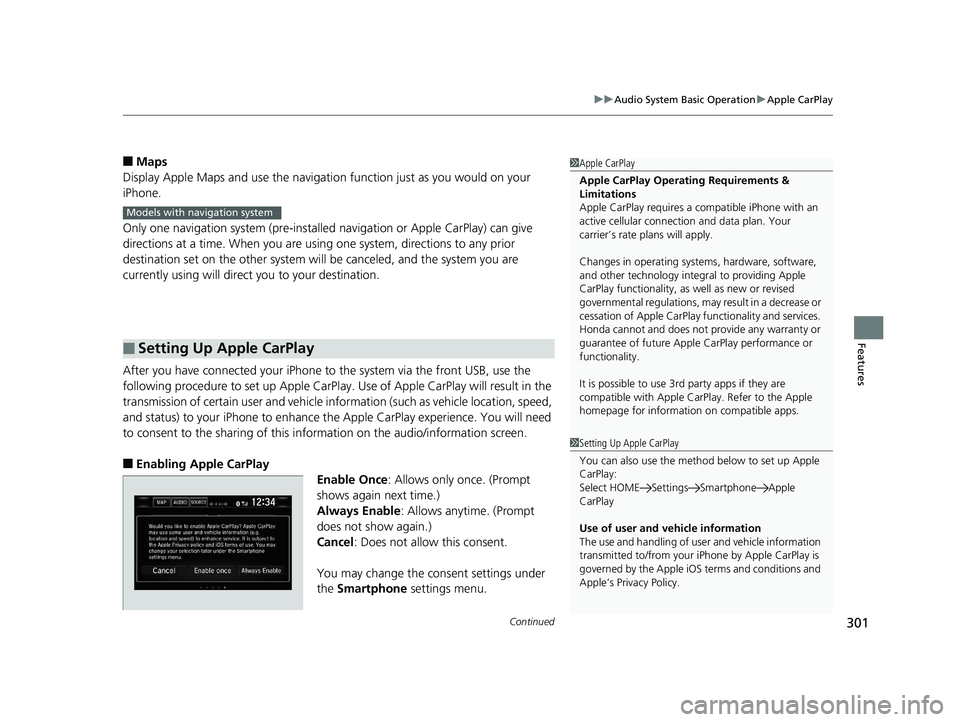
After you have connected your iPhone to the system via the front USB, use the
following procedure to set up Apple CarPlay. Use of Apple CarPlay will result in the
transmission of certain user and vehicle information (such as vehicle location, speed,
and status) to your iPhone to enhance the Apple CarPlay experience. You will need
to consent to the sharing of this info rmation on the audio/information screen.
■Enabling Apple CarPlay
Enable Once: Allows only once. (Prompt
shows again next time.)
Always Enable: Allows anytime. (Prompt
does not show again.)
Cancel : Does not allow this consent.
You may change the consent settings under
the Smartphone settings menu.
■Setting Up Apple CarPlay
1Apple CarPlay
Apple CarPlay Operating Requirements &
Limitations
Apple CarPlay requi res a compatible iPhone with an
active cellular connecti on and data plan. Your
carrier’s rate plans will apply.
Changes in operating system s, hardware, software,
and other technology integral to providing Apple
CarPlay functionality, as well as new or revised
governmental regulations, may result in a decrease or
cessation of Apple CarPlay functionality and services.
Honda cannot and does not pr ovide any warranty or
guarantee of future Appl e CarPlay performance or
functionality.
It is possible to use 3r d party apps if they are
compatible with Apple CarPlay. Refer to the Apple
homepage for information on compatible apps.
Models with navigation system
1 Setting Up Apple CarPlay
You can also use the method below to set up Apple
CarPlay:
Select HOME Settings Smartphone Apple
CarPlay
Use of user and vehicle information
The use and handling of user and vehicle information
transmitted to/from your iP hone by Apple CarPlay is
governed by the Apple iOS terms and conditions and
Apple’s Privacy Policy.
18 CIVIC 4D HCM (KA KC KL)-31TBA6201.book 301 ページ 2018年10月30日 火曜日 午前7時28分