ad blue HONDA CLARITY ELECTRIC 2018 Owner's Manual (in English)
[x] Cancel search | Manufacturer: HONDA, Model Year: 2018, Model line: CLARITY ELECTRIC, Model: HONDA CLARITY ELECTRIC 2018Pages: 559, PDF Size: 27.8 MB
Page 7 of 559
Contents
Child Safety P. 67Safety Labels P. 80
Opening and Closing the Trunk P. 144 Security System P. 147 Opening and Closing the Windows P. 150
Adjusting the Mirrors P. 167 Adjusting the Seats P. 169
Climate Control System P. 186
Audio Error Messages P. 274 General Information on the Audio System P. 278
Bluetooth ® HandsFreeLink ® P. 325
When Driving P. 366 Braking P. 420Parking Your Vehicle P. 436
Energy Economy P. 456
Maintenance Under the Hood P. 465 Replacing Light Bulbs P. 470
Checking and Maintaining Tires P. 475 12-Volt Battery P. 484 Remote Transmitter Care P. 486
Accessories and Modifications P. 494
Power System Won’t Start P. 511 Jump Starting P. 514 Overheating P. 517
Emergency Towing P. 531 When You Cannot Open the Charge Lid P. 532
When You Cannot Open the Trunk P. 534
Devices that Emit Radio Waves P. 539 Reporting Safety Defects P. 540
Customer Service Information P. 544
Quick Reference GuideP. 6
Safe DrivingP. 39
Instrument PanelP. 81
ControlsP. 129
FeaturesP. 195
DrivingP. 359
MaintenanceP. 457
Handling the UnexpectedP. 497
InformationP. 535
IndexP. 546
18 CLARITY ELECTRIC CSS-31TRV6100.book 5 ページ 2018年2月5日 月曜日 午後12時0分
Page 9 of 559
7
Quick Reference Guide
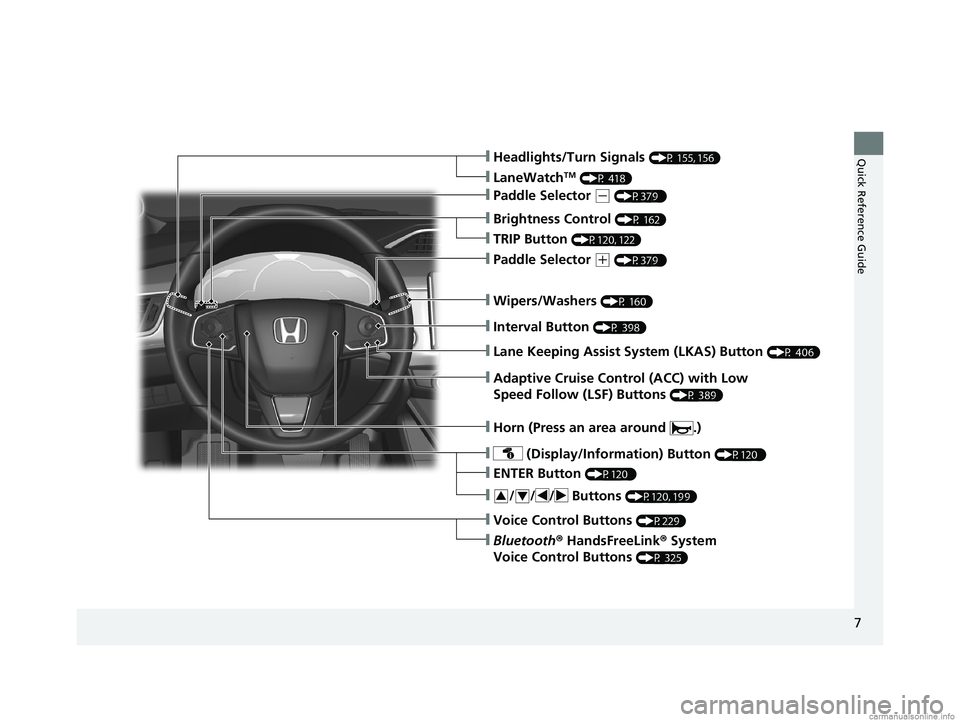
❙Wipers/Washers (P 160)
❙Headlights/Turn Signals (P 155, 156)
❙Brightness Control (P 162)
❙LaneWatchTM (P 418)
❙TRIP Button (P120, 122)
❙Interval Button (P 398)
❙Lane Keeping Assist System (LKAS) Button (P 406)
❙Adaptive Cruise Control (ACC) with Low
Speed Follow (LSF) Buttons
(P 389)
❙ (Display/Information) Button (P120 )
❙/ / / Buttons (P120, 199)34
❙ENTER Button (P120 )
❙Voice Control Buttons (P229)
❙Bluetooth® HandsFreeLink ® System
Voice Control Buttons
(P 325)
❙Horn (Press an area around .)
❙Paddle Selector (+ (P379 )
❙Paddle Selector (- (P379 )
18 CLARITY ELECTRIC CSS-31TRV6100.book 7 ページ 2018年2月5日 月曜日 午後12時0分
Page 30 of 559
28
Quick Reference Guide
Features (P 195)
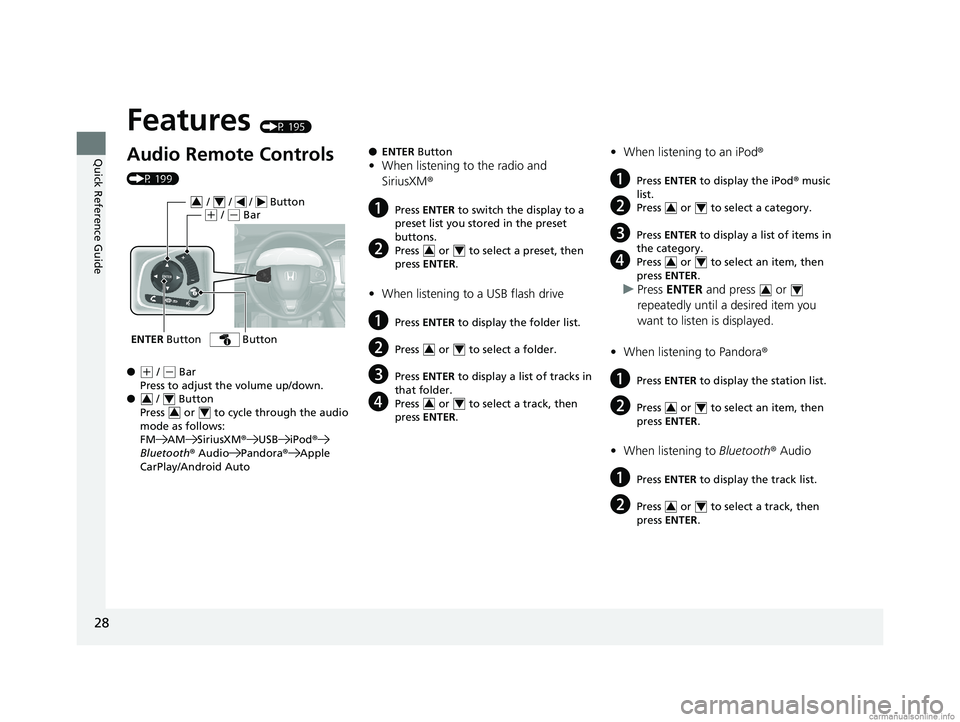
Audio Remote Controls
(P 199)
●
(+ / ( - Bar
Press to adjust the volume up/down.
● / Button
Press or to cycle through the audio
mode as follows:
FM AM SiriusXM ®USB iPod ®
Bluetooth ® Audio Pandora® Apple
CarPlay/Android Auto
ENTER Button
/ / / Button34(+ / (- Bar
Button
34
34
● ENTER Button
•When listening to the radio and
SiriusXM ®
aPress ENTER to switch the display to a
preset list you stored in the preset
buttons.
bPress or to select a preset, then
press ENTER .
•When listening to a USB flash drive
aPress ENTER to display the folder list.
bPress or to select a folder.
cPress ENTER to display a list of tracks in
that folder.
dPress or to select a track, then
press ENTER .
34
34
34
•When listening to an iPod ®
aPress ENTER to display the iPod ® music
list.
bPress or to select a category.
cPress ENTER to display a list of items in
the category.
dPress or to select an item, then
press ENTER .
uPress ENTER and press or
repeatedly until a desired item you
want to listen is displayed.
• When listening to Pandora®
aPress ENTER to display the station list.
bPress or to select an item, then
press ENTER .
•When listening to Bluetooth® Audio
aPress ENTER to display the track list.
bPress or to select a track, then
press ENTER .
34
34
34
34
34
18 CLARITY ELECTRIC CSS-31TRV6100.book 28 ページ 2018年2月5日 月曜日 午後12時0分
Page 126 of 559
124
uuGauges and Driver Information Interface uDriver Information Interface
Instrument Panel
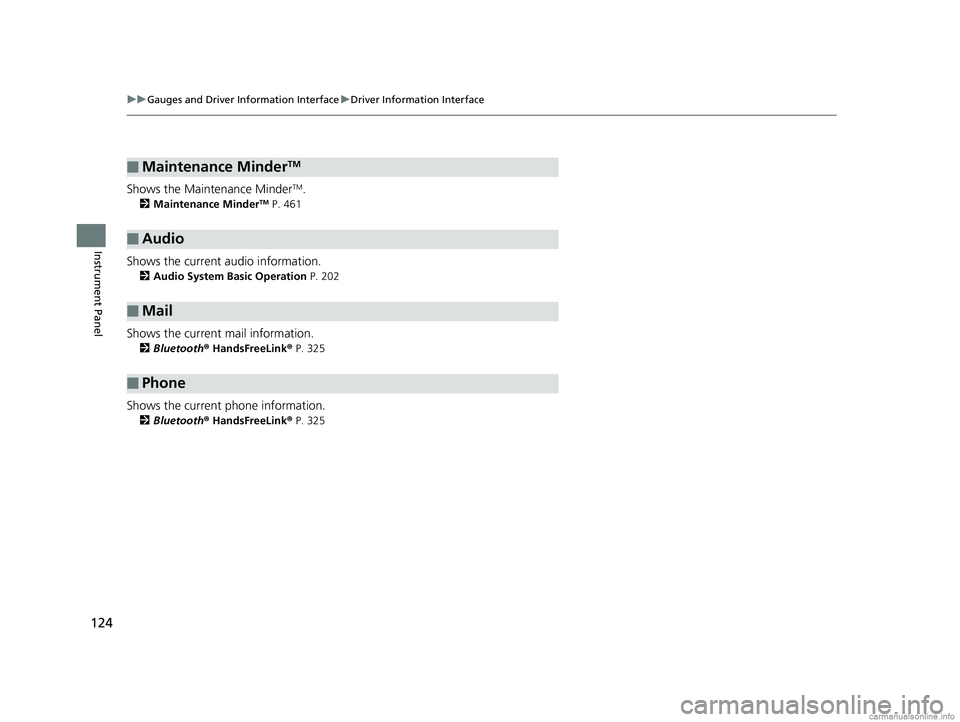
Shows the Maintenance MinderTM.
2 Maintenance MinderTM P. 461
Shows the current audio information.
2Audio System Basic Operation P. 202
Shows the current mail information.
2Bluetooth ® HandsFreeLink ® P. 325
Shows the current phone information.
2 Bluetooth ® HandsFreeLink ® P. 325
■Maintenance MinderTM
■Audio
■Mail
■Phone
18 CLARITY ELECTRIC CSS-31TRV6100.book 124 ページ 2018年2月5日 月曜日 午後12時0分
Page 197 of 559
195
Features
This chapter describes how to operate technology features.
Audio SystemAbout Your Audio System ................ 196
USB Ports ......................................... 197
Audio System Theft Protection ......... 198
Audio Remote Controls .................... 199
Audio System Basic Operation ........ 202
Audio/Information Screen ................ 203
Adjusting the Sound ........................ 226
Display Setup ................................... 227
Voice Control Operation .................. 229
Playing AM/FM Radio ....................... 233
Playing SiriusXM ® Radio ................... 237 Playing an iPod ................................ 245
Song By VoiceTM (SBV) ...................... 248
Playing Pandora ®............................. 252
Playing a USB Flash Drive ................. 254
Playing Bluetooth ® Audio................. 257
HondaLink ®..................................... 259
Wi-Fi Connection ............................. 264
Siri Eyes Free .................................... 266
Apple CarPlay .................................. 267
Android Auto................................... 270
Audio Error Messages ...................... 274
General Information on the Audio
System
............................................. 278
Customized Features............................296
HomeLink® Universal Transceiver.......322
Bluetooth® HandsFreeLink® ............. 325
18 CLARITY ELECTRIC CSS-31TRV6100.book 195 ページ 2018年2月5日 月曜日 午後12時0分
Page 198 of 559
196
Features
Audio System
About Your Audio System
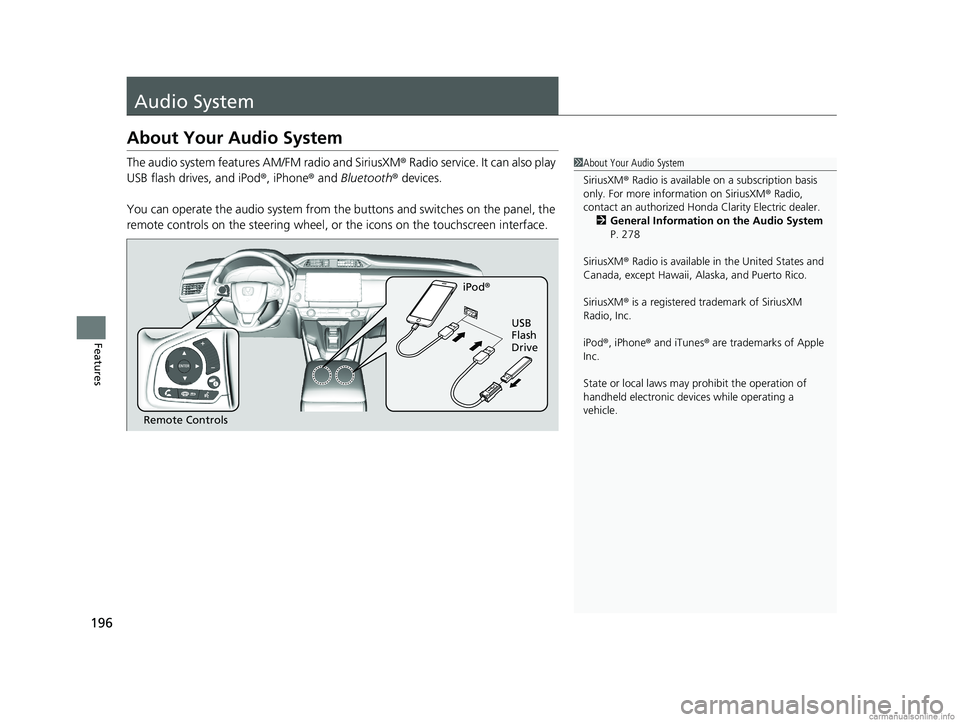
The audio system features AM/FM radio and SiriusXM® Radio service. It can also play
USB flash drives, and iPod ®, iPhone® and Bluetooth® devices.
You can operate the audio system from the buttons and switches on the panel, the
remote controls on the steering wheel, or the icons on the touchscreen interface.1 About Your Audio System
SiriusXM ® Radio is available on a subscription basis
only. For more information on SiriusXM ® Radio,
contact an authorized Honda Clarity Electric dealer.
2 General Information on the Audio System
P. 278
SiriusXM ® Radio is available in the United States and
Canada, except Ha waii, Alaska, and Puerto Rico.
SiriusXM ® is a registered trademark of SiriusXM
Radio, Inc.
iPod ®, iPhone ® and iTunes ® are trademarks of Apple
Inc.
State or local laws may pr ohibit the operation of
handheld electronic devices while operating a
vehicle.
Remote Controls iPod
®
USB
Flash
Drive
18 CLARITY ELECTRIC CSS-31TRV6100.book 196 ページ 2018年2月5日 月曜日 午後12時0分
Page 201 of 559
199
uuAudio System uAudio Remote Controls
Continued
Features
Audio Remote Controls
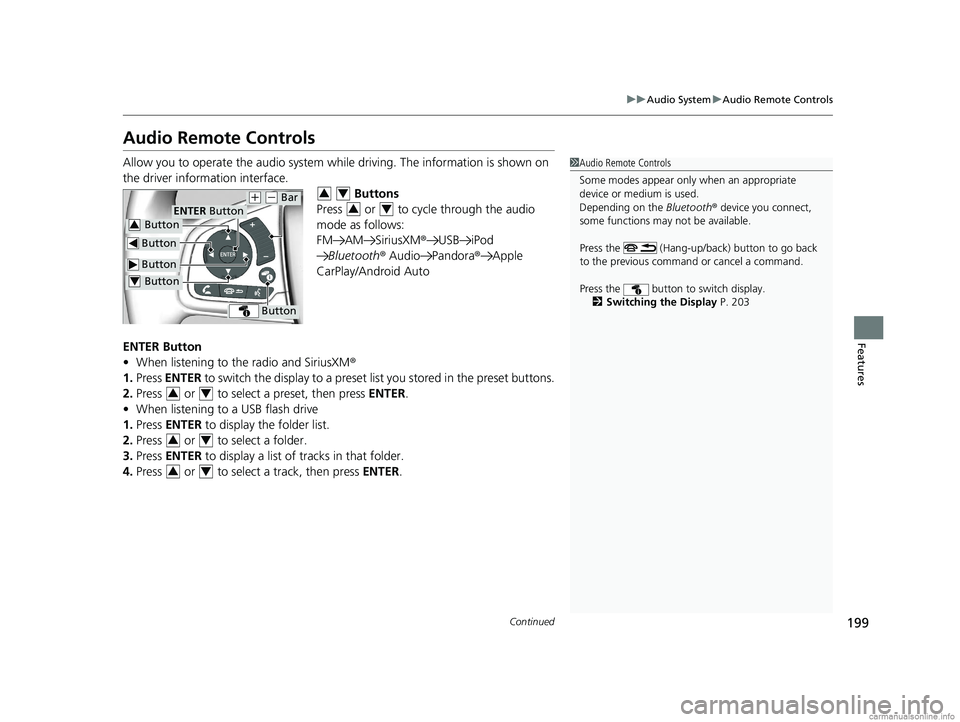
Allow you to operate the audio system whil e driving. The information is shown on
the driver information interface. Buttons
Press or to cycle through the audio
mode as follows:
FM AM SiriusXM ®USB iPod
Bluetooth ® Audio Pandora ®Apple
CarPlay/Android Auto
ENTER Button
• When listening to the radio and SiriusXM ®
1. Press ENTER to switch the disp lay to a preset list you stored in the preset buttons.
2. Press or to select a preset, then press ENTER.
• When listening to a USB flash drive
1. Press ENTER to display the folder list.
2. Press or to select a folder.
3. Press ENTER to display a list of tracks in that folder.
4. Press or to select a track, then press ENTER.1Audio Remote Controls
Some modes appear only when an appropriate
device or medium is used.
Depending on the Bluetooth® device you connect,
some functions may not be available.
Press the (Hang-up/back) button to go back
to the previous command or cancel a command.
Press the button to switch display. 2 Switching the Display P. 203
Button
ENTER Button
Button
(+ (- Bar
Button
Button3
Button4
34
34
34
34
34
18 CLARITY ELECTRIC CSS-31TRV6100.book 199 ページ 2018年2月5日 月曜日 午後12時0分
Page 202 of 559
200
uuAudio System uAudio Remote Controls
Features
• When listening to an iPod
1. Press ENTER to display the iPod music list.
2. Press or to select a category.
3. Press ENTER to display a list of items in the category.
4. Press or to select an item, then press ENTER.
u Press ENTER and press or repeatedly until the desired mode you want
to listen to is displayed.
• When listening to Pandora ®
1. Press ENTER to display the station list.
2. Press or to select an item, then press ENTER.
• When listening to Bluetooth®Audio
1. Press ENTER to display the track list.
2. Press or to select a track, then press ENTER.
34
34
34
34
34
18 CLARITY ELECTRIC CSS-31TRV6100.book 200 ページ 2018年2月5日 月曜日 午後12時0分
Page 203 of 559
201
uuAudio System uAudio Remote Controls
Features
(+ (- (Volume) Bar
Press
(+: To increase the volume.
Press
(-: To decrease the volume.
Buttons
• When listening to the radio
Press : To select the next preset radio station.
Press : To select the previous preset radio station.
Press and hold : To select the next strong station.
Press and hold : To select the previous strong station.
• When listening to an iPod, USB flash drive, or Bluetooth® Audio
Press : To skip to the next song.
Press : To go back to the beginning of the current or previous song.
• When listening to a USB flash drive
Press and hold : To skip to the next folder.
Press and hold : To go back to the previous folder.
• When listening to Pandora ®
Press : To skip to the next track.
Press and hold : To select the next station.
Press and hold : To select the previous station.
18 CLARITY ELECTRIC CSS-31TRV6100.book 201 ページ 2018年2月5日 月曜日 午後12時0分
Page 206 of 559
204
uuAudio System Basic Operation uAudio/Information Screen
Features
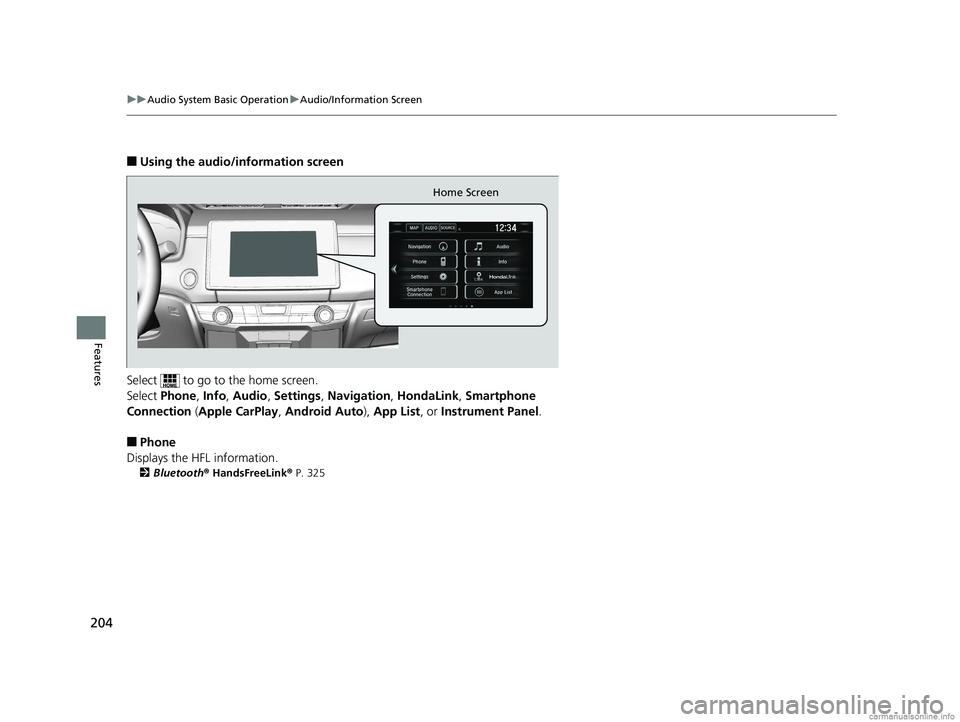
■Using the audio/information screen
Select to go to the home screen.
Select Phone , Info , Audio , Settings , Navigation , HondaLink, Smartphone
Connection ( Apple CarPlay , Android Auto ), App List, or Instrument Panel .
■Phone
Displays the HFL information.
2 Bluetooth ® HandsFreeLink ® P. 325
Home Screen
18 CLARITY ELECTRIC CSS-31TRV6100.book 204 ページ 2018年2月5日 月曜日 午後12時0分