radio controls HONDA CLARITY FUEL CELL 2017 Owner's Manual (in English)
[x] Cancel search | Manufacturer: HONDA, Model Year: 2017, Model line: CLARITY FUEL CELL, Model: HONDA CLARITY FUEL CELL 2017Pages: 527, PDF Size: 17.62 MB
Page 5 of 527
Contents
Child Safety P. 68Safety Labels P. 81
Opening and Closing the Trunk P. 143 Security System P. 146 Opening and Closing the Windows P. 149
Adjusting the Mirrors P. 167 Adjusting the Seats P. 169
Climate Control System P. 185
Audio Error Messages P. 273 General Information on the Audio System P. 277
Bluetooth® HandsFreeLink ® P. 312
When Driving P. 352 Braking P. 404Parking Your Vehicle P. 419
Fuel Economy P. 425
Maintenance Under the Hood P. 435 Replacing Light Bulbs P. 441
Checking and Maintaining Tires P. 446 12-Volt Battery P. 455 Remote Transmitter Care P. 456
Accessories and Modifications P. 463
Power System Won’t Start P. 479 Jump Starting P. 482 Overheating P. 485
Fuses P. 494 Emergency Towing P. 502
When You Cannot Open the Trunk P. 504
Devices that Emit Radio Waves P. 509 Reporting Safety Defects P. 510
Customer Service Information P. 514
Quick Reference GuideP. 4
Safe DrivingP. 41
Instrument PanelP. 83
ControlsP. 129
FeaturesP. 193
DrivingP. 345
MaintenanceP. 427
Handling the UnexpectedP. 465
InformationP. 505
IndexP. 516
17 CLARITY FCV PPO-31TRT6000.book 3 ページ 2016年10月27日 木曜日 午後3時11分
Page 31 of 527
Quick Reference Guide
29
Features (P 193)
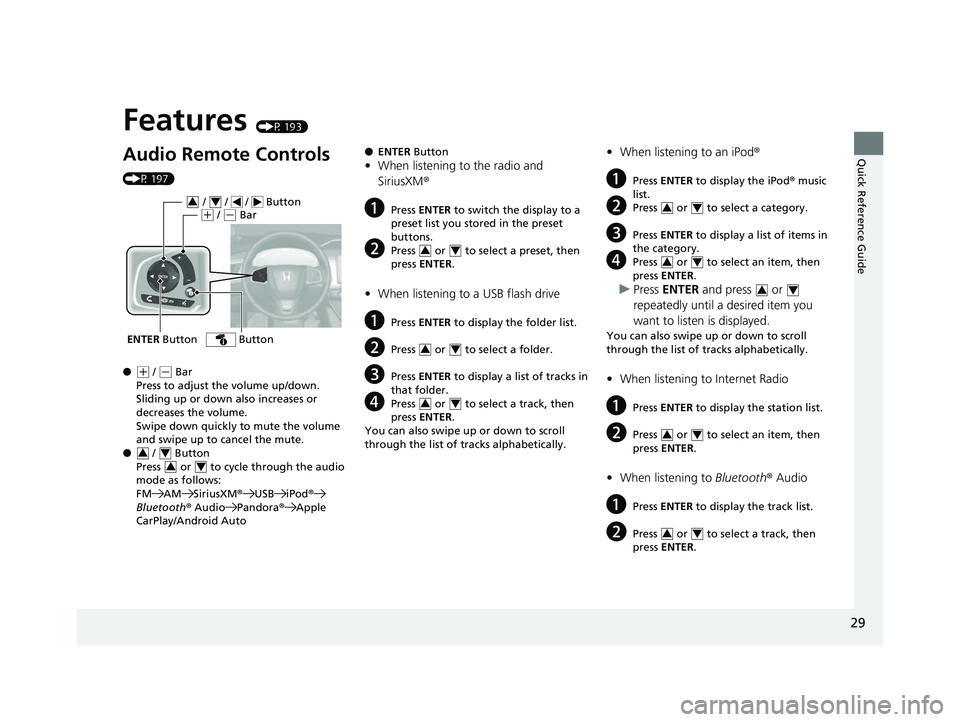
Audio Remote Controls
(P 197)
●
(+ / (- Bar
Press to adjust the volume up/down.
Sliding up or down also increases or
decreases the volume.
Swipe down quickly to mute the volume
and swipe up to cancel the mute.
● / Button
Press or to cycl e through the audio
mode as follows:
FM AM SiriusXM ®USB iPod ®
Bluetooth ® Audio Pandora ®Apple
CarPlay/Android Auto
ENTER Button
/ / / Button34(+ / (- Bar
Button
34
34
● ENTER Button
•When listening to the radio and
SiriusXM ®
aPress ENTER to switch the display to a
preset list you stored in the preset
buttons.
bPress or to select a preset, then
press ENTER .
•When listening to a USB flash drive
aPress ENTER to display the folder list.
bPress or to select a folder.
cPress ENTER to display a list of tracks in
that folder.
dPress or to select a track, then
press ENTER .
You can also swipe up or down to scroll
through the list of tracks alphabetically.
34
34
34
• When listening to an iPod ®
aPress ENTER to display the iPod ® music
list.
bPress or to select a category.
cPress ENTER to display a list of items in
the category.
dPress or to select an item, then
press ENTER .
uPress ENTER and press or
repeatedly until a desired item you
want to listen is displayed.
You can also swipe up or down to scroll
through the list of tracks alphabetically.
• When listening to Internet Radio
aPress ENTER to display the station list.
bPress or to select an item, then
press ENTER .
•When listening to Bluetooth® Audio
aPress ENTER to display the track list.
bPress or to select a track, then
press ENTER .
34
34
34
34
34
17 CLARITY FCV PPO-31TRT6000.book 29 ページ 2016年10月27日 木曜日 午後3時 11分
Page 134 of 527
uuLocking and Unlocking the Doors uLow Smart Entry Remote Signal Strength
132
Controls
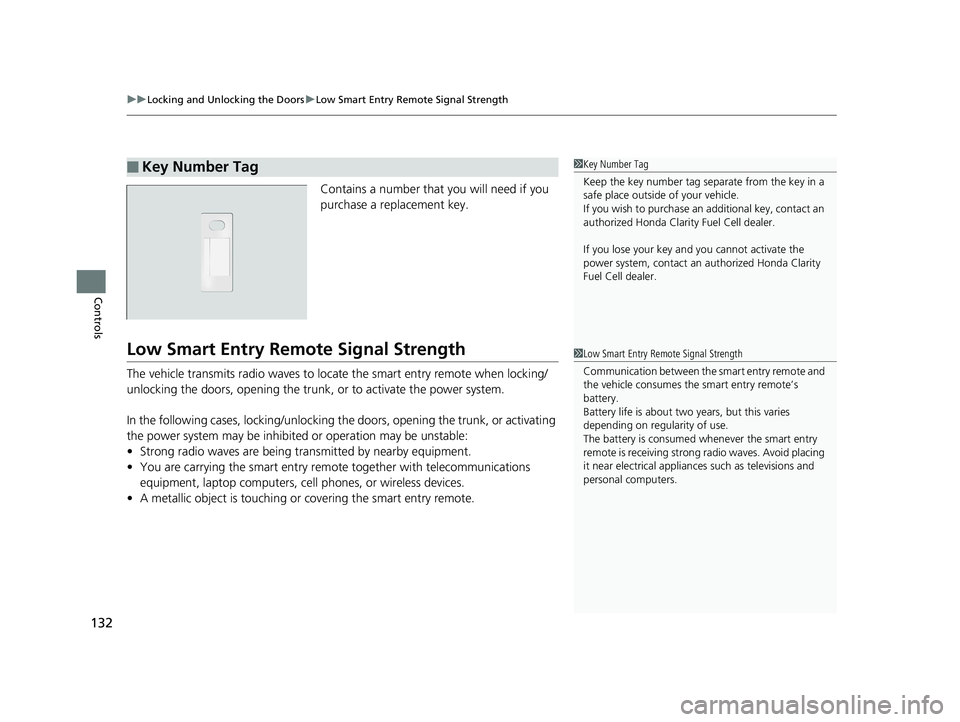
Contains a number that you will need if you
purchase a replacement key.
Low Smart Entry Remo te Signal Strength
The vehicle transmits radio waves to loca te the smart entry remote when locking/
unlocking the doors, opening the trunk, or to activate the power system.
In the following cases, locking/unlocking the doors, opening the trunk, or activating
the power system may be inhibited or operation may be unstable:
• Strong radio waves are being tra nsmitted by nearby equipment.
• You are carrying the smart entry remote together with telecommunications
equipment, laptop computers, ce ll phones, or wireless devices.
• A metallic object is touching or covering the smart entry remote.
■Key Number Tag1Key Number Tag
Keep the key number tag separate from the key in a
safe place outside of your vehicle.
If you wish to purchase an additional key, contact an
authorized Honda Clarit y Fuel Cell dealer.
If you lose your key an d you cannot activate the
power system, contact an authorized Honda Clarity
Fuel Cell dealer.
1 Low Smart Entry Remote Signal Strength
Communication between the smart entry remote and
the vehicle consumes the smart entry remote’s
battery.
Battery life is about two years, but this varies
depending on regularity of use.
The battery is consumed whenever the smart entry
remote is receivi ng strong radio wave s. Avoid placing
it near electrical appliances such as televisions and
personal computers.
17 CLARITY FCV PPO-31TRT6000.book 132 ページ 2016年10月27日 木曜日 午後3 時11分
Page 148 of 527
146
Controls
Security System
Immobilizer System
The immobilizer system prevents a key that has not been pre-registered from
starting the power system. Each key cont ains electronic transmitters that use
electronic signals to verify the key.
Pay attention to the follo wing when pressing the POWER button:
• Do not allow objects that emit strong radio waves near the POWER button.
• Make sure the key is not covered by or touching a metal object.
• Do not bring a key from another vehi cle’s immobilizer system near the POWER
button.
• Do not put the key near magnetic items. Electronic devices, such as televisions
and audio systems emit strong magnetic fields. Note that even a key chain can
become magnetic.
Security System Alarm
The security system alarm activates when the trunk, hood or doors are forcibly
opened. The alarm does not activate if th e trunk or doors are opened with the key,
remote transmitter or smart entry system.
However, the alarm activates if a door is opened with the key and then the hood is
opened before the power mode is set to ON.
■When the security sy stem alarm activates
The horn sounds intermittently and some exterior lights flash.
■To deactivate the security system alarm
Unlock the vehicle using the key, remote transmitter or smart entry system. The
system, along with the horn and flashing lights, is deactivated.
1 Immobilizer System
NOTICE
Leaving the key in the vehicl e can result in theft or
accidental movement of the vehicle.
Always take the key with you whenever you leave the
vehicle unattended.
Do not alter the system or add other devices to it.
Doing so may damage the system and make your
vehicle inoperable.
1 Security System Alarm
Do not alter the system or add other devices to it.
Doing so may damage the system and make your
vehicle inoperable.
The security alarm continues for a maximum of two
minutes until the security system alarm deactivates.
17 CLARITY FCV PPO-31TRT6000.book 146 ページ 2016年10月27日 木曜日 午後3 時11分
Page 195 of 527
193
Features
This chapter describes how to operate technology features.
Audio SystemAbout Your Audio System ................ 194
USB Ports ......................................... 195
Audio System Theft Protection ......... 196
Audio Remote Controls .................... 197
Audio System Basic Operation ........ 200
Audio/Information Screen ................ 201
Adjusting the Sound ........................ 225
Display Setup ................................... 226
Voice Control Operation .................. 228
Playing AM/FM Radio ....................... 232
Playing SiriusXM ® Radio ................... 236 Playing an iPod ................................ 244
Song By VoiceTM (SBV) ...................... 247
Playing Pandora ®............................. 251
Playing a USB Flash Drive ................. 253
Playing Bluetooth ® Audio................. 256
HondaLink ®..................................... 258
Wi-Fi Connection ............................. 263
Siri Eyes Free .................................... 265
Apple CarPlay .................................. 266
Android Auto................................... 269
Audio Error Messages ...................... 273
General Information on the Audio
System
............................................. 277
Customized Features............................284
HomeLink® Universal Transceiver.......309
Bluetooth ® HandsFreeLink® ............. 312
17 CLARITY FCV PPO-31TRT6000.book 193 ページ 2016年10月27日 木曜日 午後3 時11分
Page 196 of 527
194
Features
Audio System
About Your Audio System
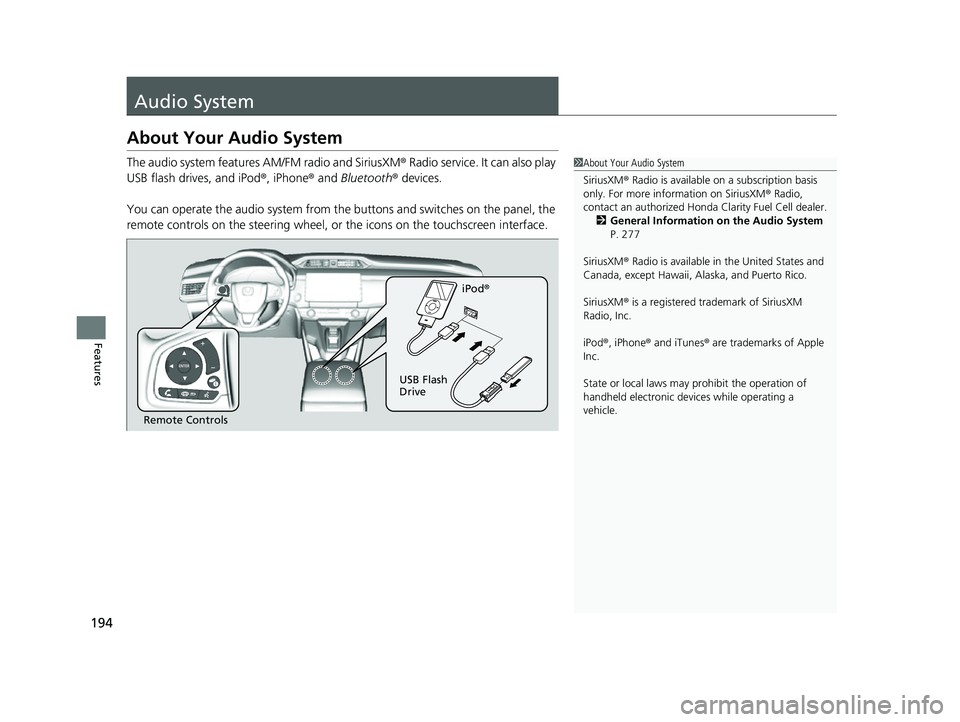
The audio system features AM/FM radio and SiriusXM® Radio service. It can also play
USB flash drives, and iPod ®, iPhone® and Bluetooth® devices.
You can operate the audio system from the buttons and switches on the panel, the
remote controls on the steering wheel, or the icons on the touchscreen interface.1About Your Audio System
SiriusXM ® Radio is available on a subscription basis
only. For more information on SiriusXM ® Radio,
contact an authorized Honda Clarity Fuel Cell dealer.
2 General Information on the Audio System
P. 277
SiriusXM ® Radio is available in the United States and
Canada, except Ha waii, Alaska, and Puerto Rico.
SiriusXM ® is a registered trademark of SiriusXM
Radio, Inc.
iPod ®, iPhone ® and iTunes ® are trademarks of Apple
Inc.
State or local laws may pr ohibit the operation of
handheld electronic devi ces while operating a
vehicle.
Remote Controls iPod
®
USB Flash
Drive
17 CLARITY FCV PPO-31TRT6000.book 194 ページ 2016年10月27日 木曜日 午後3 時11分
Page 199 of 527
197
uuAudio System uAudio Remote Controls
Continued
Features
Audio Remote Controls
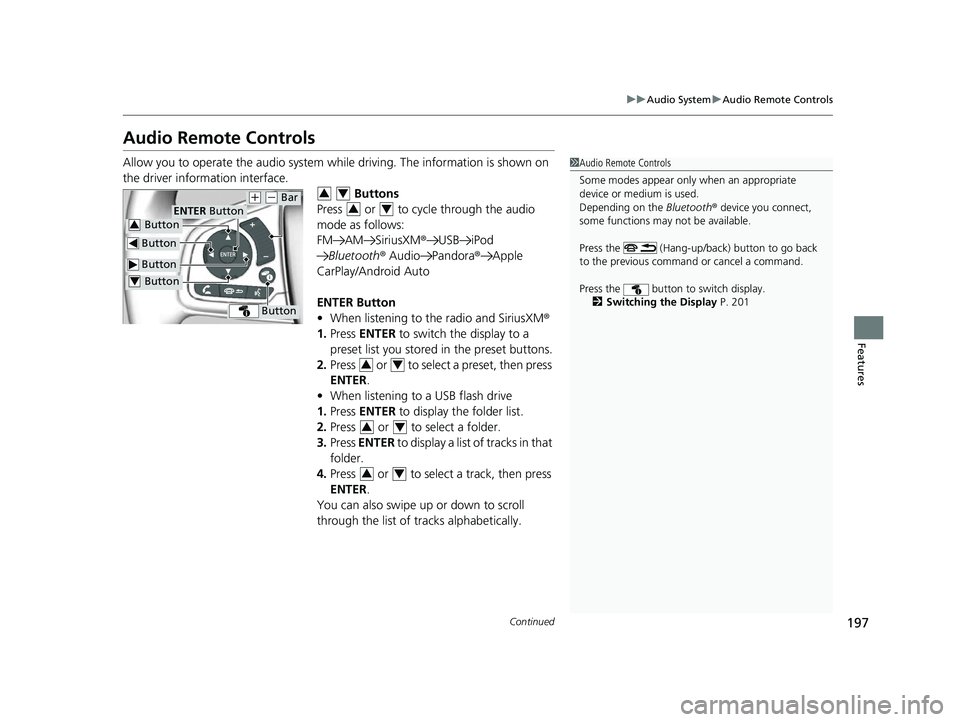
Allow you to operate the audio system whil e driving. The information is shown on
the driver information interface. Buttons
Press or to cycle through the audio
mode as follows:
FM AM SiriusXM ®USB iPod
Bluetooth ® Audio Pandora ®Apple
CarPlay/Android Auto
ENTER Button
• When listening to the radio and SiriusXM ®
1. Press ENTER to switch the display to a
preset list you stored in the preset buttons.
2. Press or to select a preset, then press
ENTER .
• When listening to a USB flash drive
1. Press ENTER to display the folder list.
2. Press or to select a folder.
3. Press ENTER to display a list of tracks in that
folder.
4. Press or to select a track, then press
ENTER .
You can also swipe up or down to scroll
through the list of tracks alphabetically.1Audio Remote Controls
Some modes appear only when an appropriate
device or medium is used.
Depending on the Bluetooth® device you connect,
some functions may not be available.
Press the (Hang-up/back) button to go back
to the previous command or cancel a command.
Press the button to switch display. 2 Switching the Display P. 201
Button
ENTER Button
Button
(+ (- Bar
Button
Button3
Button4
34
34
34
34
34
17 CLARITY FCV PPO-31TRT6000.book 197 ページ 2016年10月27日 木曜日 午後3 時11分
Page 200 of 527
198
uuAudio System uAudio Remote Controls
Features
• When listening to an iPod
1. Press ENTER to display the iPod music list.
2. Press or to select a category.
3. Press ENTER to display a list of items in the
category.
4. Press or to select an item, then press
ENTER .
u Press ENTER and press or
repeatedly until the desired mode you
want to listen to is displayed.
u You can also swipe up or down to scroll
through the list of tracks alphabetically.
• When listening to Internet Radio
1. Press ENTER to display the station list.
2. Press or to select an item, then press
ENTER .
• When listening to Bluetooth®Audio
1. Press ENTER to display the track list.
2. Press or to select a track, then press
ENTER .
34
34
34
34
34
17 CLARITY FCV PPO-31TRT6000.book 198 ページ 2016年10月27日 木曜日 午後3 時11分
Page 201 of 527
199
uuAudio System uAudio Remote Controls
Features
(+ (- (Volume) Bar
Press
(+: To increase the volume.
Press
(-: To decrease the volume.
Slide your finger up or down to increase or decrease the volume, respectively.
Swipe down quickly to mute the volume and swipe up to cancel the mute.
Buttons
• When listening to the radio
Press : To select the next preset radio station.
Press : To select the previous preset radio station.
Press and hold : To select the next strong station.
Press and hold : To select the previous strong station.
• When listening to an iPod, USB flash drive, or Bluetooth® Audio
Press : To skip to the next song.
Press : To go back to the beginning of the current or previous song.
• When listening to a USB flash drive
Press and hold : To skip to the next folder.
Press and hold : To go back to the previous folder.
• When listening to Internet radio
Press : To skip to the next track.
Press and hold : To select the next station.
Press and hold : To select the previous station.
17 CLARITY FCV PPO-31TRT6000.book 199 ページ 2016年10月27日 木曜日 午後3 時11分
Page 235 of 527
Continued233
uuAudio System Basic Operation uPlaying AM/FM Radio
Features
To store a station:
1. Tune to the selected station.
2. Select and hold the preset number for the station you want to store.
You can also store a preset station by the following procedure.
1. Tune to the selected station.
2. Select the open/close icon to display a list.
3. Select the Preset tab.
4. Select and hold the preset number for the station you want to store.
Lists the strongest stations on the selected band.
1. Select the open/close icon to display a list.
2. Select the Station List tab.
3. Select the station.
■Manual update
Updates your available st ation list at any time.
1. Select the open/close icon to display a list.
2. Select the Station List tab.
3. Select Refresh .
■Preset Memory
■Station List
1Playing AM/FM Radio
The ST indicator appears on the display indicating
stereo FM broadcasts.
Stereo reproduction in AM is not available.
Switching the Audio Mode
Press the or button on the steering wheel or
select SOURCE on the screen.
2 Audio Remote Controls P. 197
You can store 6 AM stations and 12 FM stations into
preset memory.
HD Radio Technology manufactured under license
from iBiquity Digital Cor poration. U.S. and Foreign
Patents. HD Radio
TM and the HD, HD Radio, and
“Arc” logos are proprietary trademarks of iBiquity
Digital Corp.
34
17 CLARITY FCV PPO-31TRT6000.book 233 ページ 2016年10月27日 木曜日 午後3 時11分