change wheel HONDA CLARITY PLUG-IN 2018 (in English) User Guide
[x] Cancel search | Manufacturer: HONDA, Model Year: 2018, Model line: CLARITY PLUG-IN, Model: HONDA CLARITY PLUG-IN 2018Pages: 591, PDF Size: 29.97 MB
Page 319 of 591
317
uuCustomized Features u
Continued
Features
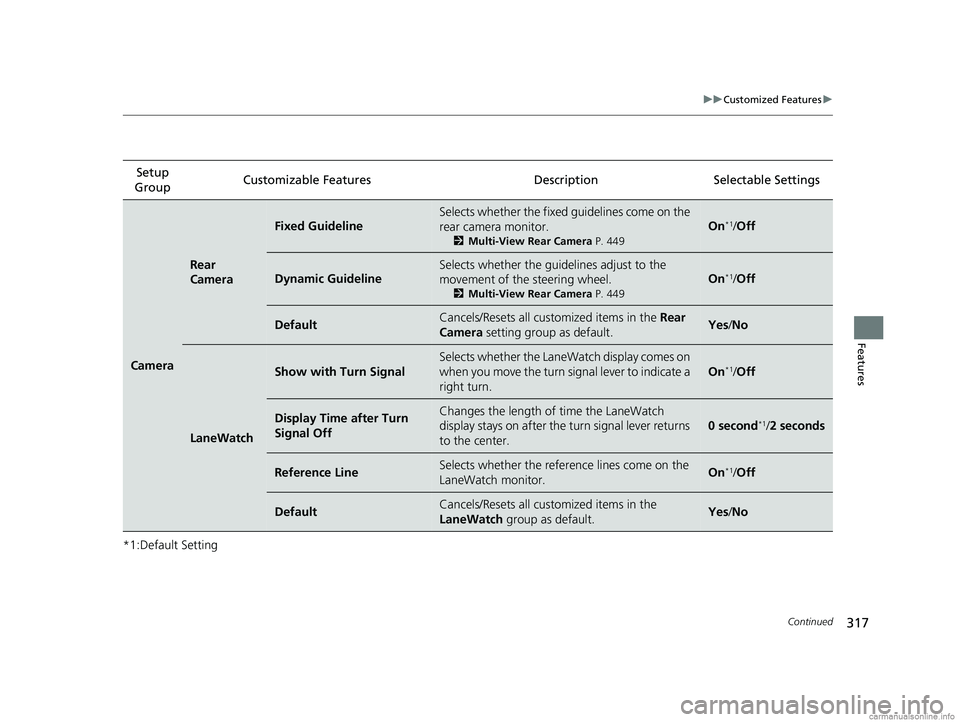
*1:Default SettingSetup
Group Customizable Features Descri
ption Selectable Settings
Camera
Rear
Camera
Fixed Guideline
Selects whether the fixed guidelines come on the
rear camera monitor.
2Multi-View Rear Camera P. 449
On*1/Off
Dynamic Guideline
Selects whether the guidelines adjust to the
movement of the steering wheel.
2 Multi-View Rear Camera P. 449
On*1/Off
DefaultCancels/Resets all cust omized items in the Rear
Camera setting group as default.Yes /No
LaneWatch
Show with Turn Signal
Selects whether the LaneWatch display comes on
when you move the turn signal lever to indicate a
right turn.
On*1/Off
Display Time after Turn
Signal OffChanges the length of time the LaneWatch
display stays on after the turn signal lever returns
to the center.
0 second*1/ 2 seconds
Reference LineSelects whether the refere nce lines come on the
LaneWatch monitor.On*1/ Off
DefaultCancels/Resets all cust omized items in the
LaneWatch group as default.Yes/No
18 CLARITY PHEV CSS-31TRW6000.book 317 ページ 2017年12月25日 月曜日 午後2時22分
Page 337 of 591
335Continued
Features
Bluetooth® HandsFreeLink ®
Bluetooth® HandsFreeLink ® (HFL) allows you to place and receive phone calls using
your vehicle’s audio system, without handling your cell phone.
Using HFL
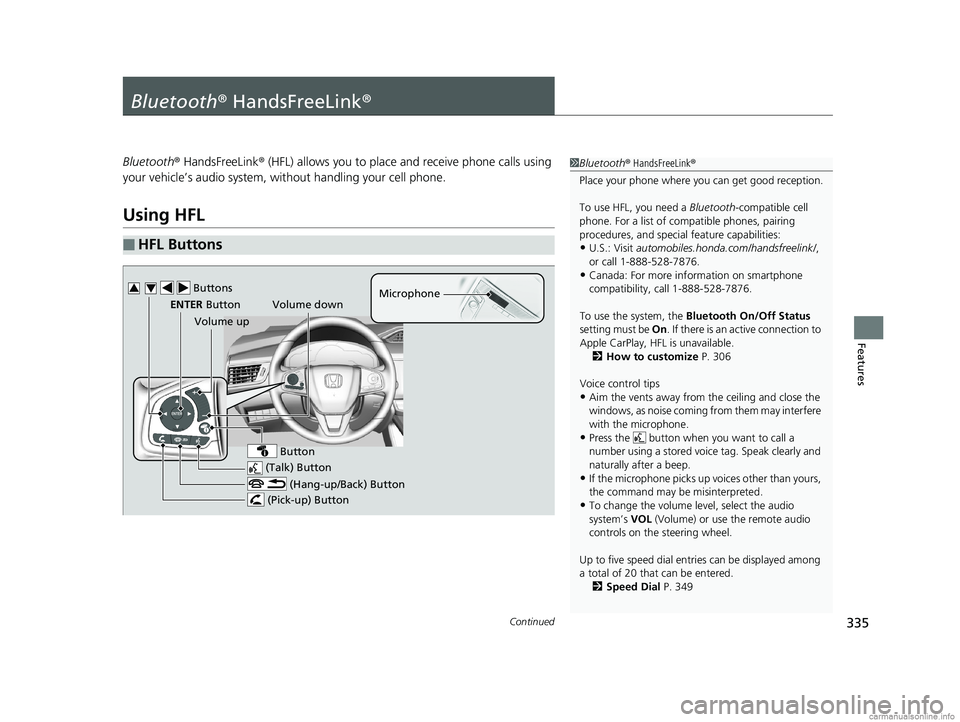
■HFL Buttons
1 Bluetooth ® HandsFreeLink ®
Place your phone where y ou can get good reception.
To use HFL, you need a Bluetooth-compatible cell
phone. For a list of compatible phones, pairing
procedures, and special feature capabilities:
•U.S.: Visit automobiles.honda.com /handsfreelink/,
or call 1-888-528-7876.
•Canada: For more info rmation on smartphone
compatibility, call 1-888-528-7876.
To use the system, the Bluetooth On/Off Status
setting must be On . If there is an active connection to
Apple CarPlay, H FL is unavailable.
2 How to customize P. 306
Voice control tips
•Aim the vents away from the ceiling and close the
windows, as noise coming fr om them may interfere
with the microphone.
•Press the button when you want to call a
number using a stored voic e tag. Speak clearly and
naturally after a beep.
•If the microphone picks up vo ices other than yours,
the command may be misinterpreted.
•To change the volume level, select the audio
system’s VOL (Volume) or use the remote audio
controls on the steering wheel.
Up to five speed dial entries can be displayed among
a total of 20 that can be entered. 2 Speed Dial P. 349
(Talk) Button
Volume up Microphone
(Hang-up/Back) Button
(Pick-up) Button
ENTER Button
Button
Buttons34
Volume down
18 CLARITY PHEV CSS-31TRW6000.book 335 ページ 2017年12月25日 月曜日 午後2時22分
Page 392 of 591
390
uuWhen Driving uDeceleration Paddle Selector
Driving
Deceleration Paddle Selector
When you release the accelerator pedal, yo u can control the rate of deceleration
without releasing your hands from the steering wheel. Using the deceleration
paddle selector situated on the steering wheel, you can sequentially shift through
four stages of deceleration.
When descending a hill, you can use the deceleration paddle selector to help
maintain the rate of deceleration, thereb y allowing you to keep a safe distance
between your vehicle and the vehicle ah ead as well as utilize engine braking.
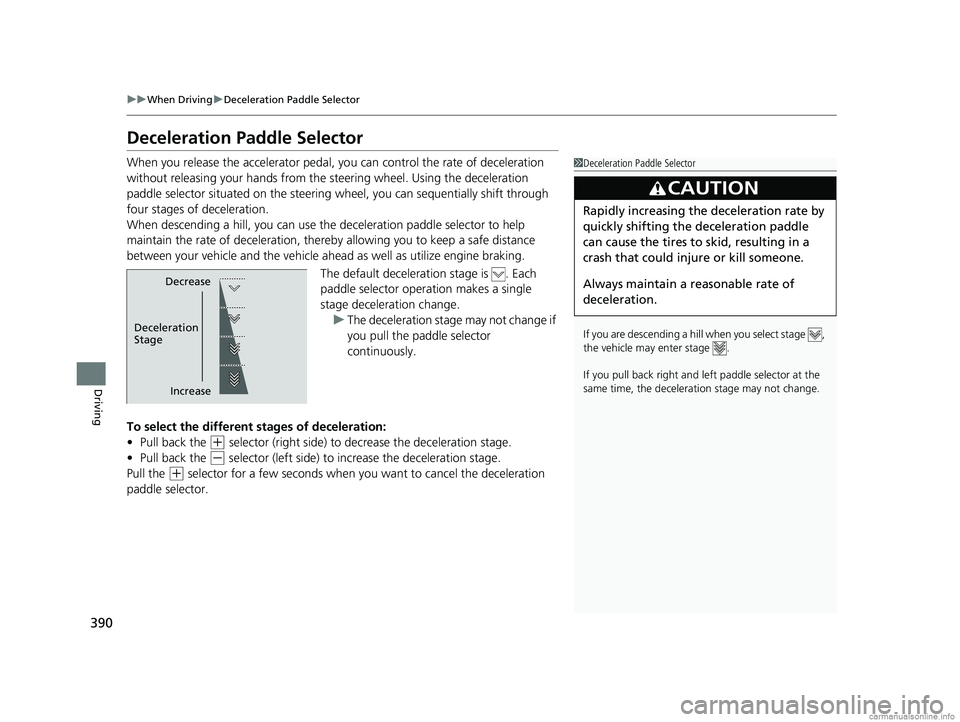
The default deceleration stage is . Each
paddle selector oper ation makes a single
stage deceleration change. u The deceleration stage may not change if
you pull the paddle selector
continuously.
To select the different stages of deceleration:
• Pull back the
(+ selector (right side) to decrease the deceleration stage.
• Pull back the
(- selector (left side) to increase the deceleration stage.
Pull the
(+ selector for a few seconds when you want to cancel the deceleration
paddle selector.
1 Deceleration Paddle Selector
If you are descending a hill when you select stage ,
the vehicle may enter stage .
If you pull back right and le ft paddle selector at the
same time, the deceleration stage may not change.
3CAUTION
Rapidly increasing the deceleration rate by
quickly shifting the deceleration paddle
can cause the tires to skid, resulting in a
crash that could injure or kill someone.
Always maintain a reasonable rate of
deceleration.
Decrease
Increase
Deceleration
Stage
18 CLARITY PHEV CSS-31TRW6000.book 390 ページ 2017年12月25日 月曜日 午後2時22分
Page 400 of 591
uuWhen Driving uRoad Departure Mitigation (RDM) System
398
Driving
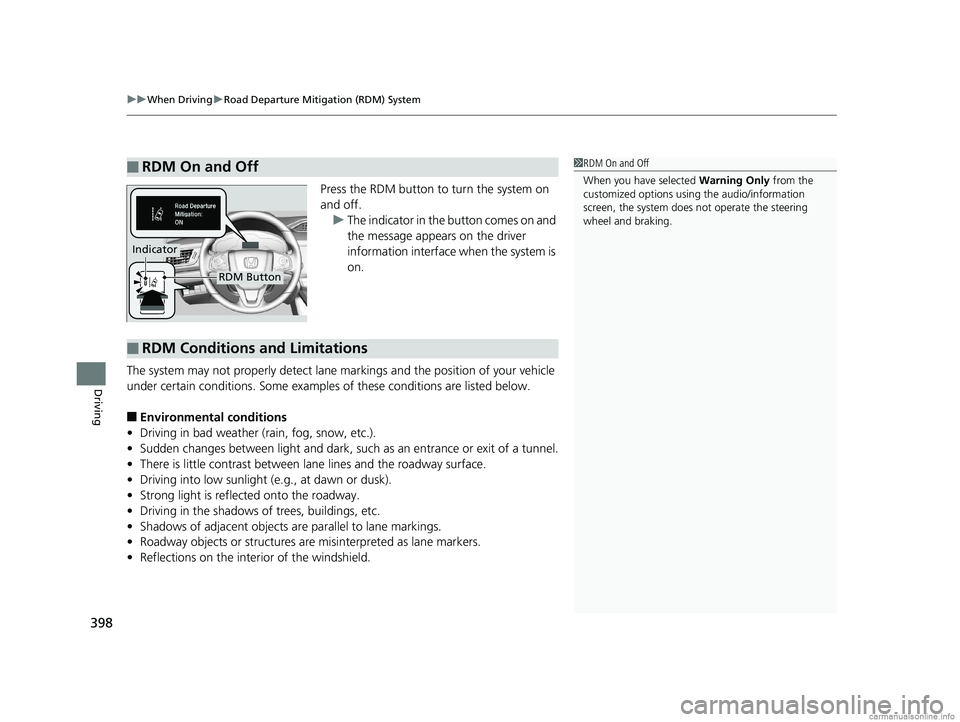
Press the RDM button to turn the system on
and off.
u The indicator in the button comes on and
the message appears on the driver
information interface when the system is
on.
The system may not properly detect lane markings and the position of your vehicle
under certain conditions. Some examples of these conditions are listed below.
■Environmental conditions
• Driving in bad weather (rain, fog, snow, etc.).
• Sudden changes between light and dark, such as an entrance or exit of a tunnel.
• There is little contrast between la ne lines and the roadway surface.
• Driving into low sunlight (e.g., at dawn or dusk).
• Strong light is reflected onto the roadway.
• Driving in the shadows of trees, buildings, etc.
• Shadows of adjacent objects are parallel to lane markings.
• Roadway objects or structures are misinterpreted as lane markers.
• Reflections on the interi or of the windshield.
■RDM On and Off1RDM On and Off
When you have selected Warning Only from the
customized options using the audio/information
screen, the system does not operate the steering
wheel and braking.
RDM Button
Indicator
■RDM Conditions and Limitations
18 CLARITY PHEV CSS-31TRW6000.book 398 ページ 2017年12月25日 月曜日 午後2時22分
Page 417 of 591
415
uuWhen Driving uLane Keeping Assist System (LKAS)
Continued
Driving
Lane Keeping Assist System (LKAS)
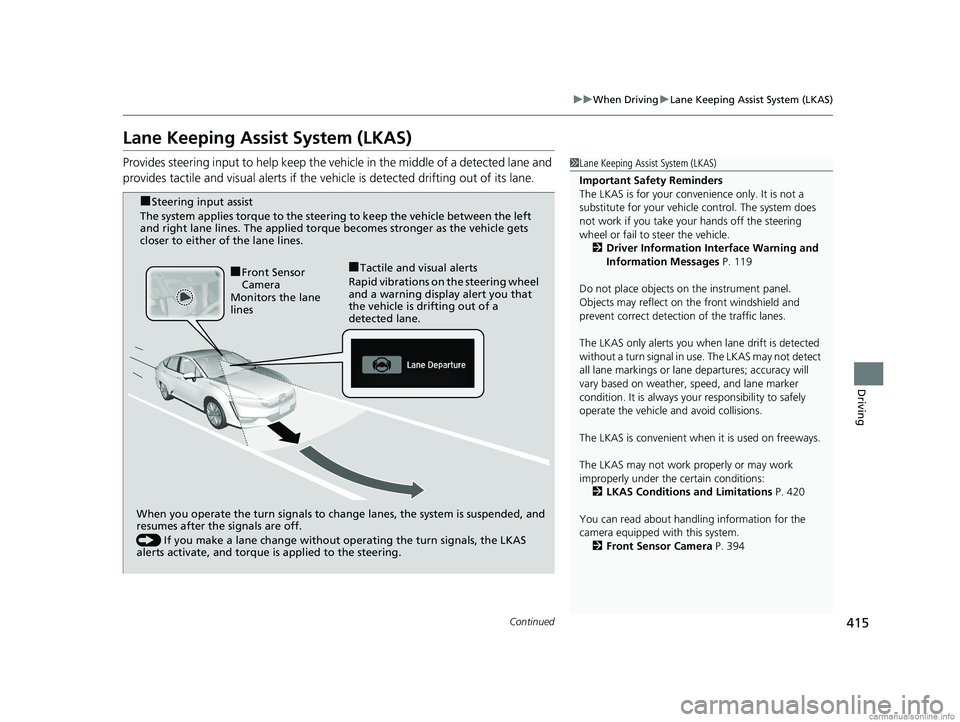
Provides steering input to help keep the vehicle in the middle of a detected lane and
provides tactile and visual al erts if the vehicle is detected drifting out of its lane.1Lane Keeping Assist System (LKAS)
Important Safety Reminders
The LKAS is for your convenience only. It is not a
substitute for your vehicle control. The system does
not work if you take y our hands off the steering
wheel or fail to steer the vehicle.
2 Driver Information Interface Warning and
Information Messages P. 119
Do not place objects on the instrument panel.
Objects may reflect on th e front windshield and
prevent correct detectio n of the traffic lanes.
The LKAS only alerts you when lane drift is detected
without a turn signal in use. The LKAS may not detect
all lane markings or lane departures; accuracy will
vary based on weather, speed, and lane marker
condition. It is always your responsibility to safely
operate the vehicle an d avoid collisions.
The LKAS is convenient when it is used on freeways.
The LKAS may not work properly or may work
improperly under the certain conditions: 2 LKAS Conditions and Limitations P. 420
You can read about handling information for the
camera equipped with this system. 2 Front Sensor Camera P. 394
When you operate the turn signals to chan ge lanes, the system is suspended, and
resumes after the signals are off.
() If you make a lane change without operating the turn signals, the LKAS
alerts activate, and torque is applied to the steering.
■Front Sensor
Camera
Monitors the lane
lines■Tactile and visual alerts
Rapid vibrations on the steering wheel
and a warning display alert you that
the vehicle is drifting out of a
detected lane.
■Steering input assist
The system applies torque to the steering to keep the vehicle between the left
and right lane lines. The applied torque becomes stronger as the vehicle gets
closer to either of the lane lines.
18 CLARITY PHEV CSS-31TRW6000.book 415 ページ 2017年12月25日 月曜日 午後2時22分
Page 421 of 591
419
uuWhen Driving uLane Keeping Assist System (LKAS)
Continued
Driving
■The system operation is suspended if
you:
• Set the wipers to HI.
u Set the wiper switch to other than HI
resumes the LKAS.
• Decrease the vehicle speed to about 40
mph (64 km/h) or less.
u Increasing the vehicle speed to about 45
mph (72 km/h) or more resumes the
LKAS.
• Depress the brake pedal.
u The LKAS resumes and starts detecting
the lane lines again once you release the
brake pedal.
■The LKAS may automatica lly be suspended when:
• The system fails to detect lane lines.
• The steering wheel is quickly turned.
• You fail to steer the vehicle.
• Driving through a sharp curve.
• Driving at a speed in excess of approximately 90 mph (145 km/h).
Once these conditions no longer exist, the LKAS automatically resumes.
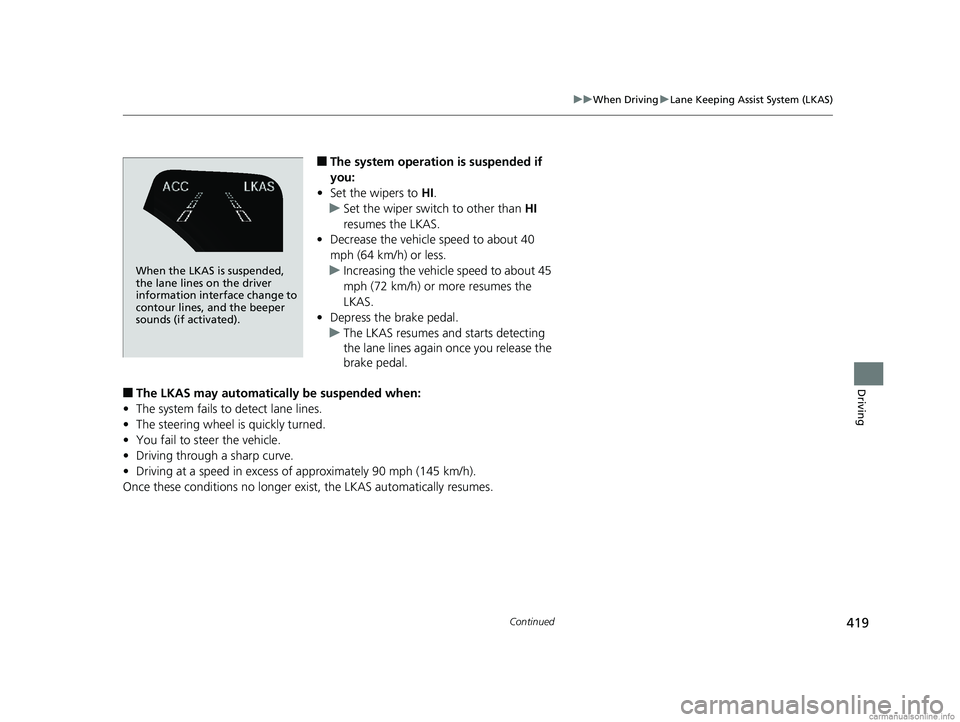
When the LKAS is suspended,
the lane lines on the driver
information interface change to
contour lines, and the beeper
sounds (if activated).
18 CLARITY PHEV CSS-31TRW6000.book 419 ページ 2017年12月25日 月曜日 午後2時22分
Page 427 of 591
425
uuWhen Driving uTire Pressure Monitoring System (TPMS)
Continued
Driving
Tire Pressure Monitoring System (TPMS)
Instead of directly measuring the pressure in each tire, the TPMS on this vehicle
monitors and compares the rolling radius and rotational characteristics of each
wheel and tire while you are driving to determine if one or more tires are
significantly under-inflated. This will caus e the low tire pressure/TPMS indicator to
come on and a message to appear on the driver information interface.
You must start TPMS calibration every time you:
• Adjust the pressure in one or more tires.
• Rotate the tires.
• Replace one or more tires.
Before calibrating the TPMS:
• Set the cold tire pressure in all four tires.
2 Checking Tires P. 499
Make sure:
•The vehicle is at a complete stop.
• The gear position is in
(P.
• The power mode is in ON.
■TPMS Calibration
1Tire Pressure Monitoring System (TPMS)
The system does not monitor the tires when driving
at low speed.
Conditions such as low ambient temperature and
altitude change directly a ffect tire pressure and can
trigger the low tire pressure/TPMS indicator to come on.
Tire pressure checked and inflated in:
•Warm weather can beco me under-inflated in
colder weather.
•Cold weather can become over-inflated in warmer
weather.
The low tire pressure/TPMS indicator will not come
on as a result of over inflation.
The TPMS may not function pr operly if tire type and
size are mixed. Make sure to use the same size and
type of tire. 2 Checking and Maintaining Tires P. 499
The low tire pressure/TPMS indicator may come on
with a delay or may not come on at all when:
•You rapidly accelerate, decelerate, or turn the
steering wheel.
•You drive on snowy or slippery roads.•Snow chains are used.
The low tire pressure/TPMS indicator may come on
under the following conditions:
•There is a heavier and une ven load on the tires,
such as when towing a trailer, than the condition at
calibration.
•Snow chains are used.
18 CLARITY PHEV CSS-31TRW6000.book 425 ページ 2017年12月25日 月曜日 午後2時22分
Page 431 of 591
429
uuWhen Driving uLaneWatchTM
Continued
Driving
LaneWatchTM
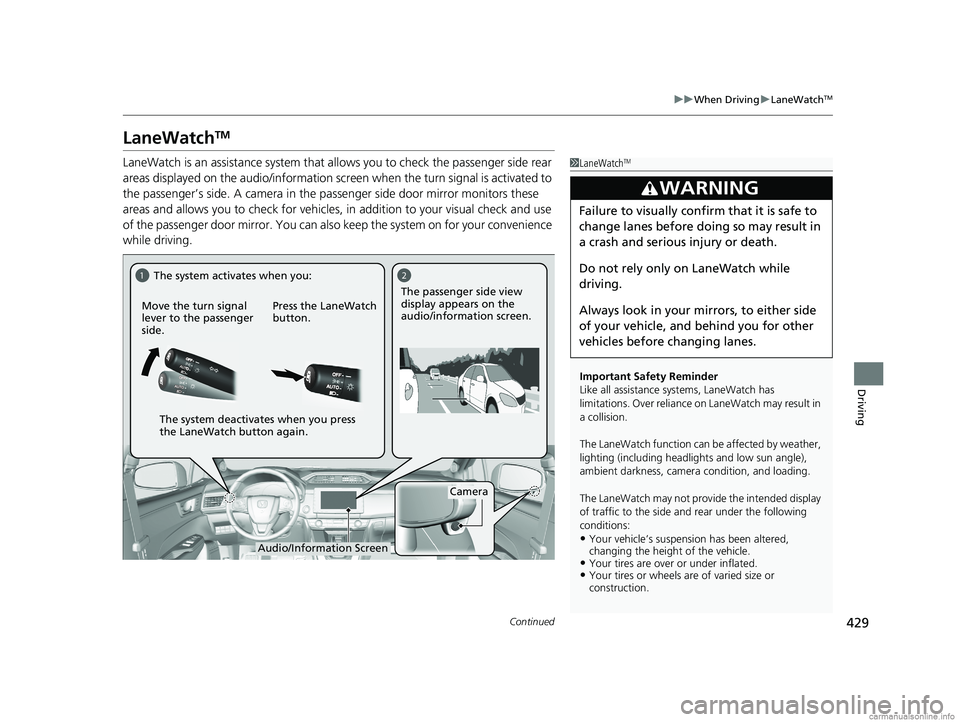
LaneWatch is an assistance system that al lows you to check the passenger side rear
areas displayed on the audio/information screen when the turn signal is activated to
the passenger’s side. A camera in the pa ssenger side door mirror monitors these
areas and allows you to check for vehicles, in addition to your visual check and use
of the passenger door mirror. You can also keep the system on for your convenience
while driving.1 LaneWatchTM
Important Safety Reminder
Like all assistance systems, LaneWatch has
limitations. Over reliance on LaneWatch may result in
a collision.
The LaneWatch function can be affected by weather,
lighting (including headli ghts and low sun angle),
ambient darkness, camera condition, and loading.
The LaneWatch may not prov ide the intended display
of traffic to the side and rear under the following
conditions:
•Your vehicle’s suspensi on has been altered,
changing the height of the vehicle.
•Your tires are over or under inflated.•Your tires or wheels are of varied size or
construction.
3WARNING
Failure to visually confirm that it is safe to
change lanes before doing so may result in
a crash and serious injury or death.
Do not rely only on LaneWatch while
driving.
Always look in your mi rrors, to either side
of your vehicle, and behind you for other
vehicles before changing lanes.
12
Camera
Move the turn signal
lever to the passenger
side.
Press the LaneWatch
button.The passenger side view
display appears on the
audio/information screen.
The system activates when you:
The system deactivates when you press
the LaneWatch button again.
Audio/Information Screen
18 CLARITY PHEV CSS-31TRW6000.book 429 ページ 2017年12月25日 月曜日 午後2時22分
Page 442 of 591
uuBraking uCollision Mitigation Braking SystemTM (CMBSTM)
440
Driving
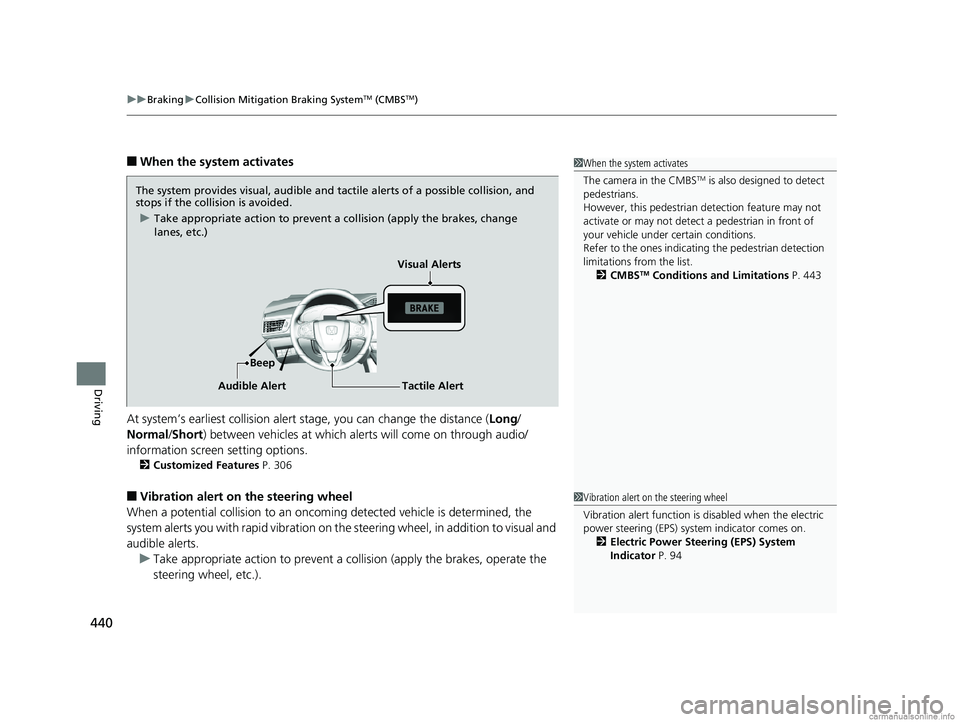
■When the system activates
At system’s earliest collision alert stage, you can change the distance ( Long/
Normal /Short) between vehicles at which alerts will come on through audio/
information screen setting options.
2 Customized Features P. 306
■Vibration alert on the steering wheel
When a potential collision to an oncoming detected vehicle is determined, the
system alerts you with rapid vibration on the steering wheel, in addition to visual and
audible alerts.
u Take appropriate action to prevent a co llision (apply the brakes, operate the
steering wheel, etc.).
1 When the system activates
The camera in the CMBS
TM is also designed to detect
pedestrians.
However, this pedestrian detection feature may not
activate or may not detect a pedestrian in front of
your vehicle under certain conditions.
Refer to the ones indicating the pedestrian detection
limitations from the list. 2 CMBS
TM Conditions and Limitations P. 443
The system provides visual, audible and tactile alerts of a possible collision, and
stops if the collision is avoided.
u Take appropriate action to prevent a collision (apply the brakes, change
lanes, etc.)
Beep Visual Alerts
Audible Alert
Tactile Alert
1 Vibration alert on the steering wheel
Vibration alert function is disabled when the electric
power steering (EPS) system indicator comes on. 2 Electric Power Steering (EPS) System
Indicator P. 94
18 CLARITY PHEV CSS-31TRW6000.book 440 ページ 2017年12月25日 月曜日 午後2時22分
Page 451 of 591
449Continued
Driving
Multi-View Rear Camera
About Your Multi-View Rear Camera
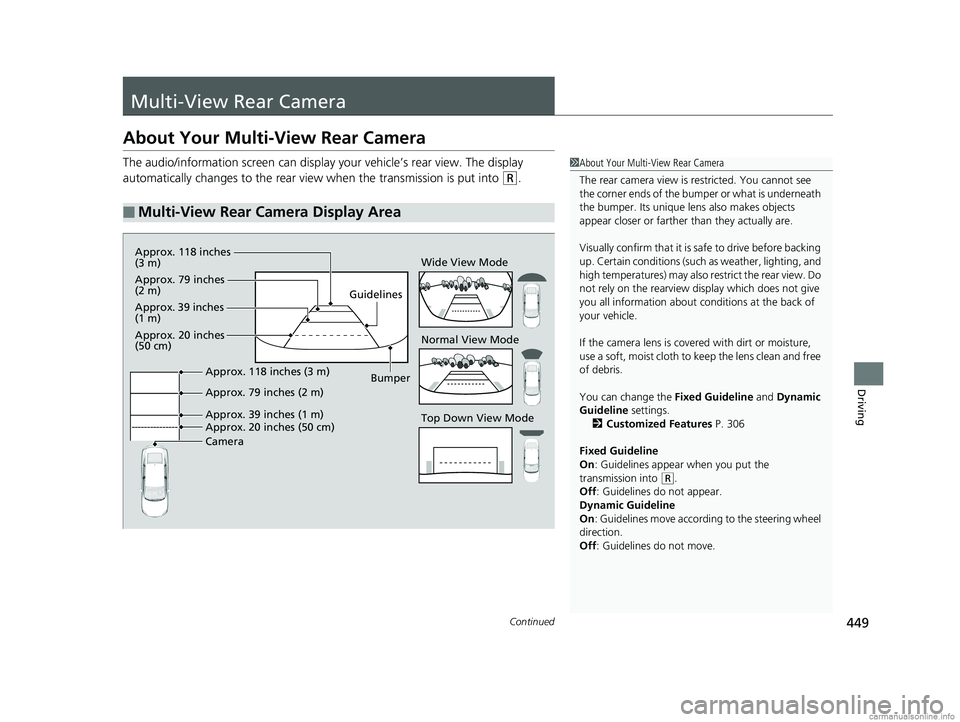
The audio/information screen can display your vehicle’s rear view. The display
automatically changes to the rear view when the transmission is put into
(R.
■Multi-View Rear Camera Display Area
1About Your Multi-View Rear Camera
The rear camera view is restricted. You cannot see
the corner ends of the bum per or what is underneath
the bumper. Its unique le ns also makes objects
appear closer or farther than they actually are.
Visually confirm that it is safe to drive before backing
up. Certain conditions (such as weather, lighting, and
high temperatures) may also restrict the rear view. Do
not rely on the rearview display which does not give
you all information about conditions at the back of
your vehicle.
If the camera lens is cove red with dirt or moisture,
use a soft, moist cloth to keep the lens clean and free
of debris.
You can change the Fixed Guideline and Dynamic
Guideline settings.
2 Customized Features P. 306
Fixed Guideline
On : Guidelines appear when you put the
transmission into
( R.
Off : Guidelines do not appear.
Dynamic Guideline
On : Guidelines move according to the steering wheel
direction.
Off : Guidelines do not move.
Top Down View Mode Normal View Mode Wide View Mode
Guidelines
Bumper
Camera Approx. 20 inches (50 cm) Approx. 39 inches (1 m) Approx. 79 inches (2 m) Approx. 118 inches (3 m)
Approx. 118 inches
(3 m)
Approx. 79 inches
(2 m)
Approx. 39 inches
(1 m)
Approx. 20 inches
(50 cm)
18 CLARITY PHEV CSS-31TRW6000.book 449 ページ 2017年12月25日 月曜日 午後2時22分