AUX HONDA CR-V 2012 RM1, RM3, RM4 / 4.G Owners Manual
[x] Cancel search | Manufacturer: HONDA, Model Year: 2012, Model line: CR-V, Model: HONDA CR-V 2012 RM1, RM3, RM4 / 4.GPages: 361, PDF Size: 7.25 MB
Page 6 of 361
5
Quick Reference Guide
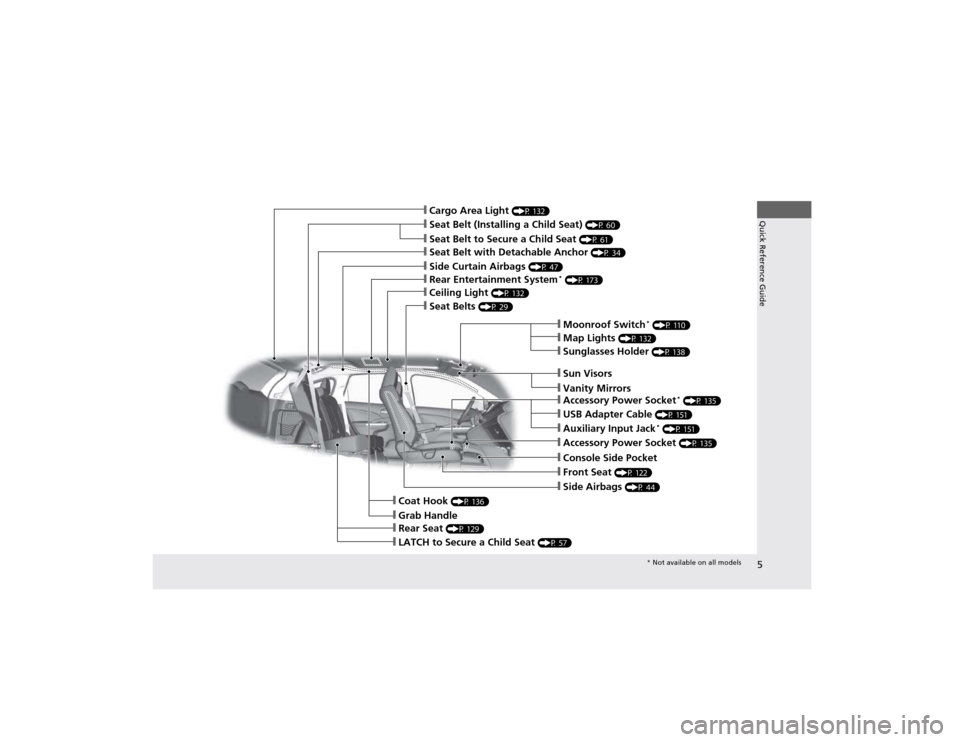
❙Seat Belt to Secure a Child Seat (P 61)
❙Seat Belt (Installing a Child Seat) (P 60)
❙Sun Visors
❙Vanity Mirrors
❙Moonroof Switch*
(P 110)
❙Map Lights (P 132)
❙Front Seat (P 122)
❙Seat Belts (P 29)
❙Side Airbags (P 44)
❙Rear Seat (P 129)
❙LATCH to Secure a Child Seat (P 57)
❙Ceiling Light (P 132)
❙Side Curtain Airbags (P 47)
❙Coat Hook (P 136)
❙Grab Handle
❙Sunglasses Holder (P 138)
❙Seat Belt with Detachable Anchor (P 34)
❙Rear Entertainment System*
(P 173)
❙Cargo Area Light (P 132)
❙Accessory Power Socket (P 135)
❙Console Side Pocket
❙USB Adapter Cable (P 151)
❙Auxiliary Input Jack *
(P 151)
❙Accessory Power Socket *
(P 135)
* Not available on all models
Page 14 of 361
13
Quick Reference Guide
Climate Control System*
(P 145)
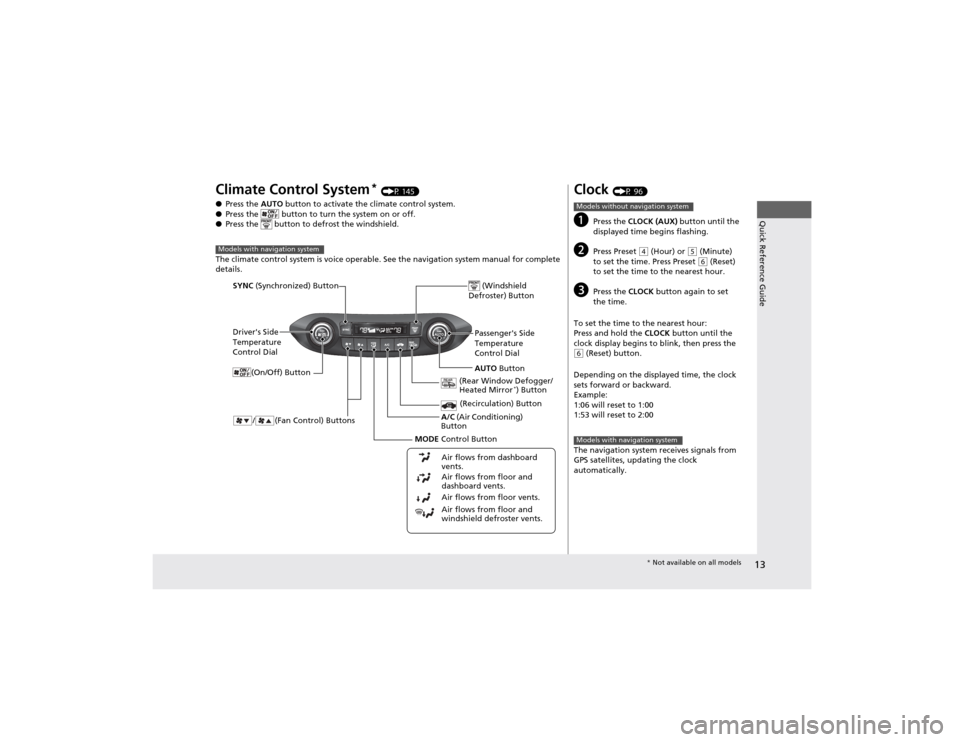
● Press the AUTO button to activate the climate control system.
● Press the button to turn the system on or off.
● Press the button to defrost the windshield.
The climate control system is voice operable. See the navigation system manual for complete
details.
Models with navigation system
Driver's Side
Temperature
Control Dial
/ (Fan Control) Buttons
(Windshield
Defroster) Button
A/C (Air Conditioning)
Button
Air flows from floor and
windshield defroster vents.
Air flows from floor vents.
Air flows from floor and
dashboard vents.
Air flows from dashboard
vents.
SYNC
(Synchronized) Button
(Recirculation) Button
AUTO Button
Passenger's Side
Temperature
Control Dial
(Rear Window Defogger/ Heated Mirror *
) Button
MODE Control Button
(On/Off) Button
Clock
(P 96)
a Press the CLOCK (AUX) button until the
displayed time begins flashing.
b Press Preset
(4 (Hour) or (5 (Minute)
to set the time. Press Preset (6 (Reset)
to set the time to the nearest hour.
c Press the CLOCK button again to set
the time.
To set the time to the nearest hour:
Press and hold the CLOCK button until the
clock display begins to blink, then press the
(6 (Reset) button.
Depending on the displayed time, the clock
sets forward or backward.
Example:
1:06 will reset to 1:00
1:53 will reset to 2:00
The navigation system receives signals from
GPS satellites, updating the clock
automatically.
Models without navigation system
Models with navigation system
* Not available on all models
Page 15 of 361
14
Quick Reference Guide
Features (P 149)
Audio System (P 150)
For navigation system operation () See Navigation System Manual
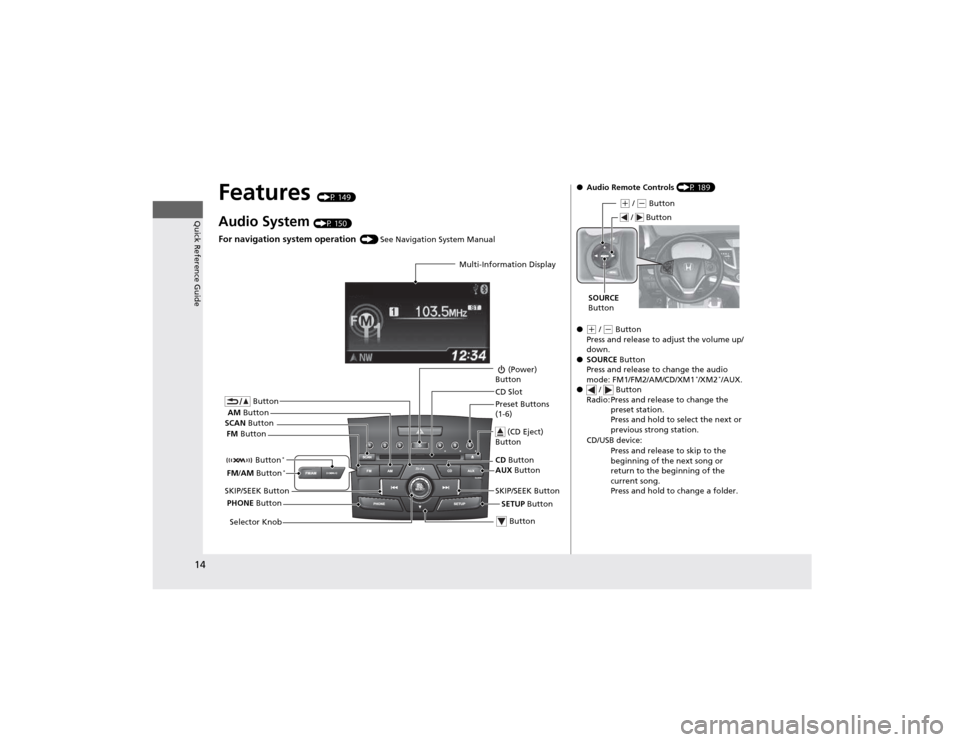
Multi-Information Display
AM Button
FM Button
SCAN
Button
SKIP/SEEK Button Selector Knob Button
(Power)
Button
CD Button
AUX Button
CD Slot
(CD Eject)
Button
Preset Buttons
(1-6)
Button
SETUP Button
SKIP/SEEK Button
PHONE Button
Button
*
FM
/AM Button *
●
Audio Remote Controls (P 189)
●
(+ / (- Button
Press and release to adjust the volume up/
down.
● SOURCE Button
Press and release to change the audio
mode: FM1/FM2/AM/CD/XM1 *
/XM2 *
/AUX.
● / Button
Radio: Press and release to change the preset station.
Press and hold to select the next or
previous strong station.
CD/USB device: Press and release to skip to the
beginning of the next song or
return to the beginning of the
current song.
Press and hold to change a folder.
(+ / (- Button
SOURCE
Button
/ Button
Page 150 of 361
149
Features
This chapter describes how to operate technology features on models without the navigation system.
Audio System About Your Audio System................ 150
USB Adapter Cable .......................... 151 Auxiliary Input Jack *
........................ 151
Audio Antenna ................................ 152
Audio System Theft Protection ......... 152
Audio System Basic Operation ........ 153
Adjusting the Sound ........................ 154
Playing the AM/FM Radio ................. 155
Playing the XM ® Radio *
................... 158
Playing a CD .................................... 160
Playing an iPod ®............................... 163
Playing Pandora ®............................. 166 Playing a USB Flash Drive ................. 168
Playing
Bluetooth ® Audio ................ 171
Rear Entertainment System *
........... 173
Audio Error Messages ...................... 185
Audio Remote Controls .................... 189
General Information on the Audio
System ............................................. 190
Bluetooth ® HandsFreeLink ®
Using HFL ........................................ 194
HFL Menus ...................................... 196
Compass ............................................ 223
* Not available on all models
Page 152 of 361
151
uuAudio SystemuUSB Adapter Cable
Features
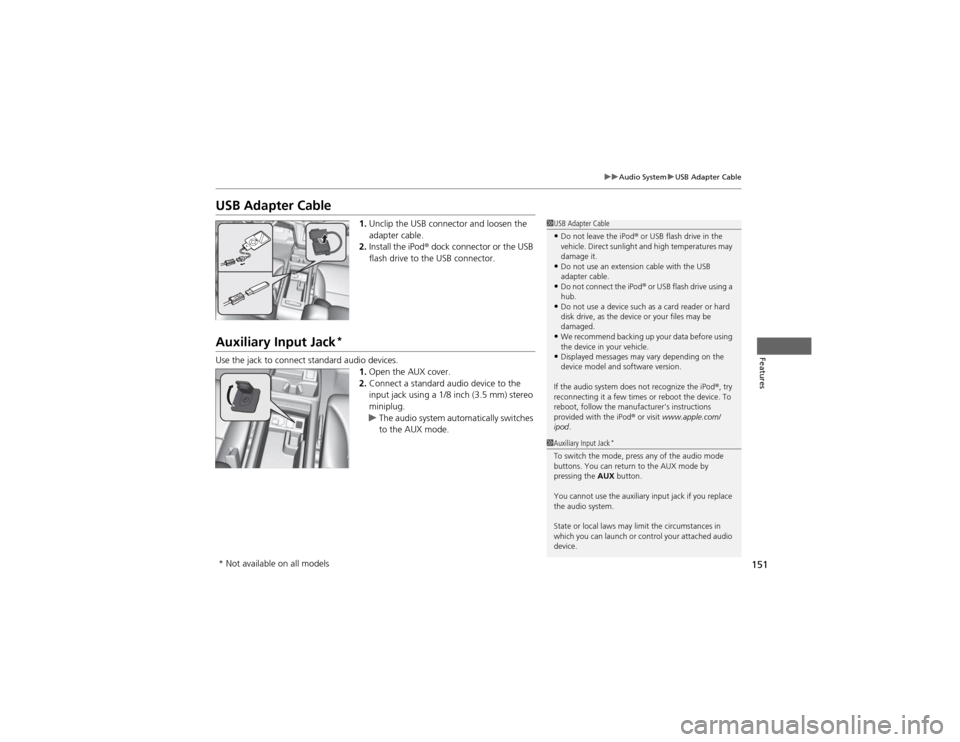
USB Adapter Cable1.Unclip the USB connector and loosen the
adapter cable.
2. Install the iPod ® dock connector or the USB
flash drive to the USB connector.
Auxiliary Input Jack *
Use the jack to connect standard audio devices. 1.Open the AUX cover.
2. Connect a standard audio device to the
input jack using a 1/8 inch (3.5 mm) stereo
miniplug.
uThe audio system automatically switches
to the AUX mode.
1USB Adapter Cable
• Do not leave the iPod ® or USB flash drive in the
vehicle. Direct sunlight and high temperatures may damage it.
• Do not use an extension cable with the USB
adapter cable.
• Do not connect the iPod ®
or USB flash drive using a
hub.
• Do not use a device such as a card reader or hard
disk drive, as the device or your files may be damaged.
• We recommend backing up your data before using
the device in your vehicle.
• Displayed messages may vary depending on the
device model and software version.
If the audio system does not recognize the iPod ®, try
reconnecting it a few times or reboot the device. To
reboot, follow the manufacturer's instructions provided with the iPod ® or visit www.apple.com/
ipod .
1Auxiliary Input Jack *
To switch the mode, press any of the audio mode
buttons. You can return to the AUX mode by
pressing the AUX button.
You cannot use the auxiliary input jack if you replace
the audio system.
State or local laws may limit the circumstances in
which you can launch or control your attached audio device.
* Not available on all models
Page 164 of 361
163
uuAudio System Basic OperationuPlaying an iPod®
Continued
Features
Playing an iPod ®
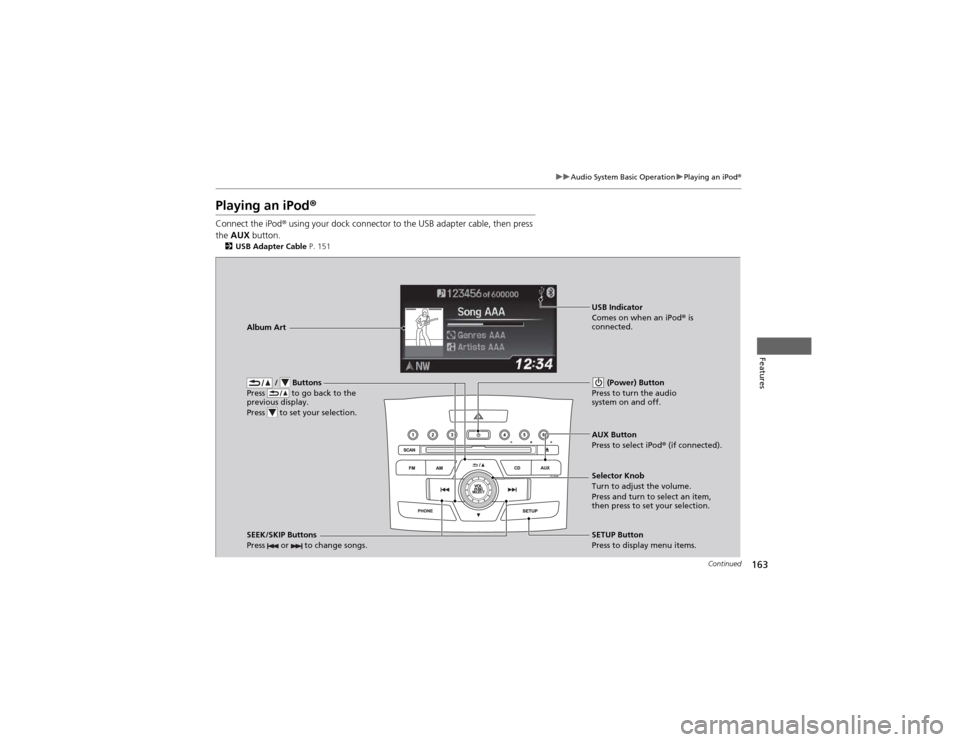
Connect the iPod ® using your dock connector to the USB adapter cable, then press
the AUX button.
2 USB Adapter Cable P. 151
/ Buttons
Press to go back to the
previous display.
Press to set your selection. (Power) Button
Press to turn the audio system on and off.
SEEK/SKIP Buttons
Press or to change songs.SETUP Button
Press to display menu items.
Selector Knob
Turn to adjust the volume.
Press and turn to select an item,
then press to set your selection.
AUX Button
Press to select iPod
® (if connected).
Album Art
USB Indicator
Comes on when an iPod
® is
connected.
Page 167 of 361
166
uuAudio System Basic OperationuPlaying Pandora®
Features
Playing Pandora ®
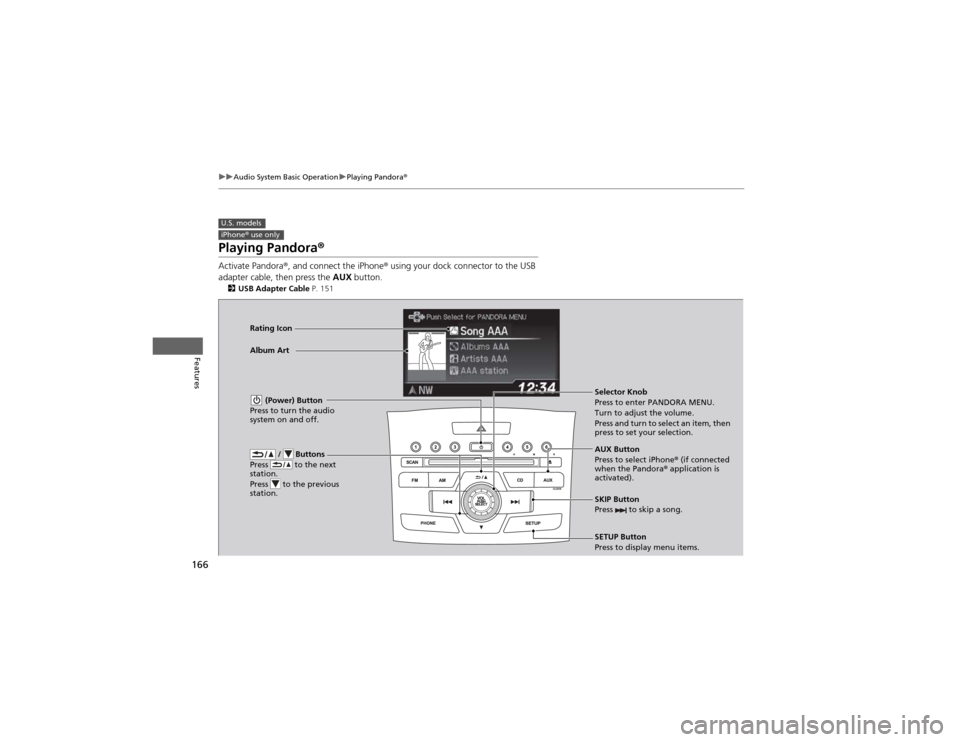
Activate Pandora ®, and connect the iPhone ® using your dock connector to the USB
adapter cable, then press the AUX button.
2 USB Adapter Cable P. 151
U.S. modelsiPhone® use only
/ Buttons
Press to the next
station.
Press to the previous
station.
(Power) Button
Press to turn the audio
system on and off.
SKIP Button
Press to skip a song.
SETUP Button
Press to display menu items.
Selector Knob
Press to enter PANDORA MENU.
Turn to adjust the volume.
Press and turn to select an item, then
press to set your selection.
AUX Button
Press to select iPhone
® (if connected
when the Pandora ® application is
activated).
Album Art
Rating Icon
Page 169 of 361
168
uuAudio System Basic OperationuPlaying a USB Flash Drive
Features
Playing a USB Flash Drive
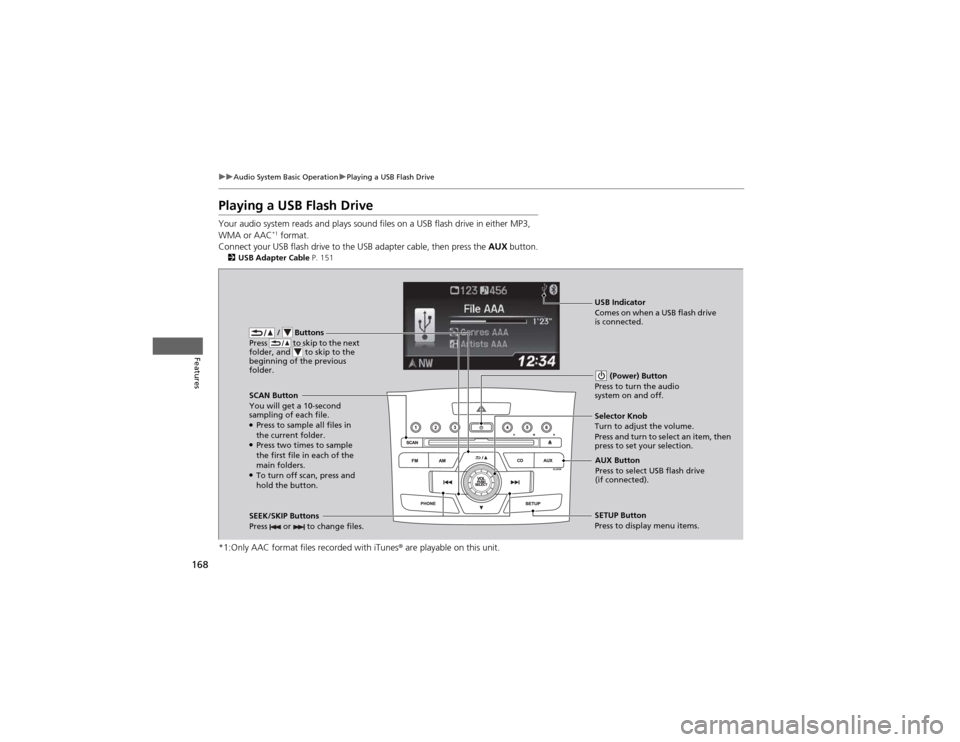
Your audio system reads and plays sound files on a USB flash drive in either MP3, WMA or AAC*1
format.
Connect your USB flash drive to the USB adapter cable, then press the AUX button.
2 USB Adapter Cable P. 151
*1:Only AAC format files recorded with iTunes ® are playable on this unit.
/ Buttons
Press to skip to the next
folder, and to skip to the
beginning of the previous
folder.
SCAN Button
You will get a 10-second
sampling of each file.● Press to sample all files in the current folder.
● Press two times to sample
the first file in each of the
main folders.
● To turn off scan, press and
hold the button. (Power) Button
Press to turn the audio system on and off.
SEEK/SKIP Buttons
Press or to change files.SETUP Button
Press to display menu items.
Selector Knob
Turn to adjust the volume.
Press and turn to select an item, then
press to set your selection.
AUX Button
Press to select USB flash drive (if connected).
USB Indicator
Comes on when a USB flash drive
is connected.
Page 172 of 361
171
uuAudio System Basic OperationuPlaying Bluetooth ® Audio
Continued
Features
Playing Bluetooth ® Audio
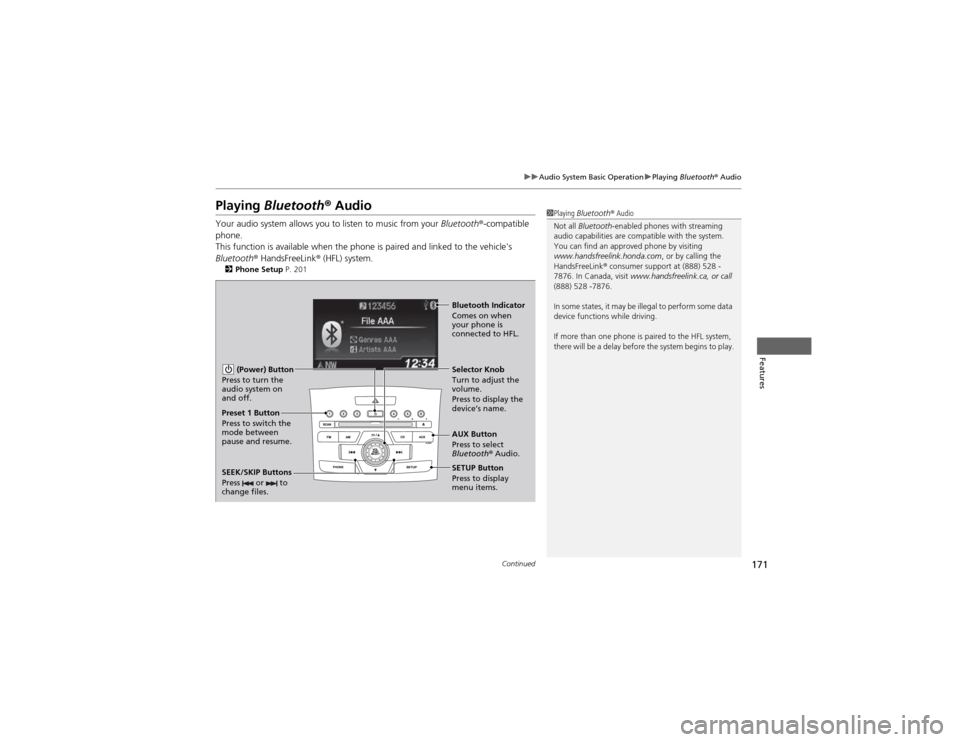
Your audio system allows you to listen to music from your Bluetooth®-compatible
phone.
This function is available when the phone is paired and linked to the vehicle's
Bluetooth ® HandsFreeLink ® (HFL) system.
2 Phone Setup P. 2011Playing Bluetooth ® Audio
Not all Bluetooth -enabled phones with streaming
audio capabilities are compatible with the system.
You can find an approved phone by visiting
www.handsfreelink.honda.com , or by calling the
HandsFreeLink ® consumer support at (888) 528 -
7876. In Canada, visit www.handsfreelink.ca, or call
(888) 528 -7876.
In some states, it may be illegal to perform some data
device functions while driving.
If more than one phone is paired to the HFL system,
there will be a delay before the system begins to play.
(Power) Button
Press to turn the
audio system on
and off.
SETUP Button Press to display
menu items.
Selector Knob
Turn to adjust the
volume.
Press to display the
device’s name.
AUX Button
Press to select
Bluetooth
® Audio.
SEEK/SKIP Buttons
Press or to
change files.
Bluetooth Indicator
Comes on when
your phone is
connected to HFL.
Preset 1 Button
Press to switch the
mode between
pause and resume.
Page 173 of 361
uuAudio System Basic OperationuPlaying Bluetooth ® Audio
172
Features
1. Make sure that your phone is paired and
linked to HFL.
2. Press the AUX button.
If the phone is not recognized, another HFL-
compatible phone, which is not compatible for Bluetooth ® Audio, may be already linked.
■ To pause or resume a file
1. Press the SETUP button.
2. Rotate to select Resume/Pause, then press .
Each time you press , the setting switches between Pause and Resume.
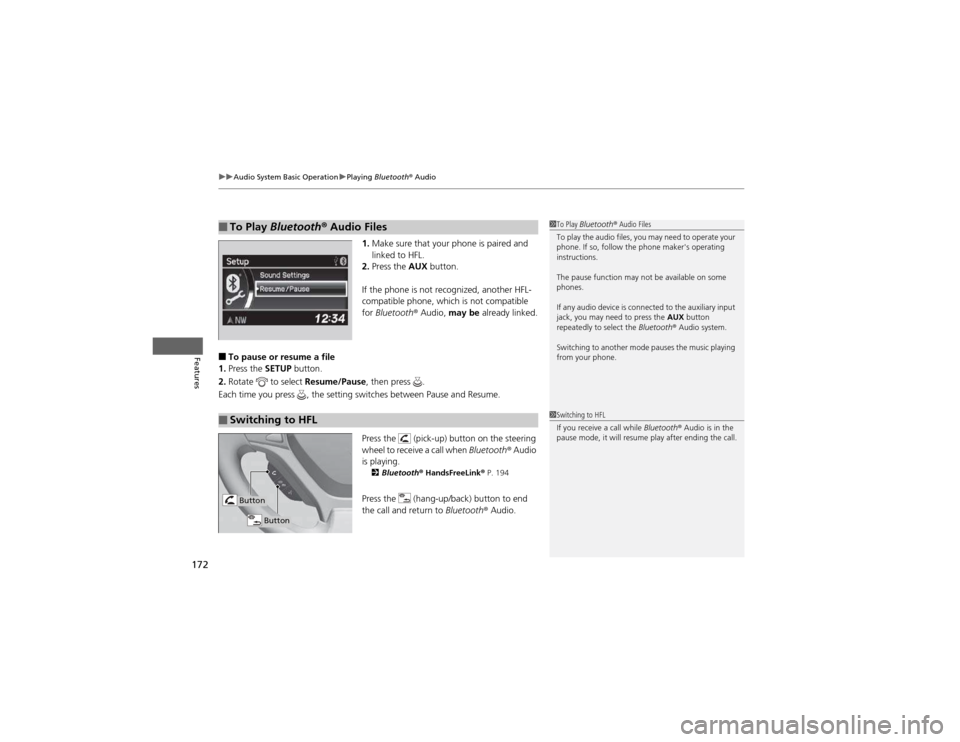
Press the (pick-up) button on the steering
wheel to receive a call when Bluetooth® Audio
is playing. 2 Bluetooth ® HandsFreeLink ® P. 194
Press the (hang-up/back) button to end
the call and return to Bluetooth® Audio.
■To Play Bluetooth ® Audio Files1To Play Bluetooth ® Audio Files
To play the audio files, you may need to operate your
phone. If so, follow the phone maker's operating instructions.
The pause function may not be available on some
phones.
If any audio device is connected to the auxiliary input
jack, you may need to press the AUX button
repeatedly to select the Bluetooth® Audio system.
Switching to another mode pauses the music playing
from your phone.
■Switching to HFL1Switching to HFL
If you receive a call while Bluetooth® Audio is in the
pause mode, it will resume play after ending the call.
Button
Button