turn signal HONDA CR-V 2015 RM1, RM3, RM4 / 4.G User Guide
[x] Cancel search | Manufacturer: HONDA, Model Year: 2015, Model line: CR-V, Model: HONDA CR-V 2015 RM1, RM3, RM4 / 4.GPages: 533, PDF Size: 24.82 MB
Page 240 of 533
239
uuAudio System Basic Operation uPlaying AM/FM Radio
Continued
Features
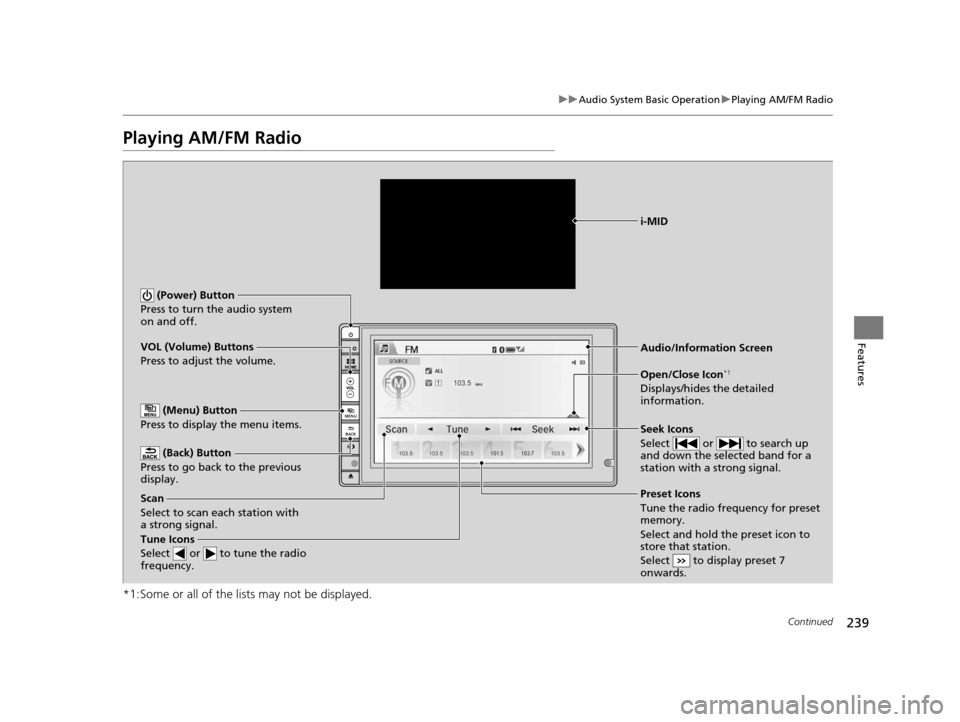
Playing AM/FM Radio
*1:Some or all of the lists may not be displayed.
VOL (Volume) Buttons
Press to adjust the volume.
(Back) Button
Press to go back to the previous
display.
Seek Icons
Select or to search up
and down the selected band for a
station with a strong signal.
(Power) Button
Press to turn the audio system
on and off.
Open/Close Icon*1
Displays/hides the detailed
information.
(Menu) Button
Press to display the menu items.
i-MID
Tune Icons
Select or to tune the radio
frequency.
Audio/Information Screen
Scan
Select to scan each station with
a strong signal. Preset Icons
Tune the radio frequency for preset
memory.
Select and hold the preset icon to
store that station.
Select to display preset 7
onwards.
15 CR-V-31T0A6300.book 239 ページ 2015年2月2日 月曜日 午前10時35分
Page 241 of 533
uuAudio System Basic Operation uPlaying AM/FM Radio
240
Features
To store a station:
1. Tune to the selected station.
2. Press the button.
3. Select Save Preset .
4. Select the preset number for the station you want to store.
You can also store a preset station by the following procedure.
1. Select open/close icon to display a channel list.
2. Select Preset tab.
3. Press and hold the preset number for the st ation you want to store until you hear
a beep.
Provides text data information related to your selected RDS-capable FM station.
■To find an RDS station from Station List
1. Press the button while listening to an FM station.
2. Select Station List .
3. Select the station.
■Manual update
Updates your available station list at any time.
1. Press the button while listening to an FM station.
2. Select Station List .
3. Select Refresh .
■Preset Memory
■Radio Data System (RDS)
1Playing AM/FM Radio
The ST indicator appears on the display indicating
stereo FM broadcasts.
Stereo reproduction in AM is not available.
Switching the Audio Mode
Press the SOURCE button on the steering wheel or
select SOURCE on the list.
2 Audio Remote Controls P. 211
You can also switch the mode by selecting Change
Source on the MENU screen.
You can store 6 AM stations and 12 FM stations into
the preset memory.
1 Radio Data System (RDS)
When you select an RDS-capable FM station, the RDS
automatically turns on, and the frequency display
changes to the station name. However, when the
signals of that station become weak, the display
changes from the statio n name to the frequency.
15 CR-V-31T0A6300.book 240 ページ 2015年2月2日 月曜日 午前10時35分
Page 243 of 533
242
uuAudio System Basic Operation uPlaying SiriusXM ® Radio*
Features
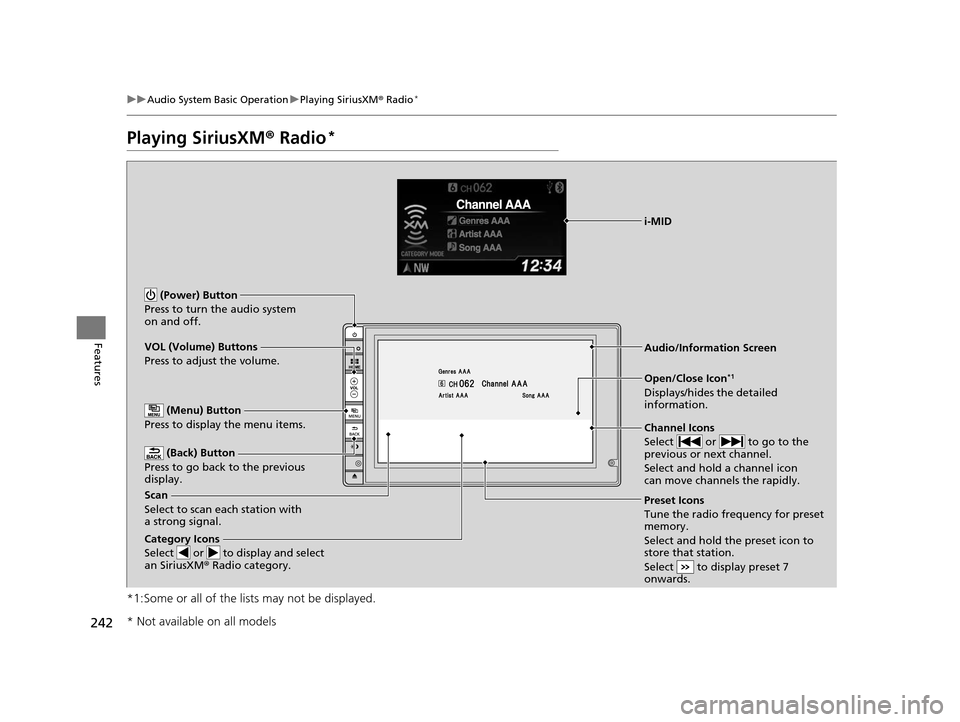
Playing SiriusXM ® Radio*
*1:Some or all of the lists may not be displayed.
VOL (Volume) Buttons
Press to adjust the volume.
(Back) Button
Press to go back to the previous
display.
Channel Icons
Select or to go to the
previous or next channel.
Select and hold a channel icon
can move channels the rapidly.
(Power) Button
Press to turn the audio system
on and off.
Open/Close Icon*1
Displays/hides the detailed
information.
(Menu) Button
Press to display the menu items.
i-MID
Category Icons
Select or to display and select
an SiriusXM ® Radio category.
Audio/Information Screen
Scan
Select to scan each station with
a strong signal. Preset Icons
Tune the radio frequency for preset
memory.
Select and hold the preset icon to
store that station.
Select to display preset 7
onwards.
* Not available on all models
15 CR-V-31T0A6300.book 242 ページ 2015年2月2日 月曜日 午前10時35分
Page 275 of 533
274
uuCustomized Features u
Features
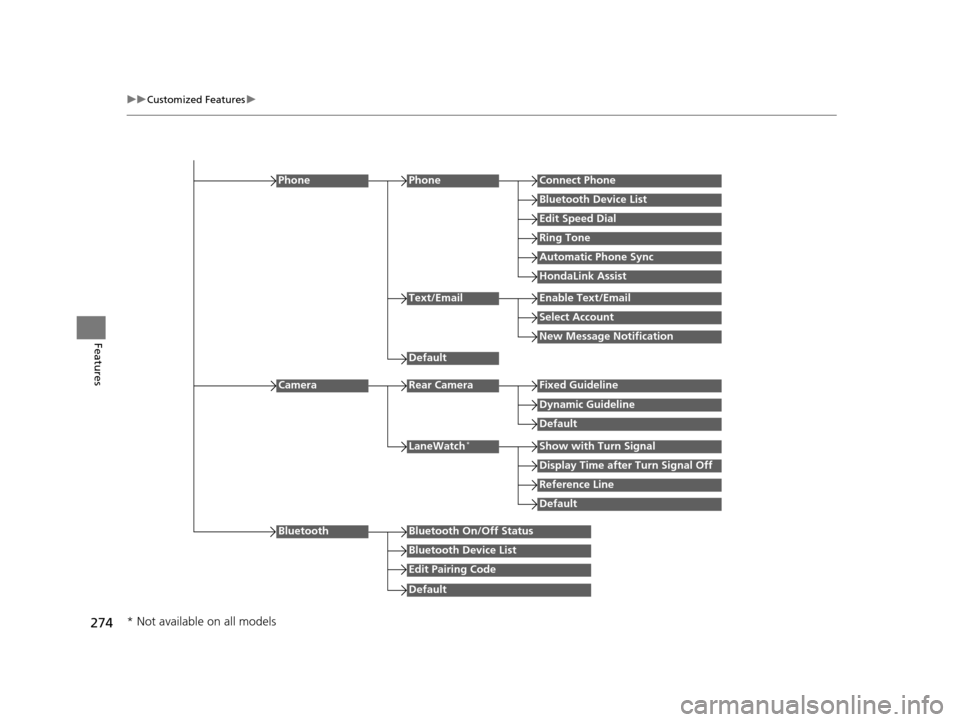
Edit Speed Dial
PhoneConnect Phone
Bluetooth Device List
Ring Tone
Automatic Phone Sync
HondaLink Assist
Phone
Default
Text/EmailEnable Text/Email
Select Account
New Message Notification
Reference Line
LaneWatch*Show with Turn Signal
Display Time after Turn Signal Off
Default
Camera
Default
Rear CameraFixed Guideline
Dynamic Guideline
Default
Bluetooth On/Off Status
Bluetooth Device List
Edit Pairing Code
Bluetooth
* Not available on all models
15 CR-V-31T0A6300.book 274 ページ 2015年2月2日 月曜日 午前10時35分
Page 281 of 533
280
uuCustomized Features u
Features
*1:Default Setting
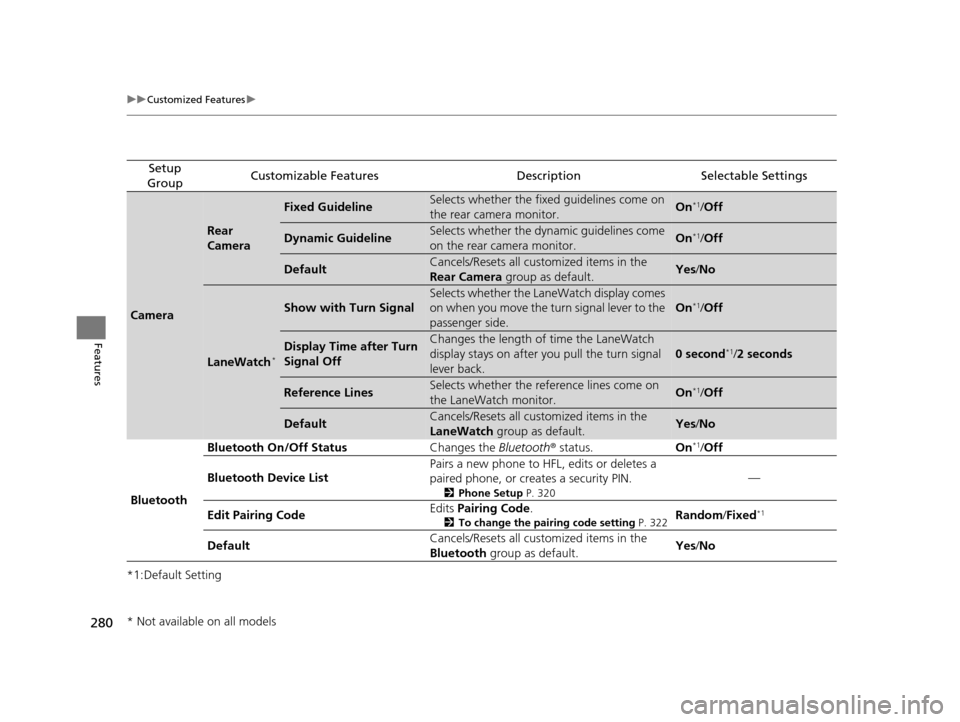
Setup
GroupCustomizable FeaturesDescriptionSelectable Settings
Camera
Rear
Camera
Fixed GuidelineSelects whether the fixed guidelines come on
the rear camera monitor.On*1/ Off
Dynamic GuidelineSelects whether the dynamic guidelines come
on the rear camera monitor.On*1/Off
DefaultCancels/Resets all customized items in the
Rear Camera group as default.Yes/No
LaneWatch*
Show with Turn Signal
Selects whether the LaneWatch display comes
on when you move the tu rn signal lever to the
passenger side.
On*1/ Off
Display Time after Turn
Signal OffChanges the length of time the LaneWatch
display stays on after yo u pull the turn signal
lever back.
0 second*1/ 2 seconds
Reference LinesSelects whether the refe rence lines come on
the LaneWatch monitor.On*1/ Off
DefaultCancels/Resets all customized items in the
LaneWatch group as default.Yes/No
Bluetooth Bluetooth On/Off Status
Changes the Bluetooth® status. On
*1/Off
Bluetooth Device List Pairs a new phone to HFL, edits or deletes a
paired phone, or creates a security PIN.
2
Phone Setup P. 320
—
Edit Pairing Code Edits
Pairing Code .
2To change the pairing code setting P. 322Random/Fixed*1
Default Cancels/Resets all customized items in the
Bluetooth
group as default. Yes
/No
* Not available on all models
15 CR-V-31T0A6300.book 280 ページ 2015年2月2日 月曜日 午前10時35分
Page 356 of 533
355
uuTowing a Trailer uTowing Preparation
Driving
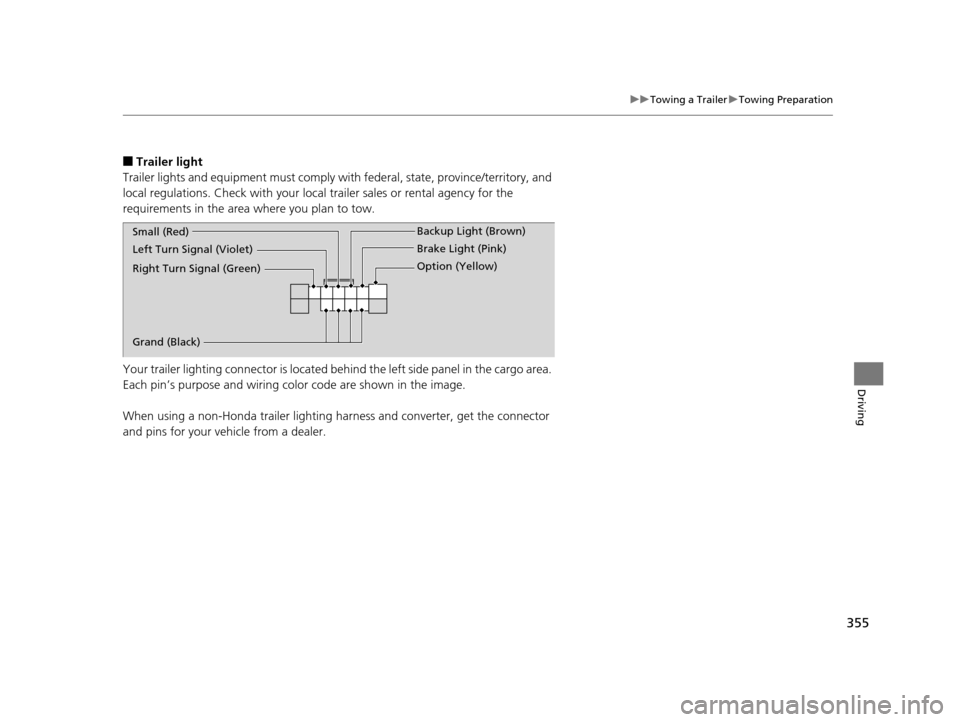
■Trailer light
Trailer lights and equipment must comply with federal, state, province/territory, and
local regulations. Check with your local trailer sales or rental agency for the
requirements in the area where you plan to tow.
Your trailer lighting connector is located behind the left side panel in the cargo area.
Each pin’s purpose and wiring co lor code are shown in the image.
When using a non-Honda trailer lighting ha rness and converter, get the connector
and pins for your vehicle from a dealer.
Right Turn Signal (Green) Left Turn Signal (Violet) Small (Red) Backup Light (Brown)
Brake Light (Pink)
Option (Yellow)
Grand (Black)
15 CR-V-31T0A6300.book 355 ページ 2015年2月2日 月曜日 午前10時35分
Page 387 of 533
386
uuWhen Driving uLane Departure Warning (LDW)*
Driving
Lane Departure Warning (LDW)*
Alerts you when the system determines a po ssibility of your vehicle unintentionally
crossing over detected lane markings.
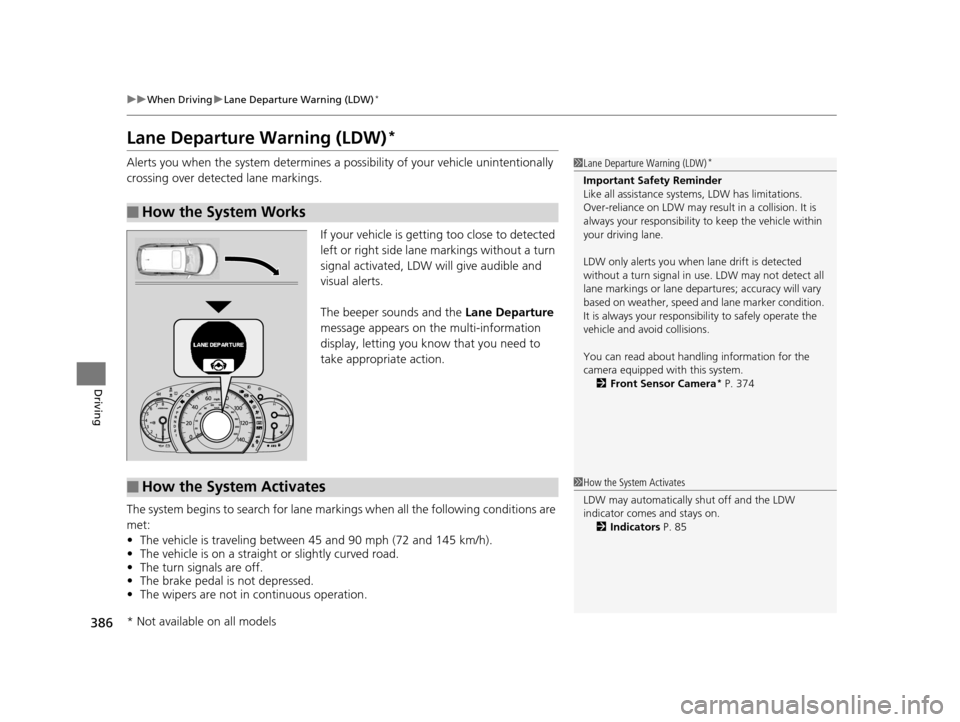
If your vehicle is getting too close to detected
left or right side lane markings without a turn
signal activated, LDW will give audible and
visual alerts.
The beeper sounds and the Lane Departure
message appears on the multi-information
display, letting you know that you need to
take appropriate action.
The system begins to search for lane mark ings when all the following conditions are
met:
• The vehicle is traveling between 45 and 90 mph (72 and 145 km/h).
• The vehicle is on a straight or slightly curved road.
• The turn signals are off.
• The brake pedal is not depressed.
• The wipers are not in continuous operation.
■How the System Works
1Lane Departure Warning (LDW)*
Important Safety Reminder
Like all assistance systems, LDW has limitations.
Over-reliance on LDW may result in a collision. It is
always your respons ibility to keep the vehicle within
your driving lane.
LDW only alerts you when lane drift is detected
without a turn signal in us e. LDW may not detect all
lane markings or lane departures; a ccuracy will vary
based on weather, speed and lane marker condition.
It is always your responsibility to safely operate the
vehicle and avoid collisions.
You can read about handling information for the
camera equipped with this system. 2 Front Sensor Camera
* P. 374
■How the System Activates1How the System Activates
LDW may automatically shut off and the LDW
indicator comes and stays on.
2 Indicators P. 85
* Not available on all models
15 CR-V-31T0A6300.book 386 ページ 2015年2月2日 月曜日 午前10時35分
Page 391 of 533
390
uuWhen Driving uLane Keeping Assist System (LKAS)*
Driving
Lane Keeping Assist System (LKAS)*
Provides steering input to help keep the vehicle in the middle of a detected lane and
provides audible and visual alerts if the vehicle is detected drifting out of its lane.1Lane Keeping Assist System (LKAS)*
Important Safety Reminders
The LKAS is for your convenience only. It is not a
substitute for your vehicl e control. The system does
not work if you take y our hands off the steering
wheel or fail to steer the vehicle.
2 Display Warning and Information
Messages
* P. 86
LKAS only alerts you when lane drift is detected
without a turn signal in use. LKAS may not detect all
lane markings or lane departures; a ccuracy will vary
based on weather, speed, an d lane marker condition.
It is always your responsibility to safely operate the
vehicle and avoid collisions.
The LKAS is convenient when it is used on freeways.
LKAS may not work properly unde r certain
conditions. 2 LKAS Limitations P. 394
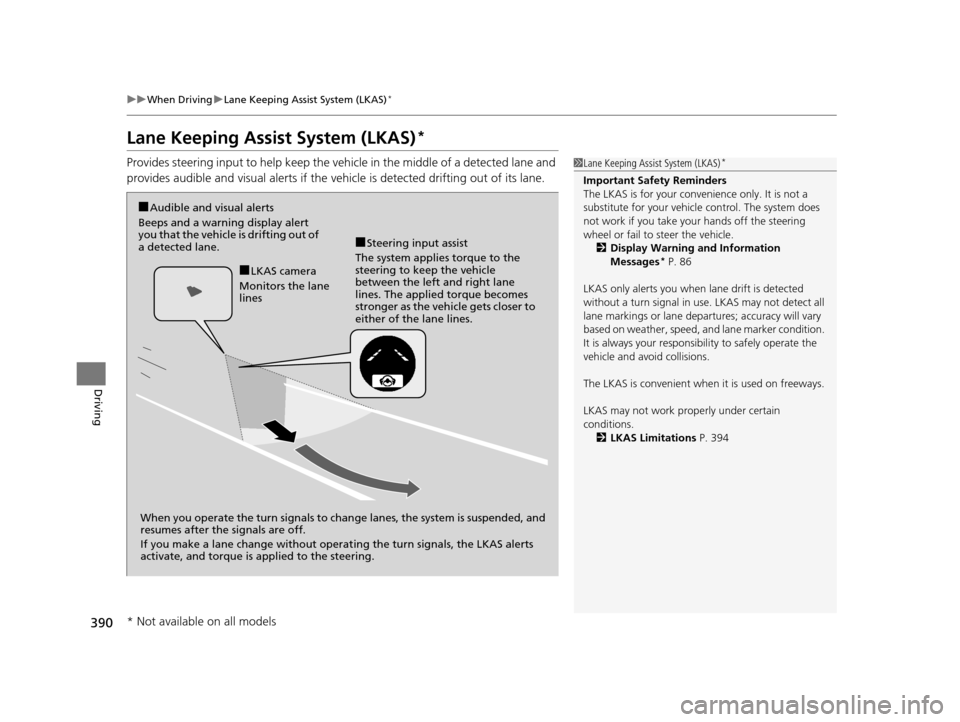
■Audible and visual alerts
Beeps and a warning display alert
you that the vehicle is drifting out of
a detected lane.
When you operate the turn signals to chan ge lanes, the system is suspended, and
resumes after the signals are off.
If you make a lane change without operat ing the turn signals, the LKAS alerts
activate, and torque is applied to the steering.
■LKAS camera
Monitors the lane
lines
■Steering input assist
The system applies torque to the
steering to keep the vehicle
between the left and right lane
lines. The applied torque becomes
stronger as the vehicle gets closer to
either of the lane lines.
* Not available on all models
15 CR-V-31T0A6300.book 390 ページ 2015年2月2日 月曜日 午前10時35分
Page 392 of 533
Continued391
uuWhen Driving uLane Keeping Assist System (LKAS)*
Driving
The system can be used when th e following conditions are met.
• The lane in which you are driving has detectable lane markers on both sides, and
your vehicle is in the center of the lane.
• The vehicle speed is between about 45 and 90 mph (72 and 145 km/h).
• You are driving on a straight or slightly curved road.
• The turn signals are off.
• The brake pedal is not depressed.
• The wipers are not in continuous operation.
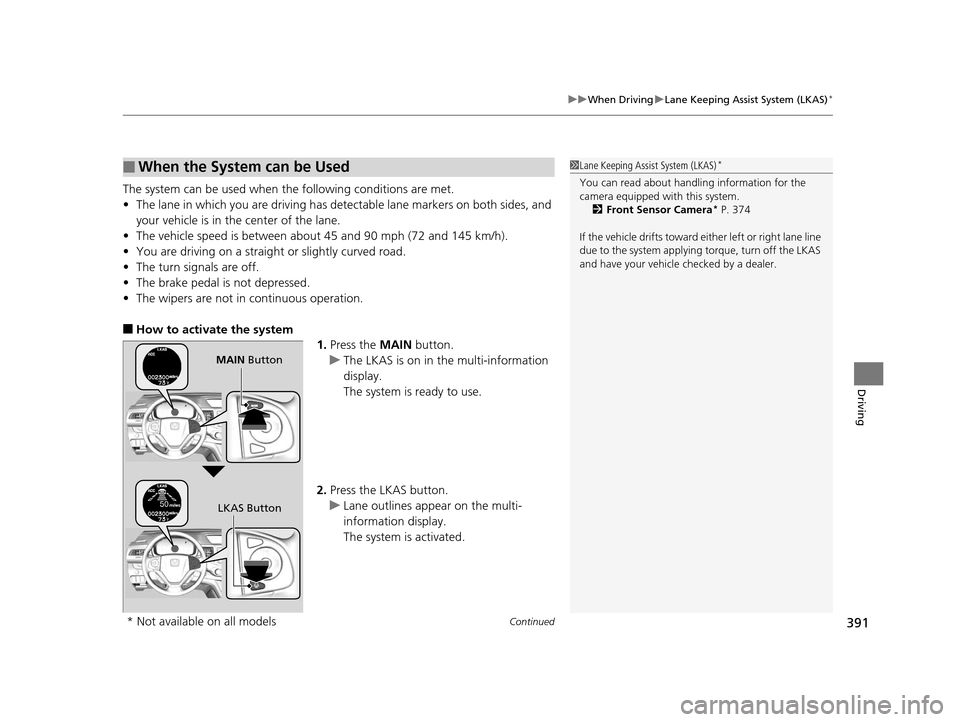
■How to activate the system
1.Press the MAIN button.
u The LKAS is on in the multi-information
display.
The system is ready to use.
2. Press the LKAS button.
u Lane outlines appear on the multi-
information display.
The system is activated.
■When the System can be Used1Lane Keeping Assist System (LKAS)*
You can read about handling information for the
camera equipped with this system.
2 Front Sensor Camera
* P. 374
If the vehicle drifts toward ei ther left or right lane line
due to the system applying torque, turn off the LKAS
and have your vehicle checked by a dealer.
MAIN Button
LKAS Button
* Not available on all models
15 CR-V-31T0A6300.book 391 ページ 2015年2月2日 月曜日 午前10時35分
Page 399 of 533
398
uuWhen Driving uLaneWatchTM*
Driving
LaneWatchTM*
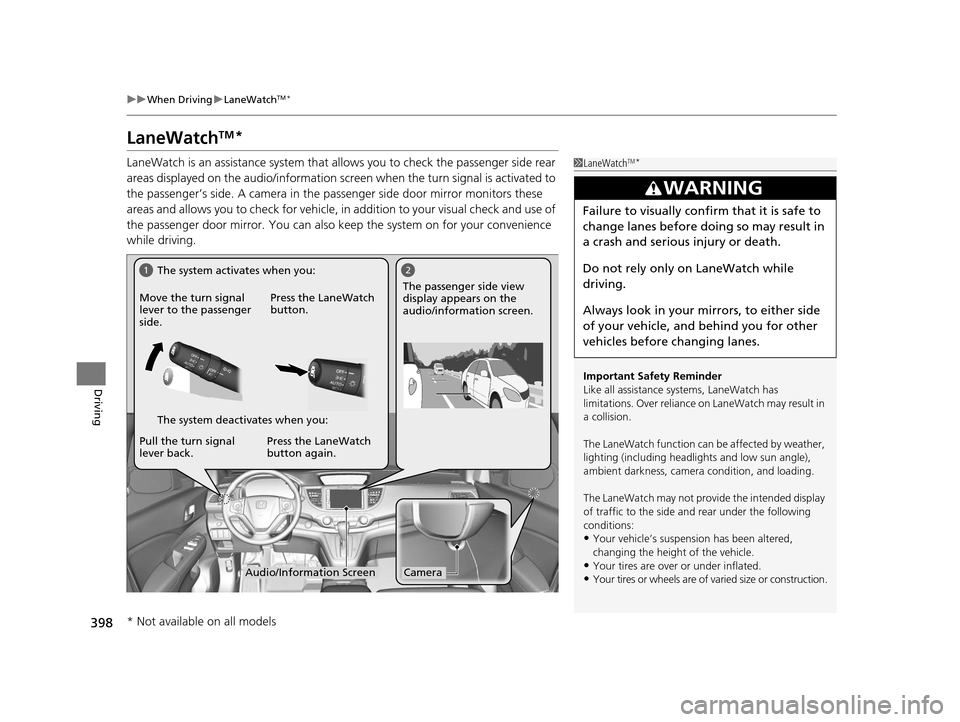
LaneWatch is an assistance system that allows you to check the passenger side rear
areas displayed on the audio/in formation screen when the turn signal is activated to
the passenger’s side. A camera in the passenger side door mirror monitors these
areas and allows you to check for vehicle, in addition to your visual check and use of
the passenger door mirror. You can also keep the system on for your convenience
while driving.1 LaneWatchTM*
Important Safety Reminder
Like all assistance systems, LaneWatch has
limitations. Over reliance on LaneWatch may result in
a collision.
The LaneWatch func tion can be affected by weather,
lighting (including headli ghts and low sun angle),
ambient darkness, camera condition, and loading.
The LaneWatch may not prov ide the intended display
of traffic to the side and rear under the following
conditions:
•Your vehicle’s suspension has been altered,
changing the height of the vehicle.
•Your tires are over or under inflated.
•Your tires or wheels are of varied size or construction.
3WARNING
Failure to visually confirm that it is safe to
change lanes before doing so may result in
a crash and serious injury or death.
Do not rely only on LaneWatch while
driving.
Always look in your mi rrors, to either side
of your vehicle, and behind you for other
vehicles before changing lanes.
12
CameraAudio/Information Screen
Move the turn signal
lever to the passenger
side.
Press the LaneWatch
button.
Pull the turn signal
lever back. Press the LaneWatch
button again. The passenger side view
display appears on the
audio/information screen.
The system activates when you:
The system deactivates when you:
* Not available on all models
15 CR-V-31T0A6300.book 398 ページ 2015年2月2日 月曜日 午前10時35分