navigation HONDA CR-Z 2011 1.G Owner's Manual
[x] Cancel search | Manufacturer: HONDA, Model Year: 2011, Model line: CR-Z, Model: HONDA CR-Z 2011 1.GPages: 333, PDF Size: 9.97 MB
Page 149 of 333
148
Features
Audio without Navigation System Playing an iPod®
How to Select a File from iPod Menu
■
Press
1. to display the iPod menu.
Rotate
2.
to select a menu.
Press
3.
to display the items on that menu.
Rotate
4.
to select an item, then press .
Playing an iPod ®
Use only compatible iPods with the latest software.
This audio system cannot operate an iPod as a mass storage device.
General Information P.13 7
Available operating functions vary on models or versions. Some functions may not be available on the vehicle’s audio system.
If there is a problem, you may see an error message on the audio display.
iPod ®
Error Messages P.1 6 8
Main MenuTable of Contents
Page 150 of 333
149
Features
Audio without Navigation System Playing a USB Flash Memory Device
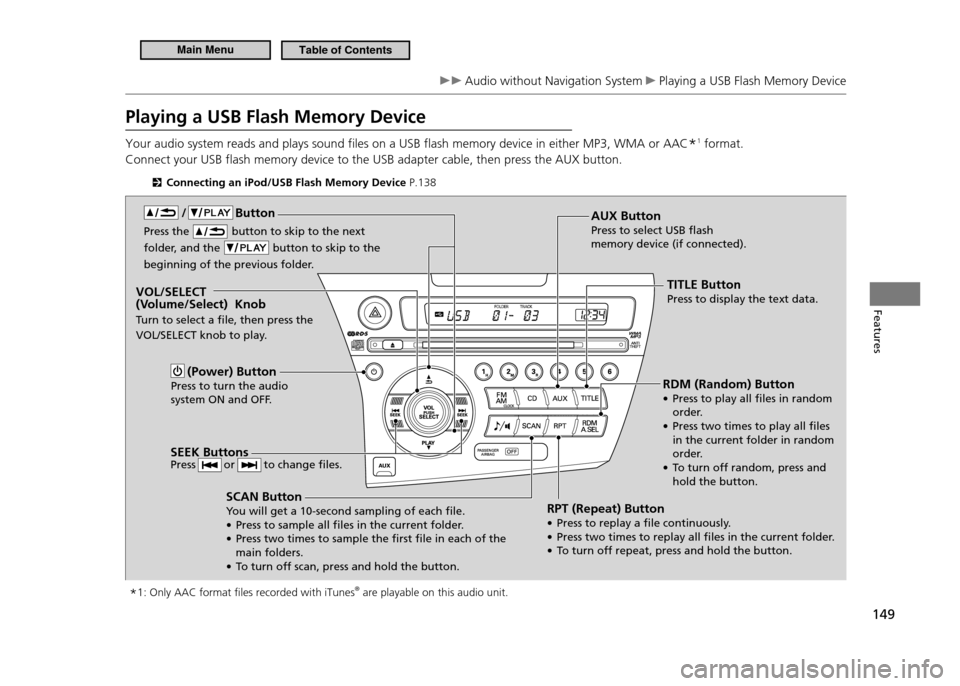
Your audio system reads and plays sound files on a USB flash memory device in either MP3, WMA or AAC *1
format.
Connect your USB flash memory device to the USB adapter cable, then press the AUX button.
Connecting an iPod/USB Flash Memory Device P.138
* 1: Only AAC format iles recorded with iTunes ®
are playable on this audio unit.
VOL/SELECT
(Volume/Select) Knob
Turn to select a ile, then press the
VOL/SELECT knob to play.
SCAN Button
You will get a 10-second sampling of each ile.
• Press to sample all iles in the current folder.
• Press two times to sample the irst ile in each of the main folders.
• To turn off scan, press and hold the button. RDM (Random) Button
• Press to play all iles in random
order.
• Press two times to play all iles in the current folder in random
order.
• To turn off random, press and hold the button.
TITLE ButtonPress to display the text data.
Press the button to skip to the next
folder, and the button to skip to the
beginning of the previous folder.
RPT (Repeat) Button
• Press to replay a ile continuously.
• Press two times to replay all iles in the current folder.
• To turn off repeat, press and hold the button.AUX ButtonPress to select USB lash memory device (if connected).
/ Button
SEEK Buttons
Press or to change iles. (Power) Button
Press to turn the audio
system ON and OFF.
Playing a USB Flash Memory Device
Main MenuTable of Contents
Page 151 of 333
150
Features
Audio without Navigation System Playing a USB Flash Memory Device
How to Select a File form a Folder with the VOL/SELECT
■
Knob
Press
1.
to switch the display to a folder list.
Rotate
2.
to select a folder.
Press the button to play the first file on the selected folder.
Press
3.
to change the display to a file list of that folder.
Press the button to go back to the previous display.
Rotate
4.
to select a file, then press .
Playing a USB Flash Memory Device
Use the recommended USB lash memory devices.
General Information P.13 7
Files in WMA format protected by digital rights management (DRM) cannot be played.
The audio system displays UNPLAYABLE FILE, and then skips to the next ile.
If there is a problem, you may see an error message on the audio display.
USB Flash Memory Device Error Messages
P.1 6 8
Main MenuTable of Contents
Page 152 of 333
151
Features
Audio with Navigation System
Audio System Basic Operation
To use the audio system, the ignition switch must be in ACCESSORY I or ON II.
Operation with the Control Icons
■
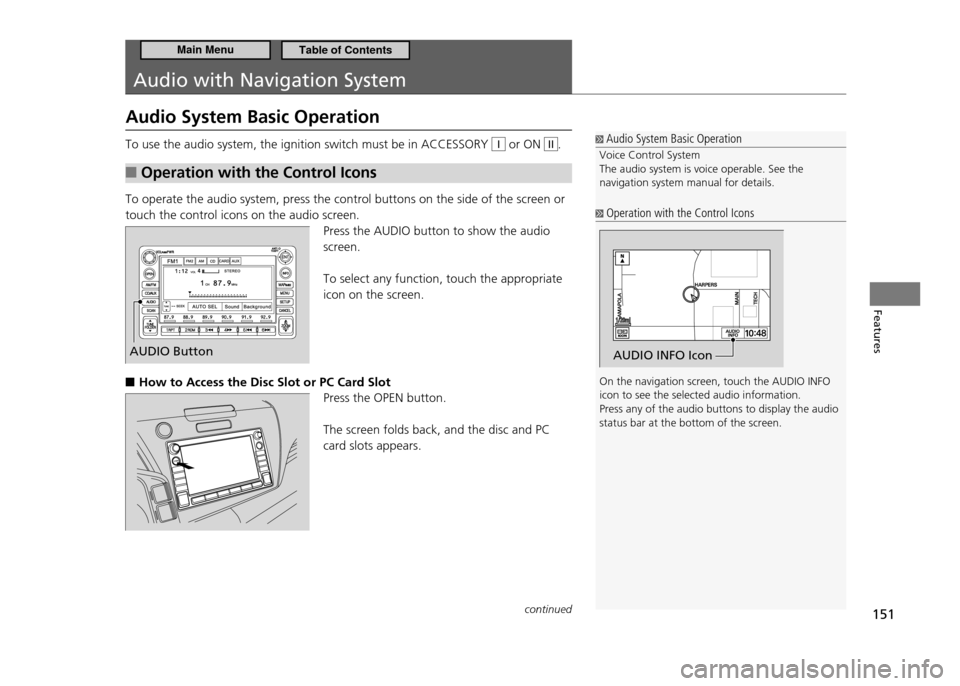
To operate the audio system, press the control buttons on the side of the screen or touch the control icons on the audio screen.
Press the AUDIO button to show the audio screen. To select any function, touch the appropriate icon on the screen.
How to Access the Disc Slot or PC Card Slot
■
Press the OPEN button. The screen folds back, and the disc and PC card slots appears.
Audio System Basic Operation
Voice Control System The audio system is voice operable. See the navigation system manual for details.
Operation with the Control Icons
On the navigation screen, touch the AUDIO INFO icon to see the selected audio information.Press any of the audio buttons to display the audio status bar at the bottom of the screen.
AUDIO INFO IconAUDIO Button
continued
Main MenuTable of Contents
Page 153 of 333
152
Features
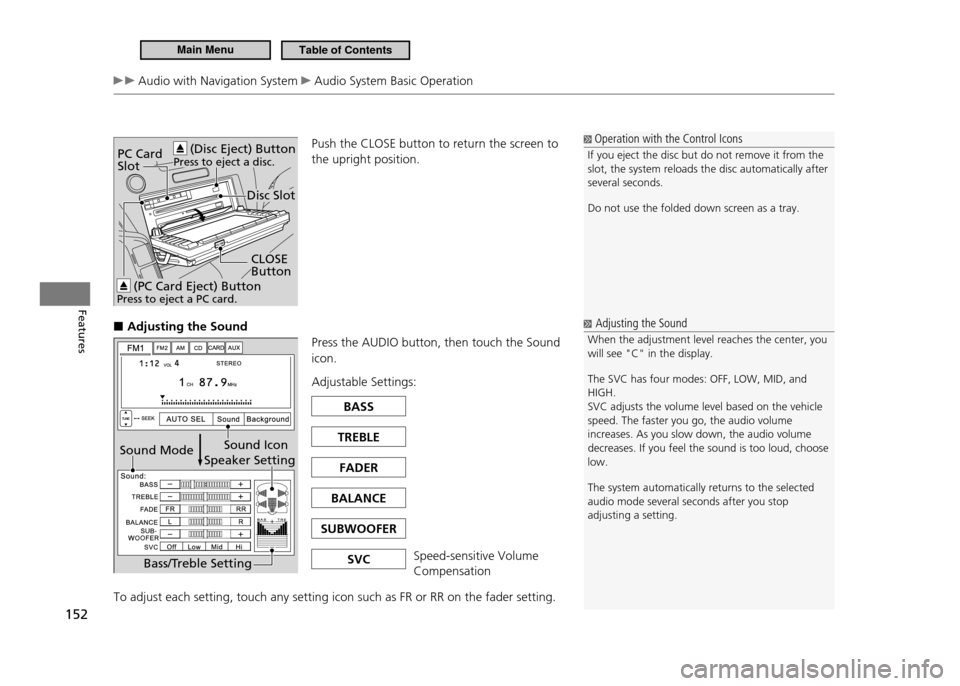
Audio with Navigation System Audio System Basic OperationPush the CLOSE button to return the screen to the upright position.
Adjusting the Sound
■
Press the AUDIO button, then touch the Sound icon. Adjustable Settings:
To adjust each setting, touch any setting icon such as FR or RR on the fader setting.
PC Card Slot
Disc Slot
(PC Card Eject) Button
Press to eject a PC card.
(Disc Eject) Button
Press to eject a disc.
CLOSE Button
Operation with the Control Icons
If you eject the disc but do not remove it from the slot, the system reloads the disc automatically after several seconds. Do not use the folded down screen as a tray.
Adjusting the Sound
When the adjustment level reaches the center, you will see "C" in the display. The SVC has four modes: OFF, LOW, MID, and HIGH.SVC adjusts the volume level based on the vehicle speed. The faster you go, the audio volume increases. As you slow down, the audio volume decreases. If you feel the sound is too loud, choose low. The system automatically returns to the selected audio mode several seconds after you stop adjusting a setting.
Sound Icon
Speaker Setting
Bass/Treble Setting
Sound Mode
BASS
TREBLE
FADER
BALANCE
SUBWOOFER
SVC
Speed-sensitive Volume Compensation
Main MenuTable of Contents
Page 154 of 333
153
Features
Audio with Navigation System Audio System Basic Operation
Selecting the Background
■
There are three backgrounds to choose from when displaying sound levels: Level: The sound level is shown with the vertical bars.
Spectrum Analysis: The sound level appears as ripples of water.
Off Each time you touch the Background icon, the screen changes.
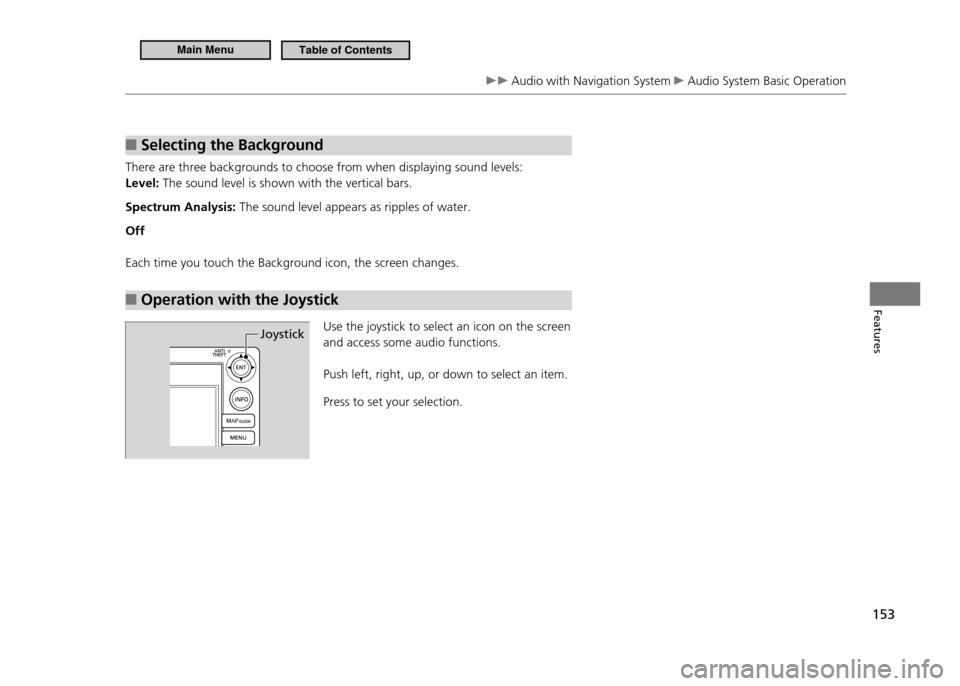
Operation with the Joystick
■
Use the joystick to select an icon on the screen and access some audio functions. Push left, right, up, or down to select an item. Press to set your selection.Joystick
Main MenuTable of Contents
Page 155 of 333
154
Features
Audio with Navigation System Playing the AM/FM Radio
Playing the AM/FM Radio
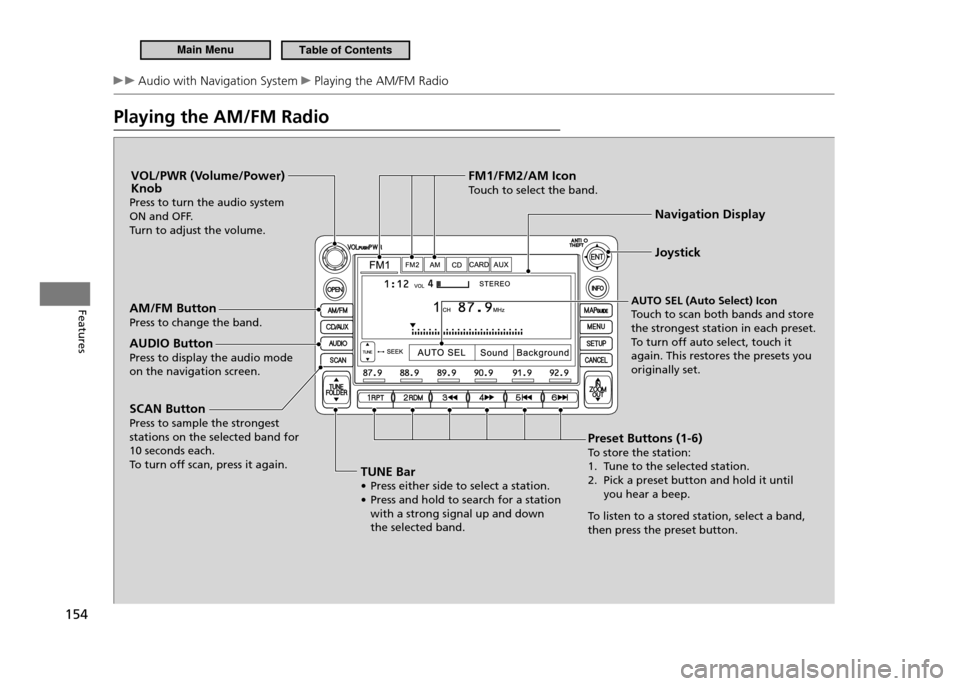
Preset Buttons (1-6) To store the station:
1. Tune to the selected station.
2. Pick a preset button and hold it until you hear a beep.
To listen to a stored station, select a band,
then press the preset button. Joystick
Navigation Display
AUTO SEL (Auto Select) Icon
Touch to scan both bands and store the strongest station in each preset.To turn off auto select, touch it
again. This restores the presets you originally set.
AM/FM ButtonPress to change the band.
AUDIO ButtonPress to display the audio mode on the navigation screen. VOL/PWR (Volume/Power) Knob
Press to turn the audio system
ON and OFF.
Turn to adjust the volume.
TUNE Bar• Press either side to select a station.
• Press and hold to search for a station with a strong signal up and down the selected band.
SCAN ButtonPress to sample the strongest stations on the selected band for 10 seconds each.To
turn off scan, press it again. FM1/FM2/AM Icon
Touch to select the band.
Main MenuTable of Contents
Page 156 of 333
155
Features
Audio with Navigation System Playing the AM/FM Radio
Playing the AM/FM Radio
A stereo indicator (STEREO) comes on the display for stereo FM broadcasts.Stereo reproduction in AM is not available. Switching the Audio Mode Press the MODE button on the steering wheel.
Audio Remote Controls P.1 6 9
You can store six AM stations and twelve FM stations in the preset buttons. FM1 and FM2 let you store six stations each.AUTO SEL scans and stores up to six AM stations and twelve FM stations with a strong signal in the preset buttons. If you do not like the stations auto select has stored, you can store other frequencies on the preset buttons manually.
Main MenuTable of Contents
Page 157 of 333
156
Features
Audio with Navigation System Playing a Disc
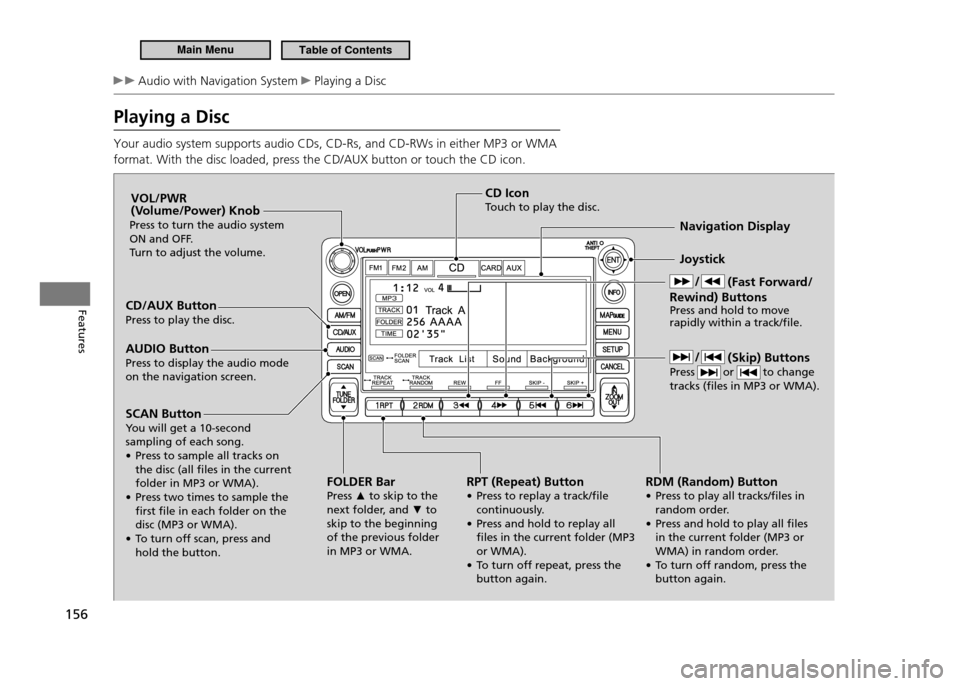
Playing a Disc Your audio system supports audio CDs, CD-Rs, and CD-RWs in either MP3 or WMA format. With the disc loaded, press the CD/AUX button or touch the CD icon.
CD/AUX Button Press to play the disc.FOLDER BarPress ▲ to skip to the
next folder, and ▼ to
skip to the beginning of the previous folder in MP3 or WMA. Joystick
Navigation Display
AUDIO Button
Press to display the audio mode on the navigation screen. VOL/PWR
(Volume/Power) Knob
Press to turn the audio system
ON and OFF.
Turn to adjust the volume.
RPT (Repeat) Button
• Press to replay a track/ile continuously.
• Press and hold to replay all iles in the current folder (MP3 or WMA).
• To turn off repeat, press the button again.CD Icon
Touch to play the disc.
SCAN Button
You will get a 10-second sampling of each song.
• Press to sample all tracks on the disc (all iles in the current folder in MP3 or WMA).
• Press two times to sample the irst ile in each folder on the disc (MP3 or WMA).
• To turn off scan, press and hold the button. (Fast Forward/
Rewind) Buttons Press and hold to move rapidly within a track/ile.
RDM (Random) Button
• Press to play all tracks/iles in random order.
• Press and hold to play all iles in the current folder (MP3 or
WMA) in random order.
• To turn off random, press the button again. (Skip) Buttons
Press or to change tracks (iles in MP3 or WMA).
Main MenuTable of Contents
Page 158 of 333
157
Features
Audio with Navigation System Playing a Disc
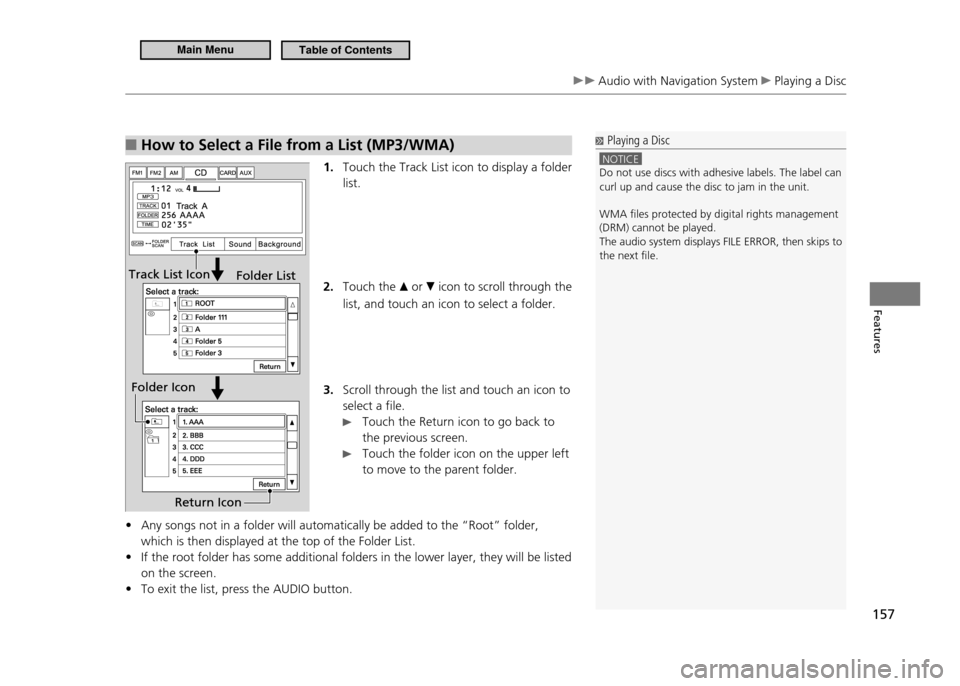
How to Select a File from a List (MP3/WMA)
■
1. Touch the Track List icon to display a folder list.
Touch the
2.
▲ or ▼ icon to scroll through the
list, and touch an icon to select a folder. Scroll through the list and touch an icon to
3.
select a file.
Touch the Return icon to go back to the previous screen.
Touch the folder icon on the upper left to move to the parent folder.
Any songs not in a folder will automatically be added to the “Root” folder,
•
which is then displayed at the top of the Folder List. If the root folder has some additional folders in the lower layer, they will be listed
•
on the screen.To exit the list, press the AUDIO button.
•
Playing a Disc
NOTICE Do not use discs with adhesive labels. The label can curl up and cause the disc to jam in the unit. WMA iles protected by digital rights management (DRM) cannot be played.
The audio system displays FILE ERROR, then skips to the next ile.
Return IconReturn Icon
Folder IconFolder Icon
Folder ListFolder ListTrack List IconTrack List Icon
Main MenuTable of Contents