voice HONDA CR-Z 2016 1.G Navigation Manual
[x] Cancel search | Manufacturer: HONDA, Model Year: 2016, Model line: CR-Z, Model: HONDA CR-Z 2016 1.GPages: 249, PDF Size: 10.41 MB
Page 18 of 249
17
Quick Reference GuideTroubleshootingFor more Information (P203)
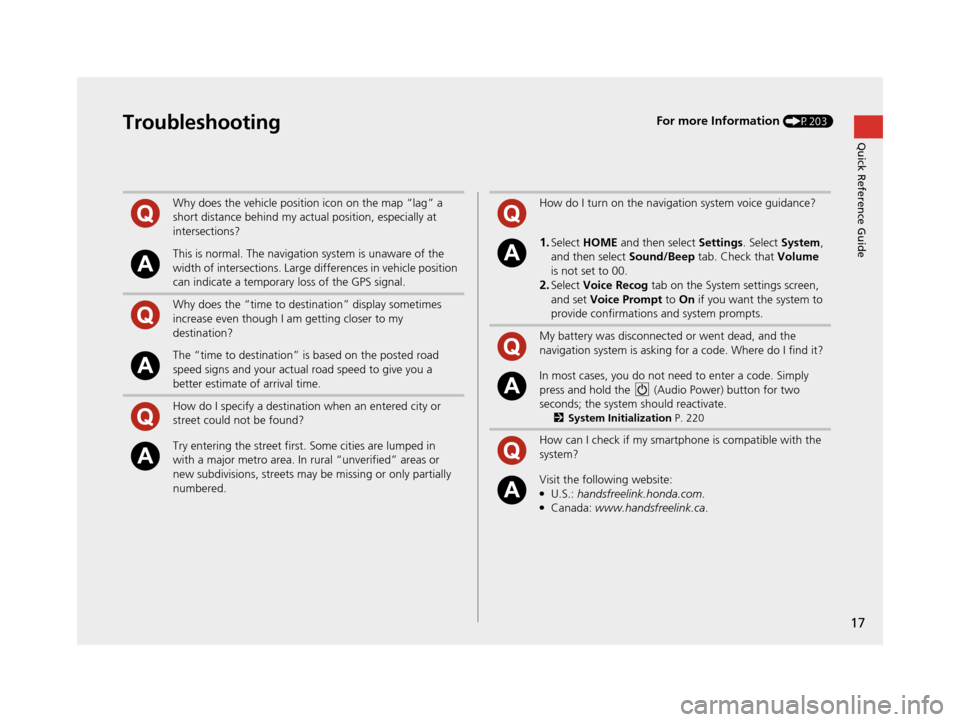
Why does the vehicle position icon on the map “lag” a
short distance behind my actual position, especially at
intersections?
This is normal. The navigation system is unaware of the
width of intersections. Large differences in vehicle position
can indicate a temporary loss of the GPS signal.
Why does the “time to destination” display sometimes
increase even though I am getting closer to my
destination?
The “time to destination” is based on the posted road
speed signs and your actual road speed to give you a
better estimate of arrival time.
How do I specify a destination when an entered city or
street could not be found?
Try entering the street first. Some cities are lumped in
with a major metro area. In rural “unverified” areas or
new subdivisions, streets may be missing or only partially
numbered.
How do I turn on the navigation system voice guidance?
1.Select HOME and then select Settings. Select System ,
and then select Sound/Beep tab. Check that Volume
is not set to 00.
2.Select Voice Recog tab on the System settings screen,
and set Voice Prompt to On if you want the system to
provide confirmations and system prompts.
My battery was disconnected or went dead, and the
navigation system is asking for a code. Where do I find it?
In most cases, you do not need to enter a code. Simply
press and hold the (Audio Power) button for two
seconds; the system should reactivate.
2 System Initialization P. 220
How can I check if my smartphone is compatible with the
system?
Visit the following website:●U.S.: handsfreelink.honda.com .●Canada: www.handsfreelink.ca.
16 CR-Z NAVI-31SZT8500.book 17 ページ 2015年7月30日 木曜日 午前9時18分
Page 20 of 249
19
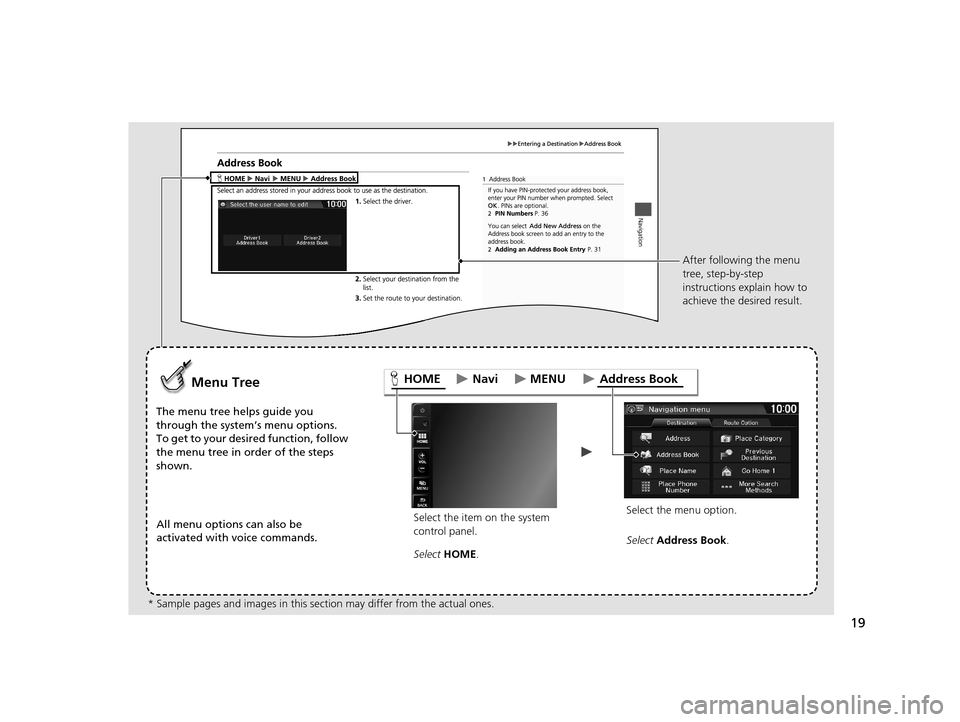
Select the item on the system
control panel.
Menu Tree
The menu tree helps guide you
through the system’s menu options.
To get to your desired function, follow
the menu tree in order of the steps
shown.All menu options can also be
activated with voice commands. Select HOME . Select the menu option.After following the menu
tree, step-by-step
instructions explain how to
achieve the desired result.
* Sample pages and images in this se ction may differ from the actual ones. Select
Address Book .
HOME Address Book
MENU
Navi
16 CR-Z NAVI-31SZT8500.book 19 ページ 2015年7月30日 木曜日 午前9時18分
Page 22 of 249
21
System Setup
This section describes the start-up procedure and the navigation and setup functions.
Start-up................................................... 22
Voice Control System ............................. 24
Command Input .................................... 24
Voice Recognition .................................. 25
Siri Eyes Free .......................................... 26
Display Mode Settings ........................... 27
Turning Off the Display .......................... 27
Switching Display Mode Manually .......... 27
Personal Information .............................. 29
Address Book ......................................... 30
Home Addresses .................................... 35
PIN Number ........................................... 36
User Name ............................................. 37
Previous Destination ............................... 38
Category History .................................... 39 Routing
.....................................................40
Route Preference ....................................41
Unverified Routing ..................................42
Traffic Rerouting .....................................44
Edit POI Search Radius Along Route ........45
Avoided Area ..........................................46
Guidance ..................................................48
Map ...........................................................51
Showing Icons on the Map .....................53
Color ......................................................55
View (Map Orientation) ...........................56
3D Angle Adjustment .............................57
Straight Line Guide .................................57
Current Location .....................................58
Map Legend ...........................................59 Off-road Tracking ................................... 63
Correct Vehicle Position ......................... 64
System Settings ...................................... 65
Display Settings ...................................... 67
Display ................................................... 67
Background Color .................................. 68
Sound and Beep Settings ....................... 69
Voice Recognition Settings .................... 71
Clock Adjustment .................................... 72
Clock Type ............................................. 73
Wallpaper Settings ................................. 74
Adjust Time............................................ 77
Resetting the Clock Settings ................... 77
Other Settings ......................................... 78
Data Reset ............................................... 80
16 CR-Z NAVI-31SZT8500.book 21 ページ 2015年7月30日 木曜日 午前9時18分
Page 23 of 249
22
System Setup
Start-up
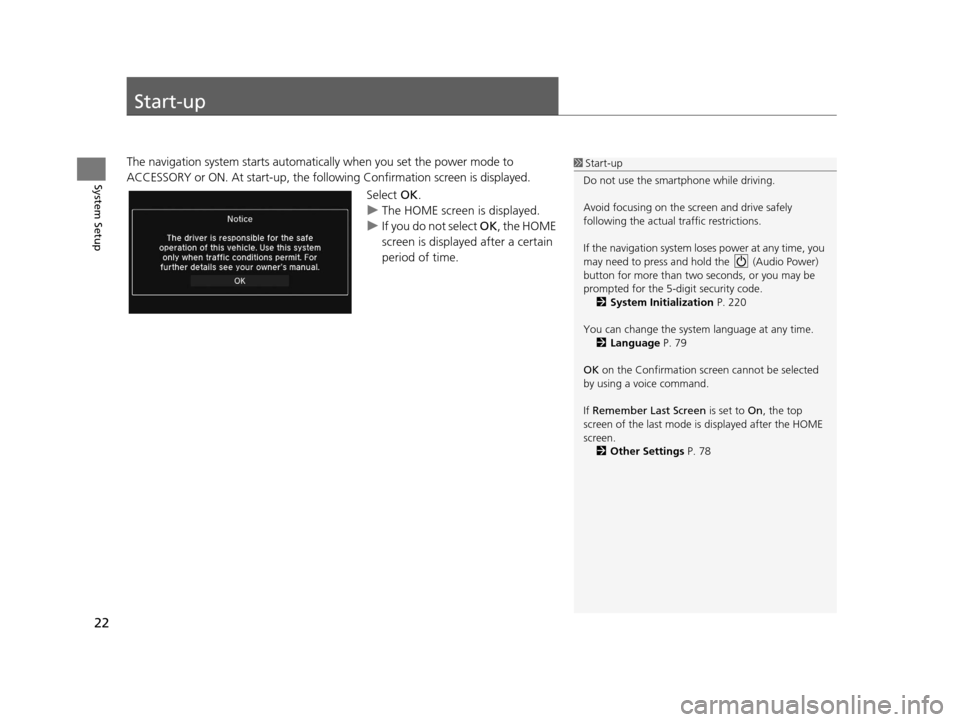
The navigation system starts automatically when you set the power mode to
ACCESSORY or ON. At start-up, the follo wing Confirmation screen is displayed.
Select OK.
u The HOME screen is displayed.
u If you do not select OK , the HOME
screen is displayed after a certain
period of time.1 Start-up
Do not use the smartphone while driving.
Avoid focusing on the scre en and drive safely
following the actual traffic restrictions.
If the navigation system lo ses power at any time, you
may need to press and hold the (Audio Power)
button for more than two seconds, or you may be
prompted for the 5-digit security code. 2 System Initialization P. 220
You can change the system language at any time. 2 Language P. 79
OK on the Confirmation screen cannot be selected
by using a voice command.
If Remember Last Screen is set to On, the top
screen of the last mode is displayed after the HOME
screen. 2 Other Settings P. 78
16 CR-Z NAVI-31SZT8500.book 22 ページ 2015年7月30日 木曜日 午前9時18分
Page 24 of 249
23
uuStart-up u
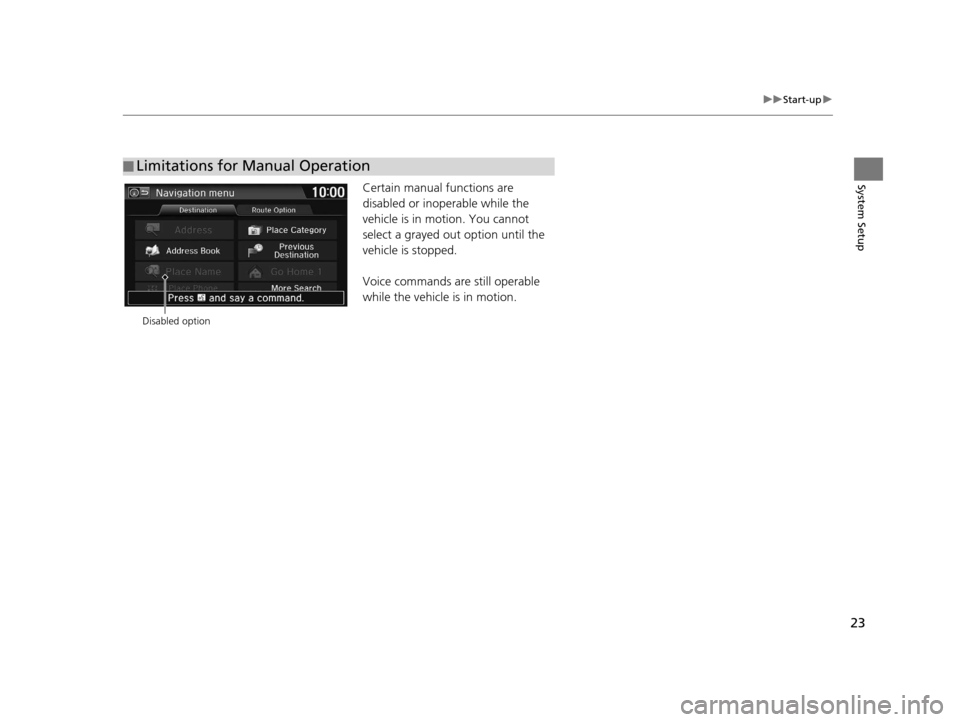
System SetupCertain manual functions are
disabled or inop erable while the
vehicle is in motion. You cannot
select a grayed out option until the
vehicle is stopped.
Voice commands are still operable
while the vehicle is in motion.
■ Limitations for Manual Operation
Disabled option
16 CR-Z NAVI-31SZT8500.book 23 ページ 2015年7月30日 木曜日 午前9時18分
Page 25 of 249
24
System Setup
Voice Control System
Your vehicle has a voice control system that allows hands-free operation of most of
the navigation system functions. You can also control the audio and climate control
system
*, and make and receive phone calls using Bluetooth® HandsFreeLink ®.
The voice control system uses the ( Talk) and (Hang-Up/Back) buttons on
the steering wheel and microphones at the bottom of the navigation screen.
A “Getting Started” feature provides a tutorial that explains how to use the voice
control system.
2 Voice Help P. 16
Command Input
If the system does not understand a command or you wait too long to give a
command, the system asks you to repeat the command.
When you give a command, the system gene rally either repeats the command as a
confirmation or asks you for further information. If you do not wish to hear this
feedback, you can turn it off. However, list ening to the feedback will help familiarize
you with the way the system expects commands to be phrased.
2 Voice Recognition Settings P. 71
On character input screens, a list of possibl e characters is displayed if the system
does not recognize your command.
You can find out which voice commands ar e available for a particular screen using
the “ Voice Help ” command. The system will display and read the list of available
commands to you.
2 Voice Help P. 16
1Voice Control System
When you press the (Talk) button, a helpful
prompt asks what you would like to do. Press and
release the (Talk) butt on again to bypass this
prompt and give a command.
* Climate control voice co mmands are only available
on some Canadian models.
1 Command Input
The audio system is muted while using the voice
control system.
16 CR-Z NAVI-31SZT8500.book 24 ページ 2015年7月30日 木曜日 午前9時18分
Page 26 of 249
25
uuVoice Control System uVoice Recognition
System Setup
Voice Recognition
To achieve optimum voice recognition when using either the navigation voice
control system or Bluetooth® HandsFreeLink ®:
• Make sure the correct screen is displa yed for the voice command that you are
using.
2 Voice Commands P. 232
• Close the windows.
• Adjust the dashboard and side vents so air does not blow onto the microphones
at the bottom of the navigation screen.
• Speak clearly in a natural speaking voice without pausing between words.
• Reduce any background noise if possibl e. The system may misinterpret your
command if more than one person is speaking at the same time.
• Refer to the Voice Help tutorial.
2 Voice Help P. 16
16 CR-Z NAVI-31SZT8500.book 25 ページ 2015年7月30日 木曜日 午前9時18分
Page 27 of 249
26
uuVoice Control System uSiri Eyes Free
System Setup
Siri Eyes Free
When your iPhone is paired and linked to the system via Bluetooth ®, you can say Siri-
related commands. Make sure Siri on your iPhone is turned on.
2Pairing a Phone P. 168
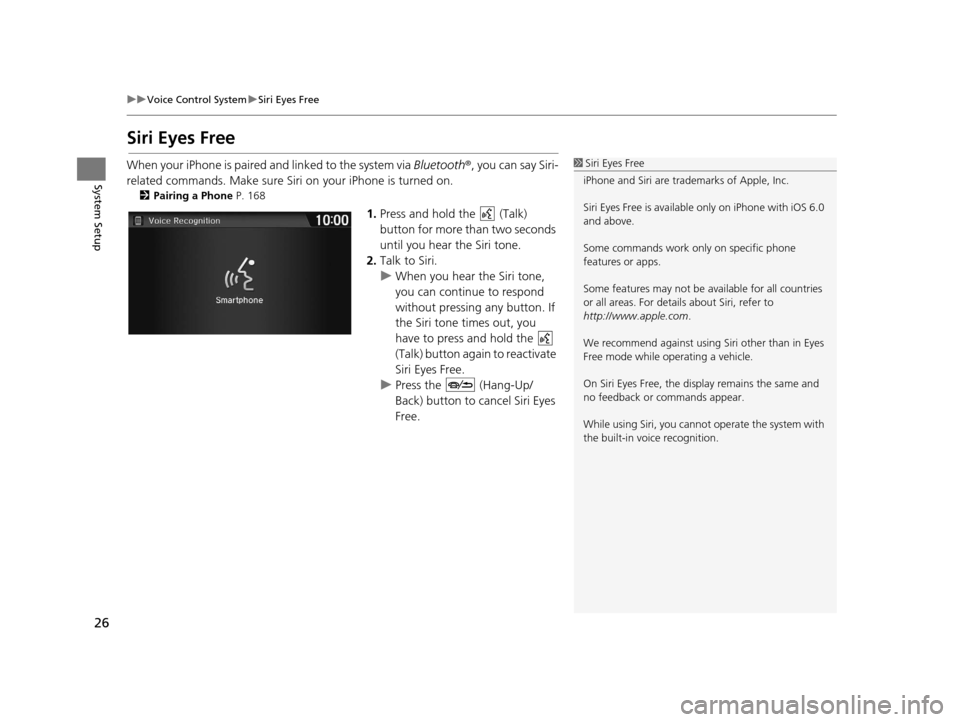
1.Press and hold the (Talk)
button for more than two seconds
until you hear the Siri tone.
2. Talk to Siri.
u When you hear the Siri tone,
you can continue to respond
without pressing any button. If
the Siri tone times out, you
have to press and hold the
(Talk) button again to reactivate
Siri Eyes Free.
u Press the (Hang-Up/
Back) button to cancel Siri Eyes
Free.
1Siri Eyes Free
iPhone and Siri are trademarks of Apple, Inc.
Siri Eyes Free is availabl e only on iPhone with iOS 6.0
and above.
Some commands work only on specific phone
features or apps.
Some features may not be available for all countries
or all areas. For detail s about Siri, refer to
http://www.apple.com .
We recommend against using Si ri other than in Eyes
Free mode while operating a vehicle.
On Siri Eyes Free, the display remains the same and
no feedback or commands appear.
While using Siri, you cannot operate the system with
the built-in voice recognition.
16 CR-Z NAVI-31SZT8500.book 26 ページ 2015年7月30日 木曜日 午前9時18分
Page 43 of 249
42
uuRouting uUnverified Routing
System Setup
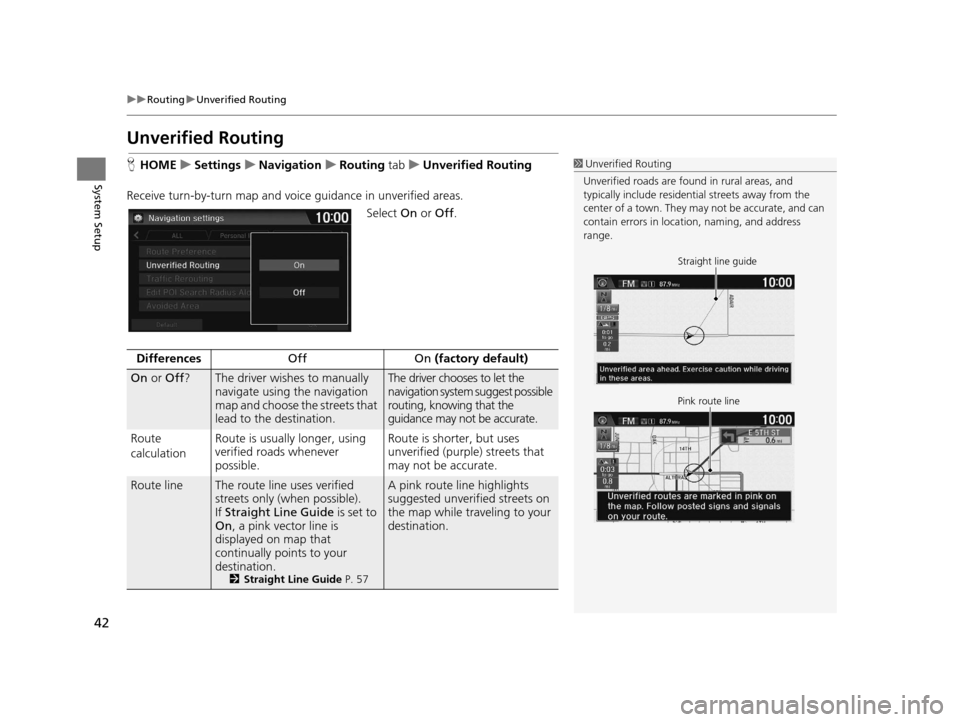
Unverified Routing
H HOME uSettings uNavigation uRouting tab uUnverified Routing
Receive turn-by-turn map and voice guidance in unverified areas.
Select On or Off .1Unverified Routing
Unverified roads are found in rural areas, and
typically include residentia l streets away from the
center of a town. They ma y not be accurate, and can
contain errors in locati on, naming, and address
range.
Straight line guide
Pink route line
Differences Off On (factory default)
On or Off ?The driver wishes to manually
navigate using the navigation
map and choose the streets that
lead to the destination.The driver chooses to let the
navigation system suggest possible
routing, knowing that the
guidance may not be accurate.
Route
calculation Route is usually longer, using
verified roads whenever
possible. Route is shorter, but uses
unverified (purple) streets that
may not be accurate.
Route lineThe route line uses verified
streets only (when possible).
If
Straight Line Guide is set to
On , a pink vector line is
displayed on map that
continually points to your
destination.
2 Straight Line Guide P. 57
A pink route line highlights
suggested unverified streets on
the map while traveling to your
destination.
16 CR-Z NAVI-31SZT8500.book 42 ページ 2015年7月30日 木曜日 午前9時18分
Page 44 of 249
43
uuRouting uUnverified Routing
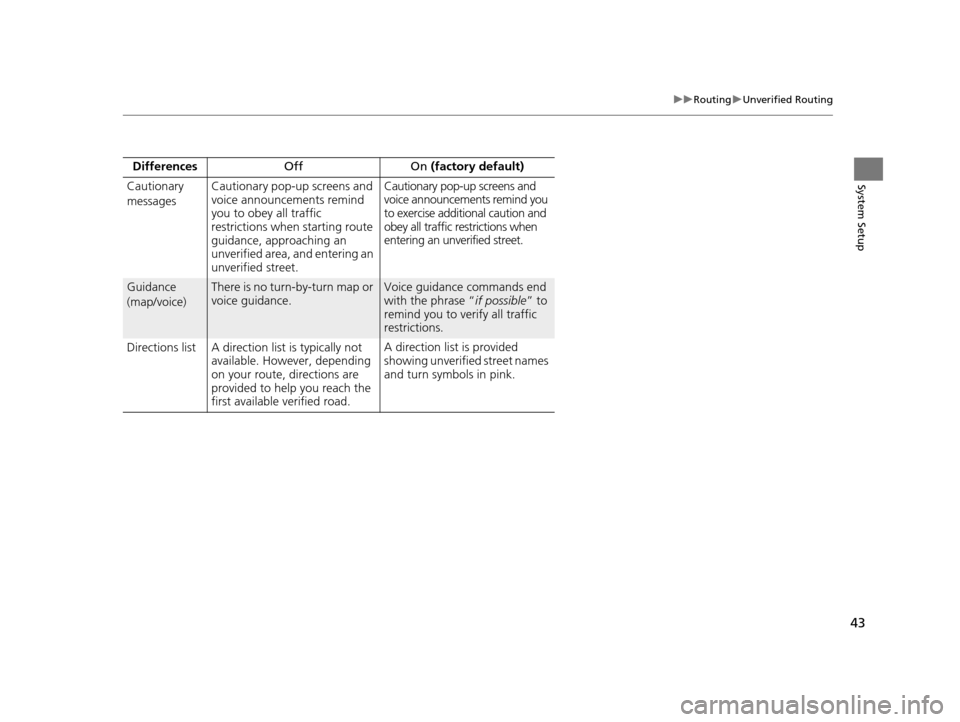
System SetupCautionary
messages Cautionary pop-up screens and
voice announcements remind
you to obey all traffic
restrictions when starting route
guidance, approaching an
unverified area, and entering an
unverified street. Cautionary pop-up screens and
voice announcements remind you
to exercise additional caution and
obey all traffic restrictions when
entering an unverified street.
Guidance
(map/voice)There is no turn-by-turn map or
voice guidance.Voice guidance commands end
with the phrase “
if possible” to
remind you to verify all traffic
restrictions.
Directions list A direction list is typically not available. However, depending
on your route, directions are
provided to help you reach the
first available verified road. A direction list is provided
showing unverified street names
and turn symbols in pink.
Differences
Off On (factory default)
16 CR-Z NAVI-31SZT8500.book 43 ページ 2015年7月30日 木曜日 午前9時18分