reset HONDA CROSSTOUR 2013 1.G Service Manual
[x] Cancel search | Manufacturer: HONDA, Model Year: 2013, Model line: CROSSTOUR, Model: HONDA CROSSTOUR 2013 1.GPages: 573, PDF Size: 25.21 MB
Page 307 of 573
306
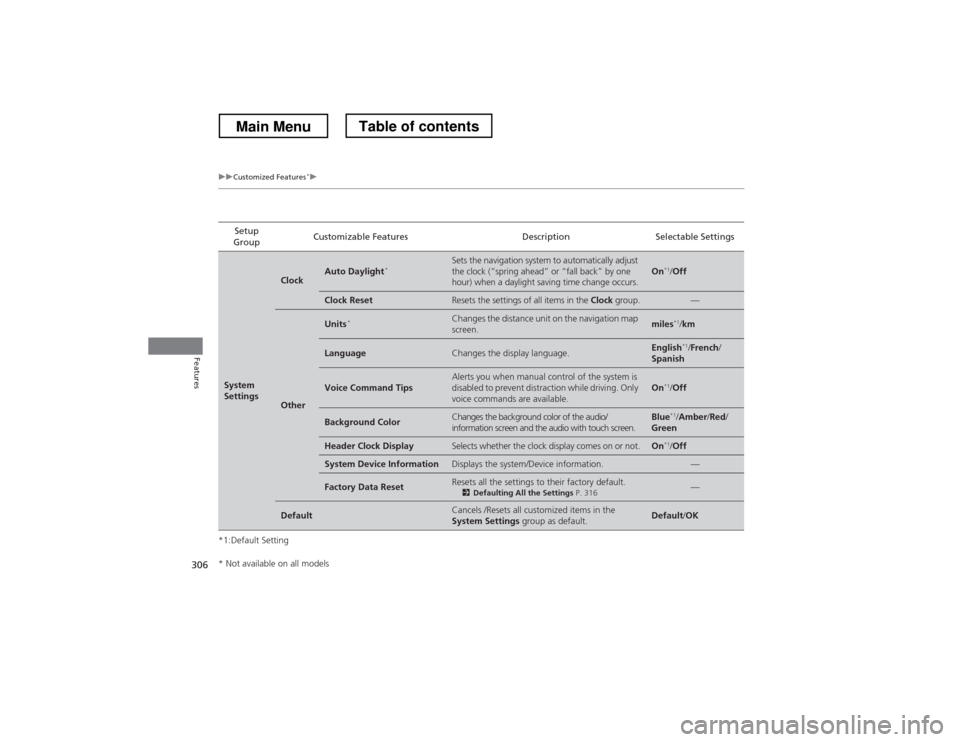
uuCustomized Features*u
Features
*1:Default SettingSetup
Group Customizable Features Description Selectable Settings
System
Settings
ClockAuto Daylight
*Sets the navigation system to automatically adjust
the clock (“spring ahead” or “fall back” by one
hour) when a daylight saving time change occurs.On*1
/Off
Clock ResetResets the settings of all items in the Clock group.—
Other
Units *Changes the distance unit on the navigation map screen.miles*1
/km
LanguageChanges the display language.English *1
/French /
Spanish
Voice Command TipsAlerts you when manual control of the system is
disabled to prevent distraction while driving. Only
voice commands are available.On *1
/Off
Background ColorChanges the background color of the audio/
information screen and the audio with touch screen.Blue *1
/Amber /Red /
Green
Header Clock DisplaySelects whether the clock display comes on or not.On *1
/Off
System Device InformationDisplays the system/Device information.—
Factory Data ResetResets all the settings to their factory default.
2Defaulting All the Settings P. 316—
DefaultCancels /Resets all customized items in the
System Settings group as default.Default/OK
* Not available on all models
Main MenuTable of contents
Page 310 of 573
309
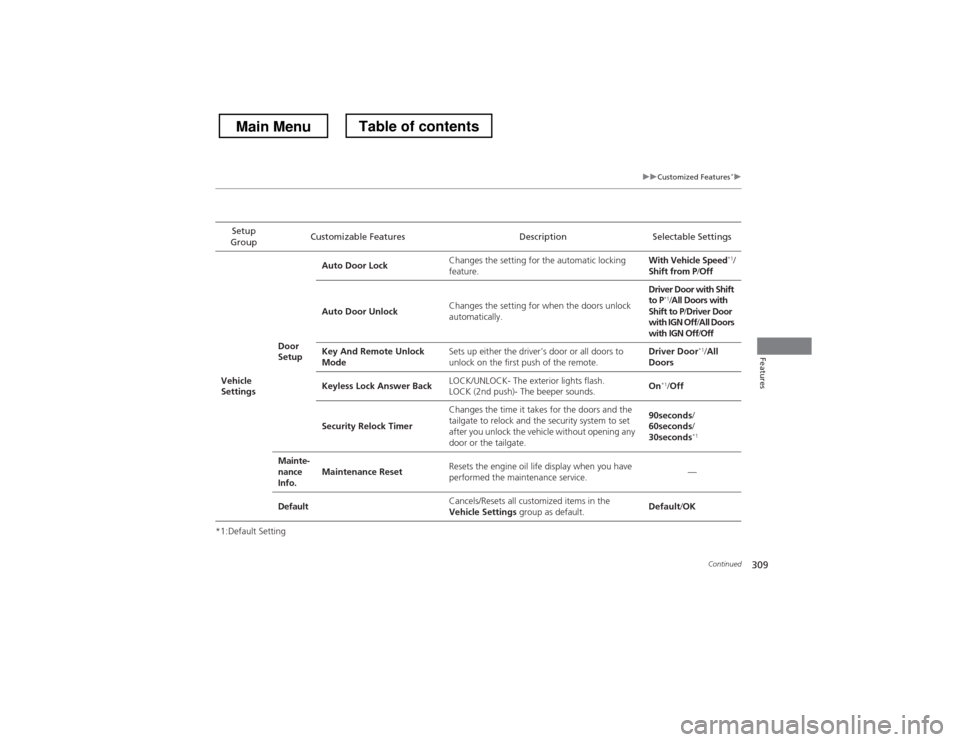
uuCustomized Features*u
Continued
Features
*1:Default SettingSetup
Group Customizable Features Description Selectable Settings
Vehicle
Settings Door
SetupAuto Door Lock
Changes the setting for the automatic locking
feature. With Vehicle Speed
*1
/
Shift from P /Off
Auto Door Unlock Changes the setting for when the doors unlock
automatically. Driver Door with Shift to P
*1
/All Doors with
Shift to P /Driver Door
with IGN Off /All Doors
with IGN Off /Off
Key And Remote Unlock
Mode Sets up either the driver’s door or all doors to
unlock on the first push of the remote. Driver Door
*1
/All
Doors
Keyless Lock Answer Back LOCK/UNLOCK- The exterior lights flash.
LOCK (2nd push)- The beeper sounds. On
*1
/Off
Security Relock Timer Changes the time it takes for the doors and the
tailgate to relock and the security system to set
after you unlock the vehicle without opening any
door or the tailgate. 90seconds
/
60seconds /
30seconds *1
Mainte-
nance
Info. Maintenance Reset
Resets the engine oil life display when you have
performed the maintenance service. —
Default Cancels/Resets all customized items in the
Vehicle Settings
group as default. Default
/OK
Main MenuTable of contents
Page 311 of 573
310
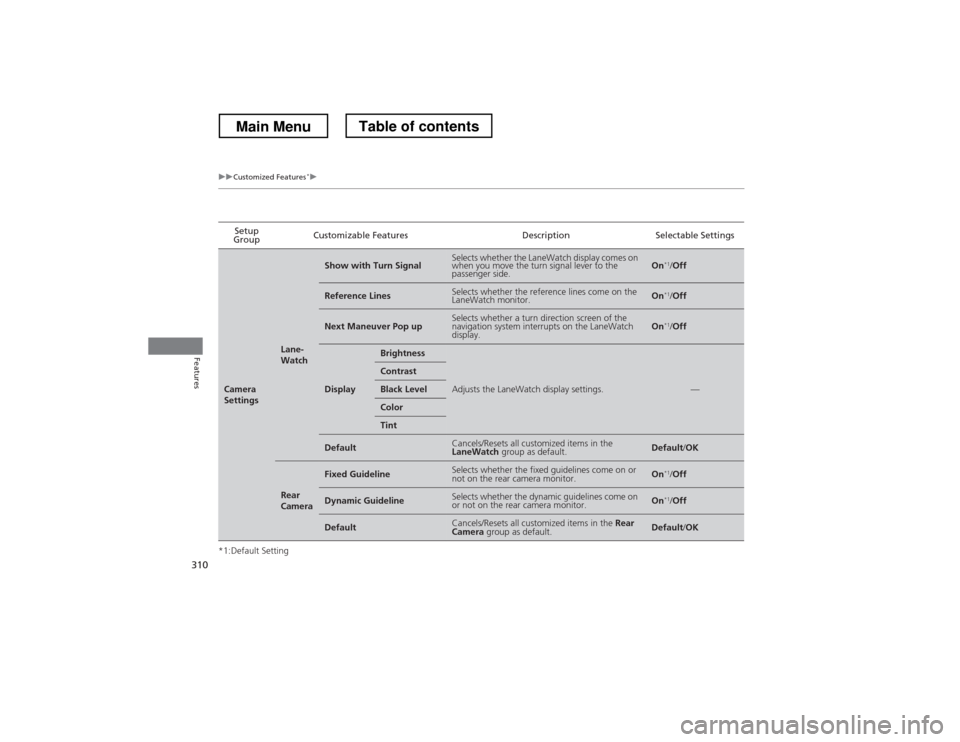
uuCustomized Features*u
Features
*1:Default SettingSetup
Group Customizable Features Description Selectable Settings
Camera
Settings
Lane-
Watch
Show with Turn SignalSelects whether the LaneWatch display comes on
when you move the turn signal lever to the
passenger side.On
*1
/Off
Reference LinesSelects whether the reference lines come on the
LaneWatch monitor.On *1
/Off
Next Maneuver Pop upSelects whether a turn direction screen of the
navigation system interrupts on the LaneWatch
display.On *1
/Off
Display
Brightness
Adjusts the LaneWatch display settings.—
Contrast
Black Level
Color
Tint
DefaultCancels/Resets all customized items in the LaneWatch group as default.Default/OK
Rear
Camera
Fixed GuidelineSelects whether the fixed guidelines come on or
not on the rear camera monitor.On *1
/Off
Dynamic GuidelineSelects whether the dynamic guidelines come on
or not on the rear camera monitor.On *1
/Off
DefaultCancels/Resets all customized items in the Rear
Camera group as default.Default/OK
Main MenuTable of contents
Page 313 of 573
312
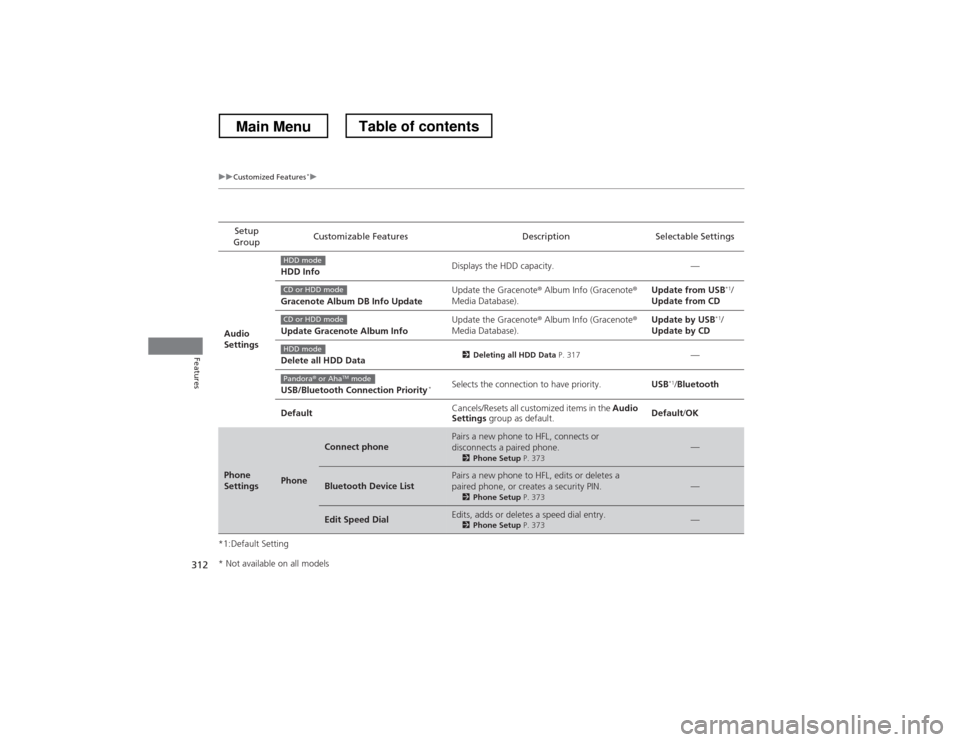
uuCustomized Features*u
Features
*1:Default SettingSetup
Group Customizable Features Description Selectable Settings
Audio
Settings HDD Info
Displays the HDD capacity. —
Gracenote Album DB Info Update Update the Gracenote
® Album Info (Gracenote ®
Media Database). Update from USB
*1
/
Update from CD
Update Gracenote Album Info Update the Gracenote
® Album Info (Gracenote ®
Media Database). Update by USB
*1
/
Update by CD
Delete all HDD Data 2
Deleting all HDD Data P. 317
—
USB/Bluetooth Connection Priority *Selects the connection to have priority.
USB*1
/Bluetooth
Default Cancels/Resets all customized items in the
Audio
Settings group as default. Default
/OK
Phone
SettingsPhone
Connect phonePairs a new phone to HFL, connects or
disconnects a paired phone.
2Phone Setup P. 373—
Bluetooth Device ListPairs a new phone to HFL, edits or deletes a
paired phone, or creates a security PIN.
2Phone Setup P. 373—
Edit Speed DialEdits, adds or deletes a speed dial entry.
2Phone Setup P. 373—
HDD mode
CD or HDD mode
CD or HDD mode
HDD mode
Pandora® or Aha TM
mode
* Not available on all models
Main MenuTable of contents
Page 315 of 573
314
uuCustomized Features*u
Features
*1:Default SettingSetup
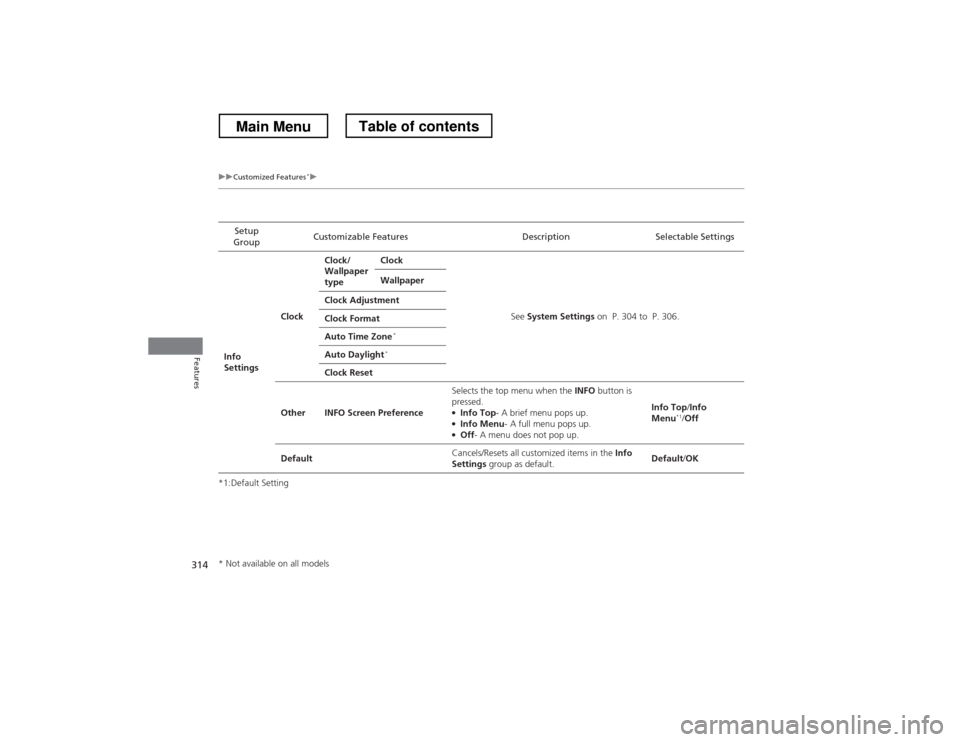
Group Customizable Features Description Selectable Settings
Info
Settings ClockClock/
Wallpaper
type
Clock
See System Settings on P. 304 to P. 306.
Wallpaper
Clock Adjustment
Clock Format
Auto Time Zone *
Auto Daylight *
Clock Reset
Other INFO Screen Preference Selects the top menu when the
INFO button is
pressed.
● Info Top - A brief menu pops up.
● Info Menu - A full menu pops up.
● Off - A menu does not pop up. Info Top
/Info
Menu *1
/Off
Default Cancels/Resets all customized items in the
Info
Settings group as default. Default
/OK
* Not available on all models
Main MenuTable of contents
Page 316 of 573
315
uuCustomized Features*uDefaulting All the Settings
Features
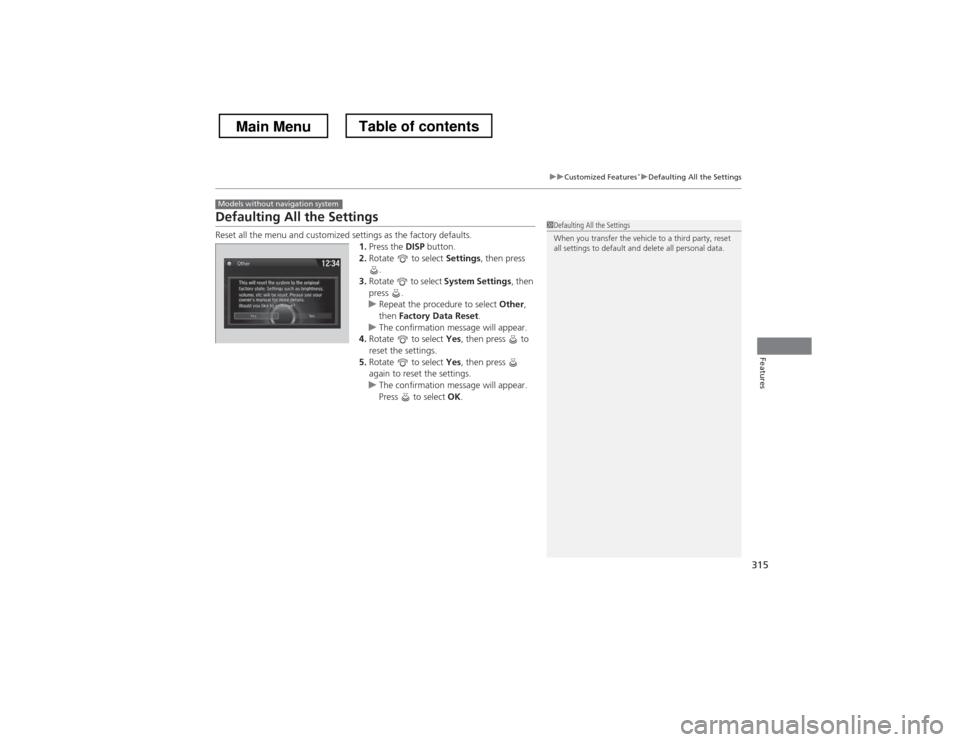
Defaulting All the Settings
Reset all the menu and customized settings as the factory defaults.
1.Press the DISP button.
2. Rotate to select Settings, then press
.
3. Rotate to select System Settings, then
press .
uRepeat the procedure to select Other,
then Factory Data Reset .
uThe confirmation message will appear.
4. Rotate to select Yes, then press to
reset the settings.
5. Rotate to select Yes, then press
again to reset the settings.
uThe confirmation message will appear.
Press to select OK.
Models without navigation system
1Defaulting All the Settings
When you transfer the vehicle to a third party, reset
all settings to default and delete all personal data.
Main MenuTable of contents
Page 317 of 573
316
uuCustomized Features*uDefaulting All the Settings
Features
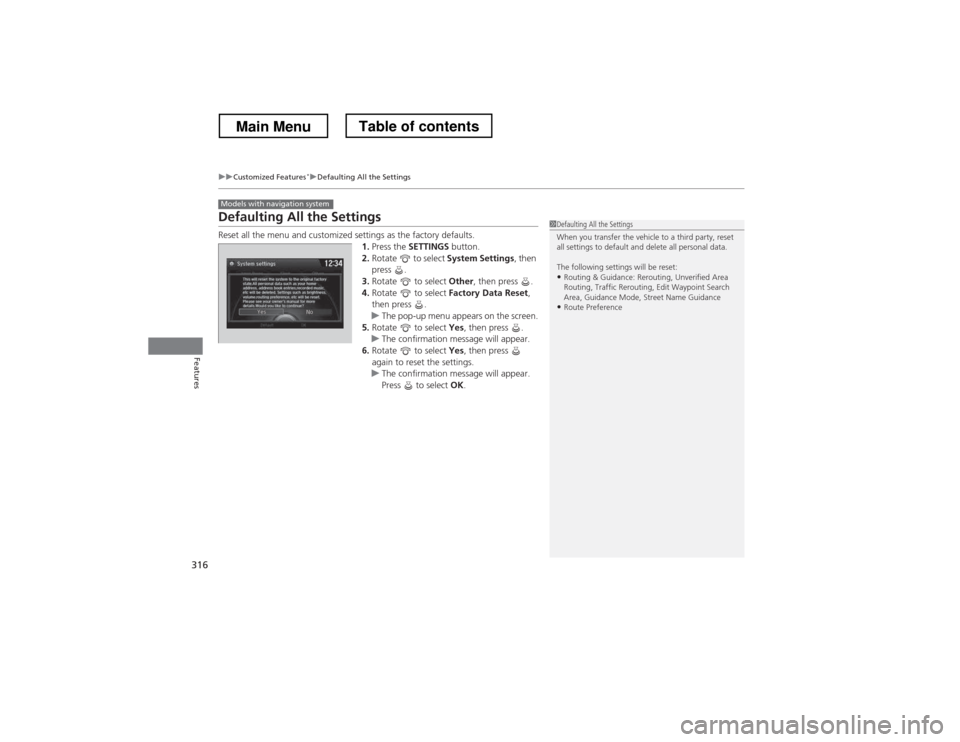
Defaulting All the Settings
Reset all the menu and customized settings as the factory defaults.
1.Press the SETTINGS button.
2. Rotate to select System Settings, then
press .
3. Rotate to select Other, then press .
4. Rotate to select Factory Data Reset ,
then press .
uThe pop-up menu appears on the screen.
5. Rotate to select Yes, then press .
uThe confirmation message will appear.
6. Rotate to select Yes, then press
again to reset the settings.
uThe confirmation message will appear.
Press to select OK.
Models with navigation system
1Defaulting All the Settings
When you transfer the vehicle to a third party, reset
all settings to default and delete all personal data.
The following settings will be reset:
• Routing & Guidance: Rerouting, Unverified Area
Routing, Traffic Rerouting, Edit Waypoint Search
Area, Guidance Mode, Street Name Guidance
• Route Preference
Main MenuTable of contents
Page 318 of 573
317
uuCustomized Features*uDeleting all HDD Data
Features
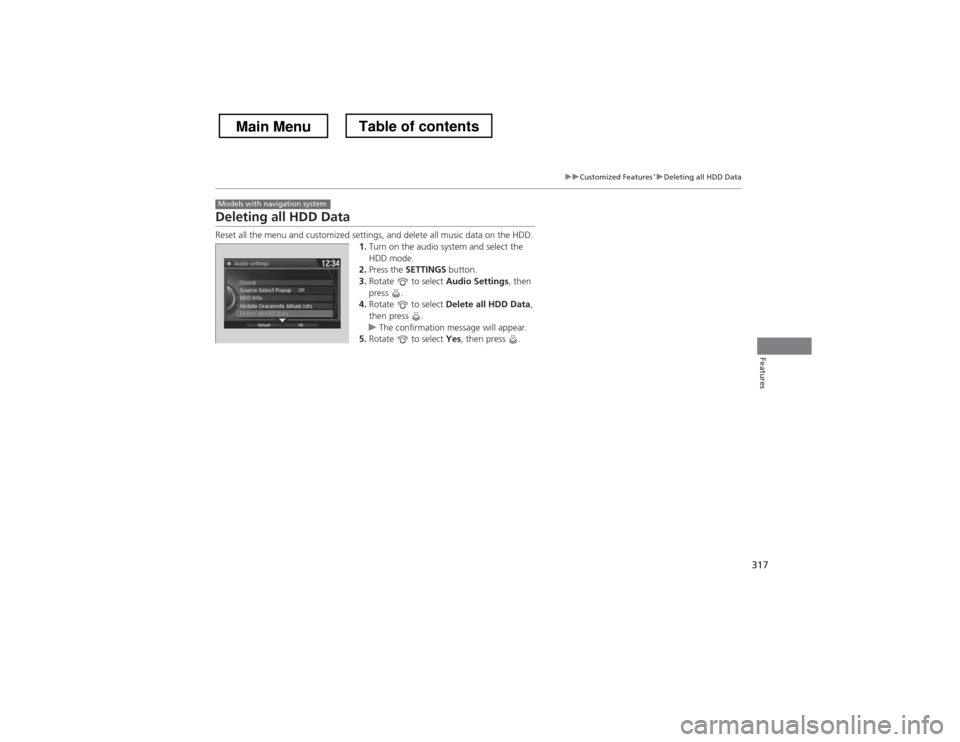
Deleting all HDD Data
Reset all the menu and customized settings, and delete all music data on the HDD.
1.Turn on the audio system and select the HDD mode.
2. Press the SETTINGS button.
3. Rotate to select Audio Settings, then
press .
4. Rotate to select Delete all HDD Data ,
then press .
uThe confirmation message will appear.
5. Rotate to select Yes, then press .
Models with navigation system
Main MenuTable of contents
Page 331 of 573
uuBluetooth® HandsFreeLink ®uHFL Menus
330
Features
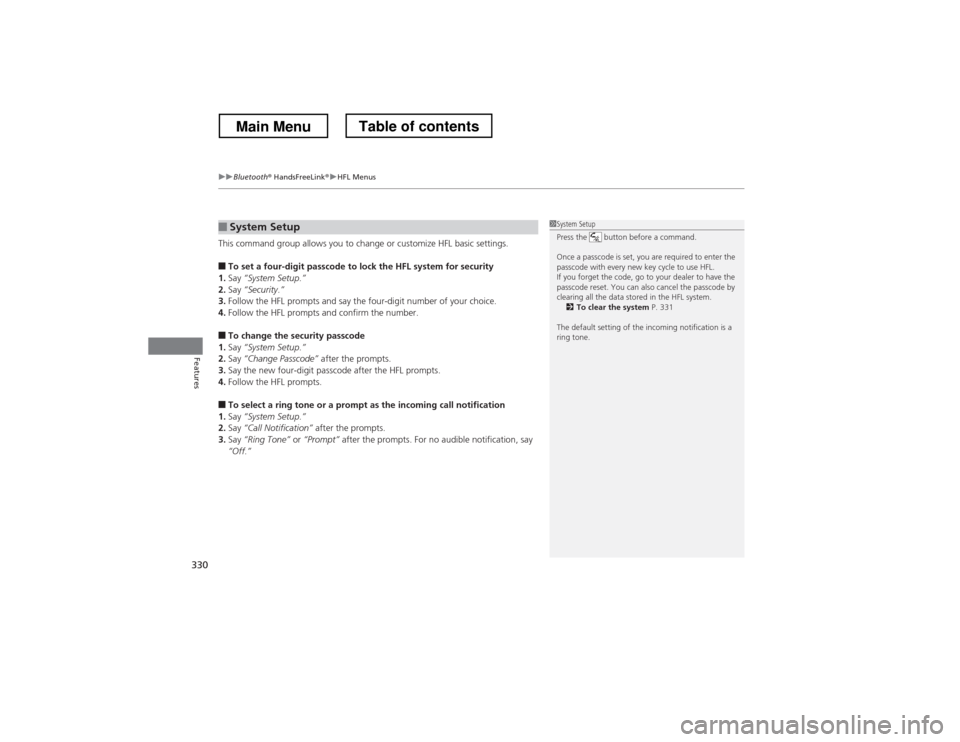
This command group allows you to change or customize HFL basic settings. ■ To set a four-digit passcode to lock the HFL system for security
1. Say “System Setup.”
2. Say “Security.”
3. Follow the HFL prompts and say the four-digit number of your choice.
4. Follow the HFL prompts and confirm the number.
■ To change the security passcode
1. Say “System Setup.”
2. Say “Change Passcode” after the prompts.
3. Say the new four-digit passcode after the HFL prompts.
4. Follow the HFL prompts.
■ To select a ring tone or a prompt as the incoming call notification
1. Say “System Setup.”
2. Say “Call Notification” after the prompts.
3. Say “Ring Tone” or “Prompt” after the prompts. For no audible notification, say
“Off.”
■System Setup1System Setup
Press the button before a command.
Once a passcode is set, you are required to enter the
passcode with every new key cycle to use HFL.
If you forget the code, go to your dealer to have the
passcode reset. You can also cancel the passcode by
clearing all the data stored in the HFL system. 2 To clear the system P. 331
The default setting of the incoming notification is a ring tone.
Main MenuTable of contents
Page 337 of 573
336
uuBluetooth® HandsFreeLink ®uHFL Menus
Features
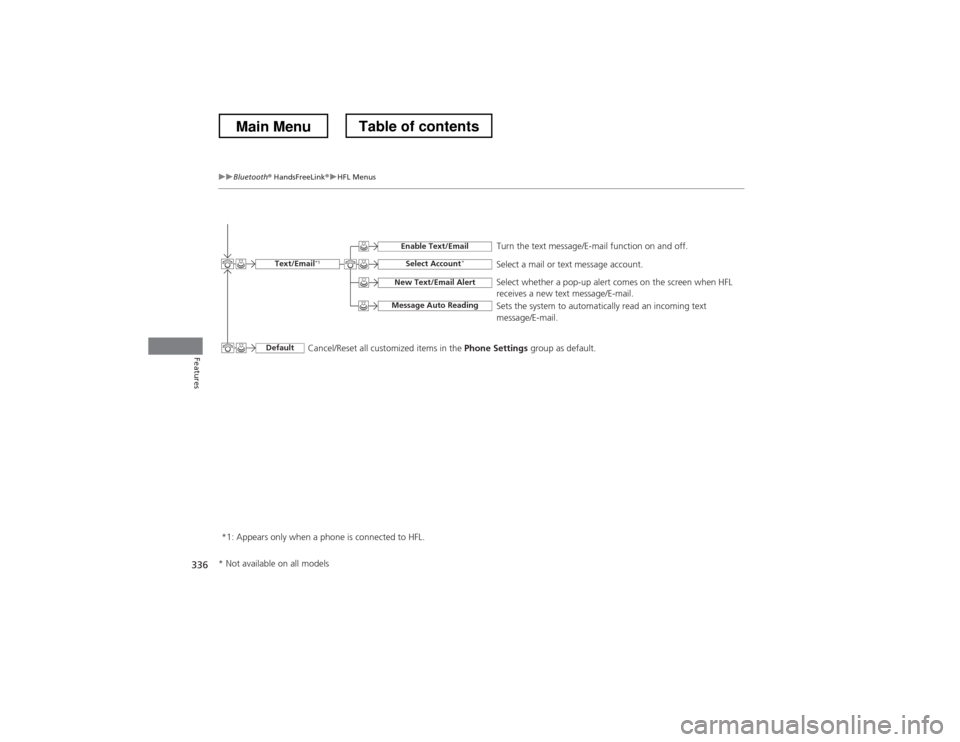
*1: Appears only when a phone is connected to HFL. Turn the text message/E-mail function on and off.
Select Account
*Select a mail or text message account.
New Text/Email Alert
Message Auto Reading
Select whether a pop-up alert comes on the screen when HFL
receives a new text message/E-mail.
Sets the system to automatically read an incoming text message/E-mail.
Text/Email
*1
Default
Enable Text/Email
Cancel/Reset all customized items in the
Phone Settings group as default.
* Not available on all models
Main MenuTable of contents