buttons HONDA CROSSTOUR 2013 1.G Owners Manual
[x] Cancel search | Manufacturer: HONDA, Model Year: 2013, Model line: CROSSTOUR, Model: HONDA CROSSTOUR 2013 1.GPages: 573, PDF Size: 25.21 MB
Page 4 of 573
3
Quick Reference Guide
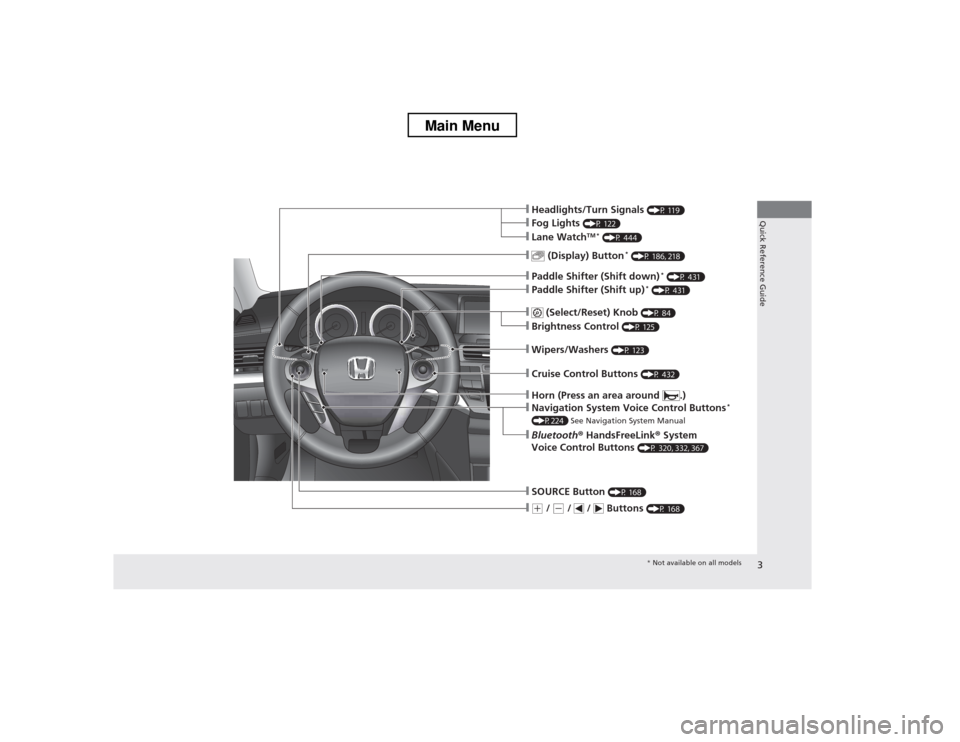
❙Wipers/Washers (P 123)
❙Navigation System Voice Control Buttons *
(P224) See Navigation System Manual
❙(+ / (- / / Buttons (P 168)
❙SOURCE Button (P 168)
❙ (Display) Button *
(P 186, 218)
❙Headlights/Turn Signals (P 119)
❙Fog Lights (P 122)
❙Paddle Shifter (Shift down) *
(P 431)
❙Paddle Shifter (Shift up) *
(P 431)
❙Lane Watch TM *
(P 444)
❙Horn (Press an area around .)
❙Bluetooth ® HandsFreeLink ® System
Voice Control Buttons (P 320, 332, 367)
❙ (Select/Reset) Knob
(P 84)
❙Brightness Control (P 125)
❙Cruise Control Buttons (P 432)
* Not available on all models
Main Menu
Page 13 of 573
12
Quick Reference Guide
Heating and Cooling System*
(P154)
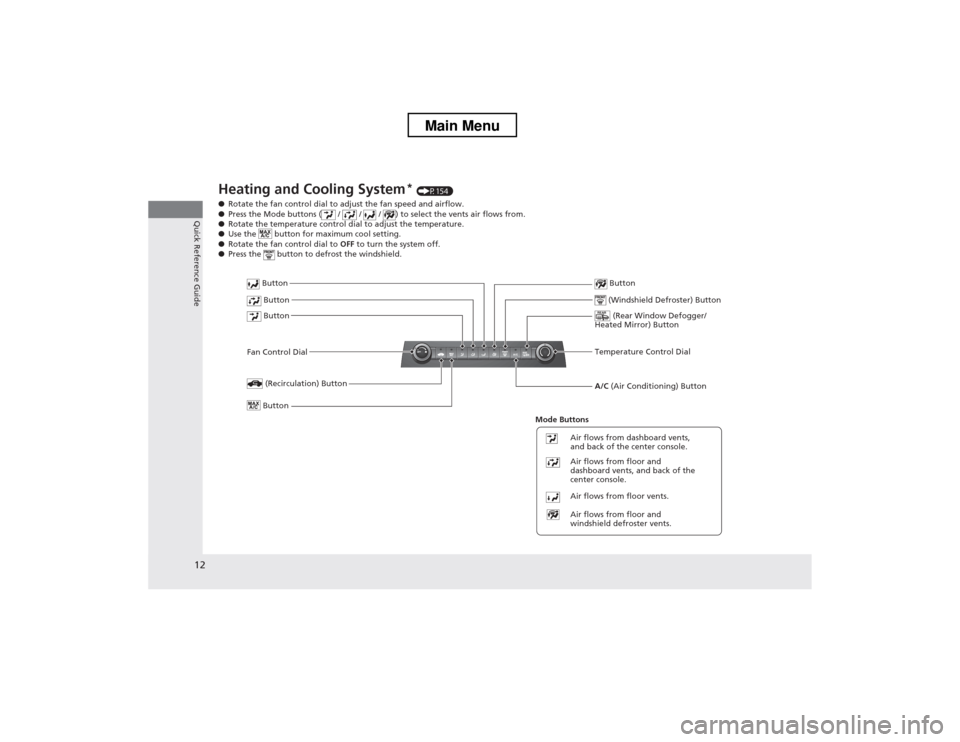
● Rotate the fan control dial to adjust the fan speed and airflow.
● Press the Mode buttons ( / / / ) to select the vents air flows from.
● Rotate the temperature control dial to adjust the temperature.
● Use the button for maximum cool setting.
● Rotate the fan control dial to OFF to turn the system off.
● Press the button to defrost the windshield.
Fan Control Dial (Rear Window Defogger/
Heated Mirror) Button
(Windshield Defroster) Button
A/C (Air Conditioning) Button
Air flows from floor and
windshield defroster vents.
Air flows from floor vents.
Air flows from floor and
dashboard vents, and back of the
center console.
Air flows from dashboard vents,
and back of the center console.
Button
Button
Button
(Recirculation) Button
Temperature Control Dial
Button
Button
Mode Buttons
Main Menu
Page 16 of 573
15
Quick Reference Guide
Features (P 163)
Audio Remote Controls
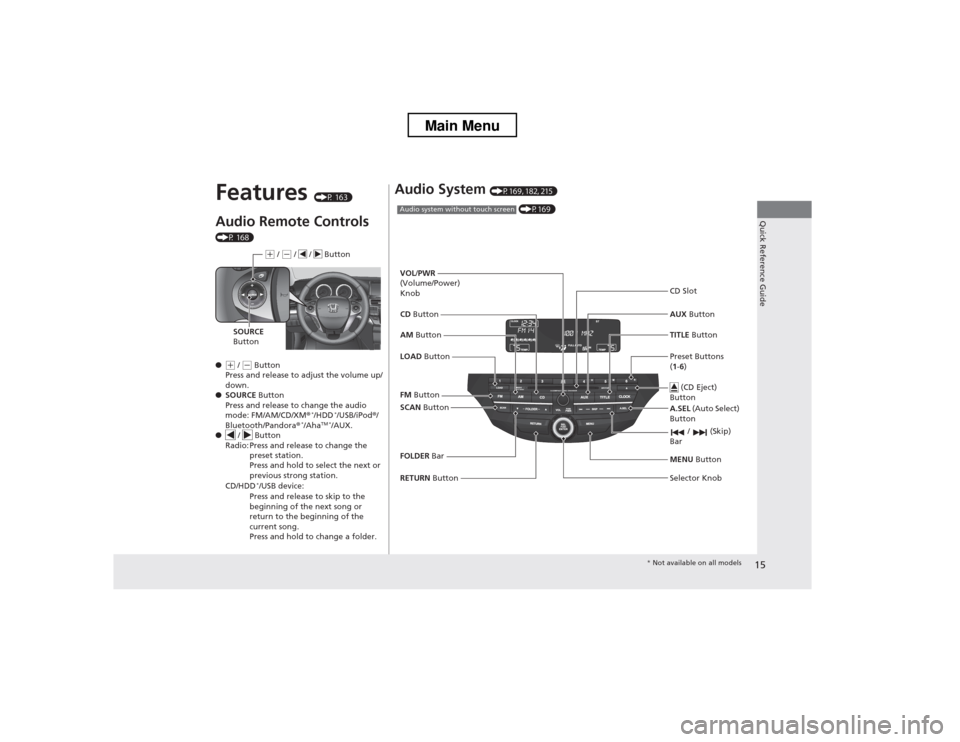
(P 168) ●
(+ / (- Button
Press and release to adjust the volume up/
down.
● SOURCE Button
Press and release to change the audio
mode: FM/AM/CD/XM ®*
/HDD *
/USB/iPod ®/
Bluetooth/Pandora ®*
/Aha TM *
/AUX.
● / Button
Radio: Press and release to change the
preset station.
Press and hold to select the next or
previous strong station.
CD/HDD *
/USB device:
Press and release to skip to the
beginning of the next song or
return to the beginning of the
current song.
Press and hold to change a folder.
(+ / (- / / Button
SOURCE
Button
Audio System (P169, 182, 215)
(P169)Audio system without touch screen
RETURN Button
FM
Button
SCAN Button
Selector Knob
AM
Button
VOL
/PWR
(Volume/Power) Knob CD Button AUX Button
CD Slot
(CD Eject)
Button
Preset Buttons ( 1 -6 )
TITLE
Button
/ (Skip)
Bar
MENU Button
LOAD Button
FOLDER Bar A.SEL
(Auto Select)
Button
* Not available on all models
Main Menu
Page 19 of 573
18
Quick Reference Guide
Driving (P409)
Release ButtonShift Lever
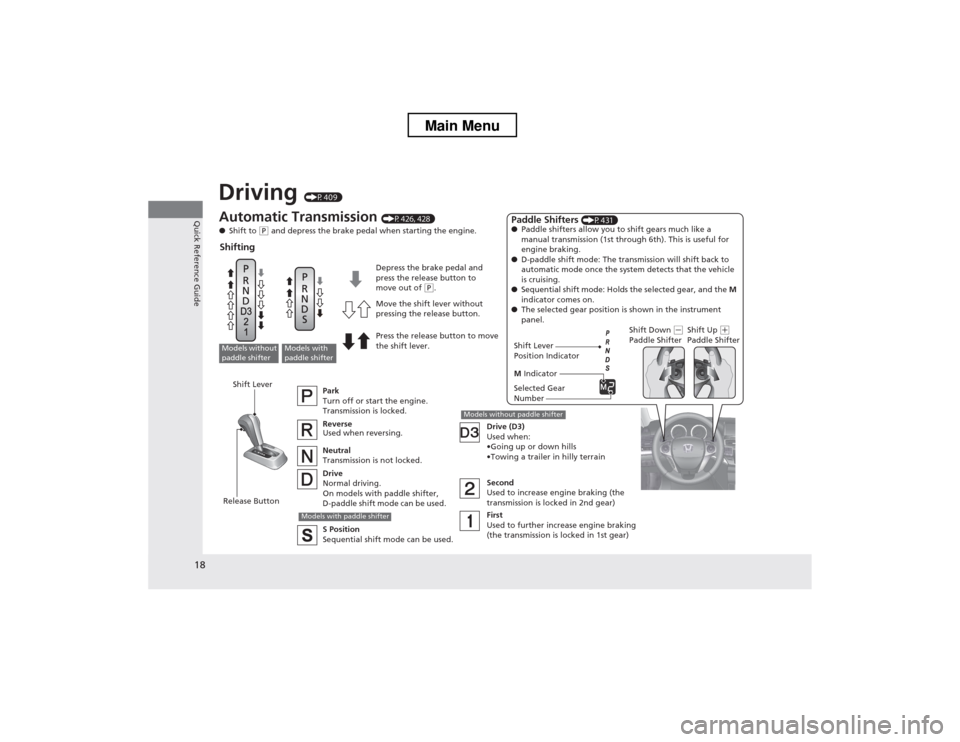
Automatic Transmission
(P426, 428)
● Shift to
(P and depress the brake pedal when starting the engine.
Shifting
Park
Turn off or start the engine.
Transmission is locked.
Reverse Used when reversing.
Neutral
Transmission is not locked.
Drive
Normal driving.
On models with paddle shifter,
D-paddle shift mode can be used. Drive (D3)
Used when:
Page 70 of 573
69
Instrument Panel
This chapter describes the buttons, indicators, and gauges that are used while driving.
Indicators ............................................ 70
Information Display Warning and
Information Messages ...................... 82
Gauges and Displays
Gauges .............................................. 83
Information Display............................ 84
Main Menu
Page 155 of 573
154
Controls
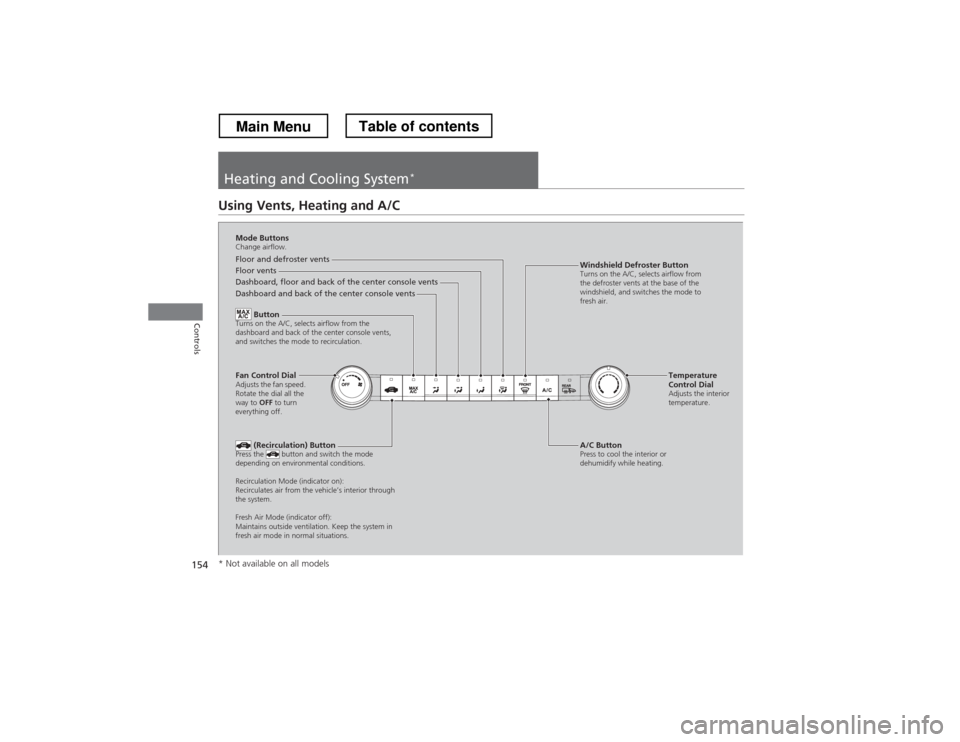
Heating and Cooling System*
Using Vents, Heating and A/C
Mode Buttons
Change airflow.
Floor and defroster vents
Floor vents
Dashboard, floor and back of the center console vents
Dashboard and back of the center console vents
Fan Control Dial
Adjusts the fan speed.
Rotate the dial all the
way to
OFF to turn
everything off. Button
Turns on the A/C, selects airflow from the
dashboard and back of the center console vents,
and switches the mode to recirculation.
A/C Button
Press to cool the interior or
dehumidify while heating.
Windshield Defroster Button
Turns on the A/C, selects airflow from
the defroster vents at the base of the
windshield, and switches the mode to
fresh air.
Temperature
Control Dial
Adjusts the interior
temperature.
(Recirculation) Button
Press the button and switch the mode
depending on environmental conditions.
Recirculation Mode (indicator on):
Recirculates air from the vehicle’s interior through
the system.
Fresh Air Mode (indicator off):
Maintains outside ventilation. Keep the system in
fresh air mode in normal situations.
* Not available on all models
Main MenuTable of contents
Page 159 of 573
uuClimate Control System*uUsing Automatic Climate Control
158
Controls
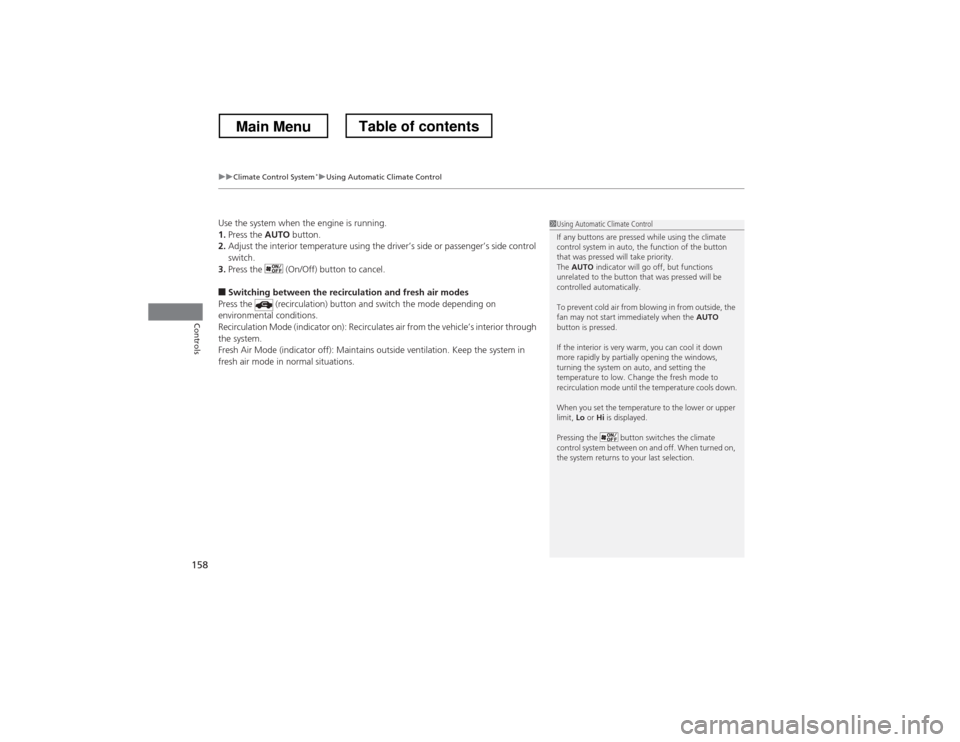
Use the system when the engine is running. 1. Press the AUTO button.
2. Adjust the interior temperature using the driver’s side or passenger’s side control
switch.
3. Press the (On/Off) button to cancel.
■ Switching between the recircu lation and fresh air modes
Press the (recirculation) button and switch the mode depending on
environmental conditions.
Recirculation Mode (indicator on): Recirculates air from the vehicle’s interior through the system.
Fresh Air Mode (indicator off): Maintains outside ventilation. Keep the system in
fresh air mode in normal situations.1Using Automatic Climate Control
If any buttons are pressed while using the climate
control system in auto, the function of the button
that was pressed will take priority.
The AUTO indicator will go off, but functions
unrelated to the button that was pressed will be
controlled automatically.
To prevent cold air from blowing in from outside, the
fan may not start immediately when the AUTO
button is pressed.
If the interior is very warm, you can cool it down
more rapidly by partially opening the windows,
turning the system on auto, and setting the
temperature to low. Change the fresh mode to
recirculation mode until the temperature cools down.
When you set the temperature to the lower or upper
limit, Lo or Hi is displayed.
Pressing the button switches the climate
control system between on and off. When turned on,
the system returns to your last selection.
Main MenuTable of contents
Page 165 of 573
164
Features
Audio System
About Your Audio System
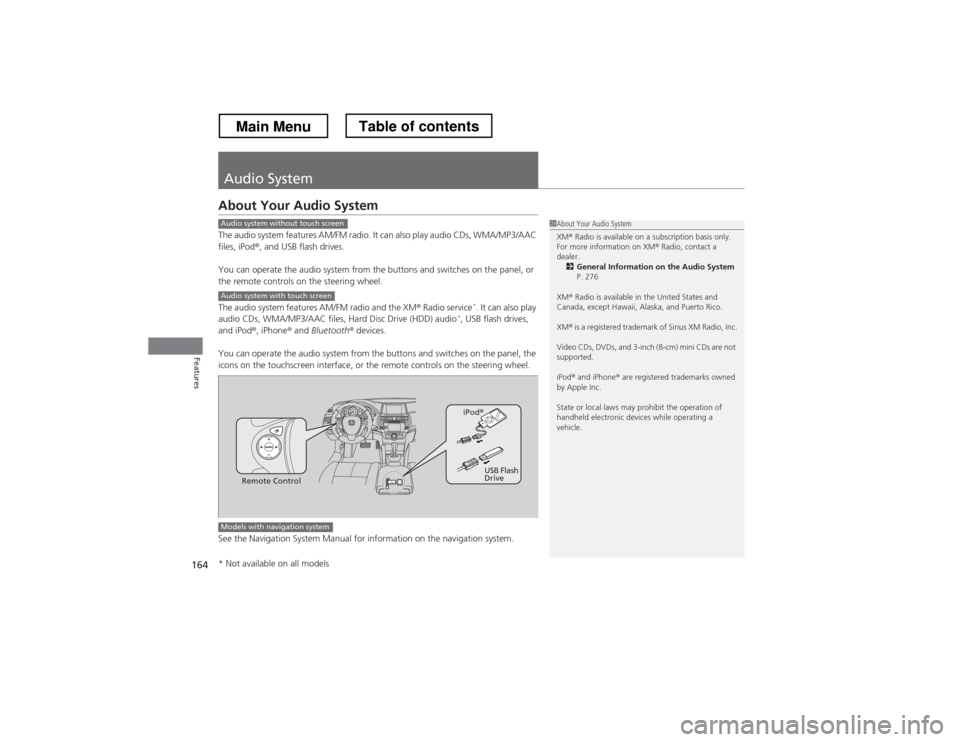
The audio system features AM/FM radio. It can also play audio CDs, WMA/MP3/AAC files, iPod®, and USB flash drives.
You can operate the audio system from the buttons and switches on the panel, or
the remote controls on the steering wheel.
The audio system features AM/FM radio and the XM ® Radio service *
. It can also play
audio CDs, WMA/MP3/AAC files, Hard Disc Drive (HDD) audio *
, USB flash drives,
and iPod ®, iPhone ® and Bluetooth ® devices.
You can operate the audio system from the buttons and switches on the panel, the
icons on the touchscreen interface, or the remote controls on the steering wheel.
See the Navigation System Manual for information on the navigation system.
1About Your Audio System XM ® Radio is available on a subscription basis only.
For more information on XM ® Radio, contact a
dealer. 2 General Information on the Audio System
P. 276
XM ® Radio is available in the United States and
Canada, except Hawaii, Alaska, and Puerto Rico. XM ® is a registered trademark of Sirius XM Radio, Inc.
Video CDs, DVDs, and 3-inch (8-cm) mini CDs are not
supported.
iPod ® and iPhone ® are registered trademarks owned
by Apple Inc.
State or local laws may prohibit the operation of
handheld electronic devices while operating a
vehicle.Audio system without touch screen
Audio system with touch screen
Remote Control iPod
®
USB Flash
Drive
Models with navigation system
* Not available on all models
Main MenuTable of contents
Page 166 of 573
165
uuAudio SystemuUSB Adapter Cable
Features
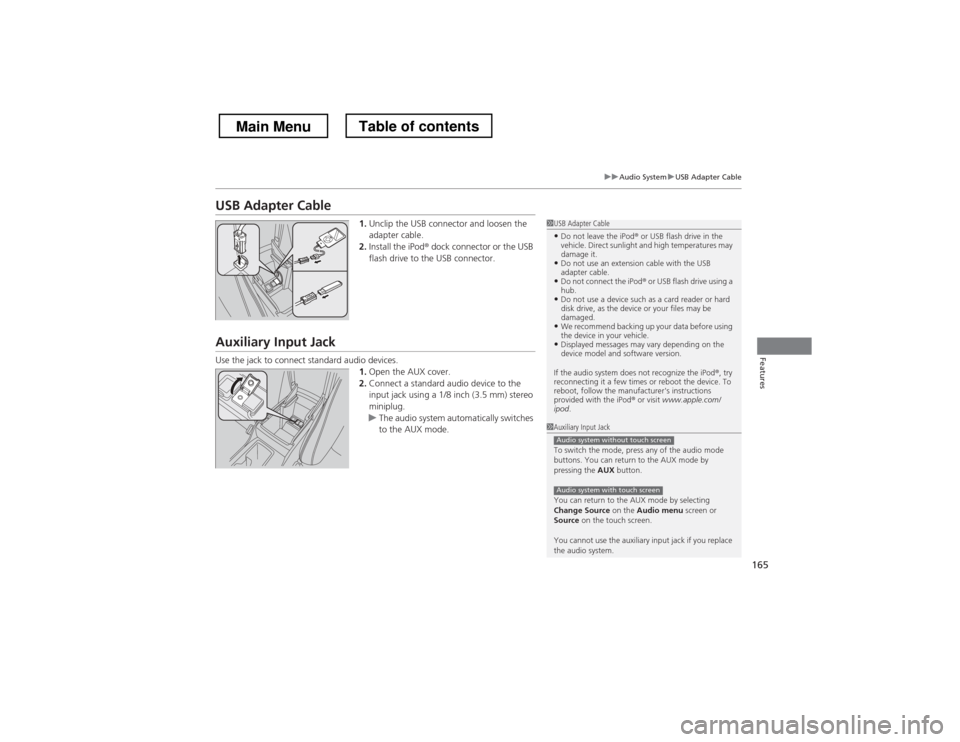
USB Adapter Cable1.Unclip the USB connector and loosen the
adapter cable.
2. Install the iPod ® dock connector or the USB
flash drive to the USB connector.
Auxiliary Input Jack
Use the jack to connect standard audio devices. 1.Open the AUX cover.
2. Connect a standard audio device to the
input jack using a 1/8 inch (3.5 mm) stereo
miniplug.
uThe audio system automatically switches
to the AUX mode.
1USB Adapter Cable
• Do not leave the iPod ® or USB flash drive in the
vehicle. Direct sunlight and high temperatures may damage it.
• Do not use an extension cable with the USB
adapter cable.
• Do not connect the iPod ® or USB flash drive using a
hub.
• Do not use a device such as a card reader or hard
disk drive, as the device or your files may be damaged.
• We recommend backing up your data before using
the device in your vehicle.
• Displayed messages may vary depending on the
device model and software version.
If the audio system does not recognize the iPod ®, try
reconnecting it a few times or reboot the device. To
reboot, follow the manufacturer's instructions provided with the iPod ® or visit www.apple.com/
ipod .
1Auxiliary Input Jack
To switch the mode, press any of the audio mode
buttons. You can return to the AUX mode by
pressing the AUX button.
You can return to the AUX mode by selecting
Change Source on the Audio menu screen or
Source on the touch screen.
You cannot use the auxiliary input jack if you replace
the audio system.
Audio system without touch screen
Audio system with touch screen
Main MenuTable of contents
Page 167 of 573
166
uuAudio SystemuAudio System Theft Protection
Features
Audio System Theft Protection
The audio system is disabled when it is disconnected from the power source, such as
when the battery is disconnected or goes dead. ■Reactivating the audio system
1. Turn the ignition switch to ON
(w , and turn on the audio system.uIf you turn the ignition switch to ACCESSORY (q, you will be requested to
enter the audio security code.
2. Enter the audio security code using the preset buttons.
1. Turn the ignition switch to ON
(w *1
, and turn on the audio system.uIf you turn the ignition switch to ACCESSORY (q *1
, you will be requested to
enter the audio security code. See step 3.
2. Press and hold the VOL/ (power/volume) button again for more than two
seconds.
uThe audio system is reactivated when the system’s control unit recognizes that
the system is in your vehicle.
If the control unit fails to recognize, Enter code/Enter PIN Code appears on
the audio/information screen.
3. Enter the audio security code using the touch screen.
If you enter an incorrect digit, continue to the last digit, then try again. If you do not
enter the code correctly after 10 tries, leave the system for one hour before trying
again, or visit a dealer to have the system reset. *1: Models with the smart entry system have an ENGINE START/STOP button instead of an
ignition switch.
1Audio System Theft Protection
Find the audio system’s security code and serial
number label in your owner’s manual kit.
We recommend that you write down the serial
number in this owner’s manual.
Do not store the label in your vehicle. If you lose the
label, you must first retrieve the serial number, and
then obtain the code.
You can find out about your serial number and
security code from a dealer.
You can register the security code at Owner Link ( owners.honda.com. ), and find information on how
to retrieve the serial number and obtain the code at
radio-navicode.honda.com .
U.S. models
Audio system without touch screen
Audio system with touch screen
All models
Main MenuTable of contents