phone HONDA CROSSTOUR 2015 1.G Navigation Manual
[x] Cancel search | Manufacturer: HONDA, Model Year: 2015, Model line: CROSSTOUR, Model: HONDA CROSSTOUR 2015 1.GPages: 150, PDF Size: 6.61 MB
Page 143 of 150
142
Voice CommandsOn-Screen Commands
Voice Commands
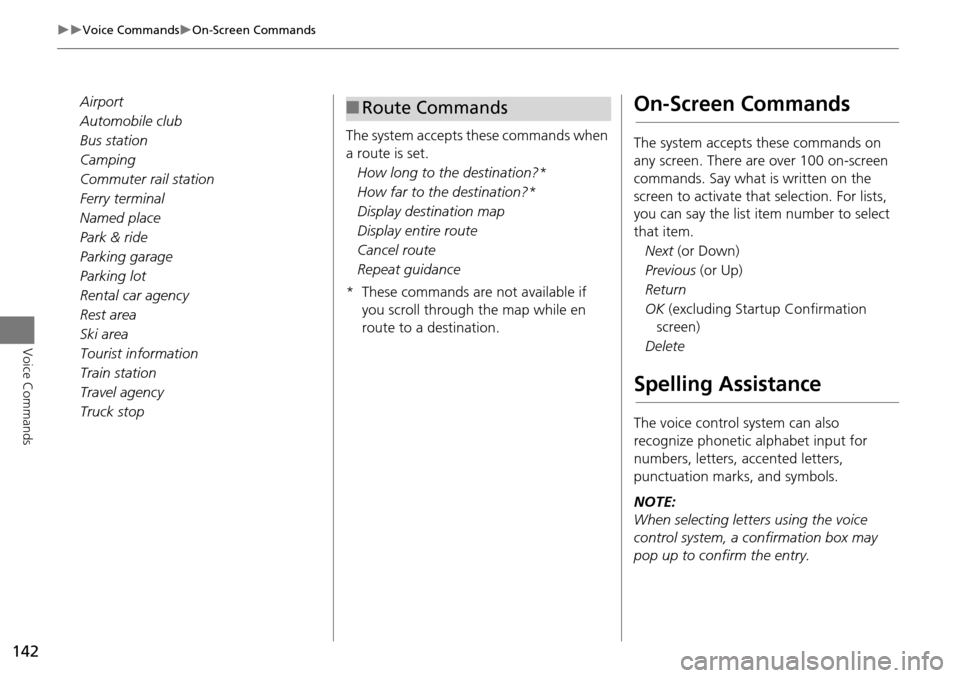
Airport
Automobile club
Bus station
Camping
Commuter rail station
Ferry terminal
Named place
Park & ride
Parking garage
Parking lot
Rental car agency
Rest area
Ski area
Tourist information
Train station
Travel agency
Truck stopThe system accepts these commands when
a route is set.
How long to the destination?*
How far to the destination?*
Display destination map
Display entire route
Cancel route
Repeat guidance
* These commands are not available if you scroll through the map while en
route to a destination.■Route CommandsOn-Screen Commands
The system accepts these commands on
any screen. There are over 100 on-screen
commands. Say what is written on the
screen to activate that selection. For lists,
you can say the list item number to select
that item.
Next (or Down)
Previous (or Up)
Return
OK (excluding Startup Confirmation
screen)
Delete
Spelling Assistance
The voice control system can also
recognize phonetic alphabet input for
numbers, letters, accented letters,
punctuation marks, and symbols.
NOTE:
When selecting letters using the voice
control system, a confirmation box may
pop up to confirm the entry.
Page 149 of 150
148
Index
Index
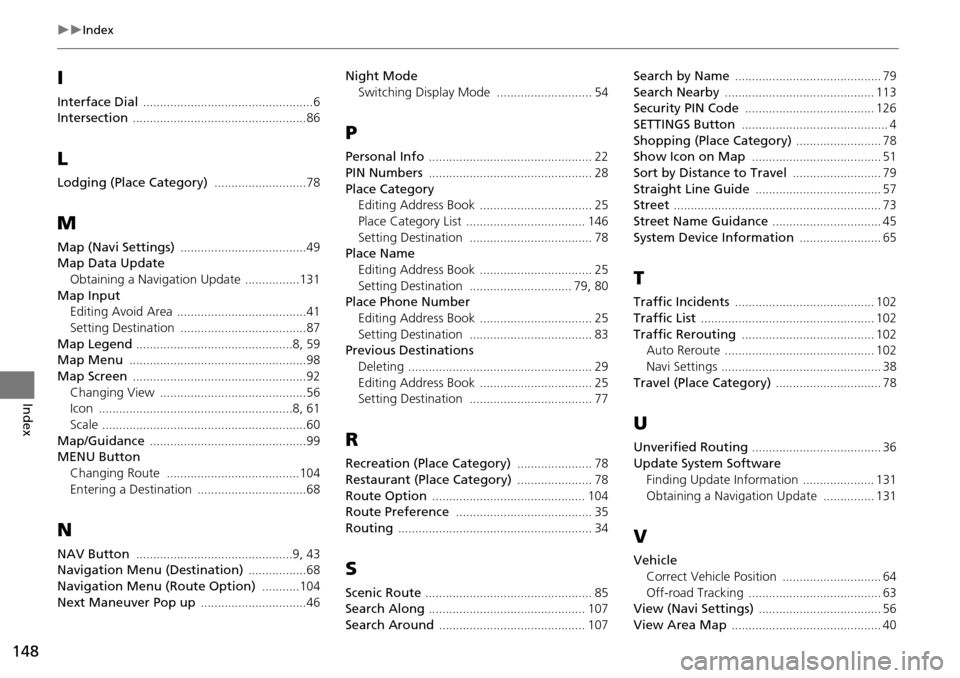
I
Interface Dial ..................................................6Intersection ...................................................86
L
Lodging (Place Category) ...........................78
M
Map (Navi Settings) .....................................49Map Data Update
Obtaining a Navigation Update
................131
Map InputEditing Avoid Area ......................................41
Setting Destination .....................................87
Map Legend ..............................................8, 59Map Menu ....................................................98
Map Screen ...................................................92
Changing View ...........................................56Icon .........................................................8, 61
Scale ............................................................60
Map/Guidance ..............................................99MENU Button
Changing Route
.......................................104
Entering a Destination ................................68
N
NAV Button ..............................................9, 43Navigation Menu (Destination) .................68
Navigation Menu (Route Option) ...........104
Next Maneuver Pop up ...............................46
Night Mode
Switching Display Mode
............................ 54
P
Personal Info ................................................ 22
PIN Numbers ................................................ 28
Place Category
Editing Address Book ................................. 25
Place Category List ................................... 146
Setting Destination .................................... 78Place Name
Editing Address Book
................................. 25
Setting Destination .............................. 79, 80Place Phone NumberEditing Address Book
................................. 25
Setting Destination .................................... 83Previous DestinationsDeleting
...................................................... 29
Editing Address Book ................................. 25Setting Destination .................................... 77
R
Recreation (Place Category) ...................... 78
Restaurant (Place Category) ...................... 78
Route Option ............................................. 104Route Preference ........................................ 35
Routing ......................................................... 34
S
Scenic Route ................................................. 85Search Along .............................................. 107
Search Around ........................................... 107
Search by Name ........................................... 79
Search Nearby ............................................ 113Security PIN Code ...................................... 126
SETTINGS Button ........................................... 4
Shopping (Place Category) ......................... 78Show Icon on Map ...................................... 51
Sort by Distance to Travel .......................... 79
Straight Line Guide ..................................... 57Street ............................................................. 73
Street Name Guidance ................................ 45
System Device Information ........................ 65
T
Traffic Incidents ......................................... 102
Traffic List ................................................... 102
Traffic Rerouting ....................................... 102Auto Reroute ............................................ 102
Navi Settings ............................................... 38
Travel (Place Category) ............................... 78
U
Unverified Routing ...................................... 36
Update System Software
Finding Update Information
..................... 131
Obtaining a Navigation Update ............... 131
V
VehicleCorrect Vehicle Position
............................. 64
Off-road Tracking ....................................... 63View (Navi Settings) .................................... 56
View Area Map ............................................ 40