audio HONDA CRV 2023 Owners Manual
[x] Cancel search | Manufacturer: HONDA, Model Year: 2023, Model line: CRV, Model: HONDA CRV 2023Pages: 719, PDF Size: 13.43 MB
Page 316 of 719
Continued315
uuAudio System Basic Operation uPlaying a USB Flash Drive
Features
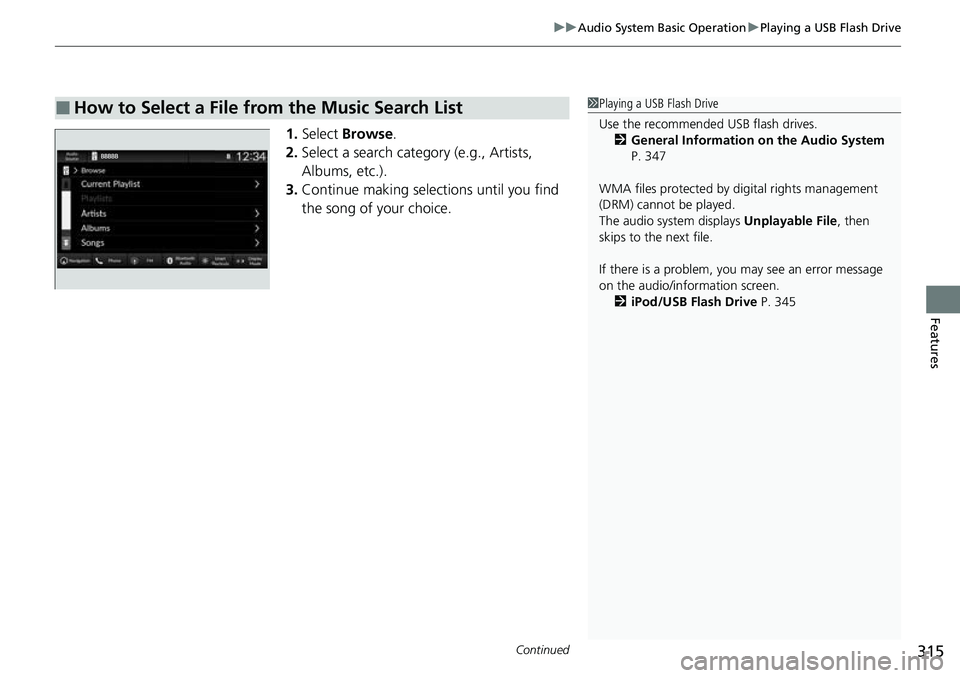
1. Select Browse .
2. Select a search catego ry (e.g., Artists,
Albums, etc.).
3. Continue making selections until you find
the song of your choice.
■How to Select a File from the Music Search List1Playing a USB Flash Drive
Use the recommended USB flash drives.
2 General Information on the Audio System
P. 347
WMA files protected by di gital rights management
(DRM) cannot be played.
The audio system displays Unplayable File, then
skips to the next file.
If there is a problem, you may see an error message
on the audio/information screen.
2 iPod/USB Flash Drive P. 345
Page 317 of 719
uuAudio System Basic Operation uPlaying a USB Flash Drive
316
Features
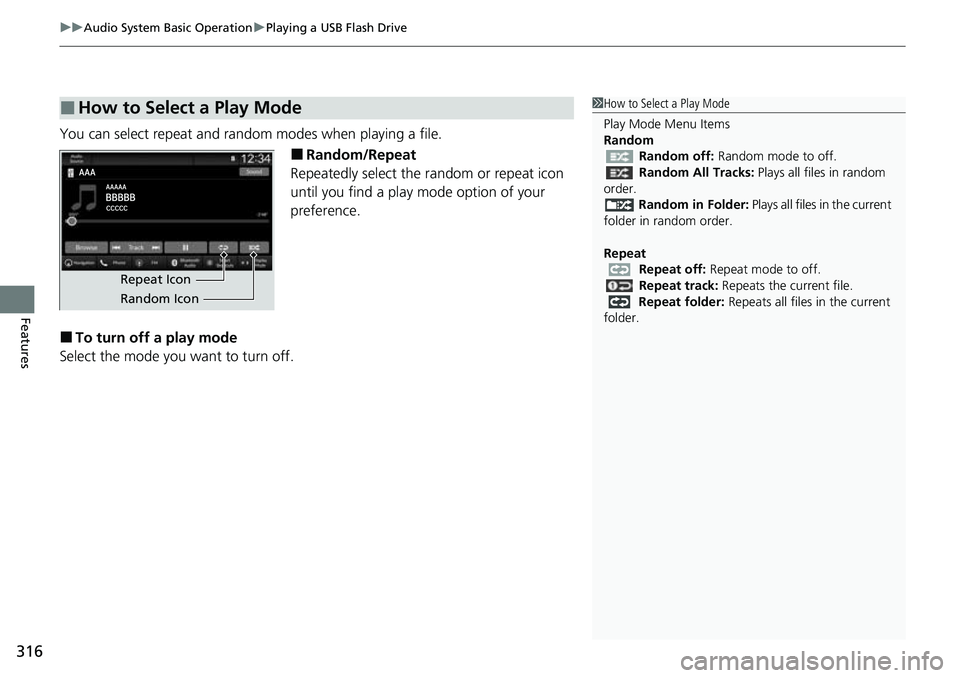
You can select repeat and random modes when playing a file.
■Random/Repeat
Repeatedly select the random or repeat icon
until you find a play mode option of your
preference.
■To turn off a play mode
Select the mode you want to turn off.
■How to Select a Play Mode1 How to Select a Play Mode
Play Mode Menu Items
Random
Random off: Random mode to off.
Random All Tracks: Plays all files in random
order.
Random in Folder: Plays all files in the current
folder in random order.
Repeat Repeat off: Repeat mode to off.
Repeat track: Repeats the current file.
Repeat folder: Repeats all files in the current
folder.
Repeat Icon
Random Icon
Page 318 of 719
317
uuAudio System Basic Operation uPlaying Bluetooth ® Audio
Continued
Features
Playing Bluetooth ® Audio
Your audio system allows you to listen to music from your Bluetooth-compatible
phone.
This function is available when the phone is paired and connected to the vehicle’s
Bluetooth ® HandsFreeLink ® (HFL) system.
2Phone Setup P. 425
1Playing Bluetooth ® Audio
Not all Bluetooth -enabled phones with streaming
audio capabilities are compatible with the system.
For a list of compatible phones:
•U.S.: Visit automobiles.honda.com/handsfreelink/ ,
or call 1-888-528-7876.
•Canada: For more info rmation on smartphone
compatibility, call 1-855-490-7351.
It may be illegal to perform some data device
functions while driving.
Only one phone can be used with HFL at a time.
When there is more than one paired phone in the
vehicle, the system automatically connects to the
prioritized phone. You can a ssign priority to a phone
in the Bluetooth ® device list.
2 Phone Setup P. 425
The connected phone for Bluetooth® Audio can be
different.
If more than one phone is paired to the HFL system,
there may be a delay before the system begins to play.
In some cases, the name of the artist, album, or track
may not appear correctly.
Some functions may not be available on some devices.
If a phone is currently conne cted via Apple CarPlay or
Android Auto, Bluetooth® Audio from that phone is
unavailable. However, a se cond previously paired
phone can stream Bluetooth® Audio by selecting
from the Bluetooth ® device list.
2 Phone Setup P. 425
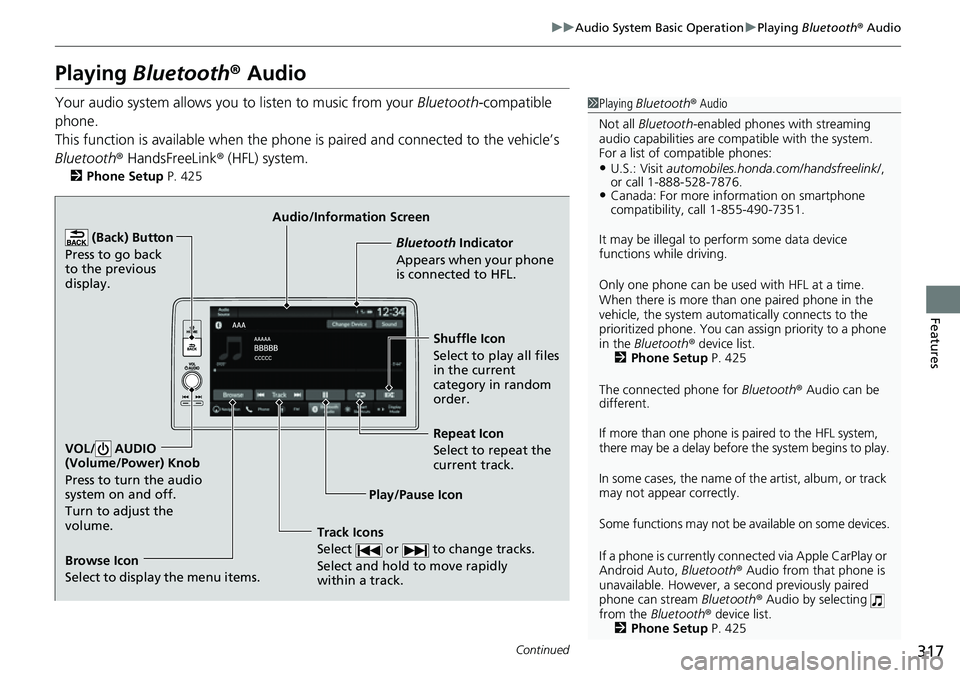
Audio/Information Screen
Browse Icon
Select to display the menu items. Play/Pause IconBluetooth Indic
a
tor
Appears when your phone
is connected to HFL.
Track Icons
Select or to change tracks.
Select and hold to move rapidly
within a track.
Repeat Icon
Select to repeat the
current track.
(Back) Button
Press to go back
to the previous
display.VOL/ AUDIO
(Volume/Power) Knob
Press to turn the audio
system on and off.
Turn to adjust the
volume.
Shuffle Icon
Select to play all files
in the current
category in random
order.
Page 319 of 719
uuAudio System Basic Operation uPlaying Bluetooth ® Audio
318
Features
1. Make sure that your phone is paired and
connected to the system.
2 Phone Setup P. 425
2.Select the Bluetooth® Audio mode.
If the phone is not recognized, another HFL-
compatible phone, which is not compatible
for Bluetooth ® Audio, may already be
connected.
■To play or pause a file
Select the play/pause icon.
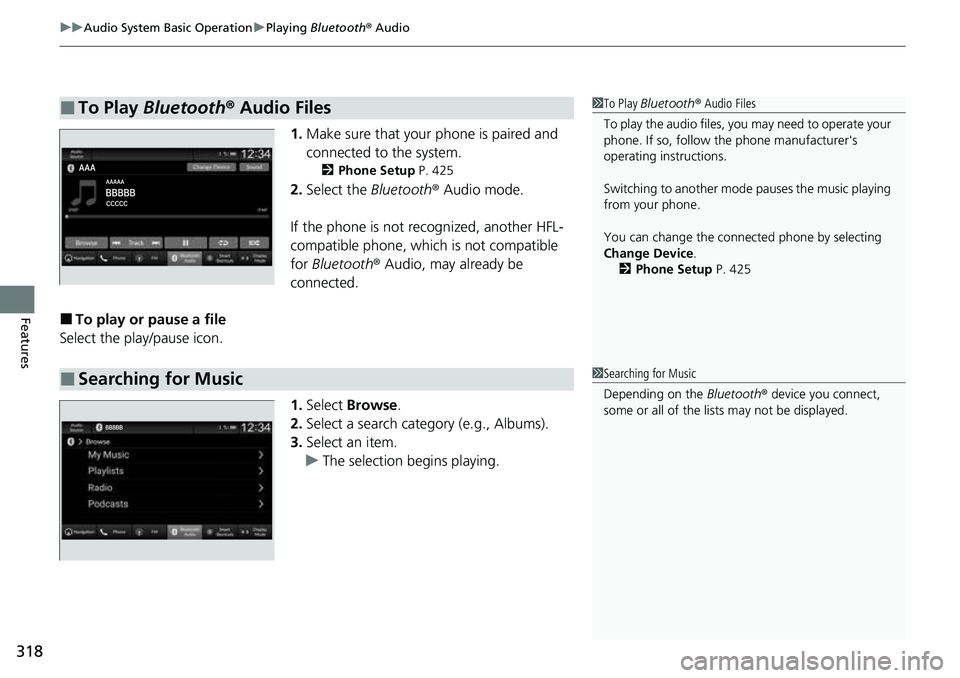
1.Select Browse .
2. Select a search category (e.g., Albums).
3. Select an item.
u The selection begins playing.
■To Play Bluetooth ® Audio Files1 To Play Bluetooth ® Audio Files
To play the audio files, y ou may need to operate your
phone. If so, follow the phone manufacturer's
operating instructions.
Switching to another mode pauses the music playing
from your phone.
You can change the connected phone by selecting
Change Device .
2 Phone Setup P. 425
■Searching for Music1Searching for Music
Depending on the Bluetooth® device you connect,
some or all of the list s may not be displayed.
Page 320 of 719
319
uuAudio System Basic Operation uPlaying Bluetooth ® Audio
Features
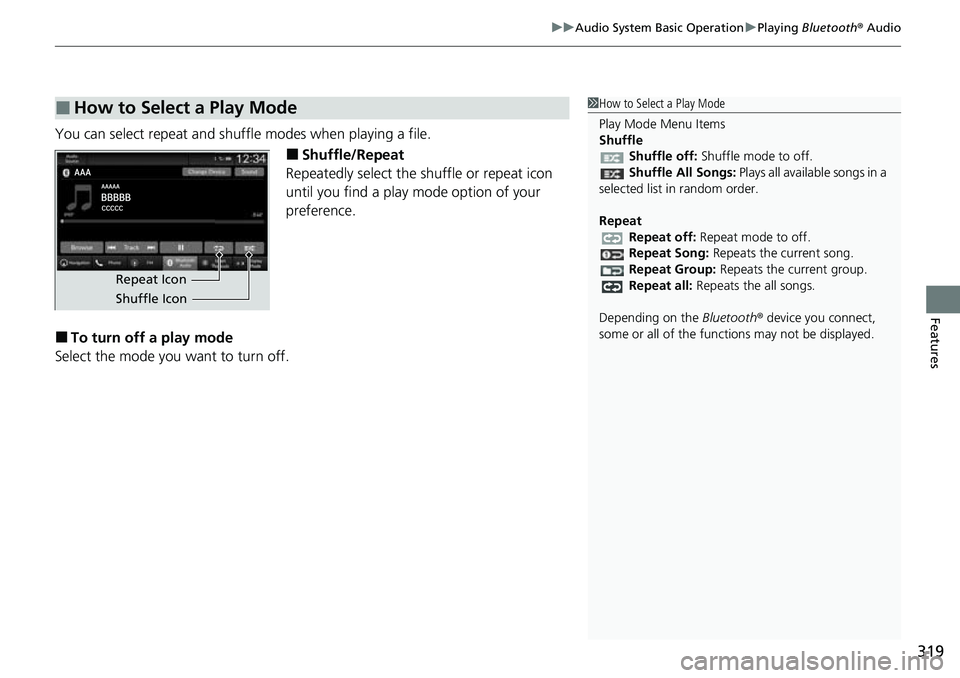
You can select repeat and shuffle modes when playing a file.
■Shuffle/Repeat
Repeatedly select the shuffle or repeat icon
until you find a play mode option of your
preference.
■To turn off a play mode
Select the mode you want to turn off.
■How to Select a Play Mode1 How to Select a Play Mode
Play Mode Menu Items
Shuffle
Shuffle off: Shuffle mode to off.
Shuffle All Songs: Plays all available songs in a
selected list in random order.
Repeat Repeat off: Repeat mode to off.
Repeat Song: Repeats the current song.
Repeat Group: Repeats the current group.
Repeat all: Repeats the all songs.
Depending on the Bluetooth® device you connect,
some or all of the functi ons may not be displayed.
Repeat Icon
Shuffle Icon
Page 321 of 719
320
uuAudio System Basic Operation uHondaLink ®
Features
HondaLink ®
HondaLink® connects you to the latest information from Honda. You can connect
your phone wirelessly through Wi-Fi or Bluetooth®.
2Wi-Fi Connection P. 327
2 Phone Setup P. 425
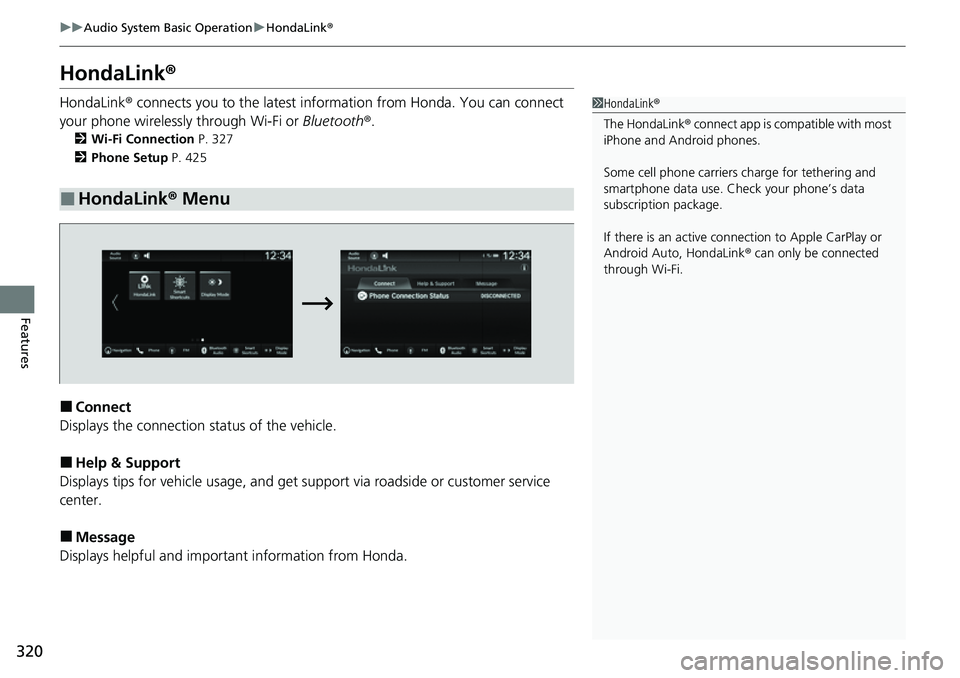
■Connect
Displays the connection status of the vehicle.
■Help & Support
Displays tips for vehicle usage, and get support via roadside or customer service
center.
■Message
Displays helpful and important information from Honda.
■HondaLink® Menu
1HondaLink ®
The HondaLink® connect app is compatible with most
iPhone and Android phones.
Some cell phone carriers charge for tethering and
smartphone data use. Check your phone’s data
subscription package.
If there is an active connection to Appl e CarPlay or
Android Auto, HondaLink ® can only be connected
through Wi-Fi.
Page 322 of 719
321
uuAudio System Basic Operation uHondaLink ®
Continued
Features
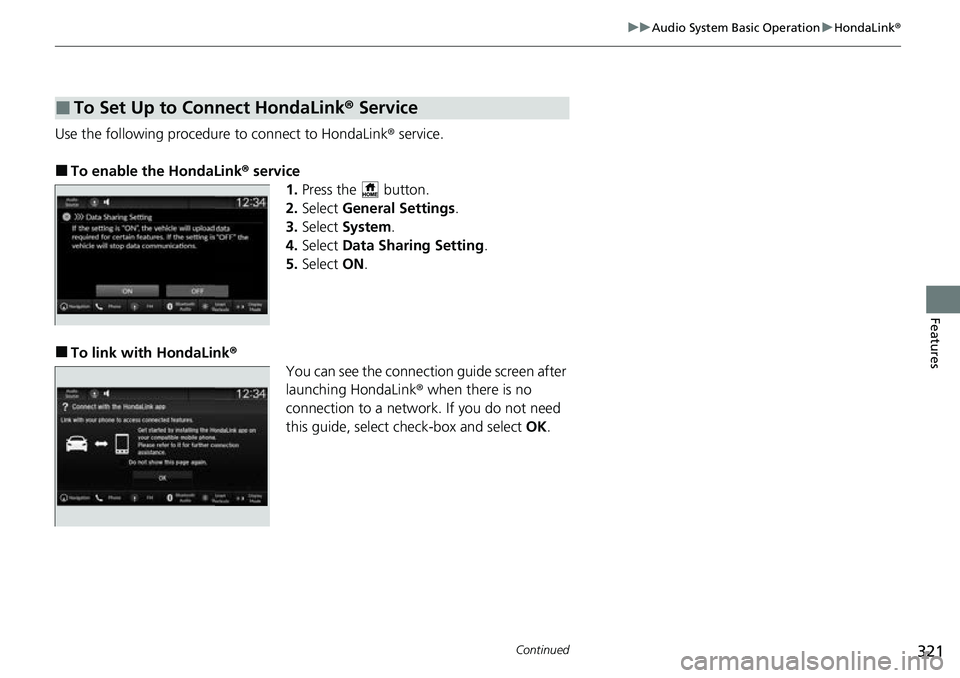
Use the following procedure to connect to HondaLink ® service.
■To enable the HondaLink® service
1.Press the button.
2. Select General Settings .
3. Select System.
4. Select Data Sharing Setting .
5. Select ON.
■To link with HondaLink ®
You can see the connection guide screen after
launching HondaLink® when there is no
connection to a network. If you do not need
this guide, select check-box and select OK.
■To Set Up to Connect HondaLink ® Service
Page 323 of 719
322
uuAudio System Basic Operation uHondaLink ®
Features
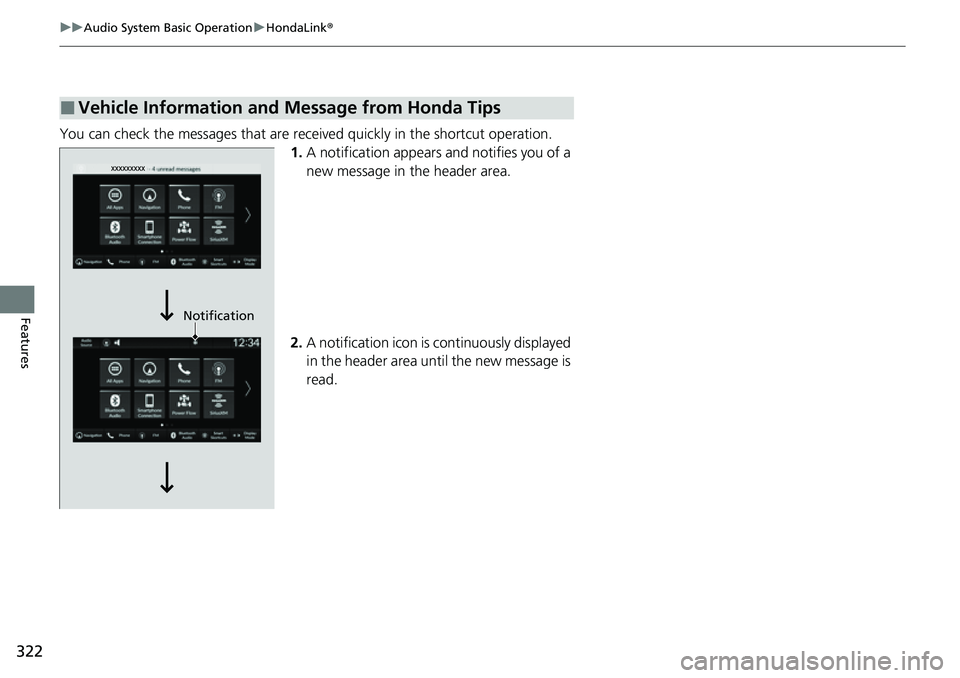
You can check the messages that are rece ived quickly in the shortcut operation.
1. A notification appears and notifies you of a
new message in the header area.
2. A notification icon is continuously displayed
in the header area until the new message is
read.
■Vehicle Information and Message from Honda Tips
Notification
Page 324 of 719
323
uuAudio System Basic Operation uHondaLink ®
Features
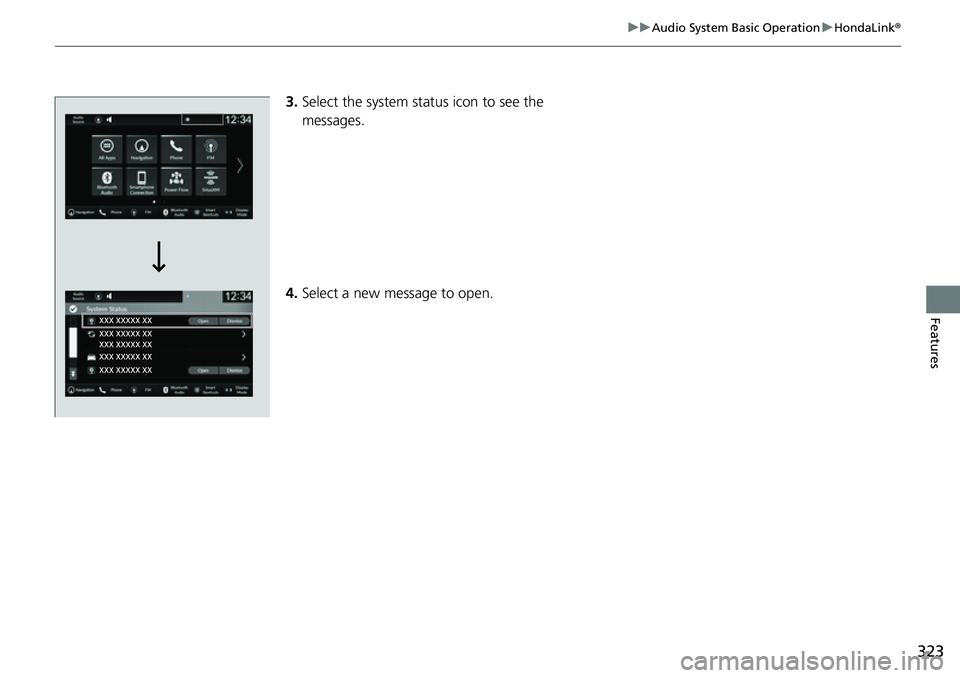
3.Select the system status icon to see the
messages.
4. Select a new message to open.
Page 325 of 719
324
uuAudio System Basic Operation uSmart Shortcuts
Features
Smart Shortcuts
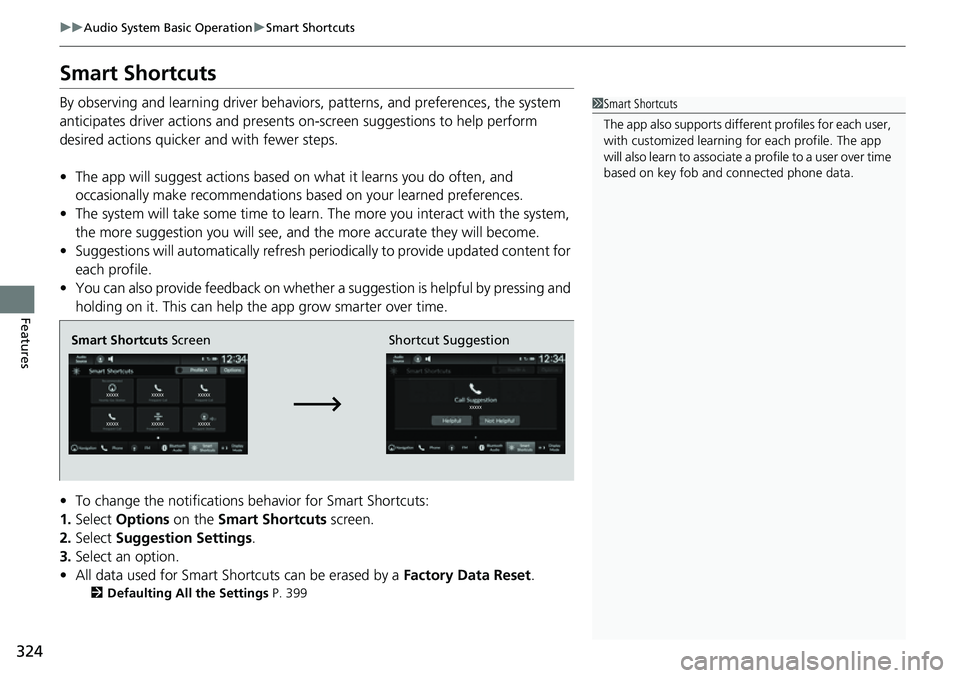
By observing and learning driver behaviors, patterns, and preferences, the system
anticipates driver actions and presents on-screen suggestions to help perform
desired actions quicker and with fewer steps.
• The app will suggest actions based on what it learns you do often, and
occasionally make recommendations based on your learned preferences.
• The system will take some time to learn. The more you interact with the system,
the more suggestion you will see, and the more accurate they will become.
• Suggestions will automatically refresh peri odically to provide updated content for
each profile.
• You can also provide feedback on whether a suggestion is helpful by pressing and
holding on it. This can help the app grow smarter over time.
• To change the notifications behavior for Smart Shortcuts:
1. Select Options on the Smart Shortcuts screen.
2. Select Suggestion Settings .
3. Select an option.
• All data used for Smart Shortcuts can be erased by a Factory Data Reset.
2Defaulting All the Settings P. 399
1Smart Shortcuts
The app also supports different profiles for each user,
with customized learning for each profile. The app
will also learn to associate a profile to a user over time
based on key fob and connected phone data.
Smart Shortcuts Screen Shortcut Suggestion