audio HONDA CRV 2023 Repair Manual
[x] Cancel search | Manufacturer: HONDA, Model Year: 2023, Model line: CRV, Model: HONDA CRV 2023Pages: 719, PDF Size: 13.43 MB
Page 276 of 719
275
uuAudio System Basic Operation uAudio/Information Screen
Continued
Features
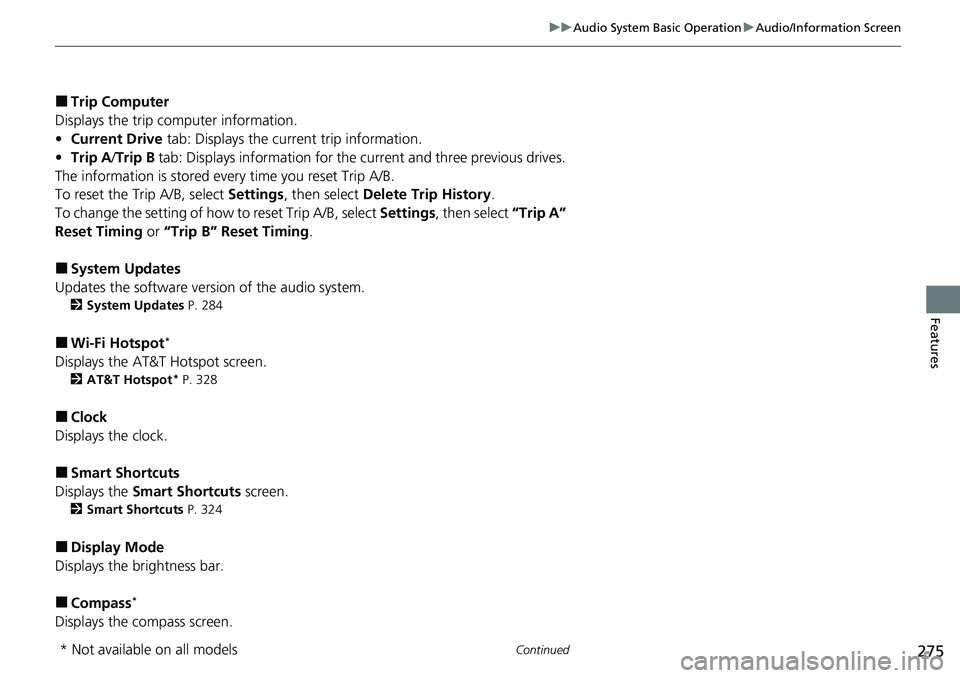
■Trip Computer
Displays the trip computer information.
• Current Drive tab: Displays the current trip information.
• Trip A /Trip B tab: Displays information for the current and three previous drives.
The information is stored ever y time you reset Trip A/B.
To reset the Trip A/B, select Settings, then select Delete Trip History .
To change the setting of how to reset Trip A/B, select Settings, then select “Trip A”
Reset Timing or “Trip B” Reset Timing .
■System Updates
Updates the software version of the audio system.
2 System Updates P. 284
■Wi-Fi Hotspot*
Displays the AT&T Hotspot screen.
2AT&T Hotspot* P. 328
■Clock
Displays the clock.
■Smart Shortcuts
Displays the Smart Shortcuts screen.
2Smart Shortcuts P. 324
■Display Mode
Displays the brightness bar.
■Compass*
Displays the compass screen.
* Not available on all models
Page 277 of 719
uuAudio System Basic Operation uAudio/Information Screen
276
Features
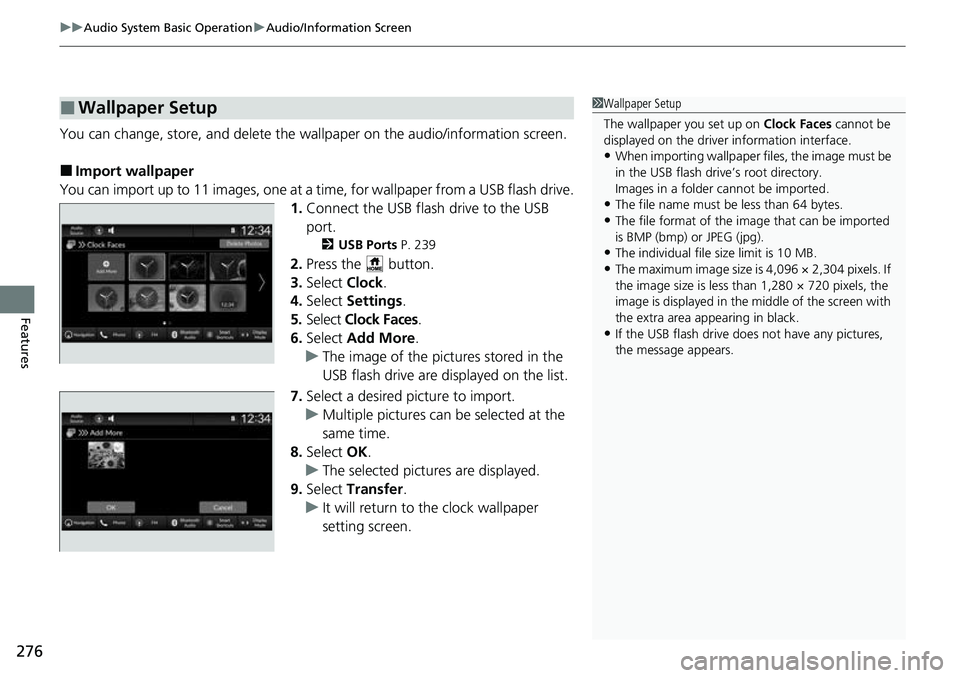
You can change, store, and delete the wallpaper on the audio/information screen.
■Import wallpaper
You can import up to 11 images, one at a time, for wallpaper from a USB flash drive.
1.Connect the USB flash drive to the USB
port.
2 USB Ports P. 239
2.Press the button.
3. Select Clock.
4. Select Settings .
5. Select Clock Faces.
6. Select Add More .
u The image of the pictures stored in the
USB flash drive are displayed on the list.
7. Select a desired picture to import.
u Multiple pictures can be selected at the
same time.
8. Select OK.
u The selected pictures are displayed.
9. Select Transfer.
u It will return to the clock wallpaper
setting screen.
■Wallpaper Setup1Wallpaper Setup
The wallpaper you set up on Clock Faces cannot be
displayed on the driver information interface.
•When importing wallpaper f iles, the image must be
in the USB flash drive’s root directory.
Images in a folder cannot be imported.
•The file name must be less than 64 bytes.
•The file format of the im age that can be imported
is BMP (bmp) or JPEG (jpg).
•The individual file size limit is 10 MB.
•The maximum image size is 4,096 × 2,304 pixels. If
the image size is less than 1,280 × 720 pixels, the
image is displayed in the middle of the screen with
the extra area appearing in black.
•If the USB flash drive doe s not have any pictures,
the message appears.
Page 278 of 719
Continued277
uuAudio System Basic Operation uAudio/Information Screen
Features
■Select wallpaper
1. Press the button.
2. Select Clock.
3. Select Settings .
4. Select Clock Faces .
5. Select a desired picture to set.
u The preview is displayed on the screen.
6. Select Save.
u The clock screen which the wallpa per has been set is displayed.
■To view wallpaper once it is set
1. Press the button.
2. Select Clock.
■Delete wallpaper
1. Press the button.
2. Select Clock.
3. Select Settings .
4. Select Clock Faces .
5. Select Delete Photos .
6. Select a desired picture to delete.
u Multiple pictures can be selected at the same time.
7. Select OK.
u The selected pictures are displayed.
8. Select Delete .
u It will return to the cloc k wallpaper setting screen.
1Wallpaper Setup
You cannot delete the initial imported wallpapers.
Page 279 of 719
uuAudio System Basic Operation uAudio/Information Screen
278
Features
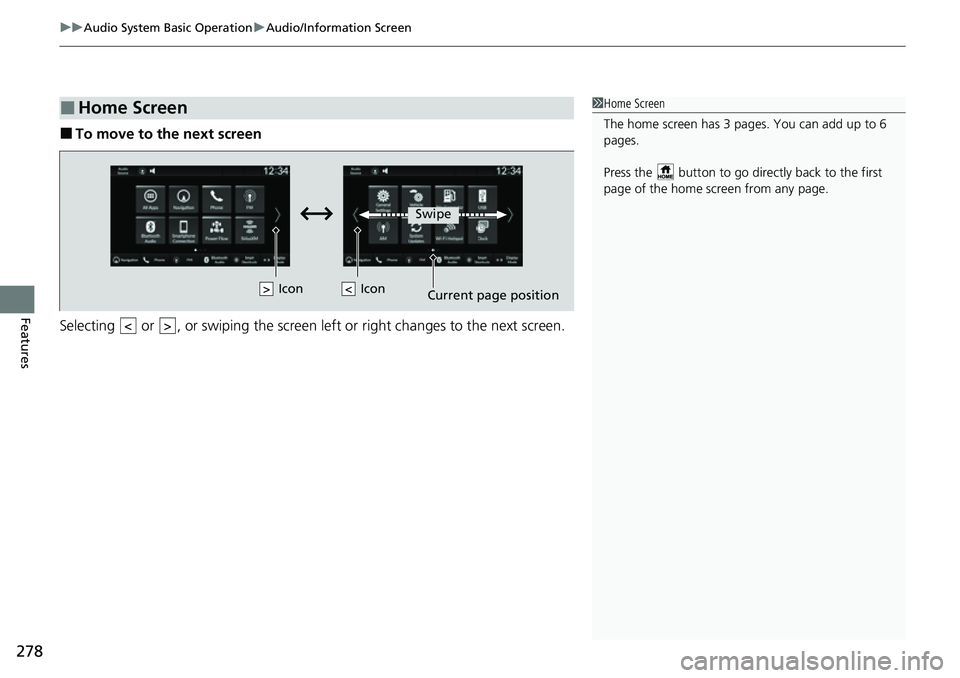
■To move to the next screen
Selecting or , or swiping the screen le ft or right changes to the next screen.
■Home Screen1Home Screen
The home screen has 3 pages. You can add up to 6
pages.
Press the button to go directly back to the first
page of the home screen from any page.
Swipe
Icon
> Icon
Page 280 of 719
Continued279
uuAudio System Basic Operation uAudio/Information Screen
Features
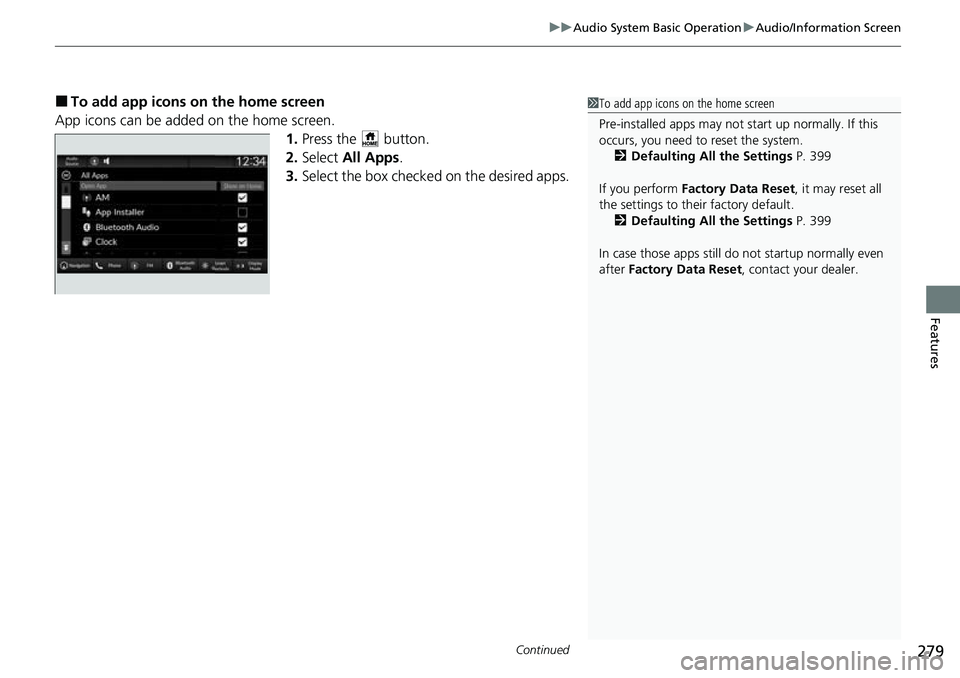
■To add app icons on the home screen
App icons can be added on the home screen. 1.Press the button.
2. Select All Apps .
3. Select the box checked on the desired apps.1To add app icons on the home screen
Pre-installed apps may not start up normally. If this
occurs, you need to reset the system.
2 Defaulting All the Settings P. 399
If you perform Factory Data Reset , it may reset all
the settings to their factory default. 2 Defaulting All the Settings P. 399
In case those apps still do not startup normally even
after Factory Data Reset , contact your dealer.
Page 281 of 719
uuAudio System Basic Operation uAudio/Information Screen
280
Features
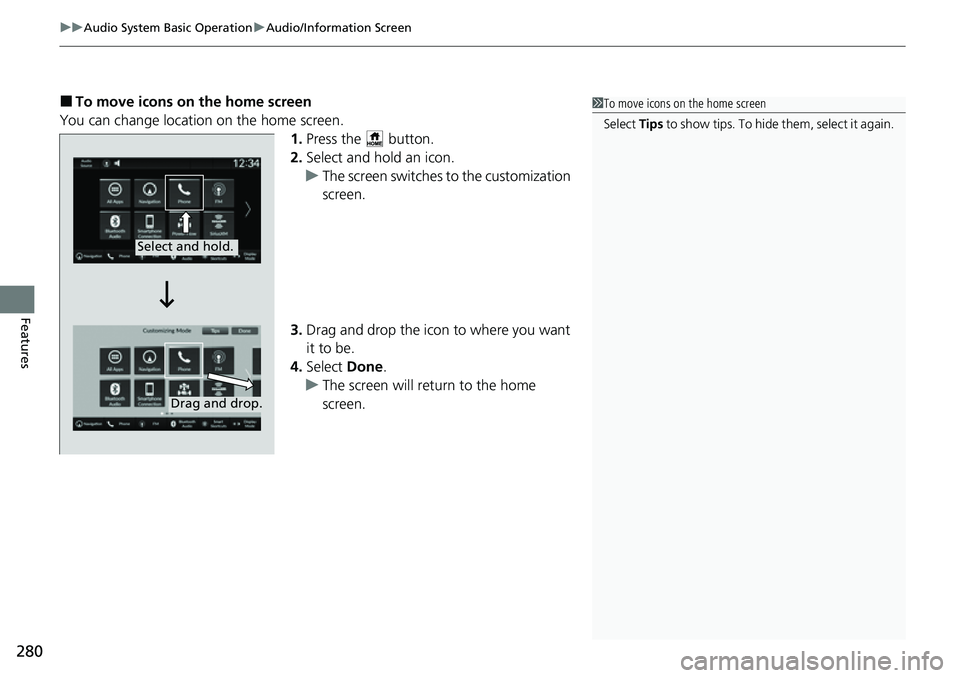
■To move icons on the home screen
You can change location on the home screen. 1.Press the button.
2. Select and hold an icon.
u The screen switches to the customization
screen.
3. Drag and drop the icon to where you want
it to be.
4. Select Done.
u The screen will return to the home
screen.1To move icons on the home screen
Select Tips to show tips. To hide them, select it again.
Select and hold.
Drag and drop.
Page 282 of 719
Continued281
uuAudio System Basic Operation uAudio/Information Screen
Features
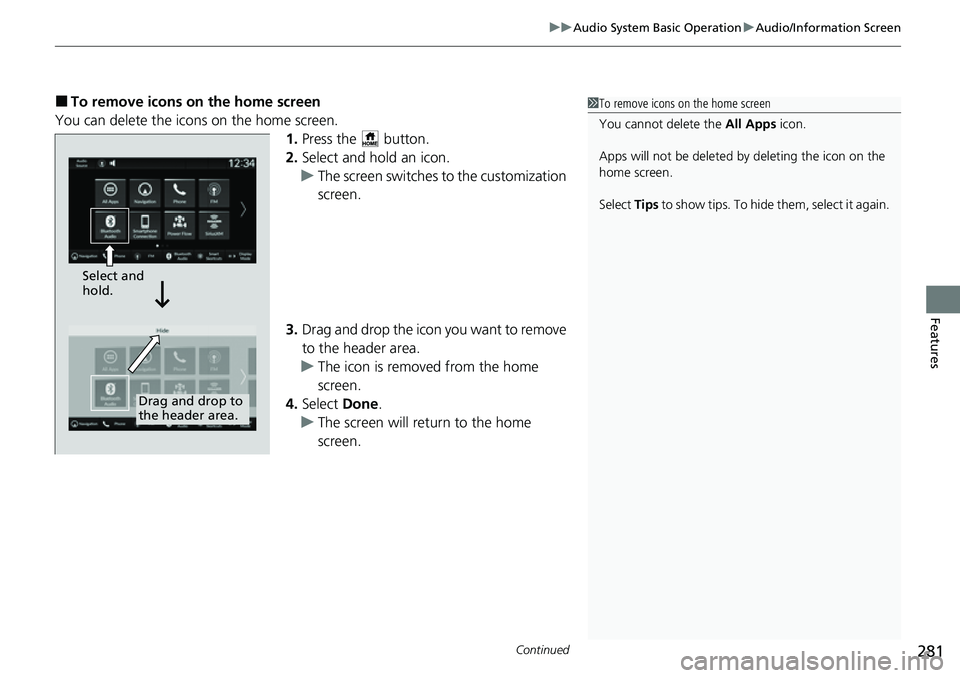
■To remove icons on the home screen
You can delete the icons on the home screen. 1.Press the button.
2. Select and hold an icon.
u The screen switches to the customization
screen.
3. Drag and drop the icon you want to remove
to the header area.
u The icon is removed from the home
screen.
4. Select Done.
u The screen will return to the home
screen.1To remove icons on the home screen
You cannot delete the All Apps icon.
Apps will not be deleted by deleting the icon on the
home screen.
Select Tips to show tips. To hide them, select it again.
Select and
hold.
Drag and drop to
the header area.
Page 283 of 719
uuAudio System Basic Operation uAudio/Information Screen
282
Features
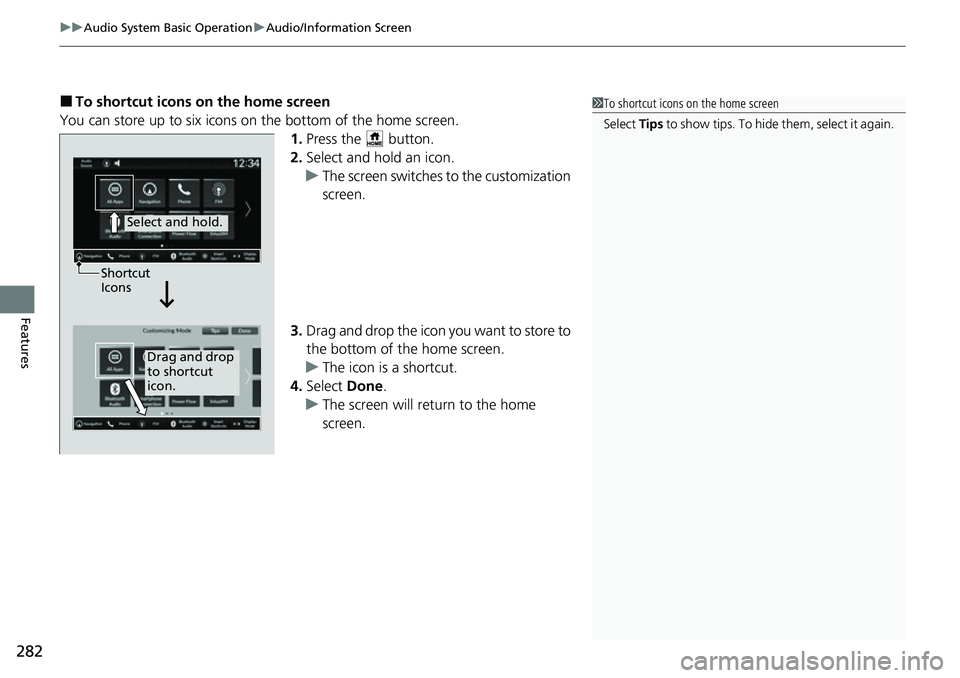
■To shortcut icons on the home screen
You can store up to six icons on the bottom of the home screen. 1.Press the button.
2. Select and hold an icon.
u The screen switches to the customization
screen.
3. Drag and drop the icon you want to store to
the bottom of the home screen.
u The icon is a shortcut.
4. Select Done.
u The screen will return to the home
screen.1To shortcut icons on the home screen
Select Tips to show tips. To hide them, select it again.
Select and hold.
Drag and drop
to shortcut
icon.
Shortcut
Icons
Page 284 of 719
283
uuAudio System Basic Operation uAudio/Information Screen
Features
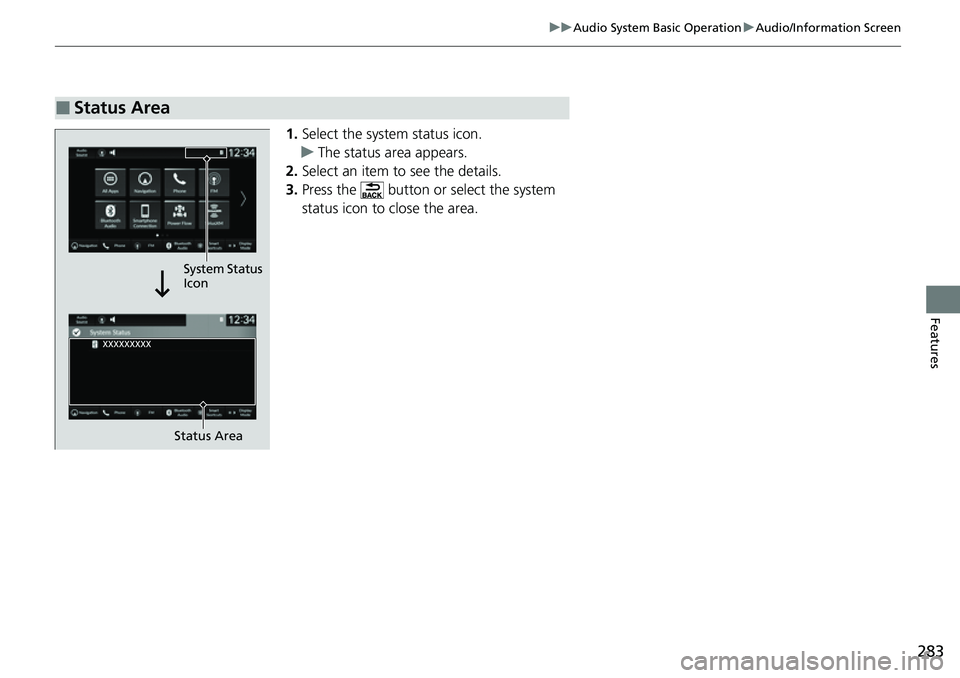
1. Select the system status icon.
u The status area appears.
2. Select an item to see the details.
3. Press the button or select the system
status icon to close the area.
■Status Area
Status Area
System Status
Icon
Page 285 of 719
284
uuAudio System Basic Operation uSystem Updates
Features
System Updates
The audio system’s firmware can be upda ted with a Wi-Fi connection, with a USB
device, or with the telematics control unit (TCU)* through the subscription-based
service.
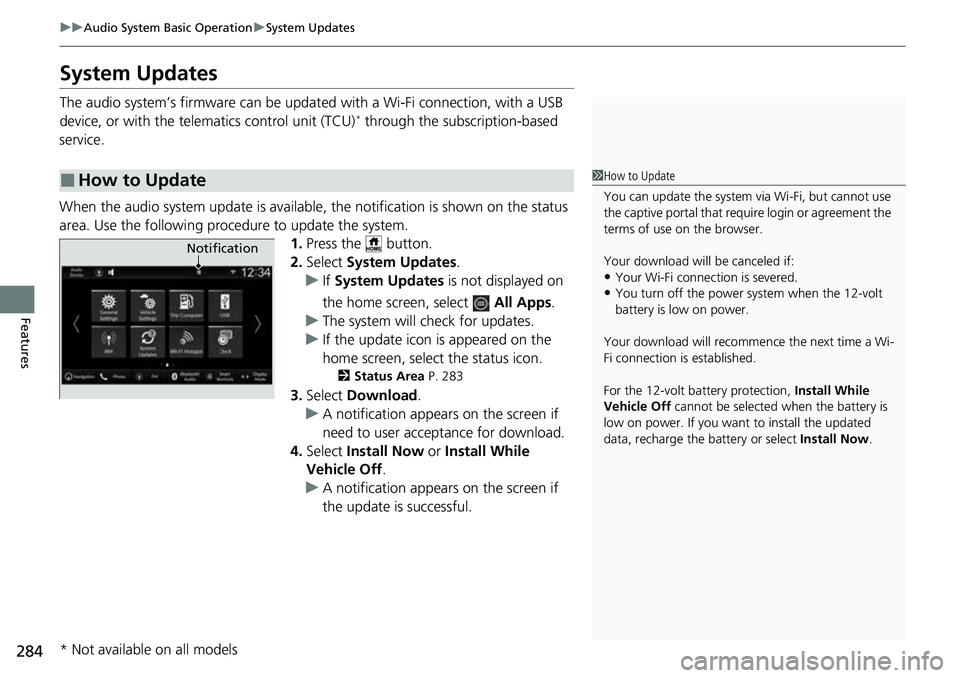
When the audio system update is available, the notification is shown on the status
area. Use the following proc edure to update the system.
1.Press the button.
2. Select System Updates .
u If System Updates is not displayed on
the home screen, select All Apps.
u The system will check for updates.
u If the update icon is appeared on the
home screen, select the status icon.
2 Status Area P. 283
3.Select Download .
u A notification appears on the screen if
need to user acceptance for download.
4. Select Install Now or Install While
Vehicle Off .
u A notification appears on the screen if
the update is successful.
■How to Update1How to Update
You can update the system vi a Wi-Fi, but cannot use
the captive portal that require login or agreement the
terms of use on the browser.
Your download will be canceled if:
•Your Wi-Fi connection is severed.•You turn off the power system when the 12-volt
battery is low on power.
Your download will recomme nce the next time a Wi-
Fi connection is established.
For the 12-volt battery protection, Install While
Vehicle Off cannot be selected when the battery is
low on power. If you want to install the updated
data, recharge the battery or select Install Now.
Notification
* Not available on all models