display HONDA CRV 2023 User Guide
[x] Cancel search | Manufacturer: HONDA, Model Year: 2023, Model line: CRV, Model: HONDA CRV 2023Pages: 719, PDF Size: 13.43 MB
Page 118 of 719
117
uuGauges and Driver Information Interface uDriver Information Interface
Continued
Instrument Panel
Driver Information Interface
The driver information interface shows information such as the estimated travelable
distance and fuel economy of the vehicle. It also displays messages such as warnings
and other helpful information.
When a warning message displays, please check the message and contact a dealer
to have the vehicle inspected if necessary. Please refer to the pages below if the
Engine oil pressure low, Engine temperature too hot or Limited stopping
power! message is displayed.
2If the Engine oil pressure low Warning Appears P. 676
2 Overheating P. 674
2 If the Limited stopping power Warning Appears P. 677
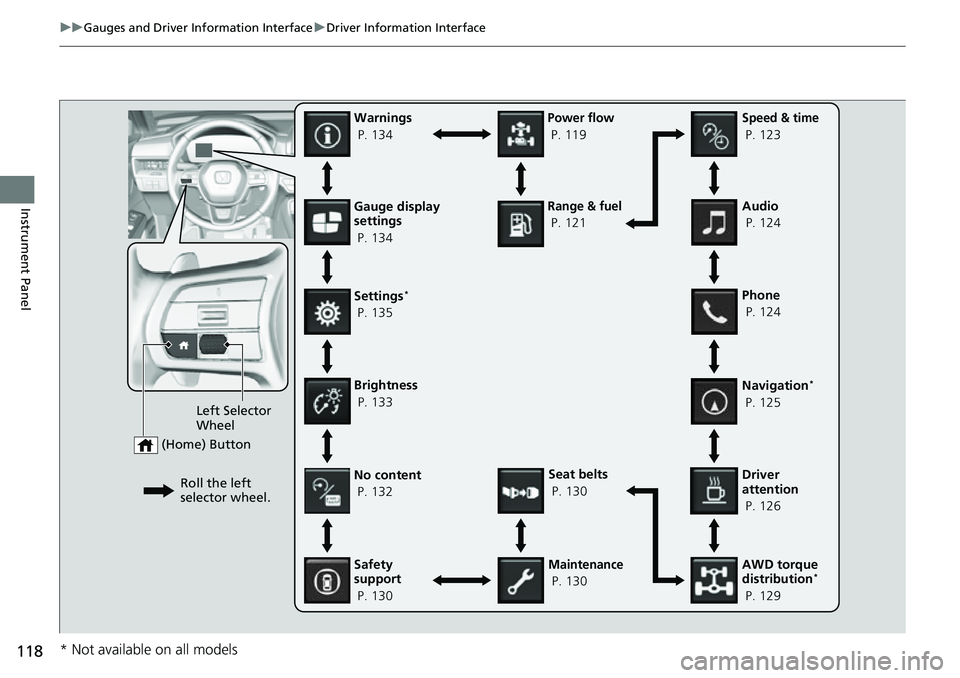
Press the (home) button, then roll the left selector wheel to scroll to the content
you want to see. Press the left sele ctor wheel to see detailed information.
■Switching the Display1Switching the Display
You can add or delete the meter contents.
2 Gauge Display Settings P. 134
Page 119 of 719
118
uuGauges and Driver Information Interface uDriver Information Interface
Instrument PanelGauge display
settings
P. 134
Left Selector
Wheel
(Home) Button
Roll the left
selector wheel.No content
P. 132
Speed & time
P. 123
Warnings
P. 134
Power flow
P. 119
Settings
*
P. 135
Driver
attention
P. 126
Seat belts
P. 130
Safety
support
P. 130
Maintenance
P. 130 Phone
P. 124 Audio
P. 124
Navigation
*
P. 125
AWD torque
distribution
*
P. 129
Brightness
P. 133
Range & fuel
P. 121
* Not available on all models
Page 120 of 719
Continued119
uuGauges and Driver Information Interface uDriver Information Interface
Instrument Panel
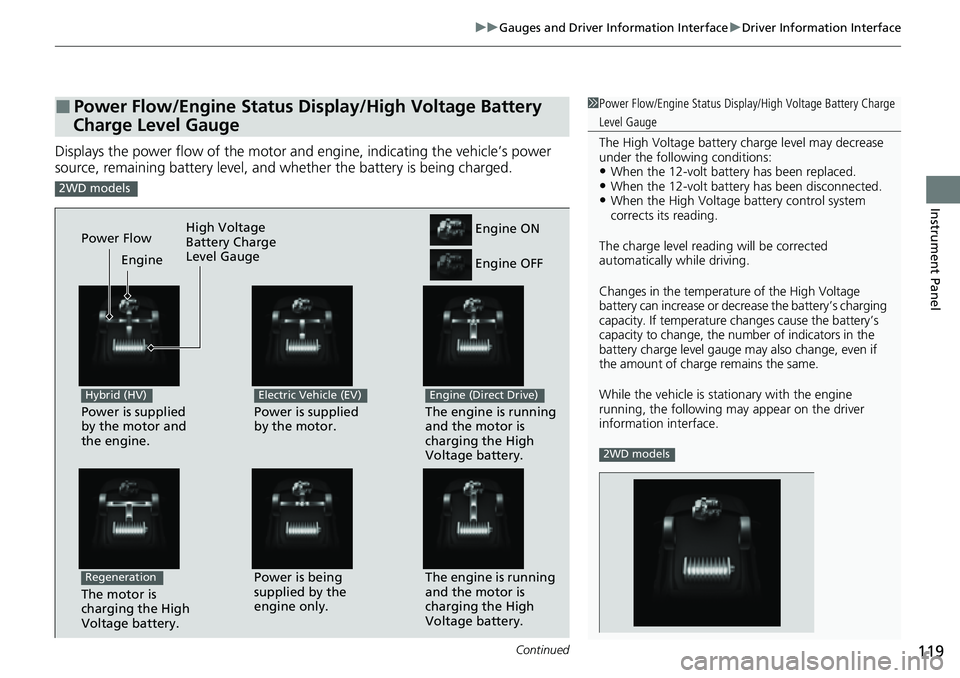
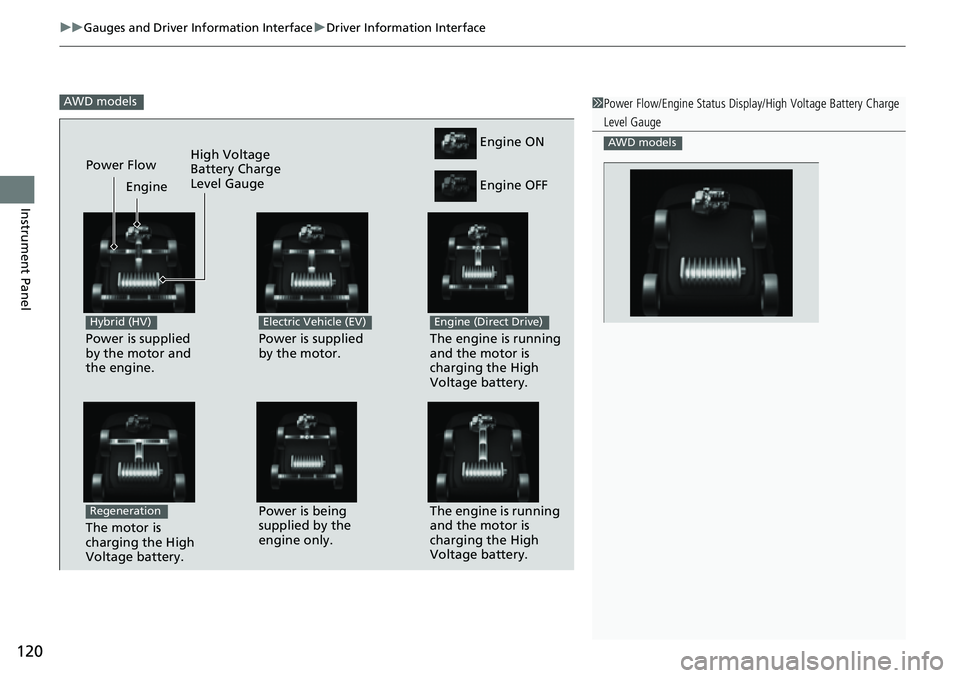
Displays the power flow of the motor an d engine, indicating the vehicle’s power
source, remaining battery level, and whether the battery is being charged.
■Power Flow/Engine Status Display/High Voltage Battery
Charge Level Gauge1 Power Flow/Engine Status Display/High Voltage Battery Charge
Level Gauge
The High Voltage battery ch arge level may decrease
under the following conditions:
•When the 12-volt batter y has been replaced.•When the 12-volt battery has been disconnected.•When the High Voltage battery control system
corrects its reading.
The charge level readin g will be corrected
automatically while driving.
Changes in the temperatur e of the High Voltage
battery can increase or decrease the battery’s charging
capacity. If temperature ch anges cause the battery’s
capacity to change, the num ber of indicators in the
battery charge level gauge may also change, even if
the amount of charge remains the same.
While the vehicle is stat ionary with the engine
running, the following ma y appear on the driver
information interface.
2WD models
2WD models
Power is supplied
by the motor and
the engine.
Hybrid (HV)
The engine is running
and the motor is
charging the High
Voltage battery.Power is being
supplied by the
engine only.
Engine ON
Engine OFF
Power is supplied
by the motor.
Electric Vehicle (EV)
The engine is running
and the motor is
charging the High
Voltage battery.
Engine (Direct Drive)
Power Flow Engine
The motor is
charging the High
Voltage battery.
Regeneration
High Voltage
Battery Charge
Level Gauge
Page 121 of 719
uuGauges and Driver Information Interface uDriver Information Interface
120
Instrument Panel
AWD models1Power Flow/Engine Status Display/High Voltage Battery Charge
Level Gauge
AWD models
Power is supplied
by the motor and
the engine.
Hybrid (HV)
The engine is running
and the motor is
charging the High
Voltage battery.Power is being
supplied by the
engine only.
Engine ON
Engine OFF
Power is supplied
by the motor.
Electric Vehicle (EV)
The engine is running
and the motor is
charging the High
Voltage battery.
Engine (Direct Drive)
Power Flow Engine
The motor is
charging the High
Voltage battery.
Regeneration
High Voltage
Battery Charge
Level Gauge
Page 123 of 719
uuGauges and Driver Information Interface uDriver Information Interface
122
Instrument Panel
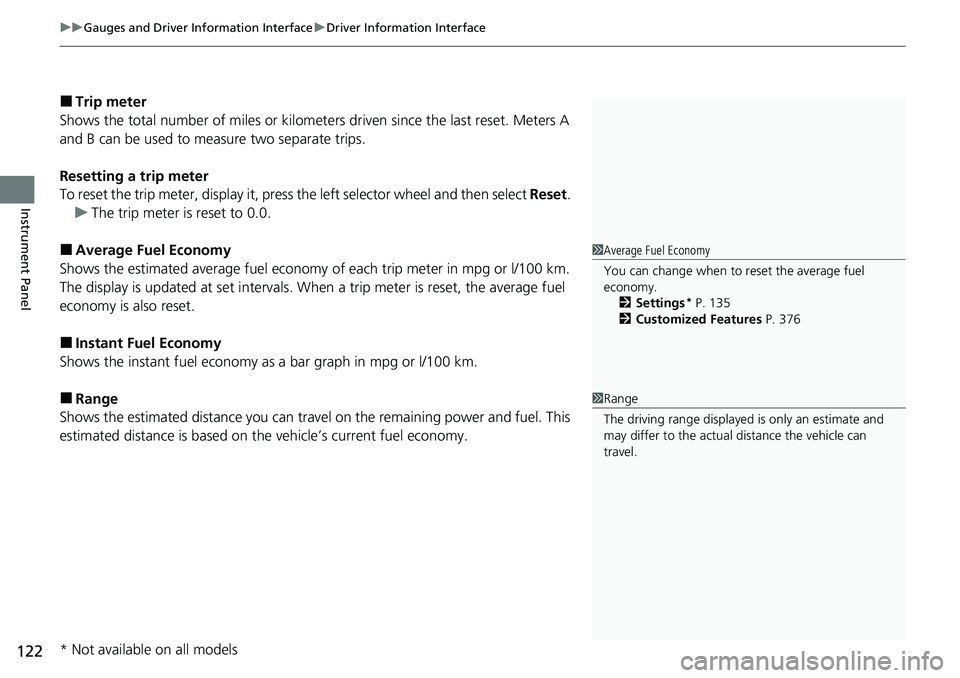
■Trip meter
Shows the total number of miles or kilomete rs driven since the last reset. Meters A
and B can be used to measure two separate trips.
Resetting a trip meter
To reset the trip meter, display it, press the left selector wheel and then select Reset.
u The trip meter is reset to 0.0.
■Average Fuel Economy
Shows the estimated average fuel economy of each trip meter in mpg or l/100 km.
The display is updated at set intervals. When a trip meter is reset, the average fuel
economy is also reset.
■Instant Fuel Economy
Shows the instant fuel economy as a bar graph in mpg or l/100 km.
■Range
Shows the estimated distance you can trave l on the remaining power and fuel. This
estimated distance is based on the vehicle’s current fuel economy.
1 Average Fuel Economy
You can change when to reset the average fuel
economy.
2 Settings
* P. 135
2 Customized Features P. 376
1Range
The driving range displayed is only an estimate and
may differ to the actual distance the vehicle can
travel.
* Not available on all models
Page 126 of 719
Continued125
uuGauges and Driver Information Interface uDriver Information Interface
Instrument Panel
■Compass
Shows the compass screen.
■Turn-by-Turn Directions
When driving guidance is provided by the navigation system*, Android Auto or
Apple CarPlay, turn-by-turn direct ions to your destination appear.
2Refer to the Navigation System Manual
2 Android AutoTM P. 336
2 Apple CarPlay P. 329
■Navigation*1Navigation*
You can select whether to have the turn-by-turn
display come on or not dur ing the route guidance.
2 Customized Features P. 376
Turn-by-turn directions may not be available for all
apps.
When the compass or turn-by-turn directions are
displayed, you can contro l some navigation system
functions on the driver information interface by
scrolling the left selector wheel.
2 Refer to the Navigation System Manual
Models with navigation system
* Not available on all models
Page 127 of 719
uuGauges and Driver Information Interface uDriver Information Interface
126
Instrument Panel
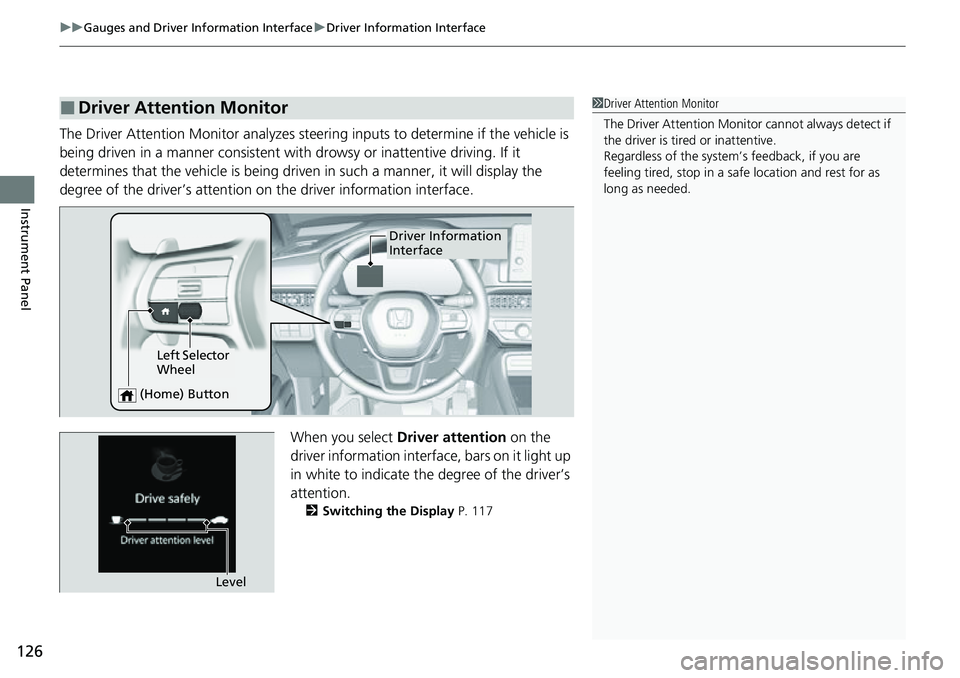
The Driver Attention Monitor analyzes steer ing inputs to determine if the vehicle is
being driven in a manner consistent with drowsy or inattentive driving. If it
determines that the vehicle is being driven in such a manner, it will display the
degree of the driver’s attention on the driver information interface.
When you select Driver attention on the
driver information interface, bars on it light up
in white to indicate the degree of the driver’s
attention.
2 Switching the Display P. 117
■Driver Attention Monitor1Driver Attention Monitor
The Driver Attenti on Monitor cannot always detect if
the driver is tired or inattentive.
Regardless of the system’s feedback, if you are
feeling tired, stop in a safe location and rest for as
long as needed.
Driver Information
Interface
Left Selector
Wheel
(Home) Button
Level
Page 130 of 719
129
uuGauges and Driver Information Interface uDriver Information Interface
Continued
Instrument Panel
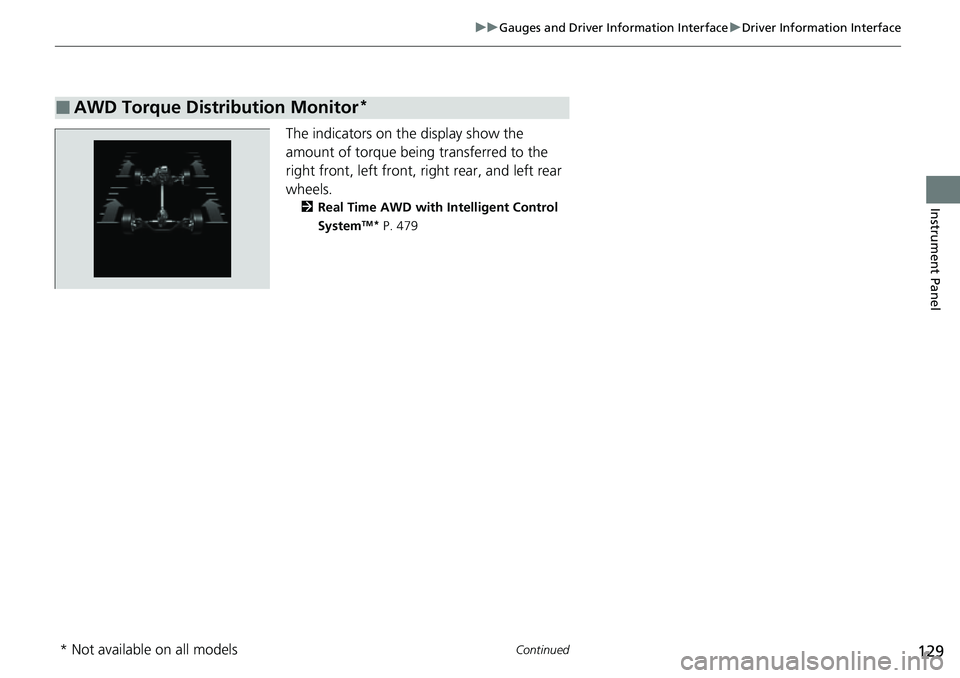
The indicators on the display show the
amount of torque being transferred to the
right front, left front, right rear, and left rear
wheels.
2 Real Time AWD with Intelligent Control
SystemTM* P. 479
■AWD Torque Distribution Monitor*
* Not available on all models
Page 131 of 719
uuGauges and Driver Information Interface uDriver Information Interface
130
Instrument Panel
Occurs, under specified conditions, when seat belts are latched or unlatched.
2 Seat Belt Reminder P. 51
Shows the remaining oil life and Maintenance MinderTM.
2Maintenance MinderTM P. 603
Indicates the status of the Road Departure Mitigation system, CMBSTM, Low Speed
Braking Control*, Blind Spot Information Syst em, and Parking Sensor System*, such
as On, Off, or Failure, by color and letters.
The following colors indica te the status of any of the above-mentioned systems:
• Green: The system is on.
• Gray: The system is off.
• Amber: There is a probl em with the system.
■Seat Belts
■Maintenance
■Safety Support1Safety Support
If a system is indicated by the color amber, have your
vehicle checked by a dealer immediately.
To turn on or off each system, first rotate the left
selector wheel to switch displays. From the next
display you can select which system to turn on or off. 2 Road Departure Mitigation System P. 554
2 Collision Mitigation Braking System
TM
(CMBSTM) P. 495
2 Blind Spot Information System P. 487
2 Low Speed Braking Control
* P. 507
2 Parking Sensor System* P. 584
You can also confirm the st atus of each function by
the color of the safe ty support indicator.
2 Safety Support Indicator (Amber) P. 111
2 Safety Support Indicator (Green/Gray)
P. 113
* Not available on all models
Page 133 of 719
132
uuGauges and Driver Information Interface uDriver Information Interface
Instrument Panel
2 POWER Gauge P. 114
2 CHARGE/DECEL Gauge P. 114
■Speed/Distance Units
Enables you to show another unit on th e driver information interface and audio/
information screen and set the displayed m easurements to read in either miles and
mph or km and km/h.
Press and hold the left selector wheel when you select No content on the driver
information interface. Each ti me you do this, the unit will change from miles and
mph to km and km/h or vice versa. After this, a confirmation screen will appear for
a few seconds.
■No Content