display HONDA CRV 2023 Owner's Guide
[x] Cancel search | Manufacturer: HONDA, Model Year: 2023, Model line: CRV, Model: HONDA CRV 2023Pages: 719, PDF Size: 13.43 MB
Page 238 of 719
237
Features
This chapter describes how to operate technology features.
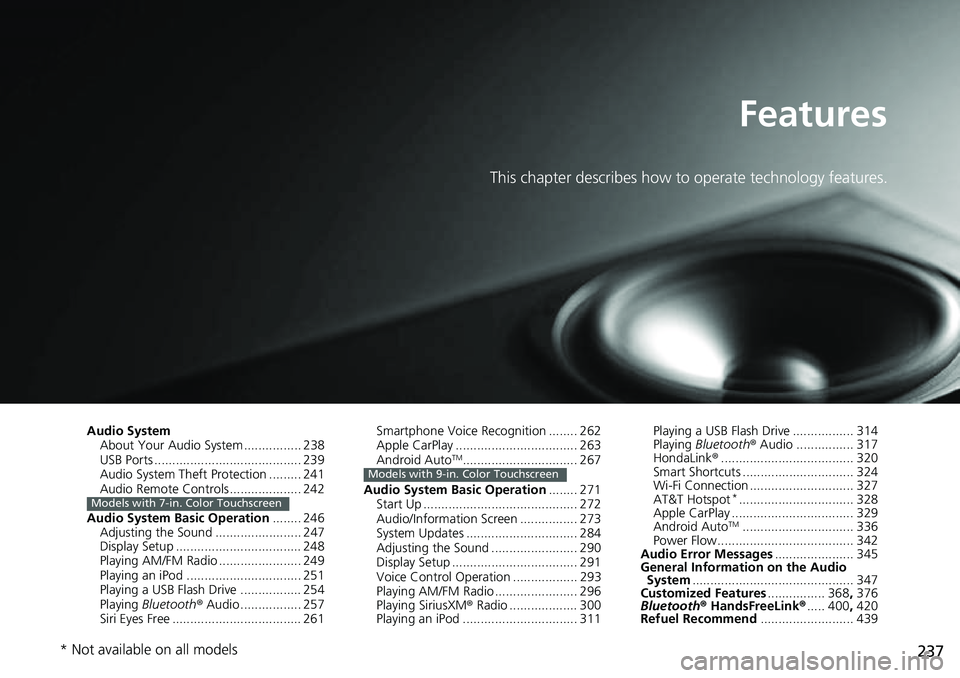
Audio SystemAbout Your Audio System ................ 238
USB Ports ......................................... 239
Audio System Theft Protection ......... 241
Audio Remote Controls .................... 242
Audio System Basic Operation ........ 246
Adjusting the Sound ........................ 247
Display Setup ................................... 248
Playing AM/FM Radio ....................... 249
Playing an iPod ................................ 251
Playing a USB Flash Drive ................. 254
Playing Bluetooth ® Audio ................. 257
Siri Eyes Free .................................... 261
Models with 7-in. Color Touchscreen
Smartphone Voice Recognition ........ 262
Apple CarPlay .................................. 263
Android Auto
TM................................ 267
Audio System Basic Operation ........ 271
Start Up ........................................... 272
Audio/Information Screen ................ 273
System Updates ............................... 284
Adjusting the Sound ........................ 290
Display Setup ................................... 291
Voice Control Operation .................. 293
Playing AM/FM Radio ....................... 296
Playing SiriusXM ® Radio ................... 300
Playing an iPod ................................ 311Models with 9-in. Color Touchscreen
Playing a USB Flash Drive ................. 314
Playing Bluetooth ® Audio ................ 317
HondaLink ®..................................... 320
Smart Shortcuts ............................... 324
Wi-Fi Connection ............................. 327
AT&T Hotspot
*................................ 328
Apple CarPlay .................................. 329
Android Auto
TM............................... 336
Power Flow...................................... 342
Audio Error Messages ...................... 345
General Information on the Audio System ............................................. 347
Customized Features ................ 368, 376
Bluetooth® HandsFreeLink® ..... 400, 420
Refuel Recommend .......................... 439
* Not available on all models
Page 240 of 719
239
uuAudio System uUSB Ports
Continued
Features
USB Ports
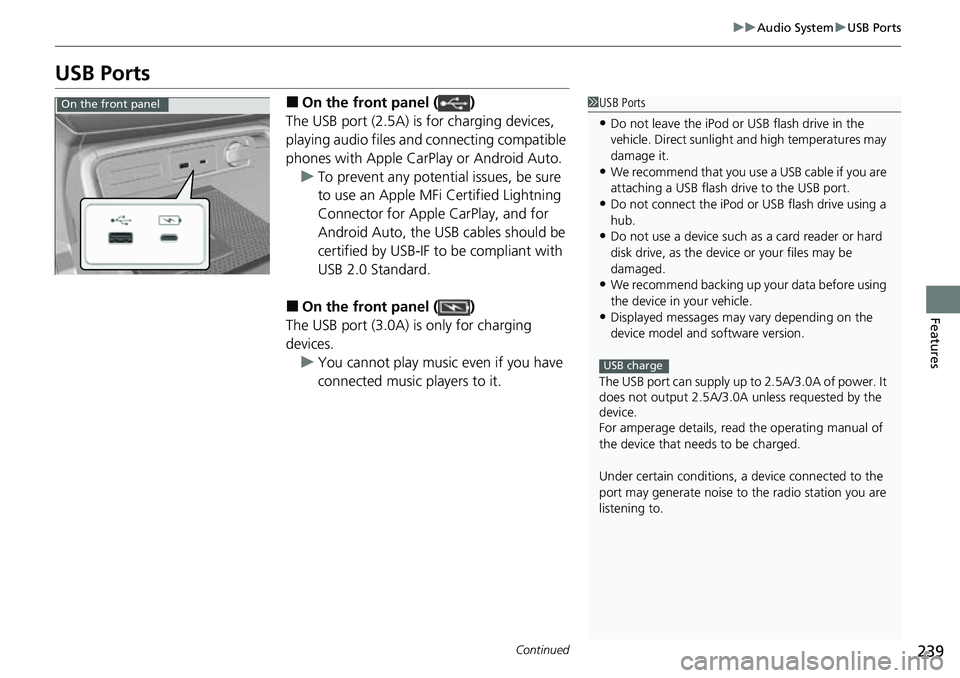
■On the front panel ( )
The USB port (2.5A) is for charging devices,
playing audio files and connecting compatible
phones with Apple CarPlay or Android Auto. u To prevent any potenti al issues, be sure
to use an Apple MFi Certified Lightning
Connector for Apple CarPlay, and for
Android Auto, the USB cables should be
certified by USB-IF to be compliant with
USB 2.0 Standard.
■On the front panel ( )
The USB port (3.0A) is only for charging
devices. u You cannot play music even if you have
connected music players to it.
1USB Ports
•Do not leave the iPod or USB flash drive in the
vehicle. Direct sunlight and high temperatures may
damage it.
•We recommend that you us e a USB cable if you are
attaching a USB flash drive to the USB port.
•Do not connect the iPod or USB flash drive using a
hub.
•Do not use a device such as a card reader or hard
disk drive, as the device or your files may be
damaged.
•We recommend backing up yo ur data before using
the device in your vehicle.
•Displayed messages may vary depending on the
device model and software version.
The USB port can supply up to 2.5A/3.0A of power. It
does not output 2.5A/3.0A unless requested by the
device.
For amperage details, read the operating manual of
the device that ne eds to be charged.
Under certain condi tions, a device connected to the
port may generate noise to the radio station you are
listening to.
USB charge
On the front panel
Page 242 of 719
241
uuAudio System uAudio System Theft Protection
Features
Audio System Theft Protection
The audio system is disabled when it is disconnected from the power source, such as
when the 12-volt battery is disconnected or goes dead. In certain conditions, the
system may display a code entry screen. If this occurs, reactivate the audio system.
■Reactivating the audio system
1. Set the power mode to ON.
2. Turn on the audio system.
3. Press and hold the VOL/ AUDIO (Volume/Power) knob for more than two
seconds.
u The audio system is reac tivated when the audio co ntrol unit establishes a
connection with the vehicl e control unit. If the control unit fails to recognize
the audio unit, you must go to a dealer and have the audio unit checked.
Page 247 of 719
246
Features
Audio System Basic Operation
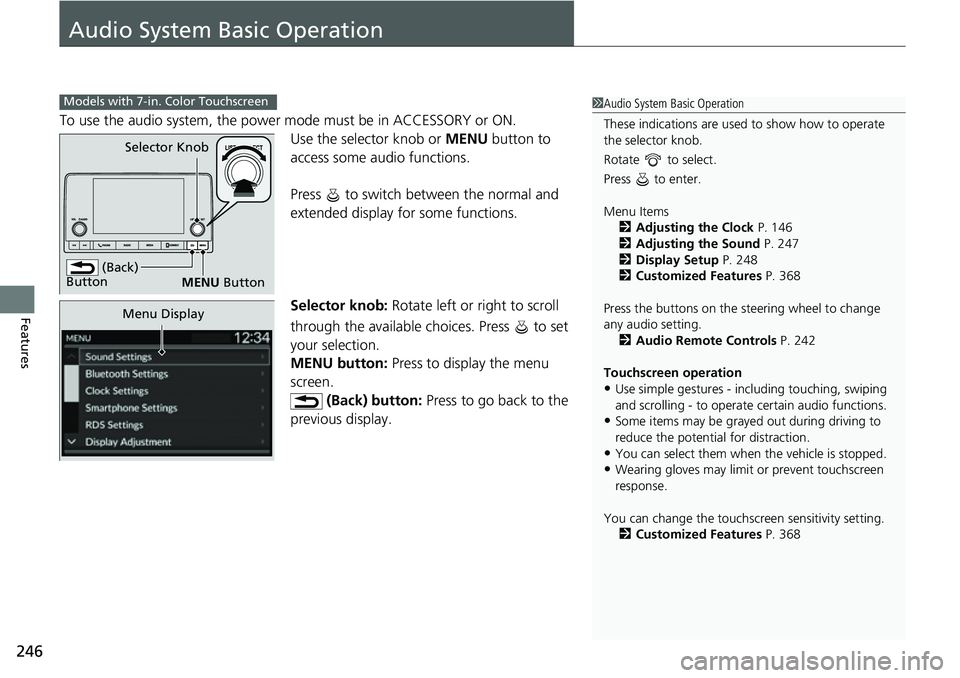
To use the audio system, the power mode must be in ACCESSORY or ON.Use the selector knob or MENU button to
access some audio functions.
Press to switch between the normal and
extended display fo r some functions.
Selector knob: Rotate left or right to scroll
through the available choices. Press to set
your selection.
MENU button: Press to display the menu
screen. (Back) button: Press to go back to the
previous display.
Models with 7-in. Color Touchscreen1 Audio System Basic Operation
These indications are used to show how to operate
the selector knob.
Rotate to select.
Press to enter.
Menu Items 2 Adjusting the Clock P. 146
2 Adjusting the Sound P. 247
2 Display Setup P. 248
2 Customized Features P. 368
Press the buttons on the steering wheel to change
any audio setting. 2 Audio Remote Controls P. 242
Touchscreen operation
•Use simple gestures - in cluding touching, swiping
and scrolling - to operate certain audio functions.
•Some items may be grayed out during driving to
reduce the potential for distraction.
•You can select them when the vehicle is stopped.•Wearing gloves may limit or prevent touchscreen
response.
You can change the touchs creen sensitivity setting.
2 Customized Features P. 368
(Back)
Button
Selector Knob
MENU Button
Menu Display
Page 249 of 719
248
uuAudio System Basic Operation uDisplay Setup
Features
Display Setup
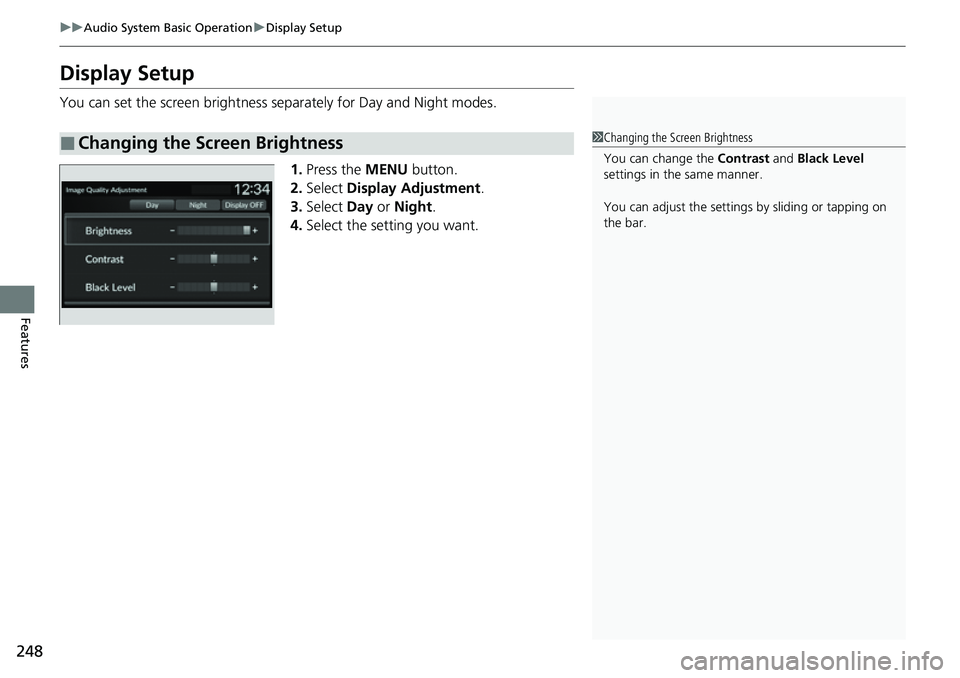
You can set the screen brightness se parately for Day and Night modes.
1. Press the MENU button.
2. Select Display Adjustment.
3. Select Day or Night .
4. Select the setting you want.
■Changing the Screen Brightness1Changing the Screen Brightness
You can change the Contrast and Black Level
settings in the same manner.
You can adjust the settings by sliding or tapping on
the bar.
Page 250 of 719
249
uuAudio System Basic Operation uPlaying AM/FM Radio
Continued
Features
Playing AM/FM Radio
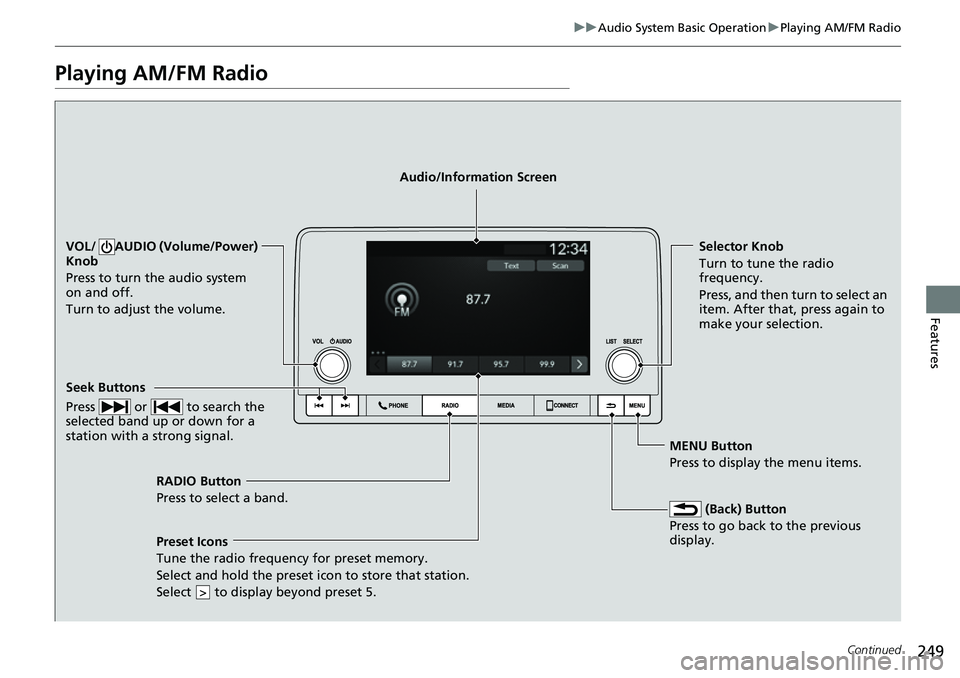
RADIO Button
Press to select a band.
(Back) Button
Press to go back to the previous
display.
Seek Buttons
Press or to search the
selected band up or down for a
station with a strong signal.
VOL/ AUDIO (Volume/Power)
Knob
Press to turn the audio system
on and off.
Turn to adjust the volume.Selector Knob
Turn to tune the radio
frequency.
Press, and then turn to select an
item. After that, press again to
make your selection.
MENU Button
Press to display the menu items.
Audio/Information Screen
Preset Icons
Tune the radio frequency for
preset memory.
Select and hold the preset icon to store that station.
Select to display beyond preset 5.
>
Page 251 of 719
uuAudio System Basic Operation uPlaying AM/FM Radio
250
Features
Provides text data information related to your selected RDS capable FM station.
■To find an RDS station from Station List
1. Press while listening to an FM station.
2. Select the station.
■Update List
Updates your available station list at any time.
1. Press while listening to an FM station.
2. Select Refresh .
■Radio text
Displays the radio text informat ion of the selected RDS station.
1. Select Text.
■Scan
Samples each of the strongest stations on the selected band for 10 seconds.
1. Select Scan.
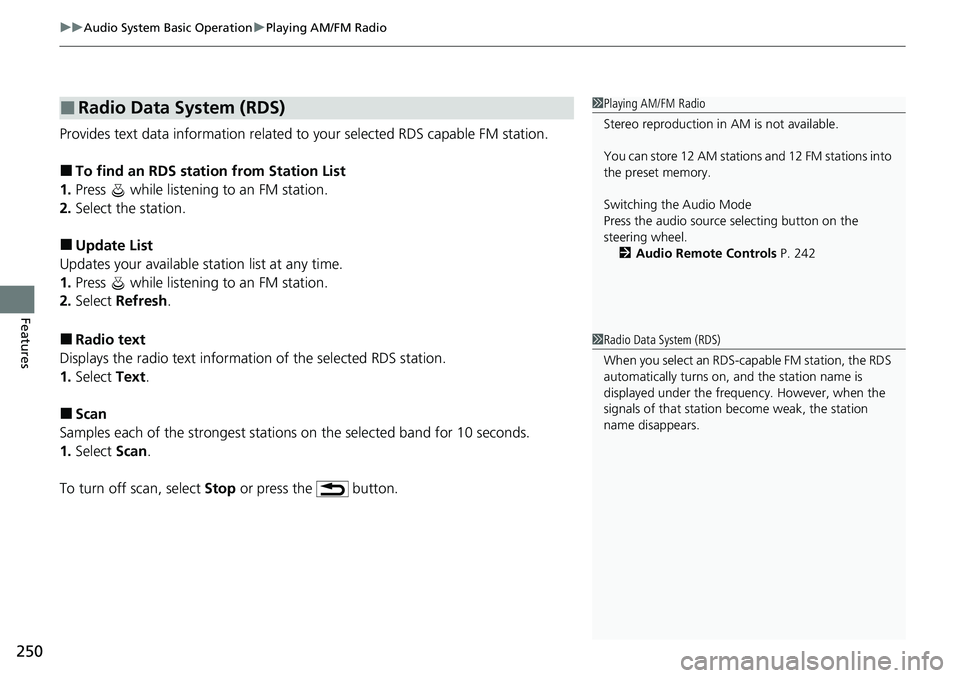
To turn off scan, select Stop or press the button.
■Radio Data System (RDS)1Playing AM/FM Radio
Stereo reproduction in AM is not available.
You can store 12 AM stations and 12 FM stations into
the preset memory.
Switching the Audio Mode
Press the audio source selecting button on the
steering wheel.
2 Audio Remote Controls P. 242
1Radio Data System (RDS)
When you select an RDS-capable FM station, the RDS
automatically turns on, and the station name is
displayed under the frequency. However, when the
signals of that station become weak, the station
name disappears.
Page 252 of 719
251
uuAudio System Basic Operation uPlaying an iPod
Continued
Features
Playing an iPod
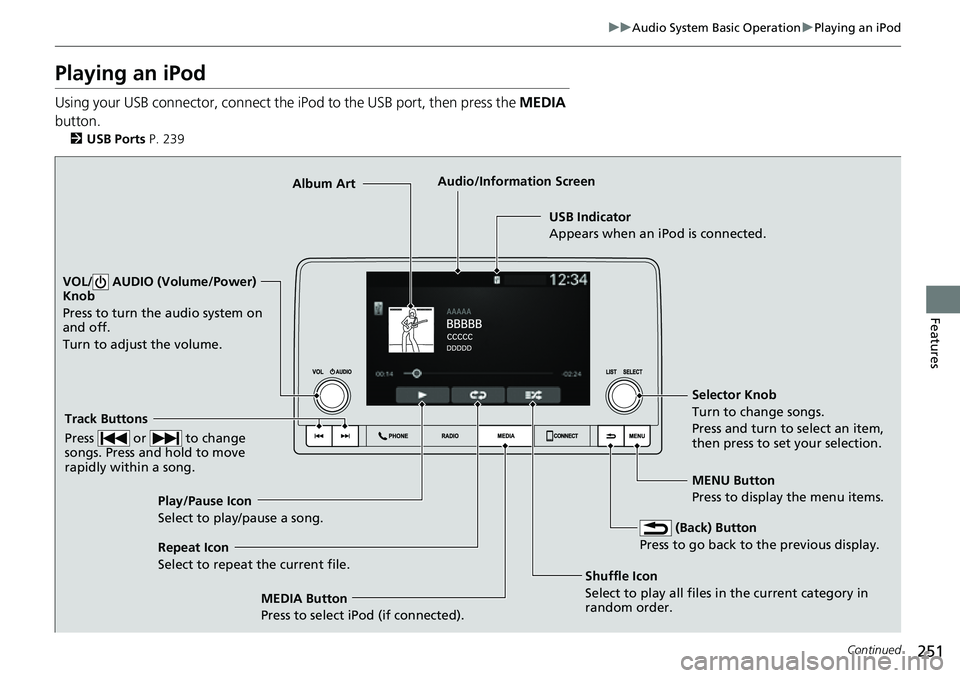
Using your USB connector, connect the iPod to the USB port, then press the MEDIA
button.
2 USB Ports P. 239
USB Indicator
Appears when an iPod is connected.
MEDIA Button
Press to select iPod (if connected). (Back) Button
Press to go back to the previous display.
Track Buttons
Press or to change
songs. Press and hold to move
rapidly within a song.
VOL/ AUDIO (Volume/Power)
Knob
Press to turn the audio system on
and off.
Turn to adjust the volume.
Selector Knob
Turn to change songs.
Press and turn to select an item,
then press to set your selection.
MENU Button
Press to display the menu items.
Audio/Information Screen
Albu m
Art
Shuffle Icon
Select to
play all files in the current category in
random order.
Play/Pause Icon
Select to play/pause a song.
Repeat Icon
Select to repeat the current file.
Page 253 of 719
uuAudio System Basic Operation uPlaying an iPod
252
Features
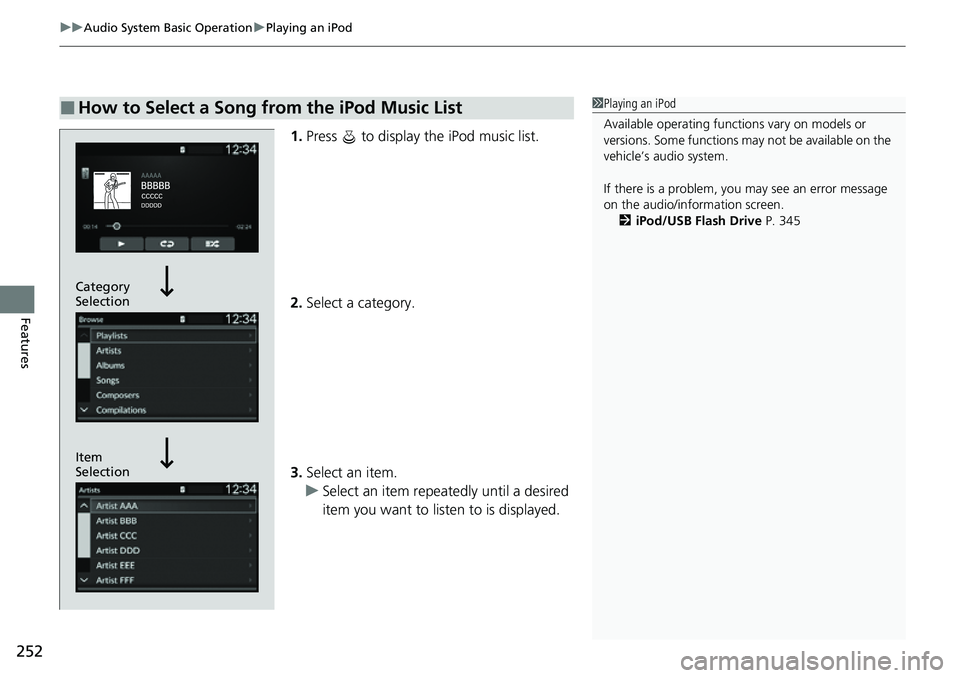
1. Press to display the iPod music list.
2. Select a category.
3. Select an item.
u Select an item repeatedly until a desired
item you want to listen to is displayed.
■How to Select a Song from the iPod Music List1Playing an iPod
Available operating functi ons vary on models or
versions. Some functions ma y not be available on the
vehicle’s audio system.
If there is a problem, you may see an error message
on the audio/information screen. 2 iPod/USB Flash Drive P. 345
Item
Selection Category
Selection
Page 255 of 719
254
uuAudio System Basic Operation uPlaying a USB Flash Drive
Features
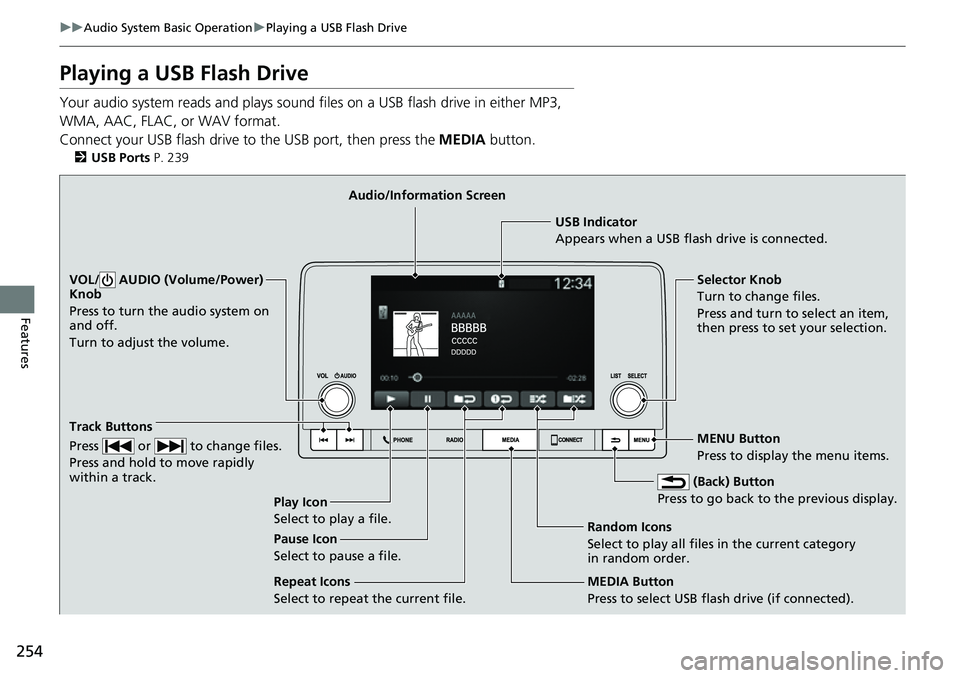
Playing a USB Flash Drive
Your audio system reads and plays sound files on a USB flash drive in either MP3,
WMA, AAC, FLAC, or WAV format.
Connect your USB flash drive to the USB port, then press the MEDIA button.
2USB Ports P. 239
USB Indicator
Appears when a USB flash drive is connected.
MEDIA Button
Press to select USB flash drive (if connected). (Back) Button
Press to go back to the previous display.
Track Buttons
Press or to change files.
Press and hold to move rapidly
within a track.
VOL/ AUDIO (Volume/Power)
Knob
Press to turn the audio system on
and off.
Turn to adjust the volume.Selector Knob
Turn to change files.
Press and turn to select an item,
then press to set your selection.
MENU Button
Press to display the menu items.
Audio/Information Screen
Play Icon
Select to play a f
ile. Random Icons
Select to play all files in the current category
in random order.
Pause Icon
Select to pause a file.
Repeat Icons
Select to repeat the current file.