reset HONDA CRV 2023 User Guide
[x] Cancel search | Manufacturer: HONDA, Model Year: 2023, Model line: CRV, Model: HONDA CRV 2023Pages: 719, PDF Size: 13.43 MB
Page 157 of 719
uuLocking and Unlocking the Doors uLocking/Unlocking the Doors from the Outside
156
Controls
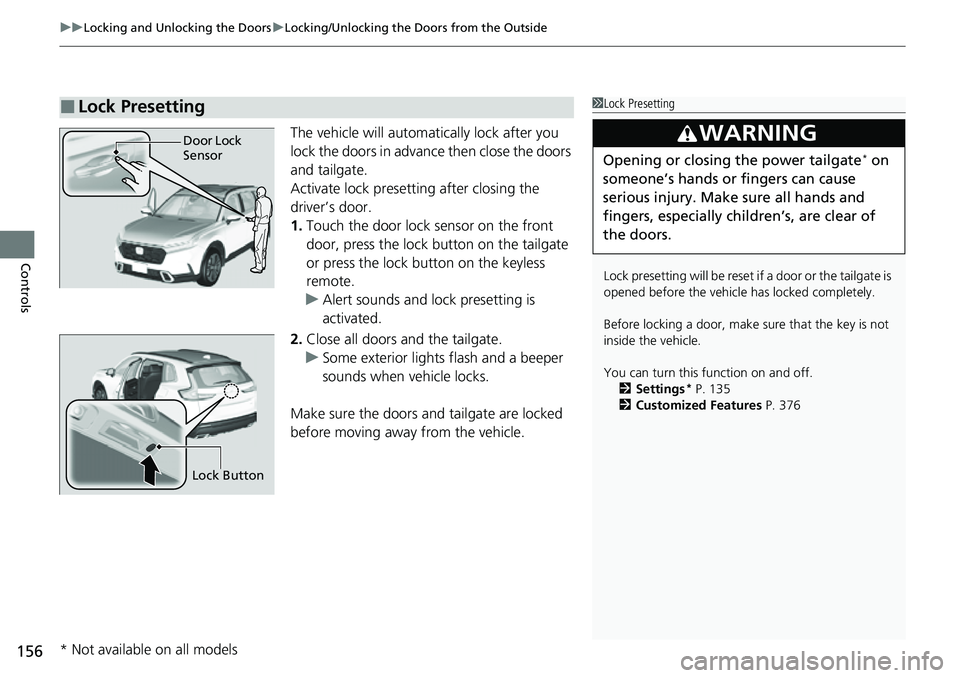
The vehicle will automatically lock after you
lock the doors in advance then close the doors
and tailgate.
Activate lock presetting after closing the
driver’s door.
1. Touch the door lock sensor on the front
door, press the lock button on the tailgate
or press the lock button on the keyless
remote.
u Alert sounds and lock presetting is
activated.
2. Close all doors and the tailgate.
u Some exterior lights flash and a beeper
sounds when vehicle locks.
Make sure the doors and tailgate are locked
before moving away from the vehicle.
■Lock Presetting1 Lock Presetting
Lock presetting will be reset if a door or the tailgate is
opened before the vehicle has locked completely.
Before locking a door, make sure that the key is not
inside the vehicle.
You can turn this function on and off. 2 Settings
* P. 135
2 Customized Features P. 376
3WARNING
Opening or closing the power tailgate* on
someone’s hands or fingers can cause
serious injury. Make sure all hands and
fingers, especially children’s, are clear of
the doors.
Door Lock
Sensor
Lock Button
* Not available on all models
Page 201 of 719
200
uuOperating the Switches Around the Steering Wheel uDriving Position Memory System*
Controls
Driving Position Memory System*
You can store two driver’s seat positions (except for power lumbar) with the driving
position memory system.
When you unlock and open the driver’s door with a keyless remote, the seat adjusts
automatically to one of the two preset positions.
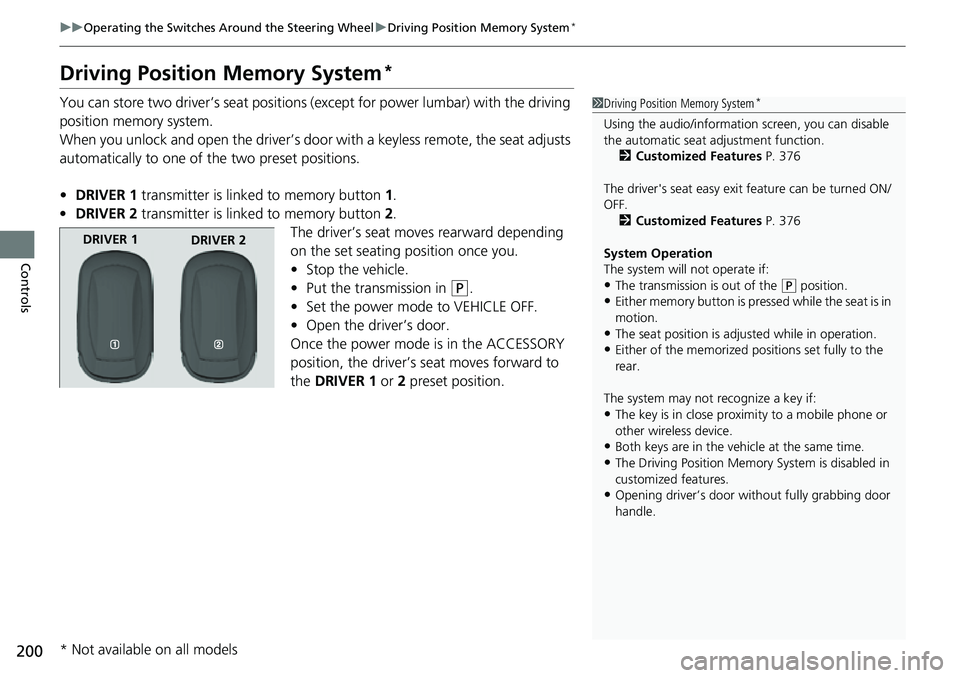
• DRIVER 1 transmitter is linked to memory button 1.
• DRIVER 2 transmitter is linked to memory button 2.
The driver’s seat moves rearward depending
on the set seating position once you.
• Stop the vehicle.
• Put the transmission in
(P.
• Set the power mode to VEHICLE OFF.
• Open the driver’s door.
Once the power mode is in the ACCESSORY
position, the driver’s seat moves forward to
the DRIVER 1 or 2 preset position.
1 Driving Position Memory System*
Using the audio/informati on screen, you can disable
the automatic seat adjustment function.
2 Customized Features P. 376
The driver's seat easy exit feature can be turned ON/
OFF. 2 Customized Features P. 376
System Operation
The system will not operate if:
•The transmission is out of the ( P position.
•Either memory button is pressed while the seat is in
motion.
•The seat position is adju sted while in operation.
•Either of the memorized pos itions set fully to the
rear.
The system may not recognize a key if:
•The key is in close proximity to a mobile phone or
other wireless device.
•Both keys are in the vehicle at the same time.
•The Driving Position Memory System is disabled in
customized features.
•Opening driver’s door wi thout fully grabbing door
handle.
DRIVER 1 DRIVER 2
* Not available on all models
Page 227 of 719
uuInterior Convenience Items uOther Interior Convenience Items
226
Controls
■When charging does not start
Perform one of the solution s in the following table.
IndicatorCauseSolution
Green
&
AmberBlinking
simulta- neously
There is an obstacle(s) between
the charging area and the
device.Remove the
obstacle(s).
The device is not within the
charging area. Pick up and reset the
device to the center of
the charging area
where is located.
The temperature of the wireless
charger pad increases. Temporarily suspend
charging the device.
Wait for the
temperature to drop
and attempt to charge
the device again.
AmberBlinkingThe wireless charger is faulty.Contact a dealer for
repairs.
1
Wireless Charger*
This system consumes a lot of power. Do not use the
system for a long time when the power system is off.
This may weaken the 12-v olt battery, making it
difficult to turn the power system on.
When using the wireless charge r, check the user’s manual
that came with the compatible device you want to charge.
3CAUTION
Metal objects between the charge pad
and the device to be charged will get
hot and can burn you.
• Always remove foreign objects from
the charge pad before charging the
device.
• Be sure the surface is clear of dust and
other debris before charging.
• Do not spill liquids (i. e. water, drinks,
etc.) on the charger and the device.
• Do not use oil, grease, alcohol,
benzine or thinner for cleaning the
charge pad.
• Do not cover the system with towels,
clothing, or other objects while
charging etc.
• Avoid spraying aerosols which may
come in contact with the charge pad
surface.
* Not available on all models
Page 243 of 719
242
uuAudio System uAudio Remote Controls
Features
Audio Remote Controls
Allow you to operate the audio system wh ile driving. The information is shown on
the driver information interface.
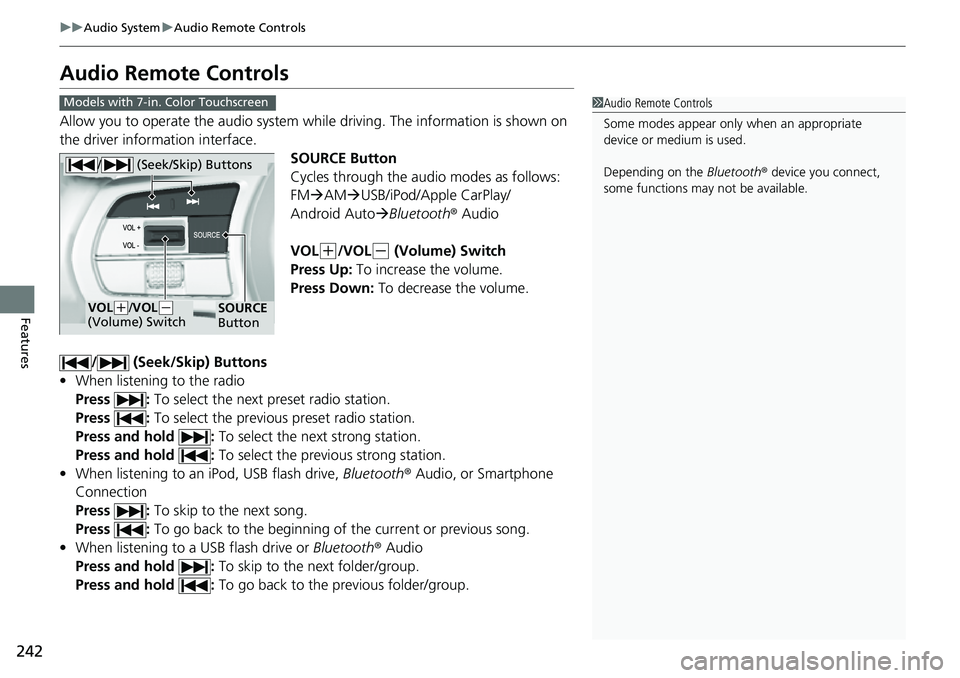
SOURCE Button
Cycles through the audio modes as follows:
FMAM USB/iPod/Apple CarPlay/
Android Auto Bluetooth ® Audio
VOL
(+/VOL(- (Volume) Switch
Press Up: To increase the volume.
Press Down: To decrease the volume.
/ (Seek/Skip) Buttons
• When listening to the radio
Press : To select the next preset radio station.
Press : To select the previous preset radio station.
Press and hold : To select the next strong station.
Press and hold : To select the previous strong station.
• When listening to an iPod, USB flash drive, Bluetooth® Audio, or Smartphone
Connection
Press : To skip to the next song.
Press : To go back to the beginning of the current or previous song.
• When listening to a USB flash drive or Bluetooth® Audio
Press and hold : To skip to the next folder/group.
Press and hold : To go back to the previous folder/group.
1Audio Remote Controls
Some modes appear only when an appropriate
device or medium is used.
Depending on the Bluetooth® device you connect,
some functions may not be available.Models with 7-in. Color Touchscreen
/ (Seek/Skip) Buttons
SOURCE
ButtonVOL( +/VOL(-
(Volume) Switch
Page 245 of 719
244
uuAudio System uAudio Remote Controls
Features
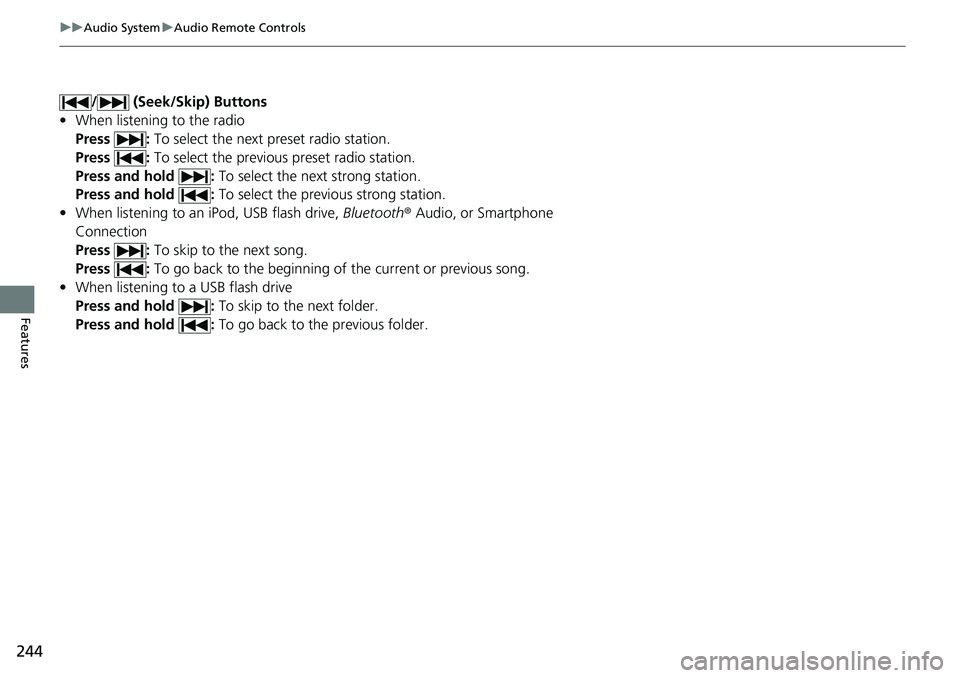
/ (Seek/Skip) Buttons
• When listening to the radio
Press : To select the next preset radio station.
Press : To select the previous preset radio station.
Press and hold : To select the next strong station.
Press and hold : To select the previous strong station.
• When listening to an iPod, USB flash drive, Bluetooth® Audio, or Smartphone
Connection
Press : To skip to the next song.
Press : To go back to the beginning of the current or previous song.
• When listening to a USB flash drive
Press and hold : To skip to the next folder.
Press and hold : To go back to the previous folder.
Page 250 of 719
249
uuAudio System Basic Operation uPlaying AM/FM Radio
Continued
Features
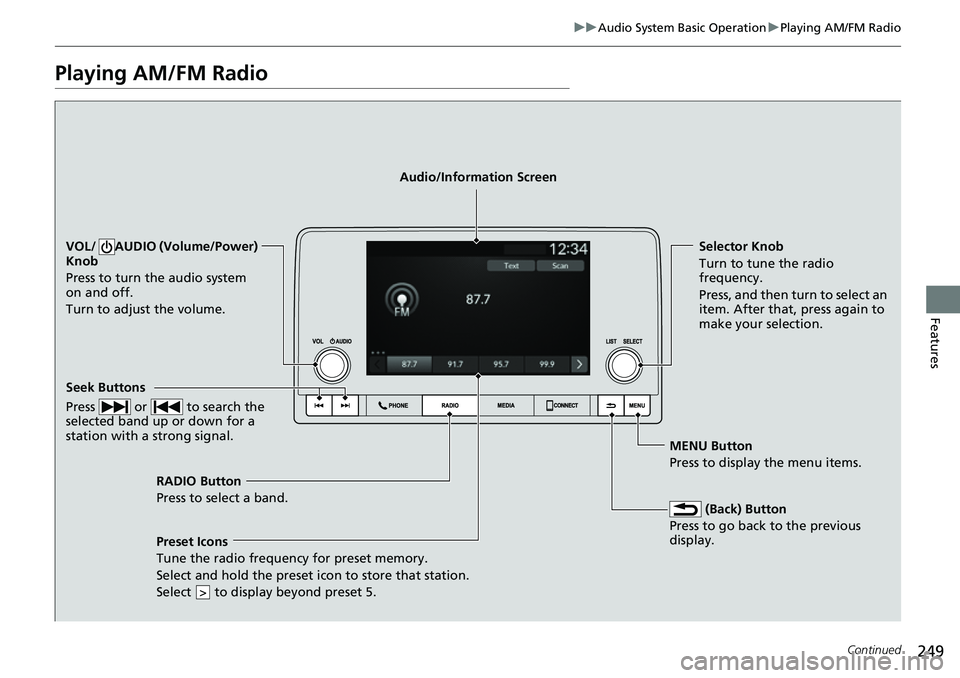
Playing AM/FM Radio
RADIO Button
Press to select a band.
(Back) Button
Press to go back to the previous
display.
Seek Buttons
Press or to search the
selected band up or down for a
station with a strong signal.
VOL/ AUDIO (Volume/Power)
Knob
Press to turn the audio system
on and off.
Turn to adjust the volume.Selector Knob
Turn to tune the radio
frequency.
Press, and then turn to select an
item. After that, press again to
make your selection.
MENU Button
Press to display the menu items.
Audio/Information Screen
Preset Icons
Tune the radio frequency for
preset memory.
Select and hold the preset icon to store that station.
Select to display beyond preset 5.
>
Page 251 of 719
uuAudio System Basic Operation uPlaying AM/FM Radio
250
Features
Provides text data information related to your selected RDS capable FM station.
■To find an RDS station from Station List
1. Press while listening to an FM station.
2. Select the station.
■Update List
Updates your available station list at any time.
1. Press while listening to an FM station.
2. Select Refresh .
■Radio text
Displays the radio text informat ion of the selected RDS station.
1. Select Text.
■Scan
Samples each of the strongest stations on the selected band for 10 seconds.
1. Select Scan.
To turn off scan, select Stop or press the button.
■Radio Data System (RDS)1Playing AM/FM Radio
Stereo reproduction in AM is not available.
You can store 12 AM stations and 12 FM stations into
the preset memory.
Switching the Audio Mode
Press the audio source selecting button on the
steering wheel.
2 Audio Remote Controls P. 242
1Radio Data System (RDS)
When you select an RDS-capable FM station, the RDS
automatically turns on, and the station name is
displayed under the frequency. However, when the
signals of that station become weak, the station
name disappears.
Page 276 of 719
275
uuAudio System Basic Operation uAudio/Information Screen
Continued
Features
■Trip Computer
Displays the trip computer information.
• Current Drive tab: Displays the current trip information.
• Trip A /Trip B tab: Displays information for the current and three previous drives.
The information is stored ever y time you reset Trip A/B.
To reset the Trip A/B, select Settings, then select Delete Trip History .
To change the setting of how to reset Trip A/B, select Settings, then select “Trip A”
Reset Timing or “Trip B” Reset Timing .
■System Updates
Updates the software version of the audio system.
2 System Updates P. 284
■Wi-Fi Hotspot*
Displays the AT&T Hotspot screen.
2AT&T Hotspot* P. 328
■Clock
Displays the clock.
■Smart Shortcuts
Displays the Smart Shortcuts screen.
2Smart Shortcuts P. 324
■Display Mode
Displays the brightness bar.
■Compass*
Displays the compass screen.
* Not available on all models
Page 280 of 719
Continued279
uuAudio System Basic Operation uAudio/Information Screen
Features
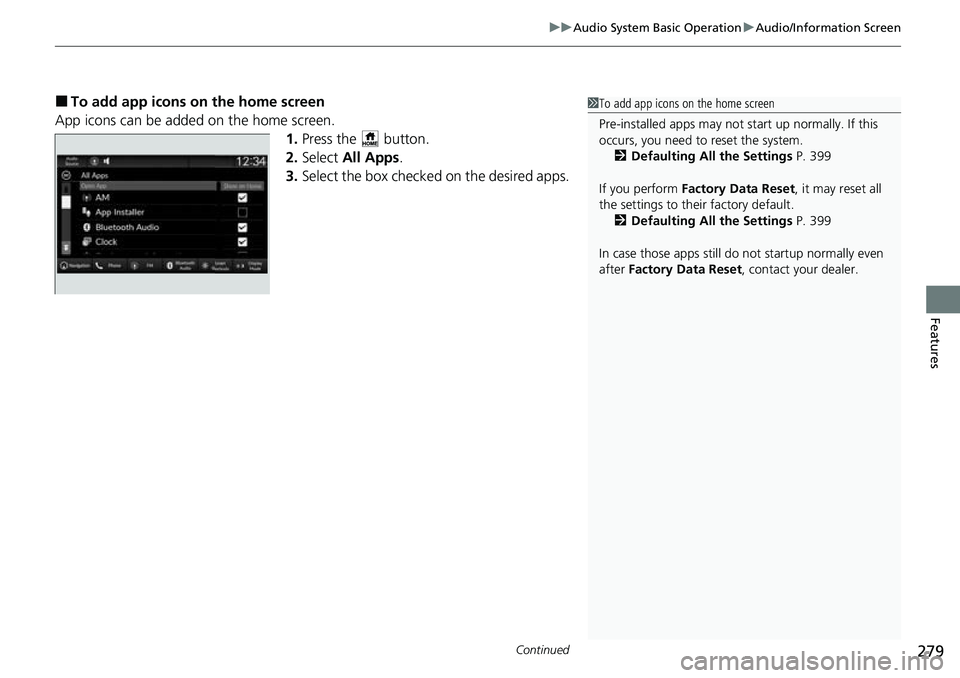
■To add app icons on the home screen
App icons can be added on the home screen. 1.Press the button.
2. Select All Apps .
3. Select the box checked on the desired apps.1To add app icons on the home screen
Pre-installed apps may not start up normally. If this
occurs, you need to reset the system.
2 Defaulting All the Settings P. 399
If you perform Factory Data Reset , it may reset all
the settings to their factory default. 2 Defaulting All the Settings P. 399
In case those apps still do not startup normally even
after Factory Data Reset , contact your dealer.
Page 291 of 719
290
uuAudio System Basic Operation uAdjusting the Sound
Features
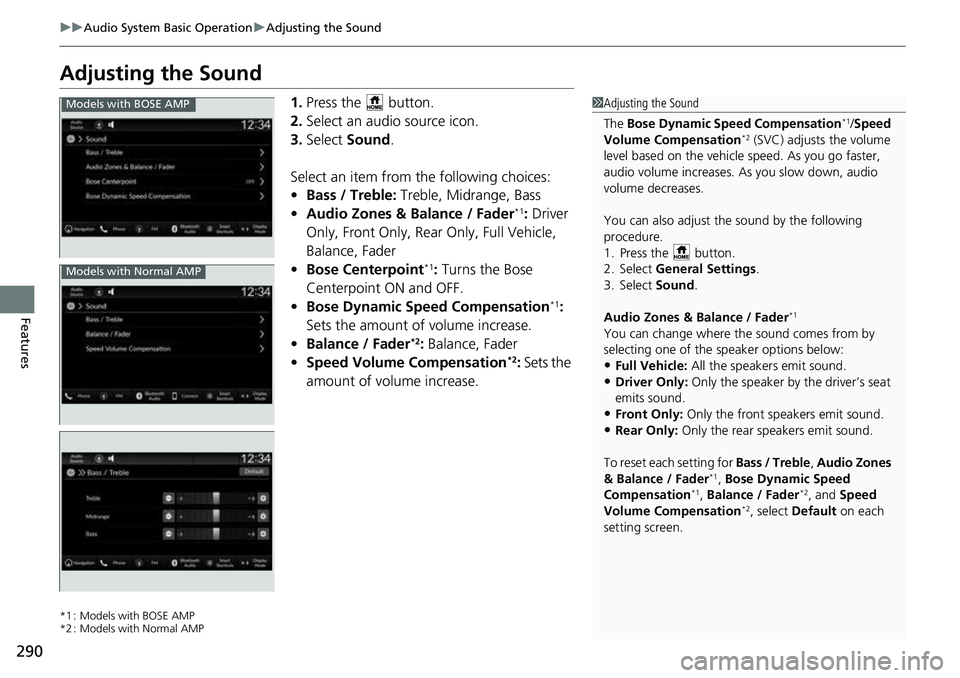
Adjusting the Sound
1. Press the button.
2. Select an audio source icon.
3. Select Sound.
Select an item from the following choices:
• Bass / Treble: Treble, Midrange, Bass
• Audio Zones & Balance / Fader
*1: Driver
Only, Front Only, Rear Only, Full Vehicle,
Balance, Fader
• Bose Centerpoint
*1: Turns the Bose
Centerpoint ON and OFF.
• Bose Dynamic Speed Compensation
*1:
Sets the amount of volume increase.
• Balance / Fader
*2: Balance, Fader
• Speed Volume Compensation*2: Sets the
amount of volume increase.
*1 : Models with BOSE AMP
*2 : Models with Normal AMP
1 Adjusting the Sound
The Bose Dynamic Speed Compensation
*1/Speed
Volume Compensation*2 (SVC) adjusts the volume
level based on the vehicle speed. As you go faster,
audio volume increases. As you slow down, audio
volume decreases.
You can also adjust the sound by the following
procedure.
1. Press the button.
2. Select General Settings .
3. Select Sound .
Audio Zones & Balance / Fader
*1
You can change where the sound comes from by
selecting one of the speaker options below:
•Full Vehicle: All the speakers emit sound.
•Driver Only: Only the speaker by the driver’s seat
emits sound.
•Front Only: Only the front speakers emit sound.
•Rear Only: Only the rear speakers emit sound.
To reset each setting for Bass / Treble , Audio Zones
& Balance / Fader
*1, Bose Dynamic Speed
Compensation*1, Balance / Fader*2, and Speed
Volume Compensation*2, select Default on each
setting screen.
Models with BOSE AMP
Models with BOSE AMPModels with Normal AMP