audio HONDA CRV 2023 Owner's Manual
[x] Cancel search | Manufacturer: HONDA, Model Year: 2023, Model line: CRV, Model: HONDA CRV 2023Pages: 719, PDF Size: 13.43 MB
Page 185 of 719
184
Controls
Operating the Switches Around the Steering Wheel
POWER Button
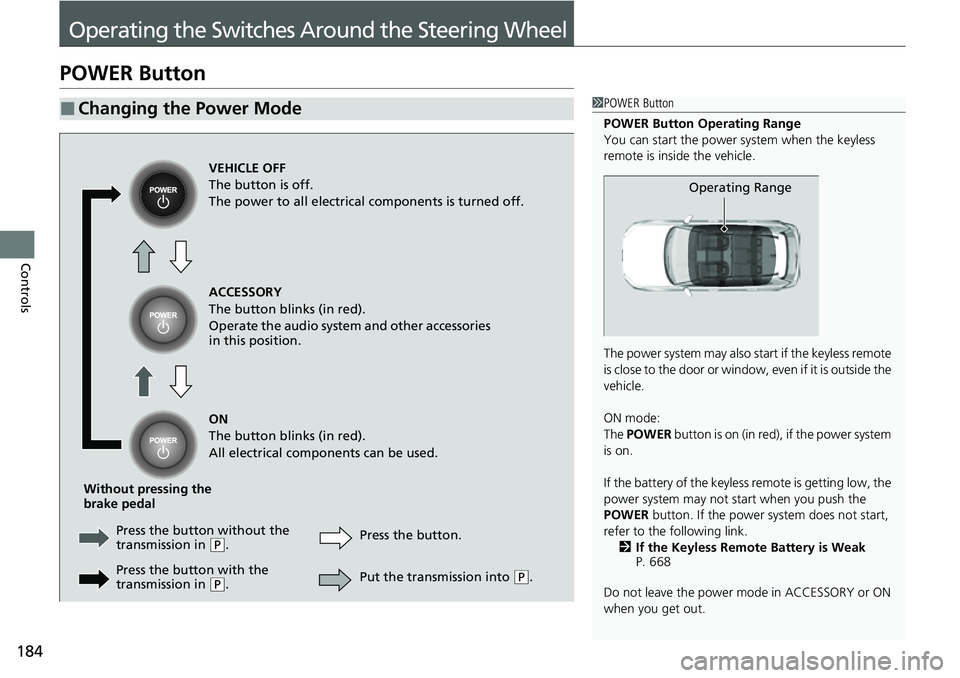
■Changing the Power Mode1POWER Button
POWER Button Operating Range
You can start the power system when the keyless
remote is inside the vehicle.
The power system may also start if the keyless remote
i s c l o s e t o t h e d o o r o r w i n d o w , e v e n i f i t i s o u t s i d e t h e
vehicle.
ON mode:
The POWER button is on (in red), if the power system
is on.
If the battery of the keyless remote is getting low, the
power system may not start when you push the
POWER button. If the power system does not start,
refer to the following link. 2 If the Keyless Remote Battery is Weak
P. 668
Do not leave the power mode in ACCESSORY or ON
when you get out.
Operating Range
VEHICLE OFF
The button is off.
The power to all electrical components is turned off.
ACCESSORY
The button blinks (in red).
Operate the audio system and other accessories
in this position.
ON
The button blinks (in red).
All electrical components can be used.
Without pressing the
brake pedal Press the butto n without the
transmission in
( P. Press the button.
Press the button with the
transmission in
( P. Put the transmission into (
P.
Page 201 of 719
200
uuOperating the Switches Around the Steering Wheel uDriving Position Memory System*
Controls
Driving Position Memory System*
You can store two driver’s seat positions (except for power lumbar) with the driving
position memory system.
When you unlock and open the driver’s door with a keyless remote, the seat adjusts
automatically to one of the two preset positions.
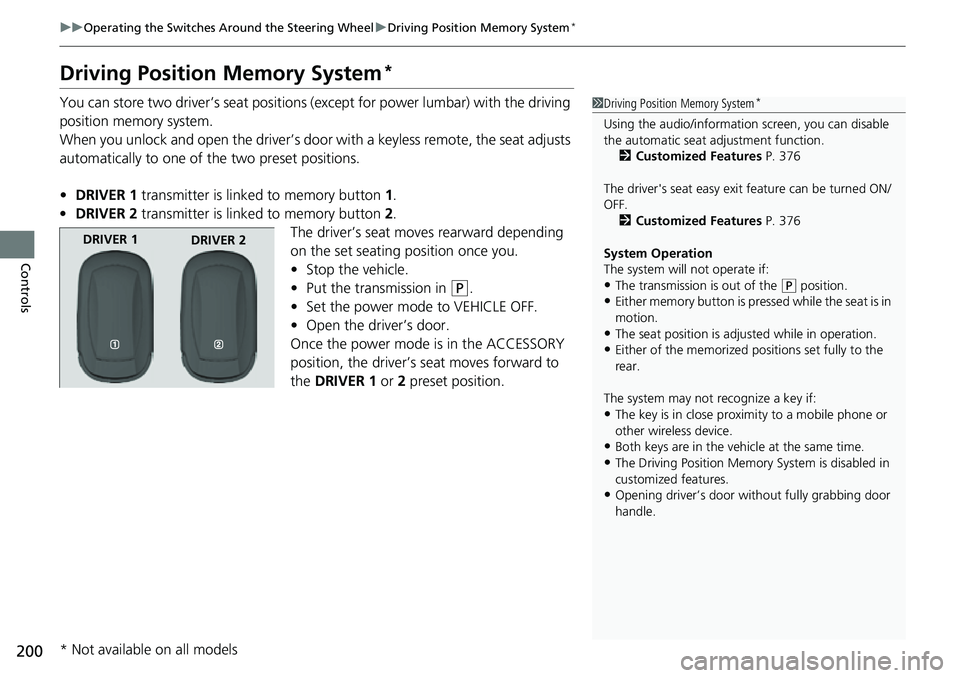
• DRIVER 1 transmitter is linked to memory button 1.
• DRIVER 2 transmitter is linked to memory button 2.
The driver’s seat moves rearward depending
on the set seating position once you.
• Stop the vehicle.
• Put the transmission in
(P.
• Set the power mode to VEHICLE OFF.
• Open the driver’s door.
Once the power mode is in the ACCESSORY
position, the driver’s seat moves forward to
the DRIVER 1 or 2 preset position.
1 Driving Position Memory System*
Using the audio/informati on screen, you can disable
the automatic seat adjustment function.
2 Customized Features P. 376
The driver's seat easy exit feature can be turned ON/
OFF. 2 Customized Features P. 376
System Operation
The system will not operate if:
•The transmission is out of the ( P position.
•Either memory button is pressed while the seat is in
motion.
•The seat position is adju sted while in operation.
•Either of the memorized pos itions set fully to the
rear.
The system may not recognize a key if:
•The key is in close proximity to a mobile phone or
other wireless device.
•Both keys are in the vehicle at the same time.
•The Driving Position Memory System is disabled in
customized features.
•Opening driver’s door wi thout fully grabbing door
handle.
DRIVER 1 DRIVER 2
* Not available on all models
Page 238 of 719
237
Features
This chapter describes how to operate technology features.
Audio SystemAbout Your Audio System ................ 238
USB Ports ......................................... 239
Audio System Theft Protection ......... 241
Audio Remote Controls .................... 242
Audio System Basic Operation ........ 246
Adjusting the Sound ........................ 247
Display Setup ................................... 248
Playing AM/FM Radio ....................... 249
Playing an iPod ................................ 251
Playing a USB Flash Drive ................. 254
Playing Bluetooth ® Audio ................. 257
Siri Eyes Free .................................... 261
Models with 7-in. Color Touchscreen
Smartphone Voice Recognition ........ 262
Apple CarPlay .................................. 263
Android Auto
TM................................ 267
Audio System Basic Operation ........ 271
Start Up ........................................... 272
Audio/Information Screen ................ 273
System Updates ............................... 284
Adjusting the Sound ........................ 290
Display Setup ................................... 291
Voice Control Operation .................. 293
Playing AM/FM Radio ....................... 296
Playing SiriusXM ® Radio ................... 300
Playing an iPod ................................ 311Models with 9-in. Color Touchscreen
Playing a USB Flash Drive ................. 314
Playing Bluetooth ® Audio ................ 317
HondaLink ®..................................... 320
Smart Shortcuts ............................... 324
Wi-Fi Connection ............................. 327
AT&T Hotspot
*................................ 328
Apple CarPlay .................................. 329
Android Auto
TM............................... 336
Power Flow...................................... 342
Audio Error Messages ...................... 345
General Information on the Audio System ............................................. 347
Customized Features ................ 368, 376
Bluetooth® HandsFreeLink® ..... 400, 420
Refuel Recommend .......................... 439
* Not available on all models
Page 239 of 719
238
Features
Audio System
About Your Audio System
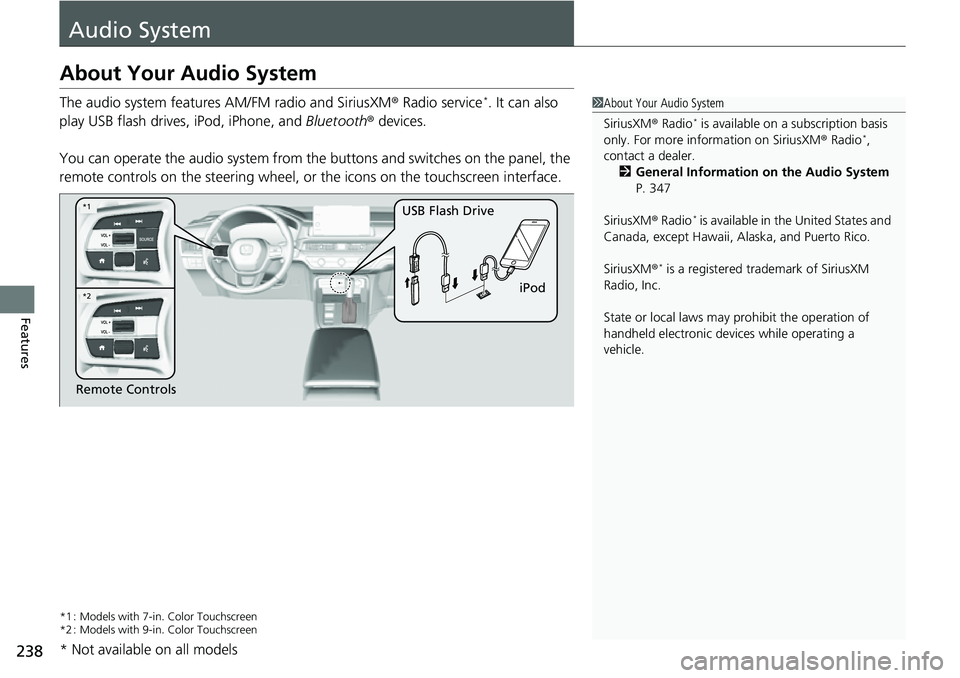
The audio system features AM/FM radio and SiriusXM® Radio service*. It can also
play USB flash drives, iPod, iPhone, and Bluetooth® devices.
You can operate the audio system from the buttons and switches on the panel, the
remote controls on the steering wheel, or the icons on the touchscreen interface.
*1 : Models with 7-in. Color Touchscreen
*2 : Models with 9-in. Color Touchscreen
1 About Your Audio System
SiriusXM ® Radio
* is available on a subscription basis
only. For more information on SiriusXM ® Radio*,
contact a dealer.
2 General Information on the Audio System
P. 347
SiriusXM ® Radio
* is available in the United States and
Canada, except Ha waii, Alaska, and Puerto Rico.
SiriusXM ®
* is a registered tra demark of SiriusXM
Radio, Inc.
State or local laws may pr ohibit the operation of
handheld electronic devices while operating a
vehicle.
Remote Controls iPod
USB Flash Drive
*2
*1
* Not available on all models
Page 240 of 719
239
uuAudio System uUSB Ports
Continued
Features
USB Ports
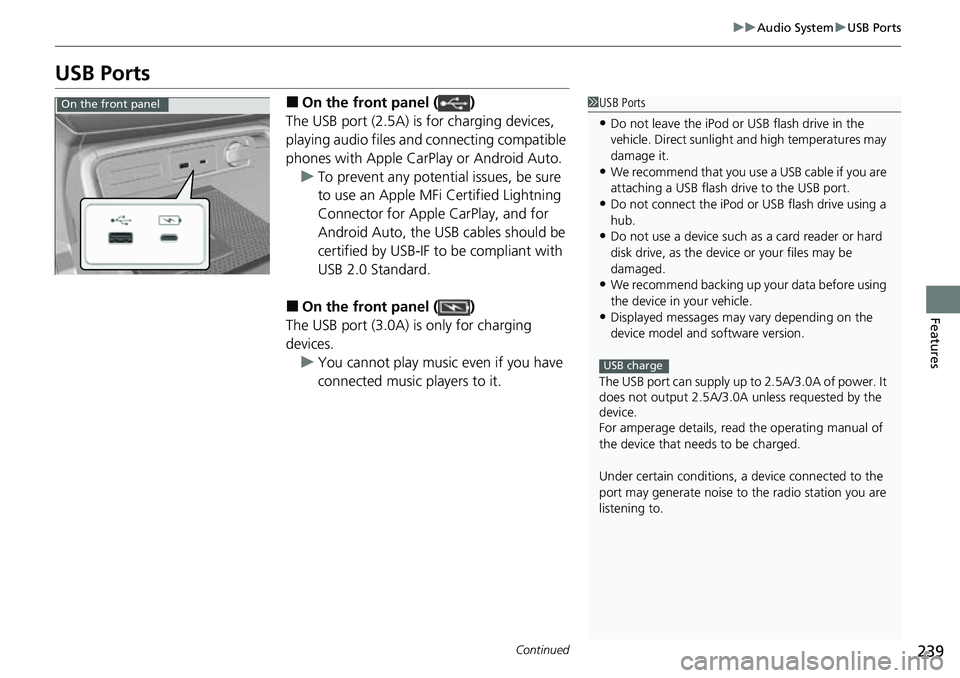
■On the front panel ( )
The USB port (2.5A) is for charging devices,
playing audio files and connecting compatible
phones with Apple CarPlay or Android Auto. u To prevent any potenti al issues, be sure
to use an Apple MFi Certified Lightning
Connector for Apple CarPlay, and for
Android Auto, the USB cables should be
certified by USB-IF to be compliant with
USB 2.0 Standard.
■On the front panel ( )
The USB port (3.0A) is only for charging
devices. u You cannot play music even if you have
connected music players to it.
1USB Ports
•Do not leave the iPod or USB flash drive in the
vehicle. Direct sunlight and high temperatures may
damage it.
•We recommend that you us e a USB cable if you are
attaching a USB flash drive to the USB port.
•Do not connect the iPod or USB flash drive using a
hub.
•Do not use a device such as a card reader or hard
disk drive, as the device or your files may be
damaged.
•We recommend backing up yo ur data before using
the device in your vehicle.
•Displayed messages may vary depending on the
device model and software version.
The USB port can supply up to 2.5A/3.0A of power. It
does not output 2.5A/3.0A unless requested by the
device.
For amperage details, read the operating manual of
the device that ne eds to be charged.
Under certain condi tions, a device connected to the
port may generate noise to the radio station you are
listening to.
USB charge
On the front panel
Page 241 of 719
240
uuAudio System uUSB Ports
Features
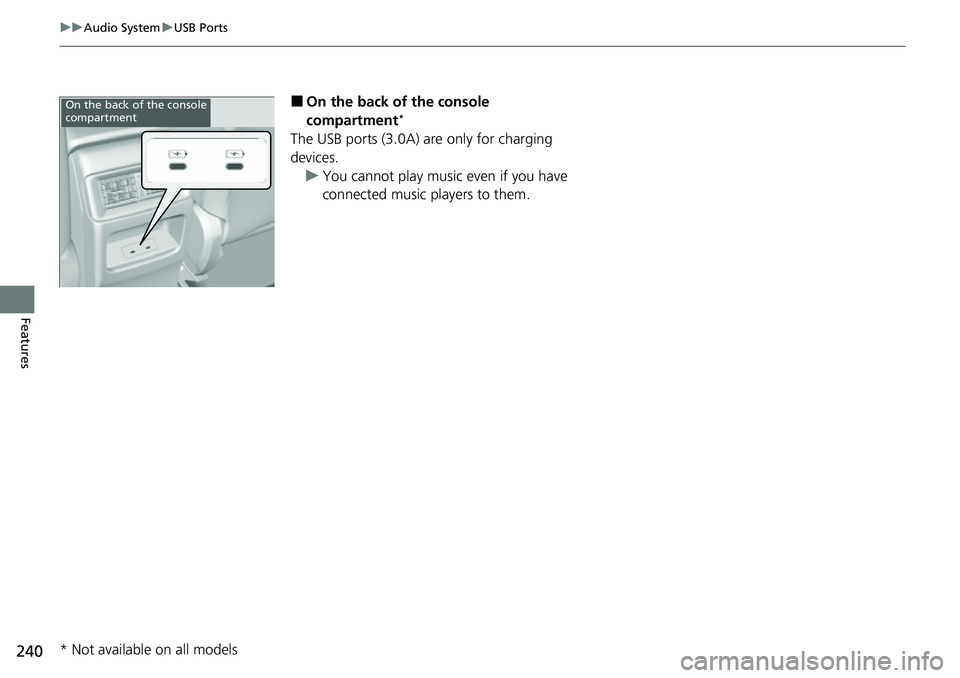
■On the back of the console
compartment*
The USB ports (3.0A) are only for charging
devices.
u You cannot play music even if you have
connected music players to them.
On the back of the console
compartment
* Not available on all models
Page 242 of 719
241
uuAudio System uAudio System Theft Protection
Features
Audio System Theft Protection
The audio system is disabled when it is disconnected from the power source, such as
when the 12-volt battery is disconnected or goes dead. In certain conditions, the
system may display a code entry screen. If this occurs, reactivate the audio system.
■Reactivating the audio system
1. Set the power mode to ON.
2. Turn on the audio system.
3. Press and hold the VOL/ AUDIO (Volume/Power) knob for more than two
seconds.
u The audio system is reac tivated when the audio co ntrol unit establishes a
connection with the vehicl e control unit. If the control unit fails to recognize
the audio unit, you must go to a dealer and have the audio unit checked.
Page 243 of 719
242
uuAudio System uAudio Remote Controls
Features
Audio Remote Controls
Allow you to operate the audio system wh ile driving. The information is shown on
the driver information interface.
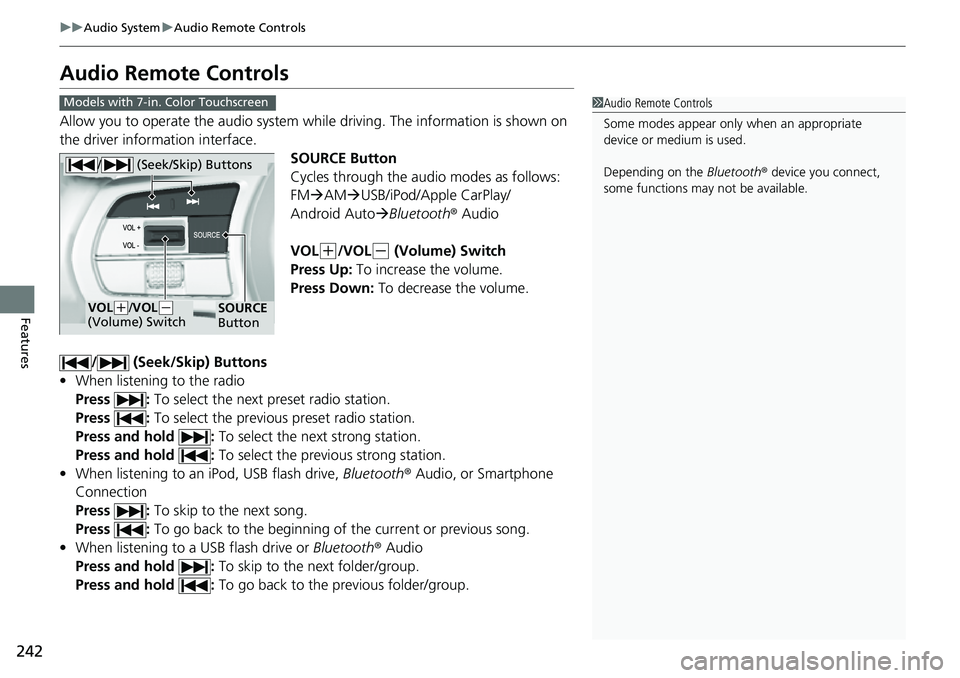
SOURCE Button
Cycles through the audio modes as follows:
FMAM USB/iPod/Apple CarPlay/
Android Auto Bluetooth ® Audio
VOL
(+/VOL(- (Volume) Switch
Press Up: To increase the volume.
Press Down: To decrease the volume.
/ (Seek/Skip) Buttons
• When listening to the radio
Press : To select the next preset radio station.
Press : To select the previous preset radio station.
Press and hold : To select the next strong station.
Press and hold : To select the previous strong station.
• When listening to an iPod, USB flash drive, Bluetooth® Audio, or Smartphone
Connection
Press : To skip to the next song.
Press : To go back to the beginning of the current or previous song.
• When listening to a USB flash drive or Bluetooth® Audio
Press and hold : To skip to the next folder/group.
Press and hold : To go back to the previous folder/group.
1Audio Remote Controls
Some modes appear only when an appropriate
device or medium is used.
Depending on the Bluetooth® device you connect,
some functions may not be available.Models with 7-in. Color Touchscreen
/ (Seek/Skip) Buttons
SOURCE
ButtonVOL( +/VOL(-
(Volume) Switch
Page 244 of 719
Continued243
uuAudio System uAudio Remote Controls
Features
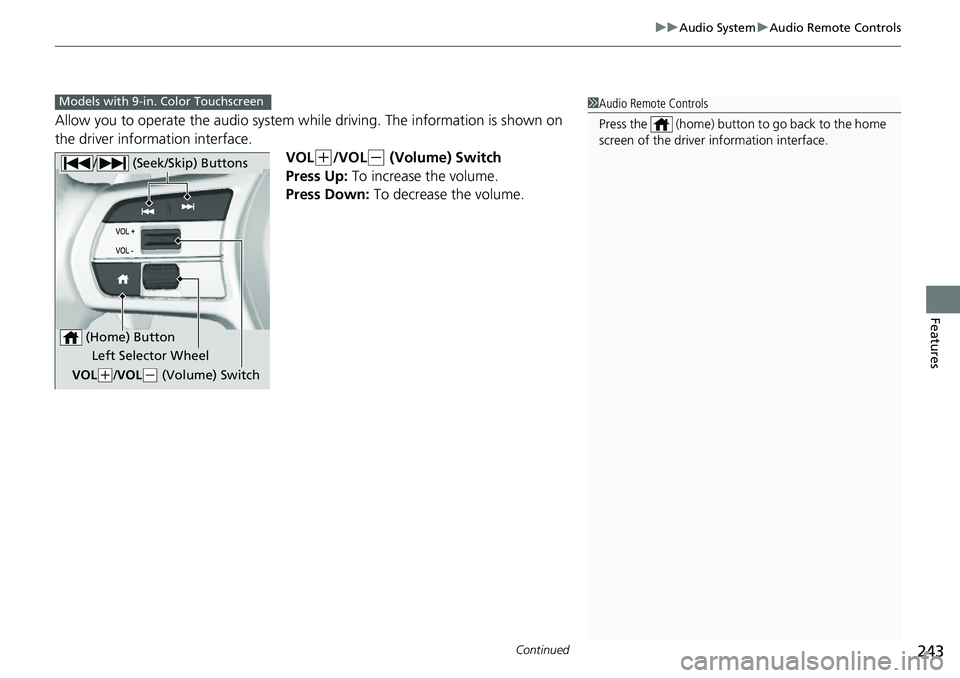
Allow you to operate the audio system whil e driving. The information is shown on
the driver information interface.
VOL
(+/VOL(- (Volume) Switch
Press Up: To increase the volume.
Press Down: To decrease the volume.
1 Audio Remote Controls
Press the (home) button to go back to the home
screen of the driver information interface.Models with 9-in. Color Touchscreen
/ (Seek/Skip) Buttons
Left Selector Wheel
VOL
( +/VOL(- (Volume) Switch
(Home) Button
Page 245 of 719
244
uuAudio System uAudio Remote Controls
Features
/ (Seek/Skip) Buttons
• When listening to the radio
Press : To select the next preset radio station.
Press : To select the previous preset radio station.
Press and hold : To select the next strong station.
Press and hold : To select the previous strong station.
• When listening to an iPod, USB flash drive, Bluetooth® Audio, or Smartphone
Connection
Press : To skip to the next song.
Press : To go back to the beginning of the current or previous song.
• When listening to a USB flash drive
Press and hold : To skip to the next folder.
Press and hold : To go back to the previous folder.