carplay HONDA CRV 2023 Owner's Guide
[x] Cancel search | Manufacturer: HONDA, Model Year: 2023, Model line: CRV, Model: HONDA CRV 2023Pages: 719, PDF Size: 13.43 MB
Page 373 of 719
372
uuCustomized Features u
Features
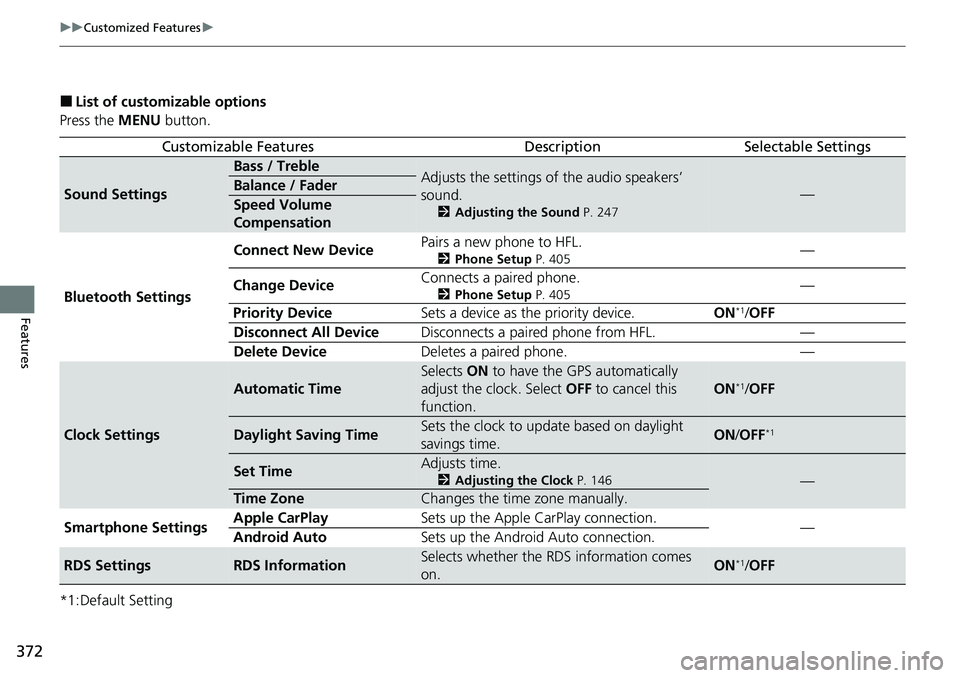
■List of customizable options
Press the MENU button.
*1:Default Setting
Customizable FeaturesDescriptionSelectable Settings
Sound Settings
Bass / TrebleAdjusts the settings of the audio speakers’
sound.
2 Adjusting the Sound P. 247
—Balance / Fader
Speed Volume
Compensation
Bluetooth Settings Connect New Device
Pairs a new phone to HFL.
2
Phone Setup P. 405—
Change Device Connects a paired phone.
2
Phone Setup P. 405—
Priority Device Sets a device as the priority device. ON
*1/OFF
Disconnect All Device Disconnects a paired phone from HFL. —
Delete Device Deletes a paired phone. —
Clock Settings
Automatic Time
Selects ON to have the GPS automatically
adjust the clock. Select OFF to cancel this
function.
ON*1/ OFF
Daylight Saving TimeSets the clock to update based on daylight
savings time.ON /OFF*1
Set TimeAdjusts time.
2 Adjusting the Clock P. 146—
Time ZoneChanges the time zone manually.
Smartphone Settings Apple CarPlay
Sets up the Apple CarPlay connection.
—
Android Auto Sets up the Android Auto connection.
RDS SettingsRDS InformationSelects whether the RDS information comes
on.ON*1/OFF
Page 379 of 719
378
uuCustomized Features u
Features
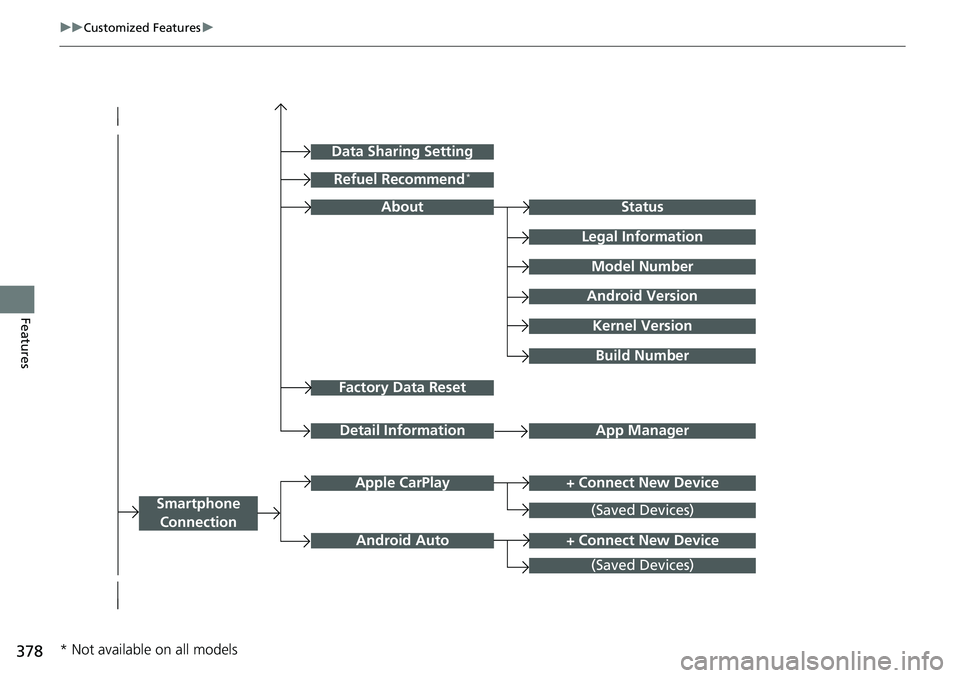
Factory Data Reset
Status
Legal Information
Build Number
Data Sharing Setting
Model Number
Android Version
Kernel Version
App ManagerDetail Information
About
+ Connect New DeviceApple CarPlay
Smartphone
Connection
Android Auto
(Saved Devices)
+ Connect New Device
(Saved Devices)
Refuel Recommend*
* Not available on all models
Page 385 of 719
384
uuCustomized Features u
Features
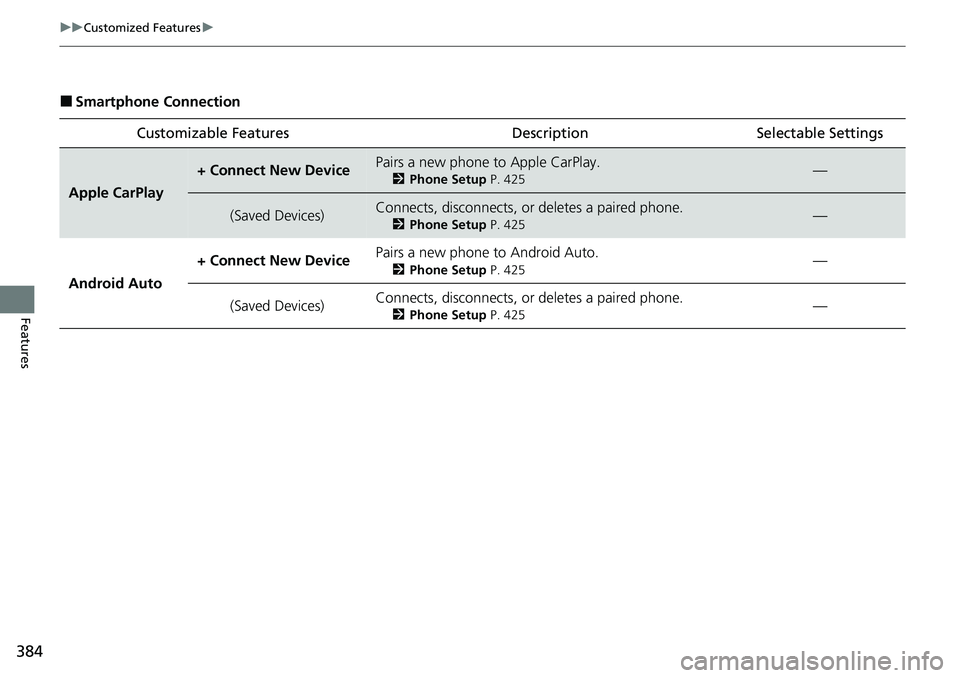
■Smartphone Connection
Customizable Features Desc ription Selectable Settings
Apple CarPlay
+ Connect New DevicePairs a new phone to Apple CarPlay.
2Phone Setup P. 425—
(Saved Devices)Connects, disconnects, or deletes a paired phone.
2Phone Setup P. 425—
Android Auto + Connect New Device
Pairs a new phone to Android Auto.
2
Phone Setup P. 425—
(Saved Devices) Connects, disconnects, or deletes a paired phone.
2
Phone Setup P. 425—
Page 386 of 719
385
uuCustomized Features u
Continued
Features
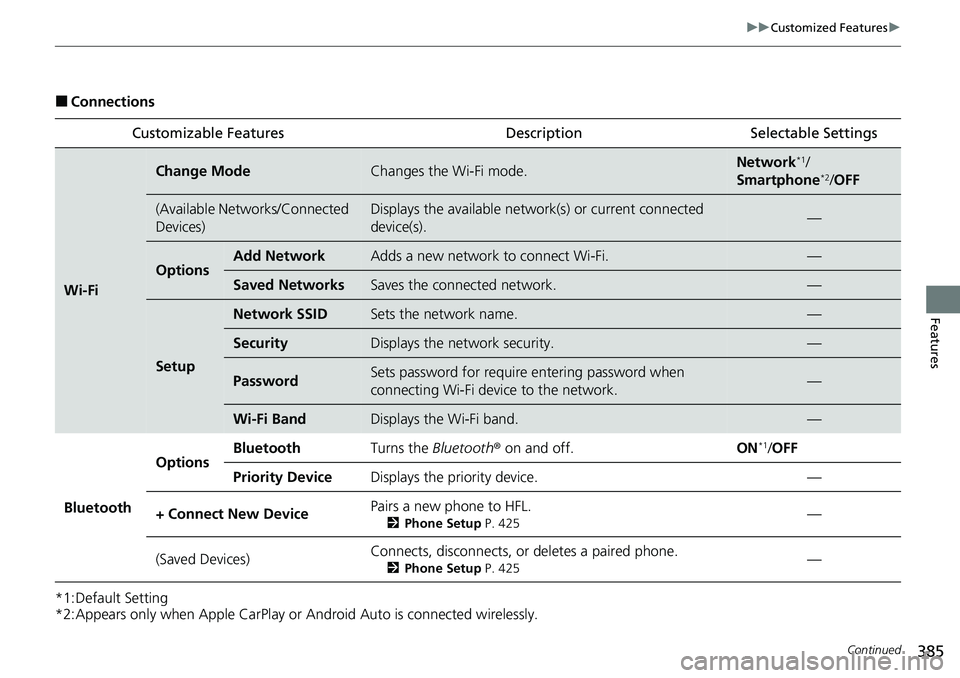
■Connections
*1:Default Setting
*2:Appears only when Apple CarPlay or Android Auto is connected wirelessly. Customizable Features Description Selectable Settings
Wi-Fi
Change ModeChanges the Wi-Fi mode.Network*1/
Smartphone*2/ OFF
(Available Networks/Connected
Devices)Displays the available networ k(s) or current connected
device(s).—
OptionsAdd NetworkAdds a new network to connect Wi-Fi.—
Saved NetworksSaves the connected network.—
Setup
Network SSIDSets the network name.—
SecurityDisplays the network security.—
PasswordSets password for require entering password when
connecting Wi-Fi device to the network.—
Wi-Fi BandDisplays the Wi-Fi band.—
Bluetooth
OptionsBluetoothTurns the Bluetooth ® on and off.ON*1/OFF
Priority DeviceDisplays the priority device.—
+ Connect New DevicePairs a new phone to HFL.
2 Phone Setup P. 425—
(Saved Devices)Connects, disconnects, or deletes a paired phone.
2Phone Setup P. 425—
Page 421 of 719
420
Features
Bluetooth® HandsFreeLink ®
Bluetooth® HandsFreeLink ® (HFL) allows you to place and receive phone calls using
your vehicle’s audio system, without handling your cell phone.
Using HFL
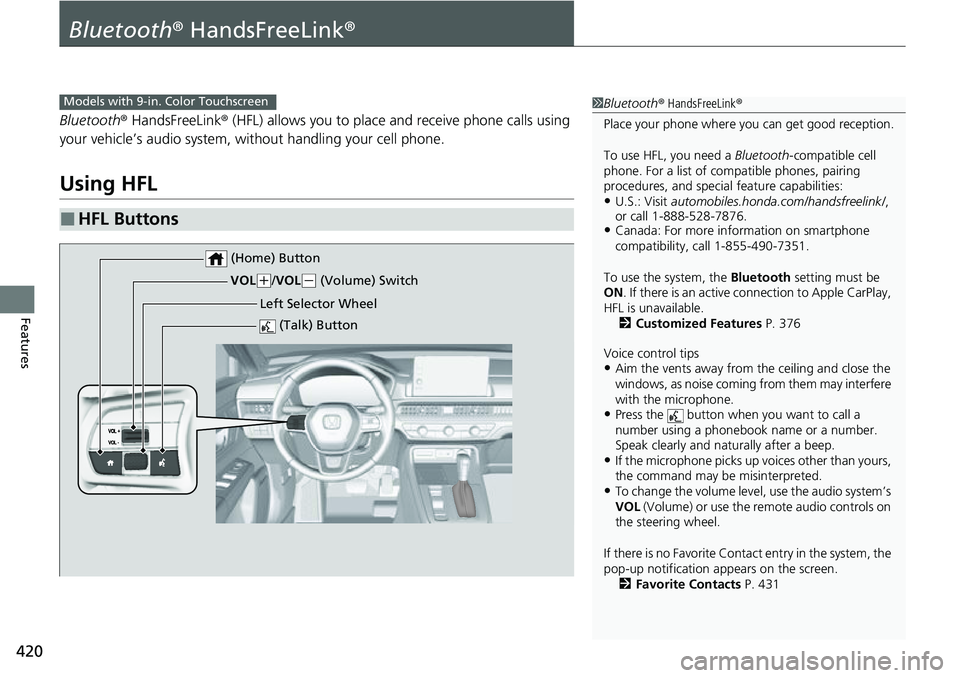
■HFL Buttons
1 Bluetooth ® HandsFreeLink ®
Place your phone where y ou can get good reception.
To use HFL, you need a Bluetooth-compatible cell
phone. For a list of compatible phones, pairing
procedures, and special feature capabilities:
•U.S.: Visit automobiles.honda.com/handsfreelink/ ,
or call 1-888-528-7876.
•Canada: For more info rmation on smartphone
compatibility, call 1-855-490-7351.
To use the system, the Bluetooth setting must be
ON . If there is an active c onnection to Apple CarPlay,
HFL is unavailable. 2 Customized Features P. 376
Voice control tips
•Aim the vents away from the ceiling and close the
windows, as noise coming from them may interfere
with the microphone.
•Press the button when you want to call a
number using a phonebook name or a number.
Speak clearly and naturally after a beep.
•If the microphone picks up vo ices other than yours,
the command may be misinterpreted.
•To change the volume level, use the audio system’s
VOL (Volume) or use the remote audio controls on
the steering wheel.
If there is no Favorite Contact entry in the system, the
pop-up notification appears on the screen. 2 Favorite Contacts P. 431
Models with 9-in. Color Touchscreen
(Talk) Button
Left Selector Wheel
VOL
(
+/ VOL(- (Volume) Switch
(Home) Button
Page 426 of 719
Continued425
uuBluetooth ® HandsFreeLink ®u HFL Menus
Features
■Bluetooth ® setup
You can turn Bluetooth® function on and off.
1. Press the button.
2. Select General Settings .
3. Select Connections .
4. Select Bluetooth .
5. Select Options.
6. Select Bluetooth , then select ON.
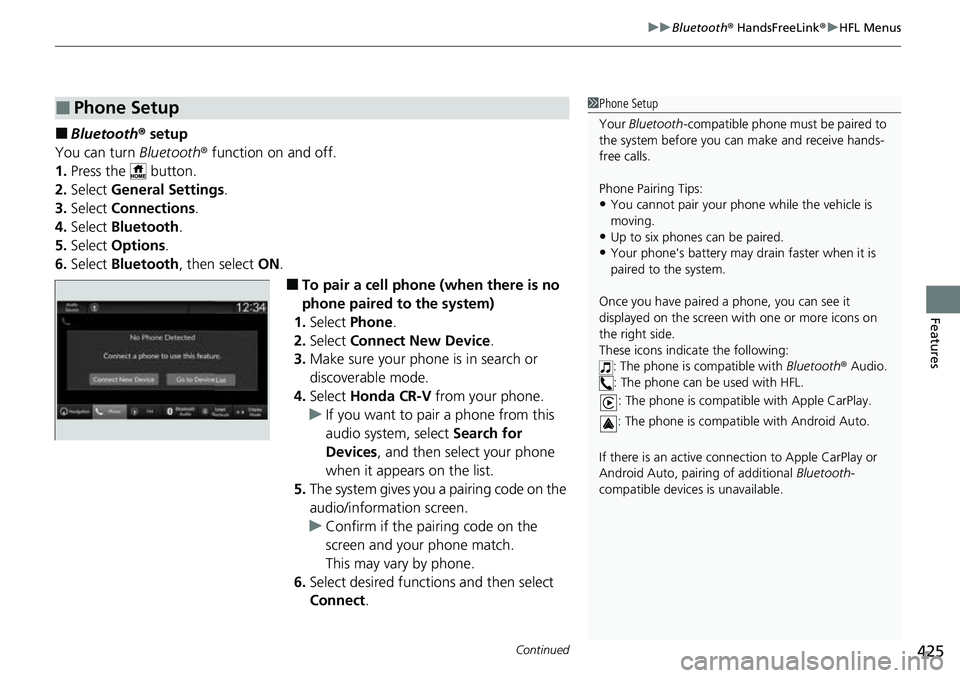
■To pair a cell phone (when there is no
phone paired to the system)
1. Select Phone .
2. Select Connect New Device .
3. Make sure your phone is in search or
discoverable mode.
4. Select Honda CR-V from your phone.
u If you want to pair a phone from this
audio system, select Search for
Devices , and then select your phone
when it appears on the list.
5. The system gives you a pairing code on the
audio/information screen.
u Confirm if the pairing code on the
screen and your phone match.
This may vary by phone.
6. Select desired functions and then select
Connect .
■Phone Setup1Phone Setup
Your Bluetooth -compatible phone must be paired to
the system before you ca n make and receive hands-
free calls.
Phone Pairing Tips:
•You cannot pair your phone while the vehicle is
moving.
•Up to six phones can be paired.
•Your phone's battery may dr ain faster when it is
paired to the system.
Once you have paired a phone, you can see it
displayed on the screen with one or more icons on
the right side.
These icons indicate the following: : The phone is compatible with Bluetooth® Audio.
: The phone can be used with HFL.
: The phone is compatib le with Apple CarPlay.
: The phone is compatible with Android Auto.
If there is an active connection to Appl e CarPlay or
Android Auto, pairing of additional Bluetooth-
compatible devices is unavailable.
Page 434 of 719
Continued433
uuBluetooth ® HandsFreeLink ®u HFL Menus
Features
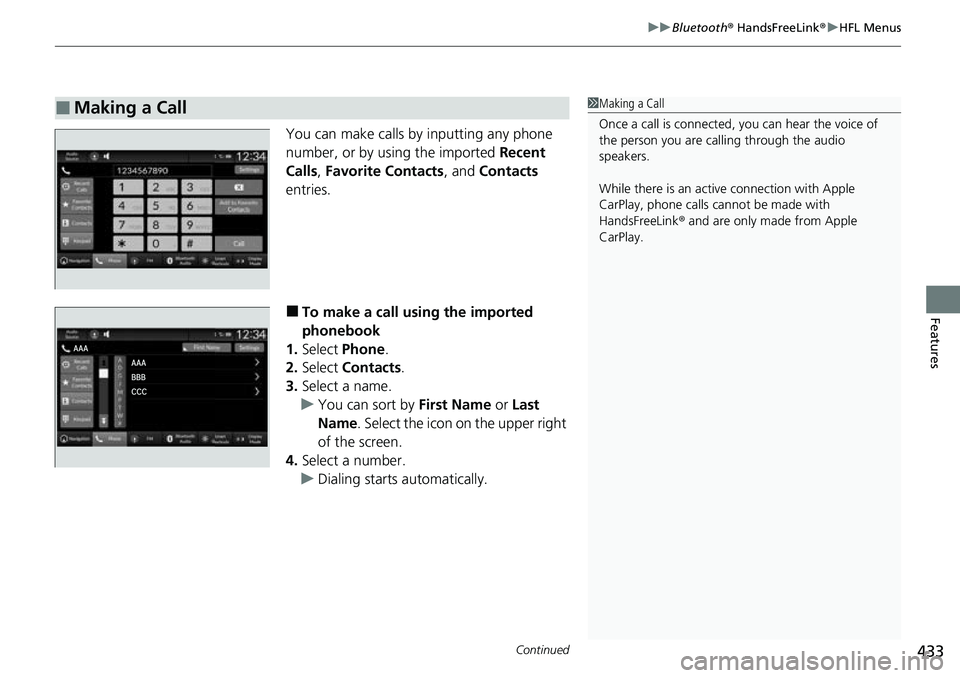
You can make calls by inputting any phone
number, or by using the imported Recent
Calls , Favorite Contacts , and Contacts
entries.
■To make a call using the imported
phonebook
1. Select Phone .
2. Select Contacts .
3. Select a name.
u You can sort by First Name or Last
Name . Select the icon on the upper right
of the screen.
4. Select a number.
u Dialing starts automatically.
■Making a Call1Making a Call
Once a call is connected, you can hear the voice of
the person you are call ing through the audio
speakers.
While there is an active connection with Apple
CarPlay, phone calls ca nnot be made with
HandsFreeLink ® and are only made from Apple
CarPlay.
Page 709 of 719
Index
708
Index
Index
Numbers
12-Volt Battery.......................................... 640
Charging System Indicator ....................... 677
Maintenance (Checking the 12-Volt Battery) ............... 640
12-Volt Battery Charging System Indicator .................................................. 677
A
ABS (Anti-lock Brake System) ................... 580
Accessories and Modifications ................. 649
Accessory Power Socket ........................... 224
Acoustic Vehicle Alerting System ............ 469
Adaptive Cruise Control (ACC) with Low Speed Follow ................................... 109, 513
Additives Coolant ................................................... 618
Engine Oil ................................................ 615
Washer .................................................... 622
Adjusting
Armrest ................................................... 215
Clock ....................................................... 146
Front Seats .............................................. 205
Head Restraints........................................ 213
Mirrors .................................................... 203
Rear Seats................................................ 209
Sound.............................................. 247, 290
Steering Wheel ........................................ 202
Agile Handling Assist ................................ 478 Air Conditioning System
(Climate Control System) ....................... 232
Changing the Mode ................................ 232
Defrosting the Windshield and Windows ............................................... 234
Dust and Pollen Filter............................... 643
Recirculation/Fresh Air Mode ................... 233
Sensor ..................................................... 236
Synchronization Mode............................. 235
Using Automatic Climate Control ............ 232
Air Pressure ....................................... 632, 695
Airbags ........................................................ 59
Advanced Airbags ..................................... 65
Airbag Care............................................... 78
Event Data Recorder .................................... 0
Front Airbags (SRS) .................................... 62
Indicator............................................ 75, 104
Knee Airbags............................................. 67
Passenger Airbag Off Indicator .................. 76
Sensors ..................................................... 59
Side Airbags .............................................. 70
Side Curtain Airbags.................................. 73
All-Wheel Drive (AWD) ............................ 479
AM/FM Radio .................................... 249, 296
Android Auto ................................... 267, 336
Anti-lock Brake System (ABS) .................. 580
Indicator.................................................. 103
Apple CarPlay ................................... 263, 329
Armrest ..................................................... 215
AT&T Hotspot ........................................... 328
Audio ........................................................ 124 Audio Remote Controls
........................... 242
Audio System ........................... 238, 246, 271
Adjusting the Sound ....................... 247, 290
Android Auto.................................. 267, 336
Audio/Information Screen ....................... 273
Display Setup .................................. 248, 291
Error Messages ....................................... 345
General Information................................ 347
Home Screen .......................................... 278
How to Update ....................................... 284
How to Update Wirelessly ....................... 288
How to Update with a USB Device .......... 289
iPod ................................................ 251, 311
Limitations for Manual Operation ............................. 292, 402, 422
MP3/WMA/AAC ............................. 254, 314
Power Flow ............................................. 342
Reactivating ............................................ 241
Recommended Devices ........................... 348
Remote Controls ..................................... 242
Security Code ......................................... 241
Selecting an Audio Source ...................... 292
Start Up .................................................. 272
Status Area ............................................. 283
System Updates ...................................... 284
System Updates Settings ......................... 285
Theft Protection ...................................... 241
USB Flash Drives...................................... 348
USB Ports ................................................ 239
Wallpaper Setup ..................................... 276
Audio/Information Screen ....................... 273