pairing HONDA CRV 2023 Owners Manual
[x] Cancel search | Manufacturer: HONDA, Model Year: 2023, Model line: CRV, Model: HONDA CRV 2023Pages: 719, PDF Size: 13.43 MB
Page 71 of 719
70
uuAirbags uSide Airbags
Safe Driving
Side Airbags
The side airbags help protect the torso and pelvis of the driver, front passenger, or
an outer rear seat occupant during a moderate-to-severe side impact.
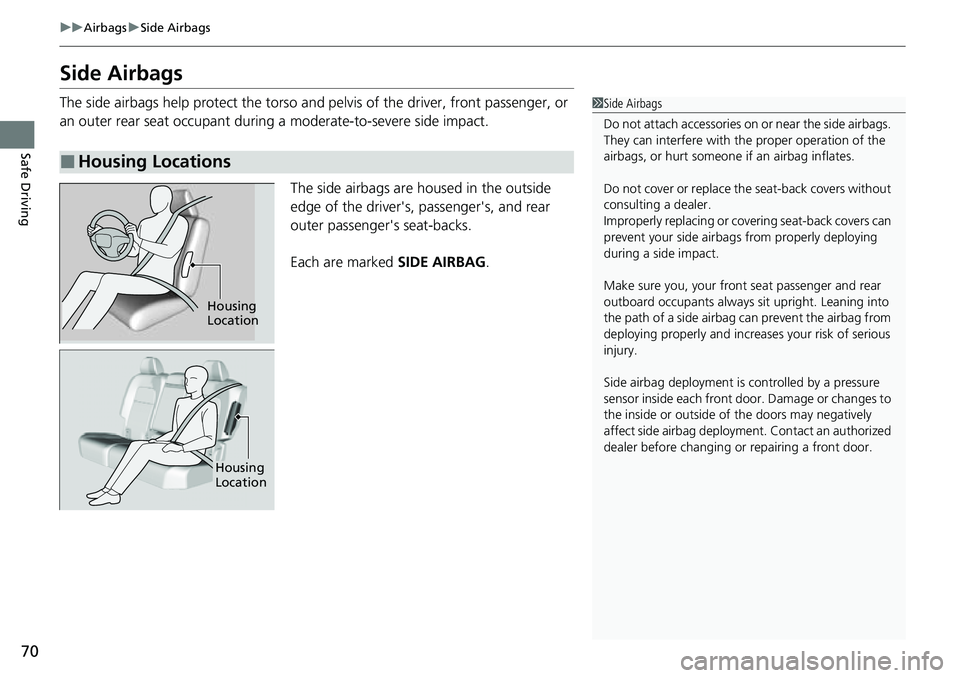
The side airbags are housed in the outside
edge of the driver's, passenger's, and rear
outer passenger's seat-backs.
Each are marked SIDE AIRBAG.
■Housing Locations
1Side Airbags
Do not attach accessories on or near the side airbags.
They can interfere with the proper operation of the
airbags, or hurt someone if an airbag inflates.
Do not cover or replace th e seat-back covers without
consulting a dealer.
Improperly replacing or covering seat-back covers can
prevent your side airbag s from properly deploying
during a side impact.
Make sure you, your front seat passenger and rear
outboard occupants always sit upright. Leaning into
the path of a side airbag can prevent the airbag from
deploying properly and increa ses your risk of serious
injury.
Side airbag deploy ment is controlled by a pressure
sensor inside each front door . Damage or changes to
the inside or outside of the doors may negatively
affect side airbag deployment. Contact an authorized
dealer before ch anging or repairing a front door.
Housing
Location
Housing
Location
Page 194 of 719
193
uuOperating the Switches Around the Steering Wheel uAuto High-Beam
Continued
Controls
Auto High-Beam
The front sensor camera detects the light sources ahead of the vehicle such as the
lights of a preceding or oncoming vehicle, or street lights. When you are driving at
night, the system automatically switches the headlights between low beam and high
beam depending on the situation.
■Activating the system
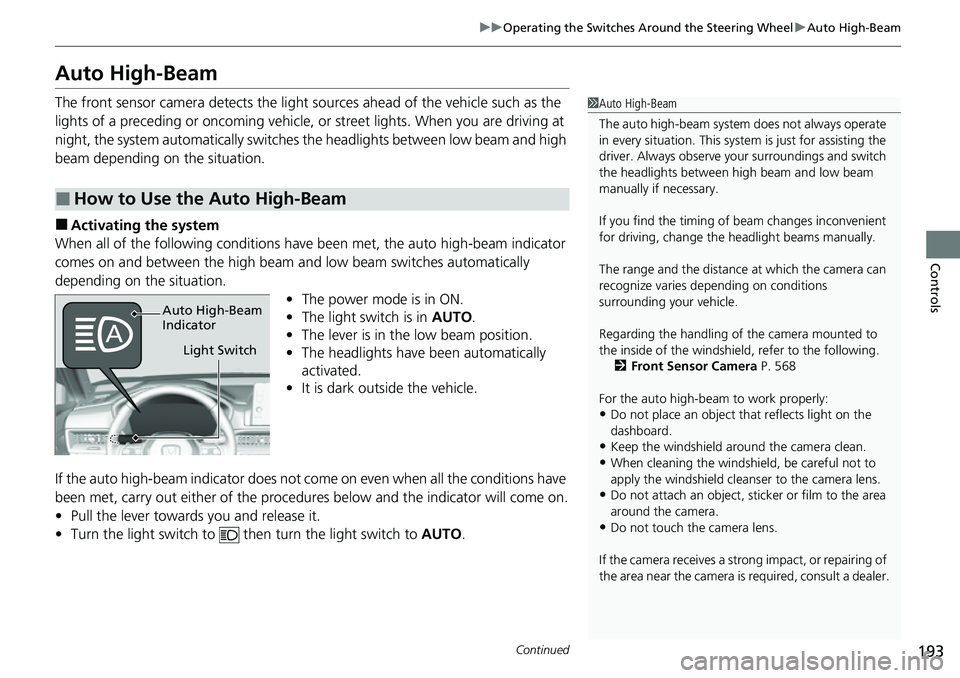
When all of the following conditions have been met, the auto high-beam indicator
comes on and between the high beam and low beam switches automatically
depending on the situation. •The power mode is in ON.
• The light switch is in AUTO.
• The lever is in the low beam position.
• The headlights have been automatically
activated.
• It is dark outside the vehicle.
If the auto high-beam indica tor does not come on even when all the conditions have
been met, carry out either of the procedures below and the indicator will come on.
• Pull the lever towards you and release it.
• Turn the light switch to th en turn the light switch to AUTO.
■How to Use the Auto High-Beam
1Auto High-Beam
The auto high-beam system does not always operate
in every situation. This syst em is just for assisting the
driver. Always observe your surroundings and switch
the headlights between high beam and low beam
manually if necessary.
If you find the timing of beam changes inconvenient
for driving, change the headlight beams manually.
The range and the distance at which the camera can
recognize varies de pending on conditions
surrounding your vehicle.
Regarding the handling of the camera mounted to
the inside of the windshiel d, refer to the following.
2 Front Sensor Camera P. 568
For the auto high-beam to work properly:
•Do not place an object that reflects light on the
dashboard.
•Keep the windshield around the camera clean.
•When cleaning the windshield, be careful not to
apply the windshield cleans er to the camera lens.
•Do not attach an object, sticker or film to the area
around the camera.
•Do not touch the camera lens.
If the camera receives a st rong impact, or repairing of
the area near the camera is required, consult a dealer.
Light Switch
Auto High-Beam
Indicator
Page 268 of 719
267
uuAudio System Basic Operation uAndroid AutoTM
Continued
Features
Android AutoTM
When you connect an Android phone to the audio system via the USB port, Android
Auto is automatically initiated. When connected via Android Auto, you can use the
audio/information screen to access the Phone, Google Maps (Navigation), and
Google Now functions. When you first use Android Auto, a tutorial will appear on
the screen.
We recommend that you complete this tuto rial while safely parked before using
Android Auto.
2 USB Ports P. 239
2 Auto Pairing Connection P. 269
1Android AutoTM
The images shown here (designs, specifications, etc.)
may differ from what is displayed on your screen.
We recommend that you upda te Android OS to the
latest version when using Android Auto.
Bluetooth A2DP cannot be used while your phone is
connected to Android Auto.
To use Android Auto on a smartphone with Android
9.0 (Pie) or earl ier, you need to download the
Android Auto app from Google Play to your
smartphone.
Park in a safe place befo re connecting your Android
phone to Android Auto and when launching any
compatible apps.
When your Android phone is connected to Android
Auto, it is not possible to use the Bluetooth® Audio.
However, other previously paired phones can stream
audio via Bluetooth ® while Android Auto is
connected. 2 Phone Setup P. 405
Apple CarPlay and Android Auto cannot run at the
same time.
Android Auto is a trademark of Google LLC.
Page 270 of 719
Continued269
uuAudio System Basic Operation uAndroid AutoTM
Features
•
You can check Android notifications.
• (Android Auto Home)
Display useful information organized by Android Auto into simple cards that
appear just when they’re needed.
When you connect an Android phone to the unit via the USB port, Android Auto is
automatically initiated.
To enable Android Auto after connecting an Android phone to the system, select
Yes on the screen.
You may change the consent settings under the Smartphone Settings menu.
■Auto Pairing Connection
■Connecting Android Auto Using the USB Cable to the USB Port1Connecting Android Auto Using the USB Cable to the USB Port
Only initialize Android Auto when you are safely
parked. When Android Auto first detects your phone,
you will need to set up your phone so that auto
pairing is possibl e. Refer to the instruction manual
that came with your phone.
You can use the following procedure to disconnect or
delete the devices connecting Android Auto after you
have completed the initial setup:
Press the MENU button
Select Smartphone Settings Android Auto
Select device
Use of user and vehicle information
The use and handling of user and vehicle information
transmitted to/from your phone by Android Auto is
governed by the Google’s Privacy Policy.
Page 273 of 719
272
uuAudio System Basic Operation uStart Up
Features
Start Up
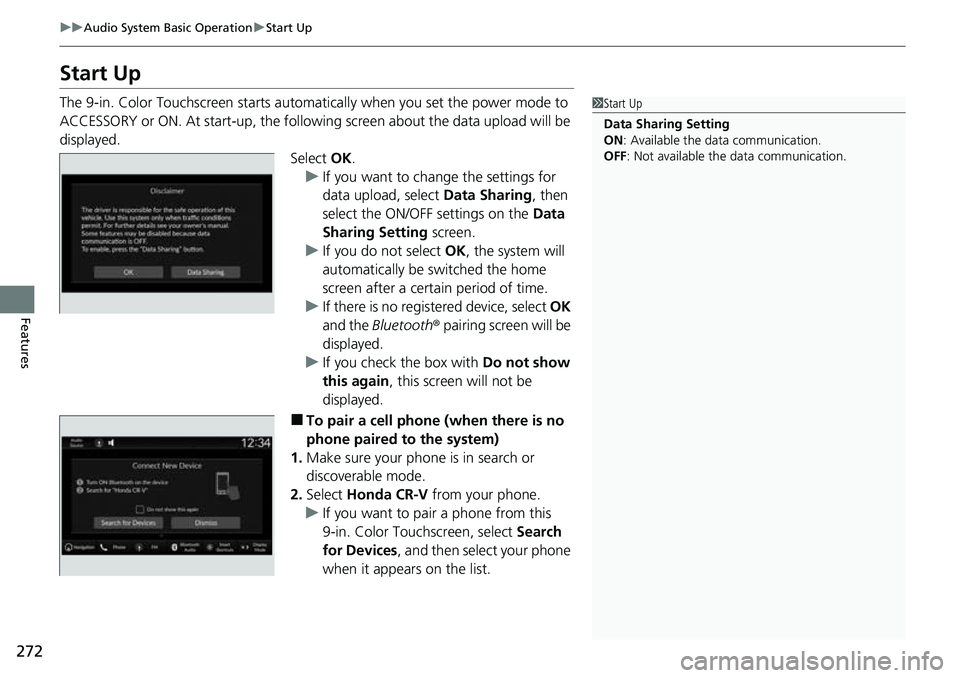
The 9-in. Color Touchscreen starts automatically when you set the power mode to
ACCESSORY or ON. At start-up, the following screen about the data upload will be
displayed.
Select OK.
u If you want to change the settings for
data upload, select Data Sharing, then
select the ON/OFF settings on the Data
Sharing Setting screen.
u If you do not select OK, the system will
automatically be switched the home
screen after a certain period of time.
u If there is no registered device, select OK
and the Bluetooth ® pairing screen will be
displayed.
u If you check the box with Do not show
this again , this screen will not be
displayed.
■To pair a cell phone (when there is no
phone paired to the system)
1. Make sure your phone is in search or
discoverable mode.
2. Select Honda CR-V from your phone.
u If you want to pair a phone from this
9-in. Color Touchscreen, select Search
for Devices , and then select your phone
when it appears on the list.
1 Start Up
Data Sharing Setting
ON : Available the data communication.
OFF: Not available the data communication.
Page 335 of 719
334
uuAudio System Basic Operation uApple CarPlay
Features
■Connect Apple CarPlay wirelessly at start-up (when there is no phone
paired to the system)
1. Set the power mode to ACCESSORY or ON.
2. Select OK.
u If there is no registered device, the Bluetooth® pairing screen will be displayed.
u If you check the box with Do not show this again, this screen will not be
displayed.
3. Pair the iPhone to the vehicle’s Bluetooth® HandsFreeLink ® (HFL) system.
2 Phone Setup P. 425
4.Check the box on Apple CarPlay.
u If you select Apple CarPlay , you cannot select Audio and Phone .
5. Select Connect .
6. Select Yes.
u If your iPhone asks for permission to accept an Apple CarPlay connection,
accept to connect. A confirmation message for HondaLink Assist appears.
7. Select Yes or No.
Page 337 of 719
336
uuAudio System Basic Operation uAndroid AutoTM
Features
Android AutoTM
When you connect an Android phone to the audio system via the USB port or
wirelessly, Android Auto is automatically initiated. When connected via Android
Auto, you can use the audio/information screen to access the Phone, Google Maps
(Navigation), and Google Now functions. When you first use Android Auto, a
tutorial will appe ar on the screen.
We recommend that you complete this tuto rial while safely parked before using
Android Auto.
2 USB Ports P. 239
2 Auto Pairing Connection P. 337
•Maps
Display Google Maps and use the navigation function just as you would with your
Android phone. When the vehicle is in motion, it is not possible to make keyboard
entries. Stop the vehicle in a safe location to undertake a search or provide other
inputs.
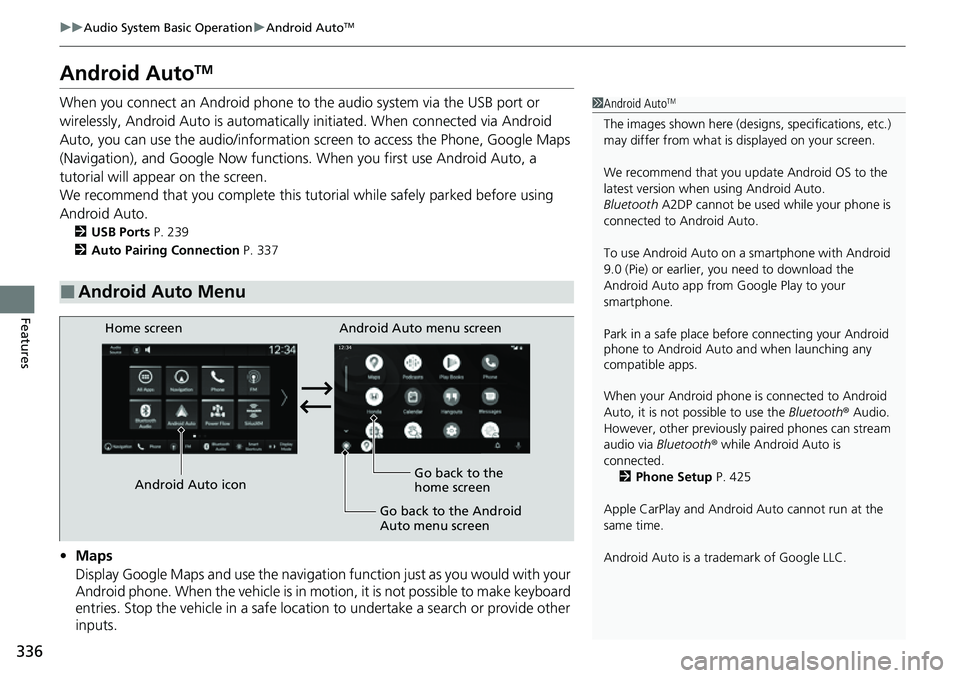
■Android Auto Menu
1 Android AutoTM
The images shown here (designs, specifications, etc.)
may differ from what is displayed on your screen.
We recommend that you upda te Android OS to the
latest version when using Android Auto.
Bluetooth A2DP cannot be used while your phone is
connected to Android Auto.
To use Android Auto on a smartphone with Android
9.0 (Pie) or earl ier, you need to download the
Android Auto app from Google Play to your
smartphone.
Park in a safe place befo re connecting your Android
phone to Android Auto and when launching any
compatible apps.
When your Android phone is connected to Android
Auto, it is not possible to use the Bluetooth® Audio.
However, other previously paired phones can stream
audio via Bluetooth ® while Android Auto is
connected. 2 Phone Setup P. 425
Apple CarPlay and Android Auto cannot run at the
same time.
Android Auto is a trademark of Google LLC.
Android Auto menu screen
Home screen
Android Auto icon Go back to the
home screen
Go back to the Android
Auto menu screen
Page 338 of 719
Continued337
uuAudio System Basic Operation uAndroid AutoTM
Features
• Phone
Make and receive phone calls as well as listen to voicemail.
• Exit
• Operate Android Auto with your voice.
•
You can check Android notifications.
• (Android Auto Home)
Display useful information organized by Android Auto into simple cards that
appear just when they’re needed.
When you connect an Android phone to the unit via the USB port or wirelessly,
Android Auto is automatically initiated.
■Auto Pairing Connection
1 Android AutoTM
For details on c ountries and regions where Android
Auto is available, as well as information pertaining to
function, refer to the Android Auto homepage.
Screens may differ depending on the version of the
Android Auto app you are using.
Android Auto Operating Requirements &
Limitations
Android Auto requires a compatible Android phone
with an active mobile connection and data plan. Your
carrier’s rate plans will apply.
Changes in operating systems, hardware, software,
and other technology integral to providing Android
Auto functionality, as well as new or revised
governmental regulations, may result in a decrease or
cessation of Android Auto functionality and services.
Honda cannot and does not pr ovide any warranty or
guarantee of future Android Auto performance or
functionality.
It is possible to use 3r d party apps if they are
compatible with Android Auto. Refer to the Android
Auto homepage for informat ion on compatible apps.
Page 339 of 719
uuAudio System Basic Operation uAndroid AutoTM
338
Features
1. Connect the Android phone to the USB port using the USB cable.
2 USB Ports P. 239
uThe confirmation screen will be displayed.
2. Select Yes.
u If you do not want to connect Android Auto, select No.
You may change the consent settings under the Smartphone Connection settings
menu.
■Connect Android Auto wirelessly on the home screen
1. Press the button.
2. Select Smartphone Connection .
3. Select + Connect New Device.
4. Pair the Android phone to the vehicle’s Bluetooth® HandsFreeLink ® (HFL) system.
2Phone Setup P. 425
5.Select Yes.
u If your Android phone asks for permission to accept an Android Auto
connection, accept to connect. A confir mation message for HondaLink Assist
appears.
6. Select Yes or No.
■Connecting Android Auto Using the USB Cable to the USB Port
■Connect Android Auto Wirelessly
1Connecting Android Auto Using the USB Cable to the USB Port
Only initialize Android Auto when you are safely
parked. When Android Auto first detects your phone,
you will need to set up your phone so that auto
pairing is possibl e. Refer to the instruction manual
that came with your phone.
You can use the following procedure to disconnect or
delete the devices connecting Android Auto after you
have completed the initial setup:
Press the button Select General Settings
Smartphone Connection Android Auto
Select device
Use of user and vehicle information
The use and handling of user and vehicle information
transmitted to/from your phone by Android Auto is
governed by the Google’s Privacy Policy.
Page 341 of 719
340
uuAudio System Basic Operation uAndroid AutoTM
Features
■Connect Android Auto wirele ssly with the steering wheel
1. Press and hold the (talk) button on the steering wheel.
2. Pair the Android phone to the vehicle’s Bluetooth® HandsFreeLink ® (HFL) system.
2Phone Setup P. 425
3.Check the box on Android Auto.
u If you select Android Auto , you cannot select Audio and Phone .
4. Select Connect .
5. Select Yes.
u If your Android phone asks for permission to accept an Android Auto
connection, accept to connect. A confir mation message for HondaLink Assist
appears.
6. Select Yes or No.
■Connect Android Auto wirelessly at start-up (when there is no phone
paired to the system)
1. Set the power mode to ACCESSORY or ON.
2. Select OK.
u If there is no registered device, the Bluetooth® pairing screen will be displayed.
u If you check the box with Do not show this again, this screen will not be
displayed.
3. Pair the Android phone to the vehicle’s Bluetooth® HandsFreeLink ® (HFL) system.
2Phone Setup P. 425
4.Check the box on Android Auto.
u If you select Android Auto , you cannot select Audio and Phone .
5. Select Connect .
6. Select Yes.
u If your Android phone asks for permission to accept an Android Auto
connection, accept to connect. A confir mation message for HondaLink Assist
appears.
7. Select Yes or No.