change HONDA ELEMENT 2010 1.G Navigation Manual
[x] Cancel search | Manufacturer: HONDA, Model Year: 2010, Model line: ELEMENT, Model: HONDA ELEMENT 2010 1.GPages: 153, PDF Size: 3.12 MB
Page 138 of 153
Navigation System137
Glossary
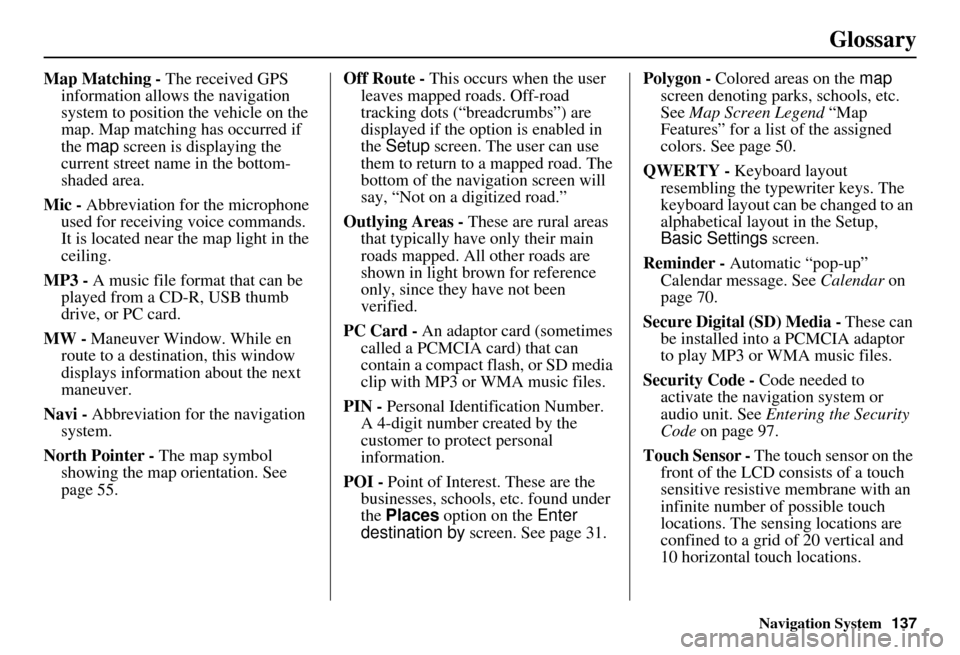
Map Matching - The received GPS
information allows the navigation
system to position the vehicle on the
map. Map matching has occurred if
the map screen is displaying the
current street name in the bottom-
shaded area.
Mic - Abbreviation for the microphone
used for receiving voice commands.
It is located near the map light in the
ceiling.
MP3 - A music file format that can be played from a CD-R, USB thumb
drive, or PC card.
MW - Maneuver Window. While en
route to a destination, this window
displays informatio n about the next
maneuver.
Navi - Abbreviation for the navigation
system.
North Pointer - The map symbol showing the map orientation. See
page 55. Off Route -
This occurs when the user
leaves mapped roads. Off-road
tracking dots (“breadcrumbs”) are
displayed if the option is enabled in
the Setup screen. The user can use
them to return to a mapped road. The
bottom of the navigation screen will
say, “Not on a digitized road.”
Outlying Areas - These are rural areas
that typically have only their main
roads mapped. All other roads are
shown in light brown for reference
only, since they have not been
verified.
PC Card - An adaptor card (sometimes
called a PCMCIA card) that can
contain a compact flash, or SD media
clip with MP3 or WMA music files.
PIN - Personal Identification Number.
A 4-digit number created by the
customer to protect personal
information.
POI - Point of Interest. These are the
businesses, schools, etc. found under
the Places option on the Enter
destination by screen. See page 31. Polygon - Colored areas on the
map
screen denoting parks, schools, etc.
See Map Screen Legend “Map
Features” for a list of the assigned
colors. See page 50.
QWERTY - Keyboard layout
resembling the typewriter keys. The
keyboard layout can be changed to an
alphabetical layout in the Setup,
Basic Settings screen.
Reminder - Automatic “pop-up”
Calendar message. See Calendar on
page 70.
Secure Digital (SD) Media - These can
be installed into a PCMCIA adaptor
to play MP3 or WMA music files.
Security Code - Code needed to
activate the navigation system or
audio unit. See Entering the Security
Code on page 97.
Touch Sensor - The touch sensor on the
front of the LCD consists of a touch
sensitive resistive membrane with an
infinite number of possible touch
locations. The sensing locations are
confined to a grid of 20 vertical and
10 horizontal touch locations.
Page 139 of 153
138Navigation System
Glossary
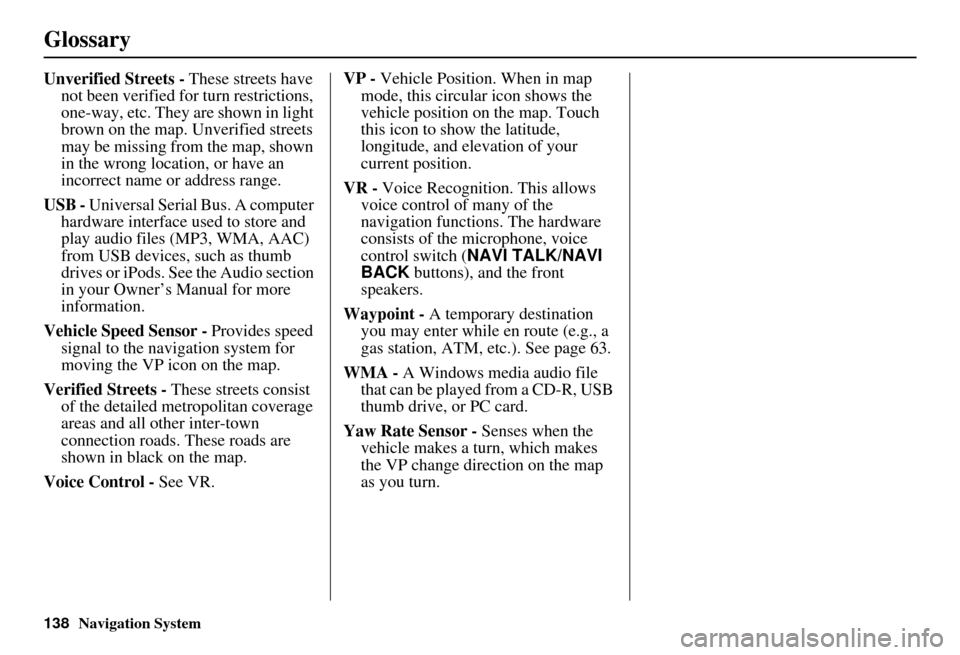
Unverified Streets - These streets have
not been verified for turn restrictions,
one-way, etc. They are shown in light
brown on the map. Unverified streets
may be missing from the map, shown
in the wrong location, or have an
incorrect name or address range.
USB - Universal Serial Bus. A computer hardware interface used to store and
play audio files (MP3, WMA, AAC)
from USB devices, such as thumb
drives or iPods. See the Audio section
in your Owner’s Manual for more
information.
Vehicle Speed Sensor - Provides speed
signal to the navigation system for
moving the VP icon on the map.
Verified Streets - These streets consist
of the detailed metropolitan coverage
areas and all other inter-town
connection roads. These roads are
shown in black on the map.
Voice Control - See VR. VP -
Vehicle Position. When in map
mode, this circular icon shows the
vehicle position on the map. Touch
this icon to show the latitude,
longitude, and elevation of your
current position.
VR - Voice Recognition. This allows
voice control of many of the
navigation functions. The hardware
consists of the microphone, voice
control switch ( NAVI TALK/NAVI
BACK buttons), and the front
speakers.
Waypoint - A temporary destination
you may enter while en route (e.g., a
gas station, ATM, etc.). See page 63.
WMA - A Windows media audio file that can be played from a CD-R, USB
thumb drive, or PC card.
Yaw Rate Sensor - Senses when the
vehicle makes a turn, which makes
the VP change direction on the map
as you turn.
Page 140 of 153
Navigation System139
Voice Command Index
Global Commands
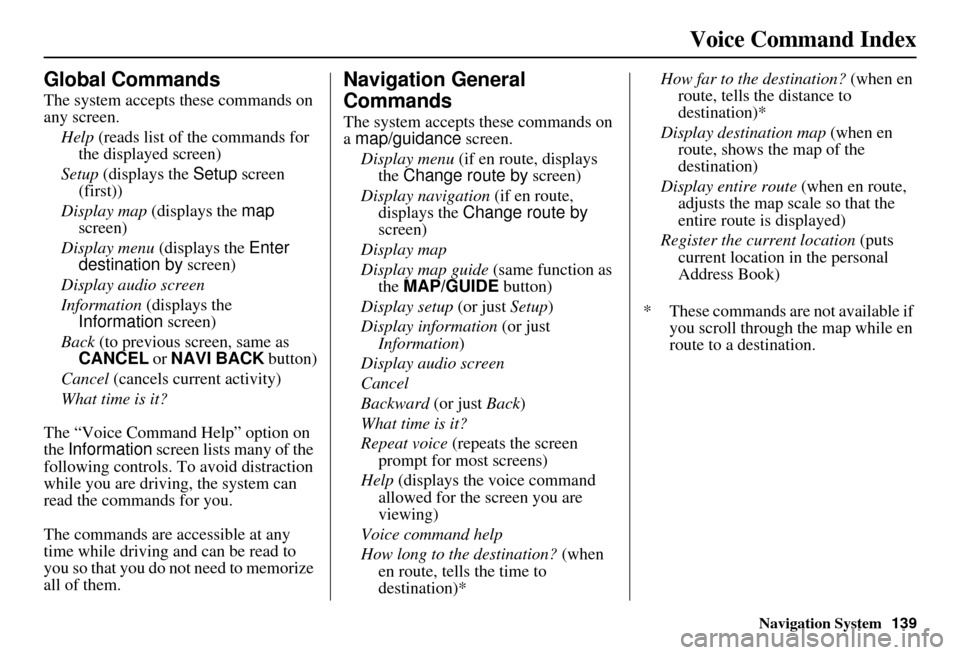
The system accepts these commands on
any screen.
Help (reads list of the commands for
the displayed screen)
Setup (displays the Setup screen
(first))
Display map (displays the map
screen)
Display menu (displays the Enter
destination by screen)
Display audio screen
Information (displays the
Information screen)
Back (to previous screen, same as
CANCEL or NAVI BACK button)
Cancel (cancels current activity)
What time is it?
The “Voice Command Help” option on
the Information screen lists many of the
following controls. To avoid distraction
while you are driving, the system can
read the commands for you.
The commands are accessible at any
time while driving and can be read to
you so that you do not need to memorize
all of them.
Navigation General
Commands
The system accepts these commands on
a map/guidance screen.
Display menu (if en route, displays
the Change route by screen)
Display navigation (if en route,
displays the Change route by
screen)
Display map
Display map guide (same function as
the MAP/GUIDE button)
Display setup (or just Setup)
Display information (or just
Information )
Display audio screen
Cancel
Backward (or just Back)
What time is it?
Repeat voice (repeats the screen
prompt for most screens)
Help (displays the voice command allowed for the screen you are
viewing)
Voice command help
How long to the destination? (when
en route, tells the time to
destination)* How far to the destination?
(when en
route, tells th e distance to
destination)*
Display destination map (when en
route, shows the map of the
destination)
Display entire route (when en route,
adjusts the map scale so that the
entire route is displayed)
Register the current location (puts
current location in the personal
Address Book)
* These commands are not available if you scroll through the map while en
route to a destination.
Page 142 of 153
Navigation System141
Voice Command Index
Find Place Commands
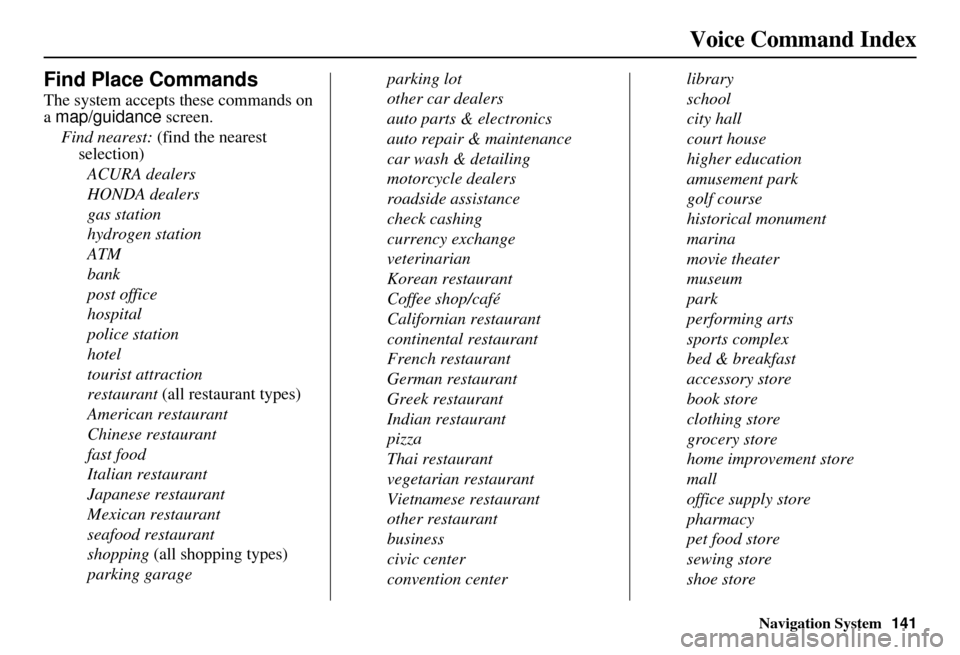
The system accepts these commands on
a map/guidance screen.
Find nearest: (find the nearest
selection)
ACURA dealers
HONDA dealers
gas station
hydrogen station
ATM
bank
post office
hospital
police station
hotel
tourist attraction
restaurant (all restaurant types)
American restaurant
Chinese restaurant
fast food
Italian restaurant
Japanese restaurant
Mexican restaurant
seafood restaurant
shopping (all shopping types)
parking garage parking lot
other car dealers
auto parts & electronics
auto repair & maintenance
car wash & detailing
motorcycle dealers
roadside assistance
check cashing
currency exchange
veterinarian
Korean restaurant
Coffee shop/café
Californian restaurant
continental restaurant
French restaurant
German restaurant
Greek restaurant
Indian restaurant
pizza
Thai restaurant
vegetarian restaurant
Vietnamese restaurant
other restaurant
business
civic center
convention centerlibrary
school
city hall
court house
higher education
amusement park
golf course
historical monument
marina
movie theater
museum
park
performing arts
sports complex
bed & breakfast
accessory store
book store
clothing store
grocery store
home improvement store
mall
office supply store
pharmacy
pet food store
sewing store
shoe store
Page 148 of 153
Navigation System147
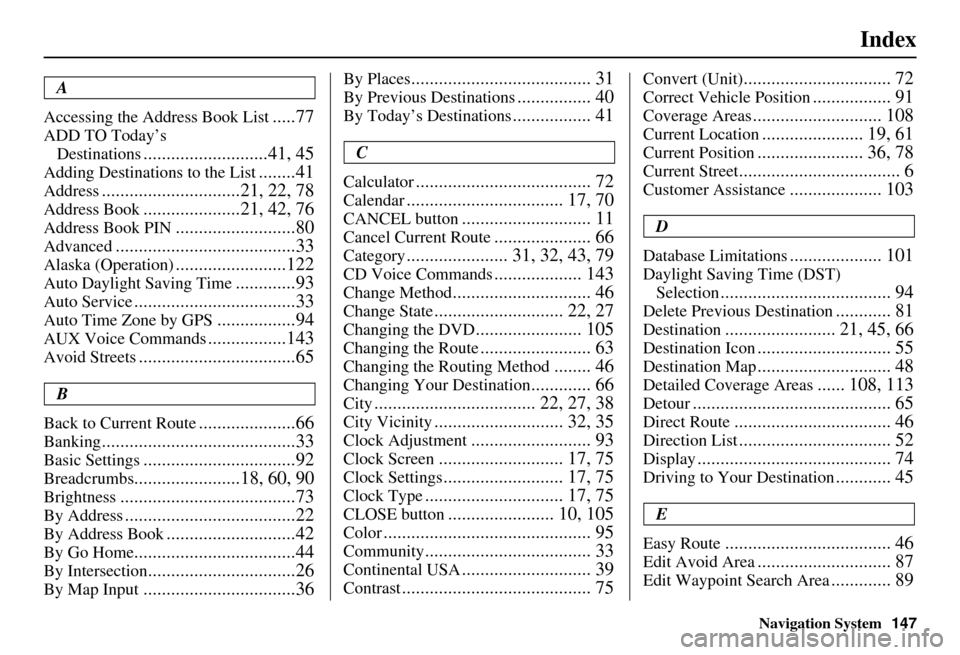
Index
A
Accessing the Address Book List
.....77
ADD TO Today’s Destinations
...........................41, 45
Adding Destinations to the List........41
Address..............................21, 22, 78
Address Book.....................21, 42, 76
Address Book PIN..........................80
Advanced.......................................33
Alaska (Operation)........................122
Auto Daylight Saving Time.............93
Auto Service...................................33
Auto Time Zone by GPS.................94
AUX Voice Commands.................143
Avoid Streets..................................65
B
Back to Current Route
.....................66
Banking..........................................33
Basic Settings.................................92
Breadcrumbs.......................18, 60, 90
Brightness......................................73
By Address.....................................22
By Address Book............................42
By Go Home...................................44
By Intersection................................26
By Map Input.................................36
By Places....................................... 31
By Previous Destinations................ 40
By Today’s Destinations................. 41
C
Calculator
...................................... 72
Calendar.................................. 17, 70
CANCEL button............................ 11
Cancel Current Route..................... 66
Category...................... 31, 32, 43, 79
CD Voice Commands................... 143
Change Method.............................. 46
Change State............................ 22, 27
Changing the DVD....................... 105
Changing the Route........................ 63
Changing the Routing Method........ 46
Changing Your Destination............. 66
City................................... 22, 27, 38
City Vicinity............................ 32, 35
Clock Adjustment.......................... 93
Clock Screen........................... 17, 75
Clock Settings.......................... 17, 75
Clock Type.............................. 17, 75
CLOSE button....................... 10, 105
Color............................................. 95
Community.................................... 33
Continental USA............................ 39
Contrast......................................... 75
Convert (Unit)................................ 72
Correct Vehicle Position................. 91
Coverage Areas............................ 108
Current Location...................... 19, 61
Current Position....................... 36, 78
Current Street................................... 6
Customer Assistance.................... 103
D
Database Limitations
.................... 101
Daylight Saving Time (DST) Selection
..................................... 94
Delete Previous Destination............ 81
Destination........................ 21, 45, 66
Destination Icon............................. 55
Destination Map............................. 48
Detailed Coverage Areas...... 108, 113
Detour........................................... 65
Direct Route.................................. 46
Direction List................................. 52
Display.......................................... 74
Driving to Your Destination............ 45
E
Easy Route
.................................... 46
Edit Avoid Area............................. 87
Edit Waypoint Search Area............. 89
Page 153 of 153
152Navigation System
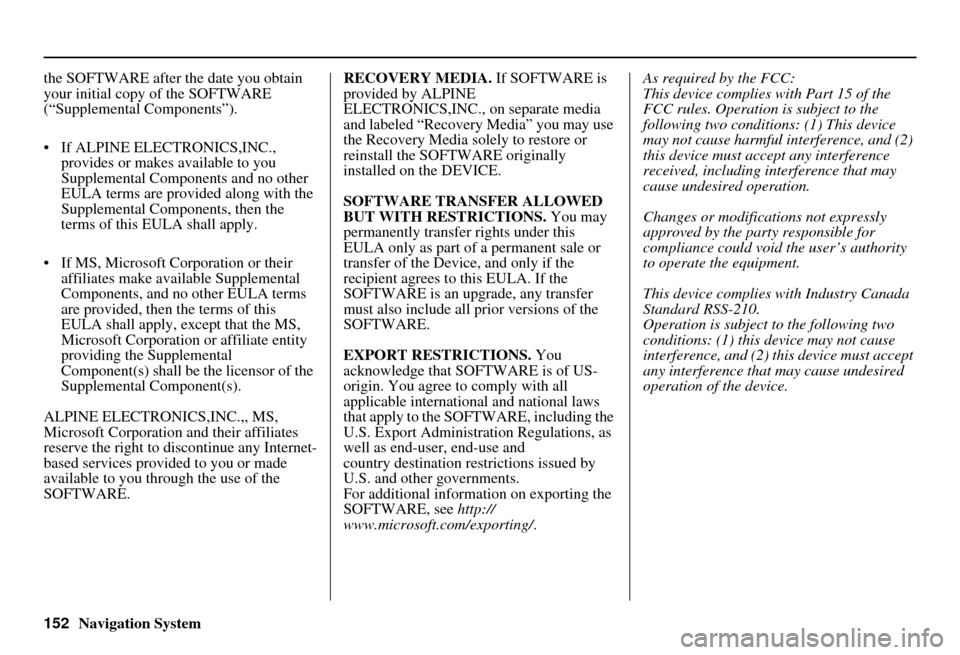
the SOFTWARE after the date you obtain
your initial copy of the SOFTWARE
(“Supplemental Components”).
• If ALPINE ELEC
TRONICS,INC.,
provides or makes available to you
Supplemental Components and no other
EULA terms are provided along with the
Supplemental Components, then the
terms of this EULA shall apply.
• If MS, Microsoft Corporation or their affiliates make av ailable Supplemental
Components, and no other EULA terms
are provided, then the terms of this
EULA shall apply, except that the MS,
Microsoft Corporation or affiliate entity
providing the Supplemental
Component(s) shall be the licensor of the
Supplemental Component(s).
ALPINE ELECTRONICS,INC.,, MS,
Microsoft Corporation and their affiliates
reserve the right to di scontinue any Internet-
based services provided to you or made
available to you through the use of the
SOFTWARE. RECOVERY MEDIA.
If SOFTWARE is
provided by ALPINE
ELECTRONICS,INC., on separate media
and labeled “Recovery Media” you may use
the Recovery Media solely to restore or
reinstall the SOFTWARE originally
installed on the DEVICE.
SOFTWARE TRANSFER ALLOWED
BUT WITH RESTRICTIONS. You may
permanently transfer rights under this
EULA only as part of a permanent sale or
transfer of the Device, and only if the
recipient agrees to this EULA. If the
SOFTWARE is an upgrade, any transfer
must also include all prior versions of the
SOFTWARE.
EXPORT RESTRICTIONS. You
acknowledge that SOFTWARE is of US-
origin. You agree to comply with all
applicable international and national laws
that apply to the SOFTWARE, including the
U.S. Export Administrat ion Regulations, as
well as end-user, end-use and
country destination restrictions issued by
U.S. and other governments.
For additional information on exporting the
SOFTWARE, see http://
www.microsoft. com/exporting/. As required by the FCC:
This device complies with Part 15 of the
FCC rules. Operation is subject to the
following two conditions: (1) This device
may not cause harmful interference, and (2)
this device must accept any interference
received, including interference that may
cause undesired operation.
Changes or modificati
ons not expressly
approved by the party responsible for
compliance could void the user’s authority
to operate the equipment.
This device complies with Industry Canada
Standard RSS-210.
Operation is subject to the following two
conditions: (1) this device may not cause
interference, and (2) this device must accept
any interference that may cause undesired
operation of the device.