USB HONDA FIT 2009 2.G Owner's Manual
[x] Cancel search | Manufacturer: HONDA, Model Year: 2009, Model line: FIT, Model: HONDA FIT 2009 2.GPages: 352, PDF Size: 17.67 MB
Page 182 of 352
–Bit rate:
32/40/48/56/64/80/96/112/128/
160/192/224/256/320/VBR kbps
(MPEG1)
8/16/24/32/40/48/56/64/80/96/
112/128/144/160/VBR kbps
(MPEG2)
– Supported standards:
MPEG1 Audio Layer3
MPEG2 Audio LSF Layer3
– Partition:
Top partition only
– Maximum layers: 8
The specifications for compatible
WMA files are: – Sampling frequency:
32/44.1/48 kHz
– Bit rate:
48 -320/VBR kbps (Max 384)
– Supported standards:
WMA version 7/8/9 –
Partition:
Top partition only
– Maximum layers: 8
The specifications for compatible
AAC files are: – Sampling frequency:
8/11.025/12/16/22.05/24/32/
44.1/48 kHz
– Bit rate:
8- 320 kbps
– Supported standards:
MPEG4/AAC LC
MPEG2/AAC LC
– Partition:
Top partition only
– Maximum layers: 8
Even if recorded in MP3, WMA or
AAC format, a file with unsupported
version cannot be played. If the
system finds it, the audio unit
displays UNSUPPORTED, and then
skips to the next file. In WMA or AAC format, DRM
(digital rights management) files
cannot be played. If the system finds
a DRM file, the audio unit displays
UNPLAYABLE FILE, and then skips
to the next file.
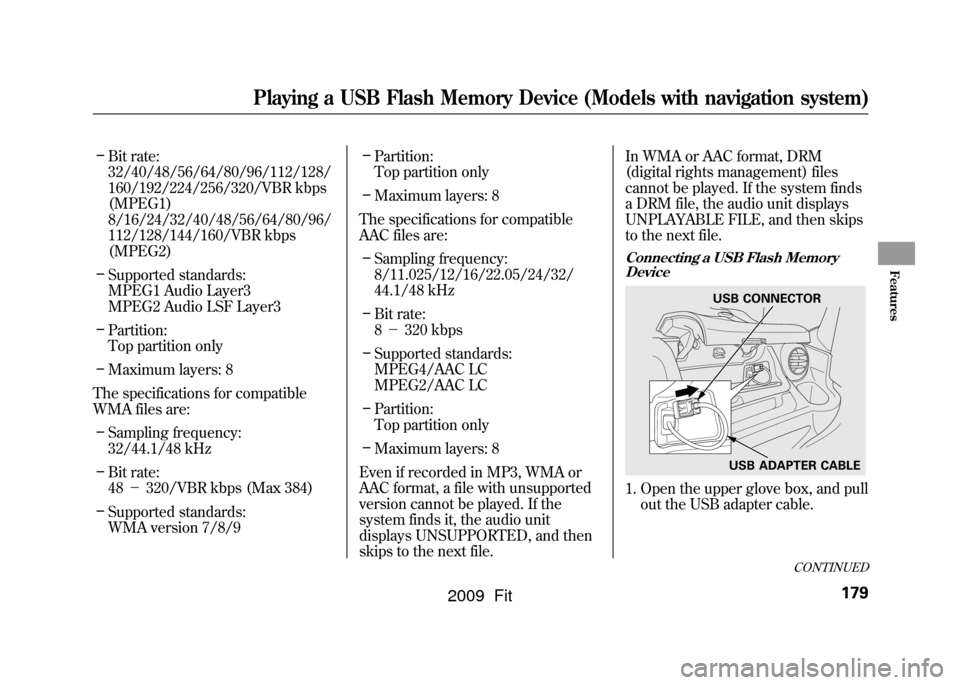
Connecting a USB Flash Memory
Device1. Open the upper glove box, and pull out the USB adapter cable.
USB CONNECTOR
USB ADAPTER CABLE
CONTINUED
Playing a USB Flash Memory Device (Models with navigation system)
179
Features
2009 Fit
Page 183 of 352
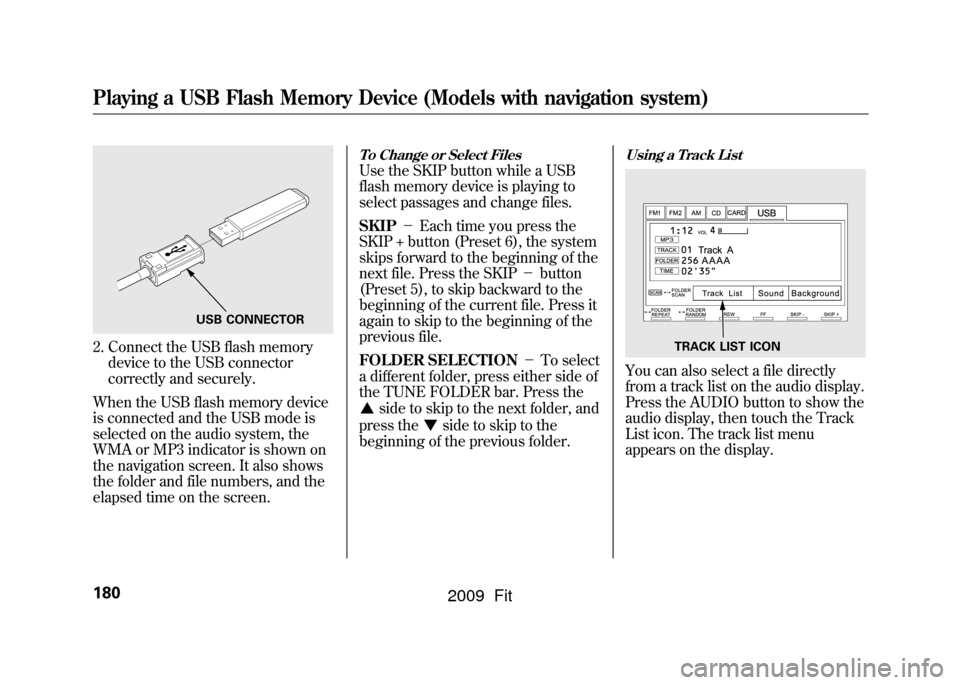
2. Connect the USB flash memorydevice to the USB connector
correctly and securely.
When the USB flash memory device
is connected and the USB mode is
selected on the audio system, the
WMA or MP3 indicator is shown on
the navigation screen. It also shows
the folder and file numbers, and the
elapsed time on the screen.
To Change or Select FilesUse the SKIP button while a USB
flash memory device is playing to
select passages and change files.
SKIP -Each time you press the
SKIP + button (Preset 6), the system
skips forward to the beginning of the
next file. Press the SKIP -button
(Preset 5), to skip backward to the
beginning of the current file. Press it
again to skip to the beginning of the
previous file.
FOLDER SELECTION -To select
a different folder, press either side of
the TUNE FOLDER bar. Press the
side to skip to the next folder, and
press the
side to skip to the
beginning of the previous folder.
Using a Track ListYou can also select a file directly
from a track list on the audio display.
Press the AUDIO button to show the
audio display, then touch the Track
List icon. The track list menu
appears on the display.
USB CONNECTOR
TRACK LIST ICON
Playing a USB Flash Memory Device (Models with navigation system)180
2009 Fit
Page 184 of 352
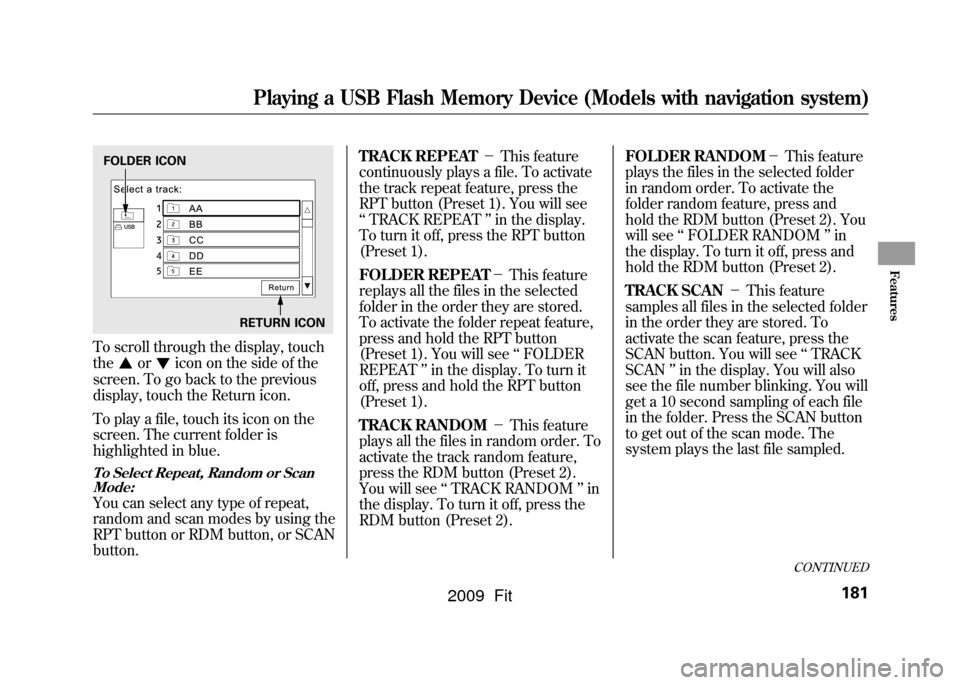
To scroll through the display, touch
the
or
icon on the side of the
screen. To go back to the previous
display, touch the Return icon.
To play a file, touch its icon on the
screen. The current folder is
highlighted in blue.
To Select Repeat, Random or Scan Mode:You can select any type of repeat,
random and scan modes by using the
RPT button or RDM button, or SCAN
button. TRACK REPEAT
-This feature
continuously plays a file. To activate
the track repeat feature, press the
RPT button (Preset 1). You will see
‘‘ TRACK REPEAT ’’in the display.
To turn it off, press the RPT button
(Preset 1).
FOLDER REPEAT -This feature
replays all the files in the selected
folder in the order they are stored.
To activate the folder repeat feature,
press and hold the RPT button
(Preset 1). You will see ‘‘FOLDER
REPEAT ’’in the display. To turn it
off, press and hold the RPT button
(Preset 1).
TRACK RANDOM -This feature
plays all the files in random order. To
activate the track random feature,
press the RDM button (Preset 2).
You will see ‘‘TRACK RANDOM ’’in
the display. To turn it off, press the
RDM button (Preset 2). FOLDER RANDOM
-This feature
plays the files in the selected folder
in random order. To activate the
folder random feature, press and
hold the RDM button (Preset 2). You
will see ‘‘FOLDER RANDOM ’’in
the display. To turn it off, press and
hold the RDM button (Preset 2).
TRACK SCAN -This feature
samples all files in the selected folder
in the order they are stored. To
activate the scan feature, press the
SCAN button. You will see ‘‘TRACK
SCAN ’’in the display. You will also
see the file number blinking. You will
get a 10 second sampling of each file
in the folder. Press the SCAN button
to get out of the scan mode. The
system plays the last file sampled.FOLDER ICON
RETURN ICON
CONTINUED
Playing a USB Flash Memory Device (Models with navigation system)
181
Features
2009 Fit
Page 185 of 352

FOLDER SCAN-This feature
samples the first file in each folder in
the order they are stored. To activate
the folder scan feature, press and
hold the SCAN button. You will see
‘‘ FOLDER SCAN ’’in the display.
You will also see the folder number
blinking. You will get a 10 second
sampling of each first file in the
folder(s). Press the SCAN button to
get out of the scan mode. The system
plays the last file sampled. To Stop Playing a USB Flash
Memory Device
To play the radio when a USB flash
memory device is playing, press the
FM/AM button or touch the FM1,
FM2, or AM icon. If a disc is in the
audio unit, press the CD/AUX button
or touch the CD icon to play the disc.
If a PC card is in the audio unit, press
the CD/AUX button or touch the
CARD icon to play a PC card.
Press the CD/AUX button again or
touch the AUX icon to switch back to
the USB flash memory device.
Disconnecting a USB Flash Memory
DeviceYou can disconnect the USB flash
memory device in any time even if
the USB mode is selected on the
audio system. Always follow the USB
flash memory device ’s instructions
when you remove it.
When you disconnect the USB flash
memory device while it is playing,
the navigation screen shows ‘‘NO
DATA. ’’
If you reconnect the same USB flash
memory device, the system will
begin playing where it left off.
USB Flash Memory Device Error
Messages
If you see an error message on the
screen, see page 183.
Playing a USB Flash Memory Device (Models with navigation system)182
2009 Fit
Page 186 of 352

If you see an error message on the
screen while playing a USB flash
memory device, find the solution in
the chart to the right. If you cannot
clear the error message, take your
vehicle to your dealer.Error
Message Solution
UNPLAYABLE
FILE The system cannot read the file(s). Check the files in the USB flash memory
device. There is a possibility that the files have been damaged.
UNSUPPORTED Appears when the unsupported USB flash memory device is inserted.
NO SONG Information of music is nothing.
USB Flash Memory Device Error Messages (Models with navigation system)
183
Features
2009 Fit
Page 192 of 352
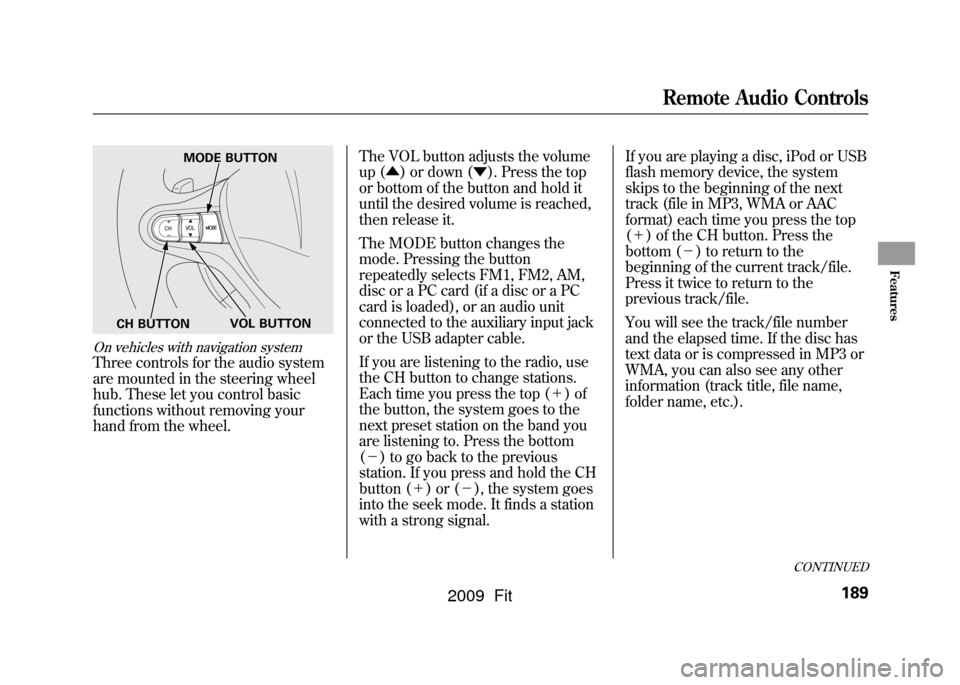
On vehicles with navigation systemThree controls for the audio system
are mounted in the steering wheel
hub. These let you control basic
functions without removing your
hand from the wheel.The VOL button adjusts the volume
up (
▲) or down ( ▼). Press the top
or bottom of the button and hold it
until the desired volume is reached,
then release it.
The MODE button changes the
mode. Pressing the button
repeatedly selects FM1, FM2, AM,
disc or a PC card (if a disc or a PC
card is loaded), or an audio unit
connected to the auxiliary input jack
or the USB adapter cable.
If you are listening to the radio, use
the CH button to change stations.
Each time you press the top ( +)of
the button, the system goes to the
next preset station on the band you
are listening to. Press the bottom
( - ) to go back to the previous
station. If you press and hold the CH
button ( +)or( -), the system goes
into the seek mode. It finds a station
with a strong signal. If you are playing a disc, iPod or USB
flash memory device, the system
skips to the beginning of the next
track (file in MP3, WMA or AAC
format) each time you press the top
(
+ ) of the CH button. Press the
bottom ( -) to return to the
beginning of the current track/file.
Press it twice to return to the
previous track/file.
You will see the track/file number
and the elapsed time. If the disc has
text data or is compressed in MP3 or
WMA, you can also see any other
information (track title, file name,
folder name, etc.).
MODE BUTTON
VOL BUTTON
CH BUTTON
CONTINUED
Remote Audio Controls
189
Features
2009 Fit
Page 346 of 352
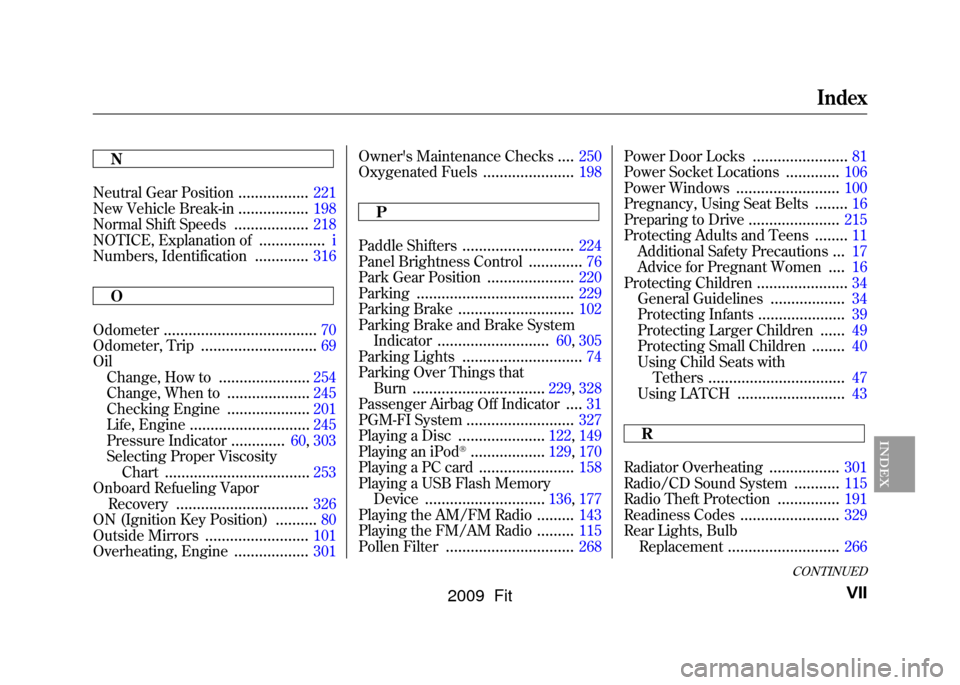
N
Neutral Gear Position
.................
221
New Vehicle Break-in
.................
198
Normal Shift Speeds
..................
218
NOTICE, Explanation of
................
i
Numbers, Identification
.............
316
O
Odometer
.....................................
70
Odometer, Trip
............................
69
Oil Change, How to
......................
254
Change, When to
....................
245
Checking Engine
....................
201
Life, Engine
.............................
245
Pressure Indicator
.............
60, 303
Selecting Proper Viscosity Chart
...................................
253
Onboard Refueling Vapor Recovery
................................
326
ON (Ignition Key Position)
..........
80
Outside Mirrors
.........................
101
Overheating, Engine
..................
301 Owner's Maintenance Checks
....
250
Oxygenated Fuels
......................
198
P
Paddle Shifters
...........................
224
Panel Brightness Control
.............
76
Park Gear Position
.....................
220
Parking
......................................
229
Parking Brake
............................
102
Parking Brake and Brake System Indicator
...........................
60, 305
Parking Lights
.............................
74
Parking Over Things that Burn
................................
229, 328
Passenger Airbag Off Indicator
....
31
PGM-FI System
..........................
327
Playing a Disc
.....................
122, 149
Playing an iPod
®..................
129, 170
Playing a PC card
.......................
158
Playing a USB Flash Memory Device
.............................
136, 177
Playing the AM/FM Radio.........
143
Playing the FM/AM Radio
.........
115
Pollen Filter
...............................
268 Power Door Locks
.......................
81
Power Socket Locations
.............
106
Power Windows
.........................
100
Pregnancy, Using Seat Belts
........
16
Preparing to Drive
......................
215
Protecting Adults and Teens
........
11
Additional Safety Precautions
...
17
Advice for Pregnant Women
....
16
Protecting Children
......................
34
General Guidelines
..................
34
Protecting Infants
.....................
39
Protecting Larger Children
......
49
Protecting Small Children
........
40
Using Child Seats with Tethers
.................................
47
Using LATCH
..........................
43
R
Radiator Overheating
.................
301
Radio/CD Sound System
...........
115
Radio Theft Protection
...............
191
Readiness Codes
........................
329
Rear Lights, Bulb Replacement
...........................
266
CONTINUED
Index
VII
INDEX
2009 Fit
Page 349 of 352
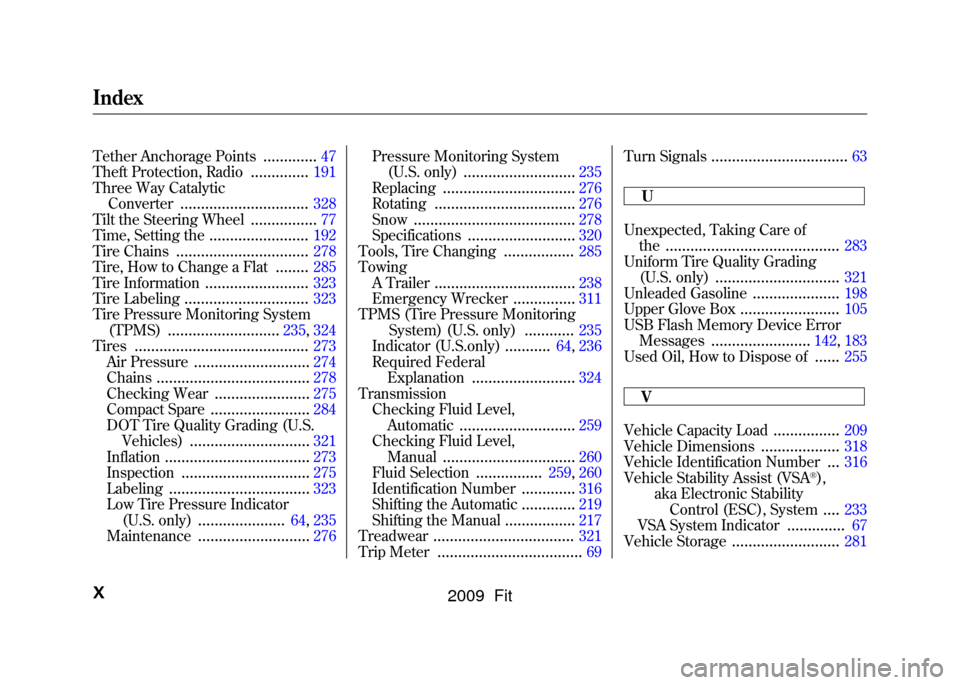
Tether Anchorage Points
.............
47
Theft Protection, Radio
..............
191
Three Way Catalytic Converter
...............................
328
Tilt the Steering Wheel
................
77
Time, Setting the
........................
192
Tire Chains
................................
278
Tire, How to Change a Flat
........
285
Tire Information
.........................
323
Tire Labeling
..............................
323
Tire Pressure Monitoring System (TPMS)
...........................
235, 324
Tires
..........................................
273
Air Pressure
............................
274
Chains
.....................................
278
Checking Wear
.......................
275
Compact Spare
........................
284
DOT Tire Quality Grading (U.S. Vehicles)
.............................
321
Inflation
...................................
273
Inspection
...............................
275
Labeling
..................................
323
Low Tire Pressure Indicator
(U.S. only)
.....................
64, 235
Maintenance
...........................
276 Pressure Monitoring System
(U.S. only)
...........................
235
Replacing
................................
276
Rotating
..................................
276
Snow
.......................................
278
Specifications
..........................
320
Tools, Tire Changing
.................
285
Towing A Trailer
..................................
238
Emergency Wrecker
...............
311
TPMS (Tire Pressure Monitoring System) (U.S. only)
............
235
Indicator (U.S.only)
...........
64, 236
Required Federal Explanation
.........................
324
Transmission Checking Fluid Level, Automatic
............................
259
Checking Fluid Level, Manual
................................
260
Fluid Selection
................
259, 260
Identification Number
.............
316
Shifting the Automatic
.............
219
Shifting the Manual
.................
217
Treadwear
..................................
321
Trip Meter
...................................
69 Turn Signals
.................................
63
U
Unexpected, Taking Care of the
..........................................
283
Uniform Tire Quality Grading (U.S. only)
..............................
321
Unleaded Gasoline
.....................
198
Upper Glove Box
........................
105
USB Flash Memory Device Error Messages
........................
142, 183
Used Oil, How to Dispose of......
255
V
Vehicle Capacity Load
................
209
Vehicle Dimensions
...................
318
Vehicle Identification Number
...
316
Vehicle Stability Assist (VSA
®),
aka Electronic Stability Control (ESC), System....
233
VSA System Indicator
..............
67
Vehicle Storage
..........................
281
IndexX
2009 Fit