AUX HONDA FIT 2009 2.G Owners Manual
[x] Cancel search | Manufacturer: HONDA, Model Year: 2009, Model line: FIT, Model: HONDA FIT 2009 2.GPages: 352, PDF Size: 17.67 MB
Page 7 of 352
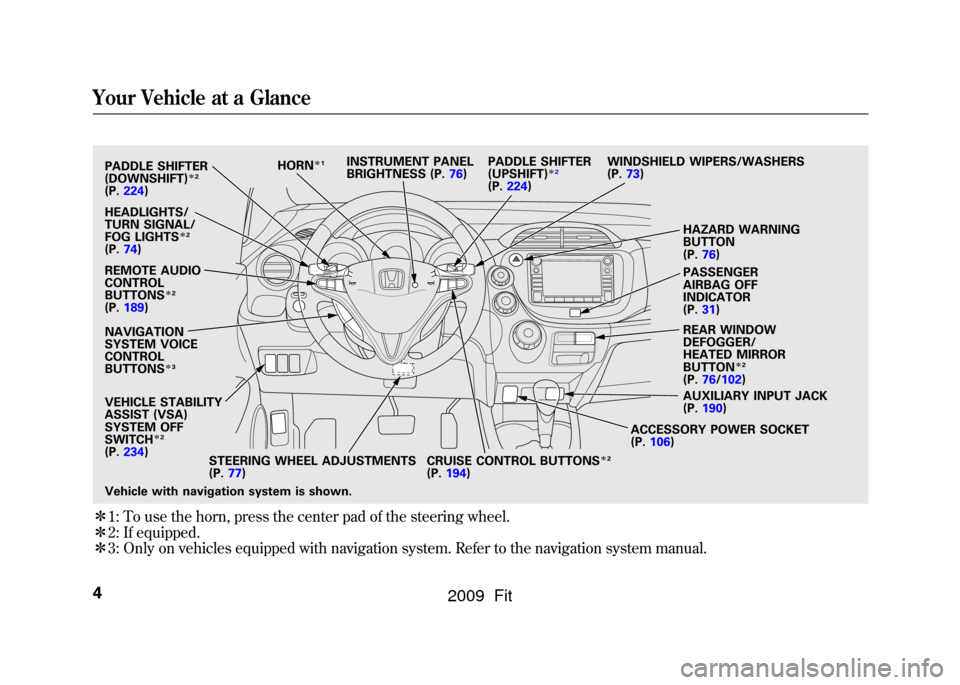
ꭧ1: To use the horn, press the center pad of the steering wheel.
ꭧ 2: If equipped.
ꭧ 3: Only on vehicles equipped with navigation system. Refer to the navigation system manual.Vehicle with navigation system is shown. PADDLE SHIFTER
(DOWNSHIFT)
ꭧ 2
(P. 224 )
HEADLIGHTS/
TURN SIGNAL/
FOG LIGHTS
ꭧ 2
(P. 74)
REMOTE AUDIO
CONTROL
BUTTONS
ꭧ 2
(P. 189)
NAVIGATION
SYSTEM VOICE
CONTROL
BUTTONS
ꭧ 3
VEHICLE STABILITY
ASSIST (VSA)
SYSTEM OFF
SWITCH
ꭧ2
(P. 234 )
STEERING WHEEL ADJUSTMENTS
(P.77) CRUISE CONTROL BUTTONS
ꭧ
2
(P. 194)
HORN
ꭧ
1
PADDLE SHIFTER
(UPSHIFT)
ꭧ2
(P. 224)
INSTRUMENT PANEL
BRIGHTNESS (P.
76)
HAZARD WARNING
BUTTON
(P.76)
WINDSHIELD WIPERS/WASHERS
(P.73)
PASSENGER
AIRBAG OFF
INDICATOR
(P.31)
REAR WINDOW
DEFOGGER/
HEATED MIRROR
BUTTON
ꭧ 2
(P. 76/102)
AUXILIARY INPUT JACK
(P. 190)
ACCESSORY POWER SOCKET
(P. 106)
Your Vehicle at a Glance4
2009 Fit
Page 75 of 352
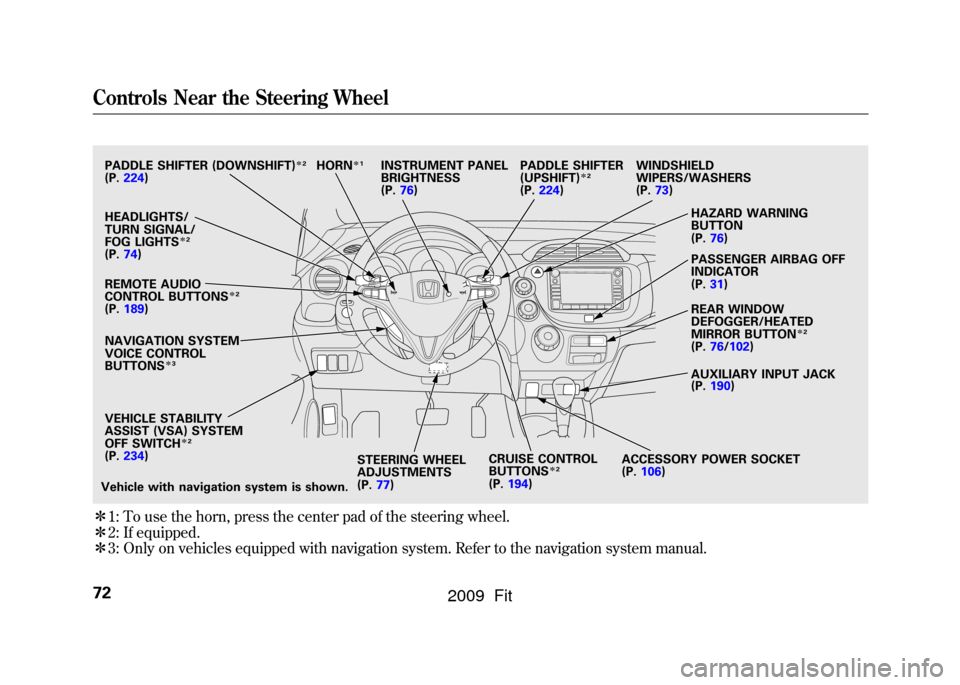
ꭧ1: To use the horn, press the center pad of the steering wheel.
ꭧ 2: If equipped.
ꭧ 3: Only on vehicles equipped with navigation system. Refer to the navigation system manual.PADDLE SHIFTER (DOWNSHIFT)
ꭧ 2
(P. 224)
HEADLIGHTS/
TURN SIGNAL/
FOG LIGHTS
ꭧ 2
(P. 74)
NAVIGATION SYSTEM
VOICE CONTROL
BUTTONS
ꭧ 3
STEERING WHEEL
ADJUSTMENTS
(P.77) CRUISE CONTROL
BUTTONS
ꭧ
2
(P. 194) AUXILIARY INPUT JACK
(P.
190)
ACCESSORY POWER SOCKET
(P. 106) PASSENGER AIRBAG OFF
INDICATOR
(P.31)
REAR WINDOW
DEFOGGER/HEATED
MIRROR BUTTON
ꭧ
2
(P. 76/102)
WINDSHIELD
WIPERS/WASHERS
(P.
73)
HAZARD WARNING
BUTTON
(P.76)
PADDLE SHIFTER
(UPSHIFT)
ꭧ
2
(P. 224)
INSTRUMENT PANEL
BRIGHTNESS
(P.76)
REMOTE AUDIO
CONTROL BUTTONS
ꭧ 2
(P. 189)
VEHICLE STABILITY
ASSIST (VSA) SYSTEM
OFF SWITCH
ꭧ 2
(P. 234)
Vehicle with navigation system is shown. HORN
ꭧ
1
Controls Near the Steering Wheel72
2009 Fit
Page 112 of 352
The heating and air conditioning
system in your vehicle provides a
comfortable driving environment in
all weather conditions.
The standard audio system has many
features. This section describes
those features and how to use them.
Your vehicle has an anti-theft audio
system that requires a code number
to enable it.
The security system helps to
discourage vandalism and theft of
your vehicle.Vents, Heating, and A/C
.............
110
Playing the FM/AM Radio (Models without navigationsystem)
...............................
115
Playing a Disc (Models without navigation system)
..................
122
Disc Player Error Messages (Models without navigationsystem)
...............................
128
Playing an iPod
®(Models without
navigation system)
..................
129
iPod
®Error Messages (Models
without navigation system)
.....
135
Playing a USB Flash Memory Device (Models without
navigation system)
..............
136
USB Flash Memory Device Error
Messages (Models withoutnavigation system)
..............
142
Playing the AM/FM Radio
(Models with navigationsystem)
...............................
143
Playing a Disc (Models with
navigation system)
..................
149 Disc Player Error Messages
(Models with navigationsystem)
...............................
157
Playing a PC card (Models with
navigation system)
..................
158
Playing an iPod
®(Models with
navigation system)
..................
170
iPod
®Error Messages (Models
with navigation system)
..........
176
Playing a USB Flash Memory Device (Models withnavigation system)
..............
177
USB Flash Memory Device Error Messages (Models withnavigation system)
..............
183
FM/AM Radio Reception
............
184
Protecting Your Discs
.................
186
Remote Audio Controls
...............
189
Auxiliary Input Jack
....................
190
Radio Theft Protection
................
191
Setting the Clock
.........................
192
Security System
..........................
193
Cruise Control
............................
194
Features
109
Features
2009 Fit
Page 132 of 352
ꂺPLAY BUTTON
USB INDICATOR
RANDOM
BUTTON
\b
SEEK
(SKIP +)
BUTTON
TITLE BUTTON AUX BUTTON
ꂹꂾ
BUTTON
VOL/SELECT KNOB REPEAT BUTTON
ꀾ
SEEK
(SKIP
-)
BUTTON iPod INDICATOR
POWER ( ꂻ) BUTTON
On Sport model
CONTINUED
Playing an iPod
®
(Models without navigation system)
129
Features
2009 Fit
Page 133 of 352

To Play an iPod
ꭂ
This audio system can operate the
audio files on the iPod
ꭂwith the
same controls used for the in-dash
disc player. To play an iPod, connect
it to the USB adapter cable in the
upper glove box by using your dock
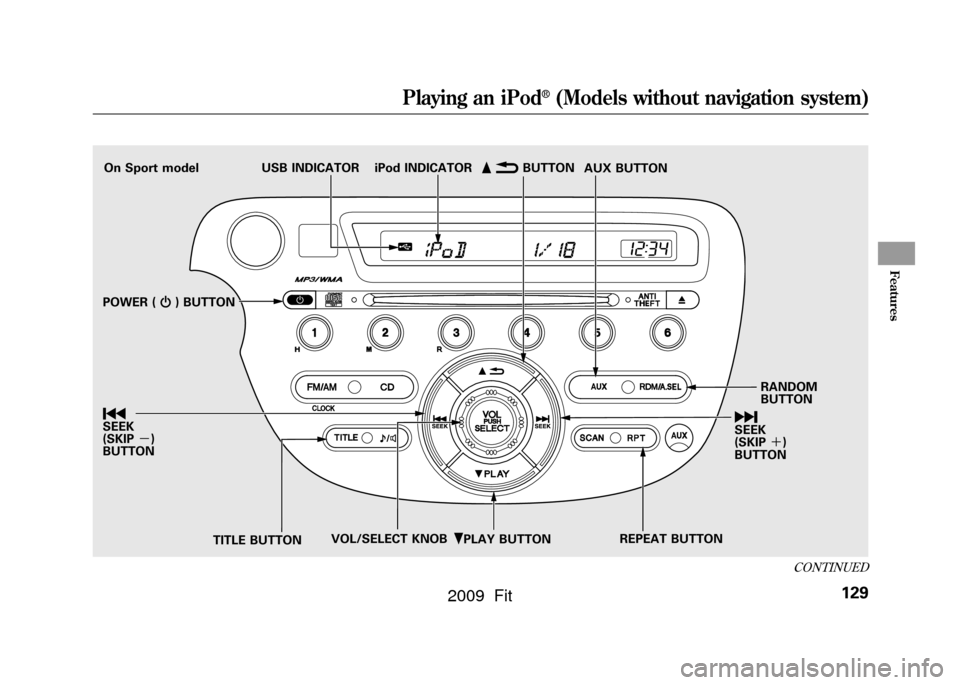
connector, then press the AUX
button. The ignition switch must be
in the ACCESSORY (I) or ON (II)
position. The iPod will also be
recharged with the ignition switch in
these positions.
The audio system reads and plays
sound files to be playable on the
iPod. The system cannot operate an
iPod as a mass storage device. The
system will only play songs stored on
the iPod with iTunes.
iPod and iTunes are registered
trademarks owned by Apple Inc.
iPods that are compatible with your
audio system are listed below.
Model Firmware
ꭧ
iPod 5G Ver. 1.2 or more
iPod classic Ver. 1.0 or more
iPod nano Ver. 1.2 or more
iPod nano 2nd
generation Ver. 1.1.2 or more
iPod nano 3rd
generation Ver. 1.0 or more
iPod touch Ver. 1.1.1 or more
iPhone Ver. 1.1.1 or moreꭧ: Use the latest firmware.
Use only compatible iPods with the
latest firmware. iPods that are not
compatible will not work in this audio
unit.
NOTE:●Do not connect your iPod using a
HUB.●Do not keep the iPod in the
vehicle. Direct sunlight and high
heat will damage it.
●Do not use an extension cable
between the USB adapter cable
equipped with your vehicle and
your dock connector.●We recommend backing up your
data before playing it.
In AAC format, DRM (digital rights
management) files cannot be played.
If the system finds a DRM file, the
audio unit displays UNPLAYABLE,
and then skips to the next file.
Playing an iPod
®
(Models without navigation system)
130
2009 Fit
Page 139 of 352
ꂺPLAY BUTTON
USB INDICATOR
RANDOM
BUTTON
\b
SEEK
(SKIP +)
BUTTON
TITLE BUTTON AUX BUTTON
ꂹꂾ
BUTTON
VOL/SELECT KNOB REPEAT BUTTON
ꀾ
SEEK
(SKIP
-)
BUTTON POWER ( ꂻ) BUTTON
On Sport model
Playing a USB Flash Memory Device (Models without navigation system)136
2009 Fit
Page 140 of 352

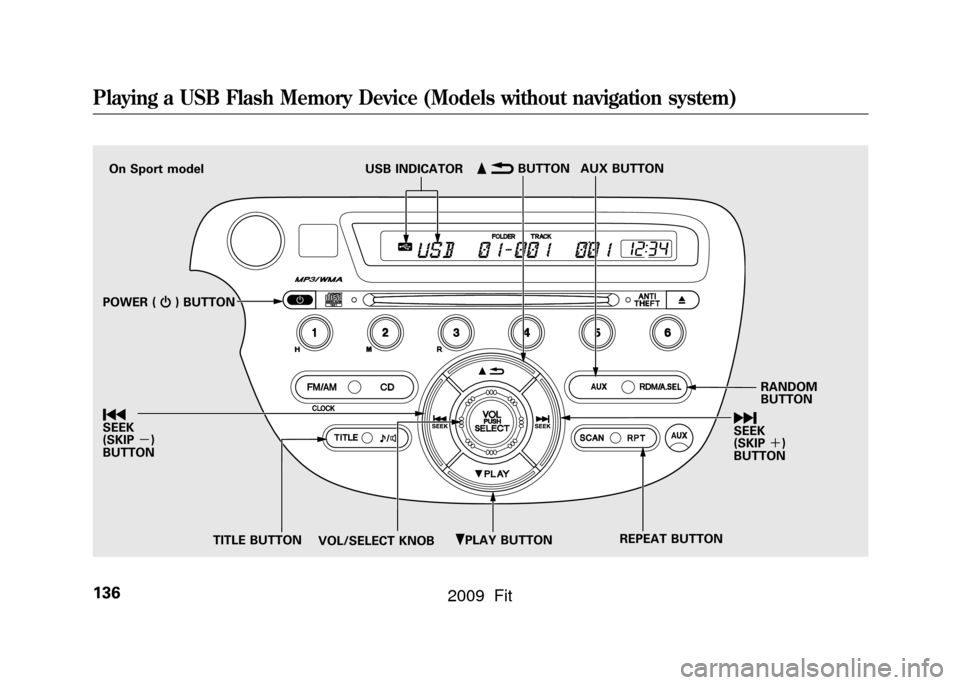
To Play a USB Flash Memory
Device
This audio system can operate the
audio files on a USB flash memory
device with the same controls used
for the in-dash disc player. To play a
USB flash memory device, connect it
to the USB adapter cable in the
upper glove box, then press the AUX
button. The ignition switch must be
in the ACCESSORY (I) or ON (II)
position.
The audio system reads and plays
the audio files on the USB flash
memory device in MP3, WMA or
AAC
ꭧformats. Depending on the
format, the display shows MP3,
WMA or AAC when a USB flash
memory device is playing. The USB
flash memory device limit is up to
700 folders or up to 65535 files.
ꭧ : Only AAC format files recorded
with iTunes are playable on this
audio unit. The recommended USB flash
memory devices are 256 Mbyte or
higher. Some digital audio players
may be compatible as well.
Some USB flash memory device
(such as devices with security
lockout features, etc.) will not work
in this audio unit.
NOTE:
●Do not use a device such as a card
reader or hard drive as the device
or your files may be damaged.●Do not connect your USB flash
memory device using a HUB.●Do not use an extension cable to
the USB adapter cable equipped
with your vehicle.●Do not keep the USB flash
memory device in the vehicle.
Direct sunlight and high heat will
damage it.
●We recommend backing up your
data before playing a USB flash
memory device.●Depending on the type and
number of files, it may take some
time before they begin to play.●Depending on the software the
files were made with, it may not be
possible to play some files, or
display some text data.
The specifications for compatible
MP3 files are: – Sampling frequency:
32/44.1/48 kHz (MPEG1)
16/22.05/24 kHz (MPEG2)
– Bit rate:
32/40/48/56/64/80/96/112/128/
160/192/224/256/320/VBR kbps
(MPEG1)
8/16/24/32/40/48/56/64/80/96/
112/128/144/160/VBR kbps
(MPEG2)
CONTINUED
Playing a USB Flash Memory Device (Models without navigation system)
137
Features
2009 Fit
Page 152 of 352
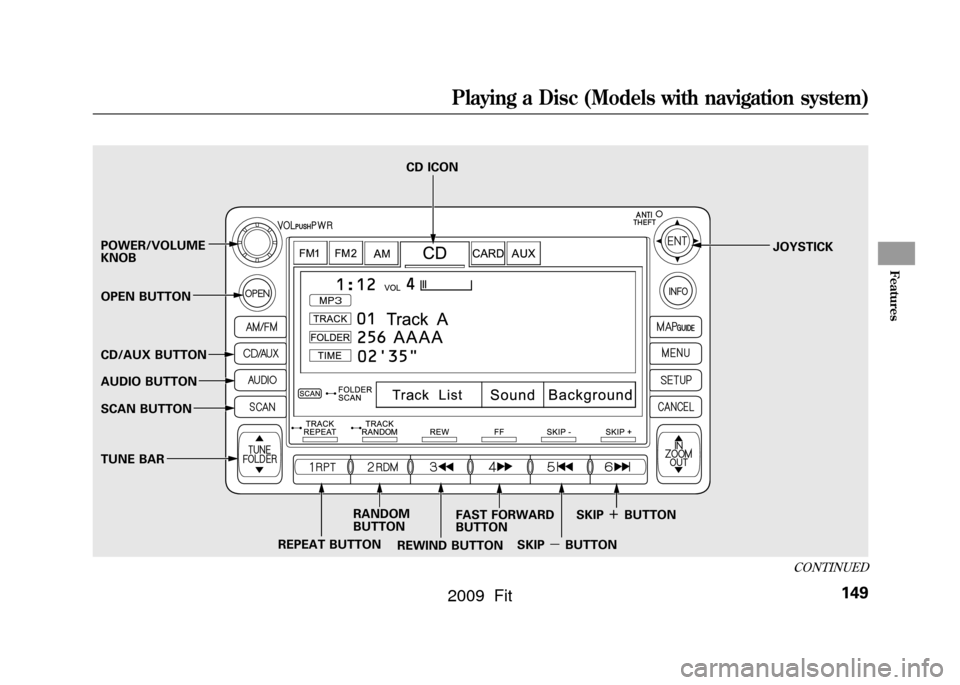
POWER/VOLUME
KNOBJOYSTICK
REPEAT BUTTON CD ICON
RANDOM
BUTTON
OPEN BUTTON
CD/AUX BUTTON
AUDIO BUTTON
SCAN BUTTON
TUNE BAR
REWIND BUTTONFAST FORWARD
BUTTON
SKIPꭚBUTTONSKIP
ꬽBUTTON
CONTINUED
Playing a Disc (Models with navigation system)
149
Features
2009 Fit
Page 153 of 352
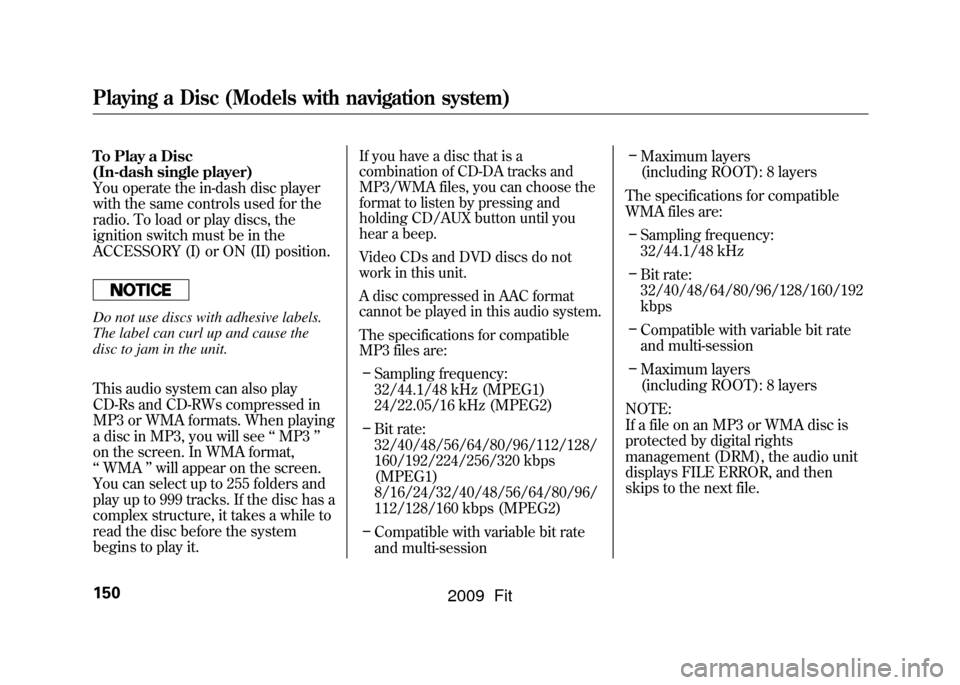
To Play a Disc
(In-dash single player)
You operate the in-dash disc player
with the same controls used for the
radio. To load or play discs, the
ignition switch must be in the
ACCESSORY (I) or ON (II) position.Do not use discs with adhesive labels.
The label can curl up and cause the
disc to jam in the unit.
This audio system can also play
CD-Rs and CD-RWs compressed in
MP3 or WMA formats. When playing
a disc in MP3, you will see‘‘MP3 ’’
on the screen. In WMA format,
‘‘ WMA ’’will appear on the screen.
You can select up to 255 folders and
play up to 999 tracks. If the disc has a
complex structure, it takes a while to
read the disc before the system
begins to play it.
If you have a disc that is a
combination of CD-DA tracks and
MP3/WMA files, you can choose the
format to listen by pressing and
holding CD/AUX button until you
hear a beep.
Video CDs and DVD discs do not
work in this unit.
A disc compressed in AAC format
cannot be played in this audio system.
The specifications for compatible
MP3 files are:– Sampling frequency:
32/44.1/48 kHz (MPEG1)
24/22.05/16 kHz (MPEG2)
– Bit rate:
32/40/48/56/64/80/96/112/128/
160/192/224/256/320 kbps
(MPEG1)
8/16/24/32/40/48/56/64/80/96/
112/128/160 kbps (MPEG2)
– Compatible with variable bit rate
and multi-session –
Maximum layers
(including ROOT): 8 layers
The specifications for compatible
WMA files are: – Sampling frequency:
32/44.1/48 kHz
– Bit rate:
32/40/48/64/80/96/128/160/192
kbps
– Compatible with variable bit rate
and multi-session
– Maximum layers
(including ROOT): 8 layers
NOTE:
If a file on an MP3 or WMA disc is
protected by digital rights
management (DRM), the audio unit
displays FILE ERROR, and then
skips to the next file.
Playing a Disc (Models with navigation system)150
2009 Fit
Page 155 of 352
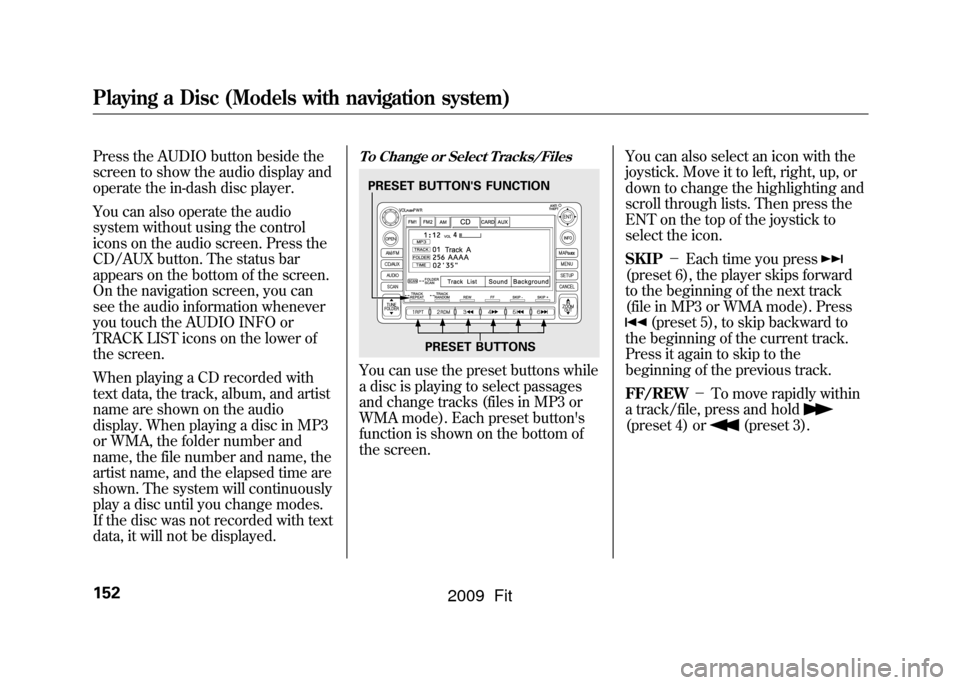
Press the AUDIO button beside the
screen to show the audio display and
operate the in-dash disc player.
You can also operate the audio
system without using the control
icons on the audio screen. Press the
CD/AUX button. The status bar
appears on the bottom of the screen.
On the navigation screen, you can
see the audio information whenever
you touch the AUDIO INFO or
TRACK LIST icons on the lower of
the screen.
When playing a CD recorded with
text data, the track, album, and artist
name are shown on the audio
display. When playing a disc in MP3
or WMA, the folder number and
name, the file number and name, the
artist name, and the elapsed time are
shown. The system will continuously
play a disc until you change modes.
If the disc was not recorded with text
data, it will not be displayed.
To Change or Select Tracks/FilesYou can use the preset buttons while
a disc is playing to select passages
and change tracks (files in MP3 or
WMA mode). Each preset button's
function is shown on the bottom of
the screen.You can also select an icon with the
joystick. Move it to left, right, up, or
down to change the highlighting and
scroll through lists. Then press the
ENT on the top of the joystick to
select the icon.
SKIP
-Each time you press
(preset 6), the player skips forward
to the beginning of the next track
(file in MP3 or WMA mode). Press
(preset 5), to skip backward to
the beginning of the current track.
Press it again to skip to the
beginning of the previous track.
FF/REW -To move rapidly within
a track/file, press and hold
(preset 4) or
(preset 3).
PRESET BUTTON'S FUNCTION
PRESET BUTTONS
Playing a Disc (Models with navigation system)152
2009 Fit