ad blue HONDA FIT 2012 2.G Navigation Manual
[x] Cancel search | Manufacturer: HONDA, Model Year: 2012, Model line: FIT, Model: HONDA FIT 2012 2.GPages: 198, PDF Size: 14.02 MB
Page 83 of 198
82
Driving to Your DestinationViewing the Route
Navigation
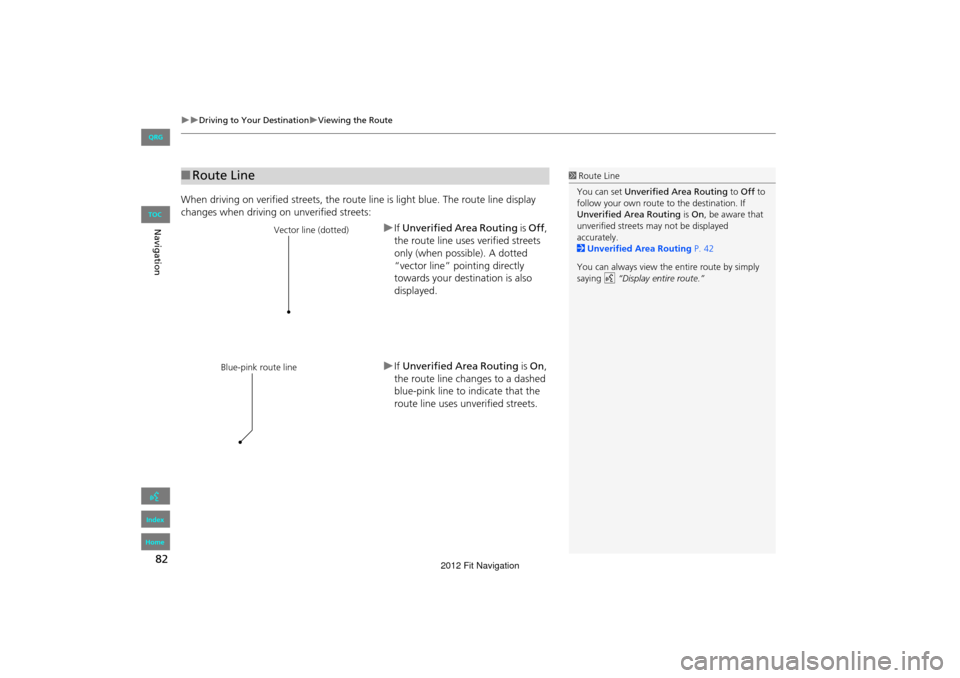
When driving on verified streets, the route line is light blue. The route line display
changes when driving on unverified streets:
If Unverified Area Routing is Off ,
the route line uses verified streets
only (when possible). A dotted
“vector line” pointing directly
towards your destination is also
displayed.
If Unverified Area Routing is On,
the route line changes to a dashed
blue-pink line to indicate that the
route line uses unverified streets.
■ Route Line1 Route Line
You can set Unverified Area Routing to Off to
follow your own route to the destination. If
Unverified Area Routing is On , be aware that
unverified streets ma y not be displayed
accurately.
2 Unverified Area Routing P. 42
You can always view the entire route by simply
saying d “Display entire route.”
Vector line (dotted)
Blue-pink route line
FIT_KA-31TK6830.book 82 ページ 2011年7月4日 月曜日 午後2時45分
QRG
Index
Home
TOC
2012 Fit Navigation
Page 111 of 198
110
Navigation
Resuming Your Trip
Stop your vehicle en route (e.g., to rest, stop for gas, etc.), and then continue on
your route.
If you did not complete your route, the Continue Trip screen is displayed when you
restart your vehicle.
Select OK.
You can continue on the same
route.
• Route Pref. : Changes the route preferences (calculating method).
2Changing the Route Preference P. 78
• View Routes : Displays three different routes.
2Viewing the Routes P. 78
• Destination Map : Display a map of the destination.
2Calculating the Route on the Destination Map P. 79
1Resuming Your Trip
The Continue Trip screen has the same options
as when you calculate a route.
2 Calculating the Route P. 77
To cancel your destination, press the CANCEL/
BACK button.
Add to Address Book
You can add the destination address to the
address book.
2 Adding an Address Book Entry P. 32
Call
You can place a phone ca ll to the destination
phone number.
2 Bluetooth ® HandsFreeLink® P. 138
FIT_KA-31TK6830.book 110 ページ 2011年7月4日 月曜日 午後2時45分
QRG
Index
Home
TOC
2012 Fit Navigation
Page 112 of 198
111
Audio
This section describes how to operate the audio system. You can play
music from a wide array of media s ources, and control the audio system
using the audio buttons, the touch screen, or voice control.
Audio System ........................................ 112
About Your Audio System .................... 112
Auxiliary Input Jack .............................. 112
System Theft Protection ....................... 113
Playing FM/AM Radio ...........................114
Selecting FM/AM Mode........................ 114
Audio Screen Control ........................... 115
Audio Menu ........................................ 116
Radio Data System (RDS) ...................... 117
Playing a Disc ........................................ 119
Selecting Disc Mode ............................. 119
Audio Screen Control ........................... 120
Playing MP3/WMA/AAC Discs .............. 121
Recommended Discs ............................ 122Playing
an iPod® ................................... 123
Selecting iPod® Mode .......................... 124
Audio Screen Control............................ 125
Searching for Music .............................. 126
Playing a USB Flash Drive .....................127
Selecting USB Mode.............................. 128
Audio Screen Control............................ 129
Playing Tracks in Folders ........................ 130
Playing Bluetooth ® Audio.................... 131
Selecting Bluetooth ® Audio Mode........ 131
Switching to HFL Mode ......................... 132
Audio Screen Control............................ 133Adjusting the Sound
............................. 134
Audio Remote Controls........................ 135
Steering Wheel Controls ...................... 135
FIT_KA-31TK6830.book 111 ページ 2011年7月4日 月曜日 午後2時45分
QRG
Index
Home
2012 Fit Navigation
Page 113 of 198
112
Audio
Audio System
About Your Audio System
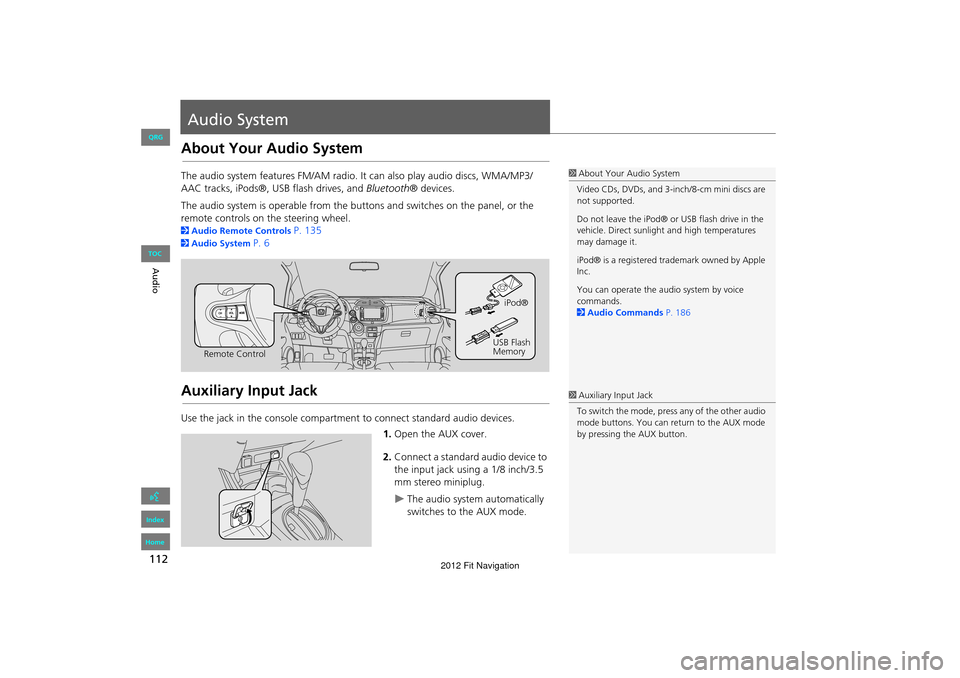
The audio system features FM/AM radio. It can also play audio discs, WMA/MP3/
AAC tracks, iPods®, USB flash drives, and Bluetooth® devices.
The audio system is operable from the buttons and switches on the panel, or the
remote controls on the steering wheel.
2 Audio Remote Controls P. 135
2Audio System P. 6
Auxiliary Input Jack
Use the jack in the console compartment to connect standard audio devices.
1.Open the AUX cover.
2. Connect a standard audio device to
the input jack using a 1/8 inch/3.5
mm stereo miniplug.
The audio system automatically
switches to the AUX mode.
1About Your Audio System
Video CDs, DVDs, and 3-inch/8-cm mini discs are
not supported.
Do not leave the iPod® or USB flash drive in the
vehicle. Direct sunlight and high temperatures
may damage it.
iPod® is a registered tra demark owned by Apple
Inc.
You can operate the audio system by voice
commands.
2 Audio Commands P. 186
Remote Control iPod®
USB Flash
Memory
1 Auxiliary Input Jack
To switch the mode, press any of the other audio
mode buttons. You can return to the AUX mode
by pressing the AUX button.
FIT_KA-31TK6830.book 112 ページ 2011年7月4日 月曜日 午後2時45分
QRG
Index
Home
TOC
2012 Fit Navigation
Page 115 of 198
114
Audio
Playing FM/AM Radio
Selecting FM/AM Mode
1.Press the FM/AM button.
Press the FM/AM button again,
if necessary, to select the
frequency band (FM1, FM2,
AM).
The band and frequency are
displayed.
2. Select AUDIO/STREET until
AUDIO is highlighted in blue.
The preset keys are displayed at
the bottom of the screen.
The audio information is
displayed at the bottom of the
screen.
3. Select the preset key.
You can also select a station
using the SEEK/SKIP button.
1Playing FM/AM Radio
d “Display audio screen”
You can control the radio using voice
commands.
2 Radio Commands P. 186
A visual guide helps you operate the audio
system.
2 System Controls P. 4
2 Basic Operation P. 6
The ST indicator comes on the display for stereo
FM broadcasts. Stereo re production in AM is not
available.
The radio can receive the complete AM and FM
bands:
AM band: 530 to 1710 kHz
FM band: 87.7 to 107.9 MHz
You can store six AM stati ons and 12 FM stations
in the preset buttons. FM1 and FM2 let you store
six stations each.
Preset keys
FIT_KA-31TK6830.book 114 ページ 2011年7月4日 月曜日 午後2時45分
QRG
Index
Home
TOC
2012 Fit Navigation
Page 120 of 198
119
Audio
Playing a Disc
Selecting Disc Mode
1.Press the CD/AUX button.
2. Insert a disc into the disc slot.
The disc automatically begins
playing.
3. Select AUDIO/STREET until
AUDIO is highlighted in blue.
The audio information is
displayed at the bottom of the
screen.
4. Select c or x to select a track.
You can also select a track using
the SEEK/SKIP button.
The track number and elapsed
time are displayed on the
display. Text info rmation stored
on MP3/WMA/AAC discs is also
displayed.
1 Playing a Disc
d “Display audio screen”
You can control the disc using voice commands.
2 Disc Commands P. 187
A visual guide helps you operate the audio
system.
2 System Controls P. 4
2 Basic Operation P. 6
In some cases, the name of the artist, album, or
track may not appear correctly.
Do not use discs with a dhesive labels. The label
can cause the disc to jam in the unit.
WMA tracks protected by digital rights
management (DRM) cannot be played. The
audio system displays Unplayable File, then skips
to the next track.
If there is a problem, you may see an error
message on the display.
2 Error Messages P. 166
If you eject the disc but do not remove it from
the slot, the system reloads the disc automatically
after severa l seconds.
Audio control
FIT_KA-31TK6830.book 119 ページ 2011年7月4日 月曜日 午後2時45分
QRG
Index
Home
TOC
2012 Fit Navigation
Page 125 of 198
124
Playing an iPod®Selecting iPod® Mode
Audio
Selecting iPod® Mode
1.Connect the iPod® to the USB
adapter cable in the center console.
2. Press the CD/AUX button until you
get to iPod® mode.
3. Select AUDIO/STREET until
AUDIO is highlighted in blue.
The audio information is
displayed at the bottom of the
screen.
4. Select c or x to select a track.
You can also select a track using
the SEEK/SKIP button.
The current track number and
total number of tracks are
displayed.
1Playing an iPod®
d “Display audio screen”
You can control the iPod® using voice
commands.
2 iPod® Commands P. 188
A visual guide helps you operate the audio
system.
2 System Controls P. 4
2 Basic Operation P. 6
In some cases, the name of the artist, album, or
track may not appear correctly.
Available operating functi ons vary on models or
versions. Some functions may not be available on
the vehicle’s audio system.
If there is a problem, you may see an error
message on the display.
2 Error Messages P. 166
Audio control
FIT_KA-31TK6830.book 124 ページ 2011年7月4日 月曜日 午後2時45分
QRG
Index
Home
TOC
2012 Fit Navigation
Page 129 of 198
128
Playing a USB Flash DriveSelecting USB Mode
Audio
Selecting USB Mode
1.Connect the USB flash drive to the
USB adapter cable in the center
console.
2. Press the CD/AUX button until you
get to USB mode.
3. Select AUDIO/STREET until
AUDIO is highlighted in blue.
The audio information is
displayed at the bottom of the
screen.
4. Select c or x to select a track.
You can also select a track using
the SEEK/SKIP button.
The current track number and
total number of tracks are
displayed.
1Playing a USB Flash Drive
d “Display audio screen”
You can control the USB flash drive using voice
commands.
2 USB Commands P. 187
A visual guide helps you operate the audio
system.
2 System Controls P. 4
2 Basic Operation P. 6
In some cases, the name of the artist, album, or
track may not appear correctly.
Tracks on the USB flash drive are played in their
stored order. This orde r may be different from
the order displayed on your PC or device.
The audio system displays Unplayable File, and
then skips to the next track when the following
tracks are played:
•Tracks in WMA format protected by digital
rights management (DRM)
•Tracks in unsupported format
If there is a problem, you may see an error
message on the display.
2 Error Messages P. 166
Audio control
FIT_KA-31TK6830.book 128 ページ 2011年7月4日 月曜日 午後2時45分
QRG
Index
Home
TOC
2012 Fit Navigation
Page 132 of 198
131
Audio
Playing Bluetooth ® Audio
Your audio system allows you to listen to music tracks stored on your Bluetooth-
compatible phone.
This function is available when the phone is linked to the vehicle’s Bluetooth®
HandsFreeLink® (HFL) system.
2 Bluetooth® HandsFreeLink® P. 137
Selecting Bluetooth ® Audio Mode
1.Make sure that your phone is on,
paired, and linked to HFL.
2 Pairing a Phone P. 140
2. Press the CD/AUX button until you
get to Bluetooth ® Audio mode.
A Bluetooth ® message and icon
are displayed on the display and
screen.
3. Select AUDIO/STREET until
AUDIO is highlighted in blue.
The audio information is
displayed at the bottom of the
screen.
1Playing Bluetooth ® Audio
d “Display audio screen”
You can control the Bluetooth® Audio using
voice commands.
2 Bluetooth® Audio Commands P. 188
Not all Bluetooth -enabled phones with
streaming audio capabilities are compatible. To
check if your phone is compatible:
•U.S.: Visit automobiles.honda.com/
handsfreelink .
•Canada: Visit www.handsfreelink.ca .
•Call HandsFreeLink customer support at
(888) 528-7876.
In some states, it may be illegal to perform some
data device functions while driving.
In some cases, the name of the artist, album, or
track may not appear correctly.
Only one phone can be used with HFL at a time.
When there are more than two paired phones in
the vehicle, the first paired phone the system
finds is automatically linked.
Continued
FIT_KA-31TK6830.book 131 ページ 2011年7月4日 月曜日 午後2時45分
QRG
Index
Home
TOC
2012 Fit Navigation
Page 133 of 198
132
Playing Bluetooth ® AudioSwitching to HFL Mode
Audio
4.Select c or x to select a track.
5. If necessary, follow the cell phone
operating instruct ions for playing
audio tracks.
Check the following if the phone is not recognized:
• Another HFL-compatible phone, which is not compatible for Bluetooth® Audio, is
already connected.
Switching to HFL Mode
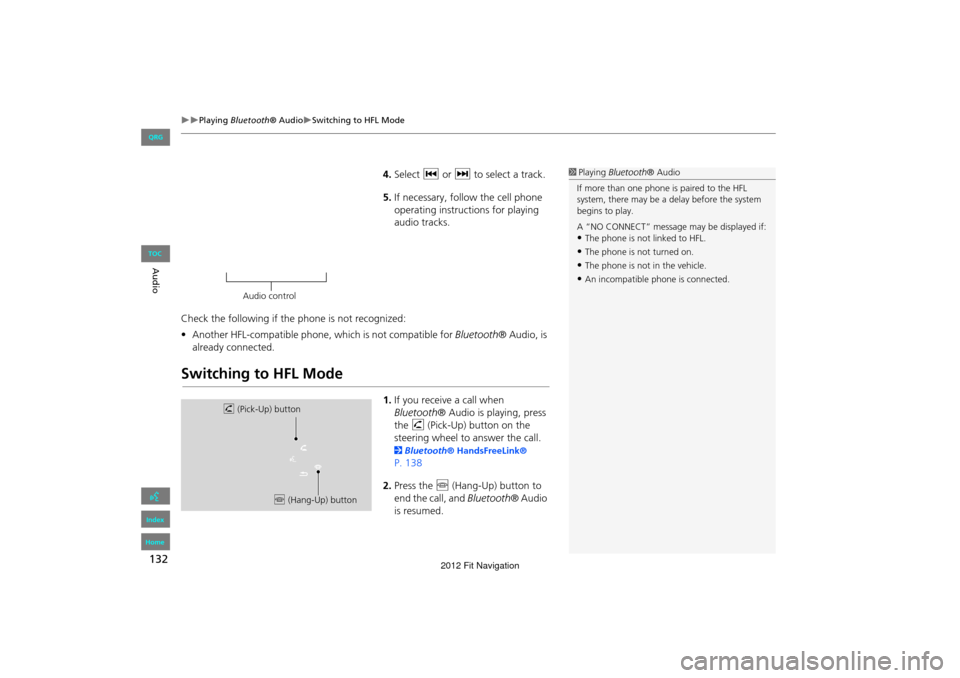
1. If you receive a call when
Bluetooth ® Audio is playing, press
the h (Pick-Up) button on the
steering wheel to answer the call.
2 Bluetooth® HandsFreeLink®
P. 138
2. Press the j (Hang-Up) button to
end the call, and Bluetooth® Audio
is resumed.
1 Playing Bluetooth ® Audio
If more than one phone is paired to the HFL
system, there may be a delay before the system
begins to play.
A “NO CONNECT” message may be displayed if:
•The phone is not linked to HFL.
•The phone is not turned on.
•The phone is not in the vehicle.
•An incompatible phone is connected.
Audio control
h (Pick-Up) button
j (Hang-Up) button
FIT_KA-31TK6830.book 132 ページ 2011年7月4日 月曜日 午後2時45分
QRG
Index
Home
TOC
2012 Fit Navigation