reset HONDA FIT 2017 3.G User Guide
[x] Cancel search | Manufacturer: HONDA, Model Year: 2017, Model line: FIT, Model: HONDA FIT 2017 3.GPages: 465, PDF Size: 26.52 MB
Page 192 of 465
191
uuAudio System Basic Operation uPlaying Bluetooth ® Audio
Continued
Features
Playing Bluetooth ® Audio
Your audio system allows you to listen to music from your Bluetooth-compatible
phone.
This function is available when the phone is paired and connected to the vehicle’s
Bluetooth ® HandsFreeLink ® (HFL) system.
2Phone Setup P. 257
1Playing Bluetooth ® Audio
Not all Bluetooth -enabled phones with streaming
audio capabilities are compatible with the system.
For a list of compatible phones:
•U.S.: Visit www.handsfreelink.honda.com , or call
1-888-528-7876.
•Canada: Visit www.handsfreelink.ca , or call 1-888-
528-7876.
In some states, it may be illegal to perform some data
device functions while driving.
Only one phone can be used with HFL at a time.
When there are more than two paired phones in the
vehicle, the first paired phone the system finds is
automatically connected.
If more than one phone is paired to the HFL system,
there will be a delay before the system begins to play.
In some cases, the name of the artist, album, or track
may not appear correctly.
Some functions may not be available on some
devices.
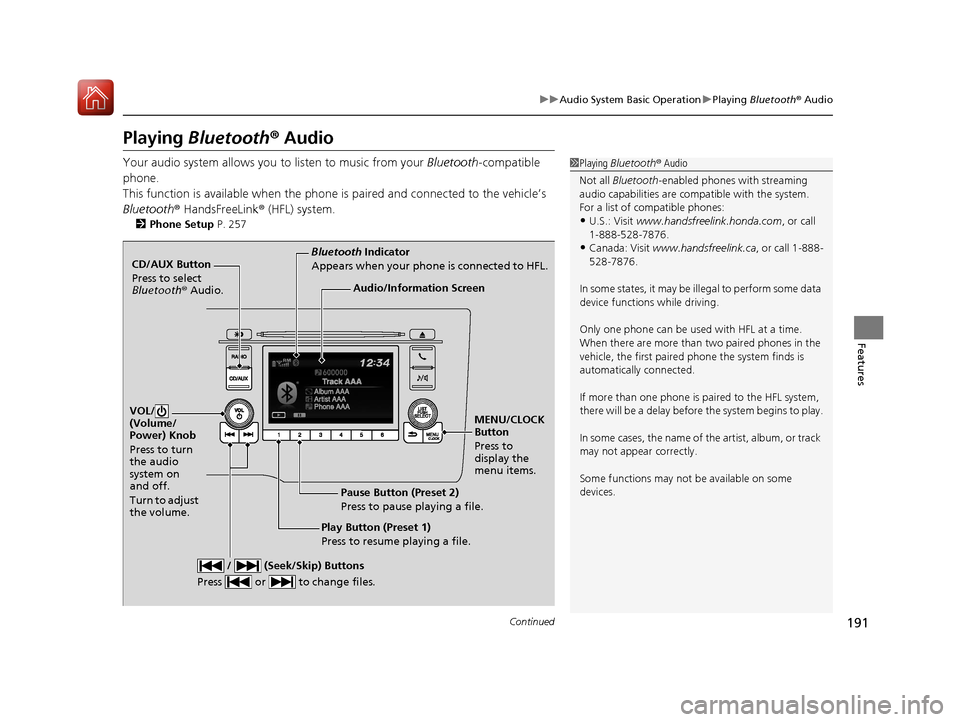
CD/AUX Button
Press to select
Bluetooth ® Audio.
VOL/
(Volume/
Power) Knob
Press to turn
the audio
system on
and off.
Turn to adjust
the volume.
MENU/CLOCK
Button
Press to
display the
menu items.
Audio/Information Screen
Bluetooth Indicator
Appears when your phone is connected to HFL.
/ (Seek/Skip) Buttons
Press or to change files.
Play Button (Preset 1)
Press to resume playing a file. Pause Button (Preset 2)
Press to pause playing a file.
17 FIT -31T5A6200.book 191 ページ 2016年5月27日 金曜日 午後6時33分
Page 195 of 465
194
Features
Audio System Basic Operation
To use the audio system function, the ignition switch must be in ACCESSORY (q or
ON
(w*1.
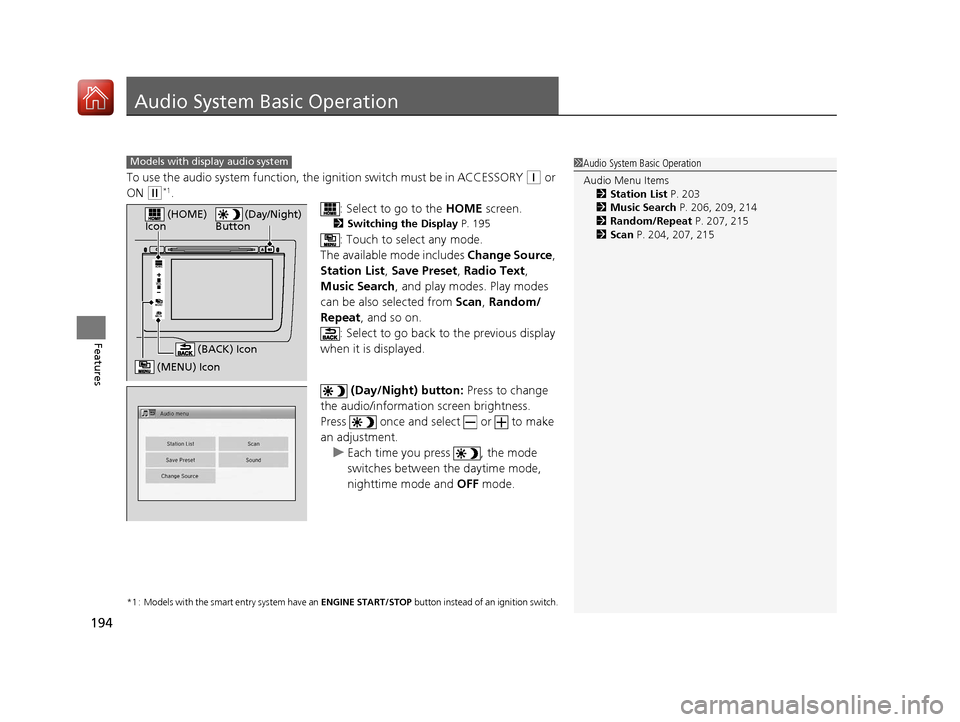
: Select to go to the HOME screen.
2Switching the Display P. 195
: Touch to select any mode.
The available mode includes Change Source ,
Station List , Save Preset , Radio Text,
Music Search, and play modes. Play modes
can be also selected from Scan, Random/
Repeat , and so on.
: Select to go back to the previous display
when it is displayed.
(Day/Night) button: Press to change
the audio/information screen brightness.
Press once and select or to make
an adjustment. u Each time you press , the mode
switches between the daytime mode,
nighttime mode and OFF mode.
*1 : Models with the smart entry system have an ENGINE START/STOP button instead of an ignition switch.
1Audio System Basic Operation
Audio Menu Items
2 Station List P. 203
2 Music Search P. 206, 209, 214
2 Random/Repeat P. 207, 215
2 Scan P. 204, 207, 215Models with display audio system
VOL
HOME
MENU
BACK
(Day/Night)
Button (HOME)
Icon
(MENU) Icon
(BACK) Icon
17 FIT -31T5A6200.book 194 ページ 2016年5月27日 金曜日 午後6時33分
Page 203 of 465
202
uuAudio System Basic Operation uPlaying AM/FM Radio
Features
Playing AM/FM Radio
*1 : Some or all of the lists may not be displayed.
VOL
HOME
MENU
BACK
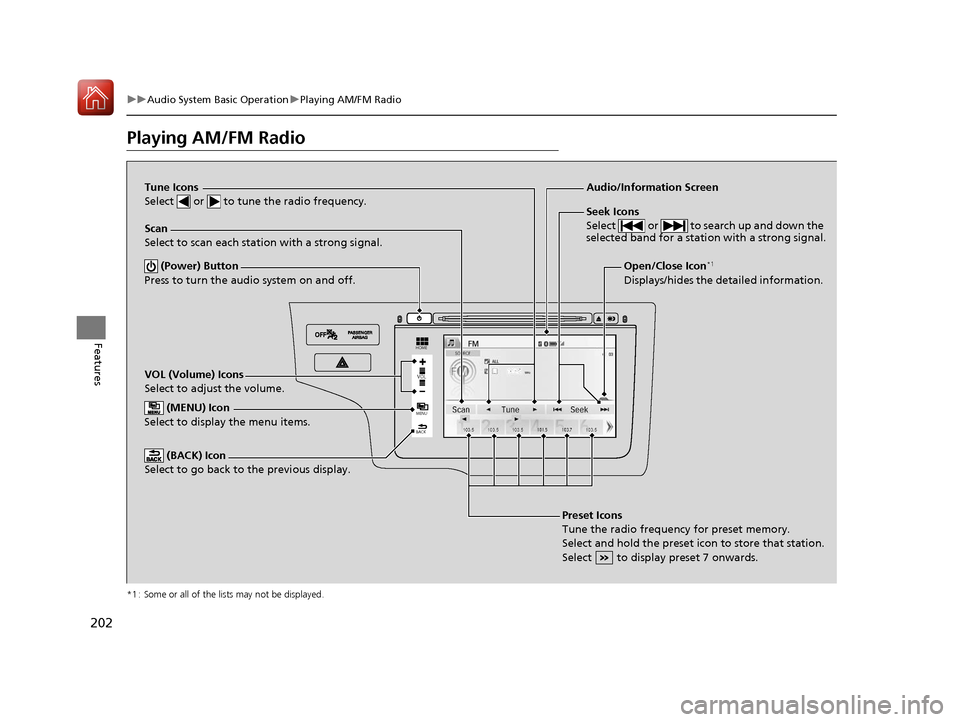
VOL (Volume) Icons
Select to adjust the volume. (BACK) Icon
Select to go back to the previous display.
Seek Icons
Select or to search up and down the
selected band for a stat ion with a strong signal.
(Power) Button
Press to turn the audio system on and off.Open/Close Icon*1
Displays/hides the detailed information.
(MENU) Icon
Select to display the menu items.
Audio/Information Screen
Tune Icons
Select or to tune the radio frequency.
Scan
Select to scan each station with a strong signal.
Preset Icons
Tune the radio frequency for preset memory.
Select and hold the preset icon to store that station.
Select to display preset 7 onwards.
17 FIT -31T5A6200.book 202 ページ 2016年5月27日 金曜日 午後6時33分
Page 204 of 465
Continued203
uuAudio System Basic Operation uPlaying AM/FM Radio
Features
To store a station:
1. Tune to the selected station.
2. Select MENU .
3. Select Save Preset .
4. Select the preset number you want to store that station.
You can also store a preset station by the following procedure.
1. Select open/close icon to display a channel list.
2. Select Preset tab.
3. Press and hold the preset number for the station you want to store until you hear
a beep.
Provides text data information related to your selected RDS-capable FM station.
■To find an RDS station from Station List
1. Select MENU while listening to an FM station.
2. Select Station List .
3. Select the station.
■Manual update
Updates your available st ation list at any time.
1. Select MENU while listening to an FM station.
2. Select Station List .
3. Select Refresh .
■Preset Memory
■Radio Data System (RDS)
1Playing AM/FM Radio
The ST indicator appears on the display indicating
stereo FM broadcasts.
Stereo reproduction in AM is not available.
Switching the Audio Mode
Press the SOURCE button on the steering wheel or
select SOURCE on the list.
2 Audio Remote Controls
* P. 171
You can also switch the mode by selecting Change
Source on the MENU screen.
You can store 6 AM stations and 12 FM stations into
the preset memory.
1 Radio Data System (RDS)
When you select an RDS-capable FM station, the RDS
automatically turns on, and the frequency display
changes to the station name. However, when the
signals of that station become weak, the display
changes from the statio n name to the frequency.
* Not available on all models
17 FIT -31T5A6200.book 203 ページ 2016年5月27日 金曜日 午後6時33分
Page 236 of 465
235
uuCustomized Features u
Continued
Features
*1 : Default Setting
Setup
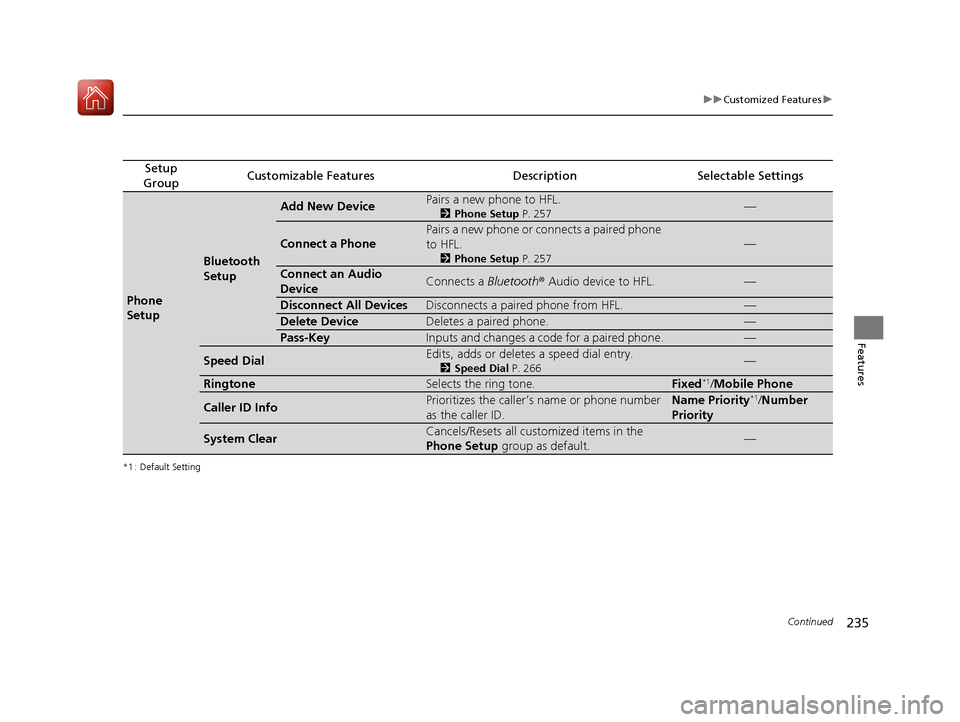
GroupCustomizable FeaturesDescriptionSelectable Settings
Phone
Setup
Bluetooth
Setup
Add New DevicePairs a new phone to HFL.
2 Phone Setup P. 257—
Connect a Phone
Pairs a new phone or connects a paired phone
to HFL.
2Phone Setup P. 257
—
Connect an Audio
DeviceConnects a Bluetooth® Audio device to HFL.—
Disconnect All DevicesDisconnects a paired phone from HFL.—
Delete DeviceDeletes a paired phone.—
Pass-KeyInputs and changes a code for a paired phone.—
Speed DialEdits, adds or deletes a speed dial entry.
2Speed Dial P. 266—
RingtoneSelects the ring tone.Fixed*1/Mobile Phone
Caller ID InfoPrioritizes the caller’s name or phone number
as the caller ID.Name Priority*1/Number
Priority
System ClearCancels/Resets all customized items in the
Phone Setup group as default.—
17 FIT -31T5A6200.book 235 ページ 2016年5月27日 金曜日 午後6時33分
Page 238 of 465
237
uuCustomized Features u
Continued
Features
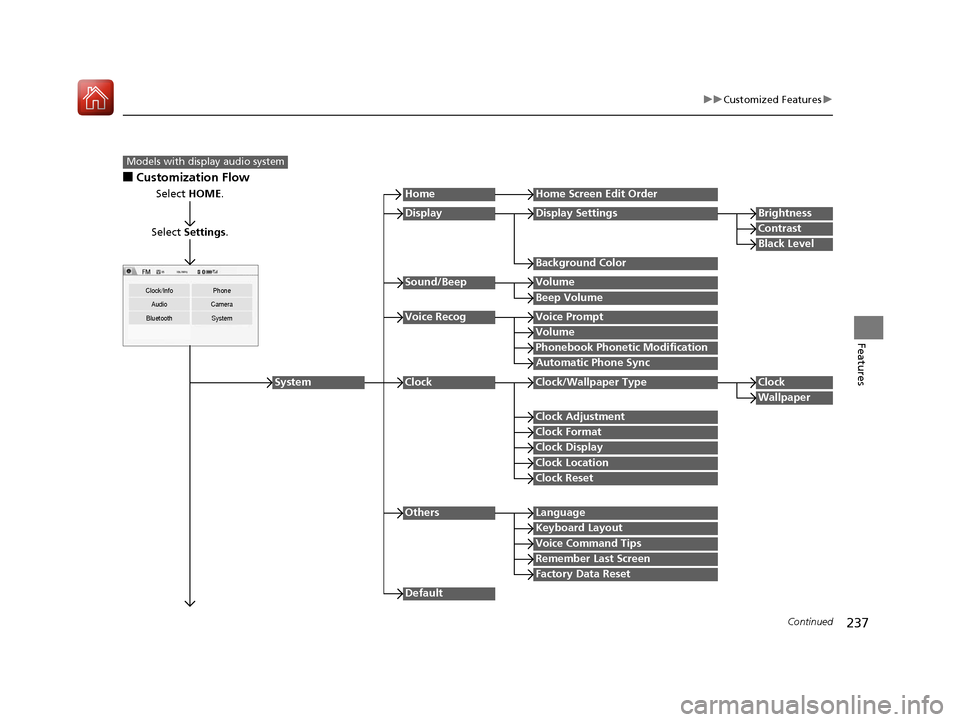
■Customization Flow
Models with display audio system
Select HOME.
Select Settings .
Clock/Info Phone
Audio Camera
Bluetooth System
HomeHome Screen Edit Order
Background Color
DisplayDisplay SettingsBrightness
Contrast
Black Level
Beep Volume
Sound/BeepVolume
Volume
Voice RecogVoice Prompt
Automatic Phone Sync
Phonebook Phonetic Modification
Default
Factory Data Reset
Clock Format
ClockClock/Wallpaper TypeClock
Wallpaper
Clock Adjustment
Clock Display
Clock Location
Clock Reset
Keyboard Layout
OthersLanguage
Remember Last Screen
Voice Command Tips
System
17 FIT -31T5A6200.book 237 ページ 2016年5月27日 金曜日 午後6時33分
Page 240 of 465
239
uuCustomized Features u
Continued
Features
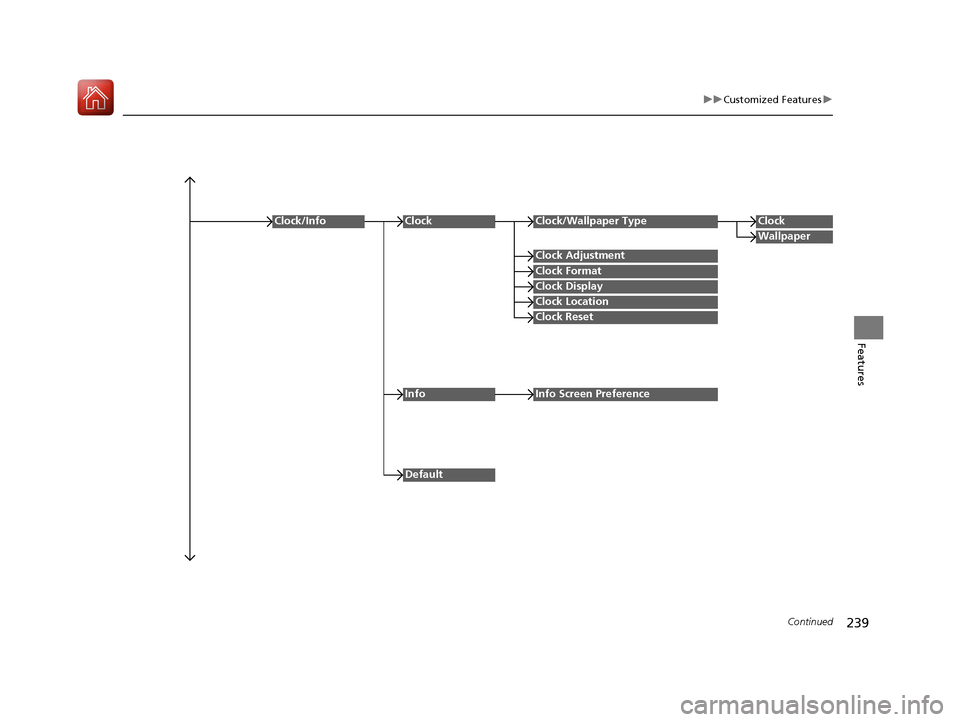
Clock Format
ClockClock/Wallpaper TypeClock
Wallpaper
Clock Adjustment
Clock Display
Clock Location
Clock Reset
Clock/Info
Default
InfoInfo Screen Preference
17 FIT -31T5A6200.book 239 ページ 2016年5月27日 金曜日 午後6時33分
Page 244 of 465
243
uuCustomized Features u
Continued
Features
*1 : Default Setting
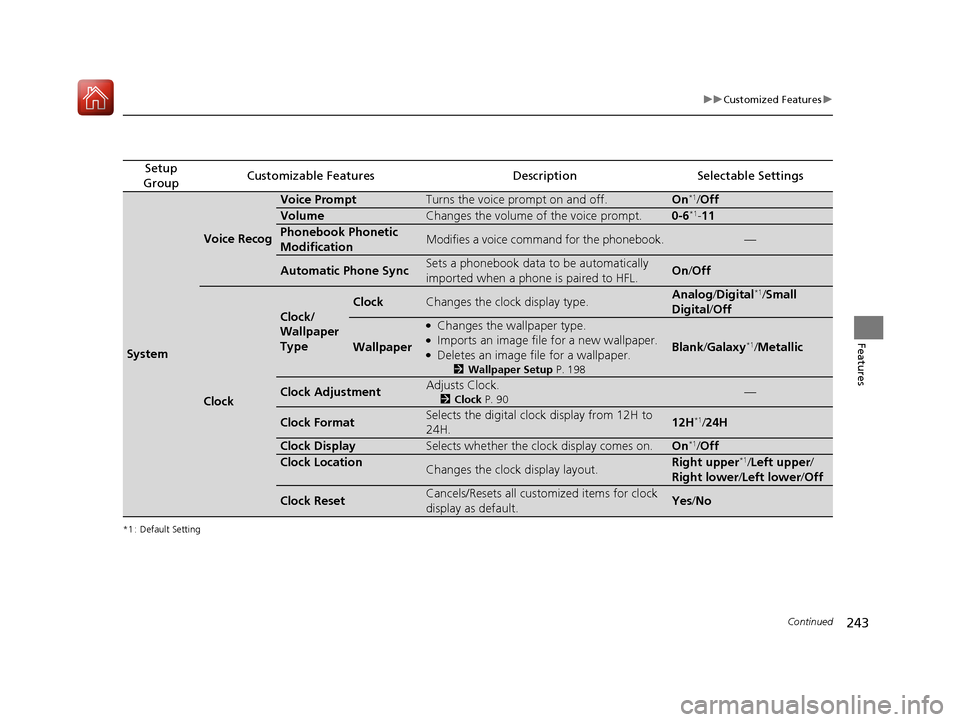
Setup
GroupCustomizable FeaturesDescriptionSelectable Settings
System
Voice Recog
Voice PromptTurns the voice prompt on and off.On*1/ Off
VolumeChanges the volume of the voice prompt.0-6*1-11
Phonebook Phonetic
ModificationModifies a voice command for the phonebook.—
Automatic Phone SyncSets a phonebook data to be automatically
imported when a phon e is paired to HFL.On/Off
Clock
Clock/
Wallpaper
Type
ClockChanges the clock display type.Analog /Digital*1/ Small
Digital /Off
Wallpaper
●Changes the wallpaper type.●Imports an image file for a new wallpaper.●Deletes an image file for a wallpaper.
2 Wallpaper Setup P. 198
Blank/Galaxy*1/Metallic
Clock AdjustmentAdjusts Clock.
2 Clock P. 90—
Clock FormatSelects the digital clock display from 12H to
24H.12H*1/24H
Clock DisplaySelects whether the clock display comes on.On*1/ Off
Clock LocationChanges the clock display layout.Right upper*1/Left upper /
Right lower /Left lower /Off
Clock ResetCancels/Resets all customized items for clock
display as default.Yes /No
17 FIT -31T5A6200.book 243 ページ 2016年5月27日 金曜日 午後6時33分
Page 245 of 465
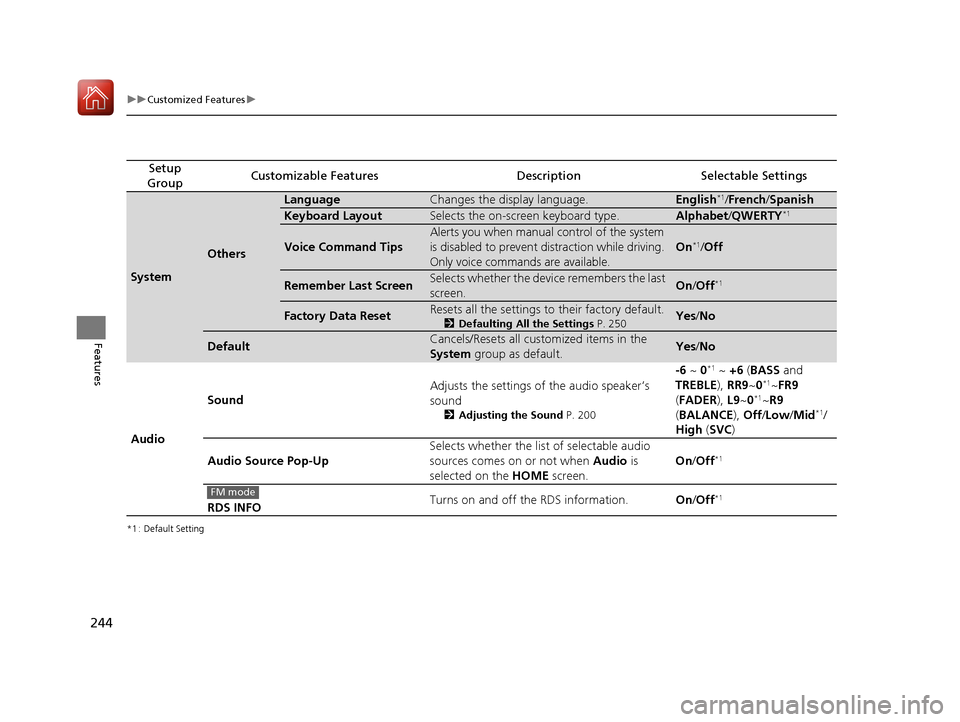
244
uuCustomized Features u
Features
*1 : Default Setting
Setup
GroupCustomizable FeaturesDescriptionSelectable Settings
System
Others
LanguageChanges the display language.English*1/ French /Spanish
Keyboard LayoutSelects the on-screen keyboard type.Alphabet /QWERTY*1
Voice Command Tips
Alerts you when manual control of the system
is disabled to prevent distraction while driving.
Only voice commands are available.
On*1/ Off
Remember Last ScreenSelects whether the device remembers the last
screen.On /Off*1
Factory Data ResetResets all the settings to their factory default.
2 Defaulting All the Settings P. 250Yes/No
DefaultCancels/Resets all customized items in the
System group as default.Yes/No
Audio Sound
Adjusts the settings of the audio speaker’s
sound
2
Adjusting the Sound P. 200
-6 ~ 0*1 ~ +6 (BASS and
TREBLE ), RR9~0*1~FR9
( FADER ), L9~0*1~R9
( BALANCE ), Off /Low /Mid*1/
High (SVC )
Audio Source Pop-Up Selects whether the list of selectable audio
sources comes on or not when
Audio is
selected on the HOME screen. On
/Off
*1
RDS INFO Turns on and off the RDS information.
On/Off*1FM mode
17 FIT -31T5A6200.book 244 ページ 2016年5月27日 金曜日 午後6時33分
Page 246 of 465
![HONDA FIT 2017 3.G User Guide 245
uuCustomized Features u
Continued
Features
*1 : Default Setting
Setup
GroupCustomizable FeaturesDescriptionSelectable Settings
Audio [Your selected media]
Cover Art
Turns on and off the cover ar](/img/13/5936/w960_5936-245.png "HONDA FIT 2017 3.G User Guide 245
uuCustomized Features u
Continued
Features
*1 : Default Setting
Setup
GroupCustomizable FeaturesDescriptionSelectable Settings
Audio [Your selected media]
Cover Art
Turns on and off the cover ar")
245
uuCustomized Features u
Continued
Features
*1 : Default Setting
Setup
GroupCustomizable FeaturesDescriptionSelectable Settings
Audio [Your selected media]
Cover Art
Turns on and off the cover art display.
On
*1/Off
Display
Adjustment Display
Brightness
2
System P. 242Contrast
Black Level
Color Color
Changes the color of the audio/information
screen.
—
Tint Changes the tint of the audio/information
screen. —
Aspect Ratio Adjustment Changes the aspect ratio and zoom settings of
the audio/information screen.
Normal
/Full
*1/Zoom
Change Bluetooth Audio Device Connects, disconnects or pairs a
Bluetooth®
Audio device to HFL. —
Bluetooth Device List Pairs a new phone to HFL, edits or deletes a
paired phone.
2
Phone Setup P. 284
—
Default Cancels/Resets all customized items in the
Audio
group as default. Yes
/No
iPod, Pandora, USB or CD mode
HDMI ® mode
HDMI ® mode
iPod, Pandora or Bluetooth® Audio mode
iPod, Pandora or Bluetooth® Audio mode
17 FIT -31T5A6200.book 245 ページ 2016年5月27日 金曜日 午後6時33分