navigation system HONDA HR-V 2016 2.G Quick Guide
[x] Cancel search | Manufacturer: HONDA, Model Year: 2016, Model line: HR-V, Model: HONDA HR-V 2016 2.GPages: 77, PDF Size: 14.93 MB
Page 17 of 77
26 || 27 INSTRUMENT PANEL INSTRUMENT PANEL
TABLE OF CONTENTS
INDEX
VISUAL INDEX
VOICE COMMAND
INDEX
SAFETY
INFORMATION
CUSTOMER
INFORMATION
INSTRUMENT PANEL
SPECIFICATIONS
VEHICLE
CONTROLS
MAINTENANCE
AUDIO AND
CONNECTIVITY
HANDLING THE
UNEXPECTED
BLUETOOTH®
HANDSFREELINK®
DRIVING
HONDALINK®
NAVIGATION
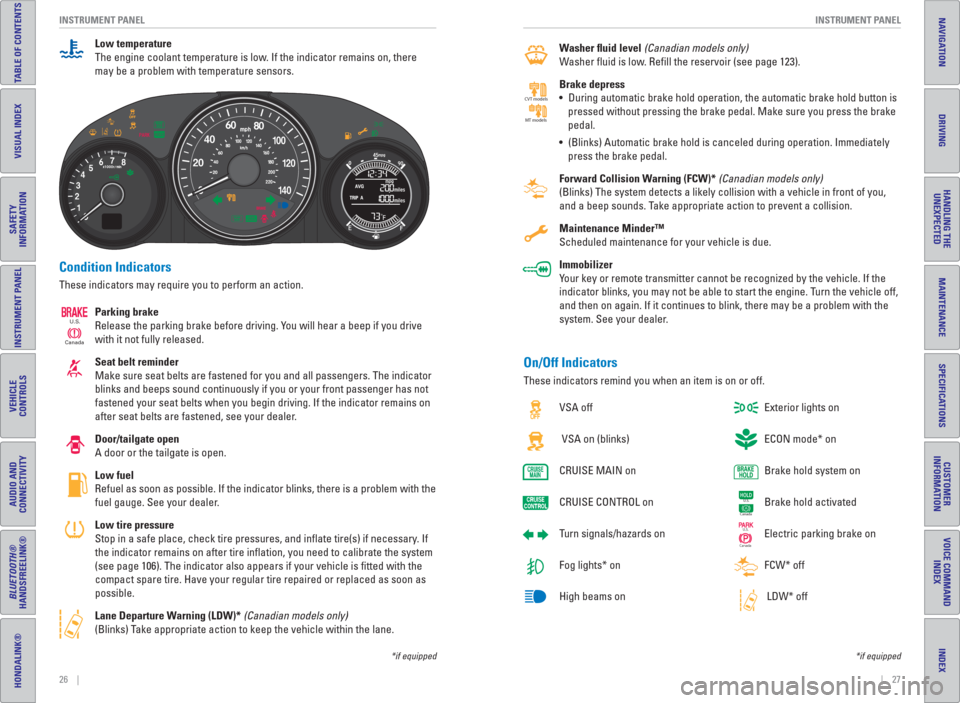
Condition Indicators
These indicators may require you to perform an action.
Parking brake
Release the parking brake before driving. You will hear a beep if you drive
with it not fully released.
Seat belt reminder
Make sure seat belts are fastened for you and all passengers. The indicator
blinks and beeps sound continuously if you or your front passenger has not
fastened your seat belts when you begin driving. If the indicator remains on
after seat belts are fastened, see your dealer.
Door/tailgate open
A door or the tailgate is open.
Low fuel
Refuel as soon as possible. If the indicator blinks, there is a problem with the
fuel gauge. See your dealer.
Low tire pressure
Stop in a safe place, check tire pressures, and infl ate tire(s) if necessary. If
the indicator remains on after tire infl ation, you need to calibrate the system
(see page 106). The indicator also appears if your vehicle is fi tted with the
compact spare tire. Have your regular tire repaired or replaced as soon as
possible.
Lane Departure Warning ( LDW)* (Canadian models only)
(Blinks) Take appropriate action to keep the vehicle within the lane.
CanadaU.S.
*if equipped
Washer uid level (Canadian models only)
Washer fl uid is low. Refi ll the reservoir (see page 123).
Brake depress
• During automatic brake hold operation, the automatic brake hold button is
pressed without pressing the brake pedal. Make sure you press the brake
pedal.
• (Blinks) Automatic brake hold is canceled during operation. Immediately
press the brake pedal.
Forward Collision Warning ( FCW)* (Canadian models only)
(Blinks) The system detects a likely collision with a vehicle in front of you,
and a beep sounds. Take appropriate action to prevent a collision.
Maintenance Minder™
Scheduled maintenance for your vehicle is due.
Immobilizer
Your key or remote transmitter cannot be recognized by the vehicle. If the
indicator blinks, you may not be able to start the engine. Turn the vehicle off,
and then on again. If it continues to blink, there may be a problem with the
system. See your dealer.
CVT models
MT models
On/Off Indicators
These indicators remind you when an item is on or off.
VSA off
VSA on (blinks)
CRUISE MAIN on
CRUISE CONTROL on
Turn signals/ hazards on
Fog lights* on
High beams on Exterior lights on
ECON mode* on
Brake hold system on
Brake hold activated
Electric parking brake on
FCW* off
LDW* off
U.S.
Canada
U.S.
Canada
*if equipped
Low temperature
The engine coolant temperature is low. If the indicator remains on, there
may be a problem with temperature sensors.
Page 18 of 77
28 || 29 INSTRUMENT PANEL INSTRUMENT PANEL
TABLE OF CONTENTS
INDEX
VISUAL INDEX
VOICE COMMAND
INDEX
SAFETY
INFORMATION
CUSTOMER
INFORMATION
INSTRUMENT PANEL
SPECIFICATIONS
VEHICLE
CONTROLS
MAINTENANCE
AUDIO AND
CONNECTIVITY
HANDLING THE
UNEXPECTED
BLUETOOTH®
HANDSFREELINK®
DRIVING
HONDALINK®
NAVIGATION
*if equipped
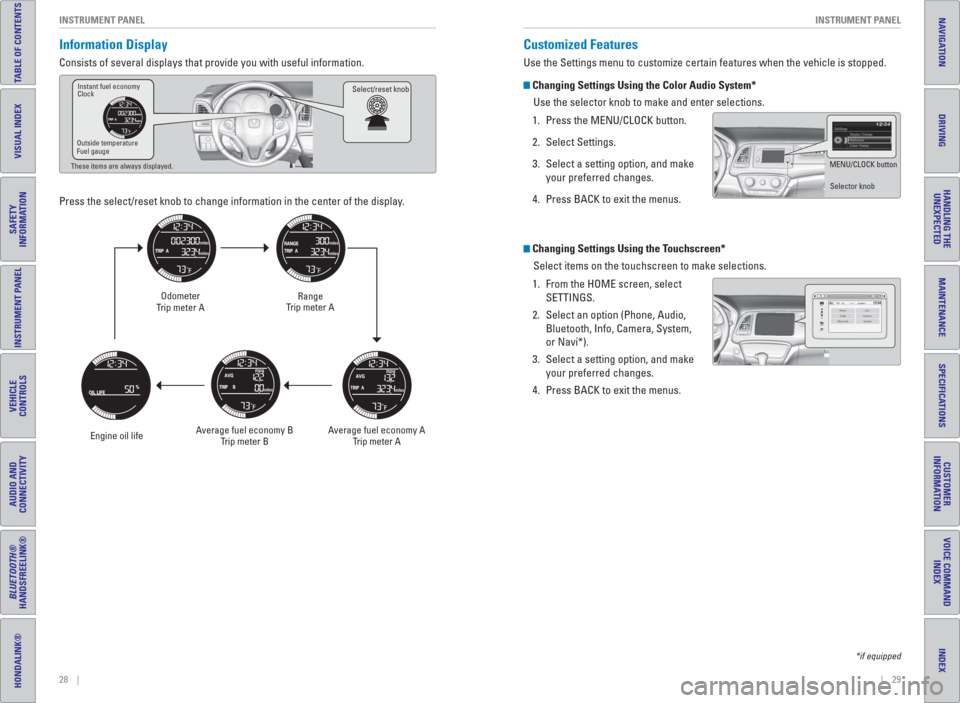
Information Display
Consists of several displays that provide you with useful information.
Press the select/reset knob to change information in the center of the display.
Select/reset knobInstant fuel economy
Clock
Outside temperature
Fuel gauge
These items are always displayed.
Odometer
Trip meter A
Engine oil lifeRange
Trip meter A
Average fuel economy A
Trip meter A Average fuel economy B
Trip meter B
Changing Settings Using the Touchscreen*
Select items on the touchscreen to make selections.
1. From the HOME screen, select
SETTINGS.
2. Select an option (Phone, Audio,
Bluetooth, Info, Camera, System,
or Navi*).
3. Select a setting option, and make
your preferred changes.
4. Press BACK to exit the menus.
Customized Features
Use the Settings menu to customize certain features when the vehicle is stopped.
Changing Settings Using the Color Audio System*
Use the selector knob to make and enter selections.
1. Press the MENU/CLOCK button.
2. Select Settings.
3. Select a setting option, and make
your preferred changes.
4. Press BACK to exit the menus.
VOLHOME
MENU
BACK
MENU/CLOCK button
Selector knob
Page 19 of 77
30 || 31 VEHICLE CONTROLS VEHICLE CONTROLS
TABLE OF CONTENTS
INDEX
VISUAL INDEX
VOICE COMMAND
INDEX
SAFETY
INFORMATION
CUSTOMER
INFORMATION
INSTRUMENT PANEL
SPECIFICATIONS
VEHICLE
CONTROLS
MAINTENANCE
AUDIO AND
CONNECTIVITY
HANDLING THE
UNEXPECTED
BLUETOOTH®
HANDSFREELINK®
DRIVING
HONDALINK®
NAVIGATION
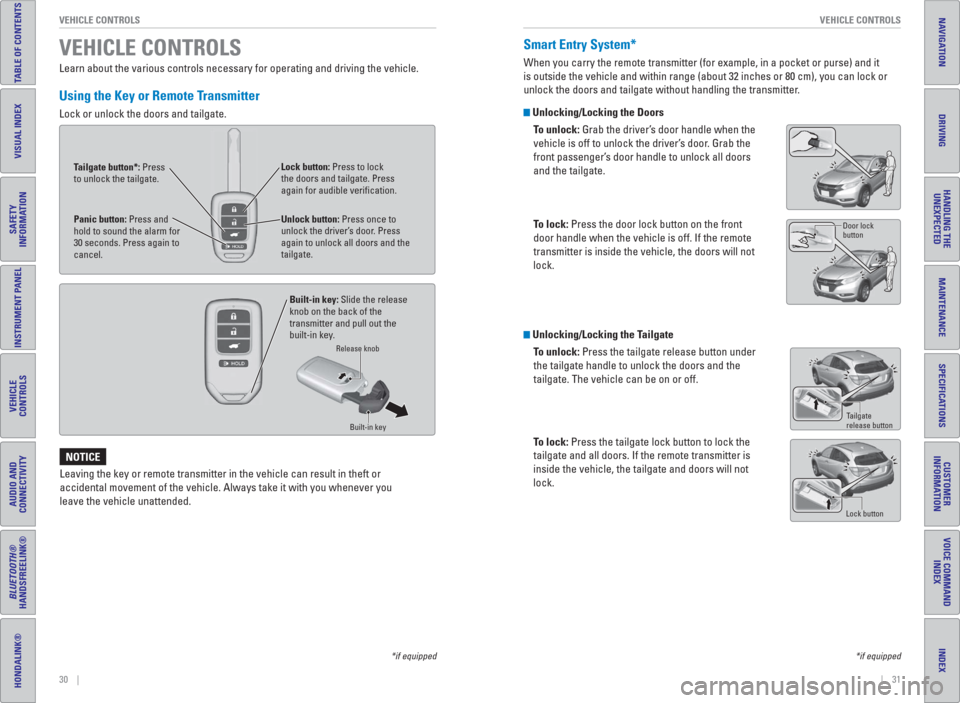
Smart Entry System*
When you carry the remote transmitter (for example, in a pocket or purse) and it
is outside the vehicle and within range (about 32 inches or 80 cm), you can lock or
unlock the doors and tailgate without handling the transmitter.
Unlocking/ Locking the Doors
To unlock: Grab the driver’s door handle when the
vehicle is off to unlock the driver’s door. Grab the
front passenger’s door handle to unlock all doors
and the tailgate.
To lock: Press the door lock button on the front
door handle when the vehicle is off. If the remote
transmitter is inside the vehicle, the doors will not
lock.
Unlocking/ Locking the Tailgate
To unlock: Press the tailgate release button under
the tailgate handle to unlock the doors and the
tailgate. The vehicle can be on or off.
To lock: Press the tailgate lock button to lock the
tailgate and all doors. If the remote transmitter is
inside the vehicle, the tailgate and doors will not
lock.
Tailgate
release button
Lock button
*if equipped *if equipped
Learn about the various controls necessary for operating and driving the vehicle.
Using the Key or Remote Transmitter
Lock or unlock the doors and tailgate.
VEHICLE CONTROLS
Leaving the key or remote transmitter in the vehicle can result in theft or
accidental movement of the vehicle. Always take it with you whenever you
leave the vehicle unattended.
NOTICE
Unlock button: Press once to
unlock the driver’s door. Press
again to unlock all doors and the
tailgate.
Built-in key: Slide the release
knob on the back of the
transmitter and pull out the
built-in key. Lock button: Press to lock
the doors and tailgate. Press
again for audible verifi cation.
Panic button: Press and
hold to sound the alarm for
30 seconds. Press again to
cancel.
Release knob
Built-in key
Tailgate button*: Press
to unlock the tailgate.
Door lock
button
Page 24 of 77
40 || 41 VEHICLE CONTROLS VEHICLE CONTROLS
TABLE OF CONTENTS
INDEX
VISUAL INDEX
VOICE COMMAND
INDEX
SAFETY
INFORMATION
CUSTOMER
INFORMATION
INSTRUMENT PANEL
SPECIFICATIONS
VEHICLE
CONTROLS
MAINTENANCE
AUDIO AND
CONNECTIVITY
HANDLING THE
UNEXPECTED
BLUETOOTH®
HANDSFREELINK®
DRIVING
HONDALINK®
NAVIGATION
Sitting improperly or out of position can result in serious injury or death in a
crash.
Always sit upright, well back in the seat, with your feet on the fl oor.
WARNING
Improperly positioning head restraints reduces their effectiveness and
increases the likelihood of serious injury in a crash.
Make sure head restraints are in place and positioned properly before driving.
WARNING
Failure to reinstall, or correctly reinstall, the head restraints can result in
severe injury during a crash.
Always replace the head restraints before driving.
WARNING
Sitting too close to a front airbag can result in serious injury or death if the
front airbags infl ate.
Always sit as far back from the front airbags as possible while maintaining
control of the vehicle.
WARNING
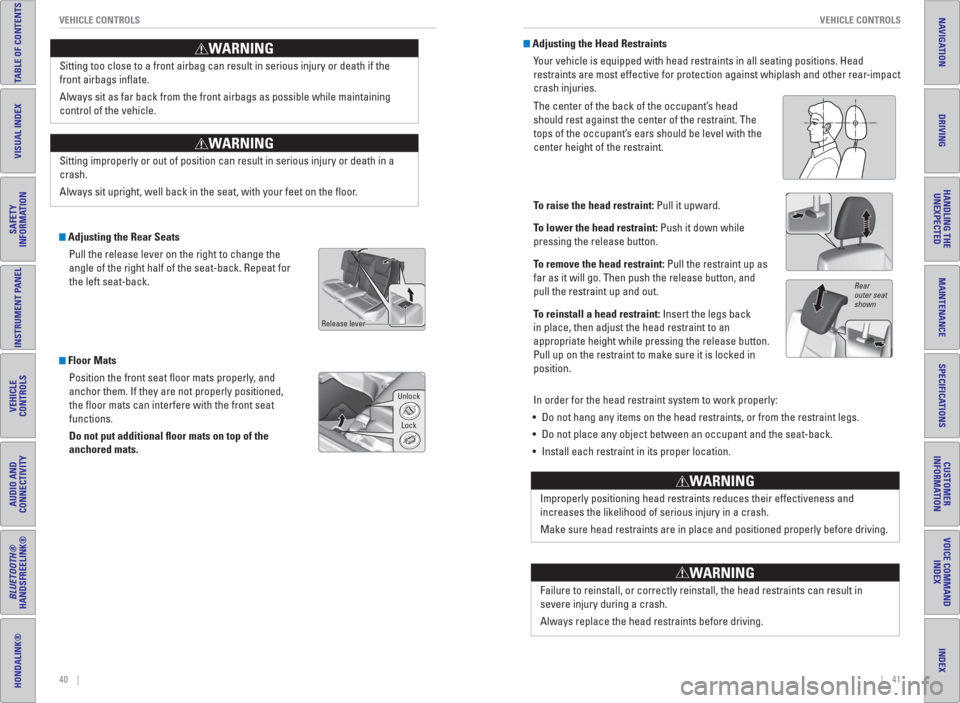
Adjusting the Rear Seats
Pull the release lever on the right to change the
angle of the right half of the seat-back. Repeat for
the left seat-back.
Floor Mats
Position the front seat fl oor mats properly, and
anchor them. If they are not properly positioned,
the fl oor mats can interfere with the front seat
functions.
Do not put additional oor mats on top of the
anchored mats.
Unlock
Lock
Release lever
Adjusting the Head Restraints
Your vehicle is equipped with head restraints in all seating positions. Head
restraints are most effective for protection against whiplash and other rear-impact
crash injuries.
The center of the back of the occupant’s head
should rest against the center of the restraint. The
tops of the occupant’s ears should be level with the
center height of the restraint.
To raise the head restraint: Pull it upward.
To lower the head restraint: Push it down while
pressing the release button.
To remove the head restraint: Pull the restraint up as
far as it will go. Then push the release button, and
pull the restraint up and out.
To reinstall a head restraint: Insert the legs back
in place, then adjust the head restraint to an
appropriate height while pressing the release button.
Pull up on the restraint to make sure it is locked in
position.
In order for the head restraint system to work properly:
• Do not hang any items on the head restraints, or from the restraint legs.
• Do not place any object between an occupant and the seat-back.
• Install each restraint in its proper location.
Rear
outer seat
shown
Page 26 of 77
44 || 45 VEHICLE CONTROLS VEHICLE CONTROLS
TABLE OF CONTENTS
INDEX
VISUAL INDEX
VOICE COMMAND
INDEX
SAFETY
INFORMATION
CUSTOMER
INFORMATION
INSTRUMENT PANEL
SPECIFICATIONS
VEHICLE
CONTROLS
MAINTENANCE
AUDIO AND
CONNECTIVITY
HANDLING THE
UNEXPECTED
BLUETOOTH®
HANDSFREELINK®
DRIVING
HONDALINK®
NAVIGATION
*if equipped
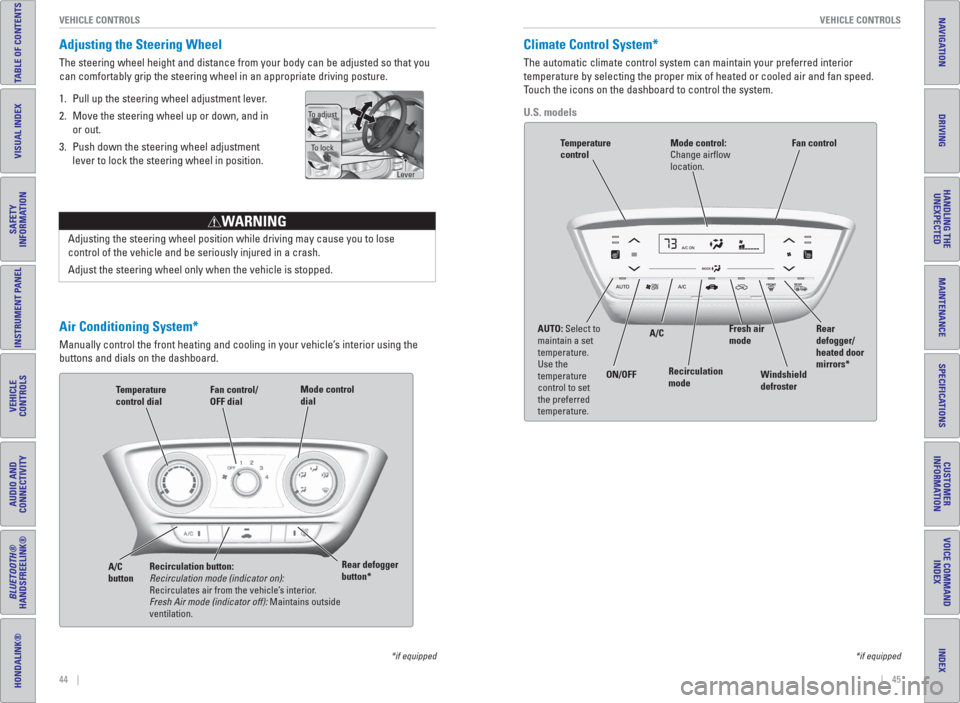
Air Conditioning System*
Manually control the front heating and cooling in your vehicle’s interior using the
buttons and dials on the dashboard.
Fan control/
OFF dial
A/C
buttonTemperature
control dial
Recirculation button:
Recirculation mode (indicator on):
Recirculates air from the vehicle’s interior.
Fresh Air mode (indicator off): Maintains outside
ventilation. Rear defogger
button*Mode control
dial
Adjusting the Steering Wheel
The steering wheel height and distance from your body can be adjusted so that you
can comfortably grip the steering wheel in an appropriate driving posture.
1. Pull up the steering wheel adjustment lever.
2. Move the steering wheel up or down, and in
or out.
3. Push down the steering wheel adjustment
lever to lock the steering wheel in position.
Adjusting the steering wheel position while driving may cause you to lose
control of the vehicle and be seriously injured in a crash.
Adjust the steering wheel only when the vehicle is stopped.
WARNING
To adjust
To lock
Lever
*if equipped
Climate Control System*
The automatic climate control system can maintain your preferred interior
temperature by selecting the proper mix of heated or cooled air and fan speed.
Touch the icons on the dashboard to control the system.
U.S. models
AUTO: Select to
maintain a set
temperature.
Use the
temperature
control to set
the preferred
temperature. ON/OFFA/C
Recirculation
modeRear
defogger/
heated door
mirrors*
Windshield
defroster Fan control
Mode control:
Change airfl ow
location.Temperature
control
Fresh air
mode
Page 27 of 77
46 || 47 VEHICLE CONTROLS VEHICLE CONTROLS
TABLE OF CONTENTS
INDEX
VISUAL INDEX
VOICE COMMAND
INDEX
SAFETY
INFORMATION
CUSTOMER
INFORMATION
INSTRUMENT PANEL
SPECIFICATIONS
VEHICLE
CONTROLS
MAINTENANCE
AUDIO AND
CONNECTIVITY
HANDLING THE
UNEXPECTED
BLUETOOTH®
HANDSFREELINK®
DRIVING
HONDALINK®
NAVIGATION
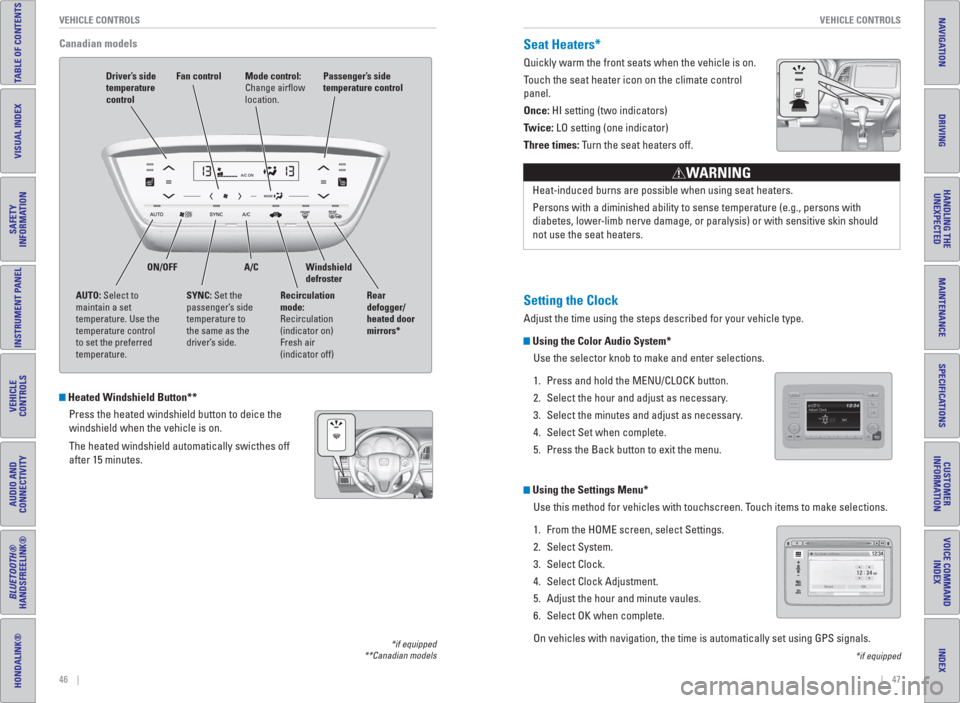
Heated Windshield Button**
Press the heated windshield button to deice the
windshield when the vehicle is on.
The heated windshield automatically swicthes off
after 15 minutes.
Canadian models
*if equipped
**Canadian models
Seat Heaters*
Quickly warm the front seats when the vehicle is on.
Touch the seat heater icon on the climate control
panel.
Once: HI setting (two indicators)
Twice: LO setting (one indicator)
Three times: Turn the seat heaters off.
Heat-induced burns are possible when using seat heaters.
Persons with a diminished ability to sense temperature (e.g., persons with
diabetes, lower-limb nerve damage, or paralysis) or with sensitive skin should
not use the seat heaters.
WARNING
Setting the Clock
Adjust the time using the steps described for your vehicle type.
Using the Color Audio System*
Use the selector knob to make and enter selections.
1. Press and hold the MENU/CLOCK button.
2. Select the hour and adjust as necessary.
3. Select the minutes and adjust as necessary.
4. Select Set when complete.
5. Press the Back button to exit the menu.
Using the Settings Menu*
Use this method for vehicles with touchscreen. Touch items to make selections.
1. From the HOME screen, select Settings.
2. Select System.
3. Select Clock.
4. Select Clock Adjustment.
5. Adjust the hour and minute vaules.
6. Select OK when complete.
On vehicles with navigation, the time is automatically set using GPS signals.
*if equipped
AUTO: Select to
maintain a set
temperature. Use the
temperature control
to set the preferred
temperature. ON/OFF A/C
Rear
defogger/
heated door
mirrors* Windshield
defroster Passenger’s side
temperature control
Mode control:
Change airfl ow
location.Driver’s side
temperature
control
Recirculation
mode:
Recirculation
(indicator on)
Fresh air
(indicator off)
Fan control
SYNC: Set the
passenger’s side
temperature to
the same as the
driver’s side.
Page 28 of 77
48 || 49 AUDIO AND CONNECTIVITY AUDIO AND CONNECTIVITY
TABLE OF CONTENTS
INDEX
VISUAL INDEX
VOICE COMMAND
INDEX
SAFETY
INFORMATION
CUSTOMER
INFORMATION
INSTRUMENT PANEL
SPECIFICATIONS
VEHICLE
CONTROLS
MAINTENANCE
AUDIO AND
CONNECTIVITY
HANDLING THE
UNEXPECTED
BLUETOOTH®
HANDSFREELINK®
DRIVING
HONDALINK®
NAVIGATION
Learn how to operate the vehicle’s audio system.
Basic Audio Operation
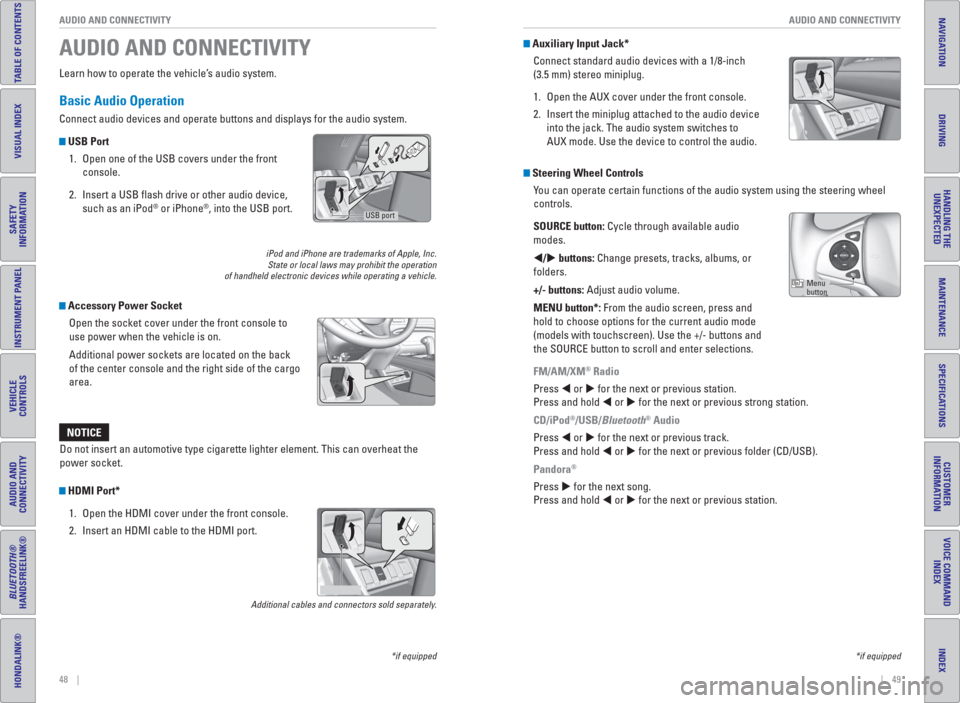
Connect audio devices and operate buttons and displays for the audio system.
USB Port
1. Open one of the USB covers under the front
console.
2. Insert a USB fl ash drive or other audio device,
such as an iPod
® or iPhone®, into the USB port.
iPod and iPhone are trademarks of Apple, Inc.
State or local laws may prohibit the operation
of handheld electronic devices while operating a vehicle.
Accessory Power Socket
Open the socket cover under the front console to
use power when the vehicle is on.
Additional power sockets are located on the back
of the center console and the right side of the cargo
area.
AUDIO AND CONNECTIVITY
*if equipped
Do not insert an automotive type cigarette lighter element. This can overheat the
power socket.
NOTICE
*if equipped
HDMI Port*
1. Open the HDMI cover under the front console.
2. Insert an HDMI cable to the HDMI port.
Additional cables and connectors sold separately.
USB port
Auxiliary Input Jack*
Connect standard audio devices with a 1/8-inch
(3.5 mm) stereo miniplug.
1. Open the AUX cover under the front console.
2. Insert the miniplug attached to the audio device
into the jack. The audio system switches to
AUX mode. Use the device to control the audio.
Steering Wheel Controls
You can operate certain functions of the audio system using the steering wheel
controls.
SOURCE button: Cycle through available audio
modes.
/ buttons: Change presets, tracks, albums, or
folders.
+/- buttons: Adjust audio volume.
MENU button*: From the audio screen, press and
hold to choose options for the current audio mode
(models with touchscreen). Use the +/- buttons and
the SOURCE button to scroll and enter selections.
FM/AM/XM
® Radio
Press or for the next or previous station.
Press and hold or for the next or previous strong station.
CD/iPod
®/USB/Bluetooth® Audio
Press or for the next or previous track.
Press and hold or for the next or previous folder (CD/USB).
Pandora
®
Press for the next song.
Press and hold or for the next or previous station.
Menu
button
Page 29 of 77
50 || 51 AUDIO AND CONNECTIVITY AUDIO AND CONNECTIVITY
TABLE OF CONTENTS
INDEX
VISUAL INDEX
VOICE COMMAND
INDEX
SAFETY
INFORMATION
CUSTOMER
INFORMATION
INSTRUMENT PANEL
SPECIFICATIONS
VEHICLE
CONTROLS
MAINTENANCE
AUDIO AND
CONNECTIVITY
HANDLING THE
UNEXPECTED
BLUETOOTH®
HANDSFREELINK®
DRIVING
HONDALINK®
NAVIGATION
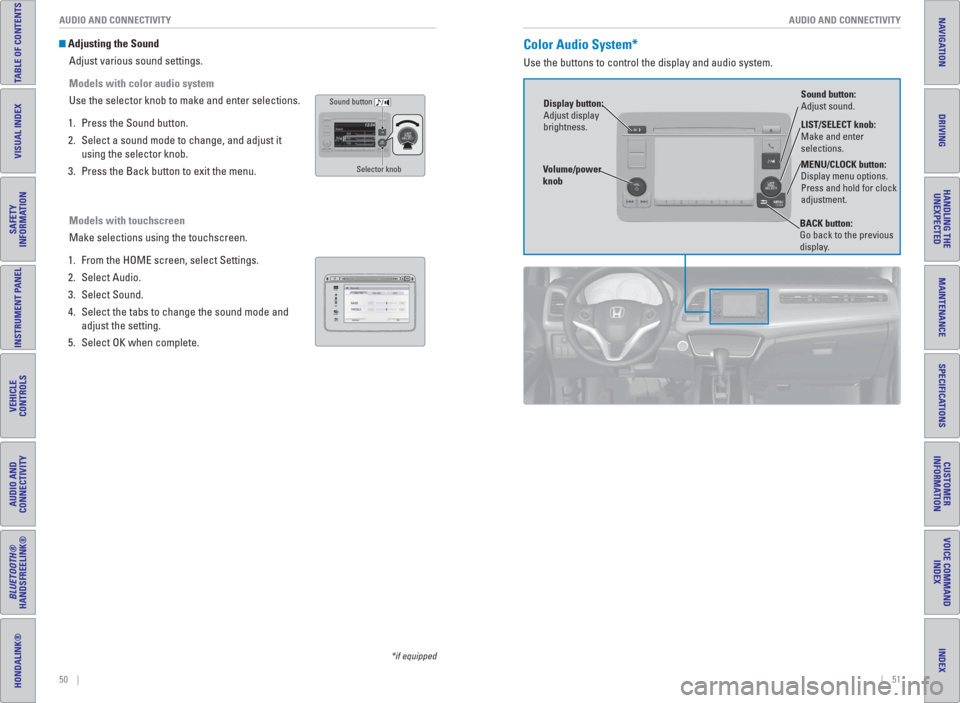
Adjusting the Sound
Adjust various sound settings.
Models with color audio system
Use the selector knob to make and enter selections.
1. Press the Sound button.
2. Select a sound mode to change, and adjust it
using the selector knob.
3. Press the Back button to exit the menu.
Models with touchscreen
Make selections using the touchscreen.
1. From the HOME screen, select Settings.
2. Select Audio.
3. Select Sound.
4. Select the tabs to change the sound mode and
adjust the setting.
5. Select OK when complete.
VOLHOME
MENU
BACK
*if equipped
Sound button
Selector knob
Color Audio System*
Use the buttons to control the display and audio system.
LIST/SELECT knob:
Make and enter
selections.
Volume/power
knob MENU/CLOCK button:
Display menu options.
Press and hold for clock
adjustment.
BACK button:
Go back to the previous
display.
Display button:
Adjust display
brightness.Sound button:
Adjust sound.
Page 30 of 77
52 || 53 AUDIO AND CONNECTIVITY AUDIO AND CONNECTIVITY
TABLE OF CONTENTS
INDEX
VISUAL INDEX
VOICE COMMAND
INDEX
SAFETY
INFORMATION
CUSTOMER
INFORMATION
INSTRUMENT PANEL
SPECIFICATIONS
VEHICLE
CONTROLS
MAINTENANCE
AUDIO AND
CONNECTIVITY
HANDLING THE
UNEXPECTED
BLUETOOTH®
HANDSFREELINK®
DRIVING
HONDALINK®
NAVIGATION
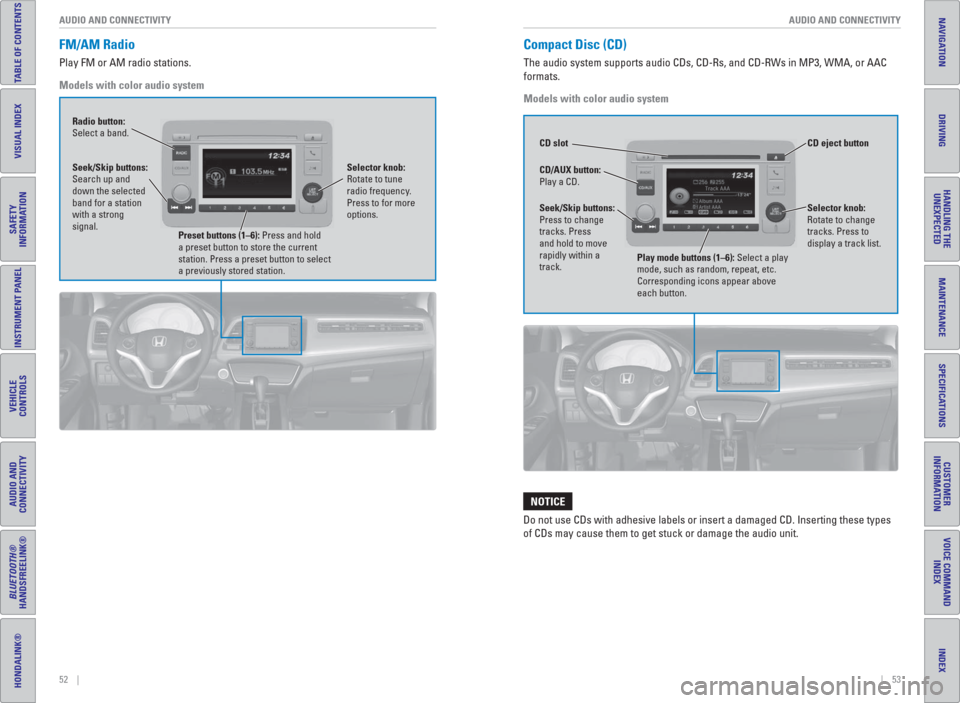
Compact Disc (CD)
The audio system supports audio CDs, CD-Rs, and CD-RWs in MP3, WMA, or AAC
formats.
Models with color audio system
Do not use CDs with adhesive labels or insert a damaged CD. Inserting these types
of CDs may cause them to get stuck or damage the audio unit.
NOTICE
FM/AM Radio
Play FM or AM radio stations.
Models with color audio system
Radio button:
Select a band.
Preset buttons (1–6): Press and hold
a preset button to store the current
station. Press a preset button to select
a previously stored station. Seek/Skip buttons:
Search up and
down the selected
band for a station
with a strong
signal.Selector knob:
Rotate to tune
radio frequency.
Press to for more
options.
CD eject button CD slot
CD/AUX button:
Play a CD.
Selector knob:
Rotate to change
tracks. Press to
display a track list.Seek/Skip buttons:
Press to change
tracks. Press
and hold to move
rapidly within a
track.
Play mode buttons (1–6): Select a play
mode, such as random, repeat, etc.
Corresponding icons appear above
each button.
Page 31 of 77
54 || 55 AUDIO AND CONNECTIVITY AUDIO AND CONNECTIVITY
TABLE OF CONTENTS
INDEX
VISUAL INDEX
VOICE COMMAND
INDEX
SAFETY
INFORMATION
CUSTOMER
INFORMATION
INSTRUMENT PANEL
SPECIFICATIONS
VEHICLE
CONTROLS
MAINTENANCE
AUDIO AND
CONNECTIVITY
HANDLING THE
UNEXPECTED
BLUETOOTH®
HANDSFREELINK®
DRIVING
HONDALINK®
NAVIGATION
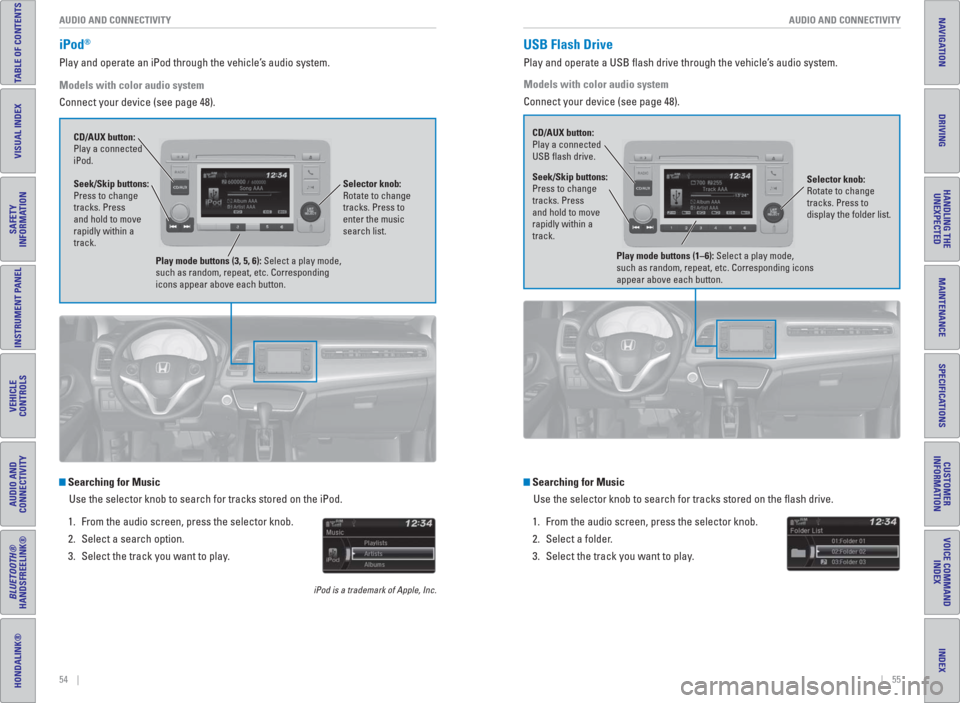
iPod®
Play and operate an iPod through the vehicle’s audio system.
Models with color audio system
Connect your device (see page 48).
Searching for Music
Use the selector knob to search for tracks stored on the iPod.
1. From the audio screen, press the selector knob.
2. Select a search option.
3. Select the track you want to play.
iPod is a trademark of Apple, Inc.
Seek/Skip buttons:
Press to change
tracks. Press
and hold to move
rapidly within a
track. CD/AUX button:
Play a connected
iPod.
Selector knob:
Rotate to change
tracks. Press to
enter the music
search list.
Play mode buttons (3, 5, 6): Select a play mode,
such as random, repeat, etc. Corresponding
icons appear above each button.
Searching for Music
Use the selector knob to search for tracks stored on the fl ash drive.
1. From the audio screen, press the selector knob.
2. Select a folder.
3. Select the track you want to play.
Models with color audio system
Connect your device (see page 48).
USB Flash Drive
Play and operate a USB fl ash drive through the vehicle’s audio system.
Selector knob:
Rotate to change
tracks. Press to
display the folder list. CD/AUX button:
Play a connected
USB fl ash drive.Seek/Skip buttons:
Press to change
tracks. Press
and hold to move
rapidly within a
track.
Play mode buttons (1–6): Select a play mode,
such as random, repeat, etc. Corresponding icons
appear above each button.