audio HONDA HR-V 2017 2.G Owners Manual
[x] Cancel search | Manufacturer: HONDA, Model Year: 2017, Model line: HR-V, Model: HONDA HR-V 2017 2.GPages: 489, PDF Size: 29.22 MB
Page 285 of 489
uuBluetooth ® HandsFreeLink ®u Using HFL
284
Features
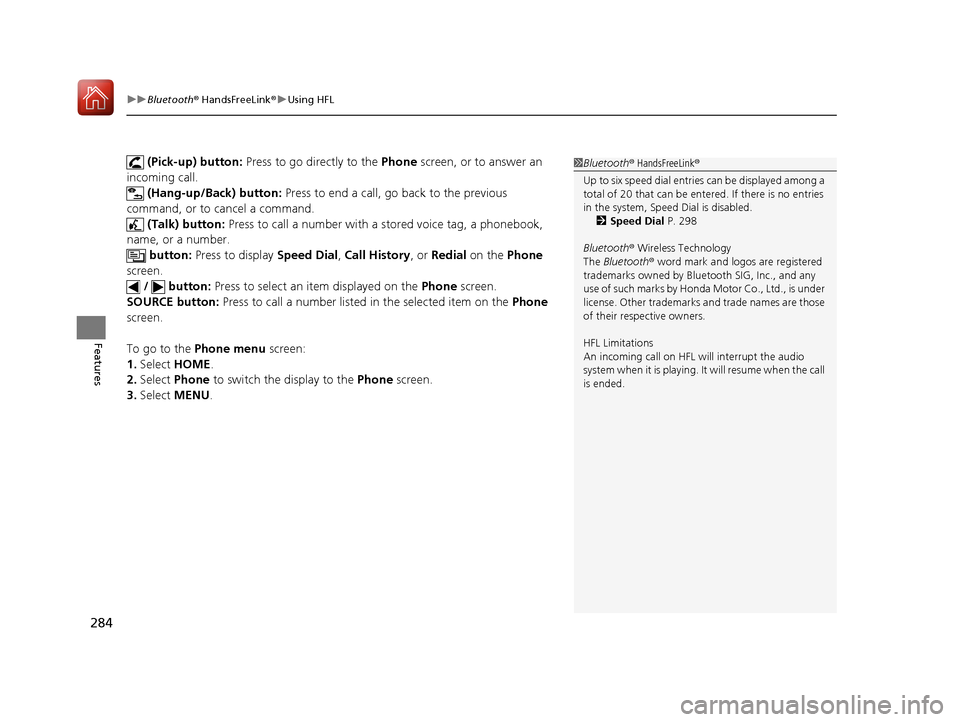
(Pick-up) button: Press to go directly to the Phone screen, or to answer an
incoming call. (Hang-up/Back) button: Press to end a call, go back to the previous
command, or to cancel a command. (Talk) button: Press to call a number with a stored voice tag, a phonebook,
name, or a number.
button: Press to display Speed Dial, Call History , or Redial on the Phone
screen. / button: Press to select an item displayed on the Phone screen.
SOURCE button: Press to call a number listed in the selected item on the Phone
screen.
To go to the Phone menu screen:
1. Select HOME .
2. Select Phone to switch the display to the Phone screen.
3. Select MENU .1Bluetooth ® HandsFreeLink ®
Up to six speed dial entrie s can be displayed among a
total of 20 that can be entered. If there is no entries
in the system, Speed Dial is disabled.
2 Speed Dial P. 298
Bluetooth ® Wireless Technology
The Bluetooth ® word mark and logos are registered
trademarks owned by Blue tooth SIG, Inc., and any
use of such marks by Honda Motor Co., Ltd., is under
license. Other trademarks and trade names are those
of their respective owners.
HFL Limitations
An incoming call on HFL will interrupt the audio
system when it is playing. It will resume when the call
is ended.
17 HR-V HDMC-31T7A6100.book 284 ページ 2016年7月20日 水曜日 午前9時50分
Page 286 of 489
285
uuBluetooth ® HandsFreeLink ®u Using HFL
Features
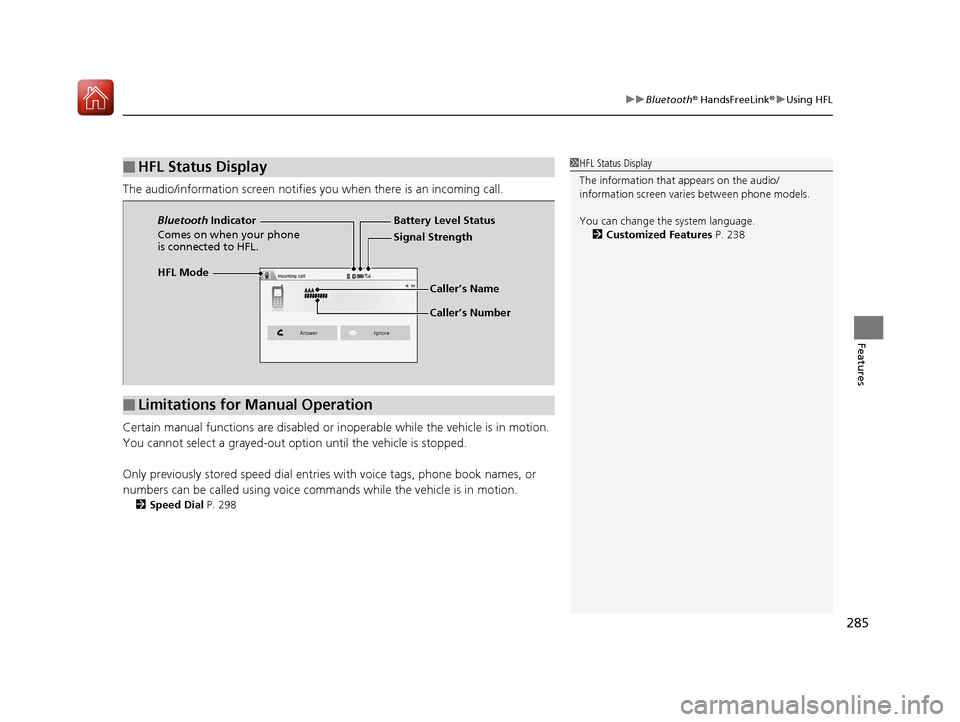
The audio/information scr een notifies you when there is an incoming call.
Certain manual functions are disabled or inoperable while the vehicle is in motion.
You cannot select a grayed-out option until the vehicle is stopped.
Only previously stored speed dial entries with voice tags, phone book names, or
numbers can be called using voice commands while the vehicle is in motion.
2 Speed Dial P. 298
■HFL Status Display1HFL Status Display
The information that appears on the audio/
information screen vari es between phone models.
You can change the system language. 2 Customized Features P. 238
HFL Mode Battery Level Status
Signal Strength
Bluetooth
Indicator
Comes on when your phone
is connected to HFL.
Caller’s Name
Caller’s Number
■Limitations for Manual Operation
17 HR-V HDMC-31T7A6100.book 285 ページ 2016年7月20日 水曜日 午前9時50分
Page 292 of 489
Continued291
uuBluetooth ® HandsFreeLink ®u HFL Menus
Features
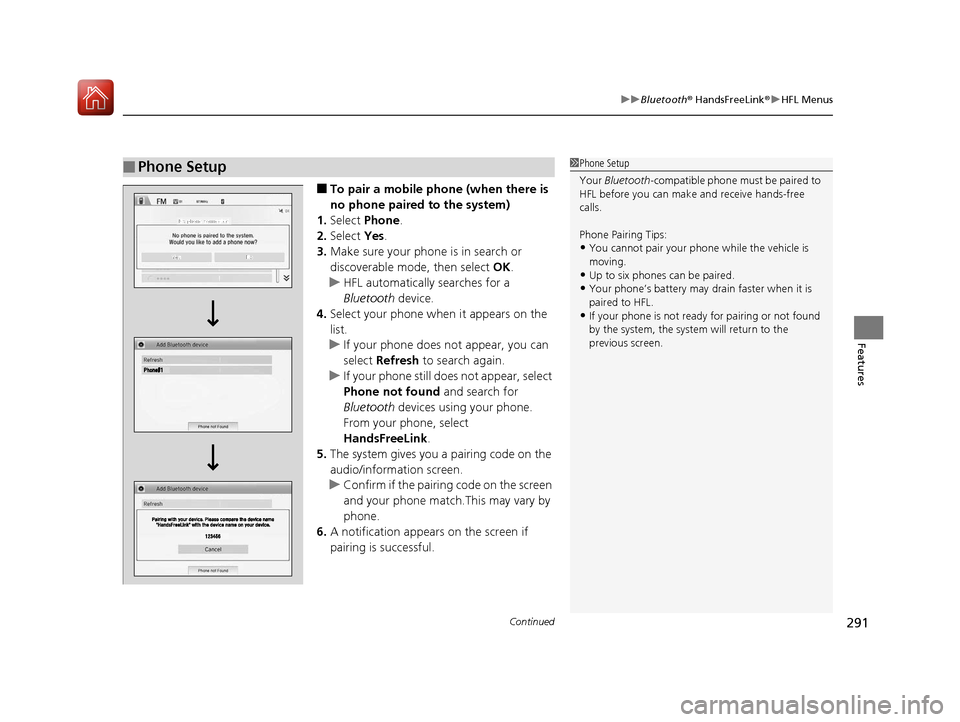
■To pair a mobile phone (when there is
no phone paired to the system)
1. Select Phone .
2. Select Yes.
3. Make sure your phone is in search or
discoverable mode, then select OK.
u HFL automatically searches for a
Bluetooth device.
4. Select your phone when it appears on the
list.
u If your phone does not appear, you can
select Refresh to search again.
u If your phone still do es not appear, select
Phone not found and search for
Bluetooth devices using your phone.
From your phone, select
HandsFreeLink .
5. The system gives you a pairing code on the
audio/information screen.
u Confirm if the pairing code on the screen
and your phone match.This may vary by
phone.
6. A notification appears on the screen if
pairing is successful.
■Phone Setup1Phone Setup
Your Bluetooth -compatible phone must be paired to
HFL before you can make and receive hands-free
calls.
Phone Pairing Tips:
•You cannot pair your phone while the vehicle is
moving.
•Up to six phones can be paired.
•Your phone’s battery may dr ain faster when it is
paired to HFL.
•If your phone is not ready for pairing or not found
by the system, the system will return to the
previous screen.
17 HR-V HDMC-31T7A6100.book 291 ページ 2016年7月20日 水曜日 午前9時50分
Page 301 of 489
uuBluetooth ® HandsFreeLink ®u HFL Menus
300
Features
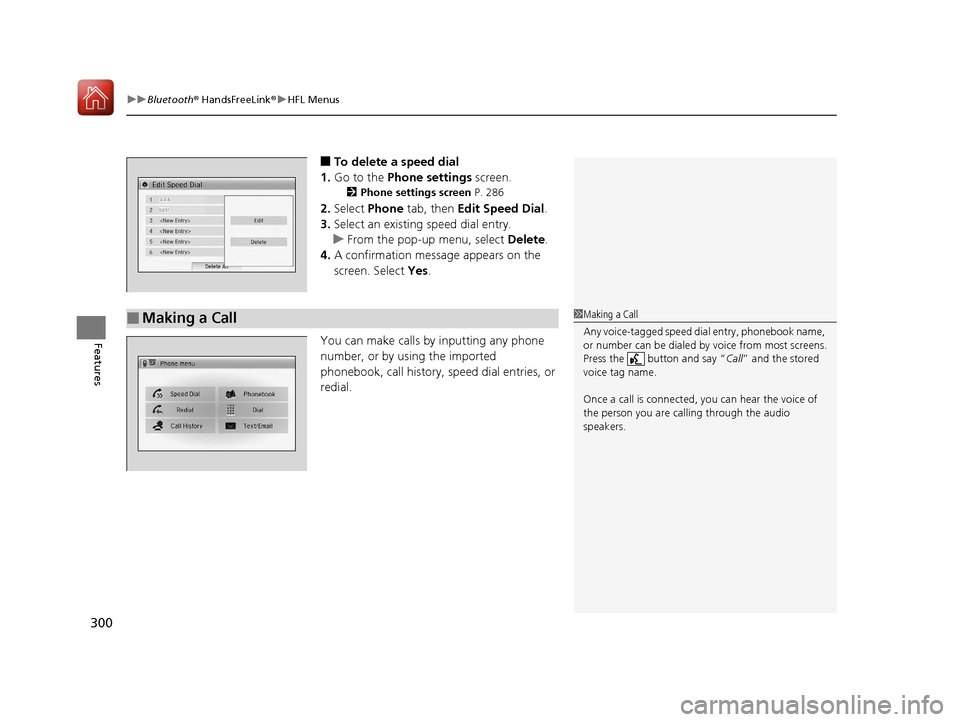
■To delete a speed dial
1. Go to the Phone settings screen.
2Phone settings screen P. 286
2.Select Phone tab, then Edit Speed Dial .
3. Select an existing speed dial entry.
u From the pop-up menu, select Delete.
4. A confirmation message appears on the
screen. Select Yes.
You can make calls by inputting any phone
number, or by using the imported
phonebook, call history, speed dial entries, or
redial.
■Making a Call1 Making a Call
Any voice-tagged speed di al entry, phonebook name,
or number can be dialed by voice from most screens.
Press the button and say “ Call” and the stored
voice tag name.
Once a call is connected, you can hear the voice of
the person you are call ing through the audio
speakers.
17 HR-V HDMC-31T7A6100.book 300 ページ 2016年7月20日 水曜日 午前9時50分
Page 357 of 489
356
uuWhen Driving uLaneWatchTM*
Driving
LaneWatchTM*
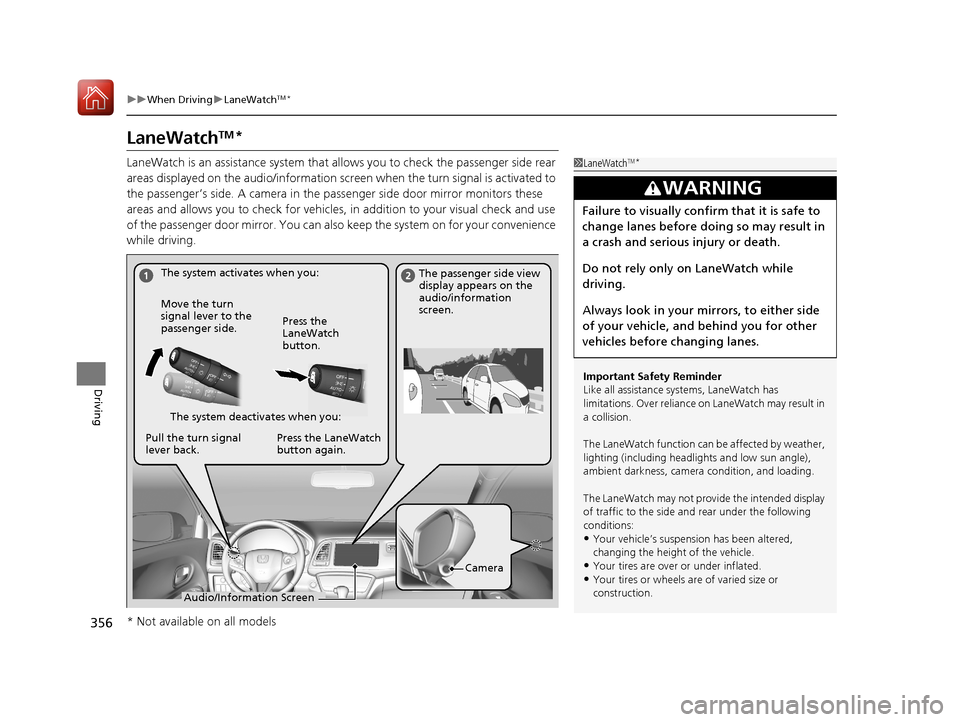
LaneWatch is an assistance system that allows you to check the passenger side rear
areas displayed on the audio/information screen when the turn signal is activated to
the passenger’s side. A camera in the pass enger side door mirror monitors these
areas and allows you to chec k for vehicles, in addition to your visual check and use
of the passenger door mirror. You can also keep the system on for your convenience
while driving.1 LaneWatchTM*
Important Safety Reminder
Like all assistance systems, LaneWatch has
limitations. Over reliance on LaneWatch may result in
a collision.
The LaneWatch function can be affected by weather,
lighting (including headli ghts and low sun angle),
ambient darkness, camera condition, and loading.
The LaneWatch may not prov ide the intended display
of traffic to the side and rear under the following
conditions:
•Your vehicle’s suspensi on has been altered,
changing the height of the vehicle.
•Your tires are over or under inflated.
•Your tires or wheels are of varied size or
construction.
3WARNING
Failure to visually confirm that it is safe to
change lanes before do ing so may result in
a crash and serious injury or death.
Do not rely only on LaneWatch while
driving.
Always look in your mirrors, to either side
of your vehicle, and behind you for other
vehicles before changing lanes.
The system activates when you: The passenger side view
display appears on the
audio/information
screen.
Move the turn
signal lever to the
passenger side. Press the
LaneWatch
button.
The system deactivates when you:
Pull the turn signal
lever back. Press the LaneWatch
button again.
Camera
Audio/Information Screen
* Not available on all models
17 HR-V HDMC-31T7A6100.book 356 ページ 2016年7月20日 水曜日 午前9時50分
Page 358 of 489
357
uuWhen Driving uLaneWatchTM*
Driving
■Customizing the La neWatch settings
You can customize the following items using the audio/information screen.
• Show with Tu rn Signal: Selects whether LaneWatch monitor comes on when
you operate the turn signal light lever.
• Display Time after Turn Signal Off: Changes the remaining LaneWatch
display time after you pull the turn signal lever back.
• Reference Line: Selects whether the reference lines appear on the LaneWatch
monitor.
• Next Maneuver Pop up
*: Selects whether a turn direction screen of the
navigation system interr upts the LaneWatch display.
• Display: Adjusts display settings.
2Customized Features P. 238
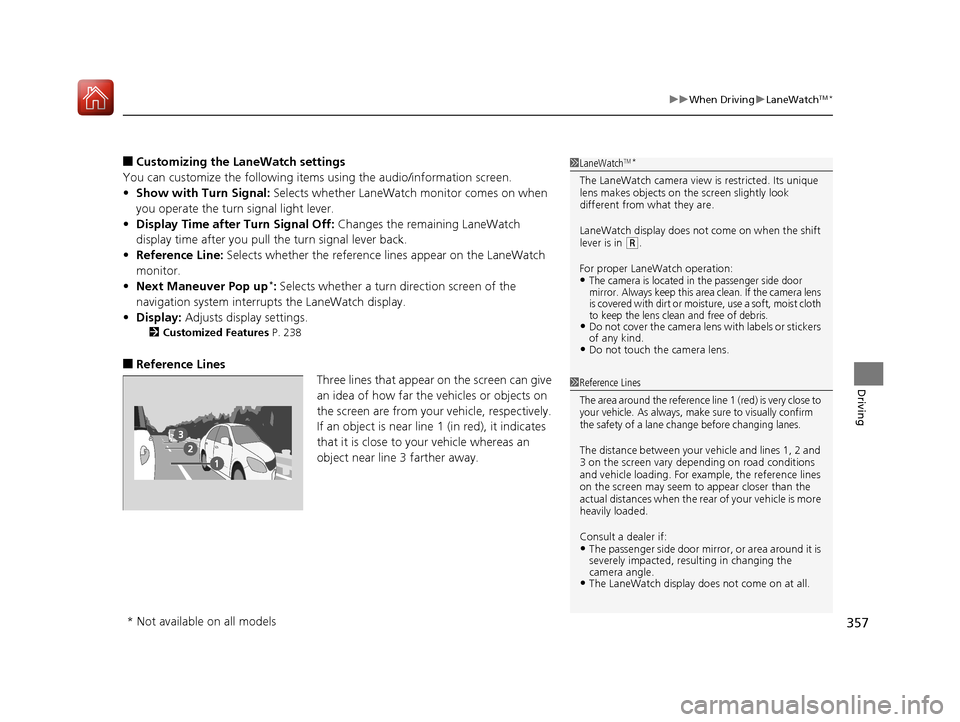
■Reference Lines
Three lines that appear on the screen can give
an idea of how far the vehicles or objects on
the screen are from your vehicle, respectively.
If an object is near line 1 (in red), it indicates
that it is close to your vehicle whereas an
object near line 3 farther away.
1LaneWatchTM*
The LaneWatch camera view is restricted. Its unique
lens makes objects on the screen slightly look
different from what they are.
LaneWatch display does not come on when the shift
lever is in
(R.
For proper LaneWatch operation:
•The camera is located in the passenger side door
mirror. Always keep this area clean. If the camera lens
is covered with dirt or moisture, use a soft, moist cloth
to keep the lens clean and free of debris.
•Do not cover the camera lens with labels or stickers
of any kind.
•Do not touch the camera lens.
1 Reference Lines
The area around the reference line 1 (red) is very close to
your vehicle. As always, make sure to visually confirm
the safety of a lane change before changing lanes.
The distance betwee n your vehicle and lines 1, 2 and
3 on the screen vary depending on road conditions
and vehicle loading. For ex ample, the reference lines
on the screen may seem to appear closer than the
actual distances when the rear of your vehicle is more
heavily loaded.
Consult a dealer if:
•The passenger side door mirr or, or area around it is
severely impacted, resulting in changing the
camera angle.
•The LaneWatch display doe s not come on at all.
* Not available on all models
17 HR-V HDMC-31T7A6100.book 357 ページ 2016年7月20日 水曜日 午前9時50分
Page 373 of 489
372
Driving
Multi-View Rear Camera
About Your Multi-View Rear Camera
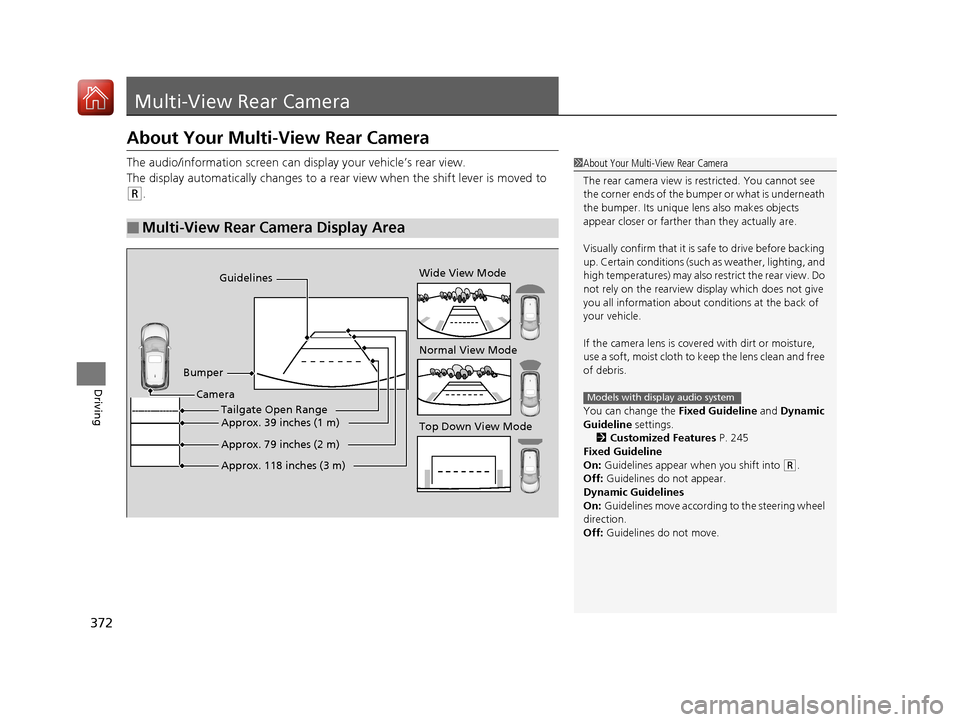
The audio/information screen can display your vehicle’s rear view.
The display automatically changes to a rear view when the shift lever is moved to
(R.
■Multi-View Rear Camera Display Area
1About Your Multi-View Rear Camera
The rear camera view is restricted. You cannot see
the corner ends of the bum per or what is underneath
the bumper. Its unique le ns also makes objects
appear closer or farther than they actually are.
Visually confirm that it is safe to drive before backing
up. Certain conditions (such as weather, lighting, and
high temperatures) may also restrict the rear view. Do
not rely on the rearview display which does not give
you all information about conditions at the back of
your vehicle.
If the camera lens is cove red with dirt or moisture,
use a soft, moist cloth to keep the lens clean and free
of debris.
You can change the Fixed Guideline and Dynamic
Guideline settings. 2 Customized Features P. 245
Fixed Guideline
On: Guidelines appear when you shift into
(R.
Off: Guidelines do not appear.
Dynamic Guidelines
On: Guidelines move according to the steering wheel
direction.
Off: Guidelines do not move.
Models with display audio system
Guidelines
Bumper Wide View Mode
Normal View Mode
Top Down View Mode
Camera
Approx. 118 inches (3 m)
Approx. 79 inches (2 m)
Approx. 39 inches (1 m)Tailgate Open Range
17 HR-V HDMC-31T7A6100.book 372 ページ 2016年7月20日 水曜日 午前9時50分
Page 374 of 489
373
uuMulti-View Rear Camera uAbout Your Multi-View Rear Camera
Driving
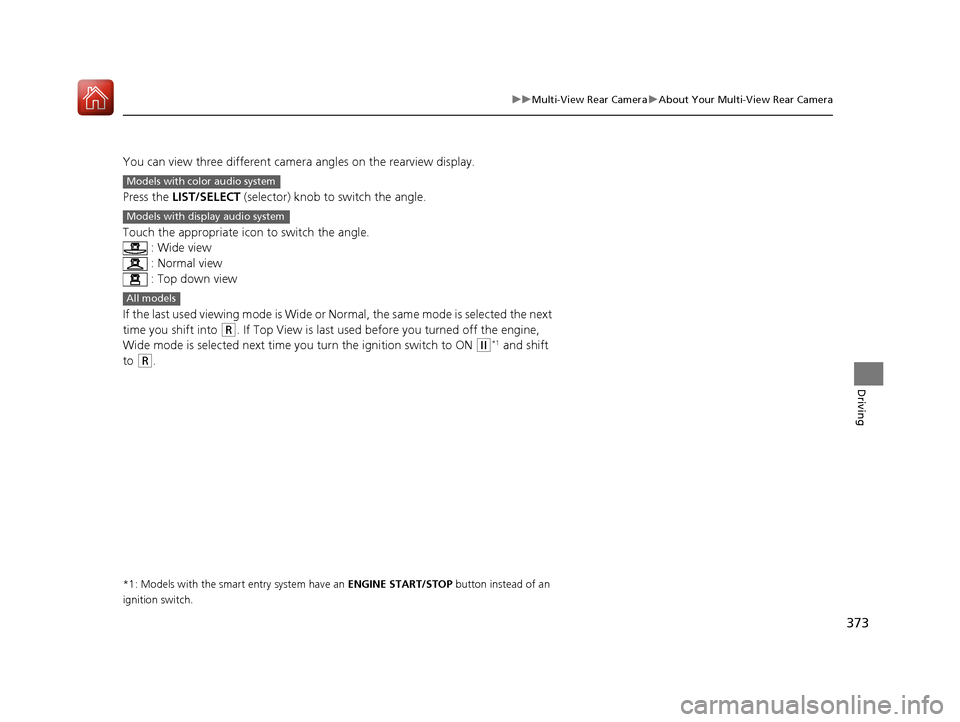
You can view three different camera angles on the rearview display.
Press the LIST/SELECT (selector) knob to switch the angle.
Touch the appropriate icon to switch the angle. : Wide view
: Normal view
: Top down view
If the last used viewing mode is Wide or Normal, the same mode is selected the next
time you shift into
(R. If Top View is last used before you turned off the engine,
Wide mode is selected next time yo u turn the ignition switch to ON
(w*1 and shift
to
(R.
*1: Models with the smart entry system have an ENGINE START/STOP button instead of an
ignition switch.
Models with color audio system
Models with display audio system
All models
17 HR-V HDMC-31T7A6100.book 373 ページ 2016年7月20日 水曜日 午前9時50分
Page 420 of 489
419
Maintenance
Battery
Checking the Battery
The battery condition is being monitored by the sensor on the negative terminal. If
there is a problem with the sensor, the warning message on the information display
will let you know. Have your vehicle checked by a dealer.
Check the battery termina ls for corrosion monthly.
If your vehicle’s battery is disconnected or goes dead:
• The audio system is disabled.
2 Audio System Theft Protection P. 179
•The clock resets.
2 Clock P. 94
•The navigation system* is disabled.
2 Refer to the navigation system manual
1Battery
WARNING: Battery post, terminals,
and related accessories contain lead
and lead compounds.
Wash your hands after handling.
When replacing the battery, the replacement must be
of the same specifications.
Consult a dealer for more information.
3WARNING
The battery gives off explosive hydrogen
gas during normal operation.
A spark or flame can cause the battery to
explode with enough force to kill or
seriously hurt you.
When conducting any battery
maintenance, wear prot ective clothing and
a face shield, or have a skilled technician do
it.
* Not available on all models
17 HR-V HDMC-31T7A6100.book 419 ページ 2016年7月20日 水曜日 午前9時50分
Page 425 of 489
424
Maintenance
Cleaning
Interior Care
Use a damp cloth with a mixture of mild detergent and warm water to remove dirt.
Use a clean cloth to remove detergent residue.
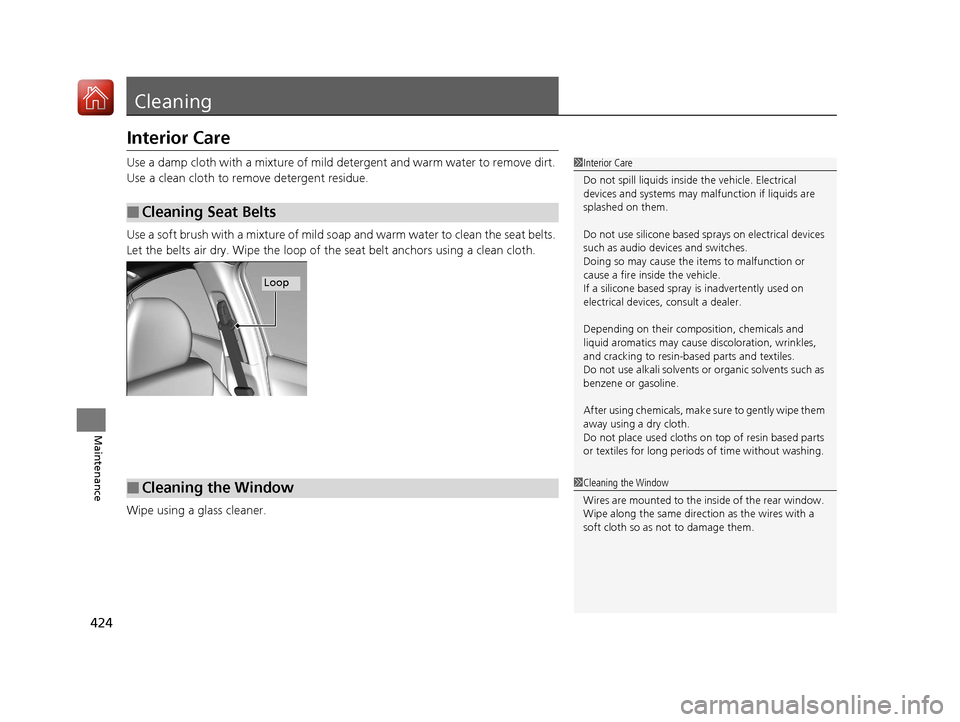
Use a soft brush with a mixture of mild soap and warm water to clean the seat belts.
Let the belts air dry. Wipe the loop of the seat belt anchors using a clean cloth.
Wipe using a glass cleaner.
■Cleaning Seat Belts
1 Interior Care
Do not spill liquids inside the vehicle. Electrical
devices and systems may ma lfunction if liquids are
splashed on them.
Do not use silicone based sprays on electrical devices
such as audio devices and switches.
Doing so may cause the items to malfunction or
cause a fire inside the vehicle.
If a silicone based spray is inadvertently used on
electrical devices, consult a dealer.
Depending on their compos ition, chemicals and
liquid aromatics may cause discoloration, wrinkles,
and cracking to resin-ba sed parts and textiles.
Do not use alkali solvents or organic solvents such as
benzene or gasoline.
After using chemical s, make sure to gently wipe them
away using a dry cloth.
Do not place used cloths on top of resin based parts
or textiles for long periods of time without washing.
Loop
■Cleaning the Window1Cleaning the Window
Wires are mounted to the in side of the rear window.
Wipe along the same direct ion as the wires with a
soft cloth so as not to damage them.
17 HR-V HDMC-31T7A6100.book 424 ページ 2016年7月20日 水曜日 午前9時50分