audio information screen HONDA HRV 2022 User Guide
[x] Cancel search | Manufacturer: HONDA, Model Year: 2022, Model line: HRV, Model: HONDA HRV 2022Pages: 641, PDF Size: 21.37 MB
Page 243 of 641
Continued241
uuAudio System Basic Operation uAudio/Information Screen
Features
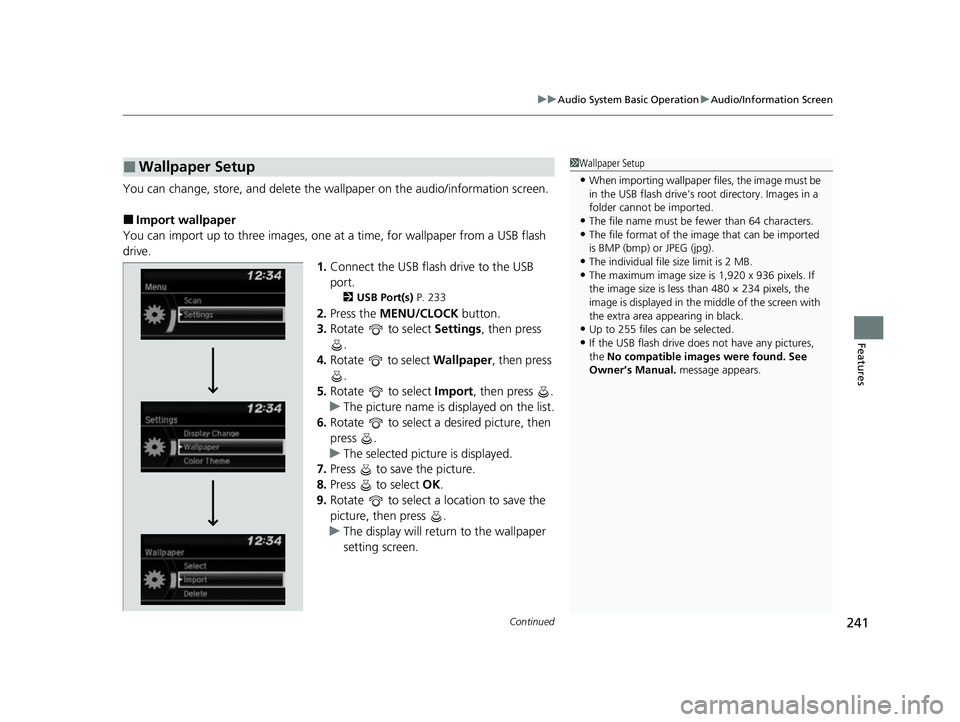
You can change, store, and delete the wa llpaper on the audio/information screen.
■Import wallpaper
You can import up to three images, one at a time, for wallpaper from a USB flash
drive. 1.Connect the USB flash drive to the USB
port.
2 USB Port(s) P. 233
2.Press the MENU/CLOCK button.
3. Rotate to select Settings, then press
.
4. Rotate to select Wallpaper, then press
.
5. Rotate to select Import, then press .
u The picture name is displayed on the list.
6. Rotate to select a desired picture, then
press .
u The selected picture is displayed.
7. Press to save the picture.
8. Press to select OK.
9. Rotate to select a location to save the
picture, then press .
u The display will return to the wallpaper
setting screen.
■Wallpaper Setup1Wallpaper Setup
•When importing wallpaper files, the image must be
in the USB flash drive’s root directory. Images in a
folder cannot be imported.
•The file name must be fewer than 64 characters.•The file format of the im age that can be imported
is BMP (bmp) or JPEG (jpg).
•The individual file size limit is 2 MB.•The maximum image size is 1,920 x 936 pixels. If
the image size is less than 480 × 234 pixels, the
image is displayed in the middle of the screen with
the extra area appearing in black.
•Up to 255 files can be selected.
•If the USB flash drive doe s not have any pictures,
the No compatible images were found. See
Owner’s Manual. message appears.
22 HR-V HDMC-31T7A6600.book 241 ページ 2021年4月12日 月曜日 午前10時50分
Page 244 of 641
uuAudio System Basic Operation uAudio/Information Screen
242
Features
■Select wallpaper
1. Press the MENU/CLOCK button.
2. Rotate to select Settings, then press .
3. Rotate to select Wallpaper, then press .
4. Rotate to select Select, then press .
u The screen changes to the wallpaper list.
5. Rotate to select a desired wallpaper, then press .
■To view wallpaper once it is set
1. Press the MENU/CLOCK button.
2. Rotate to select Settings, then press .
3. Rotate to select Display Change, then press .
4. Rotate to select Wallpaper, then press .
u The screen changes to the wallpaper list.
5. Rotate to select a wallpaper that you want to set, then press .
■Delete wallpaper
1. Press the MENU/CLOCK button.
2. Rotate to select Settings, then press .
3. Rotate to select Wallpaper, then press .
4. Rotate to select Delete, then press .
u The screen changes to the wallpaper list.
5. Rotate to select a wallpaper that you want to delete, then press .
6. Rotate to select Yes, then press .
u The display will return to the wallpaper setting screen.
1Wallpaper Setup
To go back to the previous screen, press the
(Back) button.
When the file size is large, it takes a while to be
previewed.
22 HR-V HDMC-31T7A6600.book 242 ページ 2021年4月12日 月曜日 午前10時50分
Page 246 of 641
244
uuAudio System Basic Operation uDisplay Setup
Features
Display Setup
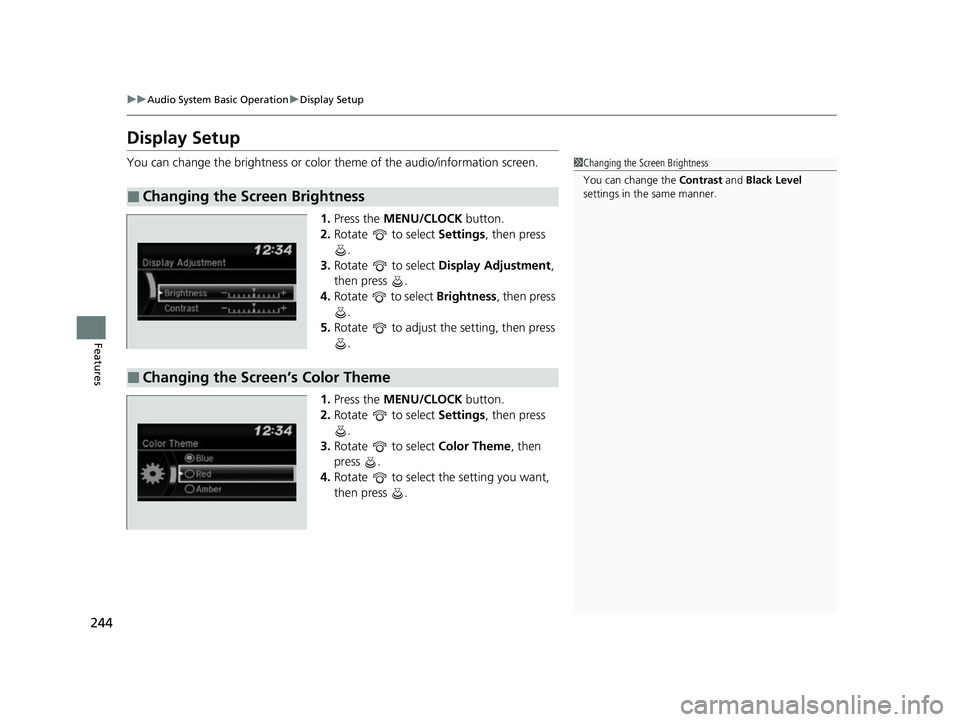
You can change the brightness or color theme of the audio/information screen.
1. Press the MENU/CLOCK button.
2. Rotate to select Settings, then press
.
3. Rotate to select Display Adjustment,
then press .
4. Rotate to select Brightness, then press
.
5. Rotate to adjust the setting, then press
.
1. Press the MENU/CLOCK button.
2. Rotate to select Settings, then press
.
3. Rotate to select Color Theme, then
press .
4. Rotate to select the setting you want,
then press .
■Changing the Screen Brightness
1Changing the Screen Brightness
You can change the Contrast and Black Level
settings in the same manner.
■Changing the Screen’s Color Theme
22 HR-V HDMC-31T7A6600.book 244 ページ 2021年4月12日 月曜日 午前10時50分
Page 247 of 641
245
uuAudio System Basic Operation uPlaying AM/FM Radio
Continued
Features
Playing AM/FM Radio
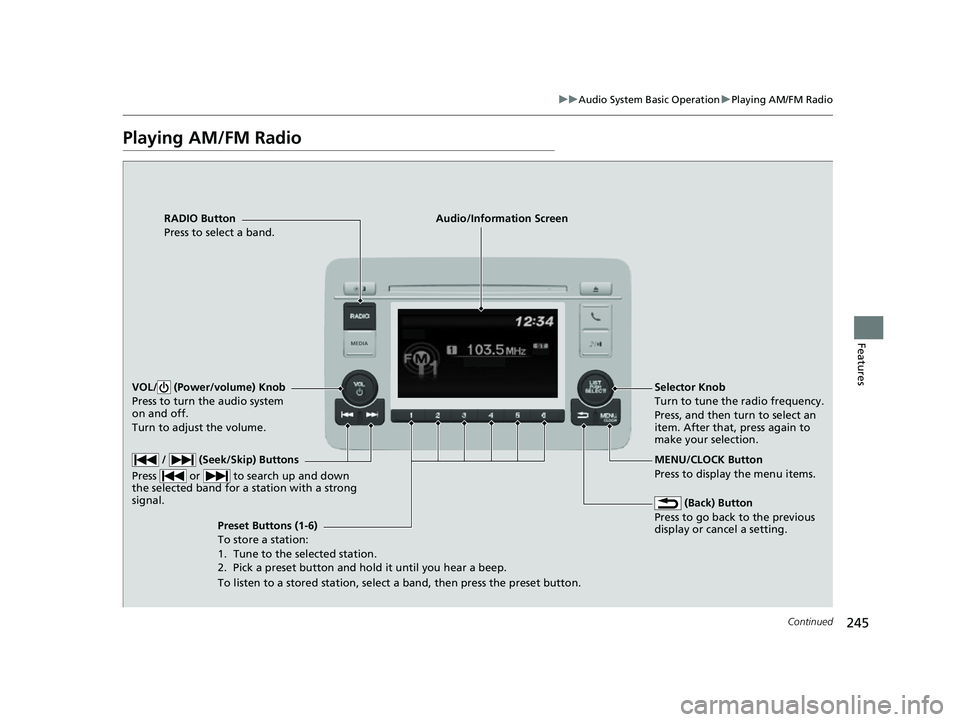
RADIO Button
Press to select a band.
(Back) Button
Press to go back to the previous
display or cancel a setting.
/ (Seek/Skip) Buttons
Press or to search up and down
the selected band for a station with a strong
signal.
VOL/ (Power/volume) Knob
Press to turn the audio system
on and off.
Turn to adjust the volume.
Preset Buttons (1-6)
To store a station:
1. Tune to the selected station.
2. Pick a preset button and hold it until you hear a beep.
To listen to a stored station, select a band, then press the preset button. Selector Knob
Turn to tune the radio frequency.
Press, and then turn to select an
item. After that, press again to
make your selection.
MENU/CLOCK Button
Press to display the menu items.
Audio/Information Screen
22 HR-V HDMC-31T7A6600.book 245 ページ 2021年4月12日 月曜日 午前10時50分
Page 249 of 641
247
uuAudio System Basic Operation uPlaying a CD
Continued
Features
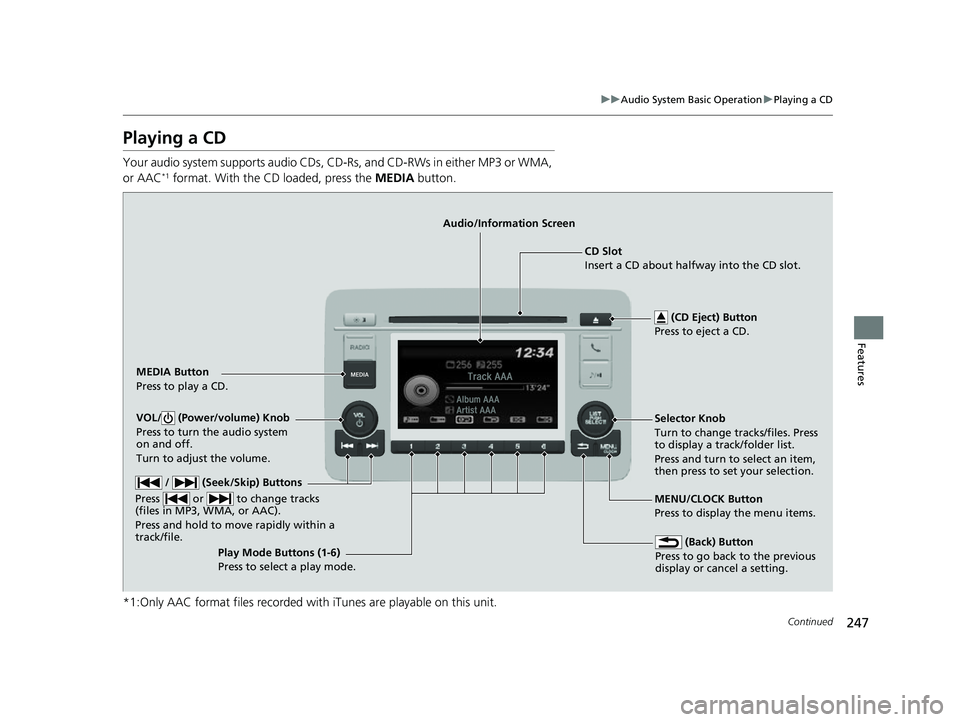
Playing a CD
Your audio system supports audio CDs, CD-Rs , and CD-RWs in either MP3 or WMA,
or AAC*1 format. With the CD loaded, press the MEDIA button.
*1:Only AAC format files recorded with iTunes are playable on this unit.
MEDIA Button
Press to play a CD. (CD Eject) Button
Press to eject a CD.
CD Slot
Insert a CD about halfway into the CD slot.
(Back) Button
Press to go back to the previous
display or cancel a setting.
/ (Seek/Skip) Buttons
Press or to change tracks
(files in MP3, WMA, or AAC).
Press and hold to mo ve rapidly within a
track/file.
VOL/ (Power/volume) Knob
Press to turn the audio system
on and off.
Turn to adjust the volume.Selector Knob
Turn to change tracks/files. Press
to display a track/folder list.
Press and turn to select an item,
then press to set your selection.
MENU/CLOCK Button
Press to display the menu items.
Audio/Information Screen
Play Mode Buttons (1-6)
Press to select
a play mode.
22 HR-V HDMC-31T7A6600.book 247 ページ 2021年4月12日 月曜日 午前10時50分
Page 252 of 641
250
uuAudio System Basic Operation uPlaying an iPod
Features
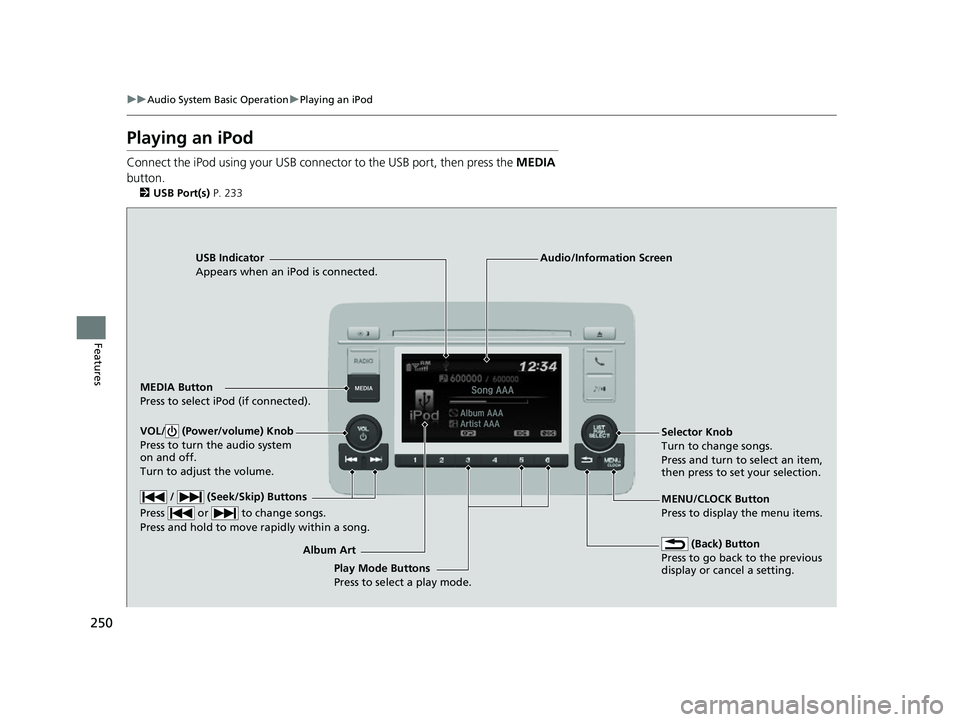
Playing an iPod
Connect the iPod using your USB connector to the USB port, then press the MEDIA
button.
2 USB Port(s) P. 233
USB Indicator
Appears when an iPod is connected.
MEDIA Button
Press to select iPod (if connected).
(Back) Button
Press to go back to the previous
display or cancel a setting.
/ (Seek/Skip) Buttons
Press or to change songs.
Press and hold to move rapidly within a song.
VOL/ (Power/volume) Knob
Press to turn the audio system
on and off.
Turn to adjust the volume.Selector Knob
Turn to change songs.
Press and turn to select an item,
then press to set your selection.
MENU/CLOCK Button
Press to display the menu items.
Audio/Information Screen
Album Art
Pla
y Mode Buttons
Press to select a play mode.
22 HR-V HDMC-31T7A6600.book 250 ページ 2021年4月12日 月曜日 午前10時50分
Page 255 of 641
253
uuAudio System Basic Operation uPlaying a USB Flash Drive
Continued
Features
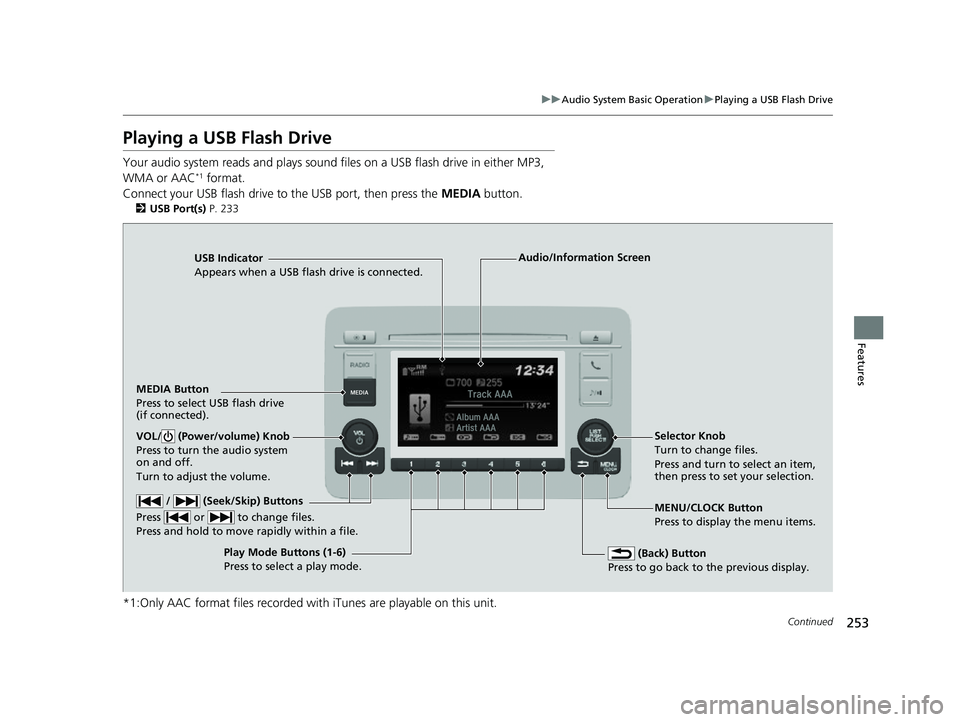
Playing a USB Flash Drive
Your audio system reads and plays sound files on a USB flash drive in either MP3,
WMA or AAC*1 format.
Connect your USB flash drive to the USB port, then press the MEDIA button.
2USB Port(s) P. 233
*1:Only AAC format files recorded with iTunes are playable on this unit.
USB Indicator
Appears when a USB flash drive is connected.
MEDIA Button
Press to select USB flash drive
(if connected).
(Back) Button
Press to go back to the previous display.
/ (Seek/Skip) Buttons
Press or to change files.
Press and hold to move rapidly within a file.
VOL/ (Power/volume) Knob
Press to turn the audio system
on and off.
Turn to adjust the volume.Selector Knob
Turn to change files.
Press and turn to select an item,
then press to set your selection.
MENU/CLOCK Button
Press to display the menu items.
Audio/Information Screen
Play Mode Buttons (1-6)
Press to s
elect a play mode.
22 HR-V HDMC-31T7A6600.book 253 ページ 2021年4月12日 月曜日 午前10時50分
Page 256 of 641
uuAudio System Basic Operation uPlaying a USB Flash Drive
254
Features
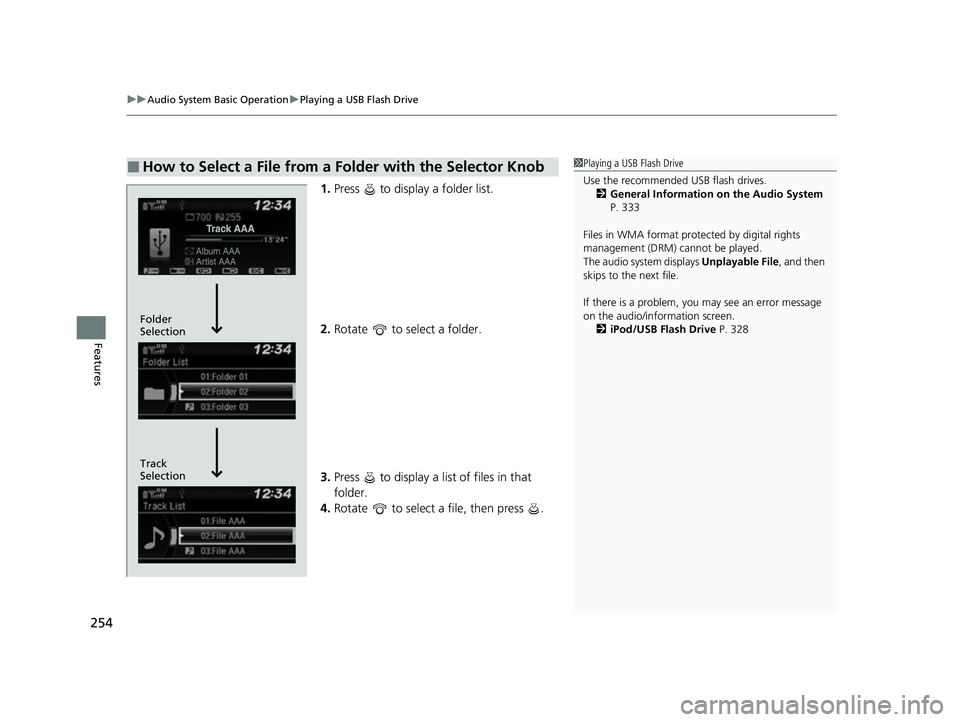
1. Press to display a folder list.
2. Rotate to select a folder.
3. Press to display a list of files in that
folder.
4. Rotate to select a file, then press .
■How to Select a File from a Folder with the Selector Knob1Playing a USB Flash Drive
Use the recommended USB flash drives.
2 General Information on the Audio System
P. 333
Files in WMA format prot ected by digital rights
management (DRM) cannot be played.
The audio system displays Unplayable File, and then
skips to the next file.
If there is a problem, you may see an error message
on the audio/information screen.
2 iPod/USB Flash Drive P. 328
Track
Selection Folder
Selection
22 HR-V HDMC-31T7A6600.book 254 ページ 2021年4月12日 月曜日 午前10時50分
Page 258 of 641
256
uuAudio System Basic Operation uPlaying Bluetooth ® Audio
Features
Playing Bluetooth ® Audio
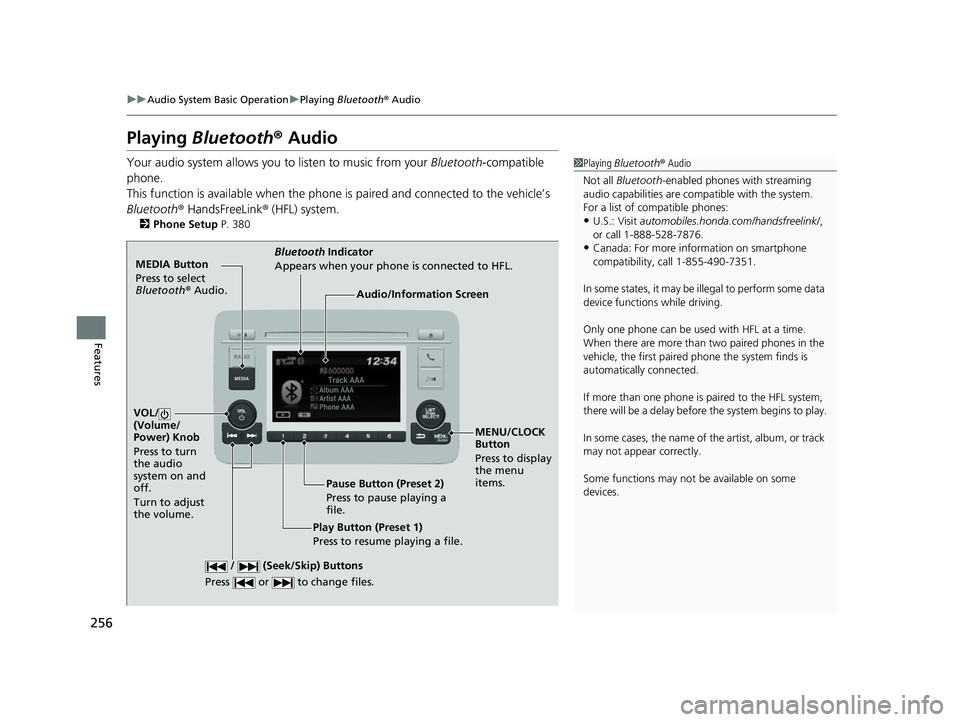
Your audio system allows you to listen to music from your Bluetooth-compatible
phone.
This function is available when the phone is paired and connected to the vehicle’s
Bluetooth ® HandsFreeLink ® (HFL) system.
2 Phone Setup P. 380
1Playing Bluetooth ® Audio
Not all Bluetooth-enabled phones with streaming
audio capabilities are compatible with the system.
For a list of compatible phones:
•U.S.: Visit automobiles.honda.com /handsfreelink/,
or call 1-888-528-7876.
•Canada: For more info rmation on smartphone
compatibility, call 1-855-490-7351.
In some states, it may be il legal to perform some data
device functions while driving.
Only one phone can be used with HFL at a time.
When there are more than two paired phones in the
vehicle, the first paired phone the system finds is
automatically connected.
If more than one phone is paired to the HFL system,
there will be a delay before the system begins to play.
In some cases, the name of the artist, album, or track
may not appear correctly.
Some functions may not be available on some
devices.
MEDIA Button
Press to select
Bluetooth ® Audio.
VOL/
(Volume/
Power) Knob
Press to turn
the audio
system on and
off.
Turn to adjust
the volume.
MENU/CLOCK
Button
Press to display
the menu
items.
Audio/Information Screen
Bluetooth Ind
icator
Appe ars
when your phone is connected to HFL.
/ (Seek/Skip) Buttons
Press or to change files.
Play Button (Preset 1)
Press to resume playing a file. Pause Button (Preset 2)
Press to pause playing a
file.
22 HR-V HDMC-31T7A6600.book 256 ページ 2021年4月12日 月曜日 午前10時50分
Page 261 of 641
259
Features
Audio System Basic Operation
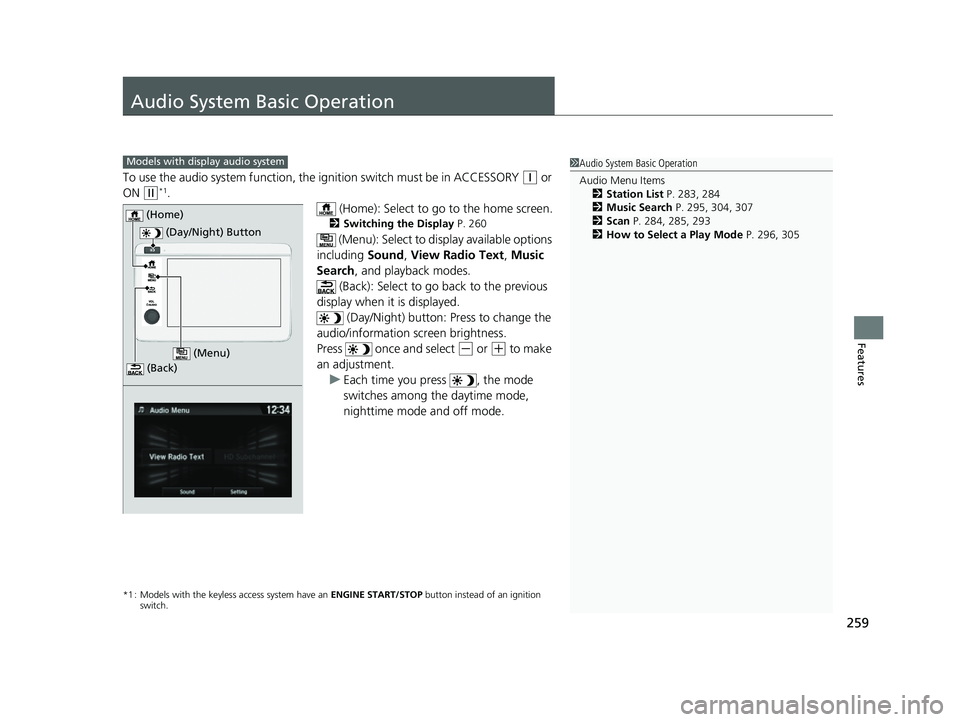
To use the audio system function, the ignition swit ch must be in ACCESSORY (q or
ON
(w*1.
(Home): Select to go to the home screen.
2Switching the Display P. 260
(Menu): Select to display available options
including Sound, View Radio Text , Music
Search , and playback modes.
(Back): Select to go back to the previous
display when it is displayed. (Day/Night) button: Press to change the
audio/information screen brightness.
Press once and select
(- or (+ to make
an adjustment. u Each time you press , the mode
switches among the daytime mode,
nighttime mode and off mode.
*1 : Models with the keyless access system have an ENGINE START/STOP button instead of an ignition
switch.
1 Audio System Basic Operation
Audio Menu Items
2 Station List P. 283, 284
2 Music Search P. 295, 304, 307
2 Scan P. 284, 285, 293
2 How to Select a Play Mode P. 296, 305Models with display audio system
(Day/Night) Button
(Home)
(Menu)
(Back)
22 HR-V HDMC-31T7A6600.book 259 ページ 2021年4月12日 月曜日 午前10時50分