USB HONDA HRV 2023 User Guide
[x] Cancel search | Manufacturer: HONDA, Model Year: 2023, Model line: HRV, Model: HONDA HRV 2023Pages: 664, PDF Size: 20.2 MB
Page 227 of 664
Continued225
uuAudio System Basic Operation uPlaying an iPod
Features
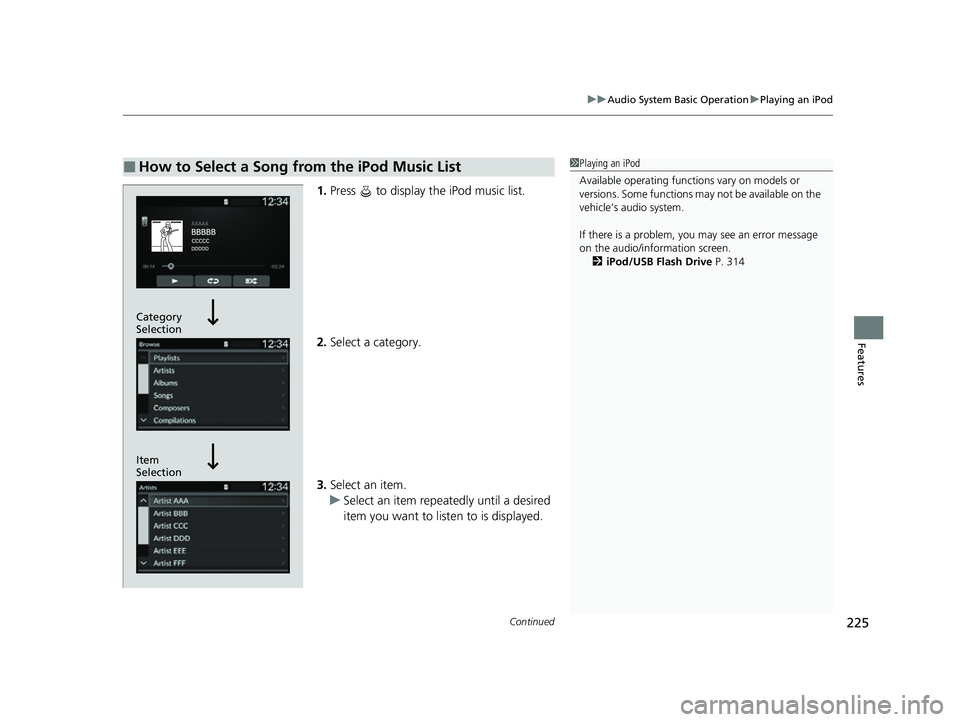
1. Press to display the iPod music list.
2. Select a category.
3. Select an item.
u Select an item repeatedly until a desired
item you want to listen to is displayed.
■How to Select a Song from the iPod Music List1Playing an iPod
Available operating functi ons vary on models or
versions. Some functions ma y not be available on the
vehicle’s audio system.
If there is a problem, you may see an error message
on the audio/information screen. 2 iPod/USB Flash Drive P. 314
Item
Selection Category
Selection
23 HR-V-313V06000_01.book 225 ページ 2022年4月4日 月曜日 午前10時49分
Page 229 of 664
227
uuAudio System Basic Operation uPlaying a USB Flash Drive
Continued
Features
Playing a USB Flash Drive
Your audio system reads and plays sound files on a USB flash drive in either MP3,
WMA, AAC, FLAC, or WAV format.
Connect your USB flash drive to the USB port, then press the MEDIA button.
2USB Ports P. 213
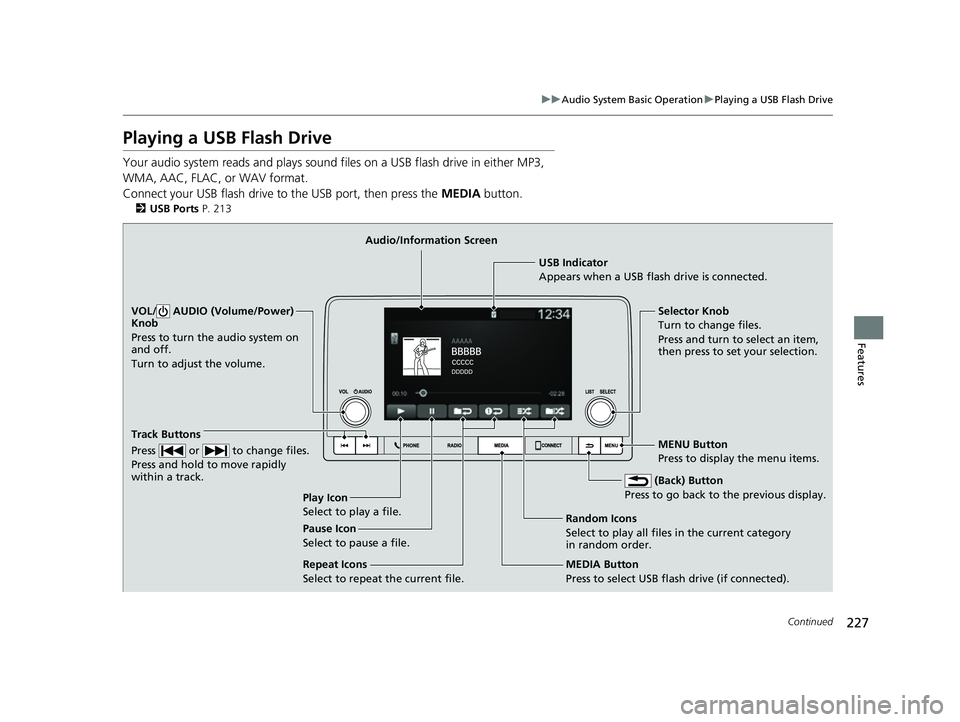
USB Indicator
Appears when a USB flash drive is connected.
MEDIA Button
Press to select USB flash drive (if connected). (Back) Button
Press to go back to the previous display.
Track Buttons
Press or to change files.
Press and hold to move rapidly
within a track.
VOL/ AUDIO (Volume/Power)
Knob
Press to turn the audio system on
and off.
Turn to adjust the volume.Selector Knob
Turn to change files.
Press and turn to select an item,
then press to set your selection.
MENU Button
Press to display the menu items.
Audio/Information Screen
Play Icon
Select to play a f ile
. Random Icons
Select to play all files in the current category
in random order.
Pause Icon
Select to pause a file.
Repeat Icons
Select to repeat the current file.
23 HR-V-313V06000_01.book 227 ページ 2022年4月4日 月曜日 午前10時49分
Page 230 of 664
uuAudio System Basic Operation uPlaying a USB Flash Drive
228
Features
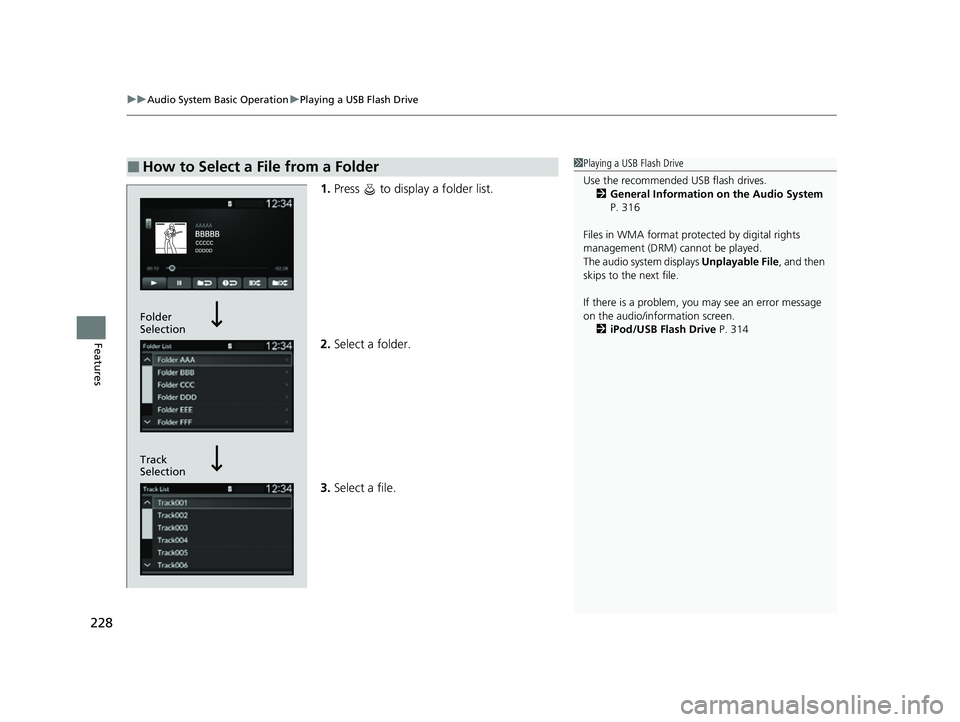
1. Press to display a folder list.
2. Select a folder.
3. Select a file.
■How to Select a File from a Folder1Playing a USB Flash Drive
Use the recommended USB flash drives.
2 General Information on the Audio System
P. 316
Files in WMA format prot ected by digital rights
management (DRM) cannot be played.
The audio system displays Unplayable File, and then
skips to the next file.
If there is a problem, you may see an error message
on the audio/information screen.
2 iPod/USB Flash Drive P. 314
Track
Selection Folder
Selection
23 HR-V-313V06000_01.book 228 ページ 2022年4月4日 月曜日 午前10時49分
Page 231 of 664
229
uuAudio System Basic Operation uPlaying a USB Flash Drive
Features
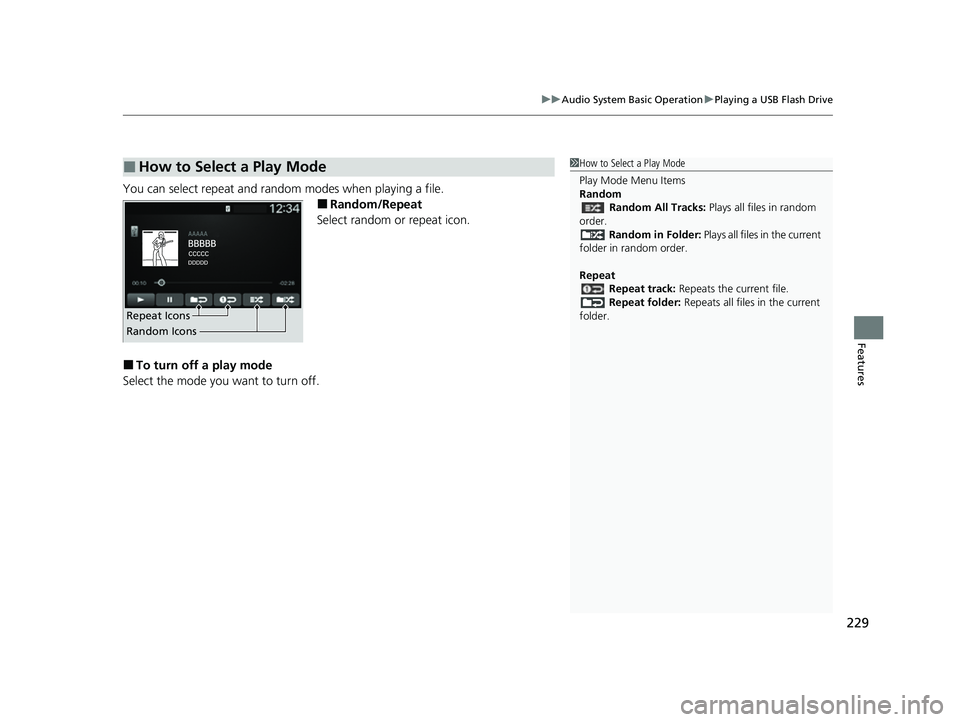
You can select repeat and random modes when playing a file.
■Random/Repeat
Select random or repeat icon.
■To turn off a play mode
Select the mode you want to turn off.
■How to Select a Play Mode1 How to Select a Play Mode
Play Mode Menu Items
Random
Random All Tracks: Plays all files in random
order. Random in Folder: Plays all files in the current
folder in random order.
Repeat Repeat track: Repeats the current file.
Repeat folder: Repeats all files in the current
folder.
Repeat Icons
Random Icons
23 HR-V-313V06000_01.book 229 ページ 2022年4月4日 月曜日 午前10時49分
Page 233 of 664
Continued231
uuAudio System Basic Operation uPlaying Bluetooth ® Audio
Features
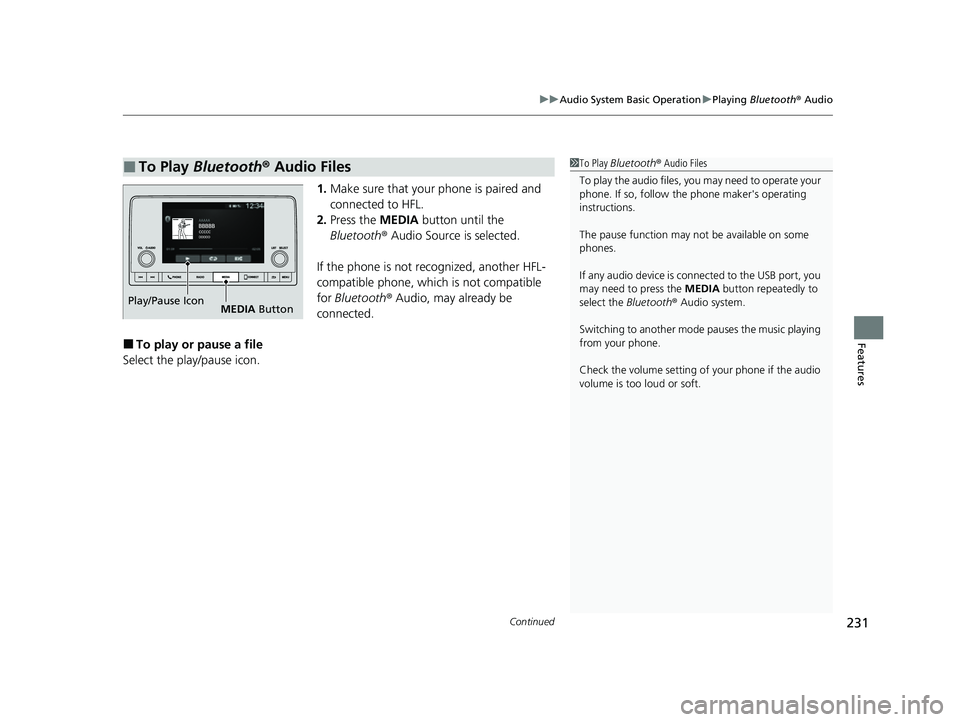
1. Make sure that your phone is paired and
connected to HFL.
2. Press the MEDIA button until the
Bluetooth ® Audio Source is selected.
If the phone is not recognized, another HFL-
compatible phone, which is not compatible
for Bluetooth ® Audio, may already be
connected.
■To play or pause a file
Select the play/pause icon.
■To Play Bluetooth® Audio Files1To Play Bluetooth ® Audio Files
To play the audio files, y ou may need to operate your
phone. If so, follow the phone maker's operating
instructions.
The pause function may no t be available on some
phones.
If any audio device is connected to the USB port, you
may need to press the MEDIA button repeatedly to
select the Bluetooth® Audio system.
Switching to another mode pauses the music playing
from your phone.
Check the volume setting of your phone if the audio
volume is too loud or soft.
Play/Pause Icon MEDIA Button
23 HR-V-313V06000_01.book 231 ページ 2022年4月4日 月曜日 午前10時49分
Page 238 of 664
236
uuAudio System Basic Operation uApple CarPlay
Features
Apple CarPlay
If you connect an Apple CarPlay-compatible iPhone to the system via the USB port,
you can use the audio/information screen, instead of the iPhone display, to make a
phone call, listen to musi c, view maps (navigation), and access messages.
2USB Ports P. 213
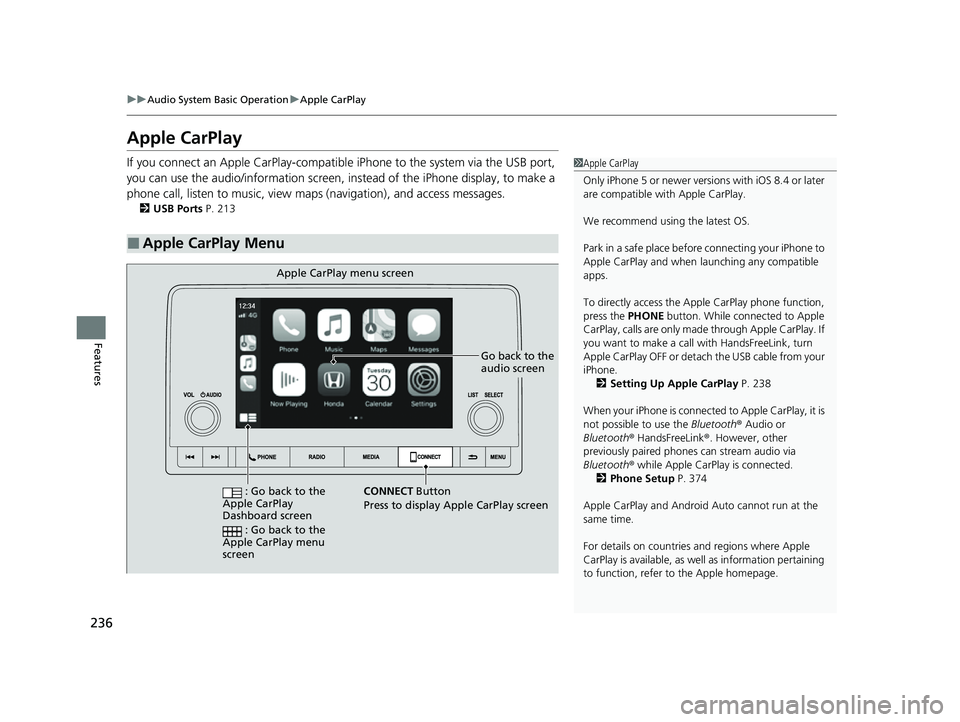
■Apple CarPlay Menu
1Apple CarPlay
Only iPhone 5 or newer versi ons with iOS 8.4 or later
are compatible with Apple CarPlay.
We recommend using the latest OS.
Park in a safe place before connecting your iPhone to
Apple CarPlay and when launching any compatible
apps.
To directly access the Appl e CarPlay phone function,
press the PHONE button. While connected to Apple
CarPlay, calls are only made through Apple CarPlay. If
you want to make a call with HandsFreeLink, turn
Apple CarPlay OFF or detach the USB cable from your
iPhone. 2 Setting Up Apple CarPlay P. 238
When your iPhone is connected to Apple CarPlay, it is
not possible to use the Bluetooth® Audio or
Bluetooth ® HandsFreeLink ®. However, other
previously paired phones can stream audio via
Bluetooth ® while Apple CarPlay is connected.
2 Phone Setup P. 374
Apple CarPlay and Android Auto cannot run at the
same time.
For details on c ountries and regions where Apple
CarPlay is available, as well as information pertaining
to function, refer to the Apple homepage.
Go back to the
audio screen
CONNECT Button
Press to
display Apple CarPlay screen
Apple CarPlay menu screen
: Go back to the
Apple CarPlay
Dashboard screen
: Go back to the
Apple CarPlay menu
screen
23 HR-V-313V06000_01.book 236 ページ 2022年4月4日 月曜日 午前10時49分
Page 240 of 664
uuAudio System Basic Operation uApple CarPlay
238
Features
After you have connected your iPhone to the system via the USB port, use the
following procedure to set up Apple CarPlay. Use of Apple CarPlay will result in the
transmission of certain user and vehicle information (such as vehicle location, speed,
and status) to your iPhone to enhance th e Apple CarPlay experience. You will need
to consent to the sharing of this information on the audio/information screen.
1. Connect the iPhone to the USB port using the USB cable.
2 USB Ports P. 213
uThe confirmation screen will be displayed.
2. Select Yes.
u If you do not want to connect Apple CarPlay, select No.
You may change the consent settings under the Smartphone Settings menu.
■Setting Up Apple CarPlay
■Connecting Apple CarPlay Using the USB Cable to the USB Port
1Setting Up Apple CarPlay
Only initialize Apple CarPlay when you are safely
parked.
When Apple CarPlay first detects your iPhone, you
will need to set up your iPhone. Refer to the
instruction manual that came with your iPhone.
You can use the following procedure to disconnect or
delete the devices conn ecting Apple CarPlay:
Press the MENU button
Select Smartphone Settings Apple CarPlay
Select device
Use of user and vehicle information
The use and handling of user and vehicle information
transmitted to/from your iP hone by Apple CarPlay is
governed by the Apple iOS terms and conditions and
Apple’s Privacy Policy.
23 HR-V-313V06000_01.book 238 ページ 2022年4月4日 月曜日 午前10時49分
Page 242 of 664
240
uuAudio System Basic Operation uAndroid AutoTM
Features
Android AutoTM
When you connect an Android phone to the audio system via the USB port, Android
Auto is automatically initia ted. When connected via Android Auto, you can use the
audio/information screen to access th e Phone, Google Maps (Navigation), and
Google Now functions. When you first use Android Auto, a tutorial will appear on
the screen.
We recommend that you complete this tuto rial while safely parked before using
Android Auto.
2 USB Ports P. 213
2 Auto Pairing Connection P. 242
1Android AutoTM
We recommend that you upda te Android OS to the
latest version when using Android Auto.
Bluetooth A2DP cannot be used while your phone is
connected to Android Auto.
To use Android Auto on a smartphone with Android
9.0 (Pie) or earl ier, you need to download the
Android Auto app from Google Play to your
smartphone.
Park in a safe place befo re connecting your Android
phone to Android Auto and when launching any
compatible apps.
When your Android phone is connected to Android
Auto, it is not possible to use the Bluetooth® Audio.
However, other previously paired phones can stream
audio via Bluetooth ® while Android Auto is
connected. 2 Phone Setup P. 374
Apple CarPlay and Android Auto cannot run at the
same time.
Android Auto is a trademark of Google LLC.
23 HR-V-313V06000_01.book 240 ページ 2022年4月4日 月曜日 午前10時49分
Page 244 of 664
uuAudio System Basic Operation uAndroid AutoTM
242
Features
•
You can check Android notifications.
• (Android Auto Home)
Display useful information organized by Android Auto into simple cards that
appear just when they’re needed.
When you connect an Android phone to the unit via the USB port, Android Auto is
automatically initiated.
To enable Android Auto after connecting an Android phone to the system, select
Yes on the screen.
You may change the consent settings under the Smartphone Settings menu.
■Auto Pairing Connection
■Connecting Android Auto Using the USB Cable to the USB Port1Connecting Android Auto Using the USB Cable to the USB Port
Only initialize Android Auto when you are safely
parked. When Android Auto first detects your phone,
you will need to set up your phone so that auto
pairing is possibl e. Refer to the instruction manual
that came with your phone.
You can use the following procedure to disconnect or
delete the devices connecting Android Auto after you
have completed the initial setup:
Press the MENU button
Select Smartphone Settings Android Auto
Select device
Use of user and vehicle information
The use and handling of user and vehicle information
transmitted to/from your phone by Android Auto is
governed by the Google’s Privacy Policy.
23 HR-V-313V06000_01.book 242 ページ 2022年4月4日 月曜日 午前10時49分
Page 248 of 664
246
uuAudio System Basic Operation uAudio/Information Screen
Features
Audio/Information Screen
Displays the audio status and wallpaper. From this display, you can go to various
setup options.
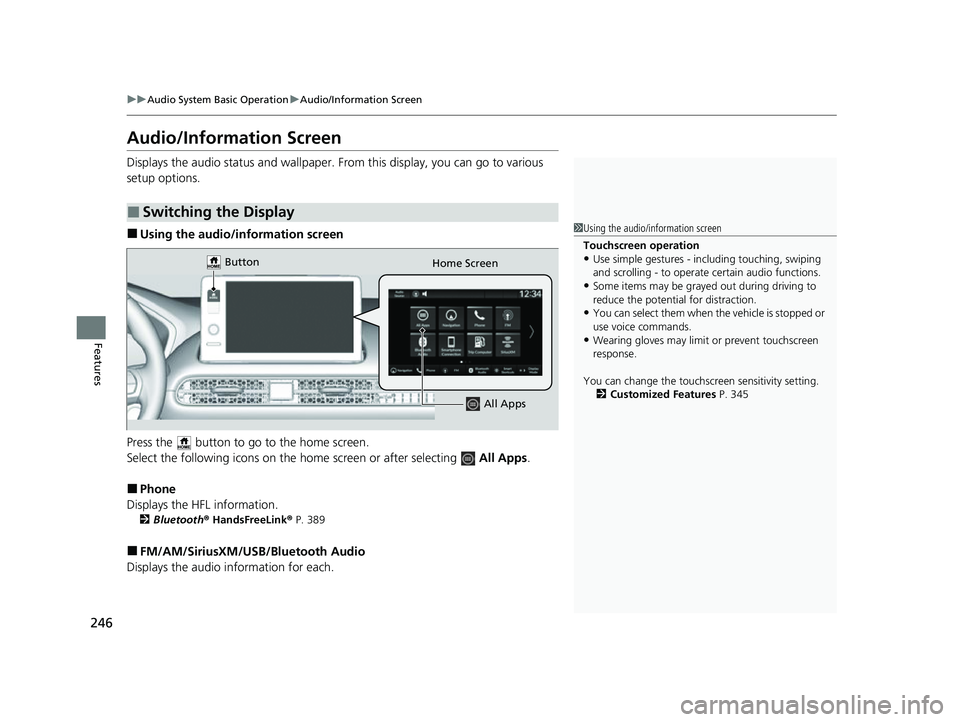
■Using the audio/information screen
Press the button to go to the home screen.
Select the following icons on the hom e screen or after selecting All Apps.
■Phone
Displays the HFL information.
2 Bluetooth ® HandsFreeLink ® P. 389
■FM/AM/SiriusXM/USB /Bluetooth Audio
Displays the audio information for each.
■Switching the Display
1Using the audio/in formation screen
Touchscreen operation
•Use simple gestures - in cluding touching, swiping
and scrolling - to operate certain audio functions.
•Some items may be grayed out during driving to
reduce the potential for distraction.
•You can select them when the vehicle is stopped or
use voice commands.
•Wearing gloves may limit or prevent touchscreen
response.
You can change the touchs creen sensitivity setting.
2 Customized Features P. 345
Home Screen
Button
All Apps
23 HR-V-313V06000_01.book 246 ページ 2022年4月4日 月曜日 午前10時49分