USB port HONDA HRV 2023 Owners Manual
[x] Cancel search | Manufacturer: HONDA, Model Year: 2023, Model line: HRV, Model: HONDA HRV 2023Pages: 664, PDF Size: 20.2 MB
Page 12 of 664
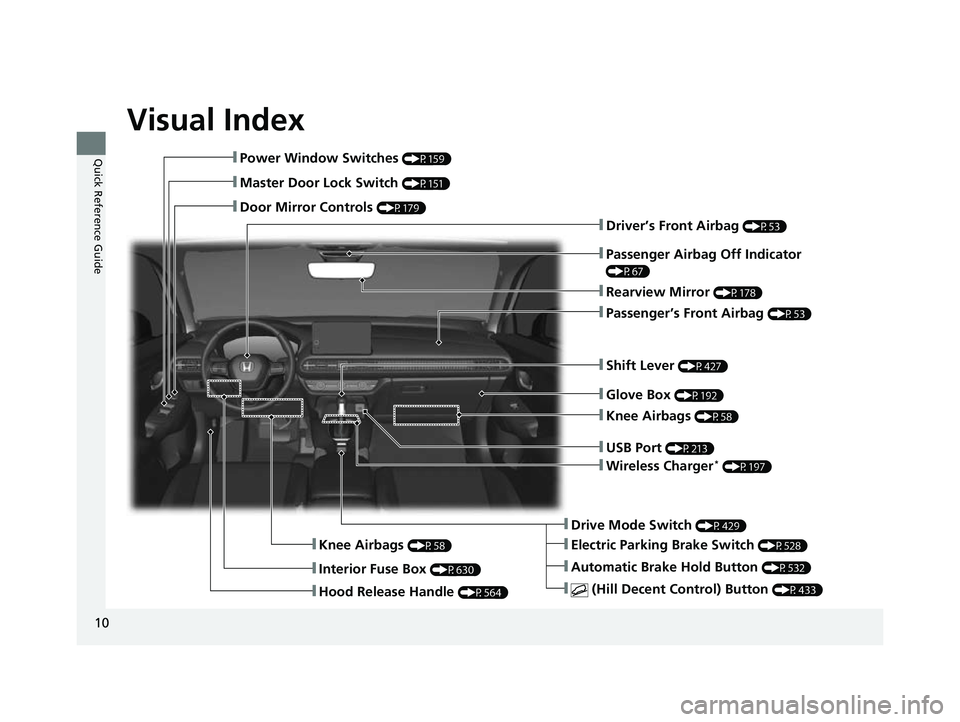
Visual Index
10
Quick Reference Guide❚Power Window Switches (P159)
❚Master Door Lock Switch (P151)
❚Door Mirror Controls (P179)
❚Interior Fuse Box (P630)
❚Hood Release Handle (P564)
❚Driver’s Front Airbag (P53)
❚Passenger’s Front Airbag (P53)
❚Drive Mode Switch (P429)
❚ (Hill Decent Control) Button (P433)
❚Rearview Mirror (P178)
❚Automatic Brake Hold Button (P532)
❚Electric Parking Brake Switch (P528)
❚Glove Box (P192)
❚Shift Lever (P427)
❚USB Port (P213)
❚Knee Airbags (P58)
❚Knee Airbags (P58)
❚Passenger Airbag Off Indicator
(P67)
❚Wireless Charger* (P197)
23 HR-V-313V06000_01.book 10 ページ 2022年4月4日 月曜日 午前10時49分
Page 13 of 664
11
Quick Reference Guide
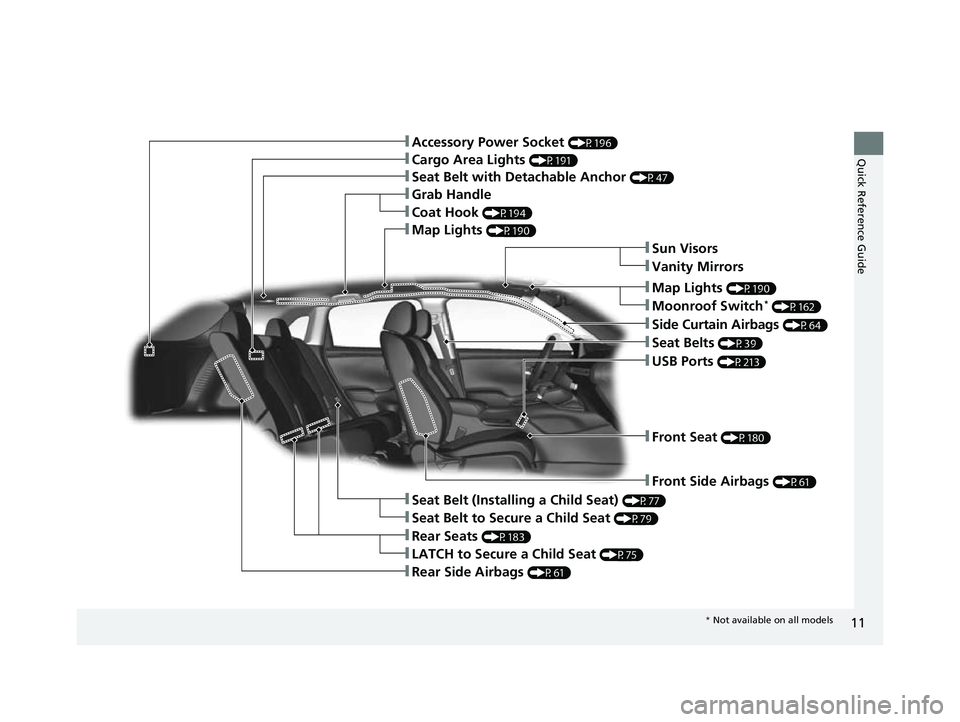
❚Seat Belt (Installing a Child Seat) (P77)
❚Sun Visors
❚Vanity Mirrors
❚Map Lights (P190)
❚Moonroof Switch* (P162)
❚Seat Belts (P39)
❚Front Seat (P180)
❚Front Side Airbags (P61)
❚USB Ports (P213)
❚Cargo Area Lights (P191)
❚Seat Belt with Detachable Anchor (P47)
❚Accessory Power Socket (P196)
❚Grab Handle
❚Coat Hook (P194)
❚Seat Belt to Secure a Child Seat (P79)
❚LATCH to Secure a Child Seat (P75)
❚Rear Seats (P183)
❚Rear Side Airbags (P61)
❚Map Lights (P190)
❚Side Curtain Airbags (P64)
* Not available on all models
23 HR-V-313V06000_01.book 11 ページ 2022年4月4日 月曜日 午前10時49分
Page 213 of 664
211
Features
This chapter describes how to operate technology features.
Audio System
About Your Audio System ................ 212
USB Ports ......................................... 213
Audio System Theft Protection ......... 214
Audio Remote Controls .................... 215
Audio System Basic Operation ........ 219
Adjusting the Sound ........................ 220
Display Setup ................................... 221
Playing AM/FM Radio ....................... 222
Playing an iPod ................................ 224
Playing a USB Flash Drive ................. 227
Playing Bluetooth ® Audio ................. 230
Siri Eyes Free .................................... 234
Models with 7-in. Color Touchscreen
Smartphone Voice Recognition ........ 23T
Apple CarPlay .................................. 23U
Android Auto
TM................................ 24O
Audio System Basic Operation ........ 244
Start Up ........................................... 245
Audio/Information Screen ................ 246
System Updates ............................... 257
Adjusting the Sound ........................ 263
Display Setup ................................... 264
Voice Control Operation .................. 266
Playing AM/FM Radio ....................... 269
Playing SiriusXM ® Radio ................... 273
Playing an iPod ................................ 284Models with 9-in. Color Touchscreen
Playing a USB Flash Drive ................M 28V
Playing Bluetooth ® Audio ................ 290
HondaLink ®..................................... 293
Smart Shortcuts ............................... 297
Wi-Fi Connection ............................. 300
Apple CarPlay .................................. 301
Android Auto
TM............................... 308
Audio Error Messages ...................... 314
General Information on the Audio System ............................................. 316
Customized Features ................ 337, 345
Bluetooth® HandsFreeLink® ..... 369, 389
Refuel Recommend .......................... 408
23 HR-V-313V06000_01.book 211 ページ 2022年4月4日 月曜日 午前10時49分
Page 215 of 664
213
uuAudio System uUSB Ports
Features
USB Ports
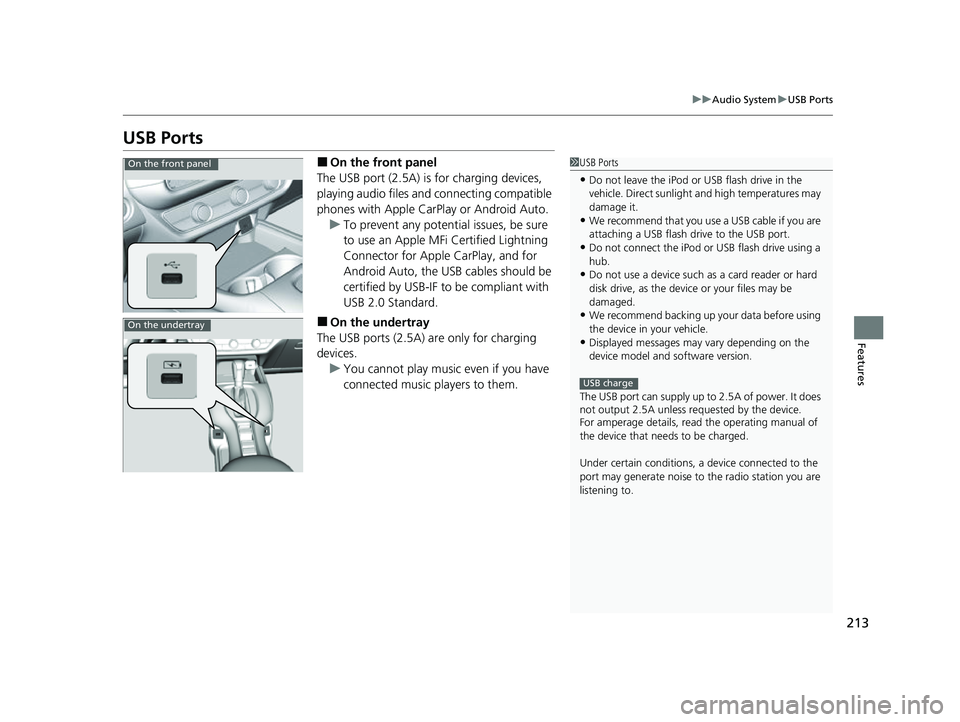
■On the front panel
The USB port (2.5A) is for charging devices,
playing audio files and connecting compatible
phones with Apple CarPlay or Android Auto. u To prevent any potenti al issues, be sure
to use an Apple MFi Certified Lightning
Connector for Apple CarPlay, and for
Android Auto, the USB cables should be
certified by USB-IF to be compliant with
USB 2.0 Standard.
■On the undertray
The USB ports (2.5A) are only for charging
devices. u You cannot play music even if you have
connected music players to them.
1USB Ports
•Do not leave the iPod or USB flash drive in the
vehicle. Direct sunlight and high temperatures may
damage it.
•We recommend that you us e a USB cable if you are
attaching a USB flash drive to the USB port.
•Do not connect the iPod or USB flash drive using a
hub.
•Do not use a device such as a card reader or hard
disk drive, as the device or your files may be
damaged.
•We recommend backing up yo ur data before using
the device in your vehicle.
•Displayed messages may vary depending on the
device model and software version.
The USB port can supply up to 2.5A of power. It does
not output 2.5A unless requested by the device.
For amperage details, read the operating manual of
the device that ne eds to be charged.
Under certain condi tions, a device connected to the
port may generate noise to the radio station you are
listening to.
USB charge
On the front panel
On the undertray
23 HR-V-313V06000_01.book 213 ページ 2022年4月4日 月曜日 午前10時49分
Page 226 of 664
224
uuAudio System Basic Operation uPlaying an iPod
Features
Playing an iPod
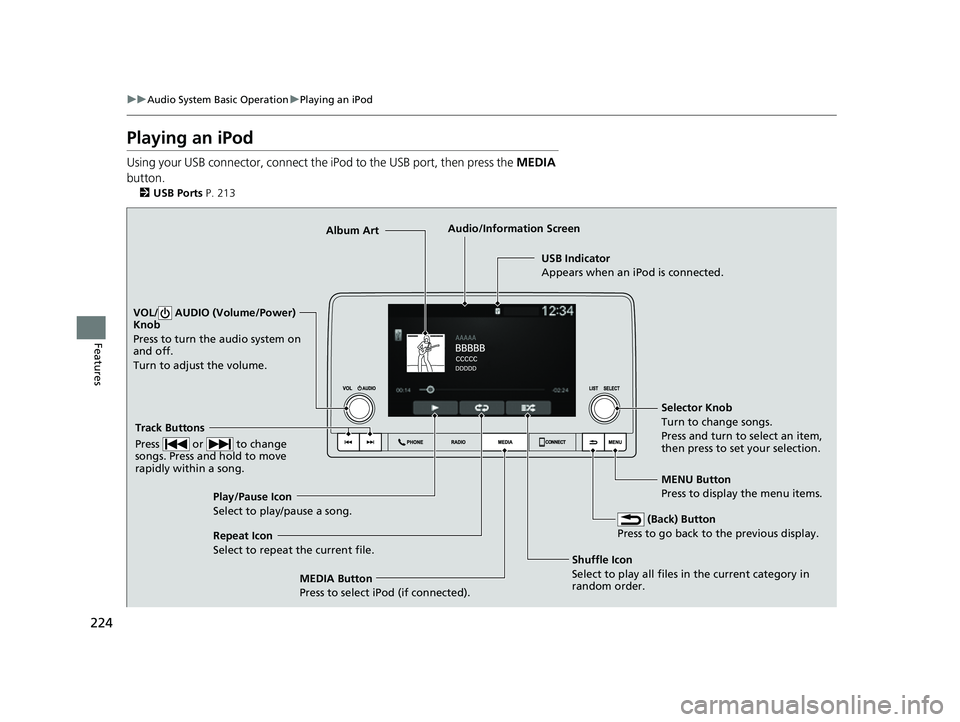
Using your USB connector, connect the iPod to the USB port, then press the MEDIA
button.
2 USB Ports P. 213
USB Indicator
Appears when an iPod is connected.
MEDIA Button
Press to select iPod (if connected). (Back) Button
Press to go back to the previous display.
Track Buttons
Press or to change
songs. Press and hold to move
rapidly within a song.
VOL/ AUDIO (Volume/Power)
Knob
Press to turn the audio system on
and off.
Turn to adjust the volume.
Selector Knob
Turn to change songs.
Press and turn to select an item,
then press to set your selection.
MENU Button
Press to display the menu items.
Audio/Information Screen
Album Art
Shu
ffle Icon
Select to play all files in
the current category in
random order.
Play/Pause Icon
Select to play/pause a song.
Repeat Icon
Select to repeat the current file.
23 HR-V-313V06000_01.book 224 ページ 2022年4月4日 月曜日 午前10時49分
Page 229 of 664
227
uuAudio System Basic Operation uPlaying a USB Flash Drive
Continued
Features
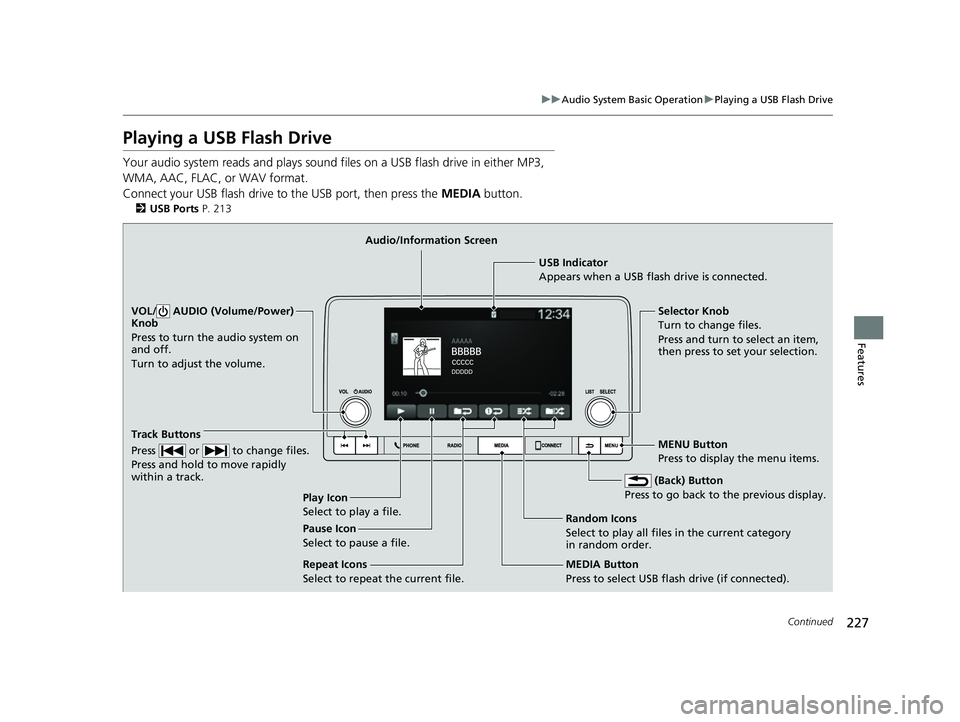
Playing a USB Flash Drive
Your audio system reads and plays sound files on a USB flash drive in either MP3,
WMA, AAC, FLAC, or WAV format.
Connect your USB flash drive to the USB port, then press the MEDIA button.
2USB Ports P. 213
USB Indicator
Appears when a USB flash drive is connected.
MEDIA Button
Press to select USB flash drive (if connected). (Back) Button
Press to go back to the previous display.
Track Buttons
Press or to change files.
Press and hold to move rapidly
within a track.
VOL/ AUDIO (Volume/Power)
Knob
Press to turn the audio system on
and off.
Turn to adjust the volume.Selector Knob
Turn to change files.
Press and turn to select an item,
then press to set your selection.
MENU Button
Press to display the menu items.
Audio/Information Screen
Play Icon
Select to play a f ile
. Random Icons
Select to play all files in the current category
in random order.
Pause Icon
Select to pause a file.
Repeat Icons
Select to repeat the current file.
23 HR-V-313V06000_01.book 227 ページ 2022年4月4日 月曜日 午前10時49分
Page 233 of 664
Continued231
uuAudio System Basic Operation uPlaying Bluetooth ® Audio
Features
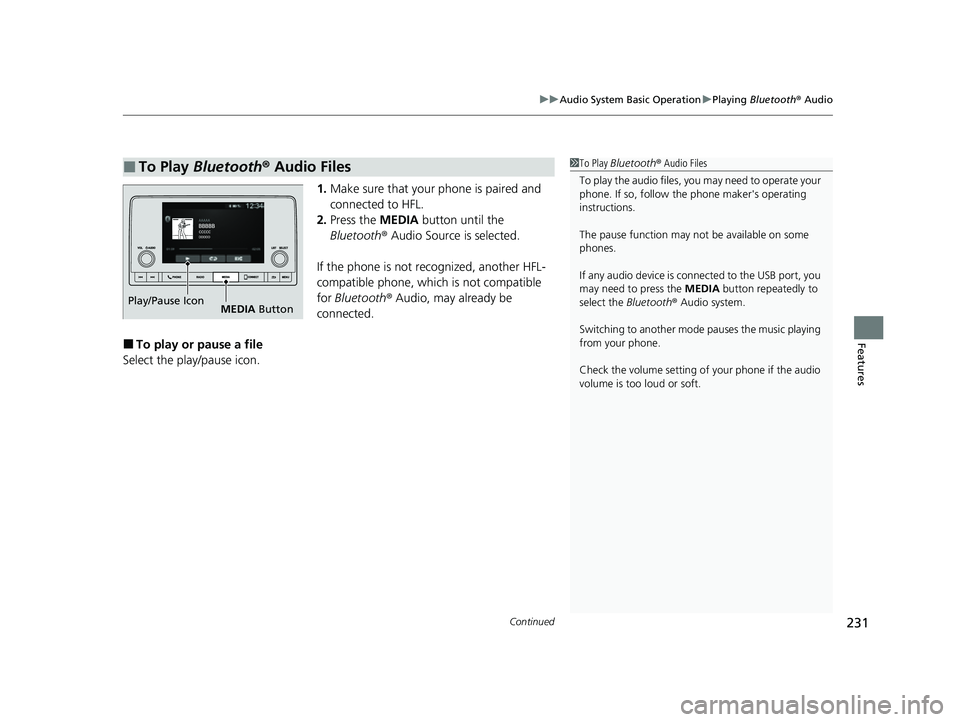
1. Make sure that your phone is paired and
connected to HFL.
2. Press the MEDIA button until the
Bluetooth ® Audio Source is selected.
If the phone is not recognized, another HFL-
compatible phone, which is not compatible
for Bluetooth ® Audio, may already be
connected.
■To play or pause a file
Select the play/pause icon.
■To Play Bluetooth® Audio Files1To Play Bluetooth ® Audio Files
To play the audio files, y ou may need to operate your
phone. If so, follow the phone maker's operating
instructions.
The pause function may no t be available on some
phones.
If any audio device is connected to the USB port, you
may need to press the MEDIA button repeatedly to
select the Bluetooth® Audio system.
Switching to another mode pauses the music playing
from your phone.
Check the volume setting of your phone if the audio
volume is too loud or soft.
Play/Pause Icon MEDIA Button
23 HR-V-313V06000_01.book 231 ページ 2022年4月4日 月曜日 午前10時49分
Page 238 of 664
236
uuAudio System Basic Operation uApple CarPlay
Features
Apple CarPlay
If you connect an Apple CarPlay-compatible iPhone to the system via the USB port,
you can use the audio/information screen, instead of the iPhone display, to make a
phone call, listen to musi c, view maps (navigation), and access messages.
2USB Ports P. 213
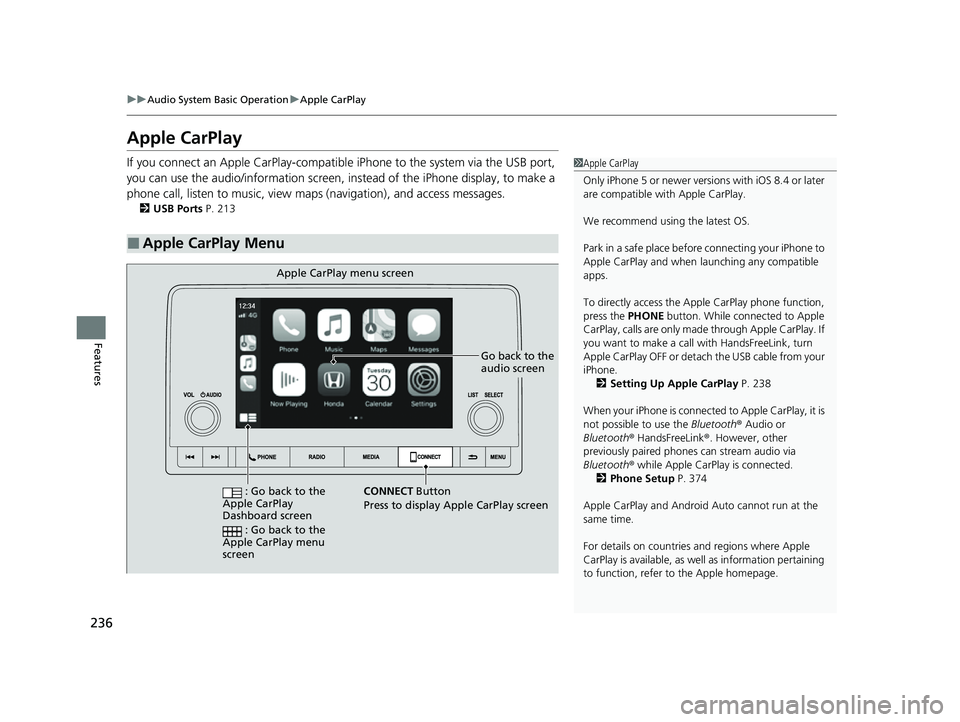
■Apple CarPlay Menu
1Apple CarPlay
Only iPhone 5 or newer versi ons with iOS 8.4 or later
are compatible with Apple CarPlay.
We recommend using the latest OS.
Park in a safe place before connecting your iPhone to
Apple CarPlay and when launching any compatible
apps.
To directly access the Appl e CarPlay phone function,
press the PHONE button. While connected to Apple
CarPlay, calls are only made through Apple CarPlay. If
you want to make a call with HandsFreeLink, turn
Apple CarPlay OFF or detach the USB cable from your
iPhone. 2 Setting Up Apple CarPlay P. 238
When your iPhone is connected to Apple CarPlay, it is
not possible to use the Bluetooth® Audio or
Bluetooth ® HandsFreeLink ®. However, other
previously paired phones can stream audio via
Bluetooth ® while Apple CarPlay is connected.
2 Phone Setup P. 374
Apple CarPlay and Android Auto cannot run at the
same time.
For details on c ountries and regions where Apple
CarPlay is available, as well as information pertaining
to function, refer to the Apple homepage.
Go back to the
audio screen
CONNECT Button
Press to
display Apple CarPlay screen
Apple CarPlay menu screen
: Go back to the
Apple CarPlay
Dashboard screen
: Go back to the
Apple CarPlay menu
screen
23 HR-V-313V06000_01.book 236 ページ 2022年4月4日 月曜日 午前10時49分
Page 240 of 664
uuAudio System Basic Operation uApple CarPlay
238
Features
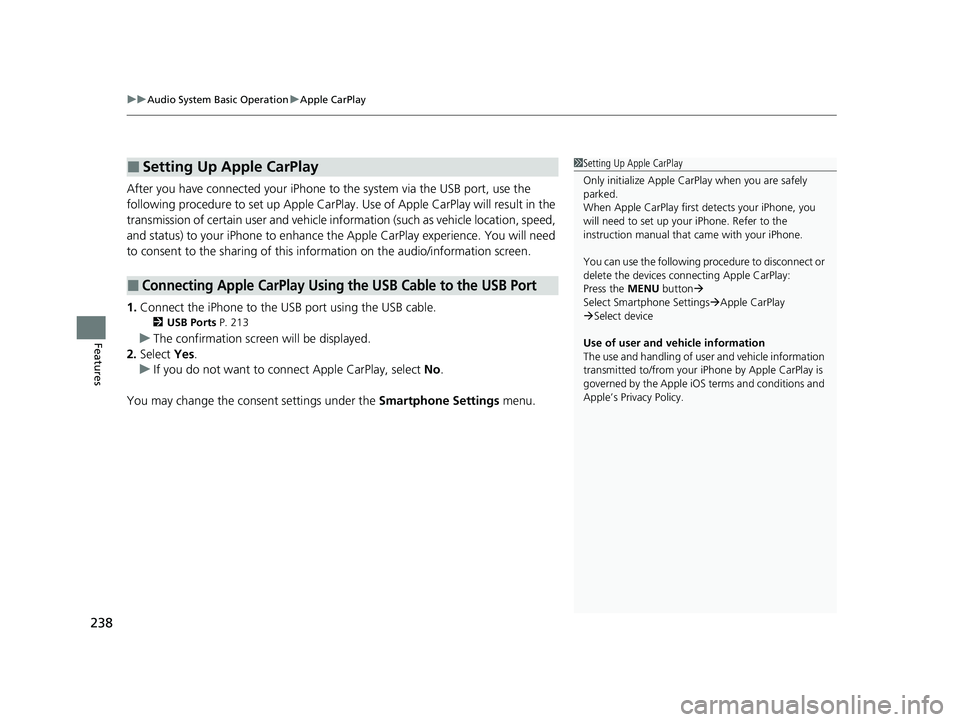
After you have connected your iPhone to the system via the USB port, use the
following procedure to set up Apple CarPlay. Use of Apple CarPlay will result in the
transmission of certain user and vehicle information (such as vehicle location, speed,
and status) to your iPhone to enhance th e Apple CarPlay experience. You will need
to consent to the sharing of this information on the audio/information screen.
1. Connect the iPhone to the USB port using the USB cable.
2 USB Ports P. 213
uThe confirmation screen will be displayed.
2. Select Yes.
u If you do not want to connect Apple CarPlay, select No.
You may change the consent settings under the Smartphone Settings menu.
■Setting Up Apple CarPlay
■Connecting Apple CarPlay Using the USB Cable to the USB Port
1Setting Up Apple CarPlay
Only initialize Apple CarPlay when you are safely
parked.
When Apple CarPlay first detects your iPhone, you
will need to set up your iPhone. Refer to the
instruction manual that came with your iPhone.
You can use the following procedure to disconnect or
delete the devices conn ecting Apple CarPlay:
Press the MENU button
Select Smartphone Settings Apple CarPlay
Select device
Use of user and vehicle information
The use and handling of user and vehicle information
transmitted to/from your iP hone by Apple CarPlay is
governed by the Apple iOS terms and conditions and
Apple’s Privacy Policy.
23 HR-V-313V06000_01.book 238 ページ 2022年4月4日 月曜日 午前10時49分
Page 242 of 664
240
uuAudio System Basic Operation uAndroid AutoTM
Features
Android AutoTM
When you connect an Android phone to the audio system via the USB port, Android
Auto is automatically initia ted. When connected via Android Auto, you can use the
audio/information screen to access th e Phone, Google Maps (Navigation), and
Google Now functions. When you first use Android Auto, a tutorial will appear on
the screen.
We recommend that you complete this tuto rial while safely parked before using
Android Auto.
2 USB Ports P. 213
2 Auto Pairing Connection P. 242
1Android AutoTM
We recommend that you upda te Android OS to the
latest version when using Android Auto.
Bluetooth A2DP cannot be used while your phone is
connected to Android Auto.
To use Android Auto on a smartphone with Android
9.0 (Pie) or earl ier, you need to download the
Android Auto app from Google Play to your
smartphone.
Park in a safe place befo re connecting your Android
phone to Android Auto and when launching any
compatible apps.
When your Android phone is connected to Android
Auto, it is not possible to use the Bluetooth® Audio.
However, other previously paired phones can stream
audio via Bluetooth ® while Android Auto is
connected. 2 Phone Setup P. 374
Apple CarPlay and Android Auto cannot run at the
same time.
Android Auto is a trademark of Google LLC.
23 HR-V-313V06000_01.book 240 ページ 2022年4月4日 月曜日 午前10時49分