remote control HONDA INSIGHT 2019 (in English) Owner's Guide
[x] Cancel search | Manufacturer: HONDA, Model Year: 2019, Model line: INSIGHT, Model: HONDA INSIGHT 2019Pages: 675, PDF Size: 36.97 MB
Page 197 of 675
195
uuOperating the Switches Around the Steering Wheel uLight Switches
Controls
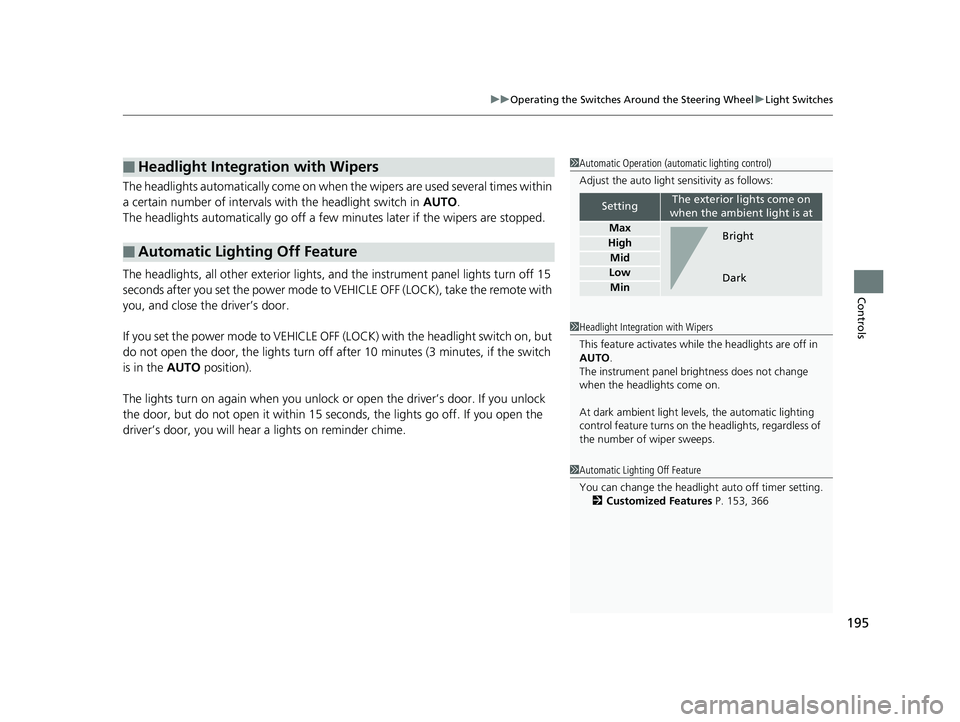
The headlights automatically come on when the wipers are used several times within
a certain number of intervals with the headlight switch in AUTO.
The headlights automatically go off a few mi nutes later if the wipers are stopped.
The headlights, all other exterior lights, and the instrument panel lights turn off 15
seconds after you set the po wer mode to VEHICLE OFF (LOCK), take the remote with
you, and close the driver’s door.
If you set the power mode to VEHICLE OFF (LOCK) with the headlight switch on, but
do not open the door, the lights turn off after 10 minutes (3 minutes, if the switch
is in the AUTO position).
The lights turn on again when you unlock or open the driver’s door. If you unlock
the door, but do not open it within 15 seconds, the lights go off. If you open the
driver’s door, you will hear a lights on reminder chime.
■Headlight Integration with Wipers
■Automatic Lighting Off Feature
1 Automatic Operation (aut omatic lighting control)
Adjust the auto light sensitivity as follows:
SettingThe exterior lights come on
when the ambient light is at
Max
High
Mid
Low
Min
Bright
Dark
1 Headlight Integration with Wipers
This feature activates while the headlights are off in
AUTO .
The instrument panel br ightness does not change
when the headlights come on.
At dark ambient light leve ls, the automatic lighting
control feature turns on the headlights, regardless of
the number of wiper sweeps.
1 Automatic Lighting Off Feature
You can change the headlight auto off timer setting.
2 Customized Features P. 153, 366
19 INSIGHT HMIN-31TXM6000.book 195 ページ 2018年4月20日 金曜日 午後4時22分
Page 235 of 675
233
Features
This chapter describes how to operate technology features.
Audio SystemAbout Your Audio System ................ 234
USB Port(s) ....................................... 235
Audio System Theft Protection ......... 236
Audio Remote Controls .................... 237
Audio System Basic Operation ........ 241
Audio/Information Screen ................ 242
Adjusting the Sound ........................ 246
Display Setup ................................... 247
Playing AM/FM Radio ....................... 248
Playing an iPod ................................ 250
Playing Pandora ®.............................. 253
Playing a USB Flash Drive ................. 255
Models with color audio
Playing Bluetooth ® Audio................. 258
Siri ® Eyes Free .................................. 261
Audio System Basic Operation ........ 262
Audio/Information Screen ................ 263
System Updates ............................... 278
Adjusting the Sound ........................ 284
Display Setup ................................... 285
Voice Control Operation .................. 287
Playing AM/FM Radio ....................... 290
Playing SiriusXM ® Radio
*................. 294
Playing an iPod ................................ 305
Playing a USB Flash Drive ................. 308
Playing Bluetooth ® Audio................. 311
Models with Display Audio
HondaLink ®..................................... 313
HondaLink ® Service*........................ 317
Wi-Fi Connection ............................. 322
Siri ® Eyes Free .................................. 324
Apple CarPlay
TM............................... 325
Android AutoTM............................... 328
Audio Error Messages ...................... 332
General Information on the Audio System ............................................. 337
Customized Features ................ 359, 366
HomeLink ® Universal Transceiver
*..... 386
Bluetooth® HandsFreeLink® ..... 389, 414
Refuel Recommend .............................. 439
* Not available on all models
19 INSIGHT HMIN-31TXM6000.book 233 ページ 2018年4月20日 金曜日 午後4時22分
Page 236 of 675
234
Features
Audio System
About Your Audio System
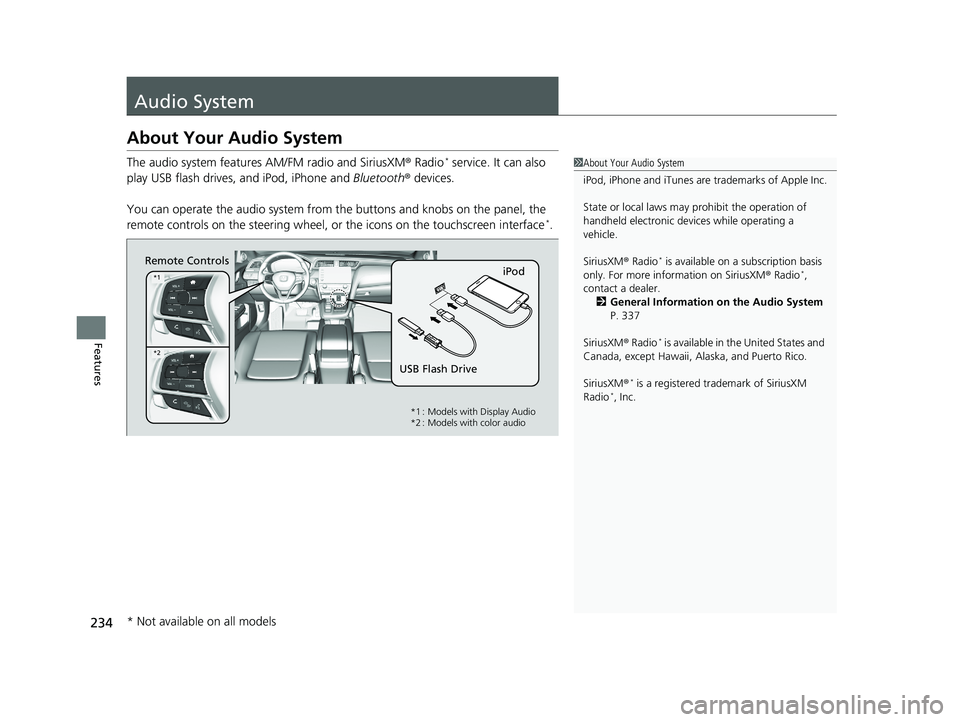
The audio system features AM/FM radio and SiriusXM® Radio* service. It can also
play USB flash drives, and iPod, iPhone and Bluetooth® devices.
You can operate the audio system from the buttons and knobs on the panel, the
remote controls on the steering wheel, or the icons on the touchscreen interface
*.
1 About Your Audio System
iPod, iPhone and iTunes are trademarks of Apple Inc.
State or local laws may pr ohibit the operation of
handheld electronic devices while operating a
vehicle.
SiriusXM ® Radio
* is available on a subscription basis
only. For more information on SiriusXM ® Radio*,
contact a dealer.
2 General Information on the Audio System
P. 337
SiriusXM ® Radio
* is available in the United States and
Canada, except Ha waii, Alaska, and Puerto Rico.
SiriusXM ®
* is a registered trademark of SiriusXM
Radio*, Inc.
Remote Controls iPod
USB Flash Drive
*1
*2
*1 : Models with Display Audio
*2 : Models with color audio
* Not available on all models
19 INSIGHT HMIN-31TXM6000.book 234 ページ 2018年4月20日 金曜日 午後4時22分
Page 239 of 675
237
uuAudio System uAudio Remote Controls
Continued
Features
Audio Remote Controls
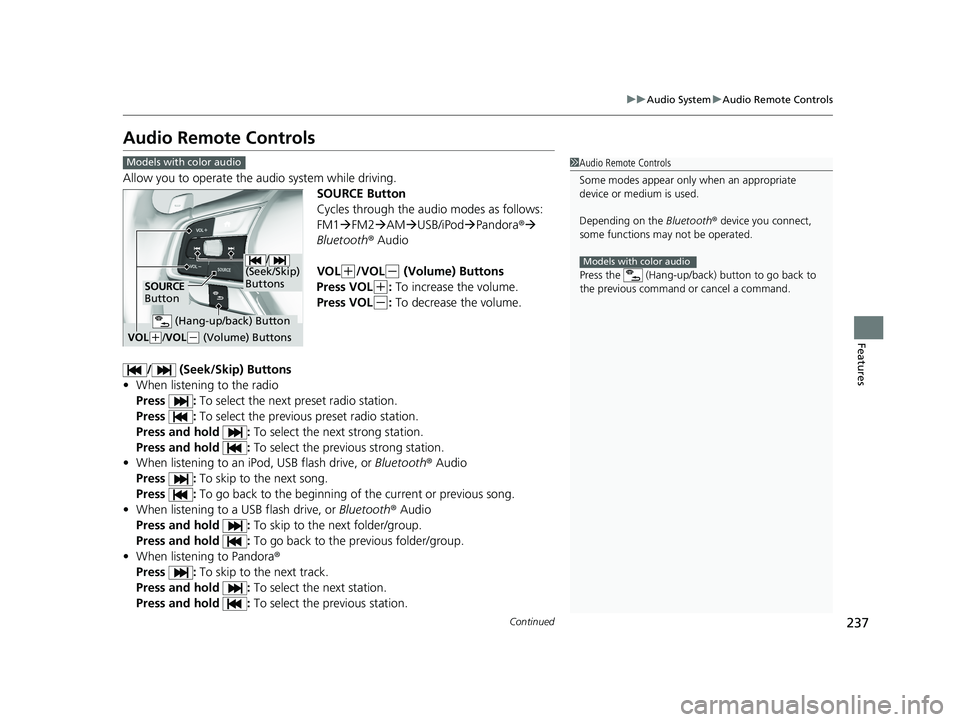
Allow you to operate the au dio system while driving.
SOURCE Button
Cycles through the audio modes as follows:
FM1FM2 AM USB/iPod Pandora ®
Bluetooth ® Audio
VOL
(+/VOL(- (Volume) Buttons
Press VOL
(+: To increase the volume.
Press VOL
(-: To decrease the volume.
/ (Seek/Skip) Buttons
• When listening to the radio
Press : To select the next preset radio station.
Press : To select the previous preset radio station.
Press and hold : To select the next strong station.
Press and hold : To select the previous strong station.
• When listening to an iPod, USB flash drive, or Bluetooth® Audio
Press : To skip to the next song.
Press : To go back to the beginning of the current or previous song.
• When listening to a USB flash drive, or Bluetooth® Audio
Press and hold : To skip to the next folder/group.
Press and hold : To go back to the previous folder/group.
• When listening to Pandora ®
Press : To skip to the next track.
Press and hold : To select the next station.
Press and hold : To select the previous station.
1Audio Remote Controls
Some modes appear only when an appropriate
device or medium is used.
Depending on the Bluetooth® device you connect,
some functions ma y not be operated.
Press the (Hang-up/back ) button to go back to
the previous command or cancel a command.
Models with color audio
Models with color audio
/
(Seek/Skip)
Buttons
SOURCE
Button
VOL( +/ VOL(- (Volume) Buttons
(Hang-up/back) Button
19 INSIGHT HMIN-31TXM6000.book 237 ページ 2018年4月20日 金曜日 午後4時22分
Page 240 of 675
uuAudio System uAudio Remote Controls
238
Features
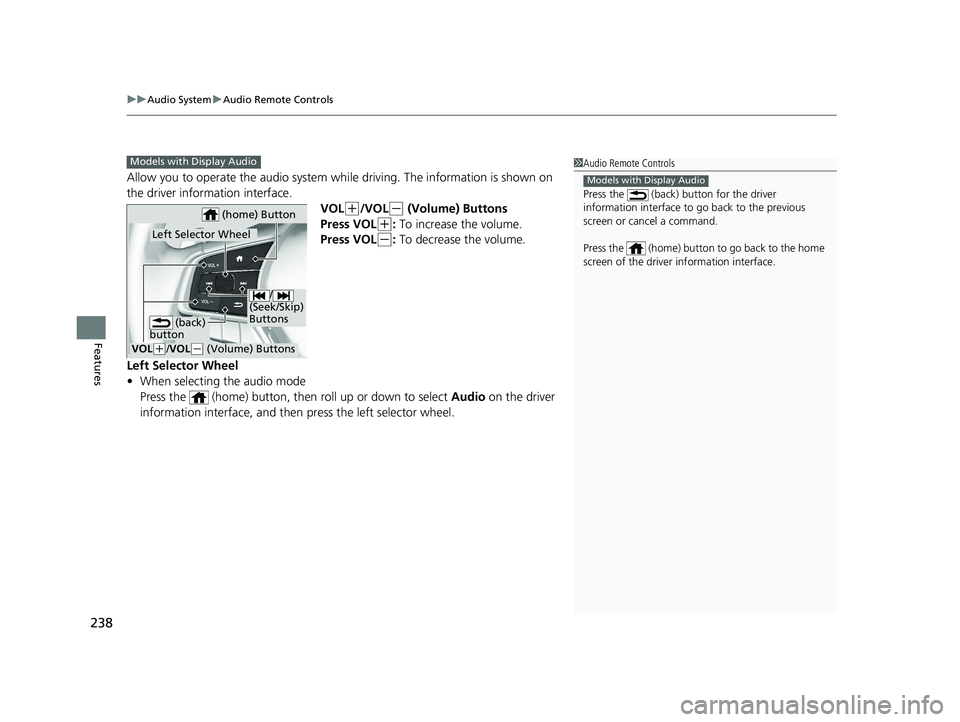
Allow you to operate the audio system wh ile driving. The information is shown on
the driver information interface.
VOL
(+/VOL(- (Volume) Buttons
Press VOL
(+: To increase the volume.
Press VOL
(-: To decrease the volume.
Left Selector Wheel
• When selecting the audio mode
Press the (home) button, then roll up or down to select Audio on the driver
information interface, and then press the left selector wheel.
1 Audio Remote Controls
Press the (back) button for the driver
information interface to go back to the previous
screen or cancel a command.
Press the (home) button to go back to the home
screen of the driver information interface.
Models with Display Audio
Models with Display Audio
/
(Seek/Skip)
Buttons
VOL( +/VOL(- (Volume) Buttons
Left Selector Wheel
(home) Button
(back)
button
19 INSIGHT HMIN-31TXM6000.book 238 ページ 2018年4月20日 金曜日 午後4時22分
Page 241 of 675
239
uuAudio System uAudio Remote Controls
Continued
Features
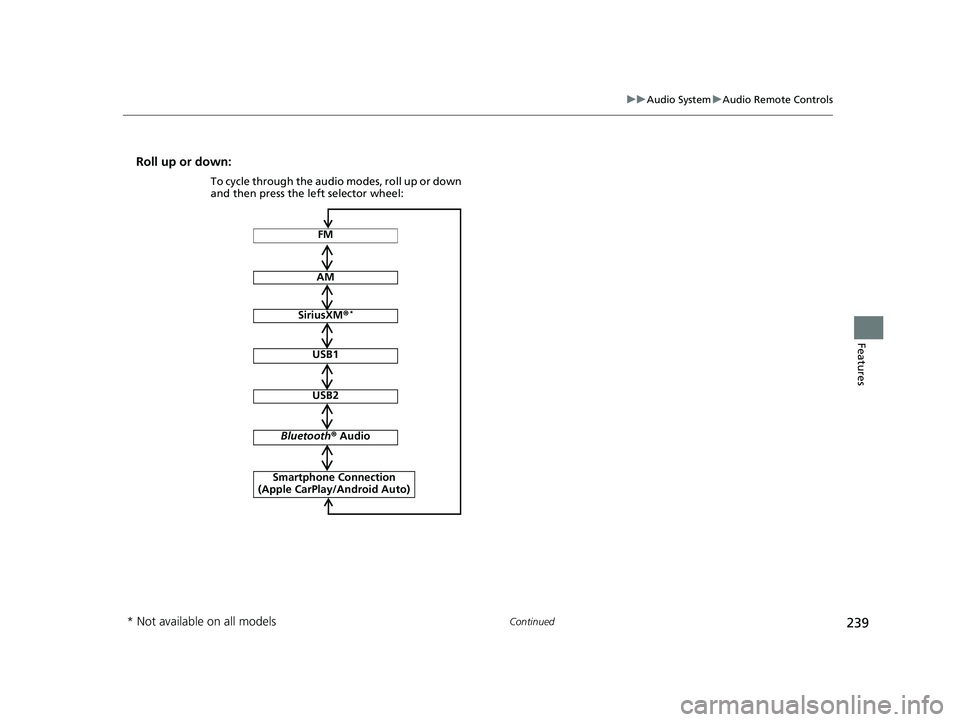
Roll up or down:
FM
AM
SiriusXM ®*
USB1
USB2
Bluetooth ® Audio
Smartphone Connection
(Apple CarPlay/Android Auto)
To cycle through the audio modes, roll up or down
and then press the left selector wheel:
* Not available on all models
19 INSIGHT HMIN-31TXM6000.book 239 ページ 2018年4月20日 金曜日 午後4時22分
Page 242 of 675
240
uuAudio System uAudio Remote Controls
Features
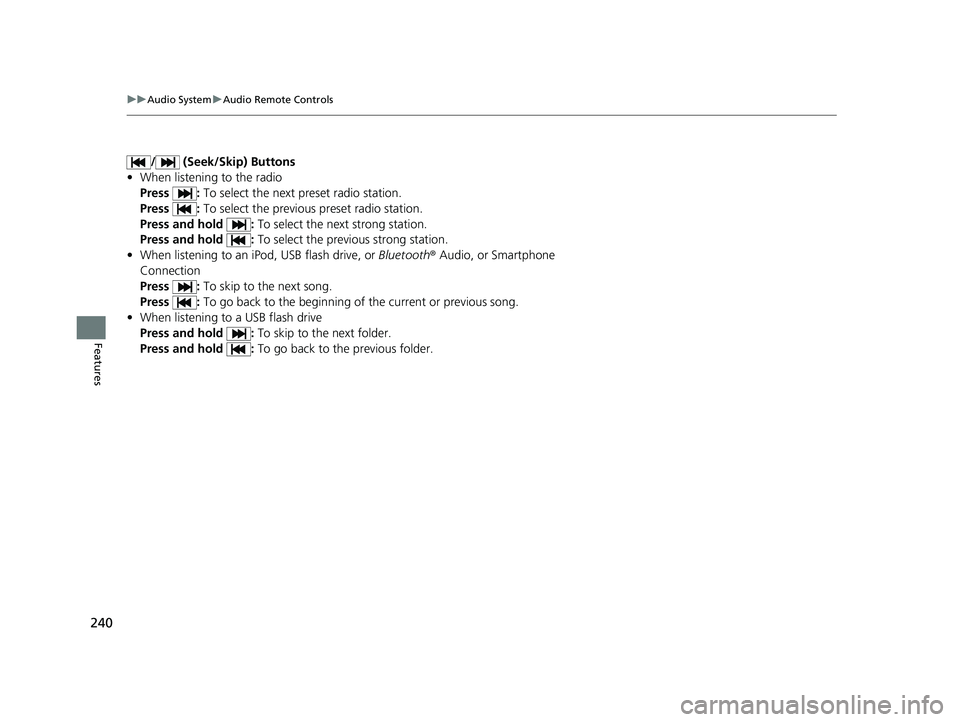
/ (Seek/Skip) Buttons
• When listening to the radio
Press : To select the next preset radio station.
Press : To select the previous preset radio station.
Press and hold : To select the next strong station.
Press and hold : To select the previous strong station.
• When listening to an iPod, USB flash drive, or Bluetooth® Audio, or Smartphone
Connection
Press : To skip to the next song.
Press : To go back to the beginning of the current or previous song.
• When listening to a USB flash drive
Press and hold : To skip to the next folder.
Press and hold : To go back to the previous folder.
19 INSIGHT HMIN-31TXM6000.book 240 ページ 2018年4月20日 金曜日 午後4時22分
Page 243 of 675
241
Features
Audio System Basic Operation
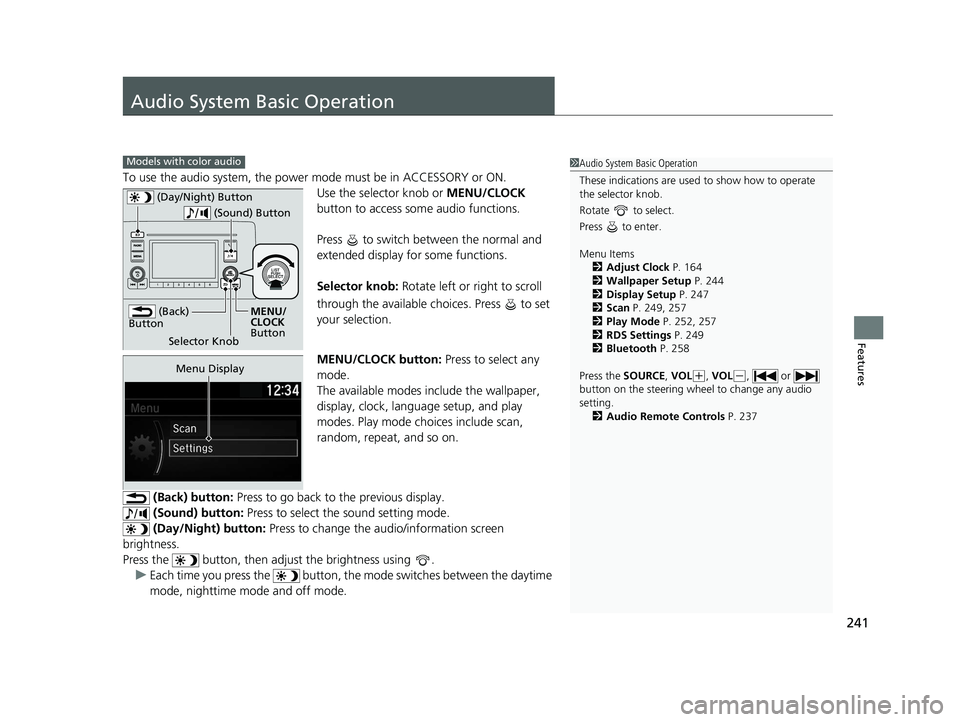
To use the audio system, the power mode must be in ACCESSORY or ON.Use the selector knob or MENU/CLOCK
button to access some audio functions.
Press to switch between the normal and
extended display fo r some functions.
Selector knob: Rotate left or right to scroll
through the available choices. Press to set
your selection.
MENU/CLOCK button: Press to select any
mode.
The available modes include the wallpaper,
display, clock, language setup, and play
modes. Play mode choices include scan,
random, repeat, and so on.
(Back) button: Press to go back to the previous display.
(Sound) button: Press to select the sound setting mode.
(Day/Night) button: Press to change the audio/information screen
brightness.
Press the button, then adjust the brightness using . u Each time you press the button, the mode switches between the daytime
mode, nighttime mode and off mode.
Models with color audio1 Audio System Basic Operation
These indications are used to show how to operate
the selector knob.
Rotate to select.
Press to enter.
Menu Items 2 Adjust Clock P. 164
2 Wallpaper Setup P. 244
2 Display Setup P. 247
2 Scan P. 249, 257
2 Play Mode P. 252, 257
2 RDS Settings P. 249
2 Bluetooth P. 258
Press the SOURCE , VOL
(+, VOL(-, or
button on the steering whee l to change any audio
setting. 2 Audio Remote Controls P. 237
(Back)
Button
Selector Knob MENU/
CLOCK
Button
(Day/Night) Button
(Sound) Button
Menu Display
19 INSIGHT HMIN-31TXM6000.book 241 ページ 2018年4月20日 金曜日 午後4時22分
Page 251 of 675
249
uuAudio System Basic Operation uPlaying AM/FM Radio
Features
Provides text data information related to your selected RDS capable FM station.
■To find an RDS station from Station List
1. Press while listening to an FM station.
2. Rotate to select the station, then press .
■Update List
Updates your available st ation list at any time.
1. Press while listening to an FM station.
2. Rotate to select Update List, then press .
■Radio text
Displays the radio text information of the selected RDS station.
1. Press the MENU/CLOCK button.
2. Rotate to select Settings, then press .
3. Rotate to select RDS Settings, then press .
4. Rotate to select Radio Text, then press .
■Scan
Samples each of the strongest stations on the selected band for 10 seconds.
1. Press the MENU/CLOCK button.
2. Rotate to select Scan, then press .
To turn off scan, press .
■Radio Data System (RDS)1 Playing AM/FM Radio
The ST indicator appears on the display indicating
stereo FM broadcasts.
Stereo reproduction in AM is not available.
You can store 6 AM stations and 12 FM stations into
the preset memory. FM1 and FM2 let you store 6
stations each.
Switching the Audio Mode
Press the SOURCE button on the steering wheel.
2 Audio Remote Controls P. 237
1Radio Data System (RDS)
When you select an RDS-capable FM station, the RDS
automatically turns on, and the frequency display
changes to the station name. However, when the
signals of that station become weak, the display
changes from the statio n name to the frequency.
19 INSIGHT HMIN-31TXM6000.book 249 ページ 2018年4月20日 金曜日 午後4時22分
Page 293 of 675
Continued291
uuAudio System Basic Operation uPlaying AM/FM Radio
Features
To store a station:
1. Tune to the selected station.
2. Select and hold the preset number for the station you want to store.
Lists the strongest stations on the selected band.
1. Select Station List to display a list.
2. Select the station.
■Manual update
Updates your available st ation list at any time.
1. Select Station List to display a list.
2. Select Refresh .
■Preset Memory
■Station List
1Preset Memory
The ST indicator appears on the display indicating
stereo FM broadcasts.
Stereo reproduction in AM is not available.
Switching the Audio Mode
Roll up or down to select Audio on the left selector
wheel or select the audio source icon on the screen.
2 Audio Remote Controls P. 237
You can store 12 AM/FM st ations into preset
memory.
HD Radio Technology manufactured under license
from iBiquity Digi tal Corporation. U.S. and Foreign
Patents. HD Radio
TM and the HD, HD Radio, and
“Arc” logos are proprietary trademarks of iBiquity
Digital Corp.
Models with HD RadioTM feature
19 INSIGHT HMIN-31TXM6000.book 291 ページ 2018年4月20日 金曜日 午後4時22分