apple carplay HONDA INSIGHT 2019 Owner's Manual (in English)
[x] Cancel search | Manufacturer: HONDA, Model Year: 2019, Model line: INSIGHT, Model: HONDA INSIGHT 2019Pages: 675, PDF Size: 36.97 MB
Page 26 of 675
24
Quick Reference Guide
Features (P 233)
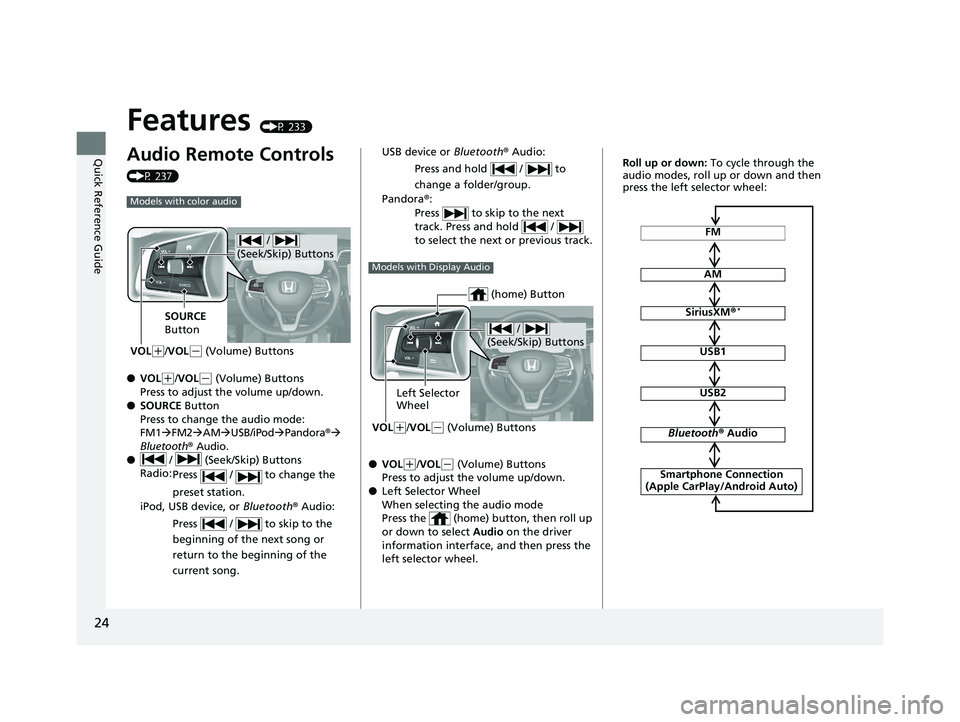
Audio Remote Controls
(P 237)
●VOL
(+/VOL(- (Volume) Buttons
Press to adjust the volume up/down.
● SOURCE Button
Press to change the audio mode:
FM1 FM2 AM USB/iPod Pandora ®
Bluetooth® Audio.
● / (Seek/Skip) Buttons
Radio: Press / to change the
preset station.
iPod, USB device, or Bluetooth ® Audio:
Press / to skip to the
beginning of the next song or
return to the beginning of the
current song.
Models with color audio
/
(Seek/Skip) Buttons
SOURCE
Button
VOL
( +/VOL(- (Volume) Buttons
● VOL(+/VOL(- (Volume) Buttons
Press to adjust the volume up/down.
● Left Selector Wheel
When selecting the audio mode
Press the (home) button, then roll up
or down to select Audio on the driver
information interface, and then press the
left selector wheel. USB device or Bluetooth® Audio:
Press and hold / to
change a folder/group.
Pandora ®:
Press to skip to the next
track. Press and hold /
to select the next or previous track.
Models with Display Audio
/
(Seek/Skip) Buttons
Left Selector
Wheel
VOL
( +/VOL(- (Volume) Buttons
(home) Button
FM
AM
SiriusXM ®*
USB1
USB2
Bluetooth® Audio
Smartphone Connection
(Apple CarPlay/Android Auto)
Roll up or down: To cycle through the
audio modes, roll up or down and then
press the left selector wheel:
19 INSIGHT HMIN-31TXM6000.book 24 ページ 2018年4月20日 金曜日 午後4時22分
Page 235 of 675
233
Features
This chapter describes how to operate technology features.
Audio SystemAbout Your Audio System ................ 234
USB Port(s) ....................................... 235
Audio System Theft Protection ......... 236
Audio Remote Controls .................... 237
Audio System Basic Operation ........ 241
Audio/Information Screen ................ 242
Adjusting the Sound ........................ 246
Display Setup ................................... 247
Playing AM/FM Radio ....................... 248
Playing an iPod ................................ 250
Playing Pandora ®.............................. 253
Playing a USB Flash Drive ................. 255
Models with color audio
Playing Bluetooth ® Audio................. 258
Siri ® Eyes Free .................................. 261
Audio System Basic Operation ........ 262
Audio/Information Screen ................ 263
System Updates ............................... 278
Adjusting the Sound ........................ 284
Display Setup ................................... 285
Voice Control Operation .................. 287
Playing AM/FM Radio ....................... 290
Playing SiriusXM ® Radio
*................. 294
Playing an iPod ................................ 305
Playing a USB Flash Drive ................. 308
Playing Bluetooth ® Audio................. 311
Models with Display Audio
HondaLink ®..................................... 313
HondaLink ® Service*........................ 317
Wi-Fi Connection ............................. 322
Siri ® Eyes Free .................................. 324
Apple CarPlay
TM............................... 325
Android AutoTM............................... 328
Audio Error Messages ...................... 332
General Information on the Audio System ............................................. 337
Customized Features ................ 359, 366
HomeLink ® Universal Transceiver
*..... 386
Bluetooth® HandsFreeLink® ..... 389, 414
Refuel Recommend .............................. 439
* Not available on all models
19 INSIGHT HMIN-31TXM6000.book 233 ページ 2018年4月20日 金曜日 午後4時22分
Page 237 of 675
235
uuAudio System uUSB Port(s)
Features
USB Port(s)
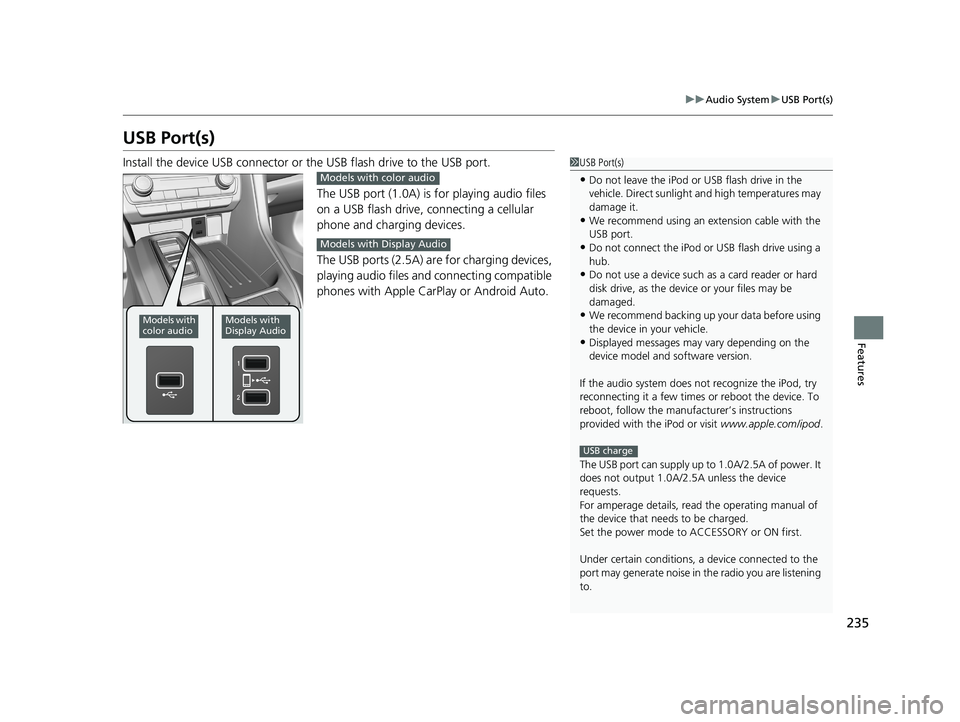
Install the device USB connector or the USB flash drive to the USB port.
The USB port (1.0A) is for playing audio files
on a USB flash drive, connecting a cellular
phone and charging devices.
The USB ports (2.5A) are for charging devices,
playing audio files and connecting compatible
phones with Apple CarPlay or Android Auto.1 USB Port(s)
•Do not leave the iPod or USB flash drive in the
vehicle. Direct sunlight and high temperatures may
damage it.
•We recommend using an ex tension cable with the
USB port.
•Do not connect the iPod or USB flash drive using a
hub.
•Do not use a device such as a card reader or hard
disk drive, as the device or your files may be
damaged.
•We recommend backing up yo ur data before using
the device in your vehicle.
•Displayed messages may vary depending on the
device model and software version.
If the audio system does not recognize the iPod, try
reconnecting it a few times or reboot the device. To
reboot, follow the manufac turer’s instructions
provided with the iPod or visit www.apple.com/ipod.
The USB port can supply up to 1.0A/2.5A of power. It
does not output 1.0A/2.5A unless the device
requests.
For amperage details, read the operating manual of
the device that ne eds to be charged.
Set the power mode to ACCESSORY or ON first.
Under certain condi tions, a device connected to the
port may generate noise in the radio you are listening
to.
USB charge
Models with
color audioModels with
Display Audio
Models with color audio
Models with Display Audio
19 INSIGHT HMIN-31TXM6000.book 235 ページ 2018年4月20日 金曜日 午後4時22分
Page 241 of 675
239
uuAudio System uAudio Remote Controls
Continued
Features
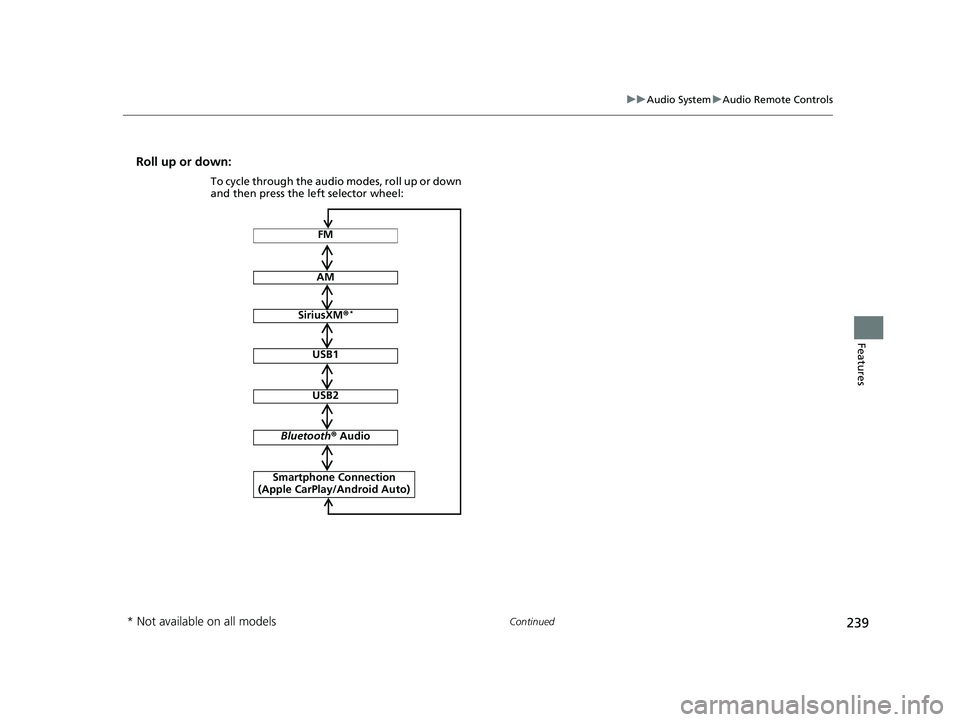
Roll up or down:
FM
AM
SiriusXM ®*
USB1
USB2
Bluetooth ® Audio
Smartphone Connection
(Apple CarPlay/Android Auto)
To cycle through the audio modes, roll up or down
and then press the left selector wheel:
* Not available on all models
19 INSIGHT HMIN-31TXM6000.book 239 ページ 2018年4月20日 金曜日 午後4時22分
Page 267 of 675
265
uuAudio System Basic Operation uAudio/Information Screen
Continued
Features
■HondaLink ®
Displays the HondaLink ® screen.
2HondaLink ® P. 313
■Apple CarPlay/Android Auto
Displays the Apple CarPlay or Android Auto screen.
2Apple CarPlayTM P. 325
2 Android AutoTM P. 328
■Messages
Displays the text message screen.
2 Bluetooth ® HandsFreeLink ® P. 414
■AT&T Hotspot*
Displays the AT&T Hotspot screen.
■Compass*
Displays the compass screen.
* Not available on all models
19 INSIGHT HMIN-31TXM6000.book 265 ページ 2018年4月20日 金曜日 午後4時22分
Page 290 of 675
288
uuAudio System Basic Operation uVoice Control Operation
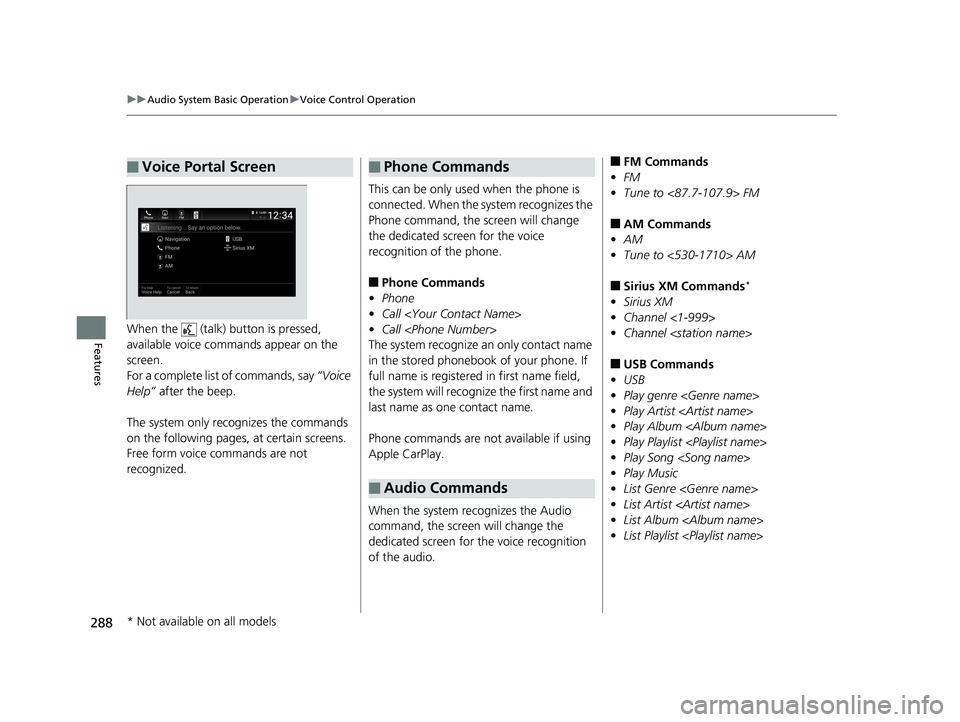
FeaturesWhen the (talk) button is pressed,
available voice commands appear on the
screen.
For a complete list of commands, say “Voice
Help” after the beep.
The system only reco gnizes the commands
on the following pages, at certain screens.
Free form voice commands are not
recognized.
■Voice Portal Screen
This can be only used when the phone is
connected. When the sy stem recognizes the
Phone command, the screen will change
the dedicated screen for the voice
recognition of the phone.
■Phone Commands
• Phone
• Call
• Call
The system recognize an only contact name
in the stored phonebook of your phone. If
full name is registered in first name field,
the system will recognize the first name and
last name as one contact name.
Phone commands are not available if using
Apple CarPlay.
When the system recognizes the Audio
command, the screen will change the
dedicated screen for the voice recognition
of the audio.
■Phone Commands
■Audio Commands
■FM Commands
• FM
• Tune to <87.7-107.9> FM
■AM Commands
• AM
• Tune to <530-1710> AM
■Sirius XM Commands*
•Sirius XM
• Channel <1-999>
• Channel
■USB Commands
• USB
• Play genre
• Play Artist
• Play Album
• Play Playlist
• Play Song
• Play Music
• List Genre
• List Artist
• List Album
• List Playlist
* Not available on all models
19 INSIGHT HMIN-31TXM6000.book 288 ページ 2018年4月20日 金曜日 午後4時22分
Page 308 of 675
uuAudio System Basic Operation uPlaying an iPod
306
Features
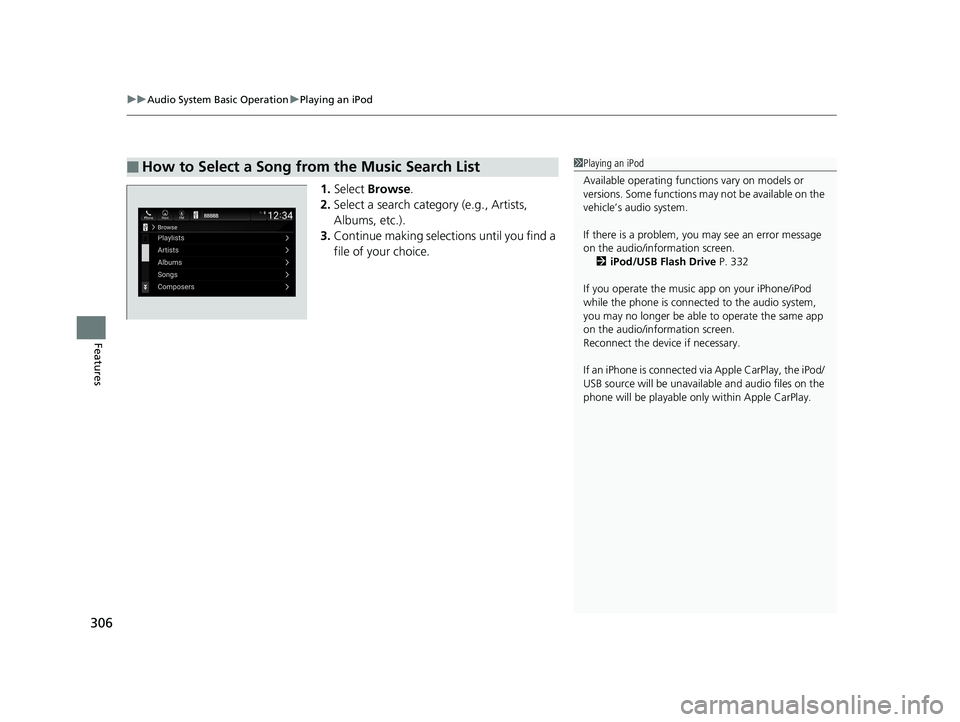
1. Select Browse .
2. Select a search catego ry (e.g., Artists,
Albums, etc.).
3. Continue making selections until you find a
file of your choice.
■How to Select a Song from the Music Search List1Playing an iPod
Available operating functi ons vary on models or
versions. Some functions ma y not be available on the
vehicle’s audio system.
If there is a problem, you may see an error message
on the audio/information screen. 2 iPod/USB Flash Drive P. 332
If you operate the musi c app on your iPhone/iPod
while the phone is connected to the audio system,
you may no longer be able to operate the same app
on the audio/information screen.
Reconnect the devi ce if necessary.
If an iPhone is connected vi a Apple CarPlay, the iPod/
USB source will be unavailable and audio files on the
phone will be playable onl y within Apple CarPlay.
19 INSIGHT HMIN-31TXM6000.book 306 ページ 2018年4月20日 金曜日 午後4時22分
Page 313 of 675
311
uuAudio System Basic Operation uPlaying Bluetooth ® Audio
Continued
Features
Playing Bluetooth ® Audio
Your audio system allows you to listen to music from your Bluetooth-compatible
phone.
This function is available when the phone is paired and connected to the vehicle’s
Bluetooth ® HandsFreeLink ® (HFL) system.
2Phone Setup P. 419
1Playing Bluetooth ® Audio
Not all Bluetooth-enabled phones with streaming
audio capabilities are compat ible with the system. For
a list of compatible phones:
•U.S.: Visit automobiles.honda.com /handsfreelink
or call 1-888-528-7876.
•Canada: For more info rmation on smartphone
compatibility, call 1-888-528-7876.
It may be illegal to perform some data device
functions while driving.
Only one phone can be used with HFL at a time.
When there are more than two paired phones in the
vehicle, the first paired phone the system finds is
automatically connected.
The connected phone for Bluetooth® Audio can be
different.
If more than one phone is paired to the HFL system,
there may be a delay before the system begins to play.
In some cases, the name of the artist, album, or track
may not appear correctly.
Some functions may not be available on some devices.
If a phone is currently conne cted via Apple CarPlay or
Android Auto, Bluetooth® Audio from that phone
will be unavailable. Howe ver, you can have a second
previously paired phone stream Bluetooth® Audio by
selecting from the Bluetooth® device list.
2 Phone Setup P. 419
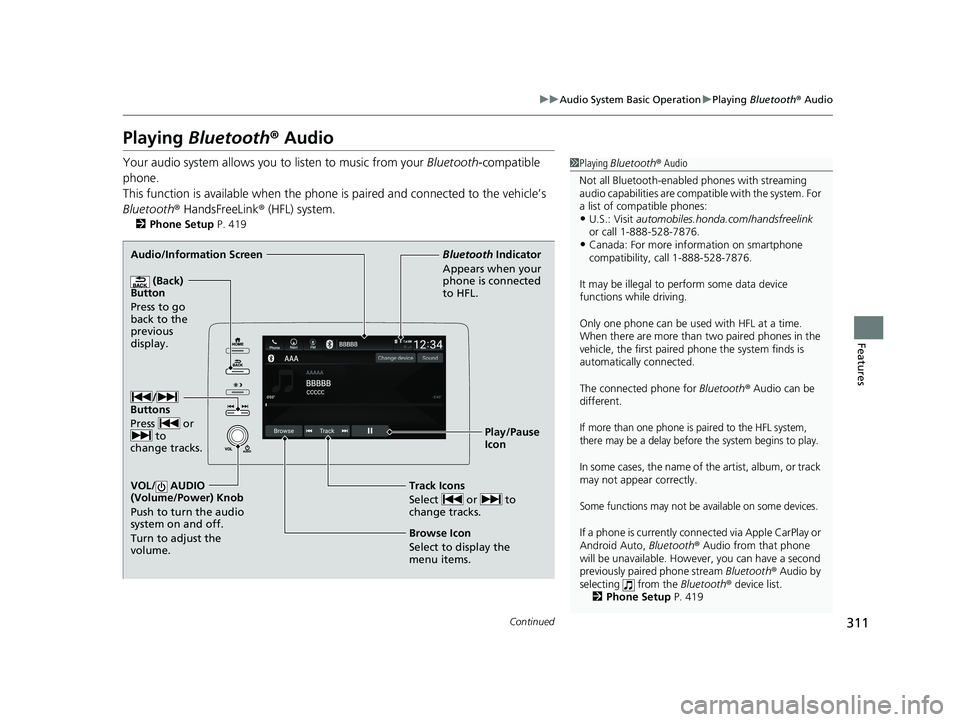
Audio/Information Screen
(Back)
Button
Press to go
back to the
previous
display.
VOL/ AUDIO
(Volume/Power) Knob
Push to turn the audio
system on and off.
Turn to adjust the
volume.
Play/Pause
Icon
Bluetooth Indicator
Appears when your
phone is connected
to HFL.
Track Icons
Select or to
change tracks.
Browse Icon
Select to display the
menu items.
/
Buttons
Press or to
change tracks.
19 INSIGHT HMIN-31TXM6000.book 311 ページ 2018年4月20日 金曜日 午後4時22分
Page 327 of 675
325
uuAudio System Basic Operation uApple CarPlayTM
Continued
Features
Apple CarPlayTM
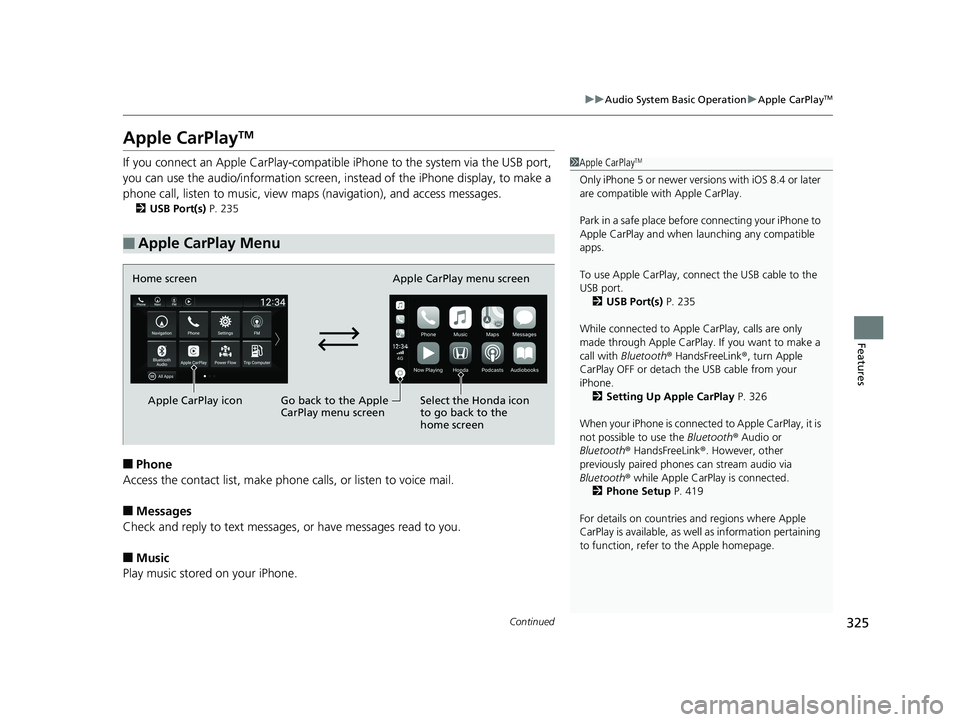
If you connect an Apple CarPlay-compatible iPhone to the system via the USB port,
you can use the audio/information screen, in stead of the iPhone display, to make a
phone call, listen to music, view maps (navigation), and access messages.
2USB Port(s) P. 235
■Phone
Access the contact list, make phone ca lls, or listen to voice mail.
■Messages
Check and reply to text messages, or have messages read to you.
■Music
Play music stored on your iPhone.
■Apple CarPlay Menu
1 Apple CarPlayTM
Only iPhone 5 or newer versi ons with iOS 8.4 or later
are compatible with Apple CarPlay.
Park in a safe place before connecting your iPhone to
Apple CarPlay and when launching any compatible
apps.
To use Apple CarPlay, connect the USB cable to the
USB port. 2 USB Port(s) P. 235
While connected to Apple CarPlay, calls are only
made through Apple CarPlay. If you want to make a
call with Bluetooth ® HandsFreeLink ®, turn Apple
CarPlay OFF or detach th e USB cable from your
iPhone.
2 Setting Up Apple CarPlay P. 326
When your iPhone is connected to Apple CarPlay, it is
not possible to use the Bluetooth® Audio or
Bluetooth ® HandsFreeLink ®. However, other
previously paired phones can stream audio via
Bluetooth ® while Apple CarPlay is connected.
2 Phone Setup P. 419
For details on c ountries and regions where Apple
CarPlay is available, as well as information pertaining
to function, refer to the Apple homepage.
Home screen
Apple CarPlay icon Apple CarPlay menu screen
Go back to the Apple
CarPlay menu screen
Select the Honda icon
to go back to the
home screen
19 INSIGHT HMIN-31TXM6000.book 325 ページ 2018年4月20日 金曜日 午後4時22分
Page 328 of 675
uuAudio System Basic Operation uApple CarPlayTM
326
Features
■Maps
Display Apple Maps and use the navigation function just as you would on your
iPhone.
Only one navigation system (pre-installed navigation or Apple CarPlay) can give
directions at a time. When you are using one system, directions to any prior
destination set on the other system will be canceled, and the system you are
currently using will direct you to your destination.
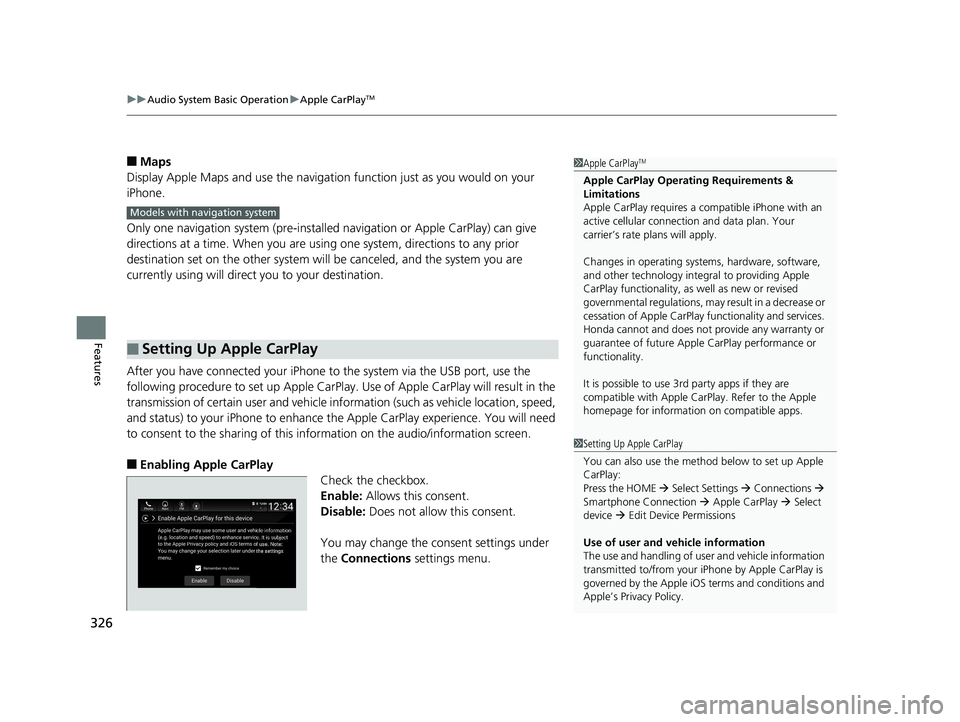
After you have connected your iPhone to the system via the USB port, use the
following procedure to set up Apple CarPlay. Use of Apple CarPlay will result in the
transmission of certain user and vehicle information (such as vehicle location, speed,
and status) to your iPhone to enhance th e Apple CarPlay experience. You will need
to consent to the sharing of this information on the audio/information screen.
■Enabling Apple CarPlay
Check the checkbox.
Enable: Allows this consent.
Disable: Does not allo w this consent.
You may change the consent settings under
the Connections settings menu.
■Setting Up Apple CarPlay
1Apple CarPlayTM
Apple CarPlay Operating Requirements &
Limitations
Apple CarPlay requi res a compatible iPhone with an
active cellular connecti on and data plan. Your
carrier’s rate plans will apply.
Changes in operating systems, hardware, software,
and other technology integral to providing Apple
CarPlay functionality, as well as new or revised
governmental regulations, may result in a decrease or
cessation of Apple CarPlay functionality and services.
Honda cannot and does not pr ovide any warranty or
guarantee of future Appl e CarPlay performance or
functionality.
It is possible to use 3r d party apps if they are
compatible with Apple CarPlay. Refer to the Apple
homepage for information on compatible apps.
Models with navigation system
1 Setting Up Apple CarPlay
You can also use the method below to set up Apple
CarPlay:
Press the HOME Select Settings Connections
Smartphone Connection Apple CarPlay Select
device Edit Device Permissions
Use of user and vehicle information
The use and handling of user and vehicle information
transmitted to/from your iP hone by Apple CarPlay is
governed by the Apple iOS terms and conditions and
Apple’s Privacy Policy.
19 INSIGHT HMIN-31TXM6000.book 326 ページ 2018年4月20日 金曜日 午後4時22分