ad blue HONDA INSIGHT 2021 (in English) Owner's Guide
[x] Cancel search | Manufacturer: HONDA, Model Year: 2021, Model line: INSIGHT, Model: HONDA INSIGHT 2021Pages: 687, PDF Size: 37.14 MB
Page 319 of 687
317
uuAudio System Basic Operation uPlaying Bluetooth ® Audio
Continued
Features
Playing Bluetooth ® Audio
Your audio system allows you to listen to music from your Bluetooth-compatible
phone.
This function is available when the phone is paired an d connected to the vehicle’s
Bluetooth ® HandsFreeLink ® (HFL) system.
2Phone Setup P. 425
1Playing Bluetooth ® Audio
Not all Bluetooth -enabled phones with streaming
audio capabilities are compatible with the system.
For a list of compatible phones:
•U.S.: Visit automobiles.honda.c om/handsfreelink,
or call 1-888-528-7876.
•Canada: For more info rmation on smartphone
compatibility, call 1-855-490-7351.
It may be illegal to pe rform some data device
functions while driving.
Only one phone can be used with HFL at a time.
When there are more than two paired phones in the
vehicle, the first paired phone the system finds is
automatically connected.
The connected phone for Bluetooth® Audio can be
different.
If more than one phone is paired to the HFL system,
there may be a delay before the system begins to play.
In some cases, the name of the artist, album, or track
may not appear correctly.
Some functions may not be available on some devices.
If a phone is currently conne cted via Apple CarPlay or
Android Auto, Bluetooth® Audio from that phone
will be unavailable. Howe ver, you can have a second
previously paired phone stream Bluetooth® Audio by
selecting from the Bluetooth® device list.
2 Phone Setup P. 425
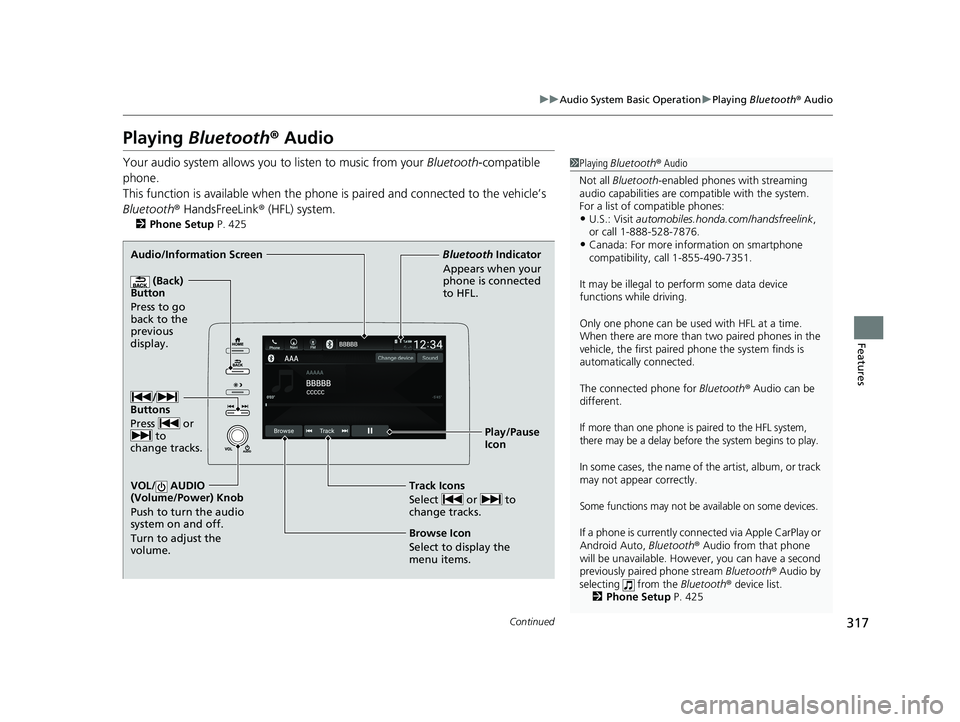
Audio/Information Screen
(Back)
Button
Press to go
back to the
pre
vious
display.
VOL/ AUDIO
(Volume/Power) Knob
Push to turn the audio
system on and off.
Turn to adjust the
volume.
Play/Pause
Icon
Bluetooth
Ind
icator
Appears when your
phone is connected
to HFL.
Track Icons
Select or to
change tracks.
Browse Icon
Select to display the
menu items.
/
Buttons
Press or to
change tracks.
21 INSIGHT-31TXM6200.book 317 ページ 2020年2月5日 水曜日 午前10時0分
Page 320 of 687
uuAudio System Basic Operation uPlaying Bluetooth ® Audio
318
Features
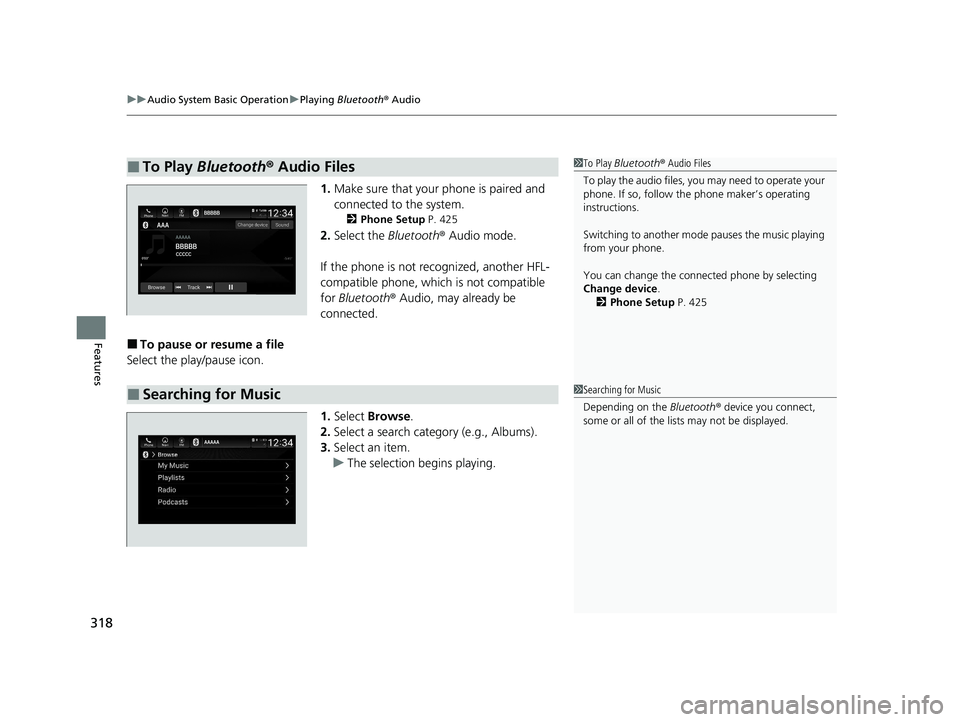
1. Make sure that your phone is paired and
connected to the system.
2 Phone Setup P. 425
2.Select the Bluetooth® Audio mode.
If the phone is not recognized, another HFL-
compatible phone, which is not compatible
for Bluetooth ® Audio, may already be
connected.
■To pause or resume a file
Select the play/pause icon.
1.Select Browse .
2. Select a search cate gory (e.g., Albums).
3. Select an item.
u The selection begins playing.
■To Play Bluetooth ® Audio Files1 To Play Bluetooth ® Audio Files
To play the audio files, y ou may need to operate your
phone. If so, follow the phone maker’s operating
instructions.
Switching to another mode pauses the music playing
from your phone.
You can change the connected phone by selecting
Change device .
2 Phone Setup P. 425
■Searching for Music1Searching for Music
Depending on the Bluetooth® device you connect,
some or all of the list s may not be displayed.
21 INSIGHT-31TXM6200.book 318 ページ 2020年2月5日 水曜日 午前10時0分
Page 321 of 687
319
uuAudio System Basic Operation uHondaLink ®
Continued
Features
HondaLink ®
HondaLink® connects you to the latest info rmation from Honda. You can connect
your phone wirelessly through Wi-Fi or Bluetooth®.
2Wi-Fi Connection P. 328
2 Phone Setup P. 425
Use the following procedure to connect to HondaLink ®.
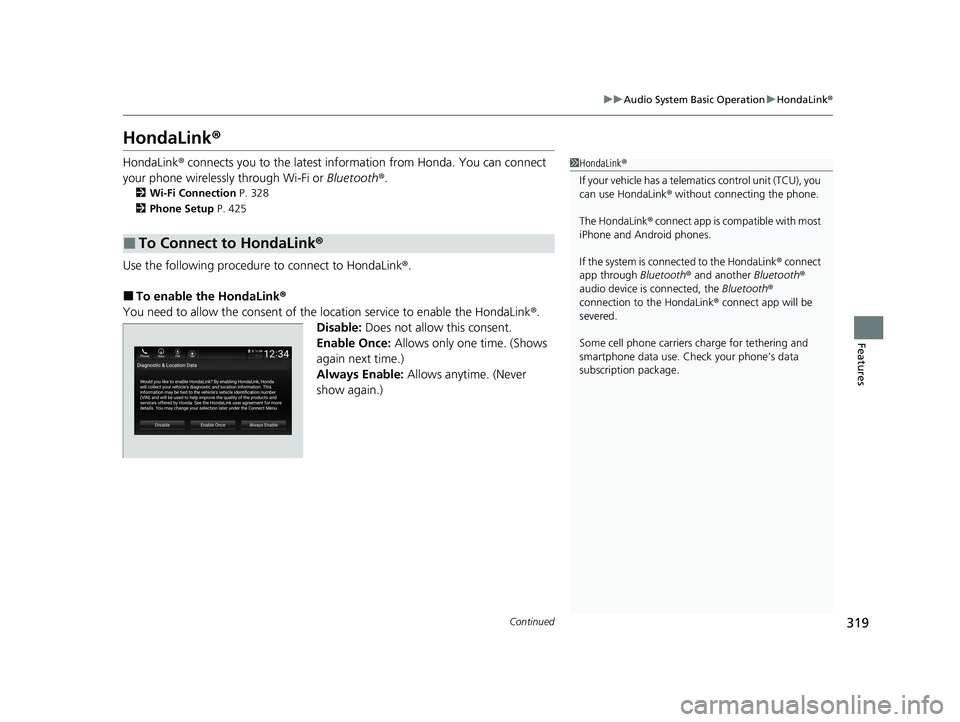
■To enable the HondaLink®
You need to allow the consent of the location service to enable the HondaLink ®.
Disable: Does not allow this consent.
Enable Once: Allows only one time. (Shows
again next time.)
Always Enable: Allows anytime. (Never
show again.)
■To Connect to HondaLink ®
1HondaLink ®
If your vehicle has a telema tics control unit (TCU), you
can use HondaLink ® without connecting the phone.
The HondaLink® connect app is compatible with most
iPhone and Android phones.
If the system is connected to the HondaLink ® connect
app through Bluetooth® and another Bluetooth®
audio device is connected, the Bluetooth®
connection to the HondaLink ® connect app will be
severed.
Some cell phone carriers charge for tethering and
smartphone data use. Check your phone’s data
subscription package.
21 INSIGHT-31TXM6200.book 319 ページ 2020年2月5日 水曜日 午前10時0分
Page 332 of 687
330
uuAudio System Basic Operation uSiri Eyes Free
Features
Siri Eyes Free
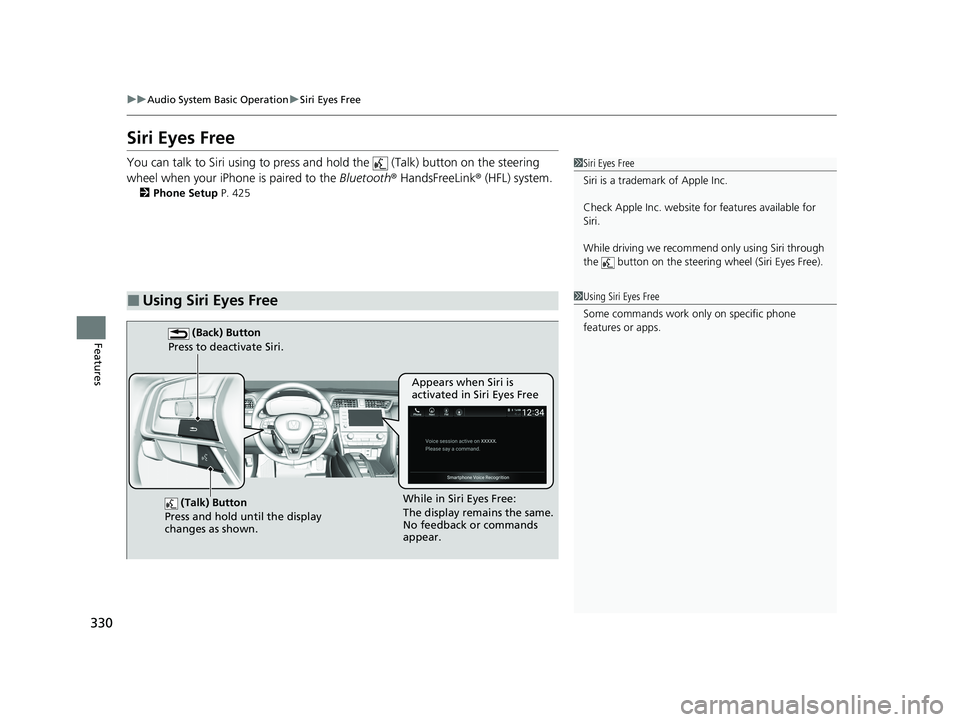
You can talk to Siri using to press and hold the (Talk) button on the steering
wheel when your iPhone is paired to the Bluetooth® HandsFreeLink ® (HFL) system.
2Phone Setup P. 425
■Using Siri Eyes Free
1Siri Eyes Free
Siri is a trademark of Apple Inc.
Check Apple Inc. website for features available for
Siri.
While driving we recomme nd only using Siri through
the button on the steering wheel (Siri Eyes Free).
1Using Siri Eyes Free
Some commands work only on specific phone
features or apps.
(Talk) Button
Press and hold until the display
changes as shown.
(Back) Button
Press to deactivate Siri.
While in Siri Eyes Free:
The display remains the same.
No feedback or commands
appear. Appears when Siri is
activated in Siri Eyes Free
21 INSIGHT-31TXM6200.book 330 ページ 2020年2月5日 水曜日 午前10時0分
Page 333 of 687
331
uuAudio System Basic Operation uApple CarPlay
Continued
Features
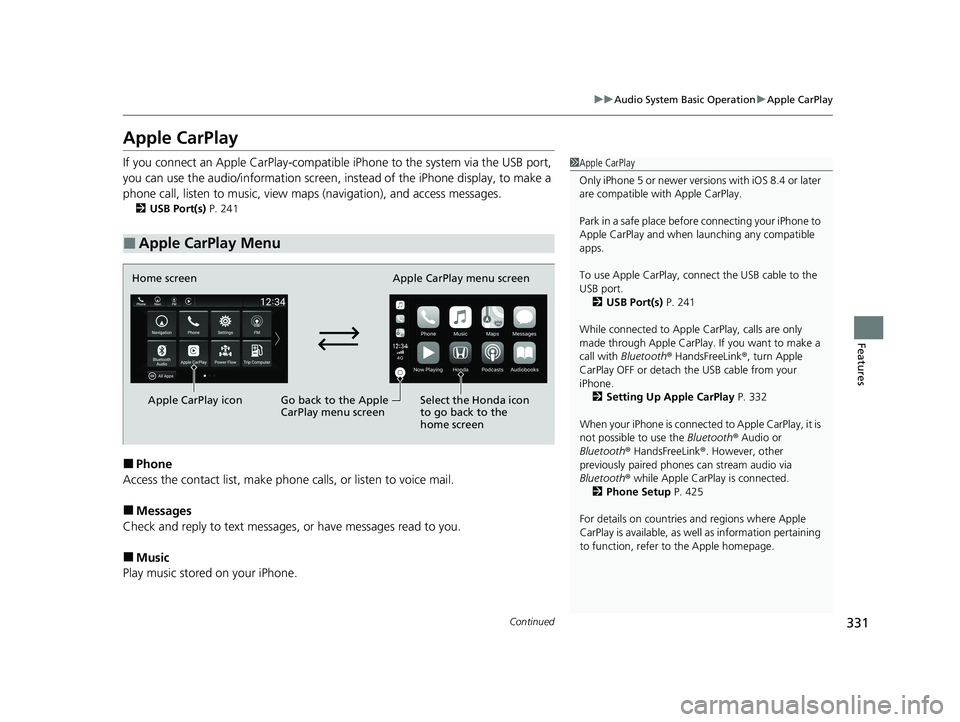
Apple CarPlay
If you connect an Apple CarPlay-compatible iPhone to the system via the USB port,
you can use the audio/information screen, in stead of the iPhone display, to make a
phone call, listen to music, view maps (navigation), and access messages.
2USB Port(s) P. 241
■Phone
Access the contact list, make phone ca lls, or listen to voice mail.
■Messages
Check and reply to text messages, or have messages read to you.
■Music
Play music stored on your iPhone.
■Apple CarPlay Menu
1 Apple CarPlay
Only iPhone 5 or newer versi ons with iOS 8.4 or later
are compatible with Apple CarPlay.
Park in a safe place before connecting your iPhone to
Apple CarPlay and when launching any compatible
apps.
To use Apple CarPlay, connect the USB cable to the
USB port. 2 USB Port(s) P. 241
While connected to Apple CarPlay, calls are only
made through Apple CarPlay. If you want to make a
call with Bluetooth ® HandsFreeLink ®, turn Apple
CarPlay OFF or detach th e USB cable from your
iPhone. 2 Setting Up Apple CarPlay P. 332
When your iPhone is connected to Apple CarPlay, it is
not possible to use the Bluetooth® Audio or
Bluetooth ® HandsFreeLink ®. However, other
previously paired phones can stream audio via
Bluetooth ® while Apple CarPlay is connected.
2 Phone Setup P. 425
For details on c ountries and regions where Apple
CarPlay is available, as well as information pertaining
to function, refer to the Apple homepage.
Home screen
Apple CarPlay icon Apple CarPlay menu screen
Go back to the Apple
CarPlay menu screen
Select the Honda icon
to go back to the
home screen
21 INSIGHT-31TXM6200.book 331 ページ 2020年2月5日 水曜日 午前10時0分
Page 336 of 687
334
uuAudio System Basic Operation uAndroid Auto
Features
Android Auto
When you connect an Android phone to the audio system via the USB port, Android
Auto is automatically initia ted. When connected via Android Auto, you can use the
audio/information screen to access the Phone, Google Maps (Navigation), Google
Play Music, and Google Now functions. Wh en you first use Android Auto, a tutorial
will appear on the screen.
We recommend that you complete this tuto rial while safely parked before using
Android Auto.
2 USB Port(s) P. 241
2 Auto Pairing Connection P. 336
1Android Auto
To use Android Auto, you need to download the
Android Auto app from Google Play to your
smartphone.
Only Android 5.0 (Lollipop) or later versions are
compatible with Android Auto.
Bluetooth A2DP cannot be used with Android Auto
phone.
Park in a safe place befo re connecting your Android
phone to Android Auto and when launching any
compatible apps.
To use Android Auto, connect the USB cable to the
USB port.
2 USB Port(s) P. 241
When your Android phone is connected to Android
Auto, it is not possible to use the Bluetooth® Audio.
However, other previously paired phones can stream
audio via Bluetooth ® while Android Auto is
connected. 2 Phone Setup P. 425
21 INSIGHT-31TXM6200.book 334 ページ 2020年2月5日 水曜日 午前10時0分
Page 342 of 687
340
uuAudio Error Messages uPandora®
Features
Pandora ®
If an error occurs while playing Pandora ®, you may see the following error messages.
If you cannot clear the error message, contact a dealer.
Error MessageSolution
No Device ConnectedAppears when no device is connected.
Check the Bluetooth® and USB connection.
No DataAppears when no data is available with Pandora ® activated. Reboot
the app and reconnect the device.
To begin listening, select a station from the stations list.Appears when any station is not selected. Select a station from the
station list on the device.
PANDORA ver unsupport.Appears when Pandora® version is not supported. Update Pandora ®
to the latest version.
No station list on device. Use device to create station.Appears when there is no station list on the device. Use the device to
create a station.
PANDORA system maintenance.Appears when the Pandora ® server is in maintenance. Try again later.
Unable to play PANDORA. When stopped, log-in to
PANDORA.Appears you do not log in to Pandora ®. Log in to Pandora®.
No network connectivity.Appears when the network is deteriorated. Move the vehicle and
check the reception of the signal.
Unable to play PANDORA. Please try again later.
Appears when the sending the data is failed for ten times and the
device may have a malfunction. Try again later. Move the vehicle and
check the reception of the signal.
Models with color audio
21 INSIGHT-31TXM6200.book 340 ページ 2020年2月5日 水曜日 午前10時0分
Page 363 of 687
361
uuGeneral Information on the Audio System uLicense Information*
Continued
Features
The Bluetooth ® word mark and logos are register ed trademarks owned by Bluetooth
SIG, Inc. and any use of such marks by PANASONIC CORPORATION is under license.
Other trademarks and trade names are those of their respective owners.
This product is protected by certain intellectual property rights of Microsoft. Use or
distribution of such technology outside of this product is prohibited without a
license from Microsoft.
■Bluetooth
■Windows Media
21 INSIGHT-31TXM6200.book 361 ページ 2020年2月5日 水曜日 午前10時0分
Page 368 of 687
366
uuCustomized Features u
Features
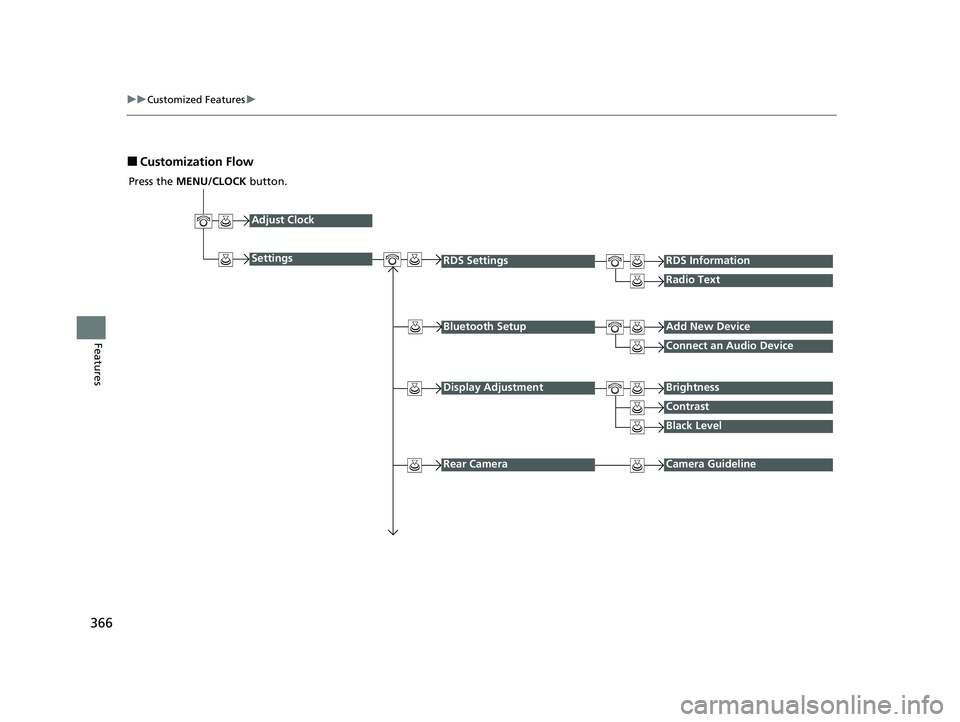
■Customization Flow
Press the MENU/CLOCK button.
Adjust Clock
Settings
Bluetooth SetupAdd New Device
Connect an Audio Device
Display AdjustmentBrightness
Contrast
Black Level
Rear CameraCamera Guideline
RDS SettingsRDS Information
Radio Text
21 INSIGHT-31TXM6200.book 366 ページ 2020年2月5日 水曜日 午前10時0分
Page 369 of 687
367
uuCustomized Features u
Continued
Features
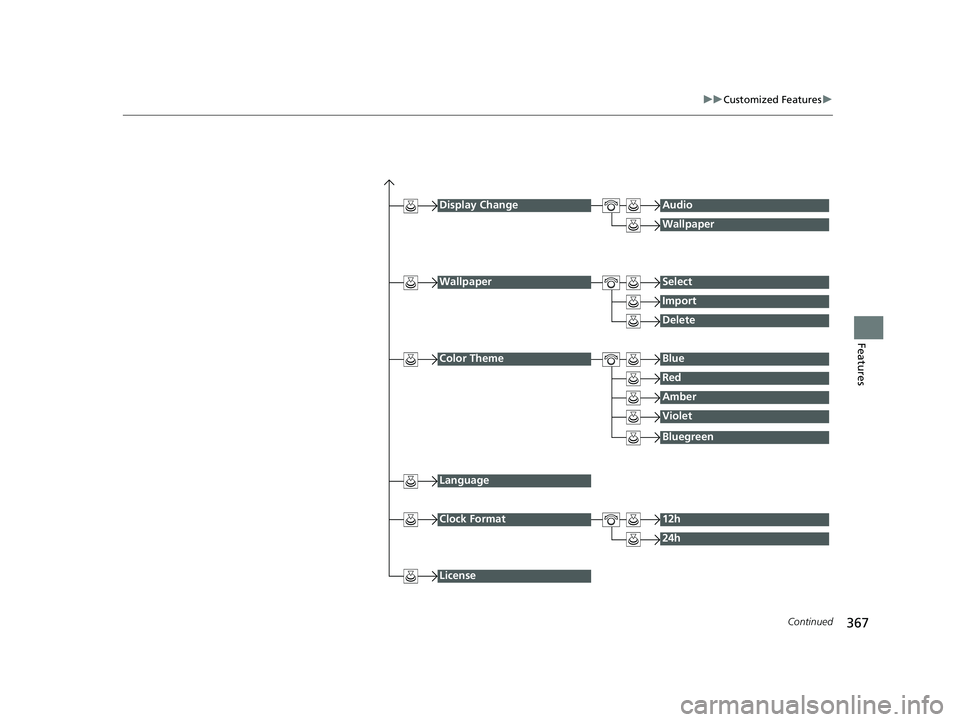
Display ChangeAudio
Wallpaper
WallpaperSelect
Import
Delete
Color ThemeBlue
Red
Amber
Violet
Language
Clock Format12h
24h
License
Bluegreen
21 INSIGHT-31TXM6200.book 367 ページ 2020年2月5日 水曜日 午前10時0分