ECO mode HONDA INSIGHT 2022 Workshop Manual
[x] Cancel search | Manufacturer: HONDA, Model Year: 2022, Model line: INSIGHT, Model: HONDA INSIGHT 2022Pages: 609, PDF Size: 18.48 MB
Page 267 of 609
uuAudio System Basic Operation uPlaying SiriusXM ® Radio
266
Features
The system can record up to the last 60 minutes broadcast of your currently tuned
channel as well as the last 30 minutes broadcast of preset channels, starting from
the moment you turn the vehicle on. If yo u tuned to preset channel, the system
records up to 60 minutes of a broadcast instead of up to 30 minutes. You can
rewind and replay the last 30 or 60 minutes of a broadcast.
Move the position you want to replay by selecting or .
To play or pause on playback mo de, select the play/pause icon.
■Returning to real-time broadcast
Select and hold .
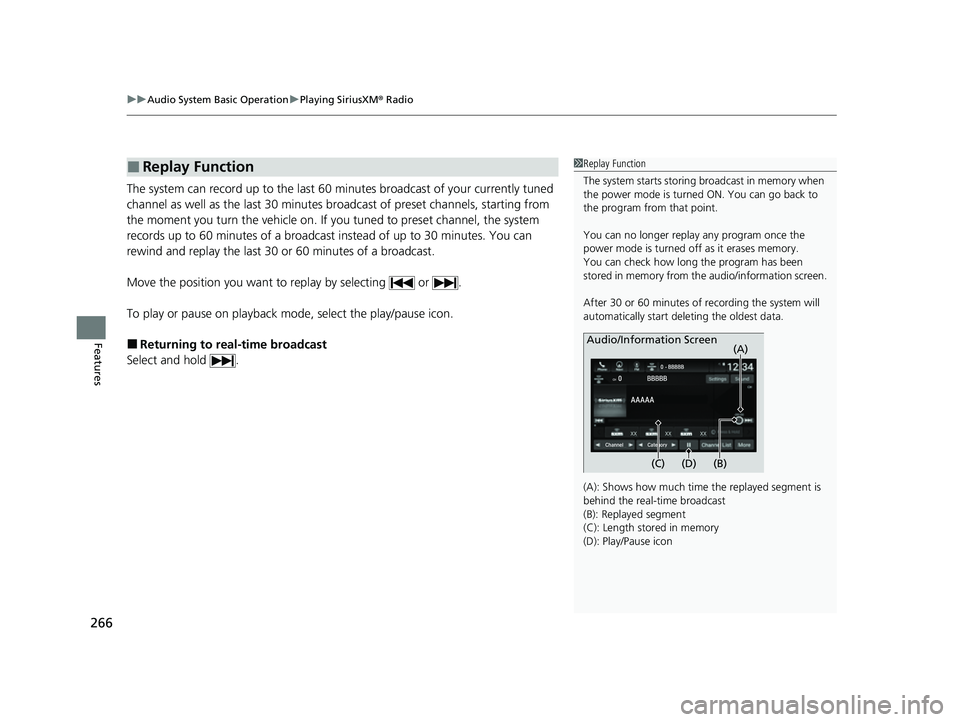
■Replay Function1 Replay Function
The system starts storing broadcast in memory when
the power mode is turned ON. You can go back to
the program from that point.
You can no longer repl ay any program once the
power mode is turned off as it erases memory.
You can check how long the program has been
stored in memory from th e audio/information screen.
After 30 or 60 minutes of recording the system will
automatically start deleting the oldest data.
(A): Shows how much time the replayed segment is
behind the real-time broadcast
(B): Replayed segment
(C): Length stored in memory
(D): Play/Pause icon
Audio/Information Screen
(C) (B) (A)
(D)
22 INSIGHT HMIN-31TXM6300.book 266 ページ 2021年2月24日 水曜日 午後3時45分
Page 272 of 609
Continued271
uuAudio System Basic Operation uPlaying SiriusXM ® Radio
Features
Sample each channel on the selected mode for 10 seconds.
1. Select More.
2. Select Scan.
You can change a scan mode by the following procedure.
1. Select Settings .
2. Select Scan Mode .
3. Select Channel or Preset .
To turn off scan, select Stop.
■Scan1Scan
The “Scan Songs in Preset s” function is based on
TuneScan
TM technology of SiriusXM ®.
The “Featured Channels ” function is based on
Featured Favorites
TM technology of SiriusXM ®.
TuneScan
TM and Featured FavoritesTM are registered
trademarks of SiriusXM ® Radio, Inc.
22 INSIGHT HMIN-31TXM6300.book 271 ページ 2021年2月24日 水曜日 午後3時45分
Page 275 of 609
uuAudio System Basic Operation uPlaying an iPod
274
Features
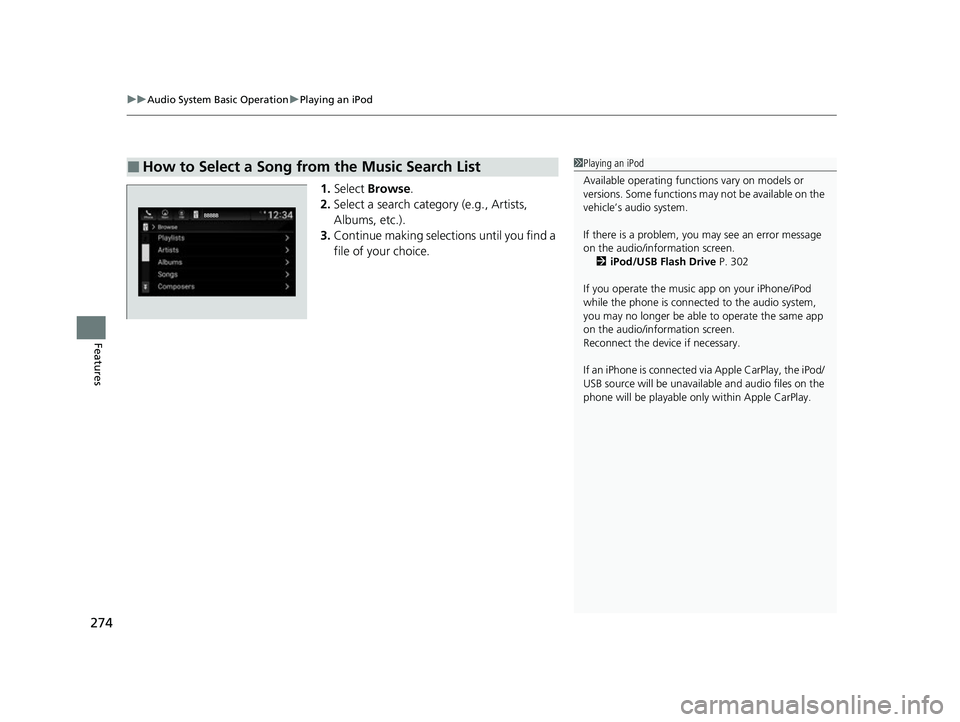
1. Select Browse .
2. Select a search catego ry (e.g., Artists,
Albums, etc.).
3. Continue making selections until you find a
file of your choice.
■How to Select a Song from the Music Search List1Playing an iPod
Available operating functi ons vary on models or
versions. Some functions ma y not be available on the
vehicle’s audio system.
If there is a problem, you may see an error message
on the audio/information screen. 2 iPod/USB Flash Drive P. 302
If you operate the musi c app on your iPhone/iPod
while the phone is connected to the audio system,
you may no longer be able to operate the same app
on the audio/information screen.
Reconnect the devi ce if necessary.
If an iPhone is connected vi a Apple CarPlay, the iPod/
USB source will be unavailable and audio files on the
phone will be playable onl y within Apple CarPlay.
22 INSIGHT HMIN-31TXM6300.book 274 ページ 2021年2月24日 水曜日 午後3時45分
Page 277 of 609
276
uuAudio System Basic Operation uPlaying a USB Flash Drive
Features
Playing a USB Flash Drive
Your audio system reads and plays audio f iles on a USB flash drive in either MP3,
WMA, AAC*1, FLAC or WAV format.
Connect your USB flash drive to a US B port, then select the USB mode.
2USB Ports P. 225
*1:Only AAC format files recorded with iTunes are playable on this unit.
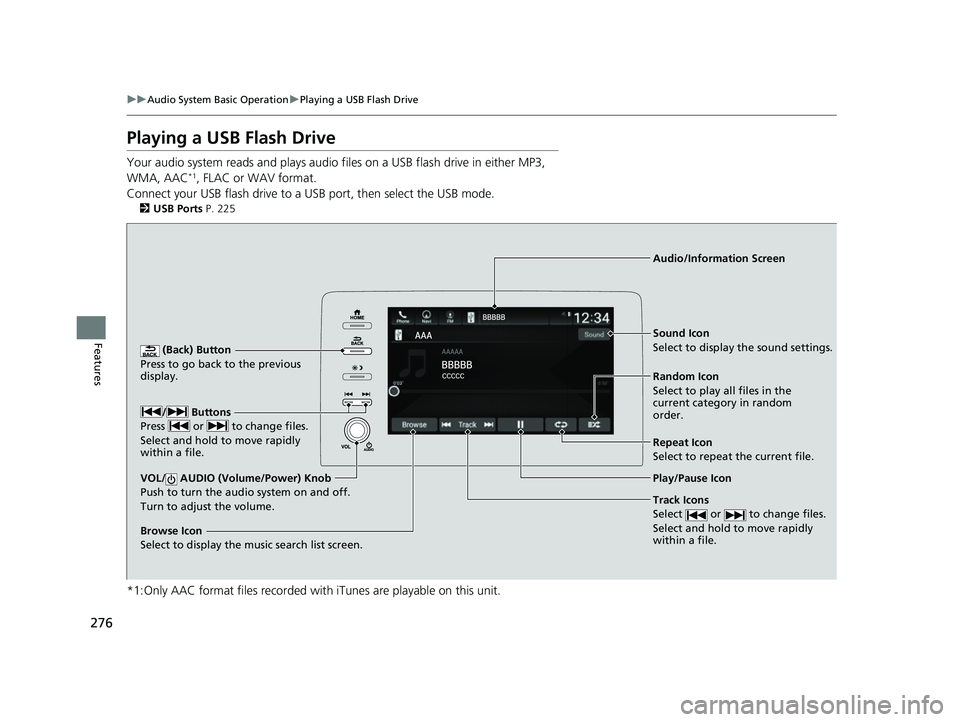
(Back) Button
Press to go back to the previous
display.
Track Icons
Select or to change files.
Select and hold to move rapidly
within a file.
VOL/ AUDIO (Volume/Power) Knob
Push to turn the audi o system on and off.
Turn to adjust the volume.
Audio/Information Screen
Play/Pause Icon
/ Buttons
P r
ess or to change files.
Select and hold to move rapidly
within a file.
Random Icon
Select to play all files in the
current category in random
order. Sound Icon
Select to display the sound settings.
Browse Icon
Select to display the music search list screen.
Repeat Icon
Select to repeat the current file.
22 INSIGHT HMIN-31TXM6300.book 276 ページ 2021年2月24日 水曜日 午後3時45分
Page 281 of 609
uuAudio System Basic Operation uPlaying Bluetooth ® Audio
280
Features
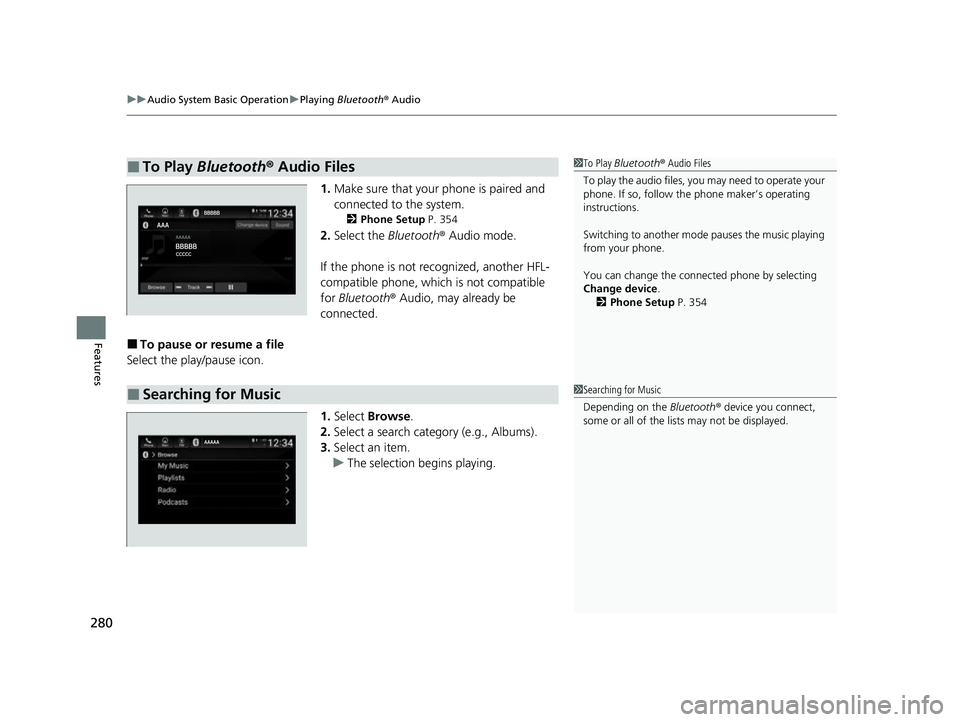
1. Make sure that your phone is paired and
connected to the system.
2 Phone Setup P. 354
2.Select the Bluetooth® Audio mode.
If the phone is not recognized, another HFL-
compatible phone, which is not compatible
for Bluetooth ® Audio, may already be
connected.
■To pause or resume a file
Select the play/pause icon.
1.Select Browse .
2. Select a search cate gory (e.g., Albums).
3. Select an item.
u The selection begins playing.
■To Play Bluetooth ® Audio Files1 To Play Bluetooth ® Audio Files
To play the audio files, y ou may need to operate your
phone. If so, follow the phone maker’s operating
instructions.
Switching to another mode pauses the music playing
from your phone.
You can change the connected phone by selecting
Change device .
2 Phone Setup P. 354
■Searching for Music1Searching for Music
Depending on the Bluetooth® device you connect,
some or all of the list s may not be displayed.
22 INSIGHT HMIN-31TXM6300.book 280 ページ 2021年2月24日 水曜日 午後3時45分
Page 306 of 609
305
uuGeneral Information on the Audio System uCompatible iPod, iPhone, and USB Flash Drives
Features
Compatible iPod, iPhone , and USB Flash Drives
•A USB flash drive of 256 MB or higher is recommended.
• Some digital audio players may not be compatible.
• Some USB flash drives (e.g., a device with security lockout) may not work.
• Some software files may not allow for audio play or text data display.
• Some versions of MP3, WMA, AAC, FLAC, or WAV formats may be unsupported.
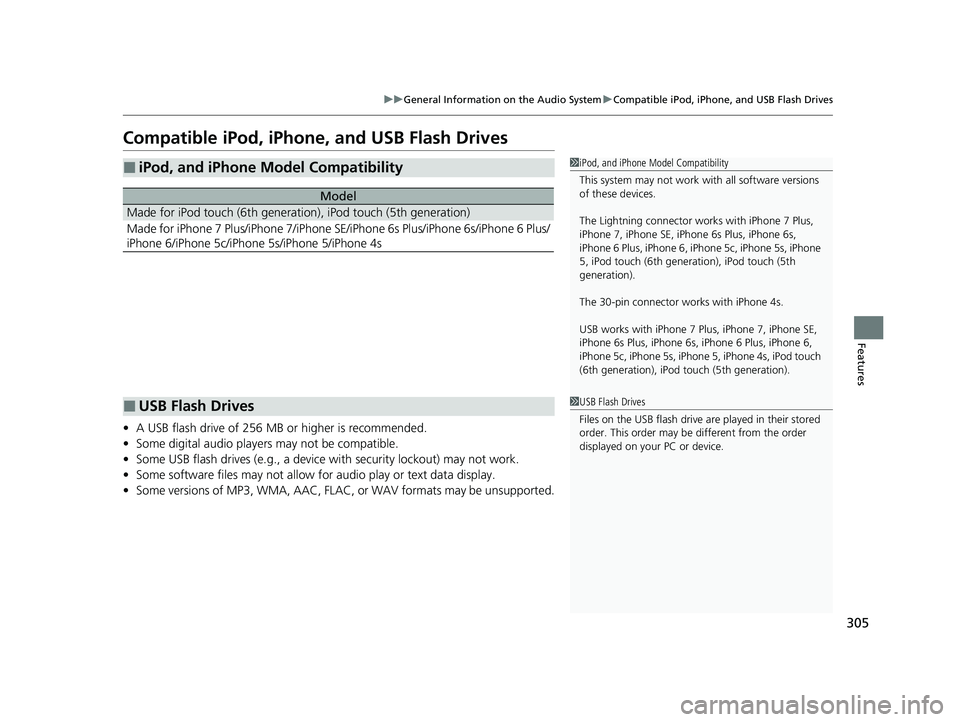
■iPod, and iPhone Model Compatibility
Model
Made for iPod touch (6th generation), iPod touch (5th generation)
Made for iPhone 7 Plus/iPhone 7/iPhone SE/iPhone 6s Plus/iPhone 6s/iPhone 6 Plus/
iPhone 6/iPhone 5c/iPhone 5s/iPhone 5/iPhone 4s
1iPod, and iPhone Model Compatibility
This system may not work with all software versions
of these devices.
The Lightning connector work s with iPhone 7 Plus,
iPhone 7, iPhone SE, iPhone 6s Plus, iPhone 6s,
iPhone 6 Plus, iPhone 6, iP hone 5c, iPhone 5s, iPhone
5, iPod touch (6th generation), iPod touch (5th
generation).
The 30-pin connector wo rks with iPhone 4s.
USB works with iPhone 7 Pl us, iPhone 7, iPhone SE,
iPhone 6s Plus, iPhone 6s, iPhone 6 Plus, iPhone 6,
iPhone 5c, iPhone 5s, iPhone 5, iPhone 4s, iPod touch
(6th generation), iPod t ouch (5th generation).
■USB Flash Drives1USB Flash Drives
Files on the USB flash drive are played in their stored
order. This order may be different from the order
displayed on your PC or device.
22 INSIGHT HMIN-31TXM6300.book 305 ページ 2021年2月24日 水曜日 午後3時45分
Page 329 of 609
328
uuCustomized Features u
Features
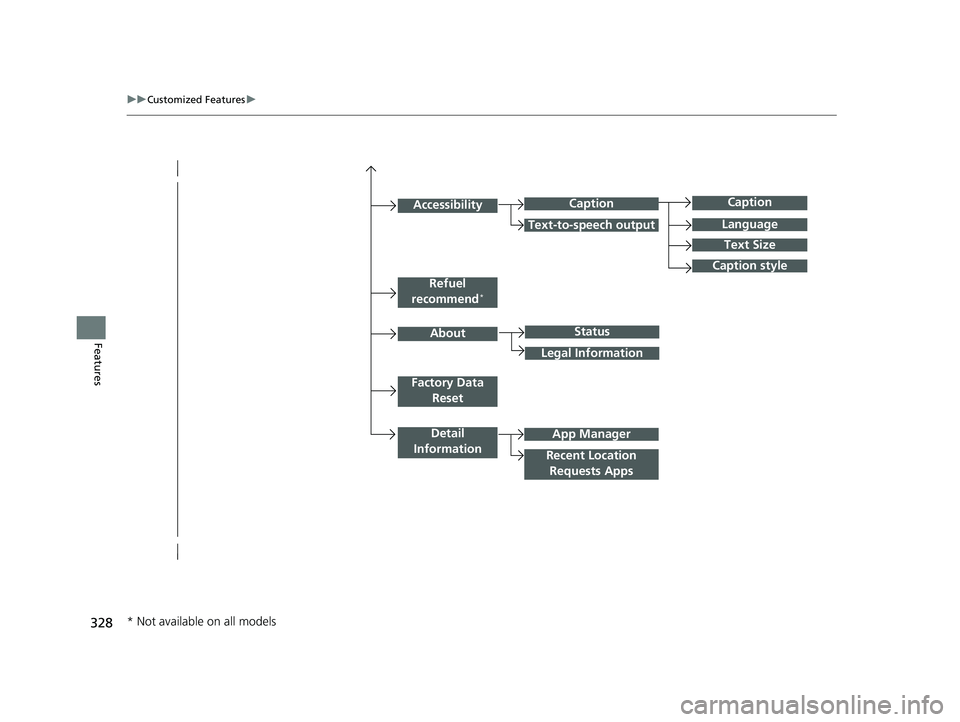
Caption
Language
Caption style
Detail
Information
Factory Data Reset
About
Refuel
recommend*
Accessibility
Status
Legal Information
App Manager
Recent Location Requests Apps
Caption
Text-to-speech output
Text Size
* Not available on all models
22 INSIGHT HMIN-31TXM6300.book 328 ページ 2021年2月24日 水曜日 午後3時45分
Page 337 of 609

336
uuCustomized Features u
Features
*1:Default SettingSetup
Group Customizable Features Description Selectable Settings
System
Refuel
recommend*Turns the refuel recommend function on and off.
2
Refuel Recommend P. 374ON*1/OFF
AboutStatusDisplays the Android setting items.—Legal Information
Factory Data
ResetResets all the settings to their factory default.2 Defaulting All the Settings P. 345Continue /Cancel
Detail
InformationApp ManagerDisplays the Android sy stem memory and apps
information.—
Recent Location
Requests AppsDisplays the recent loca tion requests from apps.—
* Not available on all models
22 INSIGHT HMIN-31TXM6300.book 336 ページ 2021年2月24日 水曜日 午後3時45分
Page 339 of 609
338
uuCustomized Features u
Features
*1:Default SettingSetup
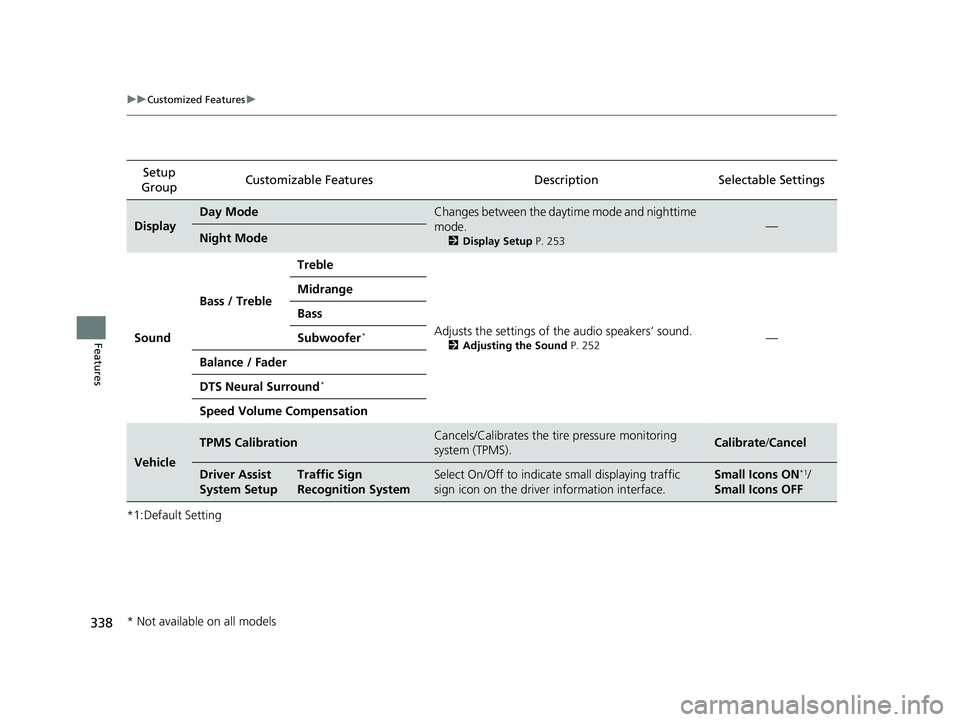
Group Customizable Features
DescriptionSelectable Settings
Display
Day ModeChanges between the daytime mode and nighttime
mode.
2Display Setup P. 253
—Night Mode
Sound Bass / Treble Treble
Adjusts the settings of the audio speakers’ sound.
2Adjusting the Sound P. 252—
Midrange
Bass
Subwoofer*
Balance / Fader
DTS Neural Surround
*
Speed Volume Compensation
Vehicle
TPMS CalibrationCancels/Calibrates the tire pressure monitoring
system (TPMS).Calibrate
/Cancel
Driver Assist
System SetupTraffic Sign
Recognition SystemSelect On/Off to indicate small displaying traffic
sign icon on the driver information interface.Small Icons ON*1/
Small Icons OFF
* Not available on all models
22 INSIGHT HMIN-31TXM6300.book 338 ページ 2021年2月24日 水曜日 午後3時45分
Page 375 of 609
374
Features
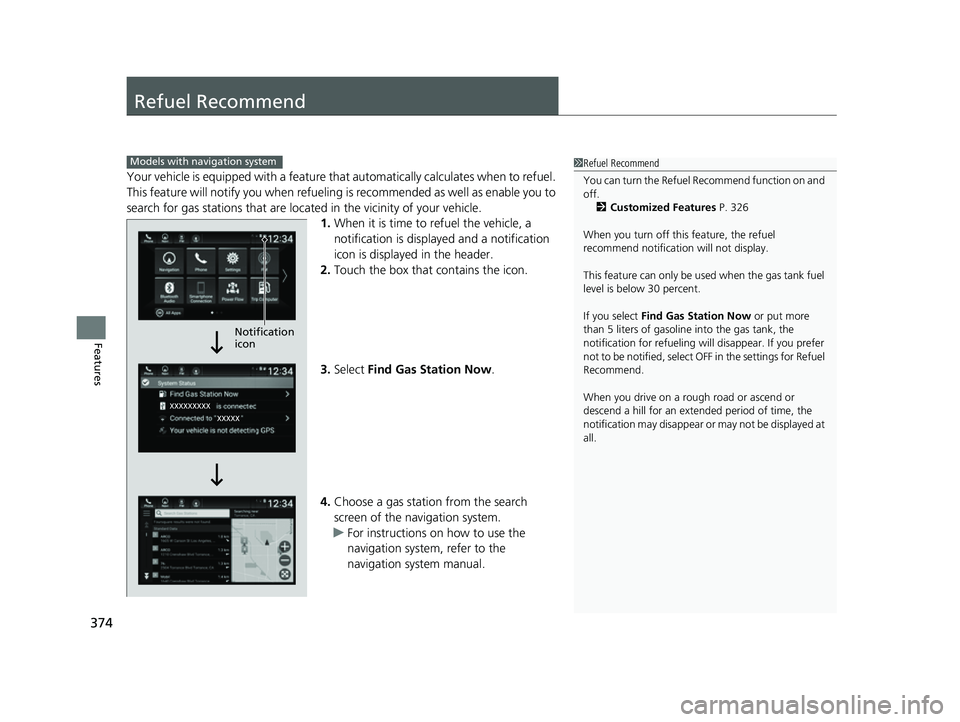
Refuel Recommend
Your vehicle is equipped with a feature that automatically calculates when to refuel.
This feature will notify you when refueling is recommended as well as enable you to
search for gas stations that are loca ted in the vicinity of your vehicle.
1. When it is time to refuel the vehicle, a
notification is displayed and a notification
icon is displayed in the header.
2. Touch the box that contains the icon.
3. Select Find Gas Station Now .
4. Choose a gas station from the search
screen of the navigation system.
u For instructions on how to use the
navigation system, refer to the
navigation system manual.
1Refuel Recommend
You can turn the Refuel Recommend function on and
off.
2 Customized Features P. 326
When you turn off this feature, the refuel
recommend notificati on will not display.
This feature can only be us ed when the gas tank fuel
level is below 30 percent.
If you select Find Gas Station Now or put more
than 5 liters of gasoline into the gas tank, the
notification for refueling will disappear. If you prefer
not to be notified, select O FF in the settings for Refuel
Recommend.
When you drive on a rough road or ascend or
descend a hill for an ex tended period of time, the
notification may disappear or may not be displayed at
all.Models with navigation system
Notification
icon
22 INSIGHT HMIN-31TXM6300.book 374 ページ 2021年2月24日 水曜日 午後3時45分