reset HONDA ODYSSEY 1999 User Guide
[x] Cancel search | Manufacturer: HONDA, Model Year: 1999, Model line: ODYSSEY, Model: HONDA ODYSSEY 1999Pages: 343, PDF Size: 3.73 MB
Page 160 of 343
Audio System
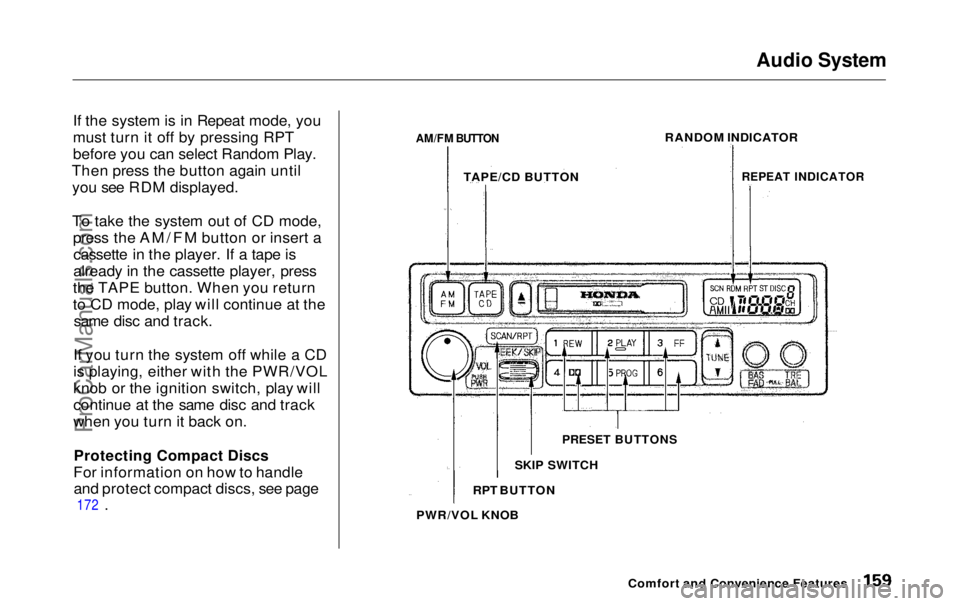
If the system is in Repeat mode, you
must turn it off by pressing RPT
before you can select Random Play.
Then press the button again until you see RDM displayed.
To take the system out of CD mode, press the AM/FM button or insert acassette in the player. If a tape is
already in the cassette player, press
the TAPE button. When you return
to CD mode, play will continue at the same disc and track.
If you turn the system off while a CD
is playing, either with the PWR/VOL
knob or the ignition switch, play will
continue at the same disc and track
when you turn it back on.
Protecting Compact Discs
For information on how to handle and protect compact discs, see page
172
.
AM/FM BUTTON
RANDOM INDICATOR
REPEAT INDICATOR
Comfort and Convenience Features
PRESET BUTTONS
SKIP SWITCH
RPT BUTTON
PWR/VOL KNOB TAPE/CD BUTTONProCarManuals.comMain Menu Table of Contents s t
Page 162 of 343
Audio System
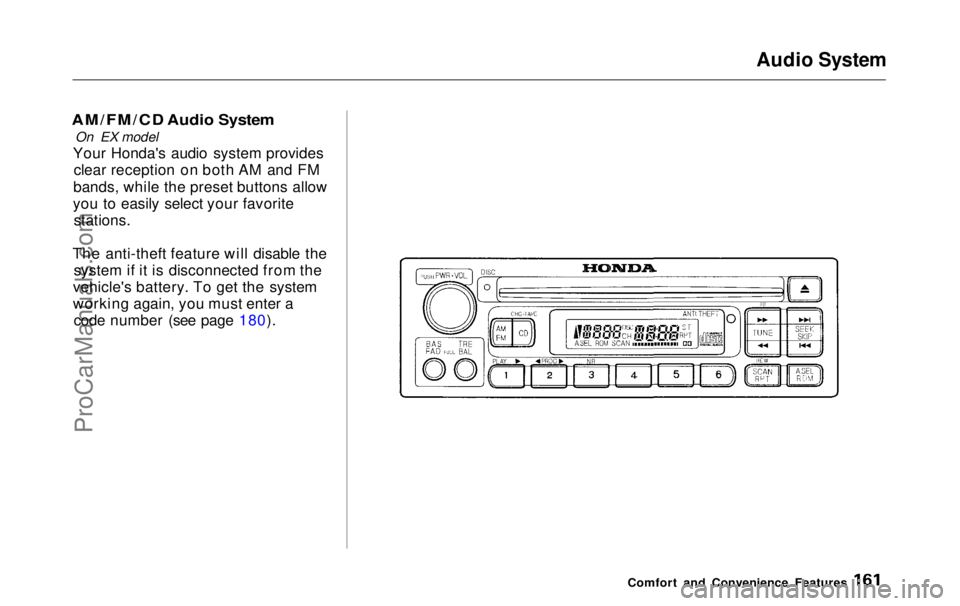
AM/FM/CD Audio System
On EX model
Your Honda's audio system provides clear reception on both AM and FM
bands, while the preset buttons allow
you to easily select your favorite stations.
The anti-theft feature will disable the system if it is disconnected from the
vehicle's battery. To get the system
working again, you must enter a code number (see page 180).
Comfort and Convenience FeaturesProCarManuals.comMain Menu Table of Contents s t
Page 163 of 343
Audio System
Operating the Radio
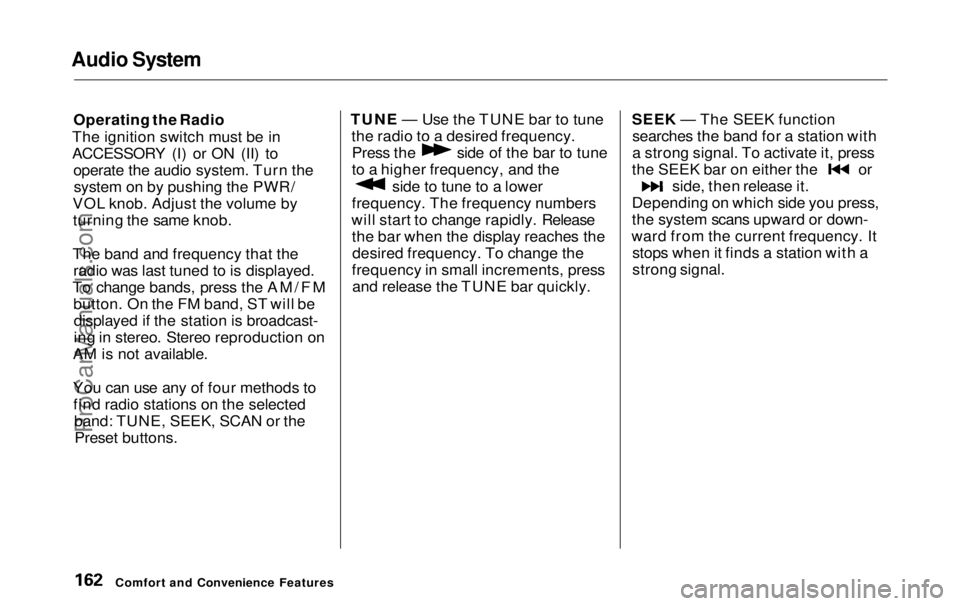
The ignition switch must be in
ACCESSORY (I) or ON (II) to operate the audio system. Turn thesystem on by pushing the PWR/
VOL knob. Adjust the volume by turning the same knob.
The band and frequency that the radio was last tuned to is displayed.
To change bands, press the AM/FM button. On the FM band, ST will bedisplayed if the station is broadcast-
ing in stereo. Stereo reproduction on
AM is not available.
You can use any of four methods to find radio stations on the selected band: TUNE, SEEK, SCAN or thePreset buttons. TUNE — Use the TUNE bar to tune
the radio to a desired frequency. Press the side of the bar to tune
to a higher frequency, and the
side to tune to a lower
frequency. The frequency numbers
will start to change rapidly. Release the bar when the display reaches thedesired frequency. To change the
frequency in small increments, press and release the TUNE bar quickly. SEEK — The SEEK function
searches the band for a station with
a strong signal. To activate it, press the SEEK bar on either the or
side, then release it.
Depending on which side you press,
the system scans upward or down-
ward from the current frequency. It stops when it finds a station with a
strong signal.
Comfort and Convenience FeaturesProCarManuals.comMain Menu Table of Contents s t
Page 164 of 343
Audio System
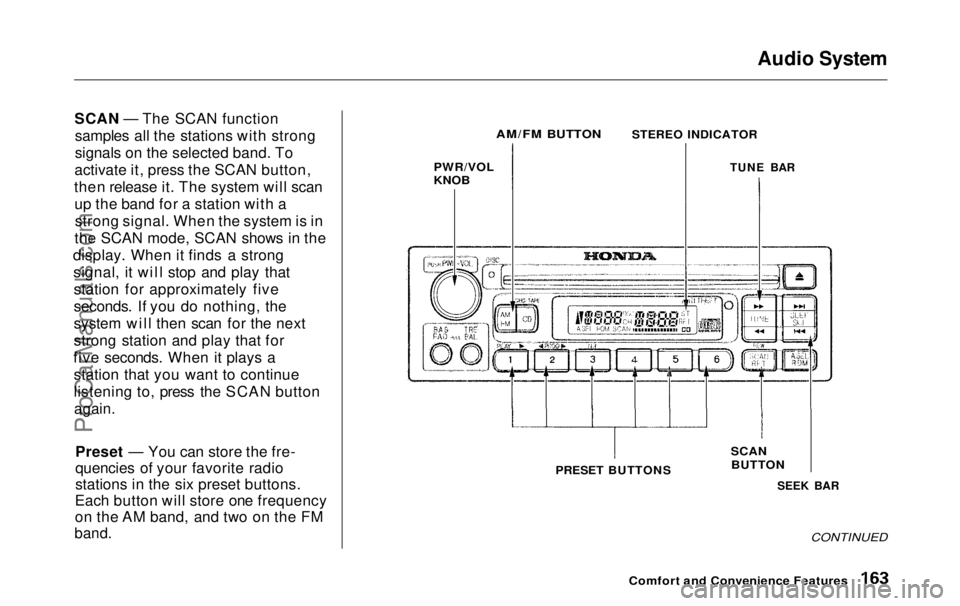
SCAN — The SCAN function samples all the stations with strong
signals on the selected band. To
activate it, press the SCAN button,
then release it. The system will scan up the band for a station with astrong signal. When the system is in
the SCAN mode, SCAN shows in the
display. When it finds a strong signal, it will stop and play thatstation for approximately five
seconds. If you do nothing, the
system will then scan for the next
strong station and play that for
five seconds. When it plays a station that you want to continue
listening to, press the SCAN button
again.
Preset — You can store the fre-
quencies of your favorite radio
stations in the six preset buttons.
Each button will store one frequency
on the AM band, and two on the FM
band.
PWR/VOL
KNOB
SEEK BAR
CONTINUED
Comfort and Convenience Features
SCAN
BUTTON
PRESET BUTTONS
AM/FM BUTTON
STEREO INDICATOR
TUNE BARProCarManuals.comMain Menu Table of Contents s t
Page 165 of 343
Audio System
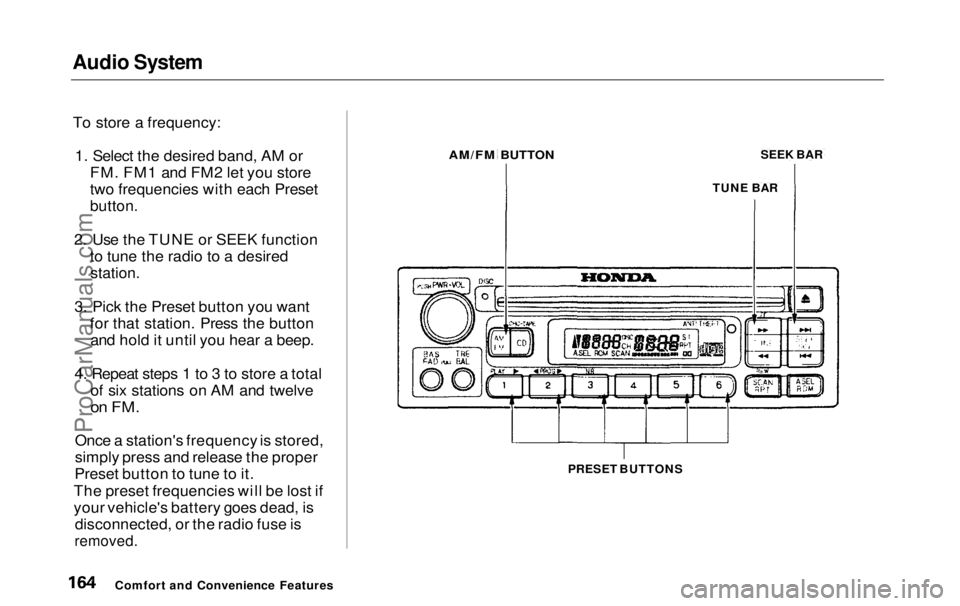
To store a frequency: 1. Select the desired band, AM or FM. FM1 and FM2 let you store
two frequencies with each Preset
button.
2. Use the TUNE or SEEK function to tune the radio to a desired
station.
3. Pick the Preset button you want for that station. Press the buttonand hold it until you hear a beep.
4. Repeat steps 1 to 3 to store a total of six stations on AM and twelve
on FM.
Once a station's frequency is stored,
simply press and release the proper
Preset button to tune to it.
The preset frequencies will be lost if
your vehicle's battery goes dead, is disconnected, or the radio fuse is
removed.
PRESET BUTTONS
Comfort and Convenience Features
AM/FM BUTTON
TUNE BARSEEK BARProCarManuals.comMain Menu Table of Contents s t
Page 166 of 343
Audio System
AUTO SELECT— If you are traveling far from home and can no
longer receive the stations you preset, you can use the Auto Select
feature to find stations in the local
area.
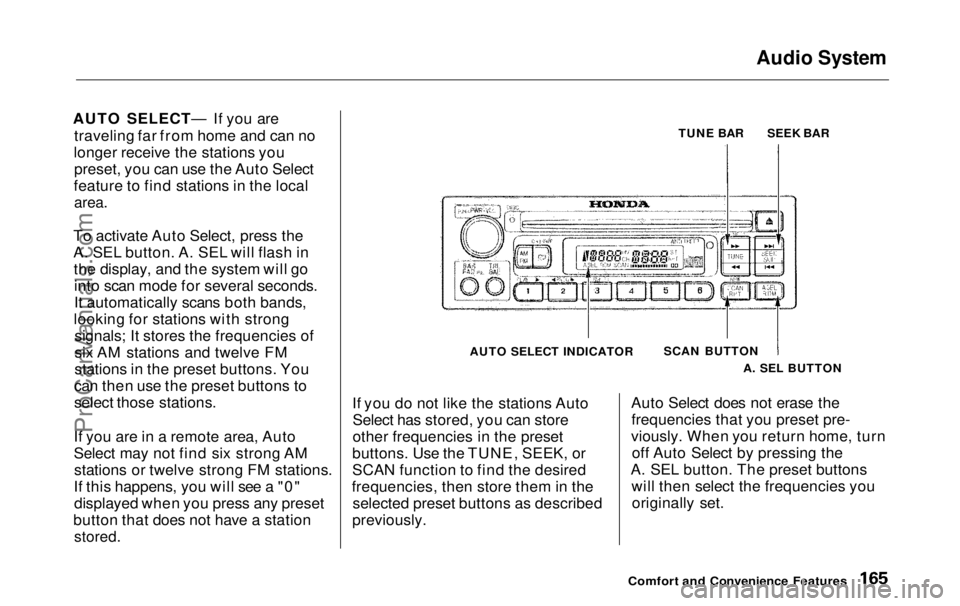
To activate Auto Select, press the
A. SEL button. A. SEL will flash in the display, and the system will gointo scan mode for several seconds.
It automatically scans both bands,
looking for stations with strong signals; It stores the frequencies of
six AM stations and twelve FM
stations in the preset buttons. You
can then use the preset buttons to
select those stations.
If you are in a remote area, Auto
Select may not find six strong AM stations or twelve strong FM stations.
If this happens, you will see a "0" displayed when you press any preset
button that does not have a station
stored.
TUNE BAR
AUTO SELECT INDICATOR SCAN BUTTON
If you do not like the stations Auto Select has stored, you can store
other frequencies in the preset
buttons. Use the TUNE, SEEK, or
SCAN function to find the desired
frequencies, then store them in the selected preset buttons as described
previously. Auto Select does not erase the
frequencies that you preset pre-
viously. When you return home, turn off Auto Select by pressing the
A. SEL button. The preset buttons will then select the frequencies youoriginally set.
Comfort and Convenience Features
A. SEL BUTTONSEEK BARProCarManuals.comMain Menu Table of Contents s t
Page 172 of 343

Audio System
Operating the CD Changer
(Optional)
A Compact Disc changer is available for your vehicle. It holds up to sixdiscs, providing several hours of
continuous entertainment. You
operate this CD changer with thesame controls used for the in-dash
CD player.
Load the desired CD's in the
magazine and load the magazine in
the changer according to the instructions that came with the unit.
Play only standard round discs. Odd-shaped CDs may jam in the drive or
cause other problems.
To select the CD changer, press the CD button. The disc and track
numbers will be displayed. To select a different disc, press the
appropriate preset button (1 — 6). If
you select an empty slot in the magazine, the changer will, after
finding that slot empty, try to load
the CD in the next slot. Thiscontinues until it finds a CD to load
and play.
If you load a CD in the in-dash player
while the changer is playing a CD, the system will stop the changer and
begin playing the in-dash CD. Toselect the changer again, press theCD button. Play will begin where it
left off. Use the CD button to switch
between the player and the changer.
If you eject the in-dash CD while it is
playing, the system will automaticallyswitch to the CD changer and begin
play where it left off. If there are no CDs in the changer, the display will
flash. You will have to select another mode (AM or FM) with the button. When you switch back to CD mode,
the system selects the same unit (in-dash or changer) that was playing
when you switched out of CD mode.
To use the SKIP, REPEAT, and RANDOM functions, refer to the in-dash player operating instructions.
Comfort and Convenience FeaturesProCarManuals.comMain Menu Table of Contents s t
Page 180 of 343
Audio System
Remote Audio Controls
On EX model
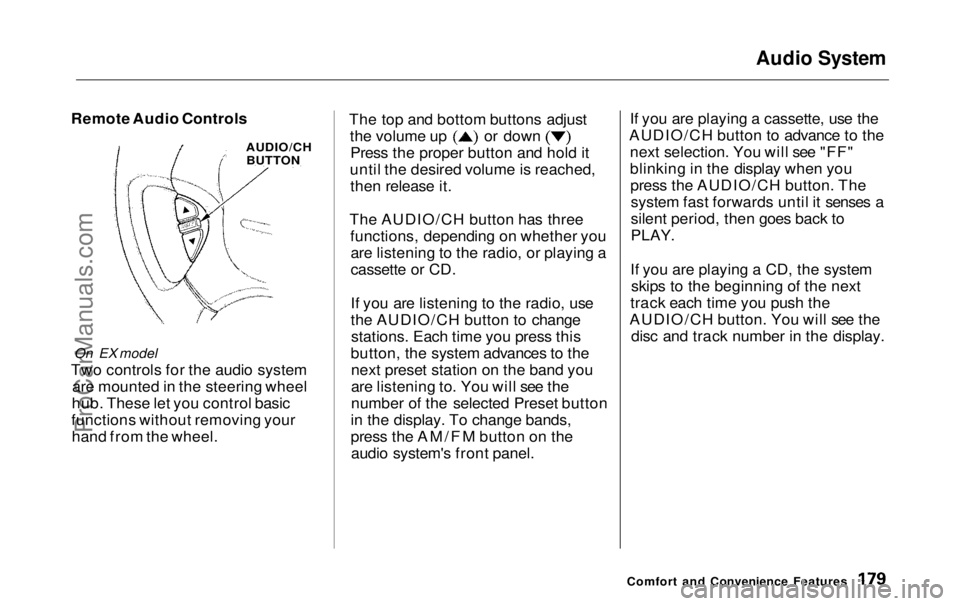
Two controls for the audio system are mounted in the steering wheel
hub. These let you control basic
functions without removing your hand from the wheel. The top and bottom buttons adjust the volume up or down
Press the proper button and hold it
until the desired volume is reached, then release it.
The AUDIO/CH button has three functions, depending on whether youare listening to the radio, or playing a
cassette or CD.
If you are listening to the radio, use
the AUDIO/CH button to changestations. Each time you press this
button, the system advances to the next preset station on the band you
are listening to. You will see the
number of the selected Preset button
in the display. To change bands,
press the AM/FM button on the audio system's front panel. If you are playing a cassette, use the
AUDIO/CH button to advance to the next selection. You will see "FF"
blinking in the display when youpress the AUDIO/CH button. Thesystem fast forwards until it senses a
silent period, then goes back to
PLAY.
If you are playing a CD, the system skips to the beginning of the next
track each time you push the
AUDIO/CH button. You will see the disc and track number in the display.
Comfort and Convenience Features
AUDIO/CH
BUTTONProCarManuals.comMain Menu Table of Contents s t
Page 181 of 343
Audio System
Theft Protection
On EX model
Your vehicle's audio system will disable itself if it is disconnected
from electrical power for any reason.
To make it work again, the user must enter a specific five-digit code
in the Preset buttons. Because there
are hundreds of number
combinations possible from five
digits, making the system work
without knowing the exact code is nearly impossible.
You should have received a card that lists your audio system's codenumber and serial number. It is best
to store this card in a safe place at
home. In addition, you should write
the audio system's serial number in
this Owner's Manual. If you should
happen to lose the card, you must obtain the code number from your
Honda dealer. To do this, you will
need the system's serial number. If your vehicle's battery is discon-
nected or goes dead, or the radio
fuse is removed, the audio system
will disable itself. If this happens, you will see in the
frequency display the next time youturn on the system. Use the Preset
buttons to enter the five-digit code. Ifit is entered correctly, the radio willstart playing.
If you make a mistake entering the
code, do not start over or try to
correct your mistake. Complete the
five-digit sequence, then enter the correct code. You have ten tries to
enter the correct code. If you are
unsuccessful in ten attempts, you
must then leave the system on forone hour before trying again. You will have to store your favorite
stations in the Preset buttons after
the system begins working. Your original settings were lost when
power was disconnected.
Comfort and Convenience FeaturesProCarManuals.comMain Menu Table of Contents s t
Page 210 of 343
Traction Control System
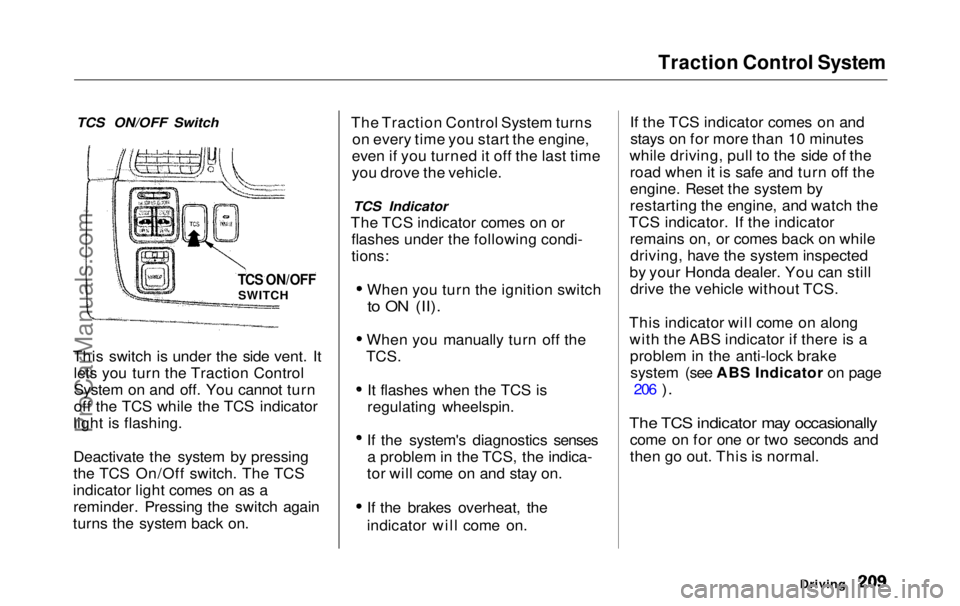
TCS ON/OFF Switch
This switch is under the side vent. It lets you turn the Traction Control
System on and off. You cannot turn
off the TCS while the TCS indicator
light is flashing.
Deactivate the system by pressing
the TCS On/Off switch. The TCS
indicator light comes on as a reminder. Pressing the switch again
turns the system back on. The Traction Control System turns
on every time you start the engine,
even if you turned it off the last time
you drove the vehicle.
TCS Indicator
The TCS indicator comes on or flashes under the following condi-
tions:
When you turn the ignition switch
to ON (II).
When you manually turn off the
TCS.
It flashes when the TCS is
regulating wheelspin.
If the system's diagnostics senses a problem in the TCS, the indica-
tor will come on and stay on.
If the brakes overheat, the
indicator will come on. If the TCS indicator comes on and
stays on for more than 10 minutes
while driving, pull to the side of the road when it is safe and turn off the
engine. Reset the system by
restarting the engine, and watch the
TCS indicator. If the indicator remains on, or comes back on whiledriving, have the system inspected
by your Honda dealer. You can still drive the vehicle without TCS.
This indicator will come on along with the ABS indicator if there is aproblem in the anti-lock brakesystem (see ABS Indicator on page 206
).
The TCS indicator may occasionally
come on for one or two seconds and
then go out. This is normal.
Driving
TCS ON/OFF
SWITCHProCarManuals.comMain Menu Table of Contents s t