buttons HONDA ODYSSEY 2012 RB3-RB4 / 4.G User Guide
[x] Cancel search | Manufacturer: HONDA, Model Year: 2012, Model line: ODYSSEY, Model: HONDA ODYSSEY 2012 RB3-RB4 / 4.GPages: 441, PDF Size: 14.07 MB
Page 197 of 441
196
uuAudio SystemuAudio System Theft Protection
*
Features
Audio System Theft Protection
*
The audio system is disabled when it is disconnected from the power source, such as
when the battery is disconnected or goes dead.■
Reactivating the audio system
1.Turn the ignition switch to ON
(w
, and turn on the audio system.
uIf you turn the ignition switch to ACCESSORY
(q
, you will be requested to
enter the audio security code. See step 3.
2.Press and hold the power volume knob again for more than two seconds.
uThe audio system is reactivated when the system’s control unit recognizes that
the system is in your vehicle.
If the control unit fails to recognize, ENTER CODE appears on the audio/
information screen.
3.Enter the audio security code using the preset buttons. If you enter an incorrect
digit, continue to the last digit, then try again. If you do not enter the code
correctly after 10 tries, leave the system for one hour before trying again, or visit
a dealer to have the system reset.
1Audio System Theft Protection
Find the audio system's security code and serial
number label in your owner’s manual kit.
We recommend that you write down the serial
number in this owner’s manual.
Do not store the label in your vehicle. If you lose the
label, you must first retrieve the serial number, and
then obtain the code.
You can find out about your serial number and
security code from a dealer.
You can register the security code at Owner Link
(owners.honda.com.), and find information on how
to retrieve the serial number and obtain the code at
radio-navicode.honda.com.
U.S. models
* Not available on all models
Page 199 of 441
198
uuAudio System Basic OperationuPlaying the AM/FM Radio
Features
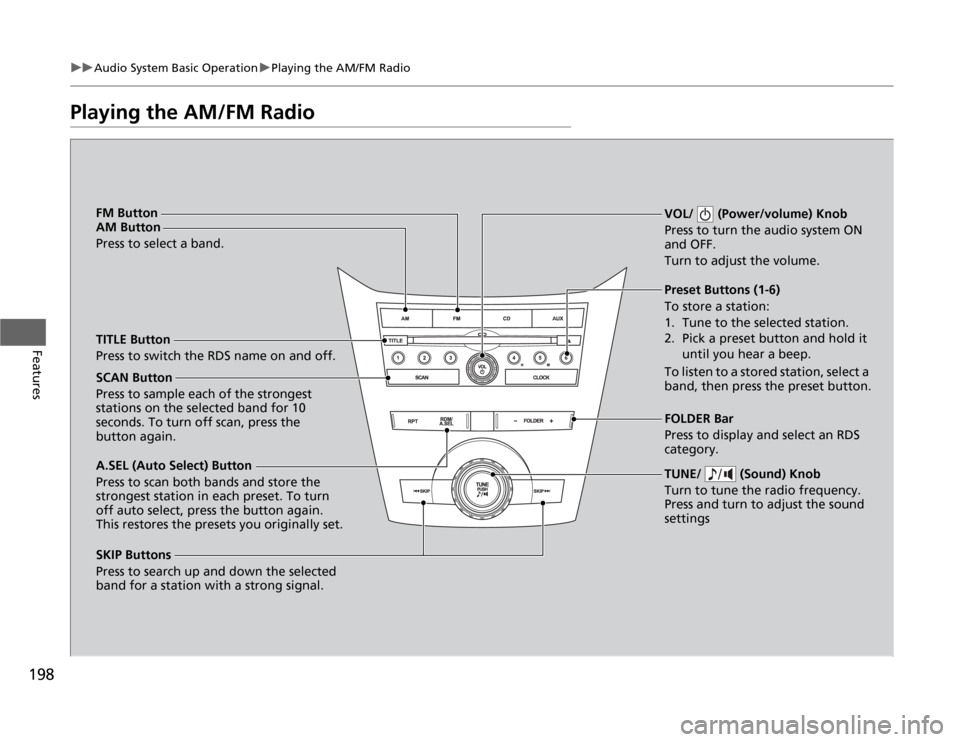
Playing the AM/FM Radio
SCAN Button
Press to sample each of the strongest
stations on the selected band for 10
seconds. To turn off scan, press the
button again.VOL/ (Power/volume) Knob
Press to turn the audio system ON
and OFF.
Turn to adjust the volume.
Preset Buttons (1-6)
To store a station:
1. Tune to the selected station.
2. Pick a preset button and hold it
until you hear a beep.
To listen to a stored station, select a
band, then press the preset button.
SKIP Buttons
Press to search up and down the selected
band for a station with a strong signal.TUNE/ (Sound) Knob
Turn to tune the radio frequency.
Press and turn to adjust the sound
settingsFOLDER Bar
Press to display and select an RDS
category. TITLE Button
Press to switch the RDS name on and off. FM Button
AM Button
Press to select a band.
A.SEL (Auto Select) Button
Press to scan both bands and store the
strongest station in each preset. To turn
off auto select, press the button again.
This restores the presets you originally set.
Page 201 of 441
200
uuAudio System Basic OperationuPlaying a CD
Features
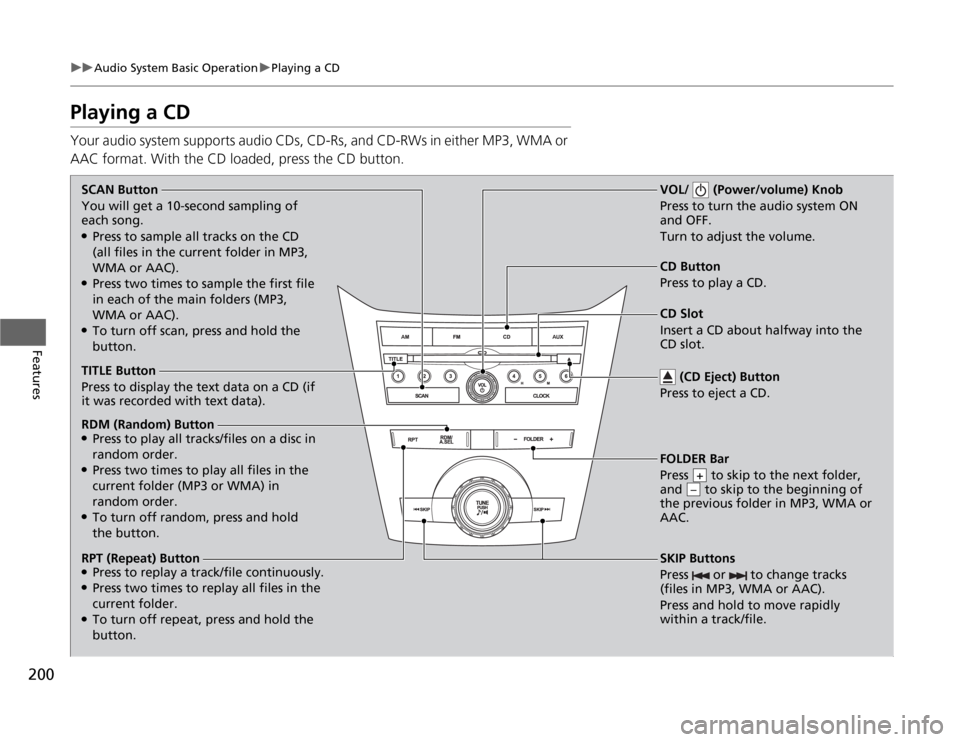
Playing a CDYour audio system supports audio CDs, CD-Rs, and CD-RWs in either MP3, WMA or
AAC format. With the CD loaded, press the CD button.SCAN Button
You will get a 10-second sampling of
each song.●Press to sample all tracks on the CD
(all files in the current folder in MP3,
WMA or AAC).●Press two times to sample the first file
in each of the main folders (MP3,
WMA or AAC).●To turn off scan, press and hold the
button.CD Slot
Insert a CD about halfway into the
CD slot.
SKIP Buttons
Press or to change tracks
(files in MP3, WMA or AAC).
Press and hold to move rapidly
within a track/file.
FOLDER Bar
Press to skip to the next folder,
and to skip to the beginning of
the previous folder in MP3, WMA or
AAC.
+–
CD Button
Press to play a CD.
(CD Eject) Button
Press to eject a CD.
TITLE Button
Press to display the text data on a CD (if
it was recorded with text data).
RDM (Random) Button●Press to play all tracks/files on a disc in
random order.●Press two times to play all files in the
current folder (MP3 or WMA) in
random order.●To turn off random, press and hold
the button.
RPT (Repeat) Button●Press to replay a track/file continuously.●Press two times to replay all files in the
current folder.●To turn off repeat, press and hold the
button.
VOL/ (Power/volume) Knob
Press to turn the audio system ON
and OFF.
Turn to adjust the volume.
Page 206 of 441
205
uuAudio System Basic OperationuPlaying the AM/FM Radio
Continued
Features
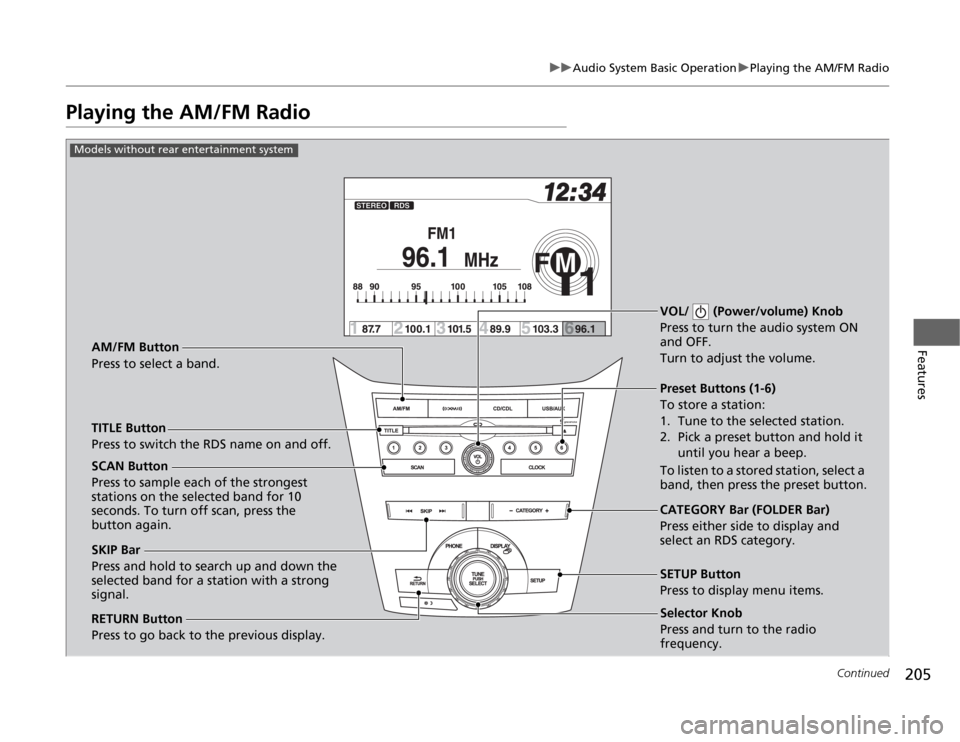
Playing the AM/FM Radio
Selector Knob
Press and turn to tune the radio
frequency.
SCAN Button
Press to sample each of the strongest
stations on the selected band for 10
seconds. To turn off scan, press the
button again.VOL/ (Power/volume) Knob
Press to turn the audio system ON
and OFF.
Turn to adjust the volume.
Preset Buttons (1-6)
To store a station:
1. Tune to the selected station.
2. Pick a preset button and hold it
until you hear a beep.
To listen to a stored station, select a
band, then press the preset button.
SKIP Bar
Press and hold to search up and down the
selected band for a station with a strong
signal.CATEGORY Bar (FOLDER Bar)
Press either side to display and
select an RDS category. TITLE Button
Press to switch the RDS name on and off. AM/FM Button
Press to select a band.
RETURN Button
Press to go back to the previous display.SETUP Button
Press to display menu items.
Models without rear entertainment system
Selector Knob
Press and turn to the radio
frequency.
Page 207 of 441
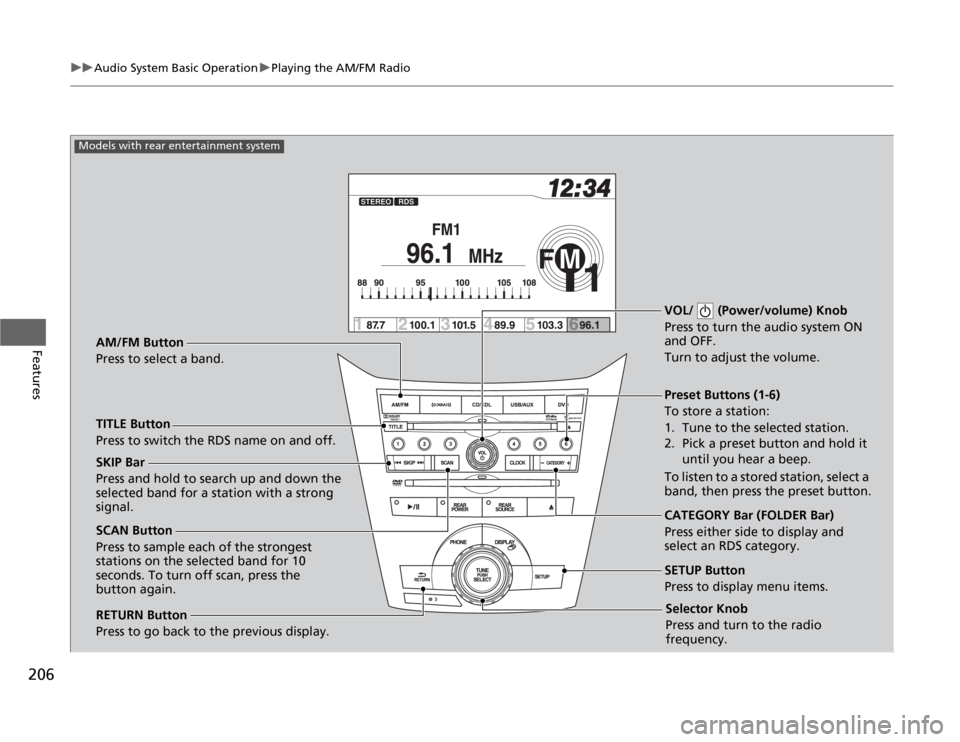
206
uuAudio System Basic OperationuPlaying the AM/FM Radio
Features
Selector Knob
Press and turn to tune the radio
frequency.
SCAN Button
Press to sample each of the strongest
stations on the selected band for 10
seconds. To turn off scan, press the
button again.VOL/ (Power/volume) Knob
Press to turn the audio system ON
and OFF.
Turn to adjust the volume.
Preset Buttons (1-6)
To store a station:
1. Tune to the selected station.
2. Pick a preset button and hold it
until you hear a beep.
To listen to a stored station, select a
band, then press the preset button. SKIP Bar
Press and hold to search up and down the
selected band for a station with a strong
signal.
CATEGORY Bar (FOLDER Bar)
Press either side to display and
select an RDS category. TITLE Button
Press to switch the RDS name on and off. AM/FM Button
Press to select a band.
RETURN Button
Press to go back to the previous display.SETUP Button
Press to display menu items.
Models with rear entertainment system
Selector Knob
Press and turn to the radio
frequency.
Page 210 of 441
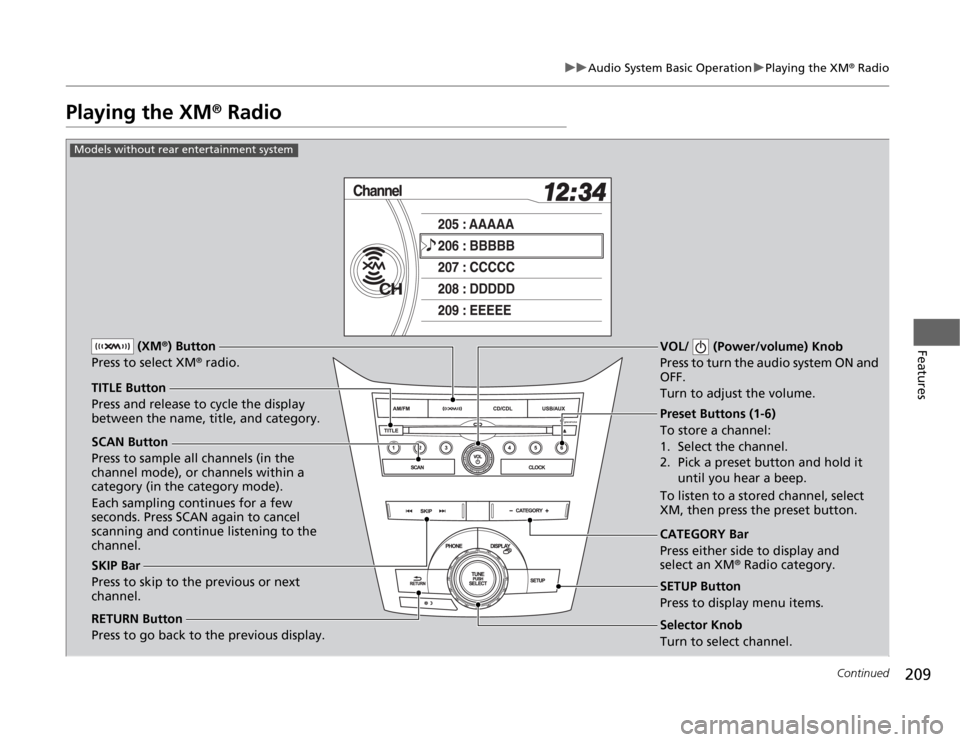
209
uuAudio System Basic OperationuPlaying the XM
® Radio
Continued
Features
Playing the XM
® Radio
SCAN Button
Press to sample all channels (in the
channel mode), or channels within a
category (in the category mode).
Each sampling continues for a few
seconds. Press SCAN again to cancel
scanning and continue listening to the
channel.VOL/ (Power/volume) Knob
Press to turn the audio system ON and
OFF.
Turn to adjust the volume.
Preset Buttons (1-6)
To store a channel:
1. Select the channel.
2. Pick a preset button and hold it
until you hear a beep.
To listen to a stored channel, select
XM, then press the preset button.
SKIP Bar
Press to skip to the previous or next
channel.CATEGORY Bar
Press either side to display and
select an XM
® Radio category. TITLE Button
Press and release to cycle the display
between the name, title, and category. (XM
®) Button
Press to select XM
® radio.
RETURN Button
Press to go back to the previous display.
Selector Knob
Turn to select channel. SETUP Button
Press to display menu items.
Models without rear entertainment system
Page 211 of 441
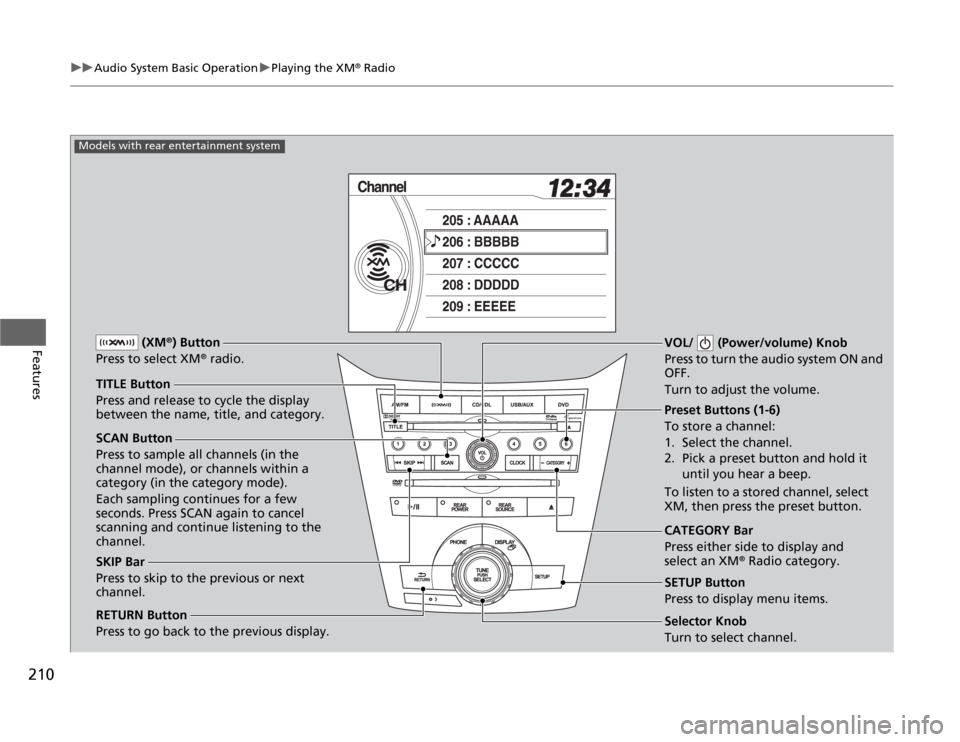
210
uuAudio System Basic OperationuPlaying the XM
® Radio
Features
SCAN Button
Press to sample all channels (in the
channel mode), or channels within a
category (in the category mode).
Each sampling continues for a few
seconds. Press SCAN again to cancel
scanning and continue listening to the
channel.VOL/ (Power/volume) Knob
Press to turn the audio system ON and
OFF.
Turn to adjust the volume.
Preset Buttons (1-6)
To store a channel:
1. Select the channel.
2. Pick a preset button and hold it
until you hear a beep.
To listen to a stored channel, select
XM, then press the preset button.
SKIP Bar
Press to skip to the previous or next
channel.CATEGORY Bar
Press either side to display and
select an XM
® Radio category. TITLE Button
Press and release to cycle the display
between the name, title, and category. (XM
®) Button
Press to select XM
® radio.
RETURN Button
Press to go back to the previous display.
Selector Knob
Turn to select channel. SETUP Button
Press to display menu items.
Models with rear entertainment system
Page 212 of 441
211
uuAudio System Basic OperationuPlaying the XM
® Radio
Features
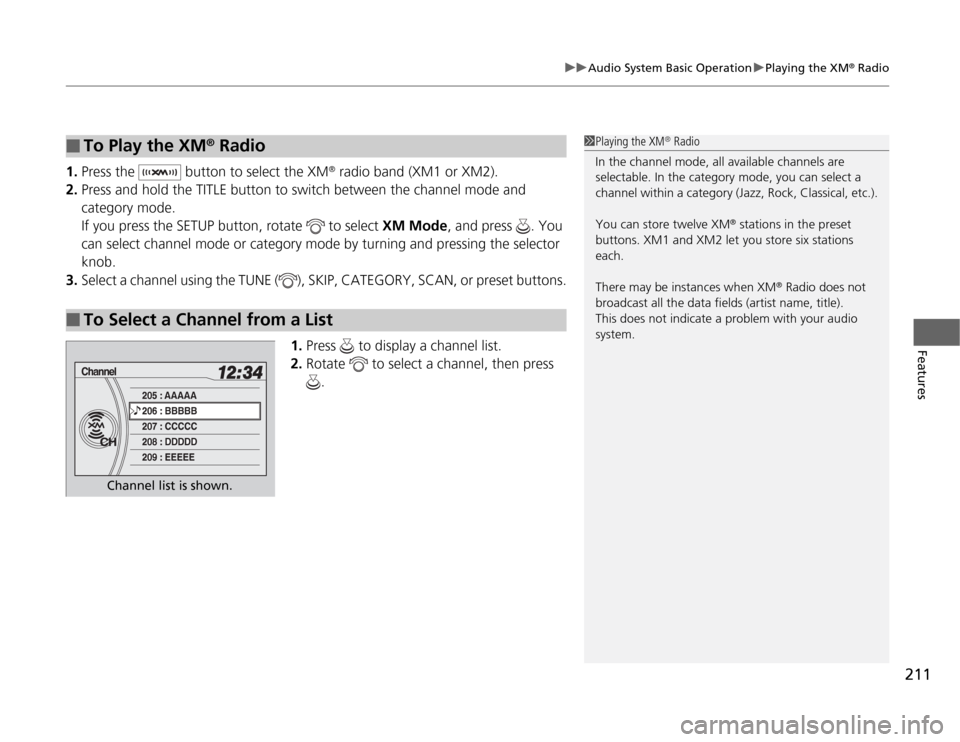
1.Press the button to select the XM
® radio band (XM1 or XM2).
2.Press and hold the TITLE button to switch between the channel mode and
category mode.
If you press the SETUP button, rotate to select XM Mode, and press . You
can select channel mode or category mode by turning and pressing the selector
knob.
3.Select a channel using the TUNE ( ), SKIP, CATEGORY, SCAN, or preset buttons.
1.Press to display a channel list.
2.Rotate to select a channel, then press
.
■
To Play the XM
® Radio
■
To Select a Channel from a List
1Playing the XM
® Radio
In the channel mode, all available channels are
selectable. In the category mode, you can select a
channel within a category (Jazz, Rock, Classical, etc.).
You can store twelve XM
® stations in the preset
buttons. XM1 and XM2 let you store six stations
each.
There may be instances when XM
® Radio does not
broadcast all the data fields (artist name, title).
This does not indicate a problem with your audio
system.
Channel list is shown.
Page 244 of 441
243
uuRear Entertainment System
*uOperating the System
Continued
Features
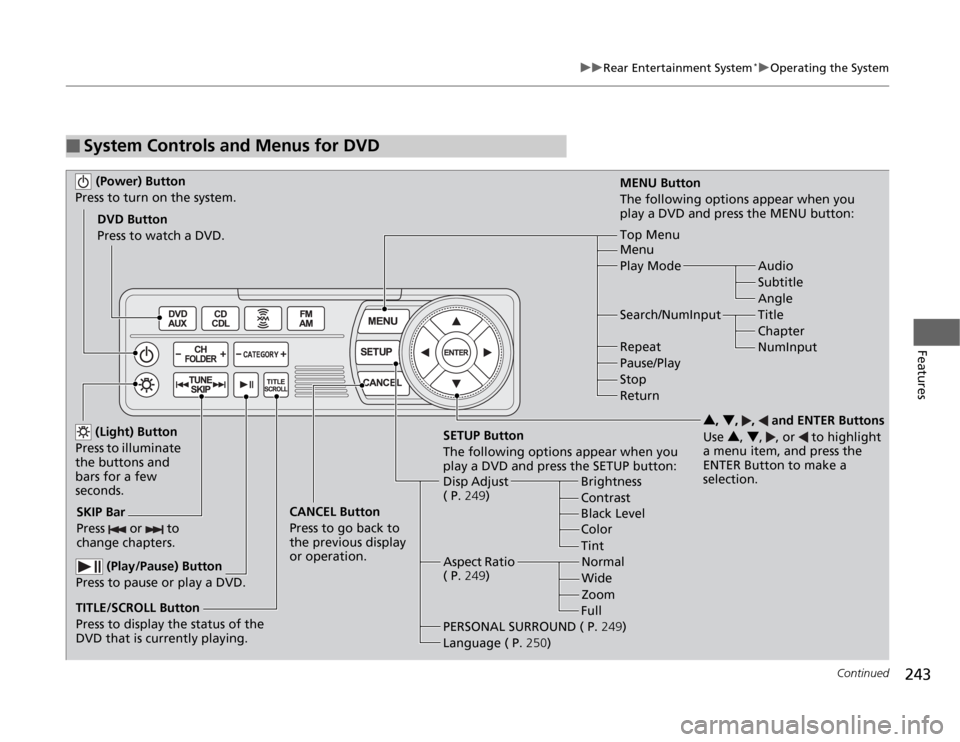
■
System Controls and Menus for DVD (Power) Button
Press to turn on the system.DVD Button
Press to watch a DVD.
(Light) Button
Press to illuminate
the buttons and
bars for a few
seconds.
SKIP Bar
Press or to
change chapters.
(Play/Pause) Button
Press to pause or play a DVD.
TITLE/SCROLL Button
Press to display the status of the
DVD that is currently playing.MENU Button
The following options appear when you
play a DVD and press the MENU button:
Top Menu
Menu
Play Mode Audio
Subtitle
Angle
Search/NumInput Title
Chapter
NumInput Repeat
Pause/Play
Stop
Return
SETUP Button
The following options appear when you
play a DVD and press the SETUP button:
Disp Adjust
( P.249)Brightness
Contrast
Black Level
Color CANCEL Button
Press to go back to
the previous display
or operation.3, 4, , and ENTER Buttons
Use 3, 4, , or to highlight
a menu item, and press the
ENTER Button to make a
selection.
Tint
Normal
Wide
Zoom
Full Aspect Ratio
( P.249)
PERSONAL SURROUND ( P.249)
Language ( P.250)
Page 246 of 441
Continued
245
uuRear Entertainment System
*uOperating the System
Features
Auto Play On:
1.Rotate to select Auto Play On, then press .
2.The check mark disappears, and the auto play feature turns off.
uWith this feature off, the DVD does not automatically start playing when the
disc is inserted. Press button to play.
Title/Chapter Search:
1.Rotate to select Title Search or Chapter Search, then press .
2.Rotate to select a title or chapter number, then press .■
TITLE/SCROLL button on the remote
Press the TITLE/SCROLL button while the DVD is playing to see the current status of
title, chapter, elapsed time, angle, subtitle, audio, and sound characteristics.
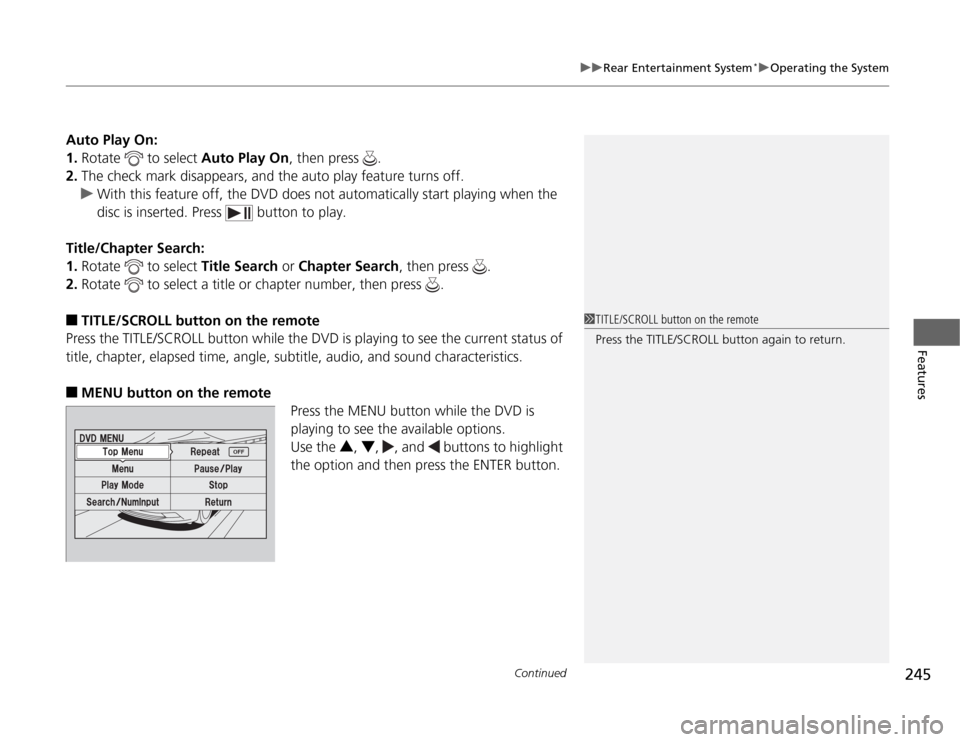
■
MENU button on the remote
Press the MENU button while the DVD is
playing to see the available options.
Use the 3, 4, , and buttons to highlight
the option and then press the ENTER button.
1TITLE/SCROLL button on the remote
Press the TITLE/SCROLL button again to return.