light HONDA ODYSSEY 2016 RC1-RC2 / 5.G Quick Guide
[x] Cancel search | Manufacturer: HONDA, Model Year: 2016, Model line: ODYSSEY, Model: HONDA ODYSSEY 2016 RC1-RC2 / 5.GPages: 80, PDF Size: 16.28 MB
Page 28 of 80
48 || 49
VEHICLE CONTROLS
VEHICLE CONTROLS
INDEX
VOICE COMMAND
INDEX
CUSTOMER
INFORMATION
SPECIFICATIONS
MAINTENANCE
HANDLING THE UNEXPECTED
DRIVING
NAVIGATION
TABLE OF CONTENTS
VISUAL INDEX
SAFETY
INFORMATION
INSTRUMENT PANEL
VEHICLE
CONTROLS
AUDIO AND
CONNECTIVITY
BLUETOOTH®
HANDSFREELINK®
HONDALINK®
*if equipped
Adjusting the Mirrors
Adjust the angle of the mirrors for the best visibility when you are sit\
ting in the
correct driving position.
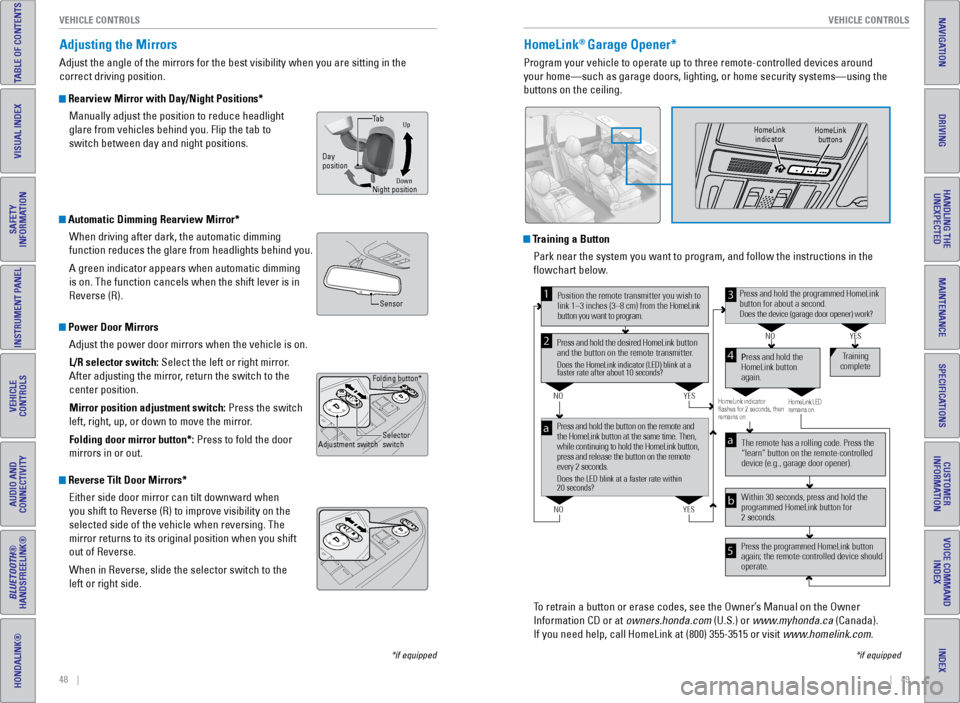
Rearview Mirror with Day/Night Positions*
Manually adjust the position to reduce headlight
glare from vehicles behind you. Flip the tab to
switch between day and night positions.
Automatic Dimming Rearview Mirror*When driving after dark, the automatic dimming
function reduces the glare from headlights behind you.
A green indicator appears when automatic dimming
is on. The function cancels when the shift lever is in
Reverse (R).
Power Door MirrorsAdjust the power door mirrors when the vehicle is on.
L/R selector switch: Select the left or right mirror.
After adjusting the mirror, return the switch to the
center position.
Mirror position adjustment switch: Press the switch
left, right, up, or down to move the mirror.
Folding door mirror button*: Press to fold the door
mirrors in or out.
Reverse Tilt Door Mirrors*
Either side door mirror can tilt downward when
you shift to Reverse (R) to improve visibility on the
selected side of the vehicle when reversing. The
mirror returns to its original position when you shift
out of Reverse.
When in Reverse, slide the selector switch to the
left or right side.
HomeLink® Garage Opener*
Program your vehicle to operate up to three remote-controlled devices ar\
ound
your home—such as garage doors, lighting, or home security systems—\
using the
buttons on the ceiling.
Training a ButtonPark near the system you want to program, and follow the instructions in\
the
flowchart below.
To retrain a button or erase codes, see the Owner’s Manual on the Owner
Information CD or at owners.honda.com (U.S.) or www.myhonda.ca (Canada).
If you need help, call HomeLink at (800) 355-3515 or visit www.homelink.com.
Press and hold the button on the remote and
the HomeLink button at the same time. Then,
while continuing to hold the HomeLink button,
press and release the button on the remote
every 2 seconds.
Does the LED blink at a faster rate within
20 seconds?
Press and hold the
HomeLink button
again.Tr
aining
complete
YES
NO
HomeLink indicator
ashes for 2 seconds, then
r emains on. HomeLink LED
remains on.YES
NO
YES
NO
Position the remote transmitter you wish to
link 1–3 inches (3–8 cm) from the HomeLink
button you want to program.1
Press and hold the desired HomeLink button
and the button on the remote transmitter .
Does the HomeLink indicator (LED) blink at a
faster rate after about 10 seconds?
2
a
The remote has a rolling code. Press the
“learn” button on the remote-controlled
device (e.g., garage door opener).
Press the programmed HomeLink button
again; the remote-controlled device should
operate. Within 30 seconds, press and hold the
programmed HomeLink button for
2 seconds.a
Press and hold the programmed HomeLink
button for about a second.
Does the device (garage door opener) work ?
3
b
4
5
*if equipped
HomeLink
indicator HomeLink
buttons
DownNight position
Ta b
Day
position
Up
Sensor
Folding button*
Adjustment switch Selector
switch
Page 29 of 80
50 || 51
VEHICLE CONTROLS
VEHICLE CONTROLS
INDEX
VOICE COMMAND
INDEX
CUSTOMER
INFORMATION
SPECIFICATIONS
MAINTENANCE
HANDLING THE UNEXPECTED
DRIVING
NAVIGATION
TABLE OF CONTENTS
VISUAL INDEX
SAFETY
INFORMATION
INSTRUMENT PANEL
VEHICLE
CONTROLS
AUDIO AND
CONNECTIVITY
BLUETOOTH®
HANDSFREELINK®
HONDALINK®
HondaVAC®*
Clean up dry spills and debris inside your vehicle with the in-car vacuu\
m system.
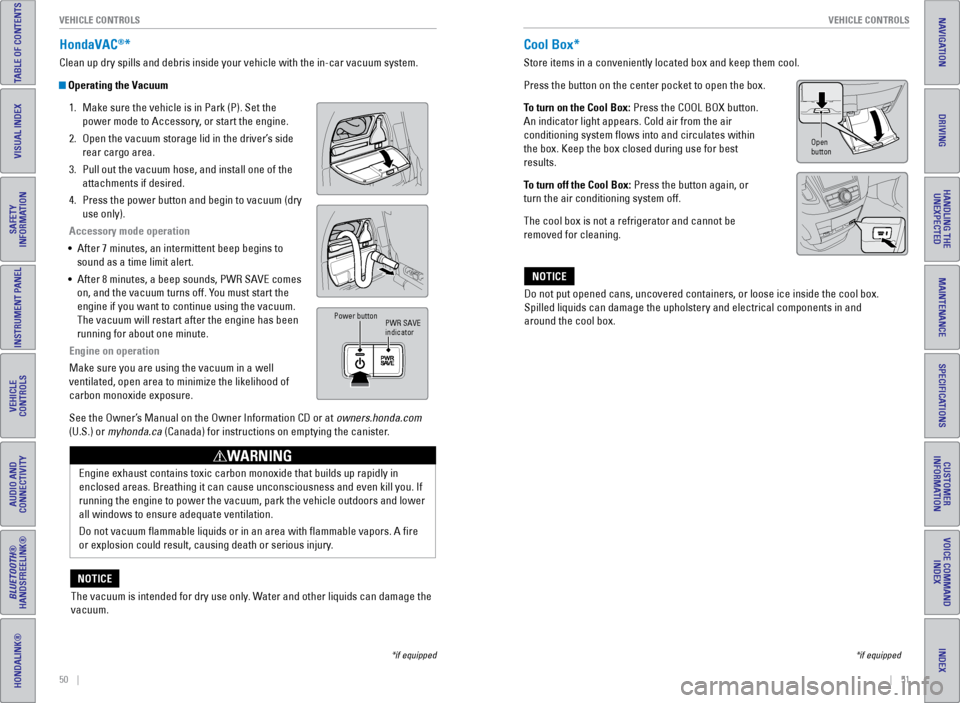
Operating the Vacuum
1. Make sure the vehicle is in Park (P). Set the
power mode to Accessory, or start the engine.
2. Open the vacuum storage lid in the driver’s side
rear cargo area.
3. Pull out the vacuum hose, and install one of the
attachments if desired.
4. Press the power button and begin to vacuum (dry
use only).
Accessory mode operation
• After 7 minutes, an intermittent beep begins to
sound as a time limit alert.
• After 8 minutes, a beep sounds, PWR SAVE comes
on, and the vacuum turns off. You must start the
engine if you want to continue using the vacuum.
The vacuum will restart after the engine has been
running for about one minute.
Engine on operation
Make sure you are using the vacuum in a well
ventilated, open area to minimize the likelihood of
carbon monoxide exposure.
See the Owner’s Manual on the Owner Information CD or at owners.honda.com
(U.S.) or myhonda.ca (Canada) for instructions on emptying the canister.
PWR SAVE
indicator
Power button
Engine exhaust contains toxic carbon monoxide that builds up rapidly in \
enclosed areas. Breathing it can cause unconsciousness and even kill you\
. If
running the engine to power the vacuum, park the vehicle outdoors and lo\
wer
all windows to ensure adequate ventilation.
Do not vacuum flammable liquids or in an area with flammable vapors.\
A fire
or explosion could result, causing death or serious injury.
WARNING
The vacuum is intended for dry use only. Water and other liquids can damage the
vacuum.
NOTICE
*if equipped
Cool Box*
Store items in a conveniently located box and keep them cool.
Press the button on the center pocket to open the box.
To turn on the Cool Box: Press the COOL BOX button.
An indicator light appears. Cold air from the air
conditioning system flows into and circulates within
the box. Keep the box closed during use for best
results.
To turn off the Cool Box: Press the button again, or
turn the air conditioning system off.
The cool box is not a refrigerator and cannot be
removed for cleaning.
Do not put opened cans, uncovered containers, or loose ice inside the co\
ol box.
Spilled liquids can damage the upholstery and electrical components in a\
nd
around the cool box.
NOTICE
*if equipped
Open
button
Page 32 of 80
56 || 57
AUDIO AND CONNECTIVITY
AUDIO AND CONNECTIVITY
INDEX
VOICE COMMAND
INDEX
CUSTOMER
INFORMATION
SPECIFICATIONS
MAINTENANCE
HANDLING THE UNEXPECTED
DRIVING
NAVIGATION
TABLE OF CONTENTS
VISUAL INDEX
SAFETY
INFORMATION
INSTRUMENT PANEL
VEHICLE
CONTROLS
AUDIO AND
CONNECTIVITY
BLUETOOTH®
HANDSFREELINK®
HONDALINK®
Basic Audio Operation
Connect audio devices and operate buttons and displays for the audio sys\
tem.
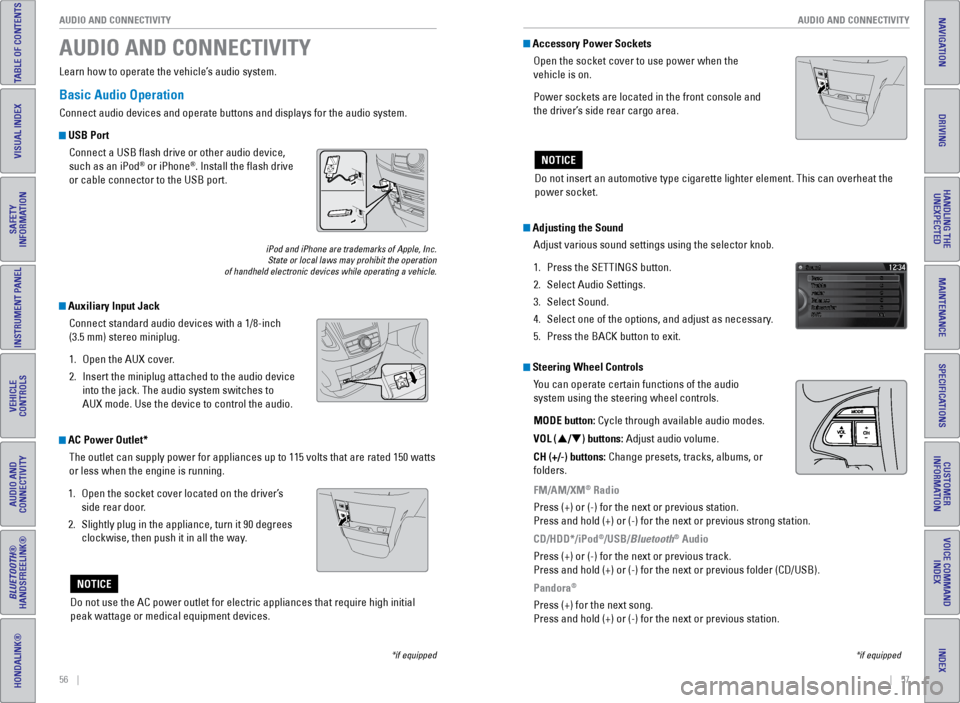
USB Port
Connect a USB flash drive or other audio device,
such as an iPod
® or iPhone®. Install the flash drive
or cable connector to the USB port.
Auxiliary Input Jack
Connect standard audio devices with a 1/8-inch
(3.5 mm) stereo miniplug.
1. Open the AUX cover.
2. Insert the miniplug attached to the audio device
into the jack. The audio system switches to
AUX mode. Use the device to control the audio.
iPod and iPhone are trademarks of Apple, Inc.
State or local laws may prohibit the operation
of handheld electronic devices while operating a vehicle.
AUDIO AND CONNECTIVITY
Learn how to operate the vehicle’s audio system.
Adjusting the Sound
Adjust various sound settings using the selector knob.
1. Press the SETTINGS button.
2. Select Audio Settings.
3. Select Sound.
4. Select one of the options, and adjust as necessary.
5. Press the BACK button to exit.
Steering Wheel Controls
You can operate certain functions of the audio
system using the steering wheel controls.
MODE button: Cycle through available audio modes.
VOL (p/q) buttons: Adjust audio volume.
CH (+/-) buttons: Change presets, tracks, albums, or
folders.
FM/AM/XM
® Radio
Press (+) or (-) for the next or previous station.
Press and hold (+) or (-) for the next or previous strong station.
CD/HDD*/iPod
®/USB/Bluetooth® Audio
Press (+) or (-) for the next or previous track.
Press and hold (+) or (-) for the next or previous folder (CD/USB)\
.
Pandora
®
Press (+) for the next song.
Press and hold (+) or (-) for the next or previous station.
*if equipped
Accessory Power Sockets Open the socket cover to use power when the
vehicle is on.
Power sockets are located in the front console and
the driver’s side rear cargo area.
Do not insert an automotive type cigarette lighter element. This can ove\
rheat the
power socket.
NOTICE
AC Power Outlet*The outlet can supply power for appliances up to 115 volts that are rate\
d 150 watts
or less when the engine is running.
1. Open the socket cover located on the driver’s
side rear door.
2. Slightly plug in the appliance, turn it 90 degrees
clockwise, then push it in all the way.
Do not use the AC power outlet for electric appliances that require high\
initial
peak wattage or medical equipment devices.
NOTICE
*if equipped
Page 42 of 80
76 || 77
AUDIO AND CONNECTIVITY
AUDIO AND CONNECTIVITY
INDEX
VOICE COMMAND
INDEX
CUSTOMER
INFORMATION
SPECIFICATIONS
MAINTENANCE
HANDLING THE UNEXPECTED
DRIVING
NAVIGATION
TABLE OF CONTENTS
VISUAL INDEX
SAFETY
INFORMATION
INSTRUMENT PANEL
VEHICLE
CONTROLS
AUDIO AND
CONNECTIVITY
BLUETOOTH®
HANDSFREELINK®
HONDALINK®
Remote Control and Rear Operation
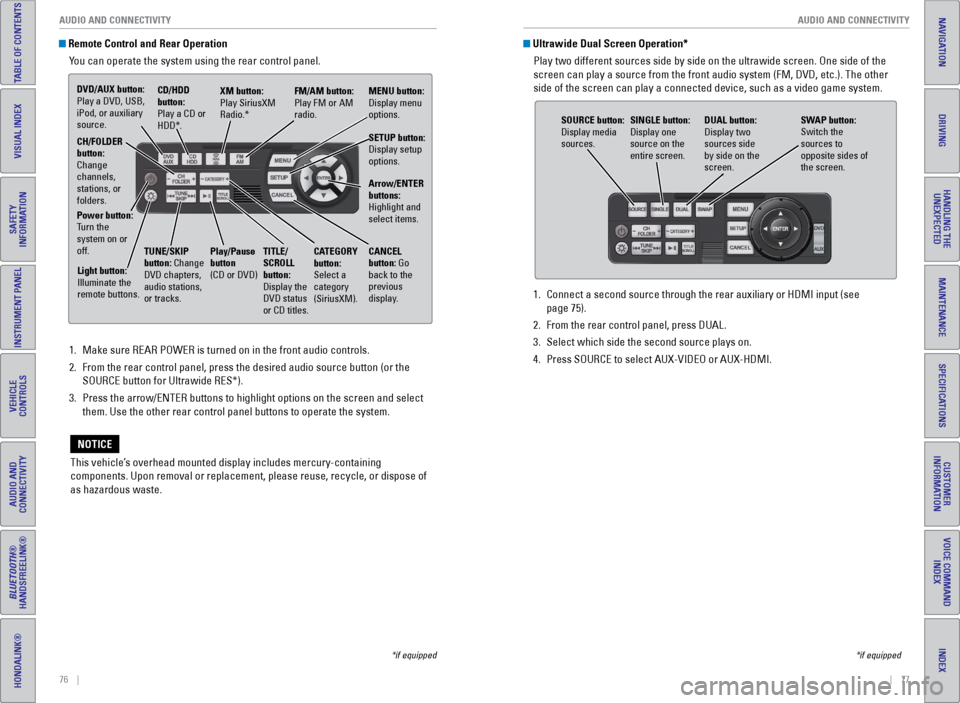
You can operate the system using the rear control panel.
1. Make sure REAR POWER is turned on in the front audio controls.
2. From the rear control panel, press the desired audio source button (or \
the
SOURCE button for Ultrawide RES*).
3. Press the arrow/ENTER buttons to highlight options on the screen and sel\
ect
them. Use the other rear control panel buttons to operate the system.
This vehicle’s overhead mounted display includes mercury-containing
components. Upon removal or replacement, please reuse, recycle, or dispose of
as hazardous waste.
NOTICE
*if equipped
1. Connect a second source through the rear auxiliary or HDMI input (see
page 75).
2. From the rear control panel, press DUAL.
3. Select which side the second source plays on.
4. Press SOURCE to select AUX-VIDEO or AUX-HDMI.
Ultrawide Dual Screen Operation*
Play two different sources side by side on the ultrawide screen. One sid\
e of the
screen can play a source from the front audio system (FM, DVD, etc.). \
The other
side of the screen can play a connected device, such as a video game sys\
tem.
SOURCE button:
Display media
sources. DUAL button:
Display two
sources side
by side on the
screen.
SINGLE button:
Display one
source on the
entire screen.
SWAP button:
Switch the
sources to
opposite sides of
the screen.
*if equipped
DVD/AUX button:
Play a DVD, USB,
iPod, or auxiliary
source.
CD/HDD
button:
Play a CD or
HDD*.XM button:
Play SiriusXM
Radio.*
FM/AM button:
Play FM or AM
radio.MENU button:
Display menu
options.
SETUP button:
Display setup
options.
Arrow/ENTER
buttons:
Highlight and
select items.
CH/FOLDER
button:
Change
channels,
stations, or
folders.
Power button:
Turn the
system on or
off.
Light button:
Illuminate the
remote buttons. TUNE/SKIP
button: Change
DVD chapters,
audio stations,
or tracks.Play/Pause
button
(CD or DVD)
TITLE/
SCROLL
button:
Display the
DVD status
or CD titles. CANCEL
button: Go
back to the
previous
display.
CATEGORY
button:
Select a
category
(SiriusXM).
Page 43 of 80
78 || 79
INDEX
VOICE COMMAND
INDEX
CUSTOMER
INFORMATION
SPECIFICATIONS
MAINTENANCE
HANDLING THE UNEXPECTED
DRIVING
NAVIGATION
TABLE OF CONTENTS
VISUAL INDEX
SAFETY
INFORMATION
INSTRUMENT PANEL
VEHICLE
CONTROLS
AUDIO AND
CONNECTIVITY
BLUETOOTH®
HANDSFREELINK®
HONDALINK®
Learn how to operate the vehicle’s hands-free calling system.
Basic HFL Operation
Make and receive phone calls using the vehicle’s audio system, without handling
your phone. Visit handsfreelink.honda.com (U.S.) or www.handsfreelink.ca (Canada)
to check phone compatibility.
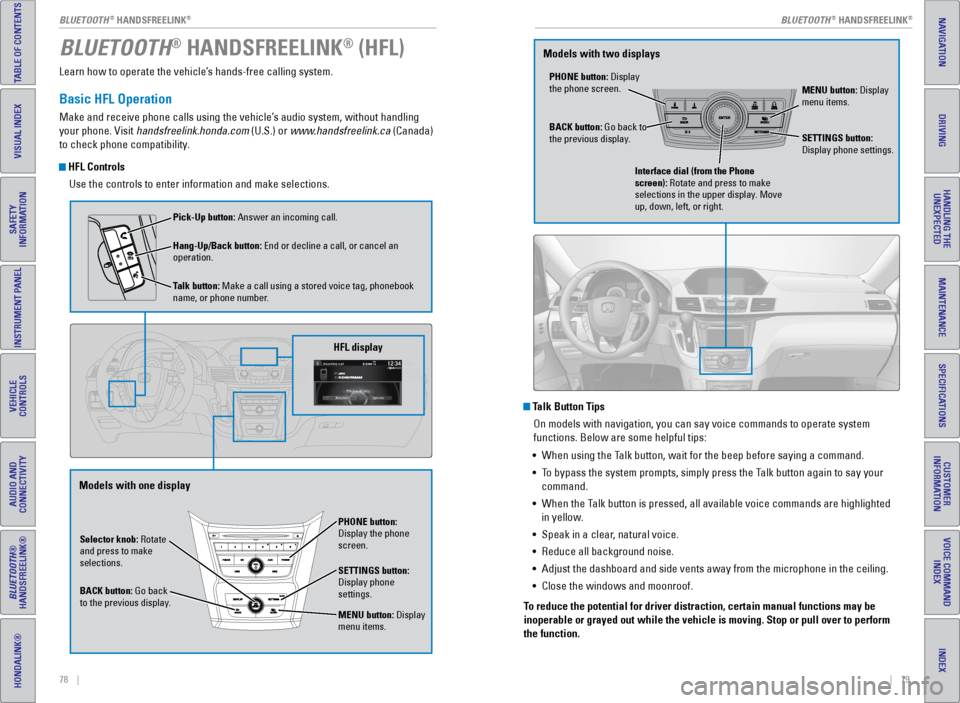
HFL Controls
Use the controls to enter information and make selections.
BLUETOOTH® HANDSFREELINK® (HFL)
Talk Button TipsOn models with navigation, you can say voice commands to operate system
functions. Below are some helpful tips:
• When using the Talk button, wait for the beep before saying a command.
• To bypass the system prompts, simply press the Talk button again to say your
command.
• When the Talk button is pressed, all available voice commands are highlighted
in yellow.
• Speak in a clear, natural voice.
• Reduce all background noise.
• Adjust the dashboard and side vents away from the microphone in the ceil\
ing.
• Close the windows and moonroof.
To reduce the potential for driver distraction, certain manual functions \
may be
inoperable or grayed out while the vehicle is moving. Stop or pull over \
to perform
the function.
Selector knob: Rotate
and press to make
selections.
BACK button: Go back
to the previous display. PHONE button:
Display the phone
screen.
SETTINGS button:
Display phone
settings.
MENU button: Display
menu items.
HFL display
Pick-Up button: Answer an incoming call.
Hang-Up/Back button: End or decline a call, or cancel an
operation.
Talk button: Make a call using a stored voice tag, phonebook
name, or phone number.
Models with one display
PHONE button: Display
the phone screen.
MENU button: Display
menu items.
BACK button: Go back to
the previous display. SETTINGS button:
Display phone settings.
Interface dial (from the Phone
screen): Rotate and press to make
selections in the upper display. Move
up, down, left, or right.
Models with two displays
BLUETOOTH® HANDSFREELINK®BLUETOOTH® HANDSFREELINK®
Page 46 of 80
84 || 85
NAVIGATION
NAVIGATION
INDEX
VOICE COMMAND
INDEX
CUSTOMER
INFORMATION
SPECIFICATIONS
MAINTENANCE
HANDLING THE UNEXPECTED
DRIVING
NAVIGATION
TABLE OF CONTENTS
VISUAL INDEX
SAFETY
INFORMATION
INSTRUMENT PANEL
VEHICLE
CONTROLS
AUDIO AND
CONNECTIVITY
BLUETOOTH®
HANDSFREELINK®
HONDALINK®
Learn how to enter a destination and operate the navigation system.
Basic Navigation Operation
A real-time navigation system uses GPS and a map database to show your current
location and help guide you to a desired destination. You can operate the system
using voice commands or the system controls.
To reduce the potential for driver distraction, certain manual functions \
may be
inoperable or grayed out while the vehicle is moving. Voice commands are always
available.
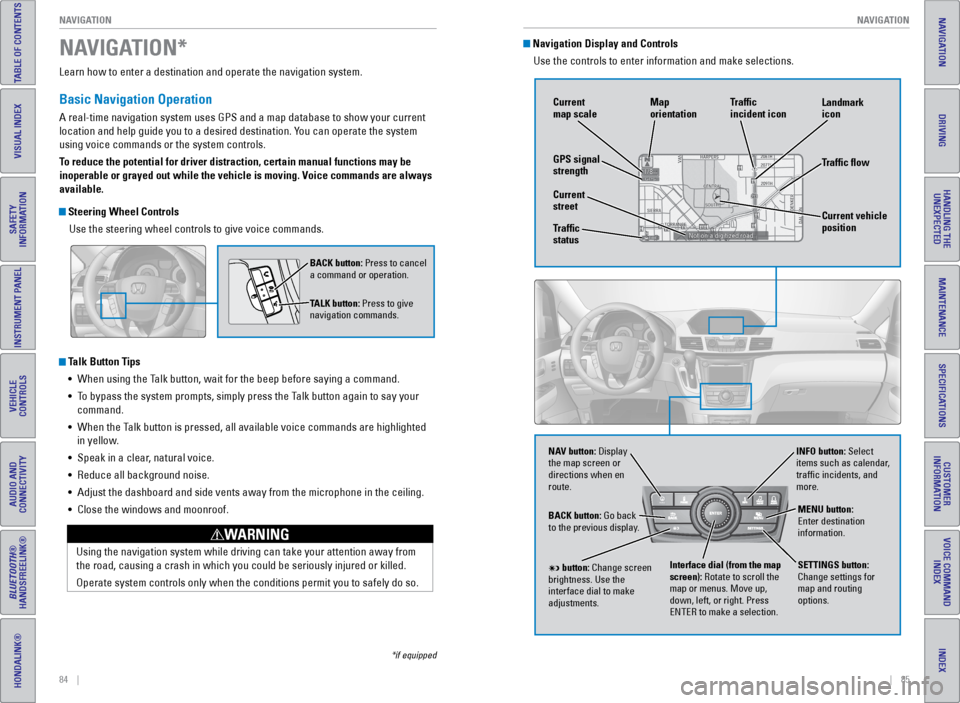
Steering Wheel Controls
Use the steering wheel controls to give voice commands.
Talk Button Tips• When using the Talk button, wait for the beep before saying a command.
• To bypass the system prompts, simply press the Talk button again to say your
command.
• When the Talk button is pressed, all available voice commands are highlighted
in yellow.
• Speak in a clear, natural voice.
• Reduce all background noise.
• Adjust the dashboard and side vents away from the microphone in the ceil\
ing.
• Close the windows and moonroof.
Using the navigation system while driving can take your attention away f\
rom
the road, causing a crash in which you could be seriously injured or kil\
led.
Operate system controls only when the conditions permit you to safely do\
so.
WARNING
NAVIGATION*
BACK button: Press to cancel
a command or operation.
TALK button: Press to give
navigation commands.
*if equipped
Navigation Display and Controls Use the controls to enter information and make selections.
NAV
NAV button: Display
the map screen or
directions when en
route. INFO button: Select
items such as calendar,
traffic incidents, and
more.
BACK button: Go back
to the previous display.
SETTINGS button:
Change settings for
map and routing
options.
MENU button:
Enter destination
information.
button: Change screen
brightness. Use the
interface dial to make
adjustments. Interface dial (from the map
screen): Rotate to scroll the
map or menus. Move up,
down, left, or right. Press
ENTER to make a selection.
GPS signal
strength Traffic
incident icon
Traffic flow
Current
map scale
Current vehicle
position
Map
orientation
Current
street
Traffic
status Landmark
icon
Page 49 of 80
90 || 91
DRIVING
DRIVING
INDEX
VOICE COMMAND
INDEX
CUSTOMER
INFORMATION
SPECIFICATIONS
MAINTENANCE
HANDLING THE UNEXPECTED
DRIVING
NAVIGATION
TABLE OF CONTENTS
VISUAL INDEX
SAFETY
INFORMATION
INSTRUMENT PANEL
VEHICLE
CONTROLS
AUDIO AND
CONNECTIVITY
BLUETOOTH®
HANDSFREELINK®
HONDALINK®
Learn about preparation for driving, as well as other features.
Before Driving
Check the following items before you begin driving.
Exterior Checks
• Make sure there are no obstructions on the windows, door mirrors, exterior
lights, or other parts of the vehicle.
• Remove any frost, snow, or ice.
• Make sure the hood is securely closed.
• Heat from the engine and exhaust can ignite flammable materials left u\
nder
the hood, causing a fire. If you’ve parked your vehicle for an exte\
nded period,
inspect and remove any debris that may have collected, such as dried grass
and leaves that have fallen or have been carried in for use as a nest by\
a small
animal. Also check under the hood for leftover flammable materials aft\
er you or
someone else has performed maintenance on your vehicle.
• Make sure the tires are in good condition.
• Make sure there are no people or objects behind or around the vehicle.
Interior Checks
• Store or secure all items on board properly.
• Do not pile items higher than the seat height.
• Do not place anything in the front seat footwells. Make sure to secure t\
he floor
mats.
• If you have any animals on board, do not let them move freely around in \
the
vehicle.
• Securely close and lock all doors and the tailgate.
• Adjust your seating position, mirrors, and steering wheel properly.
• Make sure items placed on the floor behind the front seats cannot roll\
under the
seats.
• Everyone in the vehicle must fasten their seat belt.
• Make sure that the indicators in the instrument panel come on when you s\
tart
the vehicle, and go off soon after.
DRIVING
If the doors are frozen shut, use warm water around the door edges to me\
lt any
ice. Do not try to force them open, as this can damage the rubber trim a\
round the
doors. When done, wipe dry to avoid further freezing.
NOTICE
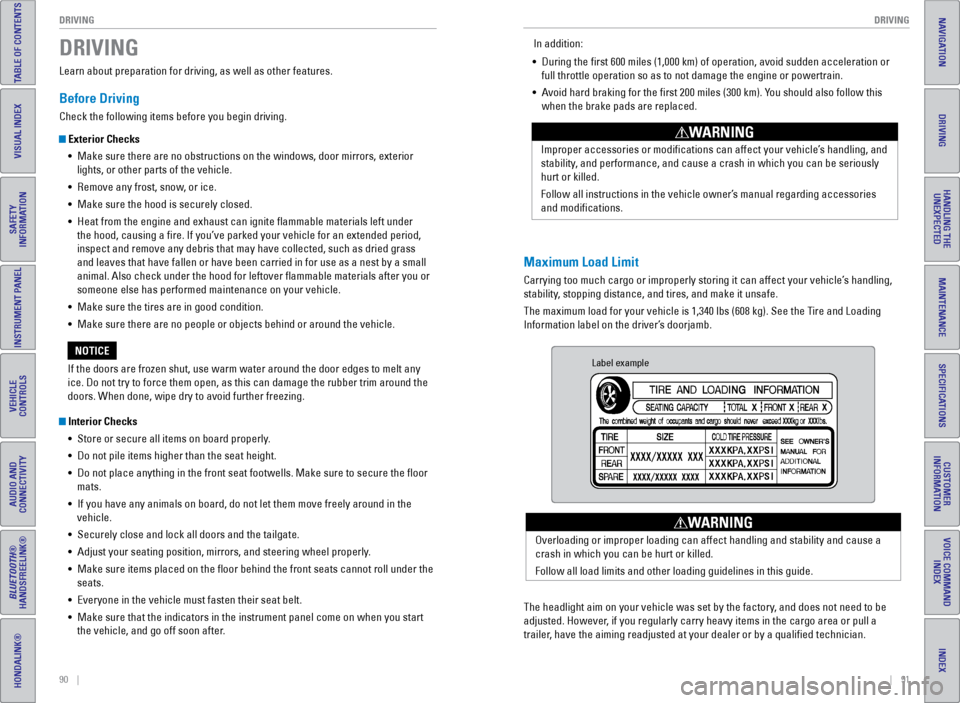
Maximum Load Limit
Carrying too much cargo or improperly storing it can affect your vehicle\
’s handling,
stability, stopping distance, and tires, and make it unsafe.
The maximum load for your vehicle is 1,340 lbs (608 kg). See the Tire and Loading
Information label on the driver’s doorjamb. Improper accessories or modifications can affect your vehicle’s handling, and
stability, and performance, and cause a crash in which you can be seriously
hurt or killed.
Follow all instructions in the vehicle owner’s manual regarding accessories
and modifications.
WARNING
In addition:
• During the first 600 miles (1,000 km) of operation, avoid sudden acc\
eleration or
full throttle operation so as to not damage the engine or powertrain.
• Avoid hard braking for the first 200 miles (300 km). You should also follow this
when the brake pads are replaced.
Label example
The headlight aim on your vehicle was set by the factory, and does not need to be
adjusted. However, if you regularly carry heavy items in the cargo area or pull a
trailer, have the aiming readjusted at your dealer or by a qualified technici\
an. Overloading or improper loading can affect handling and stability and ca\
use a
crash in which you can be hurt or killed.
Follow all load limits and other loading guidelines in this guide.
WARNING
Page 51 of 80
94 || 95
DRIVING
DRIVING
INDEX
VOICE COMMAND
INDEX
CUSTOMER
INFORMATION
SPECIFICATIONS
MAINTENANCE
HANDLING THE UNEXPECTED
DRIVING
NAVIGATION
TABLE OF CONTENTS
VISUAL INDEX
SAFETY
INFORMATION
INSTRUMENT PANEL
VEHICLE
CONTROLS
AUDIO AND
CONNECTIVITY
BLUETOOTH®
HANDSFREELINK®
HONDALINK®
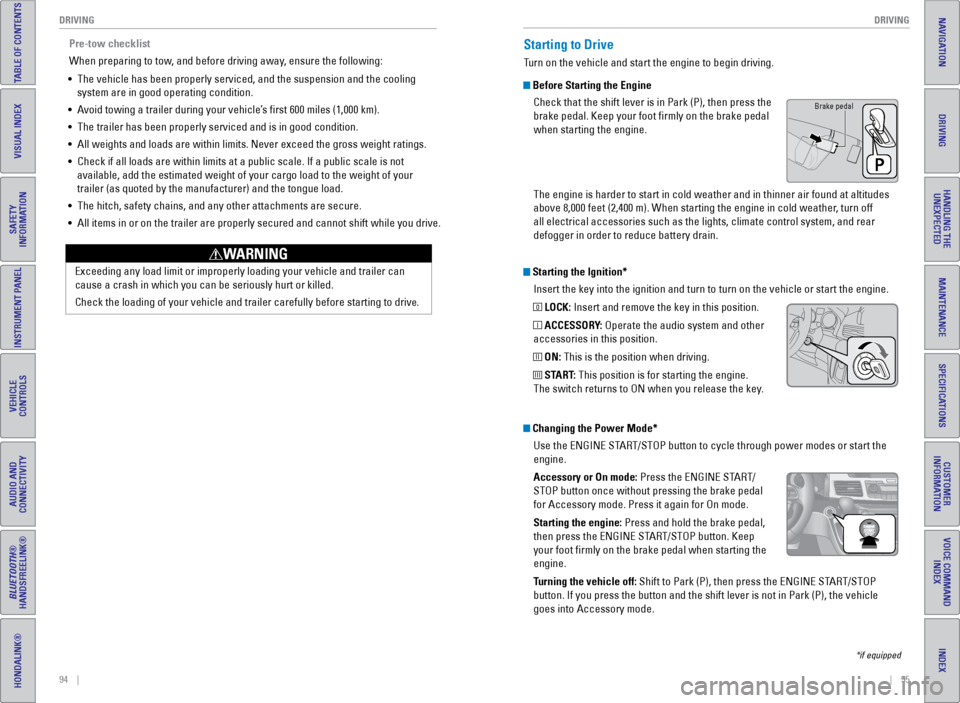
Starting the Ignition*
Insert the key into the ignition and turn to turn on the vehicle or star\
t the engine.
0 LOCK: Insert and remove the key in this position.
I ACCESSORY: Operate the audio system and other
accessories in this position.
II ON: This is the position when driving.
III START: This position is for starting the engine.
The switch returns to ON when you release the key.
Starting to Drive
Turn on the vehicle and start the engine to begin driving.
Before Starting the Engine
Check that the shift lever is in Park (P), then press the
brake pedal. Keep your foot firmly on the brake pedal
when starting the engine.
The engine is harder to start in cold weather and in thinner air found a\
t altitudes
above 8,000 feet (2,400 m). When starting the engine in cold weather, turn off
all electrical accessories such as the lights, climate control system, a\
nd rear
defogger in order to reduce battery drain.
*if equipped
Changing the Power Mode*Use the ENGINE START/STOP button to cycle through power modes or start the
engine.
Accessory or On mode: Press the ENGINE START/
STOP button once without pressing the brake pedal
for Accessory mode. Press it again for On mode.
Starting the engine: Press and hold the brake pedal,
then press the ENGINE START/STOP button. Keep
your foot firmly on the brake pedal when starting the
engine.
Turning the vehicle off: Shift to Park (P), then press the ENGINE START/STOP
button. If you press the button and the shift lever is not in Park (P)\
, the vehicle
goes into Accessory mode.
Brake pedal
Pre-tow checklist
When preparing to tow, and before driving away, ensure the following:
• The vehicle has been properly serviced, and the suspension and the cooli\
ng
system are in good operating condition.
• Avoid towing a trailer during your vehicle’s first 600 miles (1,000 km).
• The trailer has been properly serviced and is in good condition.
• All weights and loads are within limits. Never exceed the gross weight r\
atings.
• Check if all loads are within limits at a public scale. If a public scal\
e is not
available, add the estimated weight of your cargo load to the weight of \
your
trailer (as quoted by the manufacturer) and the tongue load.
• The hitch, safety chains, and any other attachments are secure.
• All items in or on the trailer are properly secured and cannot shift whi\
le you drive.
Exceeding any load limit or improperly loading your vehicle and trailer \
can
cause a crash in which you can be seriously hurt or killed.
Check the loading of your vehicle and trailer carefully before starting \
to driv
e.
WARNING
Page 52 of 80
96 || 97
DRIVING
DRIVING
INDEX
VOICE COMMAND
INDEX
CUSTOMER
INFORMATION
SPECIFICATIONS
MAINTENANCE
HANDLING THE UNEXPECTED
DRIVING
NAVIGATION
TABLE OF CONTENTS
VISUAL INDEX
SAFETY
INFORMATION
INSTRUMENT PANEL
VEHICLE
CONTROLS
AUDIO AND
CONNECTIVITY
BLUETOOTH®
HANDSFREELINK®
HONDALINK®
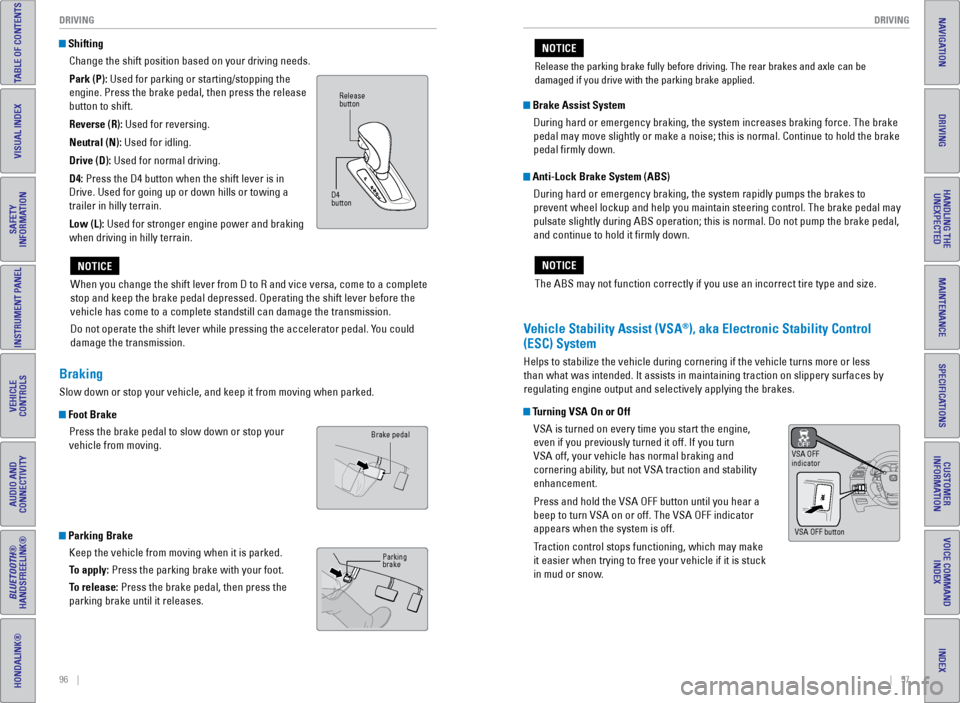
Shifting
Change the shift position based on your driving needs.
Park (P): Used for parking or starting/stopping the
engine. Press the brake pedal, then press the release
button to shift.
Reverse (R): Used for reversing.
Neutral (N): Used for idling.
Drive (D): Used for normal driving.
D4: Press the D4 button when the shift lever is in
Drive. Used for going up or down hills or towing a
trailer in hilly terrain.
Low (L): Used for stronger engine power and braking
when driving in hilly terrain.
When you change the shift lever from D to R and vice versa, come to a co\
mplete
stop and keep the brake pedal depressed. Operating the shift lever befor\
e the
vehicle has come to a complete standstill can damage the transmission.
Do not operate the shift lever while pressing the accelerator pedal. You could
damage the transmission.
NOTICE
Release
button
D4
button
Braking
Slow down or stop your vehicle, and keep it from moving when parked.
Foot Brake Press the brake pedal to slow down or stop your
vehicle from moving.
Parking BrakeKeep the vehicle from moving when it is parked.
To apply: Press the parking brake with your foot.
To release: Press the brake pedal, then press the
parking brake until it releases.
Brake pedal
Parking
brake
The ABS may not function correctly if you use an incorrect tire type and\
size.
NOTICE
Brake Assist System During hard or emergency braking, the system increases braking force. The brake
pedal may move slightly or make a noise; this is normal. Continue to hol\
d the brake
pedal firmly down.
Anti-Lock Brake System (ABS) During hard or emergency braking, the system rapidly pumps the brakes to
prevent wheel lockup and help you maintain steering control. The brake p\
edal may
pulsate slightly during ABS operation; this is normal. Do not pump the b\
rake pedal,
and continue to hold it firmly down.
Vehicle Stability Assist (VSA®), aka Electronic Stability Control
(ESC) System
Helps to stabilize the vehicle during cornering if the vehicle turns mor\
e or less
than what was intended. It assists in maintaining traction on slippery s\
urfaces by
regulating engine output and selectively applying the brakes.
Turning VSA On or Off
VSA is turned on every time you start the engine,
even if you previously turned it off. If you turn
VSA off, your vehicle has normal braking and
cornering ability, but not VSA traction and stability
enhancement.
Press and hold the VSA OFF button until you hear a
beep to turn VSA on or off. The VSA OFF indicator
appears when the system is off.
Traction control stops functioning, which may make
it easier when trying to free your vehicle if it is stuck
in mud or snow.
VSA OFF
indicator
VSA OFF button
Release the parking brake fully before driving. The rear brakes and axle\
can be
damaged if you drive with the parking brake applied.
NOTICE
Page 54 of 80
100 || 101
DRIVING
DRIVING
INDEX
VOICE COMMAND
INDEX
CUSTOMER
INFORMATION
SPECIFICATIONS
MAINTENANCE
HANDLING THE UNEXPECTED
DRIVING
NAVIGATION
TABLE OF CONTENTS
VISUAL INDEX
SAFETY
INFORMATION
INSTRUMENT PANEL
VEHICLE
CONTROLS
AUDIO AND
CONNECTIVITY
BLUETOOTH®
HANDSFREELINK®
HONDALINK®
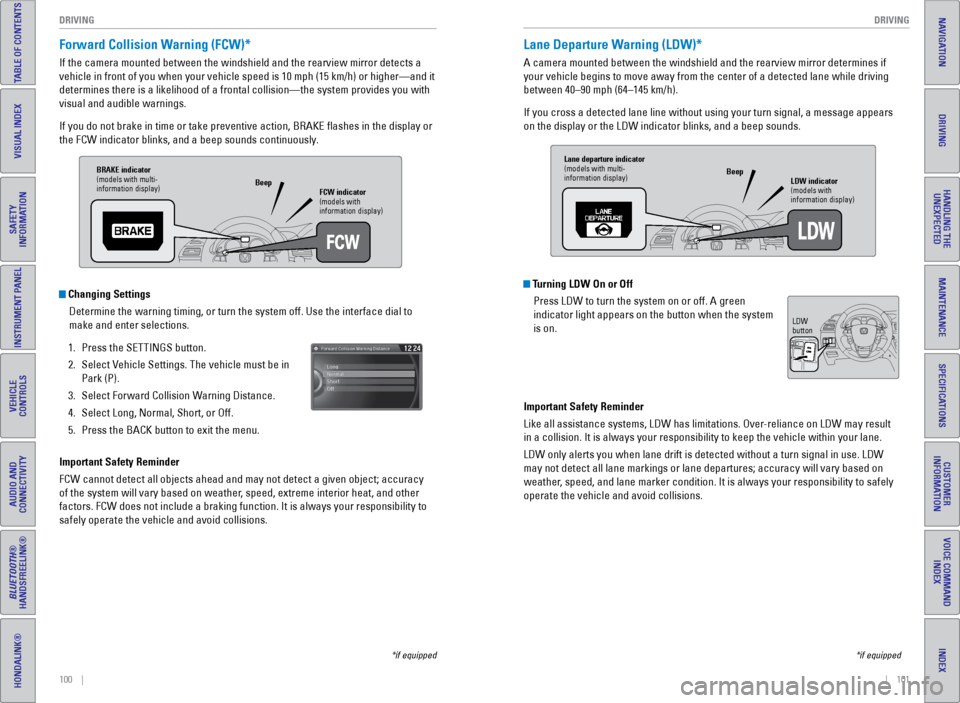
Forward Collision Warning (FCW)*
If the camera mounted between the windshield and the rearview mirror det\
ects a
vehicle in front of you when your vehicle speed is 10 mph (15 km/h) or\
higher—and it
determines there is a likelihood of a frontal collision—the system pr\
ovides you with
visual and audible warnings.
If you do not brake in time or take preventive action, BRAKE flashes i\
n the display or
the FCW indicator blinks, and a beep sounds continuously.
Changing Settings
Determine the warning timing, or turn the system off. Use the interface \
dial to
make and enter selections.
1. Press the SETTINGS button.
2. Select Vehicle Settings. The vehicle must be in
Park (P).
3. Select Forward Collision Warning Distance.
4. Select Long, Normal, Short, or Off.
5. Press the BACK button to exit the menu.
Important Safety Reminder
FCW cannot detect all objects ahead and may not detect a given object; a\
ccuracy
of the system will vary based on weather, speed, extreme interior heat, and other
factors. FCW does not include a braking function. It is always your resp\
onsibility to
safely operate the vehicle and avoid collisions.
*if equipped
BRAKE indicator
(models with multi-
information display) FCW indicator
(models with
information display)
Beep
Lane Departure Warning (LDW)*
A camera mounted between the windshield and the rearview mirror determin\
es if
your vehicle begins to move away from the center of a detected lane whil\
e driving
between 40–90 mph (64–145 km/h).
If you cross a detected lane line without using your turn signal, a mess\
age appears
on the display or the LDW indicator blinks, and a beep sounds.
Turning LDW On or Off
Press LDW to turn the system on or off. A green
indicator light appears on the button when the system
is on.
Important Safety Reminder
Like all assistance systems, LDW has limitations. Over-reliance on LDW may result
in a collision. It is always your responsibility to keep the vehicle wit\
hin your lane.
LDW only alerts you when lane drift is detected without a turn signal in\
use. LDW
may not detect all lane markings or lane departures; accuracy will vary \
based on
weather, speed, and lane marker condition. It is always your responsibility to safely
operate the vehicle and avoid collisions.
*if equipped
Lane departure indicator
(models with multi-
information display) LDW indicator
(models with
information display)
Beep
LDW
button