phone HONDA ODYSSEY 2016 RC1-RC2 / 5.G Quick Guide
[x] Cancel search | Manufacturer: HONDA, Model Year: 2016, Model line: ODYSSEY, Model: HONDA ODYSSEY 2016 RC1-RC2 / 5.GPages: 80, PDF Size: 16.28 MB
Page 3 of 80
TABLE OF CONTENTS
INDEX
VISUAL INDEX
VOICE COMMAND INDEX
SAFETY
INFORMATION
CUSTOMER
INFORMATION
INSTRUMENT PANEL
SPECIFICATIONS
VEHICLE
CONTROLS
MAINTENANCE
AUDIO AND
CONNECTIVITY
HANDLING THE UNEXPECTED
BLUETOOTH®
HANDSFREELINK®
DRIVING
HONDALINK®
NAVIGATION
Honda Automobile Customer Service
Your authorized Honda dealer should be able to answer any questions you h\
ave
about your vehicle. However, if you are dissatisfied with the information you receive,
you can call Honda Automobile Customer Service (see page 141).
Honda Roadside Assistance
24-hour emergency road service is available to you in the United States \
and Canada
throughout your 3-year/36,000-mile warranty term. Services include jump starting,
flat tire and lockout assistance, towing, and more (limitations apply\
). This Owner’s Guide is intended to help you quickly get acquainted with your
2016 Honda Odyssey. It provides basic information and instructions on technology and
convenience features, as well as emergency procedures and how to get ass\
istance.
This guide is for vehicles sold in the United States and Canada. It cove\
rs all Odyssey
models, so you may find descriptions of features and equipment that ar\
e not in your
vehicle. Images throughout this guide are from U.S. vehicles and represe\
nt features
and equipment that are available on some, but not all, models.
This guide is not intended to be a substitute for the Owner’s Manual. The Owner
Information CD enclosed in your glove box kit includes the Owner’s Manual,
Navigation Manual, and vehicle and tire warranties in electronic format.\
This
information can be viewed on a computer (PC or Mac platform) and saved or printed
for your reference. You can also visit owners.honda.com (U.S.) or myhonda.ca
(Canada) to view the complete and most current information.
If you are the first registered owner of your vehicle, you may request\
a complimentary
printed copy of the Owner’s Manual, Navigation Manual, or Vehicle Warranty within
the first six months of vehicle purchase. To request a copy, visit owners.honda.com
and create or log in to your account. In Canada, please request a copy f\
rom your
Honda dealer.
American Honda Motor Company strives to be proactive in protecting our
environment and natural resources. By using electronic delivery for a co\
nsiderable
portion of the information typically found in a vehicle owner’s manual, we are further
reducing our impact on the environment.
INTRODUCTION TABLE OF CONTENTS
Call (800) 999-1009 (U.S.) or (888) 946-6329 (Canada)
Call (866) 864-5211 (U.S.) or (800) 465-7587 (Canada)
*if equipped
VISUAL INDEX .......................................1
Steering Wheel and Nearby Controls ...1
Dashboard and Ceiling Controls ........ 2
SAFETY INFORMATION ........................ 3
Important Safety Information .............. 3
Seat Belts ............................................... 5
Airbags .................................................... 9
Child Safety .......................................... 15
Safety Label Locations ....................... 22
Reporting Safety Defects ................... 23
INSTRUMENT PANEL ......................... 24
Malfunction Indicators ...................... 24
Condition Indicators ........................... 26
On/Off Indicators ................................. 27
Information Display* ..........................28
Multi-Information Display* ............... 29
VEHICLE CONTROLS ...........................30
Using the Key or Remote Transmitter ... 30
Smart Entry System* ...........................31
Power Tailgate Operation* ............... 32
Door Operation .................................... 33
Power Window Operation ................ 36
Power Moonroof Operation* ........... 37
Interior and Exterior Lights ............... 38
One-Touch Turn Signal ....................... 39
Wiper Operation .................................. 40
Adjusting the Seats ............................41
Rear Seats ........................................... 44
Driving Position Memory System* ... 47
Adjusting the Steering Wheel .......... 47
Adjusting the Mirrors .........................48
HomeLink
® Garage Opener* ............. 49
HondaVAC
®* ........................................ 50
Cool Box* ............................................. 51Air Conditioning System* .................
52
Climate Control System* .................. 53
Seat Heaters* ...................................... 54
Customized Features ..........................55
AUDIO AND CONNECTIVITY ............. 56
Basic Audio Operation ....................... 56
Models with one display
Intelligent Multi-Information Display
(i-MID) ................................................... 58
FM/AM Radio ....................................... 59
Compact Disc (CD) ..............................60
iPod
® or USB Flash Drive ................... 61
Bluetooth
® Audio ................................ 62
Pandora
® .............................................. 63
Models with two displays
Intelligent Multi-Information Display
(i-MID) ................................................... 64
Touchscreen Operation ..................... 65
FM/AM Radio ...................................... 66
SiriusXM
® Radio ................................. 67
Compact Disc (CD) .............................68
Hard Disc Drive (HDD) Audio .......... 69
iPod
® or USB Flash Drive ................. 70
Bluetooth
® Audio ................................ 71
Pandora
® .............................................. 72
HondaLink featuring Aha™ ............... 73
Rear Entertainment System (RES)* ... 74
BLUETOOTH
® HANDSFREELINK®..... 78
Basic HFL Operation ...........................78
Pairing a Phone ................................... 80
Making a Call ...................................... 81
SMS Text Messaging and E-Mail* ... 83
NAVIGATION* ...................................... 84
Basic Navigation Operation ............. 84
Page 5 of 80
2 || 3
SAFETY
VISUAL INDEX
INDEX
VOICE COMMAND
INDEX
CUSTOMER
INFORMATION
SPECIFICATIONS
MAINTENANCE
HANDLING THE UNEXPECTED
DRIVING
NAVIGATION
TABLE OF CONTENTS
VISUAL INDEX
SAFETY
INFORMATION
INSTRUMENT PANEL
VEHICLE
CONTROLS
AUDIO AND
CONNECTIVITY
BLUETOOTH®
HANDSFREELINK®
HONDALINK®
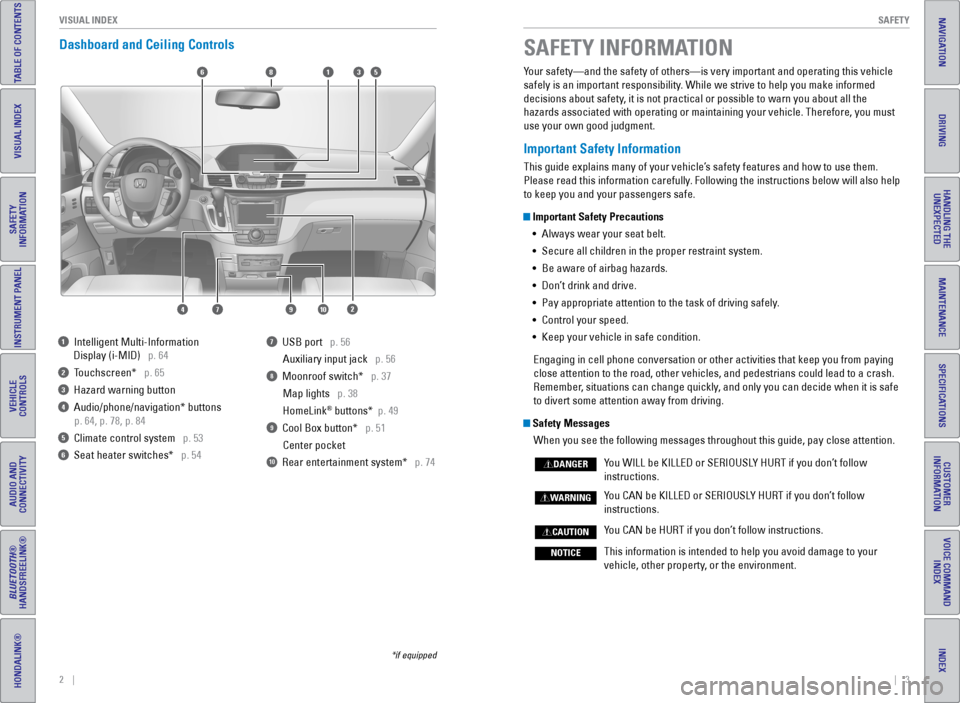
Dashboard and Ceiling Controls
*if equipped
Your safety—and the safety of others—is very important and operatin\
g this vehicle
safely is an important responsibility. While we strive to help you make informed
decisions about safety, it is not practical or possible to warn you about all the
hazards associated with operating or maintaining your vehicle. Therefore\
, you must
use your own good judgment.
Important Safety Information
This guide explains many of your vehicle’s safety features and how to use them.
Please read this information carefully. Following the instructions below will also help
to keep you and your passengers safe.
Important Safety Precautions
• Always wear your seat belt.
• Secure all children in the proper restraint system.
• Be aware of airbag hazards.
• Don’t drink and drive.
• Pay appropriate attention to the task of driving safely.
• Control your speed.
• Keep your vehicle in safe condition.
Engaging in cell phone conversation or other activities that keep you fr\
om paying
close attention to the road, other vehicles, and pedestrians could lead \
to a crash.
Remember, situations can change quickly, and only you can decide when it is safe
to divert some attention away from driving.
Safety Messages When you see the following messages throughout this guide, pay close att\
ention.
You WILL be KILLED or SERIOUSLY HURT if you don’t follow
instructions.
You CAN be KILLED or SERIOUSLY HURT if you don’t follow
instructions.
You CAN be HURT if you don’t follow instructions.
This information is intended to help you avoid damage to your
vehicle, other property, or the environment.
DANGER
WARNING
CAUTION
NOTICE
SAFETY INFORMATION
1 Intelligent Multi-Information
Display (i-MID) p. 64
2 Touchscreen* p. 65
3 Hazard warning button
4 Audio/phone/navigation* buttons
p. 64, p. 78, p. 84
5 Climate control system p. 53
6 Seat heater switches* p. 54
7 USB port p. 56
Auxiliary input jack p. 56
8 Moonroof switch* p. 37Map lights p. 38
HomeLink
® buttons* p. 49
9 Cool Box button* p. 51Center pocket
10 Rear entertainment system* p. 74
6
1097
351
2
8
4
Page 32 of 80
56 || 57
AUDIO AND CONNECTIVITY
AUDIO AND CONNECTIVITY
INDEX
VOICE COMMAND
INDEX
CUSTOMER
INFORMATION
SPECIFICATIONS
MAINTENANCE
HANDLING THE UNEXPECTED
DRIVING
NAVIGATION
TABLE OF CONTENTS
VISUAL INDEX
SAFETY
INFORMATION
INSTRUMENT PANEL
VEHICLE
CONTROLS
AUDIO AND
CONNECTIVITY
BLUETOOTH®
HANDSFREELINK®
HONDALINK®
Basic Audio Operation
Connect audio devices and operate buttons and displays for the audio sys\
tem.
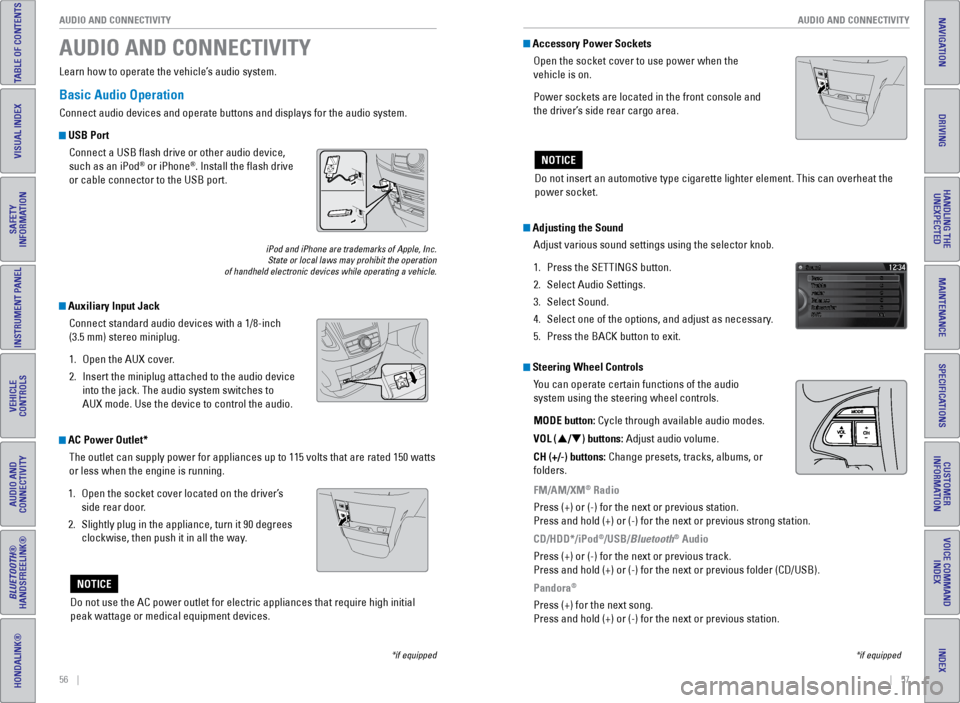
USB Port
Connect a USB flash drive or other audio device,
such as an iPod
® or iPhone®. Install the flash drive
or cable connector to the USB port.
Auxiliary Input Jack
Connect standard audio devices with a 1/8-inch
(3.5 mm) stereo miniplug.
1. Open the AUX cover.
2. Insert the miniplug attached to the audio device
into the jack. The audio system switches to
AUX mode. Use the device to control the audio.
iPod and iPhone are trademarks of Apple, Inc.
State or local laws may prohibit the operation
of handheld electronic devices while operating a vehicle.
AUDIO AND CONNECTIVITY
Learn how to operate the vehicle’s audio system.
Adjusting the Sound
Adjust various sound settings using the selector knob.
1. Press the SETTINGS button.
2. Select Audio Settings.
3. Select Sound.
4. Select one of the options, and adjust as necessary.
5. Press the BACK button to exit.
Steering Wheel Controls
You can operate certain functions of the audio
system using the steering wheel controls.
MODE button: Cycle through available audio modes.
VOL (p/q) buttons: Adjust audio volume.
CH (+/-) buttons: Change presets, tracks, albums, or
folders.
FM/AM/XM
® Radio
Press (+) or (-) for the next or previous station.
Press and hold (+) or (-) for the next or previous strong station.
CD/HDD*/iPod
®/USB/Bluetooth® Audio
Press (+) or (-) for the next or previous track.
Press and hold (+) or (-) for the next or previous folder (CD/USB)\
.
Pandora
®
Press (+) for the next song.
Press and hold (+) or (-) for the next or previous station.
*if equipped
Accessory Power Sockets Open the socket cover to use power when the
vehicle is on.
Power sockets are located in the front console and
the driver’s side rear cargo area.
Do not insert an automotive type cigarette lighter element. This can ove\
rheat the
power socket.
NOTICE
AC Power Outlet*The outlet can supply power for appliances up to 115 volts that are rate\
d 150 watts
or less when the engine is running.
1. Open the socket cover located on the driver’s
side rear door.
2. Slightly plug in the appliance, turn it 90 degrees
clockwise, then push it in all the way.
Do not use the AC power outlet for electric appliances that require high\
initial
peak wattage or medical equipment devices.
NOTICE
*if equipped
Page 33 of 80
58 || 59
AUDIO AND CONNECTIVITY
AUDIO AND CONNECTIVITY
INDEX
VOICE COMMAND
INDEX
CUSTOMER
INFORMATION
SPECIFICATIONS
MAINTENANCE
HANDLING THE UNEXPECTED
DRIVING
NAVIGATION
TABLE OF CONTENTS
VISUAL INDEX
SAFETY
INFORMATION
INSTRUMENT PANEL
VEHICLE
CONTROLS
AUDIO AND
CONNECTIVITY
BLUETOOTH®
HANDSFREELINK®
HONDALINK®
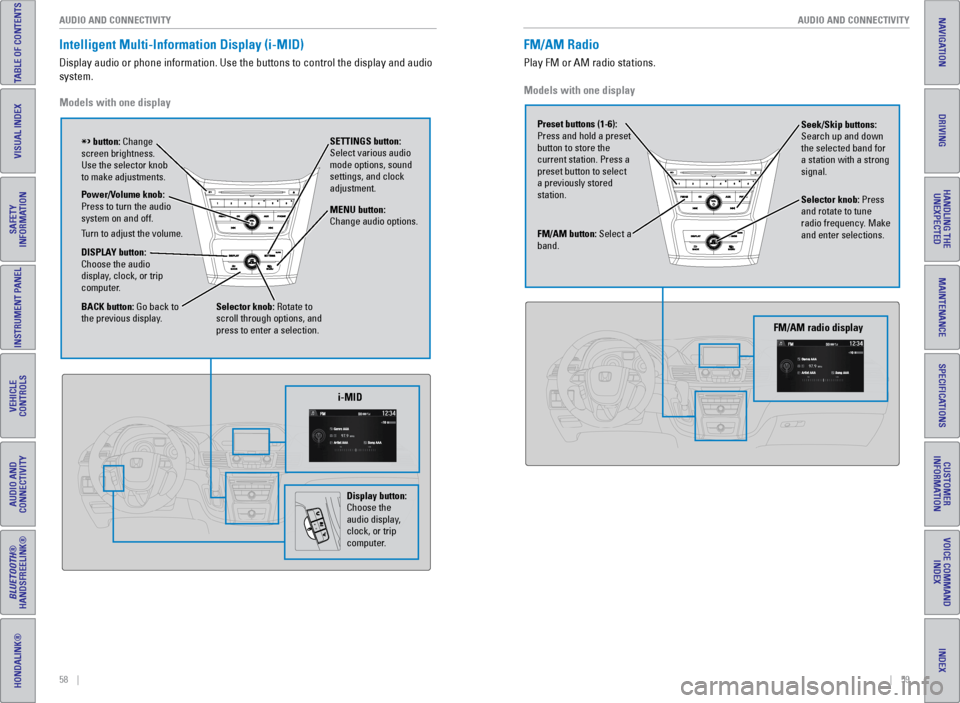
Intelligent Multi-Information Display (i-MID)
Display audio or phone information. Use the buttons to control the displ\
ay and audio
system.
Models with one display
Selector knob: Rotate to
scroll through options, and
press to enter a selection. MENU button:
Change audio options.
DISPLAY button:
Choose the audio
display, clock, or trip
computer. Power/Volume knob:
Press to turn the audio
system on and off.
Turn to adjust the volume. SETTINGS button:
Select various audio
mode options, sound
settings, and clock
adjustment.
BACK button: Go back to
the previous display.
button: Change
screen brightness.
Use the selector knob
to make adjustments.
i-MID
Display button:
Choose the
audio display,
clock, or trip
computer.
Models with one display
FM/AM Radio
Play FM or AM radio stations.
FM/AM button: Select a
band. Preset buttons (1-6):
Press and hold a preset
button to store the
current station. Press a
preset button to select
a previously stored
station. Seek/Skip buttons:
Search up and down
the selected band for
a station with a strong
signal.
Selector knob: Press
and rotate to tune
radio frequency. Make
and enter selections.
FM/AM radio display
Page 35 of 80
62 || 63
AUDIO AND CONNECTIVITY
AUDIO AND CONNECTIVITY
INDEX
VOICE COMMAND
INDEX
CUSTOMER
INFORMATION
SPECIFICATIONS
MAINTENANCE
HANDLING THE UNEXPECTED
DRIVING
NAVIGATION
TABLE OF CONTENTS
VISUAL INDEX
SAFETY
INFORMATION
INSTRUMENT PANEL
VEHICLE
CONTROLS
AUDIO AND
CONNECTIVITY
BLUETOOTH®
HANDSFREELINK®
HONDALINK®
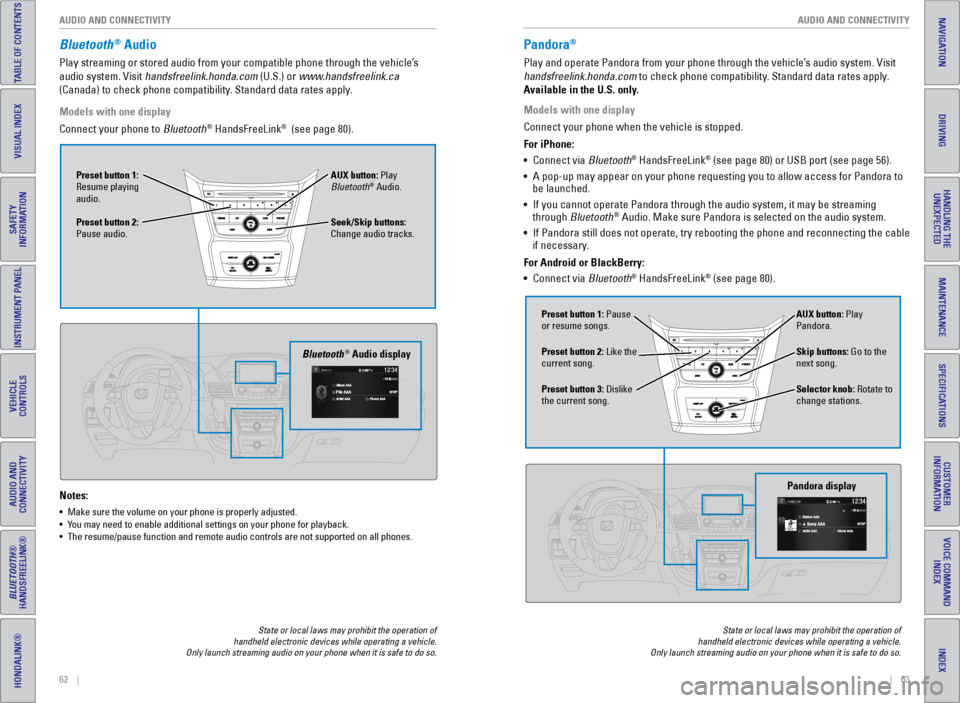
Bluetooth® Audio
Play streaming or stored audio from your compatible phone through the ve\
hicle’s
audio system. Visit handsfreelink.honda.com (U.S.) or www.handsfreelink.ca
(Canada) to check phone compatibility. Standard data rates apply.
Notes:
• Make sure the volume on your phone is properly adjusted.
• You may need to enable additional settings on your phone for playback.
• The resume/pause function and remote audio controls are not supported on\
all phones.
Models with one display
Connect your phone to Bluetooth
® HandsFreeLink® (see page 80).
Seek/Skip buttons:
Change audio tracks. AUX button: Play
Bluetooth
® Audio.
Preset button 1:
Resume playing
audio.
Preset button 2:
Pause audio.
Bluetooth® Audio display
State or local laws may prohibit the operation of
handheld electronic devices while operating a vehicle.
Only launch streaming audio on your phone when it is safe to do so.
Pandora®
Play and operate Pandora from your phone through the vehicle’s audio system. Visit
handsfreelink.honda.com to check phone compatibility. Standard data rates apply.
Available in the U.S. only.
Skip buttons: Go to the
next song.
Selector knob: Rotate to
change stations. AUX button: Play
Pandora.
Preset button 1: Pause
or resume songs.
Preset button 3: Dislike
the current song. Preset button 2: Like the
current song.
Pandora display
State or local laws may prohibit the operation of
handheld electronic devices while operating a vehicle.
Only launch streaming audio on your phone when it is safe to do so.
Models with one display
Connect your phone when the vehicle is stopped.
For iPhone:
• Connect via Bluetooth
® HandsFreeLink® (see page 80) or USB port (see page 56).
• A pop-up may appear on your phone requesting you to allow access for Pan\
dora to
be launched.
• If you cannot operate Pandora through the audio system, it may be stream\
ing
through Bluetooth
® Audio. Make sure Pandora is selected on the audio system.
• If Pandora still does not operate, try rebooting the phone and reconnect\
ing the cable
if necessary.
For Android or BlackBerry:
• Connect via Bluetooth
® HandsFreeLink® (see page 80).
Page 36 of 80
64 || 65
AUDIO AND CONNECTIVITY
AUDIO AND CONNECTIVITY
INDEX
VOICE COMMAND
INDEX
CUSTOMER
INFORMATION
SPECIFICATIONS
MAINTENANCE
HANDLING THE UNEXPECTED
DRIVING
NAVIGATION
TABLE OF CONTENTS
VISUAL INDEX
SAFETY
INFORMATION
INSTRUMENT PANEL
VEHICLE
CONTROLS
AUDIO AND
CONNECTIVITY
BLUETOOTH®
HANDSFREELINK®
HONDALINK®
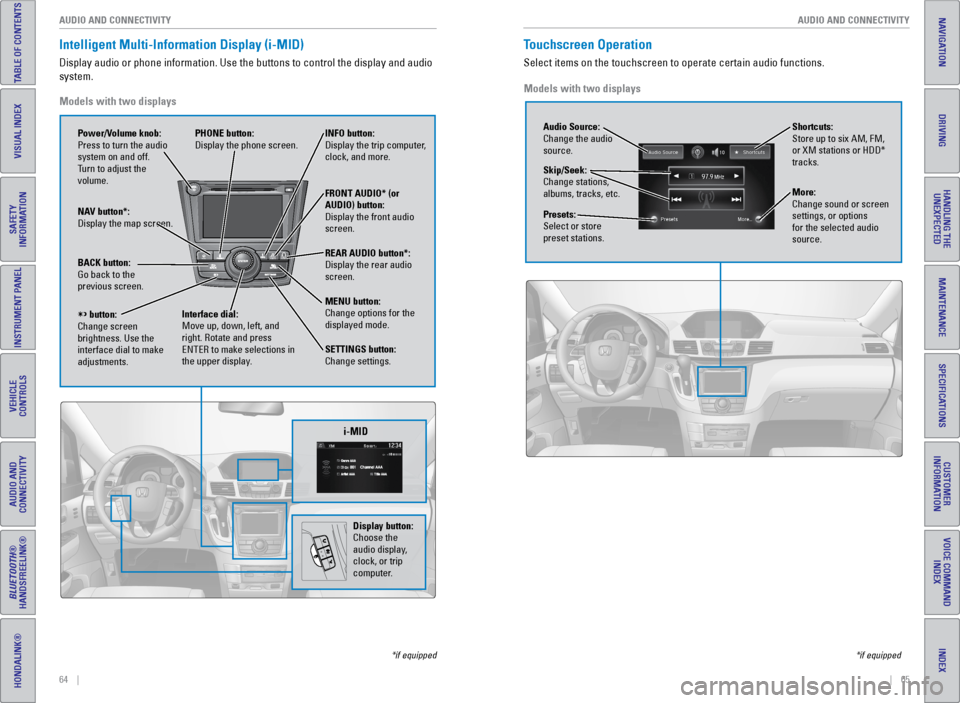
Intelligent Multi-Information Display (i-MID)
Display audio or phone information. Use the buttons to control the displ\
ay and audio
system.
*if equipped
Models with two displays
REAR
AUDIO
FRONT
AUDIO
NAV
i-MID
Power/Volume knob:
Press to turn the audio
system on and off.
Turn to adjust the
volume. INFO button:
Display the trip computer,
clock, and more.
FRONT AUDIO* (or
AUDIO) button:
Display the front audio
screen.
REAR AUDIO button*:
Display the rear audio
screen.
MENU button:
Change options for the
displayed mode.
SETTINGS button:
Change settings.
PHONE button:
Display the phone screen.
NAV button*:
Display the map screen.
BACK button:
Go back to the
previous screen.
button:
Change screen
brightness. Use the
interface dial to make
adjustments. Interface dial:
Move up, down, left, and
right. Rotate and press
ENTER to make selections in
the upper display.
Display button:
Choose the
audio display,
clock, or trip
computer.
Touchscreen Operation
Select items on the touchscreen to operate certain audio functions.
*if equipped
Models with two displays
Audio Source:
Change the audio
source.
Shortcuts:
Store up to six AM, FM,
or XM stations or HDD*
tracks.
More:
Change sound or screen
settings, or options
for the selected audio
source.
Skip/Seek:
Change stations,
albums, tracks, etc.
Presets:
Select or store
preset stations.
Page 39 of 80
70 || 71
AUDIO AND CONNECTIVITY
AUDIO AND CONNECTIVITY
INDEX
VOICE COMMAND
INDEX
CUSTOMER
INFORMATION
SPECIFICATIONS
MAINTENANCE
HANDLING THE UNEXPECTED
DRIVING
NAVIGATION
TABLE OF CONTENTS
VISUAL INDEX
SAFETY
INFORMATION
INSTRUMENT PANEL
VEHICLE
CONTROLS
AUDIO AND
CONNECTIVITY
BLUETOOTH®
HANDSFREELINK®
HONDALINK®
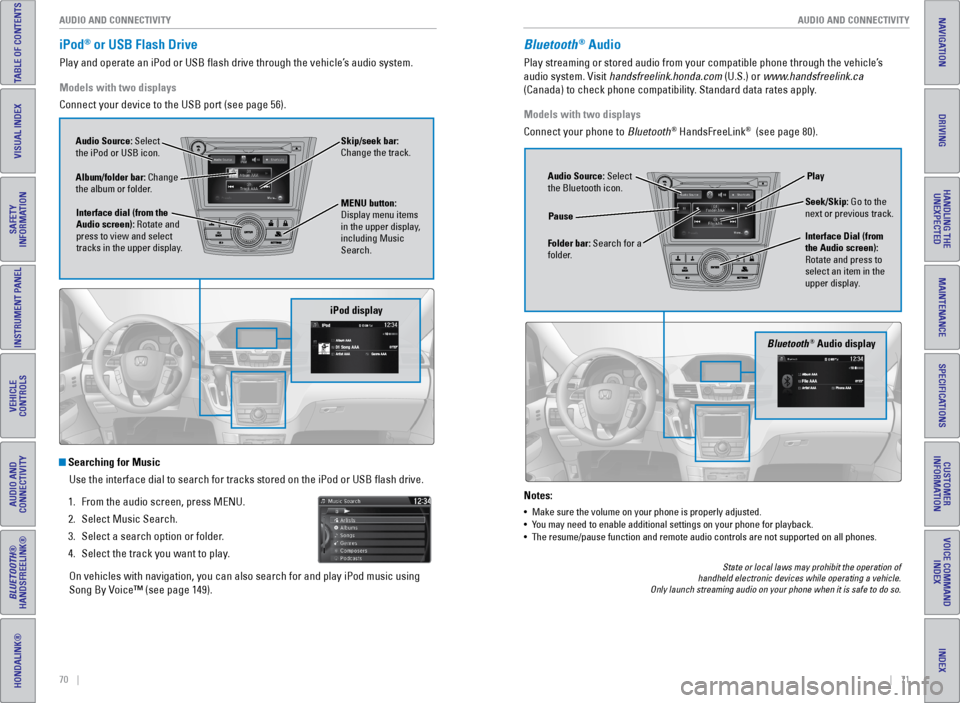
iPod® or USB Flash Drive
Play and operate an iPod or USB flash drive through the vehicle’s audio system.
Models with two displays
Connect your device to the USB port (see page 56).
Searching for Music
Use the interface dial to search for tracks stored on the iPod or USB fl\
ash drive.
1. From the audio screen, press MENU.
2. Select Music Search.
3. Select a search option or folder.
4. Select the track you want to play.
On vehicles with navigation, you can also search for and play iPod music using
Song By Voice™ (see page 149).
iPod display
Audio Source: Select
the iPod or USB icon.
Album/folder bar: Change
the album or folder. MENU button:
Display menu items
in the upper display,
including Music
Search.
Interface dial (from the
Audio screen): Rotate and
press to view and select
tracks in the upper display. Skip/seek bar:
Change the track.
Bluetooth® Audio
Play streaming or stored audio from your compatible phone through the ve\
hicle’s
audio system. Visit handsfreelink.honda.com (U.S.) or www.handsfreelink.ca
(Canada) to check phone compatibility. Standard data rates apply.
Notes:
•
Make sure the volume on your phone is properly adjusted.
• You may need to enable additional settings on your phone for playback.
• The resume/pause function and remote audio controls are not supported on\
all phones.
Models with two displays
Connect your phone to Bluetooth
® HandsFreeLink® (see page 80).
Bluetooth® Audio display
Audio Source: Select
the Bluetooth icon.
Folder bar: Search for a
folder. Pause
Interface Dial (from
the Audio screen):
Rotate and press to
select an item in the
upper display.Play
Seek/Skip: Go to the
next or previous track.
State or local laws may prohibit the operation of
handheld electronic devices while operating a vehicle.
Only launch streaming audio on your phone when it is safe to do so.
Page 40 of 80
72 || 73
AUDIO AND CONNECTIVITY
AUDIO AND CONNECTIVITY
INDEX
VOICE COMMAND
INDEX
CUSTOMER
INFORMATION
SPECIFICATIONS
MAINTENANCE
HANDLING THE UNEXPECTED
DRIVING
NAVIGATION
TABLE OF CONTENTS
VISUAL INDEX
SAFETY
INFORMATION
INSTRUMENT PANEL
VEHICLE
CONTROLS
AUDIO AND
CONNECTIVITY
BLUETOOTH®
HANDSFREELINK®
HONDALINK®
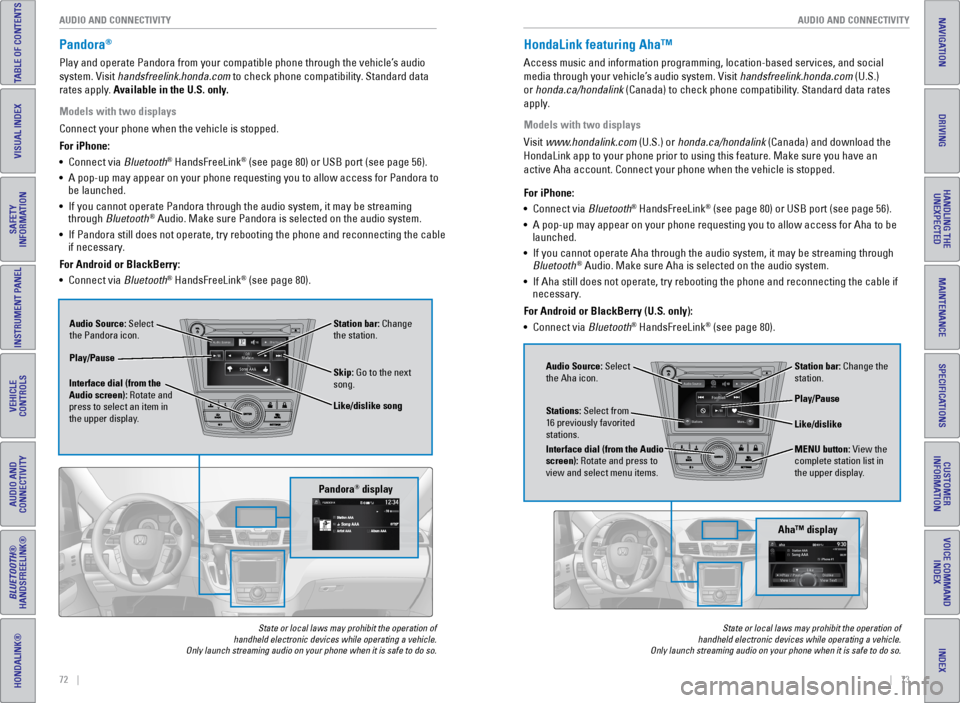
Pandora®
Play and operate Pandora from your compatible phone through the vehicle’\
s audio
system. Visit handsfreelink.honda.com to check phone compatibility. Standard data
rates apply. Available in the U.S. only.
Models with two displays
Connect your phone when the vehicle is stopped.
For iPhone:
• Connect via Bluetooth
® HandsFreeLink® (see page 80) or USB port (see page 56).
• A pop-up may appear on your phone requesting you to allow access for Pan\
dora to
be launched.
• If you cannot operate Pandora through the audio system, it may be stream\
ing
through Bluetooth
® Audio. Make sure Pandora is selected on the audio system.
• If Pandora still does not operate, try rebooting the phone and reconnect\
ing the cable
if necessary.
For Android or BlackBerry:
• Connect via Bluetooth
® HandsFreeLink® (see page 80).
Audio Source: Select
the Pandora icon. Station bar: Change
the station.
Like/dislike song
Play/Pause
Interface dial (from the
Audio screen): Rotate and
press to select an item in
the upper display. Skip: Go to the next
song.
Pandora® display
State or local laws may prohibit the operation of
handheld electronic devices while operating a vehicle.
Only launch streaming audio on your phone when it is safe to do so.
HondaLink featuring Aha™
Access music and information programming, location-based services, and social
media through your vehicle’s audio system. Visit handsfreelink.honda.com (U.S.)
or honda.ca/hondalink (Canada) to check phone compatibility. Standard data rates
apply.
Models with two displays
Visit www.hondalink.com (U.S.) or honda.ca/hondalink (Canada) and download the
HondaLink app to your phone prior to using this feature. Make sure you h\
ave an
active Aha account. Connect your phone when the vehicle is stopped.
State or local laws may prohibit the operation of
handheld electronic devices while operating a vehicle.
Only launch streaming audio on your phone when it is safe to do so.
For iPhone:
• Connect via Bluetooth® HandsFreeLink® (see page 80) or USB port (see page 56).
• A pop-up may appear on your phone requesting you to allow access for Aha\
to be
launched.
• If you cannot operate Aha through the audio system, it may be streaming \
through
Bluetooth
® Audio. Make sure Aha is selected on the audio system.
• If Aha still does not operate, try rebooting the phone and reconnecting \
the cable if
necessary.
For Android or BlackBerry (U.S. only):
• Connect via Bluetooth
® HandsFreeLink® (see page 80).
Audio Source: Select
the Aha icon. Station bar: Change the
station.
MENU button: View the
complete station list in
the upper display.
Like/dislike
Play/Pause
Interface dial (from the Audio
screen): Rotate and press to
view and select menu items. Stations: Select from
16 previously favorited
stations.
Aha™ display
Page 41 of 80
74 || 75
AUDIO AND CONNECTIVITY
AUDIO AND CONNECTIVITY
INDEX
VOICE COMMAND
INDEX
CUSTOMER
INFORMATION
SPECIFICATIONS
MAINTENANCE
HANDLING THE UNEXPECTED
DRIVING
NAVIGATION
TABLE OF CONTENTS
VISUAL INDEX
SAFETY
INFORMATION
INSTRUMENT PANEL
VEHICLE
CONTROLS
AUDIO AND
CONNECTIVITY
BLUETOOTH®
HANDSFREELINK®
HONDALINK®
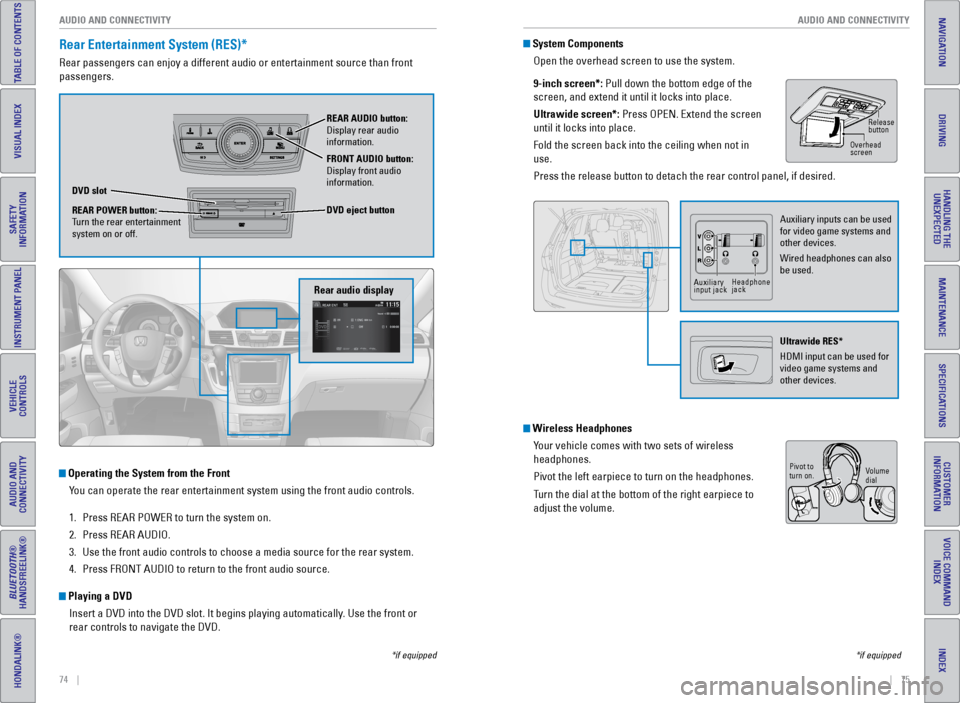
Rear Entertainment System (RES)*
Rear passengers can enjoy a different audio or entertainment source than\
front
passengers.
Operating the System from the Front
You can operate the rear entertainment system using the front audio contr\
ols.
1. Press REAR POWER to turn the system on.
2. Press REAR AUDIO.
3. Use the front audio controls to choose a media source for the rear syste\
m.
4. Press FRONT AUDIO to return to the front audio source.
Playing a DVD
Insert a DVD into the DVD slot. It begins playing automatically. Use the front or
rear controls to navigate the DVD.
Rear audio display
DVD slot
REAR POWER button:
Turn the rear entertainment
system on or off. REAR AUDIO button:
Display rear audio
information.
FRONT AUDIO button:
Display front audio
information.
DVD eject button
*if equipped
System Components
Open the overhead screen to use the system.
9-inch screen*: Pull down the bottom edge of the
screen, and extend it until it locks into place.
Ultrawide screen*: Press OPEN. Extend the screen
until it locks into place.
Fold the screen back into the ceiling when not in
use.
Press the release button to detach the rear control panel, if desired.
Wireless HeadphonesYour vehicle comes with two sets of wireless
headphones.
Pivot the left earpiece to turn on the headphones.
Turn the dial at the bottom of the right earpiece to
adjust the volume.
*if equipped
Overhead
screen Release
button
Auxiliary inputs can be used
for video game systems and
other devices.
Wired headphones can also
be used.
Ultrawide RES*
HDMI input can be used for
video game systems and
other devices.
Auxiliary
input jackHeadphone
jack
Volume
dial
Pivot to
turn on.
Page 43 of 80
78 || 79
INDEX
VOICE COMMAND
INDEX
CUSTOMER
INFORMATION
SPECIFICATIONS
MAINTENANCE
HANDLING THE UNEXPECTED
DRIVING
NAVIGATION
TABLE OF CONTENTS
VISUAL INDEX
SAFETY
INFORMATION
INSTRUMENT PANEL
VEHICLE
CONTROLS
AUDIO AND
CONNECTIVITY
BLUETOOTH®
HANDSFREELINK®
HONDALINK®
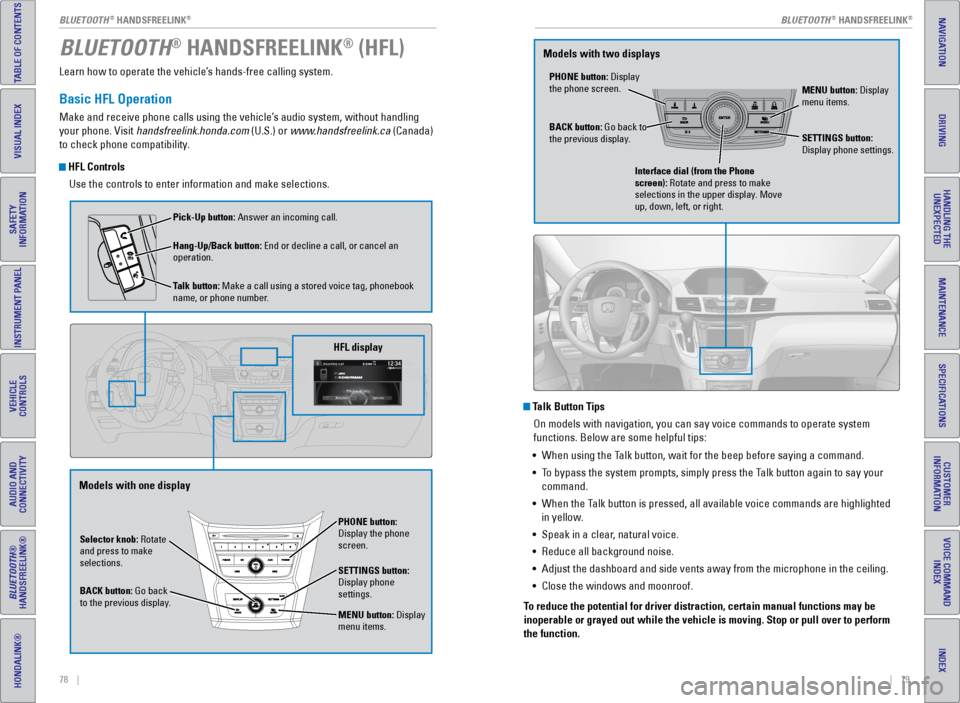
Learn how to operate the vehicle’s hands-free calling system.
Basic HFL Operation
Make and receive phone calls using the vehicle’s audio system, without handling
your phone. Visit handsfreelink.honda.com (U.S.) or www.handsfreelink.ca (Canada)
to check phone compatibility.
HFL Controls
Use the controls to enter information and make selections.
BLUETOOTH® HANDSFREELINK® (HFL)
Talk Button TipsOn models with navigation, you can say voice commands to operate system
functions. Below are some helpful tips:
• When using the Talk button, wait for the beep before saying a command.
• To bypass the system prompts, simply press the Talk button again to say your
command.
• When the Talk button is pressed, all available voice commands are highlighted
in yellow.
• Speak in a clear, natural voice.
• Reduce all background noise.
• Adjust the dashboard and side vents away from the microphone in the ceil\
ing.
• Close the windows and moonroof.
To reduce the potential for driver distraction, certain manual functions \
may be
inoperable or grayed out while the vehicle is moving. Stop or pull over \
to perform
the function.
Selector knob: Rotate
and press to make
selections.
BACK button: Go back
to the previous display. PHONE button:
Display the phone
screen.
SETTINGS button:
Display phone
settings.
MENU button: Display
menu items.
HFL display
Pick-Up button: Answer an incoming call.
Hang-Up/Back button: End or decline a call, or cancel an
operation.
Talk button: Make a call using a stored voice tag, phonebook
name, or phone number.
Models with one display
PHONE button: Display
the phone screen.
MENU button: Display
menu items.
BACK button: Go back to
the previous display. SETTINGS button:
Display phone settings.
Interface dial (from the Phone
screen): Rotate and press to make
selections in the upper display. Move
up, down, left, or right.
Models with two displays
BLUETOOTH® HANDSFREELINK®BLUETOOTH® HANDSFREELINK®